How to Optimize Apex Legends for FPS
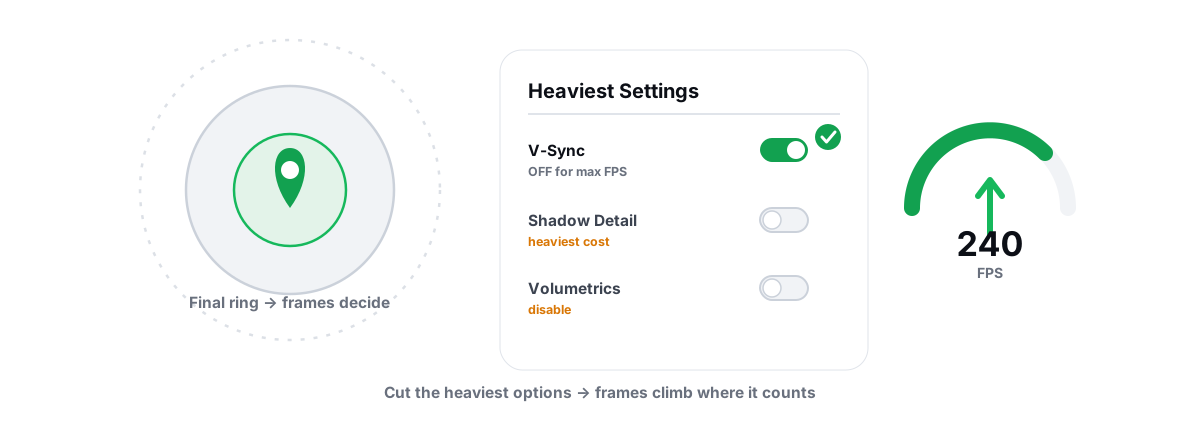
Apex Legends is one of the more CPU-hungry battle royales out there, and the worst frame drops hit exactly when you can't afford them: late circle, three squads in your face. To optimize Apex Legends for FPS you lift the cap, smooth the frametimes and tune Windows around the game without ever touching Easy Anti-Cheat. Here is the order that actually works.
Apex's default FPS cap and how to lift it
Out of the box Apex caps at 144 FPS. If your monitor and hardware can push more, you're leaving frames on the table until you raise it. The in-game menu only offers a few preset caps, so the reliable method is a launch option.
In Steam, right-click Apex, choose Properties, and add this to the launch options:
+fps_max 0removes the cap entirely (uncapped).+fps_max 190or any number sets a custom ceiling.
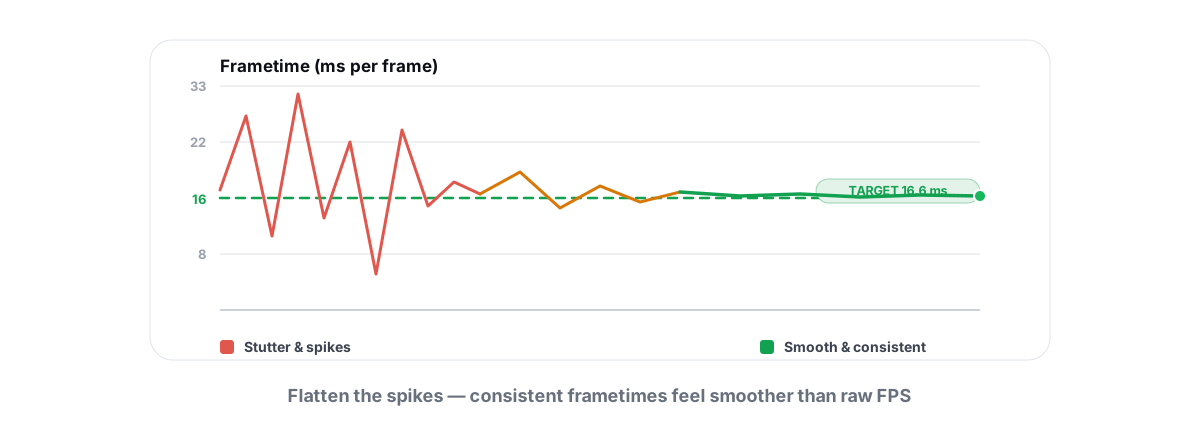
Uncapped sounds appealing, but it's usually the wrong call. A free-running framerate makes your CPU and GPU load swing wildly, which produces uneven frametimes and more coil whine. A fixed cap a few frames below your monitor's refresh rate (138 on a 144 Hz panel, 234 on a 240 Hz panel) keeps the frame pacing consistent and the game feeling smoother than a higher-but-jittery number. On a G-Sync or FreeSync display, this cap-just-under-refresh trick is what keeps you inside the variable-refresh window. See exactly how that works in VSync, G-Sync and FreeSync explained.
A stable 138 FPS feels better than a spiky 165. Cap for consistency, not for the biggest number on the overlay.
Settings that fix late-game CPU drops
Apex's signature problem is the late-circle frame drop. Early game you're GPU-bound and everything's fine. In the final rings, with players, particle effects, gas, ordnance and grenades stacking up, the load shifts hard onto your CPU and the framerate sinks. That's a CPU-bound scenario, and lowering your resolution or GPU settings barely helps it.
These are the settings that actually reduce CPU work in those fights:
| Setting | Recommended | Why it helps late game |
|---|---|---|
| Model Detail | Low / Medium | Fewer geometry calculations per visible player and prop. |
| Effects Detail | Low | Biggest CPU saver — gas, smoke, ordnance and ability effects are CPU-driven. |
| Impact Marks | Disabled | Stops bullet decals from accumulating in long fights. |
| Ragdolls | Low | Physics on downed bodies costs CPU you'd rather spend on frames. |
| Volumetric Lighting | Disabled | Expensive and adds nothing competitive. |
| Sun Shadow Coverage / Detail | Low / Disabled | Shadows are one of the heaviest costs in any engine. |
Apex runs a heavily modified Source engine, and Source has always leaned on single-thread CPU performance. That's why a high-clock CPU often matters more here than a few extra GPU cores. Shadows and effects are the two heavy hitters — kill those first, then dial the rest by feel. The honest order to change graphics settings (heaviest first, cosmetic last) is the same across titles and worth internalizing: best game settings for FPS vs quality.
Fixing traversal and area stutter
Two different stutters get blamed on "low FPS" when they're really frametime spikes:
Traversal stutter happens when you ride a zipline, drop into a new zone or load a fresh area — the game hitches as it streams assets off disk. The fix is mostly storage and memory: install Apex on an SSD, not a mechanical hard drive. The random-read difference is dramatic for asset streaming, and it's one of the clearest reasons to prefer an SSD for gaming. If your SSD is nearly full, free some space — flash slows down badly past roughly 90% full. Finding the large files eating your drive beats guessing.
Shader and compilation stutter shows up the first time you see a new effect, weapon or location in a session, then smooths out. It's the GPU driver compiling shaders on the fly. Running a current driver and not wiping your shader cache mid-session both help; the full mechanism is in fix shader stutter and compilation hitches.
If the spikes are regular and rhythmic rather than tied to traversal, that's a frametime problem with a different root cause — background processes, a thermal throttle or a power-plan issue. Work through it methodically in how to fix stutter and frametime spikes instead of randomly toggling settings.
Easy Anti-Cheat-safe Windows levers
Apex runs Easy Anti-Cheat. The same caution that applies to Vanguard and BattlEye applies here: do not run anything that injects into the game, hooks DirectX or loads a kernel driver to "boost" frames. Those are exactly the behaviors anti-cheat is built to flag. At best you get kicked, at worst banned.
The good news is that the real wins are all outside the game process. EAC has no quarrel with Windows settings you'd change through normal Control Panel and Settings menus:
- Close background load. Browser tabs, the Discord overlay, RGB software and launcher web-helpers eat CPU cycles Apex wants. Trim what auto-starts via the built-in Task Manager Startup tab, or use a startup manager.
- Set a real power plan. A balanced plan can let your CPU drop clocks mid-fight. Use High Performance or Ultimate Performance so the CPU stays responsive — more on the trade-offs in Windows power plans explained.
- Game Mode on. Windows Game Mode genuinely reduces background scheduling interference. Leave it on.
None of that touches the Apex executable, so EAC never sees it. For the full reasoning on what's safe and what isn't, read the anti-cheat-safe optimization guide — the principles are identical to a Vanguard-protected title like Valorant.
Driver, HAGS and power-plan checks
A handful of system-level toggles move Apex's framerate and frametime consistency more than most in-game sliders.
GPU drivers
Run a reasonably current driver — both NVIDIA and AMD ship game-ready updates that occasionally include Apex performance fixes. You don't need to chase every release; update when you're a few versions behind or after a major game patch. If you're jumping a big version gap or chasing weird artifacts, a clean driver install with DDU clears out stale state. Here's the honest take on whether you should update drivers at all.
Hardware-Accelerated GPU Scheduling
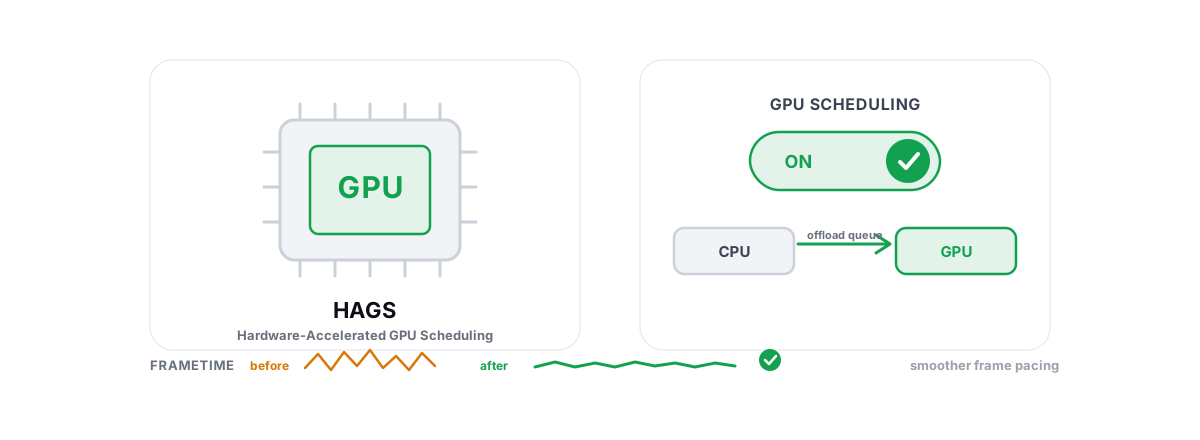
HAGS (Settings → System → Display → Graphics → Default graphics settings) can slightly reduce CPU overhead and latency on supported GPUs. Results vary by hardware — it helps some setups and does nothing on others. Test it both ways in Apex and keep whichever feels better. Full explanation in enabling HAGS on Windows.
NVIDIA / AMD control panel
In the NVIDIA Control Panel, set a per-game profile for Apex: Low Latency Mode On (or Ultra if you're GPU-bound), Power Management to Prefer Maximum Performance. The recommended NVIDIA Control Panel settings and the AMD Adrenalin equivalents are written up separately so you can copy them straight across.
GPU versus CPU bottleneck in Apex
Before you spend an hour tuning the wrong thing, find out what's actually limiting you. Run an FPS overlay that shows CPU and GPU utilization and watch them during a real fight.
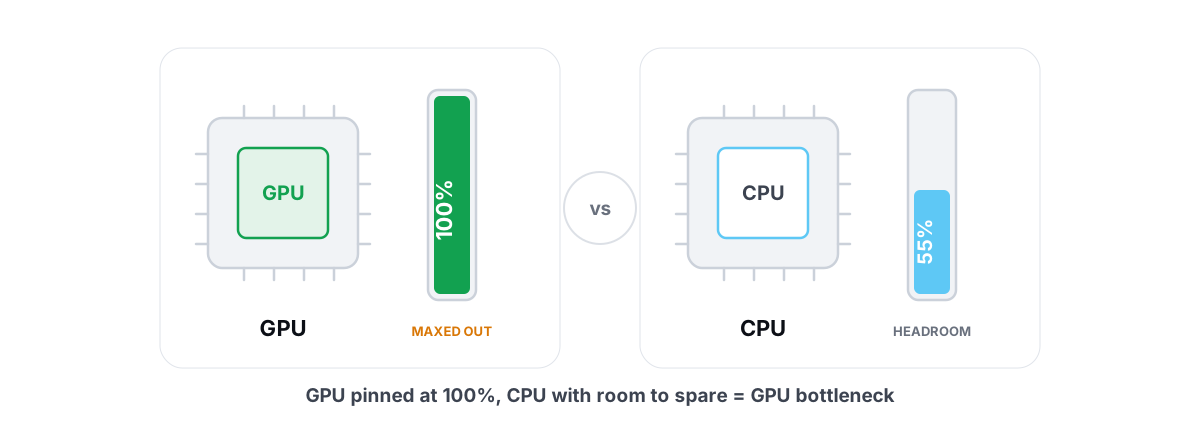
- GPU at 95–99% in a fight: you're GPU-bound. Lower resolution, render scale, or the heavy GPU settings (shadows, textures, anti-aliasing) to gain frames.
- GPU well under 95% with low FPS: you're CPU-bound (the classic Apex late-game state). Lowering GPU settings won't help — cut Effects, Model Detail and shadows, close background apps, and check your CPU isn't thermal throttling.
This is the single most useful diagnostic in PC gaming and it's worth understanding properly: GPU vs CPU bottleneck in gaming. If your GPU usage is mysteriously low even when you want more frames, the causes are catalogued in low GPU usage in games. And while you're watching numbers, keep an eye on temperatures — a CPU or GPU that throttles when it gets hot will tank your late-game frames no matter what settings you run.
Tuning Apex without injecting into the game
Every lever above lives in Windows, the driver or the game's own menu — nothing that touches the Apex process. That's the whole point with EAC watching. If you'd rather run those levers and see your frametimes from one place, BRUTAL Optimizer is a user-mode wrapper over tools Windows already ships (powercfg, the registry, Windows Update, netsh). It has no kernel driver, no DirectX hook and no process injection, so it runs alongside Easy Anti-Cheat without touching the game. Its FPS overlay counts DWM composition / D3DKMT present frames externally, so it doesn't hook Apex either — that's why it's a safe FPS overlay over an anti-cheat title.
For Apex specifically, the genuinely useful parts are free: the overlay with 1% lows and frametime graphs so you can watch the late-game drops as they happen; the live CPU/GPU/RAM monitor for the bottleneck check above; the Startup Manager to cut background load; a real power-plan switch; and a network lab (traceroute, bufferbloat grade, ping/jitter) if your problem is connection rather than frames. Every registry or system change is reversible per-module, and it attempts a System Restore point before big changes, so you can roll anything back. It needs Administrator because those Windows tools require it; here's why that's normal, not a red flag.
What it deliberately won't do: show a fake "FPS booster" meter, clean your registry for speed, or claim freed RAM as a performance gain. Those are placebo, and most game-booster apps sell exactly that.
Testing in a repeatable firing-range scene
You can't tell whether a change helped if you only "feel" it. The fix is a repeatable test, and the firing range is perfect because it's identical every time — no RNG, no other players.
- Load into the firing range with your FPS overlay running (showing average, 1% lows and frametime).
- Stand in the same spot facing the same direction every run — pick a landmark.
- Record average FPS and especially the 1% low over about 30 seconds. The 1% low is what you feel as smoothness; chasing only the average hides stutter.
- Change one thing, then re-run from the same spot. One variable at a time, or you'll never know which tweak did what.
The range is steadier than a match, but it's also lighter than a late-circle fight, so don't expect the range number to predict your worst-case drop. Use it to compare settings against each other, not to estimate live-game lows. When a change improves your 1% low without hurting the average, keep it. When it only moves the average, it's probably not worth the visual cost.
Optimize for the 1% low, test from a fixed spot, and change one variable at a time. That discipline beats any settings list someone hands you.
Most of the real gains in Apex are CPU-side and Windows-side: a sensible FPS cap, low Effects and shadows, an SSD, a current driver, a proper power plan, and less background junk. Expect a few to several FPS and noticeably smoother frametimes — not a miracle multiplier. None of it requires anything that touches the game, which is exactly how it should be with Easy Anti-Cheat watching. If you want the overlay, the monitor and the startup/power tools in one place, the free tier of BRUTAL Optimizer covers them without ever injecting into Apex — and reverses anything it changes.
Frequently asked questions
How do I uncap the FPS in Apex Legends?
Apex caps at 144 by default. Add +fps_max 0 to the Steam launch options to uncap it, or set a custom number like +fps_max 190. A fixed cap a few frames below your monitor refresh rate usually feels smoother than running uncapped, because it keeps frametimes consistent.
Why does my Apex FPS drop in the final circles?
Late-game fights shift the load from your GPU to your CPU as players, gas, ordnance and ability effects stack up. Apex runs a modified Source engine that leans on single-thread CPU performance. Lower Effects Detail, Model Detail and shadows to reduce CPU work, since dropping resolution barely helps a CPU bottleneck.
Is it safe to use an FPS optimizer with Easy Anti-Cheat in Apex?
It depends entirely on how the tool works. Anything that injects a DLL, hooks DirectX or loads a kernel driver to boost frames can get you kicked or banned. User-mode tools that only change Windows settings like power plans, startup items and drivers never touch the Apex process, so EAC has no quarrel with them.
Does an SSD improve Apex Legends performance?
It mostly fixes traversal stutter, the hitching you get on ziplines, drops and zone loads as Apex streams assets off disk. An SSD has far better random-read performance than a mechanical hard drive, so those hitches shrink. It will not raise your steady-state framerate in a fight, which is CPU and GPU limited.
Should I turn on HAGS for Apex Legends?
Hardware-Accelerated GPU Scheduling can slightly cut CPU overhead and latency on supported GPUs, but results vary by hardware. It helps some setups and does nothing on others. Test Apex with it on and off using a fixed firing-range spot and keep whichever gives better 1 percent lows.
Keep reading
 Hardware & Drivers
GPU vs. CPU Bottleneck: How to Tell in Gaming
Read GPU and CPU utilization to find which part is capping your frames — then tweak or upgrade the right one instead of guessing.
 Gaming & FPS
How to Fix Stuttering in Games (Frametime Spikes)
Stutter is a frametime problem, not an average-FPS one — isolate the real causes and confirm each fix with 1% lows.
 Gaming & FPS
Hardware-Accelerated GPU Scheduling: On or Off?
Whether to enable HAGS depends on your GPU and features. Here is how to test it yourself with frametimes instead of trusting a forum.
Stop guessing. Measure it.
BRUTAL Optimizer is the honest way to speed up Windows — 17 free modules, a real FPS overlay, verified disk cleanup and drive health. No kernel driver of our own, no game hooks, every setting change reversible.