Windows Power Plans: Which One Is Best for Gaming?
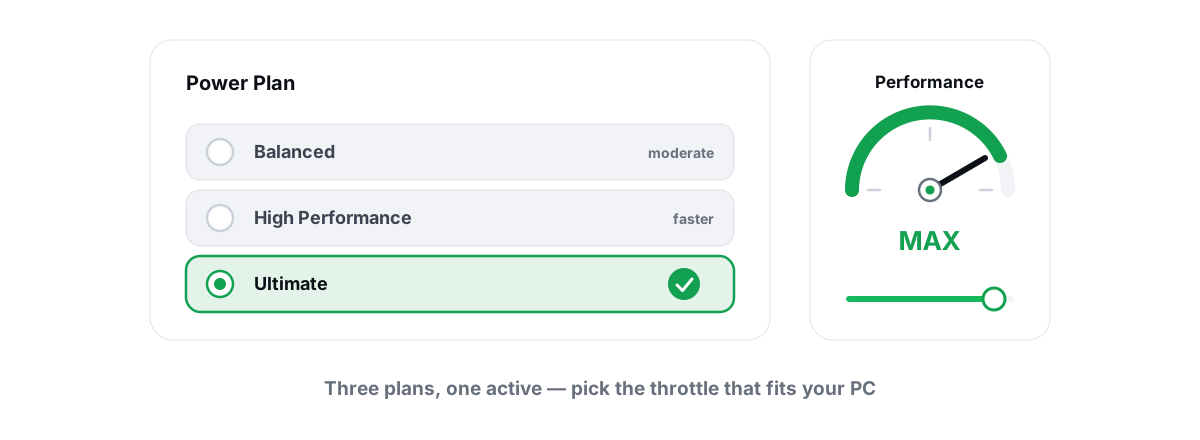
Short version on picking a Windows power plan for gaming: on a plugged-in desktop, switch to High performance (or Ultimate Performance if you want the marginally more aggressive variant), expect a few FPS and slightly smoother frametimes, and keep it reversible. The bigger the claim you've read about power plans, the more wrong it probably is.
A power plan is one of the most over-promised tweaks in PC gaming. People swear it added 20 or 30 FPS; benchmarks rarely back that up. The truth is narrower and more useful: the plan changes how fast your CPU reacts, not how much work it can do. That distinction is the whole article.
This is a straight comparison of Balanced, High performance, and Ultimate Performance — what each one actually changes, why the FPS difference is small but real, and how to apply or revert any of them with two powercfg commands. No magic numbers.
What a power plan actually controls
A Windows power plan is a named bundle of policies that govern how the OS manages your CPU's clock speed, idle states, and core scheduling. It does not overclock anything. It does not add cores or cache. It tells Windows how eagerly to wake the CPU up and how high to let it run when there's work to do.
The settings that matter for gaming are the processor power management ones:
- Minimum and maximum processor state — the floor and ceiling for clock speed as a percentage. A 5% floor lets the CPU idle very low; a 100% floor pins it near max.
- Processor performance increase/decrease policy — how aggressively Windows ramps the clock up when load arrives, and how quickly it drops it back down.
- Core parking — whether Windows is allowed to put idle cores into a deep low-power state and route work to fewer cores.
- Idle disable / processor idle states — whether deep C-states (idle power-saving modes) are permitted at all.
Every plan is just a different set of values for these. "Balanced" leans toward saving power when nothing's happening. "High performance" and "Ultimate" lean toward keeping the CPU awake and ready. That's the entire spectrum.
A power plan changes responsiveness and latency, not raw throughput. It can shave the delay before your CPU reacts to a load spike. It cannot make your CPU faster than its hardware allows.
Balanced vs High performance vs Ultimate, side by side
Here's what the three plans actually do differently, in the settings that affect a game.
| Setting | Balanced | High performance | Ultimate Performance |
|---|---|---|---|
| Minimum processor state | ~5% (idles low) | 100% (pinned high) | 100% (pinned high) |
| Clock ramp-up policy | Conservative | Aggressive | Aggressive |
| Core parking | Enabled | Mostly disabled | Disabled |
| Deep idle (C-states) | Allowed | Allowed, less used | Trimmed further |
| Idle power saving | Favored | Reduced | Minimized |
| Power draw / heat at idle | Lowest | Higher | Highest |
The honest takeaway from that table: the big jump is Balanced to High performance. High performance to Ultimate is a small step that mostly trims a few more idle-saving behaviors. Microsoft built Ultimate for high-end workstations doing sustained, latency-sensitive work — not as a secret gaming mode.
Ultimate isn't even visible by default on most installs. It ships hidden, which is a fair hint about how much Microsoft expects the average user to need it. You can unhide it with one command (covered below), but go in expecting a refinement, not a transformation.
Clock-ramp latency and core parking, in plain English
Two mechanisms explain most of the real difference between plans. Both are about timing, not horsepower.
Clock-ramp latency
Your CPU doesn't run at full speed constantly. At idle it drops to a low clock to save power and heat. When a game throws work at it, the CPU has to ramp from that low clock up to its boost frequency. That ramp takes time — on the order of single-digit to low-tens of milliseconds depending on the chip and policy.
On Balanced, the ramp is deliberately gentle to save power. On High performance, the floor is higher and the ramp is more aggressive, so the CPU is already closer to speed when the frame needs it. In a fast game, fewer late ramps means fewer micro-stutters where a frame arrived a hair late because a core was still spinning up. That's the real, felt benefit — and it shows up in 1% lows and frametime consistency far more than in average FPS.
Core parking
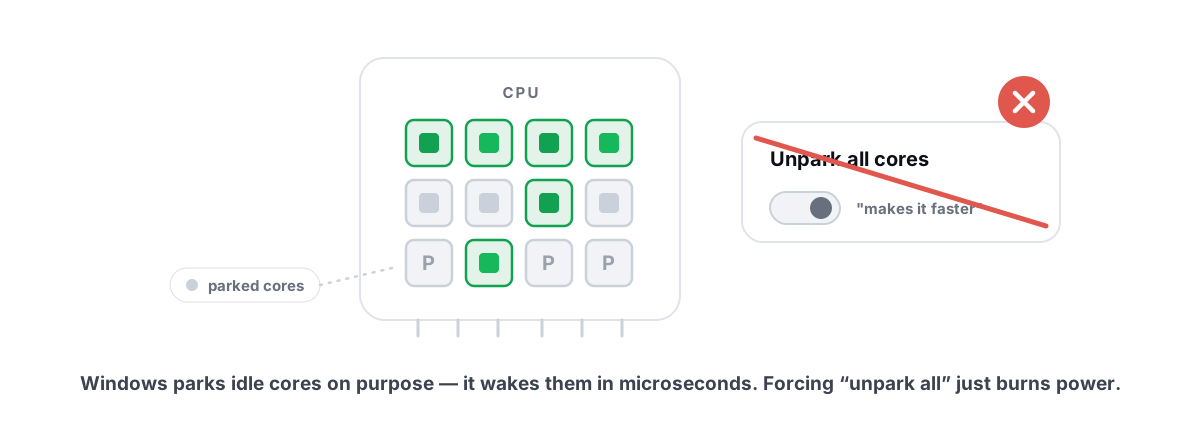
Core parking lets Windows put idle cores to sleep and consolidate work onto fewer active cores to save power. When a sudden multi-threaded load hits, a parked core has to be woken and brought up to speed before it can help — a few milliseconds of delay.
High performance and Ultimate keep more cores unparked and ready. For a game that spikes across many threads, that can mean fewer hitches at the exact moment load jumps. This is also where a popular myth lives: that manually "unparking all cores" with a third-party tool unlocks hidden FPS. It usually doesn't — the power plans already manage this sensibly, and modern Windows parks far less aggressively than the old guides assume. We break the claim down in core parking and CPU unparking: myth vs reality.
Does a Windows power plan for gaming boost FPS? The honest answer
Yes, but small — and only sometimes. Here's the honest breakdown so you set expectations right.
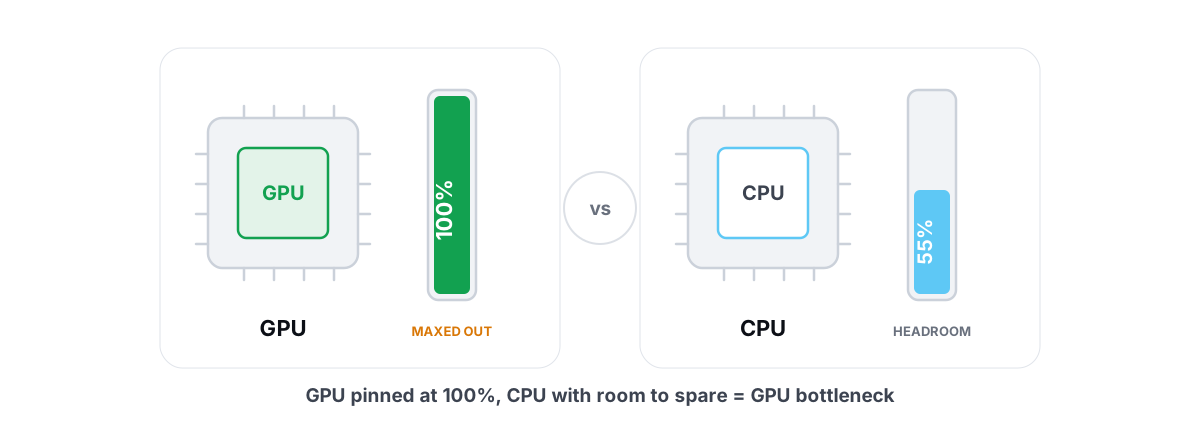
If you are GPU-bound — your graphics card is the limit, which is the common case at 1440p/4K or with high settings — the power plan does almost nothing for average FPS. Your CPU was already finishing frames in time; making it react faster doesn't help when the GPU is the bottleneck. Not sure which one is limiting you? Check first with how to tell a GPU vs CPU bottleneck.
If you are CPU-bound — competitive shooters at low settings, high refresh rates, simulation-heavy or older single-thread-limited games — High performance can genuinely help. You'll typically see a few FPS on the average and, more importantly, steadier frametimes because the CPU stops arriving late to frames. "A few to several FPS and fewer stutters" is the honest ceiling, not a doubling.
The difference between High performance and Ultimate, on either kind of system, is usually within measurement noise. If you can't see it in a frametime graph, it isn't there.
And the loudest myth: those "Ultimate Gaming Power Plan" .pow files you download from forums are almost always just High performance with a custom name and a couple of edited fields. You don't need a stranger's file — the built-in plans cover the real ground, and a downloaded one can quietly disable your CPU's idle states and run your chip hot for zero benefit. If you want the wider context on tweaks that under-deliver, do PC optimizers actually work covers which levers move the needle and which don't.
Desktop vs laptop: why battery changes everything
This is the part most guides skip, and it's the one that actually matters for laptop owners.
On a desktop, the only cost of High performance is a little extra idle power draw and heat. You're plugged into the wall, so that cost is irrelevant. Set it and forget it.
On a laptop, a high-performance plan pins the CPU clock floor up and disables the idle savings that make a battery last. On battery, that's a bad trade: you burn real runtime for a latency improvement you mostly won't notice on the move. Worse, modern laptops manage performance through the Windows power mode slider (Best power efficiency / Balanced / Best performance) and the OEM's own power management, which often override or ignore the classic plan anyway.
On Windows 11, many laptops don't even expose the legacy plan list the same way — the power mode slider in Settings is the real control. So on a laptop, plug in for serious gaming and use Best performance; on battery, leave it Balanced and accept that a power plan won't save a thermally and watt-limited chip.
One more wrinkle: modern AMD Ryzen and Intel hybrid (P-core/E-core) CPUs ship with their own fast, fine-grained clock management. On those chips the gap between Balanced and High performance is smaller than it was a few CPU generations ago, because the silicon already keeps clocks responsive. Measure on your machine before you assume.
How to unhide and apply Ultimate Performance (powercfg)
Two ways. The GUI is fine for the built-in plans; powercfg is how you get Ultimate, since it's hidden by default. Before you change anything, write down your current plan so you can switch back exactly.
The GUI route (Balanced / High performance)
Open Control Panel > Hardware and Sound > Power Options (or run control powercfg.cpl). Pick High performance. If you only see Balanced, click "Show additional plans." On many Windows 11 laptops you won't see this classic list at all — use Settings > System > Power > Power mode and choose Best performance instead.
The powercfg route (Ultimate Performance)
Open an elevated terminal (right-click Start > Terminal (Admin) or Command Prompt as administrator). First, capture which plan is active right now so you can restore it later:
powercfg /getactivescheme
Note the GUID it prints. Then unhide Ultimate Performance — this clones the hidden template into your plan list:
powercfg -duplicatescheme e9a42b02-d5df-448d-aa00-03f14749eb61
That command prints a new GUID for your copy of the plan. Activate it by GUID:
powercfg /setactive e9a42b02-d5df-448d-aa00-03f14749eb61
(Use the GUID the duplicate command returned if it gave you a different one.) Ultimate Performance will now appear under Power Options too, so you can switch plans from the GUI from here on.
That GUID is the same one Windows uses everywhere, which is why tools that automate this — including BRUTAL Optimizer's power-plan module — capture your active plan's GUID first and apply Ultimate the same documented way, so the change is one reversible step rather than a guess. It's the exact powercfg work you'd do by hand, just with the before-state saved for you.
Per-app and processor-state tweaks worth knowing
Once you've picked a plan, a couple of finer controls are worth understanding — and a couple are worth ignoring.
Processor minimum state. You can edit "Minimum processor state" under a plan's advanced settings (Power Options > Change plan settings > Change advanced power settings > Processor power management). Raising it to 100% on Balanced gives you most of High performance's clock-floor behavior without switching plans. It's the single most impactful field in there.
Maximum processor state. Leave this at 100% for gaming. Capping it below 100% is a way to limit heat and noise on purpose — useful for a quiet HTPC, counterproductive for frames.
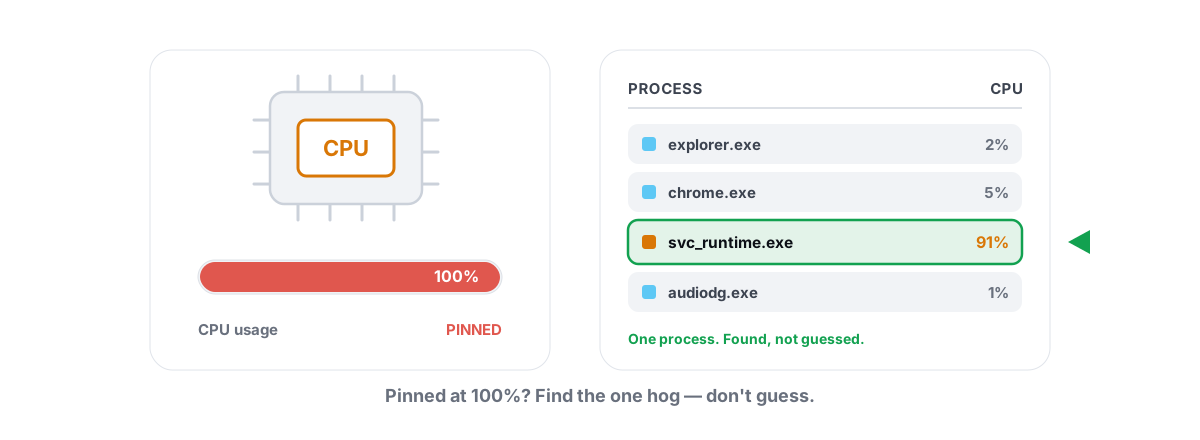
Per-app priority. A power plan is global; it doesn't favor your game over a background app. If a background process is stealing CPU at the wrong moment, that's a scheduling problem, not a power-plan one. Closing it or setting a per-app priority rule does more than any plan switch. If your CPU sits pinned for no clear reason, work through fixing 100% CPU usage without guesswork first — a runaway process undoes everything a power plan buys you.
Reverting cleanly to the default plan
Every change here is reversible, and you should treat it that way. If a plan didn't help on your hardware — entirely possible on a GPU-bound rig or a modern Ryzen — switch back. There's no prize for keeping a tweak that did nothing.
To return to the stock plan, set Balanced active by its well-known GUID in an elevated terminal:
powercfg /setactive 381b4222-f694-41f0-9685-ff5bb260df2e
That's the standard Balanced GUID on every Windows install. If you'd saved your original plan's GUID from powercfg /getactivescheme earlier, use that instead to land on the exact plan you started with. To remove the Ultimate copy you cloned, delete it by its GUID with powercfg /delete <guid> (you can't delete the plan that's currently active, so switch away first).
Power plans are surface settings — there's no registry surgery or boot flag involved, so you don't strictly need a restore point just to swap plans. But if you're stacking this with deeper changes (boot flags, services, batch registry edits), take a System Restore point first as cheap insurance before the bigger stuff.
The right power plan is a small, honest win: a few FPS and steadier frametimes on a CPU-bound desktop, near-nothing on a GPU-bound one, and a battery-killer on a laptop. Worth doing on a desktop, not worth believing the hype.
If you'd rather not memorize GUIDs, this is the kind of reversible tweak a tool can apply and undo with one click. BRUTAL Optimizer sets the power plan the same way you would — through powercfg, capturing your current plan's GUID first so the change is a button, not a gamble — alongside a free FPS overlay with 1% lows and frametimes so you can actually measure whether the plan helped on your machine. It's a user-mode wrapper over the tools Windows already ships, with no kernel driver, so it runs alongside Vanguard and Easy Anti-Cheat. Useful if you want the safe levers one click away — and the manual steps above work just as well if you'd rather do it yourself.
Frequently asked questions
Which Windows power plan is best for gaming?
On a plugged-in desktop, High performance is the right default. It raises the CPU clock floor and keeps cores unparked, which trims ramp latency and cuts the occasional late-frame stutter. Ultimate Performance is a marginally more aggressive variant with a difference you usually cannot measure. On a laptop on battery, stay on Balanced and plug in for serious gaming.
Does the Ultimate Performance power plan boost FPS?
Barely, and only sometimes. It is a slightly more aggressive version of High performance that trims a few idle-saving behaviors. It improves clock-ramp latency and core parking, not raw rendering throughput. The gap between High performance and Ultimate is usually within measurement noise.
What is the difference between High performance and Balanced?
Balanced lets the CPU idle low and ramps its clock gently to save power, which adds a few milliseconds before the chip reacts to a load spike. High performance pins the clock floor high and keeps cores unparked so the CPU is already near speed when a frame needs it. The result is fewer late frames and steadier frametimes when you are CPU-bound.
How do I enable the Ultimate Performance power plan?
Open an elevated terminal and run powercfg -duplicatescheme e9a42b02-d5df-448d-aa00-03f14749eb61 to unhide it, then powercfg /setactive with that GUID to switch to it. It is hidden by default because Microsoft built it for workstations, not as a secret gaming mode. Capture your current plan with powercfg /getactivescheme first so you can switch back.
Will a power plan increase FPS if my GPU is the bottleneck?
No. If your graphics card is the limit, the CPU was already finishing frames in time, so making it react faster changes almost nothing on the average. Power plans help most when you are CPU-bound: competitive shooters at low settings, high refresh rates, or older single-thread-limited games.
Keep reading
 Myths & Honest Truths
Core Parking and CPU Unparking: Myth vs Reality
What core parking really does, why unparking rarely moves FPS on modern Windows, and the few narrow cases where it matters.
 Hardware & Drivers
GPU vs. CPU Bottleneck: How to Tell in Gaming
Read GPU and CPU utilization to find which part is capping your frames — then tweak or upgrade the right one instead of guessing.
 Windows Performance
Fix 100% CPU Usage in Windows Without Guesswork
A methodical trace from Task Manager to the exact culprit pinning your CPU - then the fix that actually matches it.
Stop guessing. Measure it.
BRUTAL Optimizer is the honest way to speed up Windows — 17 free modules, a real FPS overlay, verified disk cleanup and drive health. No kernel driver of our own, no game hooks, every setting change reversible.