Do PC Optimizers Actually Work? An Honest Look
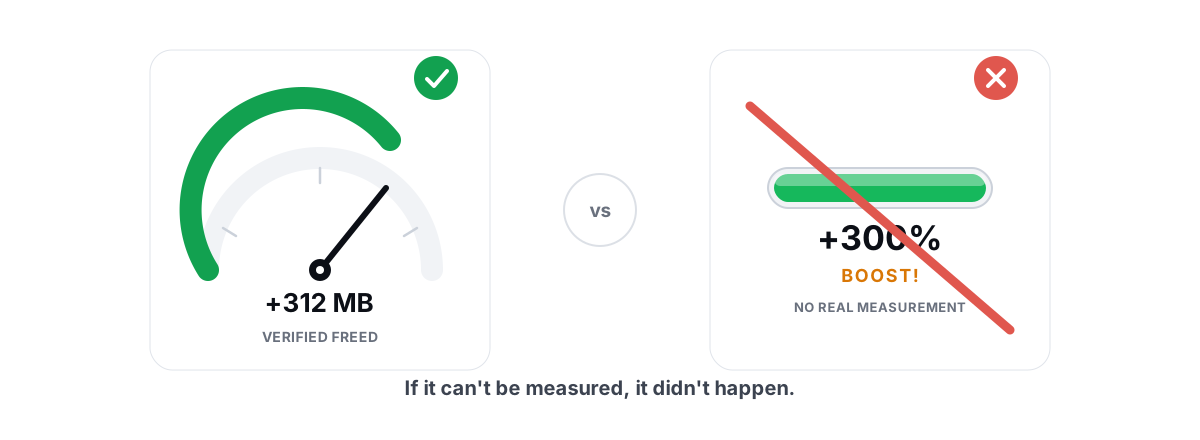
Do PC optimizers work? Some do real, measurable work. Most sell you a number that means nothing. The trick is knowing which is which before you hand a tool your administrator password.
You've seen the ads: one click, "300% faster," a meter that fills up green. That's marketing, not engineering. Real gains from a tune-up are smaller, more specific, and far less dramatic than the screenshots promise.
Here's the honest version from someone who has measured it: what optimizers can genuinely do, what they pretend to do, and how to spot the difference in about two minutes.
Do PC Optimizers Work? Some Help, Most Don't
A PC optimizer is just a wrapper around things Windows can already do. It changes registry values, toggles power settings, runs defrag.exe or fsutil, deletes files in known junk folders, and pokes the Windows Update API. None of that is magic. The value is in doing the right ones, safely, and skipping the rest.
The problem is that the right ones produce modest results that don't sell. So most tools pad the list with placebo features that look impressive — a RAM gauge that empties, a "registry errors found: 4,182" scare screen, an FPS slider — because a dramatic number converts buyers better than the truth.
A good optimizer makes a few honest, reversible changes and tells you exactly what each one did. A bad one shows you a big number, changes things it won't explain, and offers no way back.
The gains that are real usually land in this range: a few hundred MB to several GB of genuine disk space, a few to several extra FPS in a CPU-bound game, smoother frametimes with fewer stutters, slightly lower input latency you can sometimes feel in fast shooters, and lower ping if your network had a real, fixable problem. That's it. Anyone promising more is guessing or lying.
Real Gains: Disk Space, Startup, Drivers, Latency
These are the categories where a tool — or ten minutes of your own time — produces something you can actually verify.
Reclaiming real disk space
Temp folders, browser caches, crash dumps, Windows Error Reporting queues, and the Recycle Bin accumulate genuine, deletable bytes. Clearing them frees real space, and on a system drive that was near full, that alone can stop the whole machine from crawling.
The catch is honesty about the number. A trustworthy cleaner re-measures free space before and after and reports the verified bytes it actually reclaimed. A dishonest one inflates the figure by counting a flushed DNS cache or freed RAM as "disk space." If you want the deeper method, see how to free up disk space in Windows safely and what those "up to 10 GB" claims actually hide.
Trimming startup programs
Every launcher updater, chat client, and "helper" that adds itself to startup steals boot time and then sits in RAM doing background work forever. Disabling the ones you don't need at login is one of the most reliable real wins — faster boot, less idle disk I/O. It won't raise your FPS, but it makes the machine feel awake sooner. The full, safe method is in how to manage startup programs in Windows.
Keeping GPU drivers current
A current graphics driver is one of the few changes that can actually add frames, especially right after a new game launches with day-one optimizations. A scanner that flags an outdated GPU driver and points you at the vendor's own installer is doing useful work. Just don't let any tool mass-install drivers from a third-party server — that's how you get the wrong one. The targeted approach is in how to update GPU drivers safely.
Fixing a genuine network problem
If your ping is bad because of bufferbloat, packet loss, or a slow DNS resolver, those are real and fixable. A network lab that runs an actual traceroute, grades bufferbloat, measures jitter and loss, and benchmarks DNS can find the real source of lag instead of guessing. What it can't do is lower the speed of light — if the game server is across an ocean, no tool shortens that path. Start with what bufferbloat is and how to reduce ping with real fixes.
The low-latency tweaks that have a real (small) effect
Disabling mouse acceleration, setting a high-performance power plan, and a handful of timer and scheduling adjustments can shave a little input latency. In a fast shooter you can sometimes feel it. These are real, but they're single-digit-millisecond effects, not a new monitor. The honest breakdown is in how to reduce input lag you can actually feel.
The Placebo Catalog: Registry, RAM, FPS Boosters
Now the features that exist to sell the product, not improve your PC. If a tool leans hard on these, treat it as a warning sign.
| Placebo feature | What it claims | What actually happens |
|---|---|---|
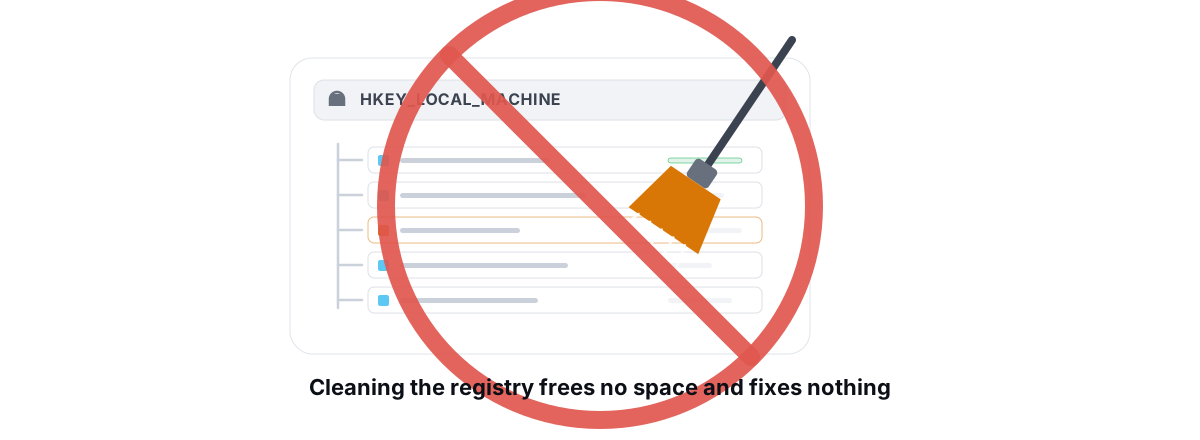
| Registry cleaner | "Fix 4,000 errors, speed up Windows" | The registry's size has no measurable effect on speed. Deleting "invalid" keys risks breaking apps for zero gain. Full explanation here. |
| RAM booster / memory optimizer | "Free up X GB of memory, run faster" | Forcing memory free evicts cache Windows wanted, so your apps reload it — often slower right after. What free RAM really means. |
| FPS booster meter | A slider or gauge that "boosts frames" | A fake readout. Frame rate comes from your GPU, settings, and thermals — not a slider in a third-party app. |
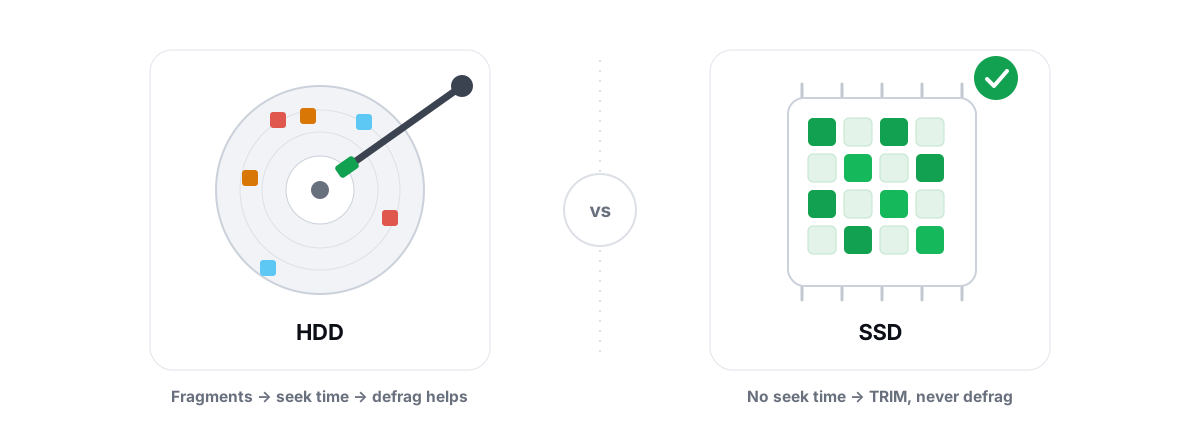
| "Defrag your SSD" | "Optimize your drive for speed" | Useless and adds wear. Flash drives use TRIM, which Windows already runs. Why you never defrag an SSD. |
| Delete the pagefile | "Reclaim space, force RAM use" | Causes crashes and out-of-memory errors. Leave it on automatic. |
| Mass-disable services | "Disable 40 services for performance" | Near-zero gain; some break Windows Update, printing, or networking. The honest short list. |
The common thread: every one of these shows a big, satisfying number while doing nothing useful — or active harm. The registry cleaner's "4,182 errors" is just orphaned keys that cost you nothing. The RAM booster's freed gigabytes are cache you wanted. The FPS meter is a decoration.
Why Reversibility and Measurement Separate Good From Bad
Here's the single most useful test for any optimizer, more reliable than reviews or marketing. Ask two questions: Can it prove what it did? Can it undo what it did?
Measurement
A change you can't measure is a change you can't trust. A cleaner that reports verified freed bytes — re-measured from the actual drive — is telling the truth. A cleaner that shows an estimate it made before deleting is hoping you won't check. The same goes for performance: a real tool shows you live CPU, GPU, RAM, and FPS so you can compare before and after yourself, not a meter that always reads "optimized."
Reversibility
Every registry or system change a tool makes should be undoable, and big changes should be preceded by a System Restore point. This is non-negotiable. If a tweak helps, keep it; if it breaks something, you roll back in minutes. Tools that fire 200 changes at your registry with no undo are gambling with your install — and you're the one holding the risk.
If a tool can't tell you exactly what it changed and can't put it back, it isn't optimizing your PC. It's experimenting on it.
This is also why a restore point matters more than any single tweak. Before you let anything touch your system at scale, learn how to create a System Restore point — it's your seatbelt.
The "One-Click Speed Up" Red Flag
The single biggest tell of a snake-oil optimizer is the giant glowing button that promises to do everything at once with no explanation. "Speed Up Now." "Boost." "Fix All."
The problem isn't that one-click is bad in principle — a tier-aware "apply the sensible set for my hardware" button can be fine if it tells you what it's about to do and lets you undo it. The problem is the version that hides the changes, can't reverse them, and reports a fake improvement percentage afterward.
Watch for these specifically:
- A "PC health score" out of 100 that mysteriously starts low and hits 100 after you pay. There's no such metric in Windows. It's invented to create a problem you'll buy a fix for.
- Scare counts — "4,182 errors," "Critical issues found" — for things that don't affect performance.
- No undo, no restore point, no log. You can't see or reverse what it did.
- Bundled extras — a "free" optimizer that installs a browser toolbar, changes your search engine, or nags for a driver-updater upsell.
- Requires admin but won't say why. Optimizers legitimately need administrator rights to touch the registry and services, but a trustworthy one is upfront about it. Here's why optimizers need administrator and the real risks.
What to Look for in a Trustworthy Tool
If you do want a tool to consolidate the honest work, here's the checklist a good one passes. Most of the market fails it.
- Verified measurement. Reports actual freed bytes (re-measured), shows live CPU/GPU/RAM/FPS, doesn't invent a "health score."
- Reversibility. Per-change undo, and a System Restore point before anything major.
- It refuses placebo. No RAM booster, no registry-clean-for-speed, no SSD defrag, no pagefile deletion. The absence of fake features is the strongest signal of all.
- Media-aware drive maintenance. It runs TRIM on SSDs and only defragments confirmed spinning HDDs — never the reverse. If a tool offers to "defrag" your SSD, close it. See TRIM vs. defrag, the right maintenance per drive.
- No risky internals. No kernel driver, no DirectX hooks, no process injection. It should be a user-mode wrapper over the tools Windows already ships — which also keeps it safe to run alongside anti-cheat.
- Honest free tier. The genuinely useful work — cleaning, monitoring, diagnostics — shouldn't be locked behind a scary upsell.
That checklist is exactly what we built BRUTAL Optimizer around. It's a user-mode wrapper over fsutil, defrag.exe, powercfg, DISM, Windows Update, and the registry — no kernel driver, every registry and system change reversible, a restore point attempted before the big ones, verified freed bytes on cleanup, and no fake meters. It refuses to ship a RAM booster or clean the registry for speed, because those don't work. Naming it here isn't a pitch; the point is that the checklist is a real standard a tool can be held to, not a wishlist.
Do You Even Need One?
Honest answer: often, no. Everything in the "real gains" section can be done with tools already on your PC if you're willing to spend the time.
You can clear junk with Storage Sense, manage startup in Task Manager, update your GPU driver from the vendor, run sfc /scannow and DISM for system repair, and watch your bottleneck in Resource Monitor. Diagnosis-first beats any optimizer — find the one thing that's actually slow and fix that. The full method is in why is my PC so slow, the 9 real causes and how to speed up Windows 11 honestly.
A tool earns its place only when it saves you real time or shows you something the built-in utilities hide — SMART drive health at a glance, an anti-cheat-safe FPS overlay with 1% lows and frametimes, a bufferbloat grade, verified cleanup numbers, duplicate-file detection. Convenience and honest measurement, not magic.
So: do PC optimizers work? The good ones do a few real things and prove it. The rest sell you a meter. Use the reversibility-and-measurement test, skip anything with a "health score" and a RAM booster, and you'll never get fooled again — whether you install a tool or just do the work yourself.
Frequently asked questions
Do PC optimizers actually work?
Some of the work is real, most of it is theater. Optimizers can reclaim genuine disk space, trim startup programs, flag an outdated GPU driver, and fix a real network problem. But features like RAM boosters, registry cleaners, FPS sliders, and SSD defrag do nothing useful and a few cause harm. The honest gains are modest: a few extra FPS in a CPU-bound game, smoother frametimes, a few hundred MB to several GB of disk space, sometimes slightly lower input lag. Anyone promising 300 percent more speed is lying.
Are PC optimizers a scam?
Many are, and the tell is consistent. If a tool shows an invented PC health score out of 100, scares you with thousands of registry errors, offers no undo or restore point, or bundles a toolbar, its business model depends on you not understanding what it does. A trustworthy optimizer reports verified results, makes every change reversible, and refuses placebo features instead of selling them.
Do you even need a PC optimizer?
Often no. Everything genuinely useful can be done with tools already on your PC: Storage Sense for junk, Task Manager for startup, the GPU vendor for drivers, sfc and DISM for repair, and Resource Monitor to find the real bottleneck. A tool earns its place only when it saves real time or shows something the built-ins hide, like SMART drive health, verified cleanup bytes, or an anti-cheat-safe FPS overlay.
What is the best way to tell a good optimizer from a bad one?
Ask two questions: can it prove what it changed, and can it undo it? A good tool re-measures freed bytes from the actual drive, shows live CPU, GPU and RAM, makes every registry change reversible, and takes a System Restore point before big changes. A bad one shows a dramatic number, hides what it touched, and gives you no way back.
Will a PC optimizer increase my FPS?
Only modestly, and only if it does real work. Keeping your GPU driver current, a high-performance power plan, and trimming background bloat can add a few to several frames in a CPU-bound game and smooth out stutters. An FPS booster meter or slider adds nothing; frame rate comes from your GPU, settings and thermals, not a control in a third-party app.
Keep reading
 Myths & Honest Truths
Do Registry Cleaners Work? (Short Answer: No)
Registry cleaners have never measurably sped up a PC, and the worst ones break Windows. Here is the truth and what to do instead.
 Myths & Honest Truths
Do RAM Boosters Work? What Free RAM Really Means
Why free RAM is wasted RAM, how aggressive trimming causes stutter, and the rare times a memory tool actually helps.
 Myths & Honest Truths
Should You Defrag an SSD? No - Here's Why
Defragging an SSD is pointless and wears it out. Here's what flash actually needs - TRIM and ReTrim - and how to check it.
Stop guessing. Measure it.
BRUTAL Optimizer is the honest way to speed up Windows — 17 free modules, a real FPS overlay, verified disk cleanup and drive health. No kernel driver of our own, no game hooks, every setting change reversible.