How to Update GPU Drivers Safely in 2026
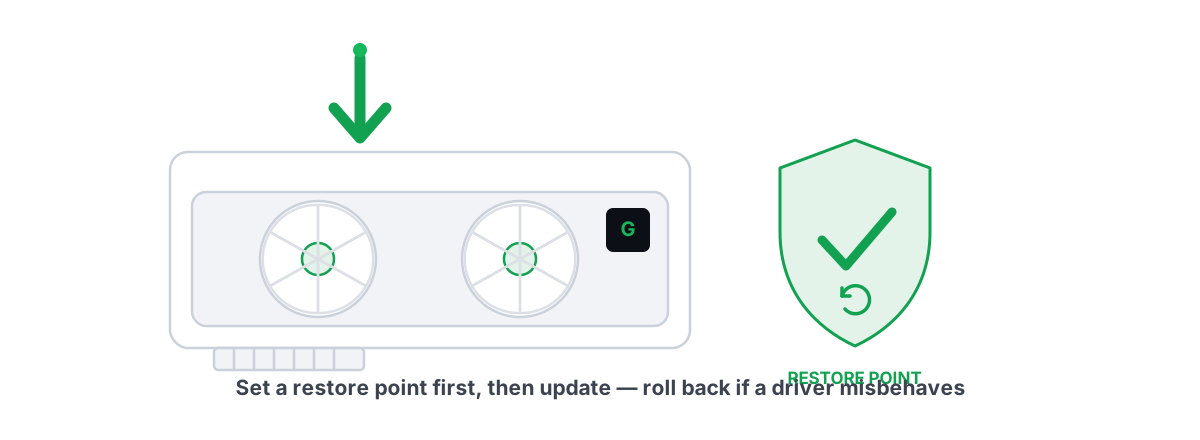
Learning how to update GPU drivers safely is less about updating often and more about updating cleanly, with a way back when a release misbehaves. A bad driver can turn a smooth game into a stutter-fest or hard-crash your desktop on boot, and the fix is method, not frequency.
Most "update your drivers" advice stops at clicking the green button. That's how people end up with leftover files from three driver versions stacked on top of each other, intermittent black screens, and no idea what changed. Here's the method a technician actually uses: check first, install clean, keep an exit, and never let a tool reboot-and-replace your driver behind your back.
Check your current driver version first
Before you change anything, write down what you're running. If a new driver breaks something, you need the exact version number you came from so you can reinstall it.
The fastest way to read it: press Win + R, type dxdiag, and look at the Display tab. The "Driver Version" line is a long Windows number like 31.0.15.5176. For NVIDIA, the part that matters maps to a marketing number — the last five digits 15176 become 551.76. AMD and Intel show their own version strings in their control panels.
You can also open Device Manager (Win + X → Device Manager), expand Display adapters, then right-click your GPU → Properties → Driver tab. That tab is also where the Roll Back Driver button lives — remember it's there.
Where to get drivers (NVIDIA, AMD, Intel — direct)
Get drivers from the GPU maker, not from a random "driver pack" site or a generic updater bundle. Those third-party sites are a common malware vector and often serve outdated or mismatched packages.
- NVIDIA — the official driver page or the standalone app. Pick Game Ready for the latest game-day fixes, or Studio if you do creative work and value stability over day-one game support. Both are WHQL-certified; the difference is cadence, not quality.
- AMD — the official Adrenalin download. Grab the version labelled Recommended (WHQL) unless you specifically need an Optional release for a brand-new title.
- Intel — the official Arc & Iris driver page, or the Intel driver app. Arc drivers improve fast, so on those cards newer genuinely tends to be better.
One caution about Windows Update: it will install GPU drivers, but it often ships an older, generic version and can quietly reinstall it after you've upgraded. For a gaming GPU, treat the vendor package as the source of truth.
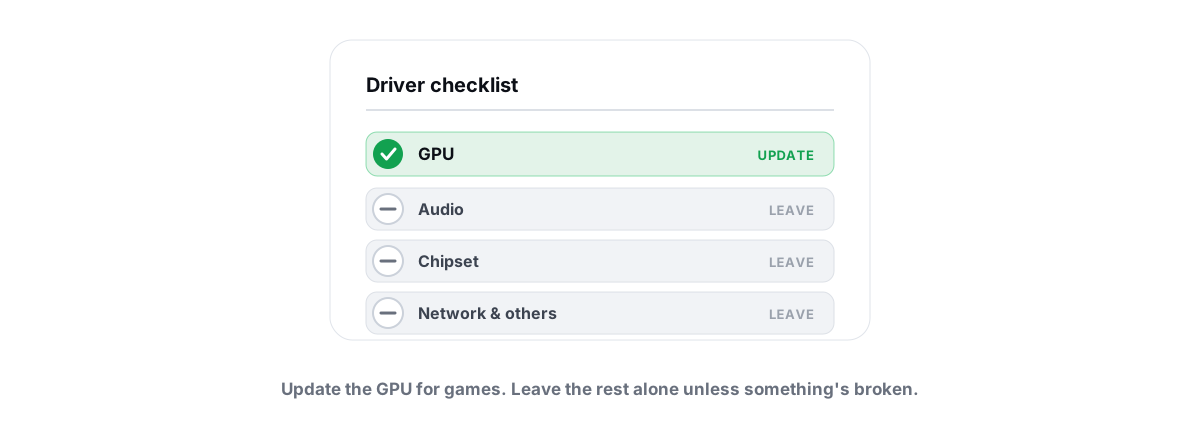
Not sure a new driver will actually help your game? Fair question — not every driver update is worth installing, and chasing every release can cost you more stability than it buys.
Clean install vs. express: when clean wins
Every installer offers a fast "Express" path that drops the new driver on top of the old one. That's fine most of the time. The catch is that upgrade-in-place leaves stale registry entries and old files behind, and after enough cycles those leftovers cause the exact symptoms people blame on the new driver: micro-stutter, flickering, crashes in specific games.
A clean install wipes the previous driver completely, then installs fresh. Use it when:
- You're switching GPU brands (NVIDIA ↔ AMD ↔ Intel) — always clean, no exceptions.
- You're chasing a stutter, black-screen, or crash that started after a previous update.
- You're jumping across many versions, or you've upgraded in place several times without ever cleaning.
- A game launched broken right after a driver change and you've already ruled out the game itself.
| Method | What it does | Best for |
|---|---|---|
| Express / Upgrade | Installs over the old driver, keeps settings | Routine update, no current problems |
| Clean install (installer option) | Removes the vendor's driver, resets its settings, installs fresh | Most clean installs — start here |
| Full wipe + offline install | Strips every trace including stubborn leftovers, then installs with no network | Persistent crashes, brand switches, corrupted installs |
How to do a clean install properly
- Download the new driver first, while you still have internet and a working display. Don't remove the old one and then go hunting for the new package.
- Both NVIDIA and AMD installers have a built-in "Perform a clean installation" checkbox. For most people that's enough — tick it and let it run.
- For a stubborn problem, do the full wipe: boot into Safe Mode, run a display-driver removal utility to strip every leftover, then reboot and install the fresh driver with your network cable unplugged or Wi-Fi off so Windows Update can't race you and push its own version mid-flight.
- Expect the screen to flash black and the resolution to drop during the process. That's normal — the driver is unloading.
Driver-only installs without bloatware
You don't need the full vendor suite to game well. The GPU driver itself is what renders frames. The companion apps add overlays, telemetry, account logins, and background services that sit in memory and occasionally fight with anti-cheat or other overlays.
During a custom install you can usually deselect the extras and keep only the display driver and, if you want it, the control panel. On NVIDIA you can skip the larger app entirely and run a driver-only setup; on AMD the components are itemized in the custom install screen.
Fewer background processes means fewer things to stutter on and fewer overlay conflicts. If your machine feels heavier than it should, stacked vendor apps and login agents are part of the same story as startup programs you never chose to run. Trim what you don't use.
Take a restore point before installing
This is the one step people skip and regret. A GPU driver loads at boot and talks directly to your display. When a driver install goes wrong — corrupted package, incompatible release, a bad interaction with a Windows update — you can land at a black screen before you can log in to fix it.
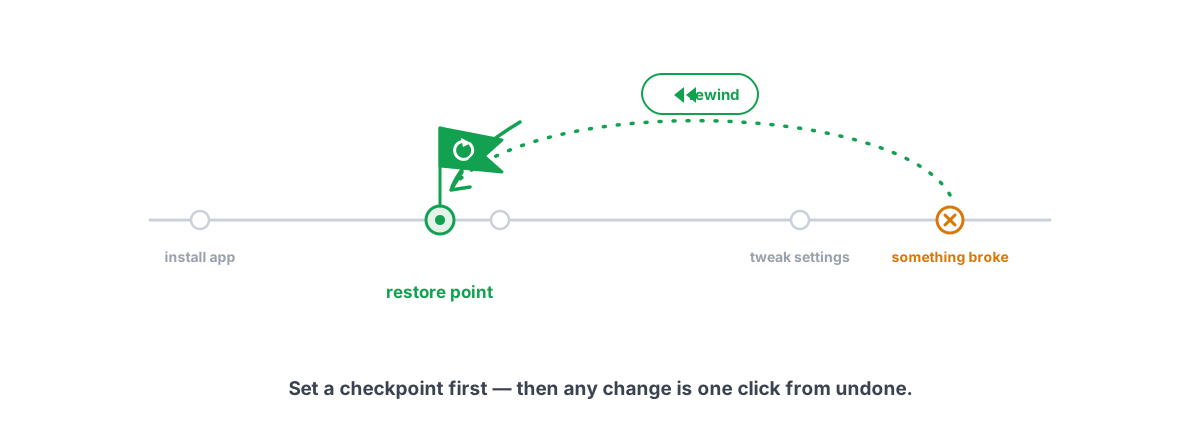
A System Restore point is your undo button for exactly that scenario. It snapshots system files, the registry, and driver state. If the new driver bricks your desktop, you boot into recovery, roll the whole system back to that point, and you're running again.
To create one manually: search Create a restore point, confirm protection is On for your system drive (enable it if it isn't), click Create, and name it something like before GPU driver 551.76. It takes under a minute. Our full guide to System Restore points walks through enabling protection and restoring if it comes to that.
A restore point before a driver install is non-negotiable. It costs you one minute and it's the difference between a five-minute rollback and a reinstall-Windows afternoon.
This is also why a good optimizer never makes a big system change without a snapshot. BRUTAL Optimizer attempts a System Restore point automatically before its Pro driver auto-install runs, and before any large registry change — a driver swap is exactly the kind of operation you want a tested exit from.
When a new driver is worse: how to roll back
Newer is not automatically better. Driver releases occasionally regress — a specific game starts stuttering, performance drops in one title, a black-screen-on-wake bug appears, or you get a flicker that wasn't there before. When that happens, go back. You don't owe the newest driver your loyalty.
You have three ways back, in order of preference:
- Roll Back Driver (Device Manager → your GPU → Properties → Driver tab). If the button is available, Windows kept the previous driver and this is the cleanest one-click revert. It greys out when there's no stored previous version — which is exactly why you noted your old version number earlier.
- Clean install of the known-good version. Uninstall the current driver, then clean-install the specific older version you wrote down. Vendors keep older releases on their sites for this reason.
- System Restore to the point you took before installing. This is your fallback when the display won't even come up — boot into recovery and restore.
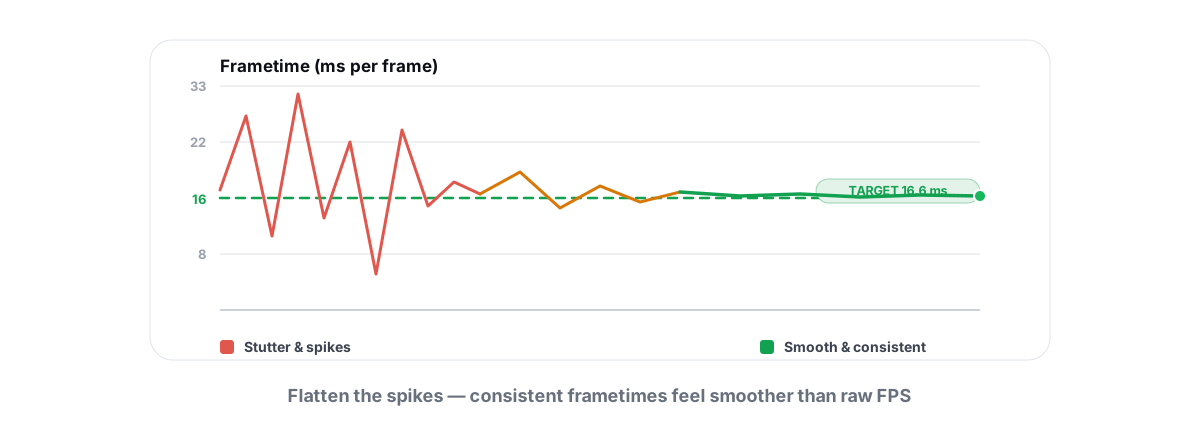
Before you blame the driver, make sure it's actually the cause. New stutter can come from a background process, thermal throttling, or a game update that landed the same day. If frametimes went bad after an update, work through the real causes of stutter and frametime spikes first — sometimes the driver is innocent and a watchdog process is the real culprit.
Automating driver checks without auto-installing blindly
Checking three vendor sites by hand every few weeks is tedious, so people install "driver updater" tools — and most of them are junk. They flag drivers as "out of date" to scare you, bundle other software, and silently push generic packages. That's how you end up with a worse driver than the one you had.
The honest pattern is simple: automate the check, keep the install a human decision. A scan that tells you "your GPU driver is three versions behind, here's the changelog" is useful. A tool that reboots and replaces your driver while you're away is not — because you lose the two things that make updates safe: the choice to skip a bad release, and the restore point taken right before.
If you do let something auto-install, it has to take a restore point first and let you roll back — otherwise it's just Windows Update with extra steps and worse judgment.
BRUTAL Optimizer runs its driver scanner this way: the scan is free, shows you what's outdated including a direct NVIDIA check, and never installs anything on its own. Auto-install is a Pro opt-in that attempts a System Restore point before it touches the driver, so updating stays your call with a clean way back. It's a user-mode tool over the same Windows update plumbing, so it runs alongside Vanguard, EAC, and BattlEye without a kernel driver. See the full feature list for the details.
Update your GPU driver when there's a real reason — a game you play got a fix, you're on something old, or you're chasing a bug. Install it clean, take the restore point, keep the old version handy, and roll back without guilt if the new one is worse. That's the whole method, and it works with nothing installed. If you'd rather have the scan and the automatic snapshot handled for you, BRUTAL Optimizer's scanner is free.
Frequently asked questions
Should I always update my GPU driver?
No. Update when there is a real reason: a game you play got a driver-side fix, you are running something old, or you are chasing a bug. Chasing every release can cost you more stability than it gains, so a working driver is worth keeping.
Do I need to do a clean install every time?
No. For a routine version bump, the installer's own clean-install checkbox is enough. Reserve a full Safe Mode wipe with a removal utility for brand switches (NVIDIA to AMD), corrupted installs, or a stutter and crash problem you cannot otherwise clear.
Where should I download GPU drivers from?
Directly from the GPU maker: NVIDIA, AMD, or Intel. Avoid third-party driver-pack sites and bundled updaters, which are a common malware vector and often ship outdated or mismatched packages. For a gaming GPU, treat the vendor package as the source of truth over Windows Update.
How do I roll back a bad GPU driver?
First try Roll Back Driver in Device Manager under your GPU's Properties, Driver tab. If that is greyed out, clean-install the older version you noted earlier. If the display will not even come up, boot into recovery and use the System Restore point you took before installing.
Are driver updater tools safe to use?
A scan-and-notify tool that tells you what is outdated is useful. A tool that reboots and replaces your driver automatically is risky, because you lose the choice to skip a bad release. If you let anything auto-install, it must take a System Restore point first and let you roll back.
Keep reading
 Hardware & Drivers
Should You Update Drivers? Which Matter, Which to Skip
Most driver updates do nothing. Here is which ones actually matter, which to skip, and why driver-updater tools are mostly bloatware traps.
 Anti-Cheat & Safety
How to Create a System Restore Point (and Why)
Enable System Protection, snapshot before any deep tweak, and roll back in minutes when a driver or change breaks something.
 Gaming & FPS
How to Fix Stuttering in Games (Frametime Spikes)
Stutter is a frametime problem, not an average-FPS one — isolate the real causes and confirm each fix with 1% lows.
Stop guessing. Measure it.
BRUTAL Optimizer is the honest way to speed up Windows — 17 free modules, a real FPS overlay, verified disk cleanup and drive health. No kernel driver of our own, no game hooks, every setting change reversible.