Fix Stutter and Frametime Spikes in Games
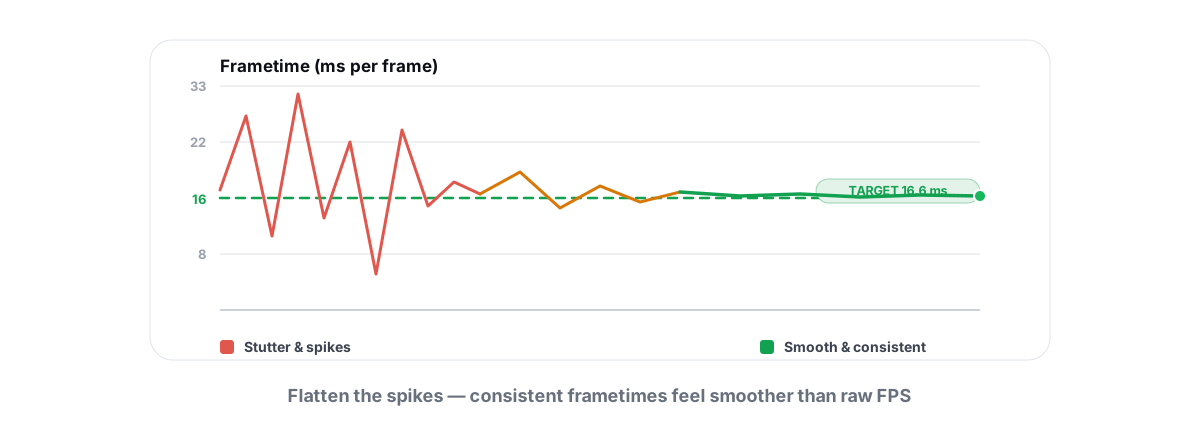
Your average FPS reads 140, but the game still hitches every few seconds and feels worse than a locked 90. That gap is the whole story, and it explains why learning how to fix stuttering in games starts with ignoring the average: stutter is a frametime problem, and the average number hides it on purpose.
Stutter is when individual frames take wildly different amounts of time to render. A run of 7ms frames interrupted by a single 40ms frame is a visible hitch — even though the average barely moves. This guide isolates the real causes one at a time, shows you how to confirm each, and tells you which popular "fixes" do nothing.
Why Frametimes Matter More Than Average FPS
FPS is just frames divided by seconds, averaged over a window. It throws away the timing of each frame, and timing is exactly what you feel. Two PCs can both report 120 FPS while one is glassy-smooth and the other stutters every second.
The unit that matters is the frametime — how many milliseconds each frame took. At a steady 120 FPS, every frame is 8.3ms apart. Smoothness comes from consistency, not from a high average. A locked 60 FPS (16.7ms every frame) looks better than a jumpy 110 average that spikes to 50ms.
You don't see your average FPS. You see the worst frames. One 33ms hitch in a sea of 8ms frames is the thing your eyes catch.
This is the same reason a high average can hide a real CPU bottleneck: the GPU has headroom, but the CPU can't feed frames on a steady cadence. If you're chasing raw numbers instead of smoothness, start with the honest guide to increasing FPS first, then come back here for the pacing.
Spotting Stutter With 1% Lows and a Frametime Graph
You can't fix what you can't see. You need two things on screen: a frametime graph and your 1% / 0.1% lows.
The 1% low is the average of your slowest 1% of frames. The 0.1% low is the slowest 0.1%. When your average is 140 but your 1% low is 45, that 95-frame gap is your stutter, quantified. A smooth setup keeps the 1% low close to the average; a 2x or 3x gap means hitching.
The frametime graph is the other half. A smooth game draws a near-flat line. Stutter shows up as spikes — tall vertical bars where one frame took far longer than its neighbors. The shape tells you the cause:
- Periodic spikes every few seconds — background I/O, a polling process, or telemetry waking up.
- Spikes only when you move into new areas — shader compilation or asset streaming (traversal stutter).
- A graph that gets choppier the longer you play — thermal throttling or a memory leak.
- A regular sawtooth pattern — a frame-pacing issue, often V-Sync fighting your frame rate.
Shader Compilation and Traversal Stutter
Modern engines (Unreal Engine 4/5 especially) compile shaders on the GPU driver the first time an effect appears. Compiling a shader is CPU work, and if the engine does it on the render thread mid-scene, you get a hard hitch right when a new gun fires or you turn a corner.
The tell: stutter that happens the first time you see something, then never repeats in that session — until you update the GPU driver or the game, which wipes the shader cache and makes you pay the cost again.
What actually helps
- Let it precompile. Many games now have a "compiling shaders" step at launch or a setting for it. Let it finish. It trades a one-time wait for a smooth session.
- Do a warm-up run. Play a round, drive through the map, fire every weapon. You're populating the shader cache. The second run is the real experience.
- Keep the driver current but don't churn it. Each driver install clears the cache, so the next launch re-stutters. Update on a sane schedule, not every hotfix — see how to update GPU drivers safely and why newer isn't always better.
Traversal stutter is the cousin: open-world games stream assets off disk as you move, and a slow drive or a busy CPU causes a hitch when a new chunk loads. A faster SSD genuinely helps here. A "RAM booster" does not — the data is coming off disk, not out of freed RAM.
Background Disk and Network I/O Hitches
The classic "spike every 30 seconds" pattern is almost always something else on your PC stealing the disk or CPU for a moment. Windows is busy even when you think it's idle.
Usual suspects:
- Windows Update downloading or installing in the background.
- Search indexing (Windows Search / SearchIndexer) chewing through files.
- SysMain/Superfetch prefetching, or an antivirus doing a scheduled scan.
- Cloud sync (OneDrive, Dropbox, Steam Cloud) flushing changes mid-game.
- Chat and launcher apps — Discord, the Epic/Steam web helpers, a browser with 40 tabs — doing network and disk work.
To confirm: open Task Manager, go to the Details tab, sort by Disk or by CPU, and watch what spikes the instant you hear a stutter. If the timing lines up, you found it. Resource Monitor (resmon) gives you per-process disk queue length if you want to be precise.
What actually helps
- Close the real offenders before you play. Not a blanket process-kill — the specific app you saw spike. A browser and a sync client are the usual two.
- Trim startup bloat so half of these never launch in the first place. Walk through managing startup programs — fewer resident apps means fewer random hitches.
- Pause cloud sync and Windows Update active hours during your play window.
- Check the drive itself. A dying SSD or a nearly-full disk causes I/O stalls. Run a quick SSD health check (SMART, TRIM, wear). If your game disk is 98% full, free real space — see how to free up disk space safely.
If the network is the issue — rubber-banding and lag spikes rather than frame hitches — that's a different problem. Online jitter and packet loss feel like stutter but aren't a frametime issue at all. Diagnose it with the packet-loss and jitter guide, and check for bufferbloat if your latency balloons whenever something uploads.
V-Sync, G-Sync and Frame Pacing
A perfectly capable PC can stutter purely because of how frames are handed to the display. This is frame pacing, and it's the most fixable cause once you understand it.
Screen tearing happens when the GPU sends a new frame mid-refresh. V-Sync fixes tearing by forcing frames to align with the refresh rate — but if your FPS dips below the refresh rate, standard V-Sync drops you to a hard fraction (60 → 30 → 20), which is a brutal, visible stutter.
Variable refresh rate (G-Sync on NVIDIA, FreeSync on AMD, both under the VESA Adaptive-Sync umbrella) is the real fix: the monitor changes its refresh rate to match your frame rate, frame by frame. No tearing, no fixed-fraction drops. If your monitor supports it, this single setting removes a whole class of "stutter" that was never a performance problem.
| Setup | Tearing | Stutter risk | Best for |
|---|---|---|---|
| No sync | Yes | Low | Competitive, lowest latency, tear-tolerant |
| V-Sync on | No | High below refresh | Fixed 60Hz panels, single-player |
| G-Sync / FreeSync | No | Very low | Almost everyone with a VRR monitor |
| VRR + cap below max | No | Lowest | The sweet spot (see below) |
The proven recipe for VRR monitors: enable G-Sync/FreeSync, leave V-Sync on in the driver control panel (it acts as a safety net at the top of the range, not the primary sync), and cap your FPS a few frames below your max refresh — a 144Hz panel caps at 138-141. That keeps you inside the variable-refresh window where pacing is smoothest and latency stays low.
Thermal Throttling and Power Limits
If your game starts smooth and gets choppy after 10-15 minutes, suspect heat. When a CPU or GPU hits its thermal limit, it lowers its clock speed to protect itself. Clocks drop, frametimes climb, and you get progressive stutter that "fixes itself" after you quit and the chip cools.
Confirm it by logging temperatures and clocks during a session. Watch for:
- CPU package temp at or above ~95°C, or GPU at its thermal limit (often 83-87°C depending on the card).
- Clock speed dropping over time while load stays high — the smoking gun.
- Power limit / "perf cap" reasons in monitoring tools flipping to thermal or power.
A live CPU/GPU temperature readout — from any monitor, including BRUTAL Optimizer's — makes this obvious in two minutes. The mechanism and how to read it are in monitoring temps to stop throttling.
What actually helps
- Clean the dust. Clogged heatsinks and fans are the number-one cause of throttling on a PC more than a year old. This is free and effective.
- Fix airflow. A case with no intake, or sitting against a wall, traps heat. Repaste a CPU whose paste has dried out (years old).
- Check power limits on laptops. A laptop on battery or in a "quiet" power profile is throttled by design. Plug in and set the Windows power plan to high performance.
- Undervolt, if you know how. A stable GPU/CPU undervolt lowers temperature at the same performance — the rare tweak that helps both heat and stability.
Driver and Overlay Conflicts
Sometimes the stutter is caused by the very tools meant to help you. Multiple overlays stacking on the same game — Steam, Discord, GeForce Experience, RivaTuner, Xbox Game Bar, a Razer or Corsair utility — can fight over the present pipeline and inject hitches.
Test it cleanly: disable every in-game overlay, reboot, and play. If the stutter vanishes, re-enable them one at a time until it returns. That's your culprit. You rarely need more than one overlay running.
Drivers matter too, in both directions. A buggy new driver can introduce stutter that the previous version didn't have; a badly outdated one can stutter in a game it was never tuned for. There's no "always update" rule — install when a driver fixes a game you play or you're more than a few versions behind, and keep the old installer so you can roll back. The full reasoning is in should you always update drivers.
One more honest note: tools that touch your system at this level need admin rights and can affect stability if they're careless. Understand why optimizers need administrator before you grant it, and take a System Restore point before bigger changes so you can always step back.
How to Fix Stuttering in Games and Prove It Worked
The reason most people never solve stutter is they change five things at once, then guess. Don't. Use a controlled loop:
- Pick a repeatable scene. The same 60-second route, the same training map, the same replay. You need an identical workload every run.
- Record a baseline. Run it with your frametime overlay on. Note the average, the 1% low, and where the spikes land on the graph.
- Change exactly one thing. Enable VRR. Or cap FPS. Or close the browser. One variable.
- Run the same scene again. Compare the 1% low and the spikes — not the average. A higher 1% low and a flatter graph means real improvement.
- Keep what helped, revert what didn't. If a change did nothing, undo it. Stacking placebo tweaks just makes the next problem harder to diagnose.
This is the only honest way to know a fix worked. The 1% low is your scoreboard. If it climbs toward your average and the graph flattens, you fixed real stutter — not a number that was lying to you the whole time.
If you'd rather keep the measurement tools in one place, BRUTAL Optimizer's free overlay shows frametimes and 1% lows next to live temps, and every system setting change it makes is reversible, with a restore point attempted before anything big. It's a user-mode wrapper over tools Windows already ships, so it runs next to Vanguard and EAC without a kernel driver. The method above works with whatever overlay you already have, though. Measure one change at a time, watch the 1% low, and trust the graph over the average.
Frequently asked questions
Why does my game stutter when my FPS is high?
Because average FPS hides timing. A high average can still contain single frames that take 30-40ms to render, and those spikes are the hitches you feel. Watch your frametime graph and 1% lows instead of the average — a large gap between your average and your 1% low is your stutter, quantified.
What causes micro stutter on a PC that isn't even maxed out?
Usually frame pacing or background interference, not a lack of horsepower. Common culprits are V-Sync dropping to fixed fractions, an uncapped frame rate bouncing around, shader compilation, or a background app (browser, sync client, indexing) stealing the disk for a moment. The GPU not being maxed points to a CPU or pacing issue, not a GPU one.
Does capping my FPS reduce stutter?
Often yes. A stable cap your PC can always hit feels smoother than an uncapped rate that swings between, say, 90 and 165. On a G-Sync or FreeSync monitor, cap a few frames below your max refresh to stay inside the variable-refresh window. It's a free, reversible smoothness win.
Will disabling Windows services fix game stutter?
Mostly no. Long lists of services to disable are largely placebo and can break audio, printing or networking. A couple (search indexing, SysMain) can matter on a slow drive, but most do nothing for frametimes. Confirm a real I/O offender in Task Manager before changing anything.
How do I know a stutter fix actually worked?
Use a repeatable scene, record a baseline with a frametime overlay, change exactly one thing, then run the identical scene again. Compare the 1% low and the spike pattern, not the average. A higher 1% low and a flatter graph means real improvement; if nothing changed, revert it.
Keep reading
 Gaming & FPS
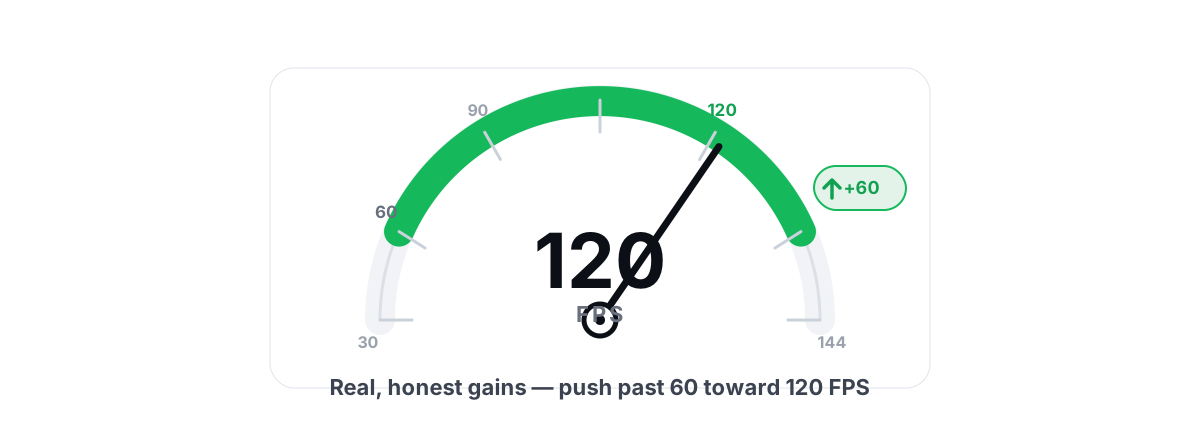
How to Increase FPS in Games (Honest 2026 Guide)
Realistic ways to increase FPS, ranked by impact: settings, drivers, thermals and upscaling, with the placebo tweaks called out.
 Gaming & FPS
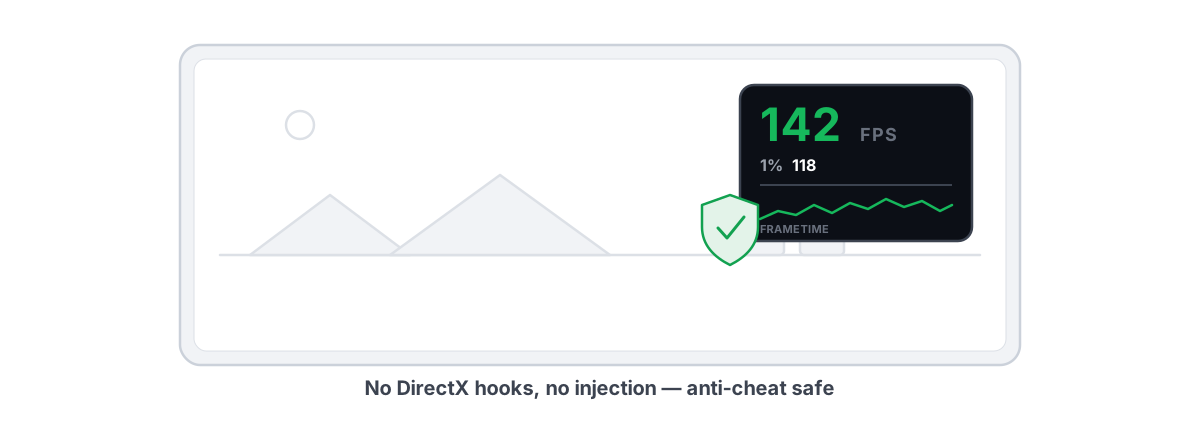
Best FPS Overlay That's Anti-Cheat Safe
Why a present-frame fps overlay is the anti-cheat-safe choice, and how to read 1% lows and frametimes properly.
 Hardware & Drivers
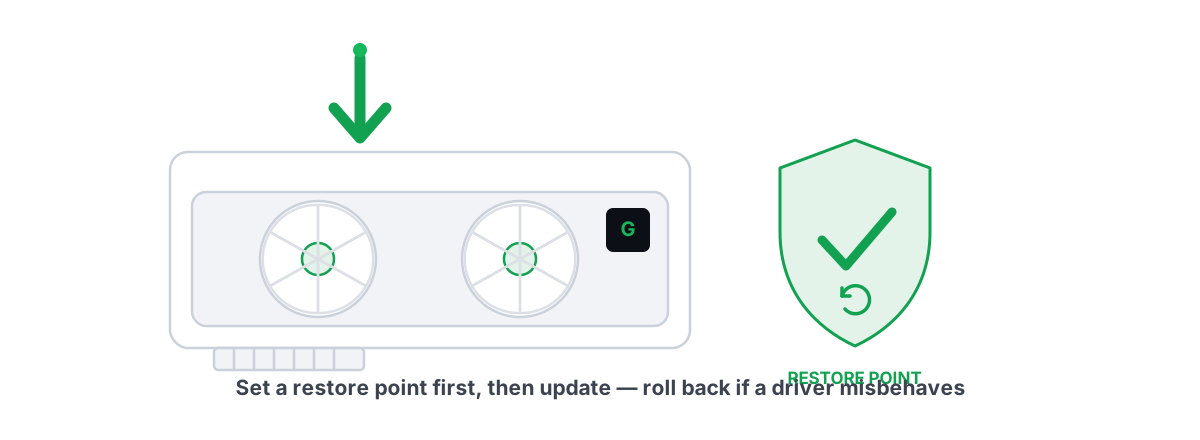
How to Update GPU Drivers Safely in 2026
The clean-install method that prevents stutter and crashes, when to roll back a bad GPU driver, and why a restore point comes first.
Stop guessing. Measure it.
BRUTAL Optimizer is the honest way to speed up Windows — 17 free modules, a real FPS overlay, verified disk cleanup and drive health. No kernel driver of our own, no game hooks, every setting change reversible.