How to Monitor CPU and GPU Temps and Stop Throttling
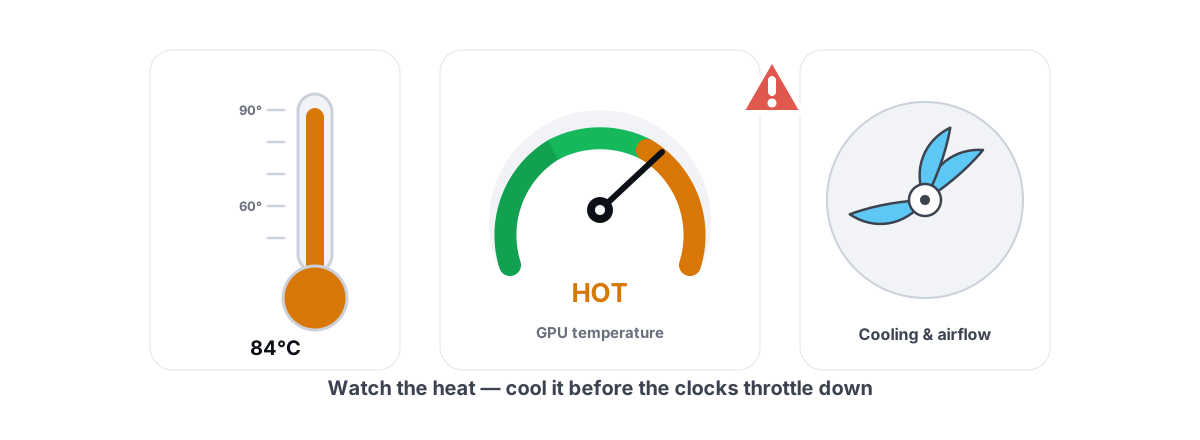
Your game starts smooth, then bleeds 15-20 FPS after ten minutes and never recovers until you quit. That slow fade is almost always heat — your CPU or GPU hitting a thermal limit and quietly lowering its own clocks to survive. Learning how to monitor CPU and GPU temps is the fastest way to prove it, because throttling is one of the few performance problems you can measure exactly and fix with a screwdriver instead of software.
This guide gives you the real temperature ranges, which sensors to trust, how to spot throttling in your frametimes, and the fixes that actually work — airflow, dust, repaste, fan curves — versus the apps that claim to "cool" your PC and do nothing of the sort.
Why Temperature Quietly Caps Your FPS
Modern CPUs and GPUs don't run at a fixed speed. They boost as high as the silicon, power, and temperature allow, then back off the instant any of those limits is hit. Temperature is usually the first wall you reach.
The mechanism is built into the chip. An Intel or AMD CPU has a maximum junction temperature (TJmax, typically 95-100°C). A GPU has a thermal target the board enforces. Cross it, and the chip drops voltage and clock speed in steps to stay under the limit. Lower clocks mean fewer frames per second and, worse, inconsistent frames as the clock bounces up and down.
Throttling doesn't crash your PC. It silently trades performance for survival — and the only symptom you see is a game that gets slower the longer you play.
The tell is timing. A chip that throttles produces a session that starts fine and degrades. Average FPS slides, but the bigger damage is to your frame consistency — the 1% lows fall apart as clocks stutter. If you've been chasing a CPU or GPU bottleneck and the numbers keep shifting mid-session, heat is the variable you haven't ruled out.
Safe Temperature Ranges for CPU and GPU
There's a lot of panic about temperatures that are completely normal. A gaming CPU in the 70s and a GPU in the low 80s under load are fine — that's the chip doing its job, not a warning sign. What matters is whether you're hitting the throttle point and staying there.
Here are honest ranges for a desktop under a gaming load. Laptops run hotter by design and have less thermal headroom, so add a margin and expect more aggressive throttling.
| State | CPU (package) | GPU (core) | What it means |
|---|---|---|---|
| Idle / desktop | 30-45°C | 30-50°C | Healthy. Higher idle hints at dust or bad airflow. |
| Gaming load | 60-80°C | 65-83°C | Normal. Leave it alone. |
| Warm but OK | 80-90°C | 83-87°C | Acceptable on many chips. Watch clocks for drops. |
| Throttling | 95-100°C | ~88°C+ / hotspot 100°C+ | Hitting the limit. Clocks are being cut now. |
Two numbers people misread. First, a GPU hotspot (junction) temperature runs 10-20°C hotter than the core reading — a 75°C core with a 90°C hotspot is normal. A hotspot far above that gap (a 25-30°C delta) can mean a dried-out thermal pad or an uneven mount. Second, GDDR6 memory junction temps on high-end cards can sit near 90-100°C and are spec'd for it; don't confuse memory temp with core temp.
How to Monitor CPU and GPU Temps With Sensors You Trust
You can't fix throttling you can't see, and not every "temperature" reading is real. The data comes from on-die thermal diodes the manufacturer built in. Good tools read those values straight; bad tools guess, average, or invent a number.
What to trust, in rough order:
- Vendor tools — NVIDIA's app, AMD's Adrenalin software, and Intel's utilities read their own hardware sensors directly. As accurate as it gets for GPU core, hotspot, and memory junction.
- Established hardware monitors — long-trusted community tools that read the same SMBus and diode values. These expose per-core CPU temps, GPU hotspot, VRM, and fan RPM.
- A live in-app monitor for at-a-glance checking. BRUTAL Optimizer reads CPU/GPU/RAM and live temps through Windows performance counters and the GPU vendor's own libraries (NVML for NVIDIA, ADL for AMD) — the real sensors, not a synthesized figure. It's a quick way to confirm a throttle without opening four windows.
What to be wary of: anything that shows a suspiciously round, steady number; phone apps reading a desktop over a network; and "PC cooler" utilities that display a temperature next to a button promising to lower it. The reading might be real; the button is not.
One practical rule: log temps and clock speeds together. Temperature alone tells you it's hot; the clock speed dropping while load stays high is the actual proof of throttling.
Spotting Throttling in a Frametime Graph
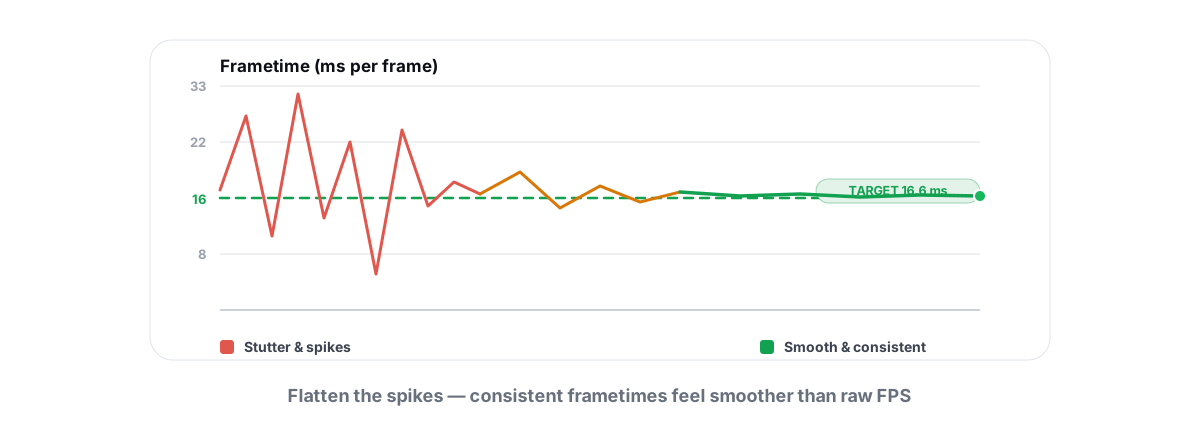
The cleanest signature of thermal throttling lives in your frametime graph, not in the average FPS. A frametime graph plots how many milliseconds each frame took. Smooth and cool looks like a near-flat line. A throttling system looks like a line that gets choppier the longer you play.
Run this test. Put a frametime overlay on screen, start a session in a demanding scene, and watch the graph over 10-15 minutes:
- First 2-3 minutes flat, then rising and spiking as the heatsink saturates — the classic throttle curve.
- Average FPS sliding down while your inputs and the scene haven't changed.
- Clocks dropping in your monitor at the exact moment the graph degrades.
- It recovers after you quit and cool down — restart and you're smooth again for a few minutes.
That last point is the giveaway. Throttling is the rare stutter cause that heals with time off. If your hitching is constant from the first second, it's something else — shader compilation, background I/O, or frame pacing. Those are covered in the guide to fixing stutter and frametime spikes, and they're worth ruling out before you blame heat.
Real Fixes: Airflow, Dust, Repaste, Fan Curves
Heat is a physics problem, so the fixes are physical. None of this is exotic, and most of it is free or under ten dollars. Work through it in order — easiest and highest-impact first.
1. Clean the dust
This is the number-one cause of throttling on any PC more than a year old. Dust clogs heatsink fins and coats fan blades, and a clogged cooler can't shed heat. Power down, take it outside, and blow out the CPU cooler, GPU, and case fans with compressed air. Hold the fans still so they don't spin and generate voltage. On a desktop this alone can drop load temps 5-15°C.
2. Fix airflow
A cooler can only dump heat into the air around it, so the air has to move. Check that you have intake fans at the front or bottom and exhaust at the rear or top, that cables aren't blocking the flow, and that the case isn't shoved against a wall or sitting in a closed cabinet. Laptops need their bottom vents clear — never game with one on a bed or carpet that smothers the intake.
3. Repaste a chip whose paste has dried
Thermal paste between the chip and its cooler dries out over years and stops transferring heat well. If your PC is 3-5+ years old and runs hot after a thorough dusting, a fresh repaste (a small tube costs a few dollars) often drops CPU temps 5-10°C. It's a 20-minute job on a desktop CPU. GPU repastes are more involved — worth it on an old card, but research your exact model first.
4. Tune a fan curve
Stock fan curves favor quiet over cool, letting the chip get hot before the fans spin up. A more aggressive curve — fans ramping earlier as temps climb — keeps the chip below its throttle point at the cost of more noise. Set GPU fan curves in your vendor's software; set case and CPU fan curves in your motherboard's BIOS/UEFI or its fan-control utility.
| Fix | Cost | Typical effect | Effort |
|---|---|---|---|
| Dust cleanout | Free / can of air | 5-15°C lower load temps | 15 min |
| Airflow fix | Free to ~$40 | 3-10°C, fewer hot pockets | Varies |
| CPU repaste | ~$5-10 | 5-10°C on old paste | 20-40 min |
| Fan curve | Free | Stops the throttle, adds noise | 10 min |
| Undervolt | Free | 5-15°C, same performance | Patience to test |
Undervolting deserves a mention because it's the one tweak that lowers temperature without sacrificing performance. You feed the chip slightly less voltage at the same clock; it runs cooler and draws less power. Finding a stable point takes testing and isn't beginner territory, but a stable undervolt is genuinely the best heat-and-stability win available.
GPU Fan and Power Tuning Without Blind Writes
Fan and power tuning is legitimate and effective — done correctly. The right way is through your GPU vendor's documented controls, not a tool that blindly writes to the card's registers and hopes.
Two levers matter for heat:
- Fan curve — make the fans spin up earlier and harder as temperature rises. The most direct way to keep the core under its throttle point. Costs noise, nothing else.
- Power limit — the wattage cap the card is allowed to pull. Pushing it higher lets the card boost longer (more heat). Pulling it down a little, say to 85-90%, often costs only a handful of FPS while dropping temps and noise sharply — a great trade on a card that throttles.
The danger with cheap "overclocking" or "boost" apps is blind register writes — software shoving values at the GPU without going through the vendor's safety-checked path. That's how you get crashes, instability, or a corrupted profile. The honest approach uses the documented vendor libraries (AMD's Overdrive, NVIDIA's and Intel's user-mode interfaces) so every change is one the driver actually sanctions.
BRUTAL Optimizer's GPU fan/power tuning (a Pro feature) works this way on purpose: documented vendor libraries only, no blind NVAPI writes, and it's driver-gated so it won't touch a card it can't talk to safely. You can do all of this in your vendor's own software for free — the rule is the same either way: use the supported path, change one thing, and watch the temperature and clocks respond.
Why No App "Cools" Your PC on Its Own
This is the myth worth killing outright. A program running on Windows cannot remove heat from your processor. Heat is energy, and the only things that move it are the heatsink, the fans, the paste, and the air. Software sits on top of all of that and can't change the physics.
What a "PC cooler" app can actually do falls into three buckets:
- Cap or lower clocks — the chip does less work, so it makes less heat. That's real, but it's slowing you down, not cooling you. You can do the same with a power limit, on purpose, and know exactly what you traded.
- Close background apps — less CPU load means less heat. Also real, but it's not "cooling," it's just doing less. Managing startup programs gets you the same thing permanently.
- Show a fake gauge — a number that animates downward to look like it worked. This is the most common and the most dishonest.
The same skepticism applies to most "boosters." A RAM booster won't lower temps, an all-in-one optimizer can't change your airflow, and none of them substitute for a can of compressed air. The honest tools in this space measure and report — they don't pretend to cool.
If a tool lowers your temperature, it did it by lowering your performance. There's no third option. The real cooling lives in the metal, the airflow, and the paste.
That's the whole game. Read the real sensors, watch the frametime graph form its throttle curve, then fix the cause with your hands. BRUTAL Optimizer can show you the live temps, the free anti-cheat-safe frametime overlay, and supported vendor-library fan/power tuning in one place — every system setting change reversible, with a restore point attempted before anything big — but it's honest about the limit: it measures the heat and helps you tune within safe bounds. The screwdriver and the compressed air do the actual cooling. To see the full toolset, the gaming optimizer page lays it out, and if smoothness is your real goal, pair this with the honest guide to increasing FPS.
Frequently asked questions
What is a safe GPU temperature for gaming?
A GPU core in the mid-60s to low-80s Celsius under a gaming load is completely normal and nothing to worry about. Most cards only start throttling around 83-88C core, and a hotspot reading 10-20C above the core is expected. Watch whether your clocks drop over time rather than panicking at a single peak number.
What is a normal CPU temp while gaming?
On a desktop, 60-80C under load is normal, and brief touches into the high 80s are fine. Throttling generally kicks in around 95-100C depending on the chip. Laptops run hotter by design with less headroom, so expect more aggressive throttling there. The number to watch is the trend, not one spike.
How do I know if my PC is thermally throttling?
Log temperature and clock speed together during a session. If the clock speed drops while the load stays high and temps sit at the chip's limit, it is throttling. The other tell is timing: a game that starts smooth and gets choppier over 10-15 minutes, then recovers after you quit and cool down, is throttling.
Can software actually cool down my CPU or GPU?
No. Software cannot remove heat from your hardware. The only things that move heat are the heatsink, fans, thermal paste and airflow. A so-called cooler app can only lower your clocks (slowing you down to make less heat) or show a fake gauge. Real cooling is a dust cleanout, better airflow, a repaste, or a fan curve.
Does a steeper fan curve or lower power limit help with throttling?
Yes, both are legitimate fixes. A steeper fan curve keeps the chip below its throttle point at the cost of more noise. Pulling the GPU power limit down to about 85-90 percent often costs only a few FPS while dropping temps and noise sharply. Use your vendor's documented controls, not blind register-writing tools.
Keep reading
 Gaming & FPS
How to Fix Stuttering in Games (Frametime Spikes)
Stutter is a frametime problem, not an average-FPS one — isolate the real causes and confirm each fix with 1% lows.
 Hardware & Drivers
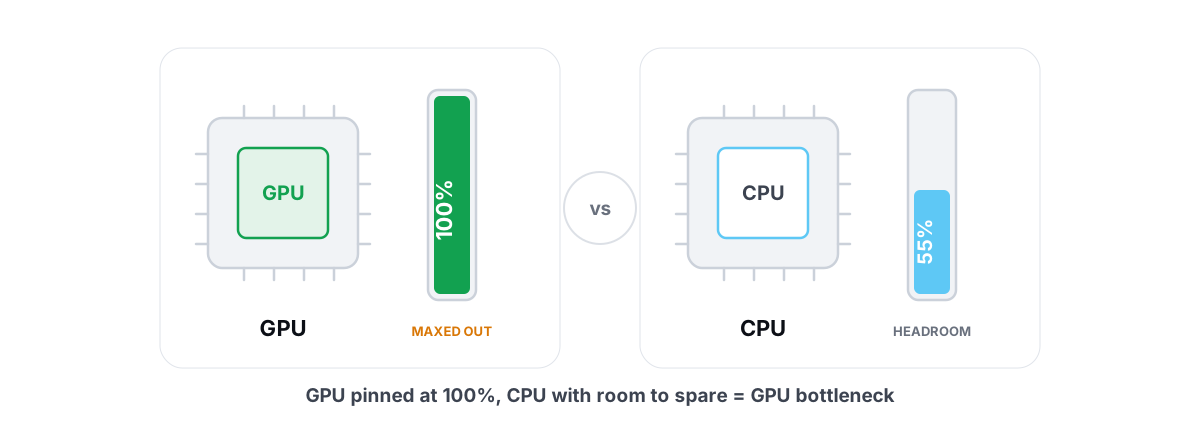
GPU vs. CPU Bottleneck: How to Tell in Gaming
Read GPU and CPU utilization to find which part is capping your frames — then tweak or upgrade the right one instead of guessing.
 Gaming & FPS
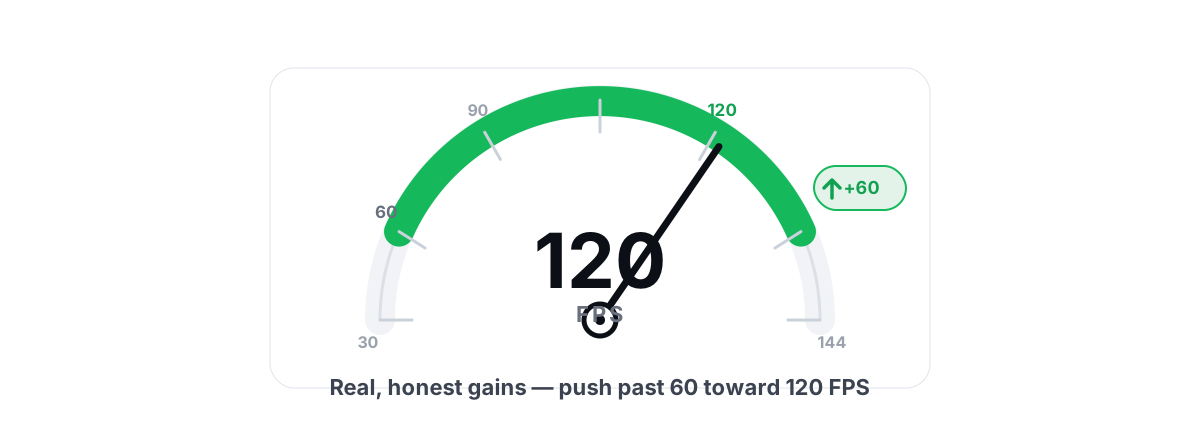
How to Increase FPS in Games (Honest 2026 Guide)
Realistic ways to increase FPS, ranked by impact: settings, drivers, thermals and upscaling, with the placebo tweaks called out.
Stop guessing. Measure it.
BRUTAL Optimizer is the honest way to speed up Windows — 17 free modules, a real FPS overlay, verified disk cleanup and drive health. No kernel driver of our own, no game hooks, every setting change reversible.