How to Manage Startup Programs in Windows

Half the "slow PC" complaints come down to one thing: too many programs fighting for your disk and CPU the moment you log in. This is how to disable startup programs in Windows the right way — what each entry actually is, which ones are safe to switch off, and why disabling beats any tool that deletes them.
A login is busy. Windows loads your drivers, your shell, your network stack — and then a queue of third-party apps all wake up at once and hammer the same SSD. Each one wants a slice of disk I/O, a few CPU cycles, and sometimes a network call before your desktop feels usable.
You do not need most of them running at boot. The trick is knowing which entries are launchers you will never click, which are background helpers something actually depends on, and how to turn off the first group without breaking the second. Done right, this is one of the few "speed up boot time on Windows" moves that is both real and reversible.
Where startup programs hide: Run keys, tasks and folders
The Startup tab in Task Manager is the famous one, but it is not the whole picture. Windows launches programs at sign-in from several different places, and an app can register itself in more than one. That is why a program you "disabled" sometimes comes back.
Here is where they actually live:
| Location | What it is | Shows in Task Manager? |
|---|---|---|
HKCU\...\Run and HKLM\...\Run | Classic registry "Run" keys — the most common startup spot | Yes |
| Startup folders | shell:startup (you) and shell:common startup (all users) — shortcut files | Yes |
| Scheduled Tasks | Tasks with an "At log on" trigger — how many updaters and OEM tools launch | Often no |
| Services | Background services set to Automatic start — a different mechanism entirely | No (see Services) |
Task Manager covers the Run keys and Startup folders well, plus a slice of scheduled tasks. It does not show you services, and it misses some task-based launchers. So when an updater keeps reappearing after you disable it in Task Manager, it is almost always running from a scheduled task instead.
Services are a separate question with their own rules — disabling the wrong one breaks features quietly. If you are tempted to go down that road, read the honest list of which Windows services to disable first, because most "disable these 30 services" lists are copied from 2009 and will cost you more than they save.
Task Manager's Startup tab is the right place to start, but it is a window onto two of the four startup mechanisms — not all of them. If an entry won't stay disabled, it has a scheduled task or service keeping it alive.
Reading the Startup tab: impact vs. reality
Open Task Manager (Ctrl+Shift+Esc), go to the Startup apps tab. You get a name, a publisher, a status (Enabled/Disabled), and a "Startup impact" rating: Low, Medium, High, or Not measured.
Treat that impact rating as a hint, not gospel. Windows estimates it from CPU time and disk I/O measured during recent boots. It is genuinely useful for spotting a disk-thrashing offender, but it has blind spots:
- "Not measured" usually means the app hasn't run at boot since it was installed or since the metric reset — not that it's harmless.
- A "High impact" entry that does its work in the first two seconds and then idles is less of a problem than a "Medium" one that keeps a network sync churning for a minute.
- Impact ignores RAM. A launcher that sits at 300 MB doing nothing won't show as High impact, but it's still 300 MB you didn't need at idle.
The publisher column is the underrated one. Sort by it. Anything from a hardware vendor (your GPU, motherboard, or peripheral maker) tends to be a tray helper you can live without. Anything from Microsoft, your antivirus, or a sync client you actively use deserves a second look before you touch it.
If you're not sure an app is even worth keeping installed, startup impact is a decent tell. A program you forgot you had, launching at every boot, is a good candidate for the uninstall pile — and our walkthrough on the real causes of a slow PC covers how startup load fits the bigger picture.
Safe to disable vs. leave alone: a clear list
You don't need to research every entry. Most fall into predictable buckets. Here is a working rule set.
- Game and store launchers — Steam, Epic, EA app, Battle.net, GOG Galaxy, Ubisoft Connect. None need to be running until you want to play.
- Chat and call apps you open manually — Discord, Slack, Teams (personal), Zoom. They start fine when you click them; the boot-time launch only buys you a tray icon.
- Creative and office "quick start" helpers — Adobe's background processes, Office "click-to-run" preloaders, Spotify. These exist to make their own app open half a second faster, at the cost of every boot.
- Hardware vendor tray apps — RGB controllers, headset suites, printer monitors. Your hardware works without the tray app running; you only need it when you change a setting.
- Bloat and "web companion" entries — toolbar helpers, coupon apps, anything you don't recognize and didn't choose to install.
- Antivirus and security software — disabling its startup entry can leave you unprotected at the most vulnerable moment. Manage it inside the app, not here.
- Cloud sync clients you rely on — OneDrive, Dropbox, Google Drive. If you disable startup, files stop syncing until you remember to open them.
- Touchpad, audio, and input drivers' helper apps — some control gestures, function keys, or audio routing. Disabling them can quietly kill a feature.
- VPN and corporate agents — on a work machine, leave management and security agents alone.
- Anything labeled "Windows Security" or core Microsoft components.
When in doubt, disable one entry, reboot, and use the PC for a day. Because disabling is reversible (more on that next), the cost of a wrong guess is "turn it back on." That safety net is the whole point.
How to disable startup programs in Windows without deleting them
This is the part that separates a clean tune-up from a mess you regret. Disable. Never delete.
Disabling a startup entry in Task Manager doesn't remove the program or its settings. It flips a flag — Windows stores it in a StartupApproved value — so the app simply doesn't auto-launch. The entry stays in the list, marked Disabled, and you can flip it back in one click. Nothing is lost.
To do it manually:
- Open Task Manager → Startup apps.
- Right-click an entry → Disable. That's it.
- For Startup-folder shortcuts, you can also open
shell:startupin the Run dialog and move the shortcut out — but Task Manager's toggle is cleaner because it's reversible without hunting for files. - For stubborn relaunchers, open Task Scheduler and disable the app's "At log on" task too.
Compare that to "deleting." If you delete the Run-key value or the Startup-folder shortcut, you've thrown away the launch instruction. Turning the app back on at boot now means reinstalling or recreating the entry by hand. There is no undo button. That is exactly the failure mode you want to avoid, and it's why the disable-don't-delete principle is non-negotiable.
A clean startup manager — including the one inside BRUTAL Optimizer — works the same Task-Manager-compatible way: it flips Windows' own StartupApproved flag instead of removing entries, so every change reverts in a click and nothing about the app's own files or registration is touched. That's the honest version of this tool. It's also a free part of the app, not a paywalled "boost."
Measuring boot time honestly
Don't trust your gut on whether the change helped — the desktop appearing is not the same as the PC being ready. Measure it.
Windows already logs boot timing in Event Viewer. The number you want is the Diagnostics-Performance log:
- Open Event Viewer → Applications and Services Logs → Microsoft → Windows → Diagnostics-Performance → Operational.
- Look for Event ID 100 ("Windows has started up"). It reports a boot duration in milliseconds.
- Note the number before your changes. Reboot a couple of times after, and compare. One reboot isn't enough — boot time varies, so take the median of three.
Be realistic about the win. Trimming five aggressive startup apps off a typical PC might shave anywhere from a couple of seconds to fifteen-plus, depending on how much disk thrashing they were causing. On an SSD the gains are smaller than on a hard drive, because the disk was never the bottleneck in the same way. The bigger payoff is often a quieter desktop after login — fewer apps grabbing CPU and disk while you're trying to start work.
"Faster boot" should be a measured number, not a feeling. Event ID 100 gives you the real figure before and after — use it, and ignore any tool that shows you a made-up "boot score."
Delayed start vs. disable: the better middle ground
Some entries you want at startup, just not at the exact same time as everything else. The pile-up at login is the real problem — twenty programs all hitting the disk in the first ten seconds. Spreading them out helps even if you keep them all.
This is where delayed start beats a binary on/off:
- Cloud sync (OneDrive, Dropbox): you want it running, but it doesn't need to be first in line. A delayed start lets your desktop settle before sync kicks in.
- Background utilities you do use: a clipboard manager, a backup agent. Useful, not urgent.
- Services: Windows already supports "Automatic (Delayed Start)" for services, which intentionally holds them back a couple of minutes after boot so the critical stuff loads first. Many already use it.
For startup apps, Windows doesn't expose a friendly per-app "delay" toggle in Task Manager — the clean way to delay an app-level launcher is a Scheduled Task with a logon trigger and a delay, which is exactly how a well-built startup manager handles it under the hood. The takeaway: you have three states to choose from, not two. Enabled now, delayed, or off. Reach for "delayed" whenever an app is useful but not time-critical.
This same "spread the load, don't kill it" thinking is the honest core of every real tweak — see how to speed up Windows 11 without the snake oil for the same principle applied across the whole system.
What "boot optimizers" get dangerously wrong
Search "speed up boot" and you'll find a dozen tools promising a "300% faster startup." Here's what they actually do, and why most of it is at best pointless and at worst destructive.
- Deleting startup entries outright. As covered above, this throws away the launch instruction with no undo. "Cleaning" your startup by deleting is how you end up reinstalling apps to get a feature back.
- "Registry cleaning" for a faster boot. Removing registry keys does not measurably speed up Windows, and a bad delete can break things. The whole premise is decades out of date — registry cleaners don't work, full stop.
- Disabling services blindly from a copied list. The lists are stale, and the wrong toggle silently breaks printing, search, Windows Update, or networking.
- Fake "boot scores" and "optimization meters." A progress bar climbing to 100% is theater. Real boot time lives in Event ID 100, not a marketing animation.
- Killing the pagefile or "RAM-related" boot tweaks. These don't speed up login and can destabilize the system. If a tool counts freed RAM as something it "optimized," be suspicious — RAM boosters don't do what they claim.
The honest method is boring and it works: identify the entries you don't need at login, disable them (reversibly), delay the useful-but-not-urgent ones, and measure the result with a tool Windows already ships. No deletions, no registry surgery, no fake numbers.
That's the standard we hold ourselves to. Most "PC optimizers" fail this test on purpose — the placebo sells better than the truth. A good startup tool should only ever flip Windows' own enable/disable flag, keep every change one click away from reverting, and never pretend a deleted entry made your PC faster.
BRUTAL Optimizer's Startup Manager does exactly that, and it's free — no upsell to manage your own startup. If you'd rather do it by hand with Task Manager and Event Viewer, that works too, and you now know the whole method. The tool just saves you the clicking and keeps the safety net in place: no kernel driver of our own, no game hooks, and every setting change reversible.
Frequently asked questions
Is it safe to disable startup programs?
Yes, as long as you disable rather than delete. Disabling flips a Windows flag so the app does not auto-launch, and you can re-enable it in one click. Leave antivirus, cloud sync clients you rely on, and input or audio driver helpers enabled unless you know exactly what they do.
Why does a program keep launching after I disable it in Task Manager?
Task Manager only covers Run keys and Startup folders, plus some scheduled tasks. If an app reappears, it almost always has a scheduled task with an At log on trigger, or it runs as a service. Disable the matching task in Task Scheduler too.
Does disabling startup programs actually speed up boot time?
Often yes, but be realistic. Trimming a few disk-heavy startup apps can save a couple of seconds to fifteen-plus, more on a hard drive than an SSD. Measure it with Event ID 100 in the Diagnostics-Performance log rather than trusting a feeling or a fake boot score.
Should I delete startup entries instead of disabling them?
No. Deleting throws away the launch instruction with no undo, so re-enabling the app at boot means reinstalling or recreating the entry by hand. Disabling keeps the entry in the list, marked Disabled, and reverts in one click.
What startup programs can I safely turn off?
Game and store launchers (Steam, Epic), chat apps you open manually (Discord, Slack), hardware vendor tray apps (RGB and headset suites), and quick-start helpers for Adobe, Office, or Spotify. They all relaunch instantly when you actually open them.
Keep reading
 Windows Performance
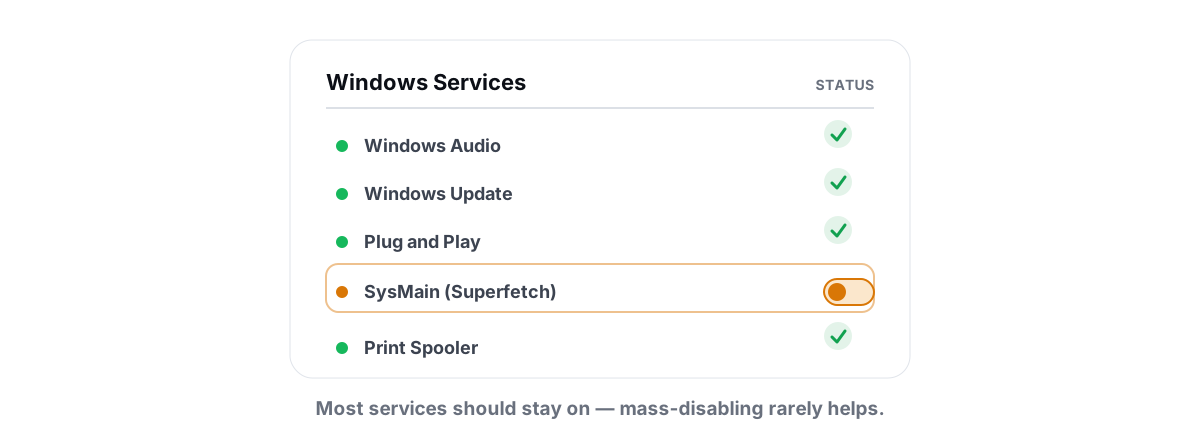
Windows Services to Disable for Performance: Honest List
Most viral service-disabling lists are copy-pasted nonsense. Here is what is actually safe to stop and what to leave alone.
 Windows Performance
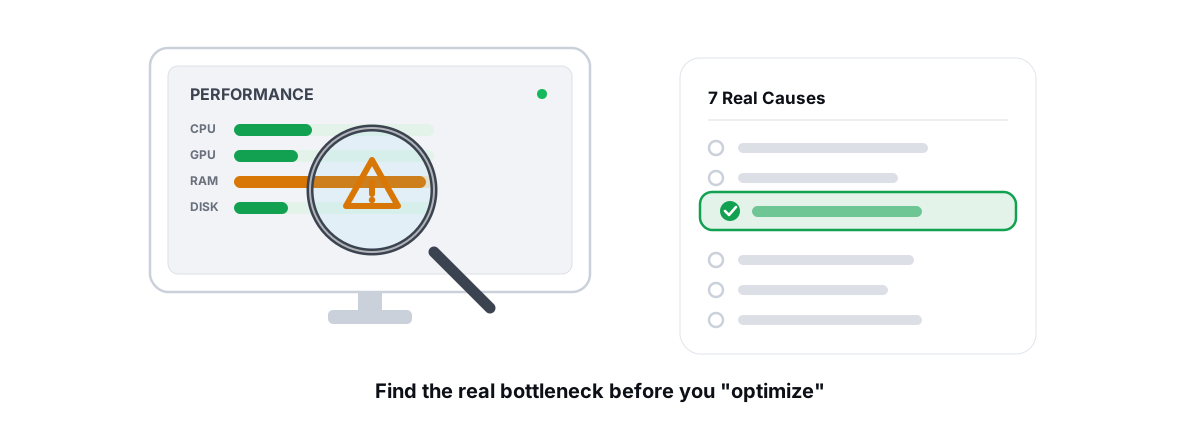
Why Is My PC So Slow? 7 Real Causes (and Fixes)
A diagnosis-first guide to finding the real reason your PC is slow with built-in tools, then fixing only what matters.
 Windows Performance
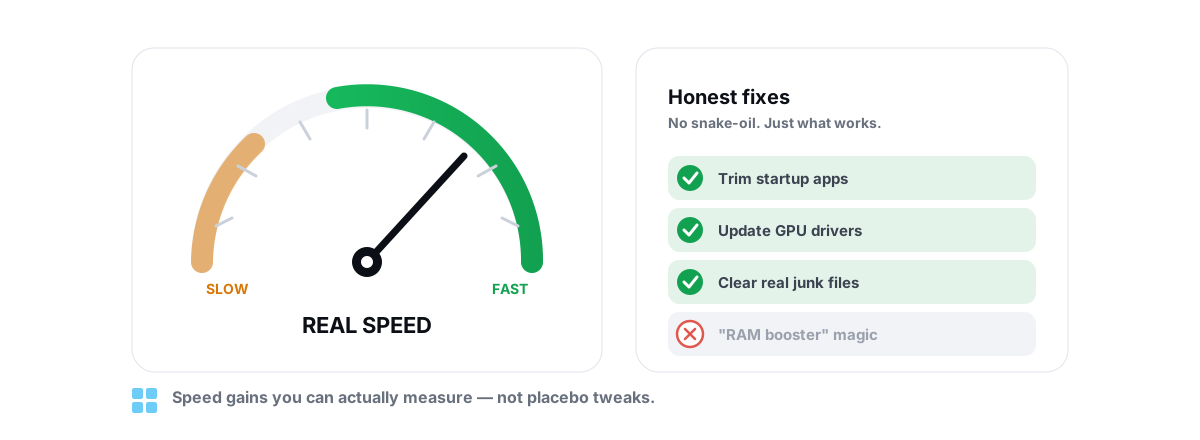
How to Speed Up Windows 11 Honestly in 2026
Only the Windows 11 tweaks with real, measurable impact, each one reversible, with the placebo tips called out and skipped.
Stop guessing. Measure it.
BRUTAL Optimizer is the honest way to speed up Windows — 17 free modules, a real FPS overlay, verified disk cleanup and drive health. No kernel driver of our own, no game hooks, every setting change reversible.