Why Is My PC So Slow? Find the Real Cause, Then Fix It
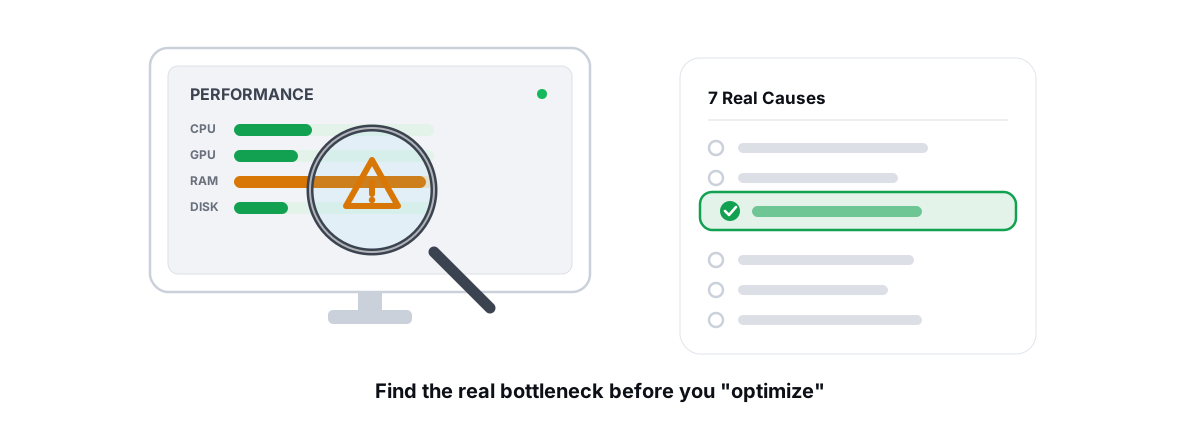
If you're asking why is my PC so slow, the answer is almost always one specific bottleneck hiding behind the lag. Find that cause first, fix it directly, and skip the "optimizer" theater that eats your afternoon.
Most "speed up your PC" advice tells you to change 40 settings and hope. That's backwards. Your machine is slow for a reason a built-in tool can show you in about a minute, and the fix is usually one or two things, not forty.
This guide is diagnosis-first. You'll learn to read the gauges Windows already ships, find the real bottleneck, then fix only that. No guessing, no placebo.
Why is my PC so slow? First, find the bottleneck
Before you touch anything, watch your PC do the slow thing. Press Ctrl+Shift+Esc to open Task Manager, go to the Performance tab, and reproduce the lag: open the app that crawls, switch tabs, launch the game.
One of four things will sit pegged near 100%: CPU, Memory, Disk, or GPU. That number is your diagnosis.
| What's at ~100% | Most likely cause | Where to look next |
|---|---|---|
| Disk (active time, slow on an HDD) | Failing or full drive, or a background process hammering I/O | Cause 1, Cause 4 |
| Memory (90%+, heavy paging) | Too little RAM for your workload | Cause 3 |
| CPU (sustained, machine hot) | Runaway process, malware, or thermal throttling | Cause 5, Cause 7 |
| Nothing pegged, still slow | Startup bloat, telemetry bursts, slow boot | Cause 2, Cause 4 |
For more detail, open Resource Monitor (Win+R, type resmon). The Disk tab shows exactly which files are being read and written, and "Disk Queue Length" tells you whether storage is the wall. The Memory tab shows "Hard Faults/sec": sustained hard faults mean Windows is paging to disk because you're out of RAM.
The single most useful habit is to reproduce the slowness while watching the Performance tab. The resource that hits the ceiling is the thing to fix. Everything else is a distraction.
Cause 1: A dying or nearly full disk
This is the number-one reason a whole PC goes slow, especially on machines still running a mechanical hard drive and on any drive that's nearly full.
Two separate problems live here.
The drive is failing
A drive with bad sectors or rising read-error counts stalls for seconds at a time while it retries. The PC feels frozen, then catches up. Check the drive's SMART data: reallocated sector count, pending sectors, and the wear level on an SSD tell you if the hardware is on its way out. If those numbers are climbing, back up now and replace the drive. No tweak fixes dying hardware.
The drive is too full
Windows needs free space for the pagefile, temp files, and update staging. Once a system drive drops below roughly 10% free, everything slows down. Clear real junk (temp folders, browser caches, crash dumps, the Recycle Bin) and you'll often reclaim a few hundred MB to several GB. Use the built-in Storage Sense (Settings > System > Storage) or Disk Cleanup as a starting point, and if you still can't find where the space went, map your drive to find the large files and duplicates that are actually filling it.
Cause 2: Too many startup programs
Every app that adds itself to startup steals boot time, then sits in RAM and runs background work forever. Game launchers, chat apps, "helper" updaters, printer utilities, cloud-sync clients: they pile up.
Open Task Manager's Startup apps tab. The "Startup impact" column flags the heavy ones. Disable anything you don't need the moment you log in. You can always launch those apps manually when you actually want them.
Safe to disable for most people: launcher updaters (Steam, Epic, and GOG still work fine launched on demand), Spotify, Discord (unless you want it at boot), printer and webcam utilities, and bundled "web companion" tools. Leave your antivirus, audio drivers, and touchpad or GPU control panels alone.
This won't make your CPU faster, but it makes boot faster and frees the RAM and disk I/O that background updaters were eating. For the full method, including the Task Manager-compatible way to do it without breaking apps, read how to manage startup programs in Windows.
Cause 3: Not enough RAM (and what "high RAM use" really means)
Here's the part everyone gets wrong: high RAM usage is not a problem. Empty RAM is wasted RAM. Windows deliberately caches files and keeps recently used data resident so it doesn't have to re-read from disk. A healthy system with 16 GB sitting at 60 to 70% is doing exactly what it should.
The actual problem is running out of RAM. When memory fills up, Windows pages data to disk, and that paging (visible as sustained hard faults in Resource Monitor) is what makes everything crawl. On a slow drive it's brutal.
How to tell the difference: open the apps you actually use at the same time and watch the Memory graph. If you regularly hit 90%+ with heavy paging, you genuinely need more RAM. If you peak at 70% and still feel slow, RAM is not your bottleneck. Look elsewhere.
The only real fixes for an out-of-RAM machine are closing apps you aren't using, keeping fewer browser tabs full of heavy sites, or installing more physical memory. There is no software trick.
Cause 4: Background telemetry, updates, and bloatware
Sometimes nothing is pegged at idle but the machine still feels sticky, and the cause is bursts of background work: Windows Update downloading, the Microsoft Store updating apps, search indexing churning, telemetry uploads, and OEM bloatware phoning home.
Sort Task Manager's Processes tab by CPU, then by Disk, while the slowdown happens. You'll often catch the culprit in the act: TiWorker.exe (update servicing), SearchIndexer.exe, or some vendor "assistant" you never installed on purpose.
Real, reversible fixes:
- Let Windows Update finish rather than fighting it. Most disk-thrash episodes end when servicing completes. Don't disable the update service permanently; that's how you end up unpatched.
- Uninstall genuine bloatware (OEM toolbars, trialware) from Settings > Apps.
- Turn off the telemetry and ad toggles Windows exposes: diagnostic data level, tailored ads, tips. These are reversible and cut background chatter.
Cause 5: Thermal throttling and dusty hardware
If your PC is fast when cold and slow after 20 minutes, especially under load, you're probably thermal throttling. When a CPU or GPU gets too hot, it deliberately drops clock speed to protect itself. The fix isn't software; it's heat.
Watch your temperatures while the machine is working hard. CPU and GPU temps sitting in the 90s C, with clock speeds visibly dropping, is throttling. Laptops are the usual victims because dust clogs the tiny heatsink fins.
What actually helps:
- Clear the dust. Blow out fans, heatsink fins, and vents with compressed air. On a laptop this alone can drop temps 10 to 20 C.
- Improve airflow. Don't run a laptop on a bed or couch that blocks the intake. Give a desktop room to breathe.
- Repaste if it's old. Thermal paste dries out over years; fresh paste on an older machine can be a real fix.
You can't tweak your way out of a heat problem, but you do need to see it to know it's happening. A live temperature readout while you game or render tells you instantly. Here's how to monitor temps and confirm throttling.
Cause 6: Outdated or broken drivers
Drivers matter most for two things: graphics performance and a stable system. A bad or wrong GPU driver causes stutter, crashes, and poor frame rates. A flaky storage or chipset driver can cause mysterious stalls.
But "update everything" is bad advice. The rule is targeted: keep GPU drivers current (from NVIDIA, AMD, or Intel directly) and update other drivers only when you have a specific problem they fix. Don't let a random "driver updater" mass-install drivers off a third-party server. That's how you get the wrong driver and a new problem.
Cause 7: Malware and browser junk
Sudden, unexplained slowness (fans spinning at idle, CPU pegged with no app open, weird network activity) can be malware: a cryptominer using your hardware, or adware injecting itself everywhere.
Run a full scan with Windows Security (Microsoft Defender). It's built in and genuinely good. For a second opinion, the free version of Malwarebytes catches adware and PUPs that slip past. If something is found and removed, reboot and re-check that the CPU has calmed down.
The other half is your browser. Twenty extensions, a hijacked search engine, and forty open tabs each running scripts will make any PC feel slow. Audit your extensions, remove anything you don't recognize or use, and reset the browser if a "search helper" took over. A bloated browser is one of the most common "my PC is slow" complaints that has nothing to do with the PC.
What to fix first: a priority order that actually helps
Do these in order. Stop when the machine feels right. You may only need the first two.
- Find the bottleneck in Task Manager. Don't fix blind.
- Check disk health and free space. A failing or full drive ruins everything else. Replace a dying drive; if you're on an HDD, an SSD is the biggest real upgrade.
- Trim startup programs. A fast win for boot time and idle RAM.
- Scan for malware if the slowness came on suddenly or the CPU is pegged for no reason.
- Check temperatures if it only slows down when hot or under load. Clean the dust.
- Update the GPU driver if your problem is graphics or games.
- Add RAM only if you've confirmed real out-of-memory paging, not just "high usage."
Notice what's not on the list: there's no step that says "run a one-click optimizer and pray." If you want a structured, honest walkthrough for a specific OS, how to speed up Windows 11 honestly covers the same diagnosis-first approach with concrete steps.
What won't help: registry cleaners and "RAM boosters"
The optimizer market is full of tools that sell a feeling, not a fix. Here's the honest accounting.
| Popular "fix" | Reality |
|---|---|
| Registry cleaners | The registry's size has no measurable effect on speed. Deleting "invalid" keys risks breaking apps for zero gain. Why registry cleaners don't work. |
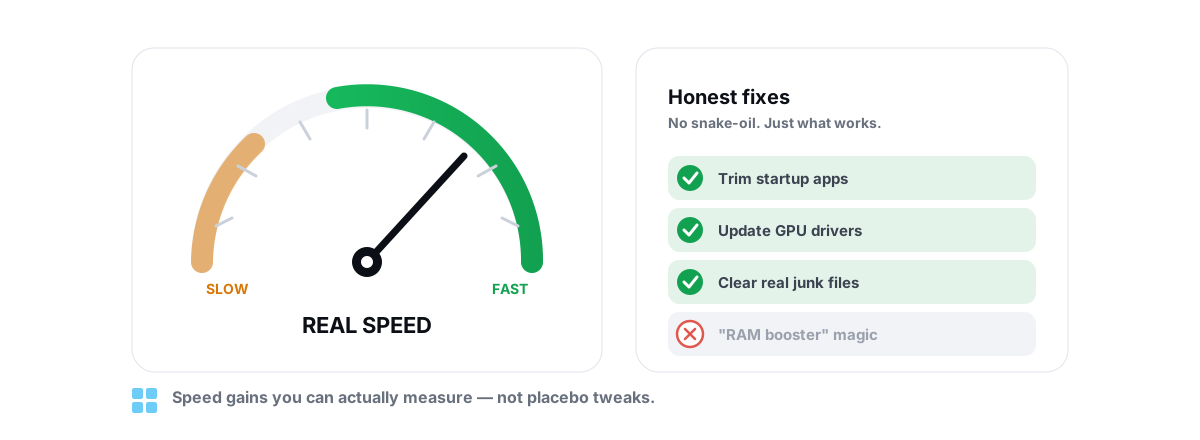
| RAM boosters / memory optimizers | Forcing memory free evicts useful cache and slows the next few seconds. The number it shows is meaningless. |
| "FPS booster" meters | A fake gauge. Frame rate comes from your GPU, settings, and thermals, not a slider in a third-party app. |
| Defragging an SSD | Useless and adds wear. Flash drives use TRIM, which Windows already runs. |
| Deleting the pagefile | Can cause crashes and out-of-memory errors. Leave it on automatic. |
| "Up to 10 GB freed" cleanup claims | Usually counts things that aren't disk space, like a flushed DNS cache. What those claims hide. |
The pattern: anything that shows a dramatic number without telling you what it actually changed, and without letting you reverse it, is selling reassurance. Real maintenance is boring, specific, and verifiable.
If you'd rather have one tool do the honest, verifiable parts of this (read your disk's SMART health, report the actual bytes a cleanup freed by re-measuring before and after, watch live CPU, GPU, RAM, and FPS so you can spot throttling, and make every system setting change reversible, with a System Restore point attempted first) that's what BRUTAL Optimizer is built to do. It's a user-mode wrapper over the same Windows tools above, with no kernel driver and no fake meters. But everything in this guide works with the tools already on your PC, and that's the point.
Frequently asked questions
How do I find out why my PC is slow?
Open Task Manager (Ctrl+Shift+Esc), go to the Performance tab, and reproduce the slowness while you watch. Whichever resource hits near 100 percent first (CPU, Memory, Disk, or GPU) is your bottleneck. Use Resource Monitor (resmon) for detail like hard faults and disk queue length.
Does high RAM usage mean I need more RAM?
Not by itself. Windows caches files in spare memory on purpose, so 60 to 70 percent use on a 16 GB machine is healthy. You only need more RAM if you regularly hit 90 percent or more with sustained paging to disk, which Resource Monitor shows as hard faults per second.
Will a registry cleaner or RAM booster speed up my PC?
No. Registry size has no measurable effect on speed, and cleaning it risks breaking apps. RAM boosters evict useful cached data and can slow you down right after. Both sell a number, not a fix. Spend your time on disk health, startup, heat, and malware instead.
Why is my PC fast at first and slow after a while?
That pattern usually means thermal throttling. When the CPU or GPU gets too hot it drops clock speed to protect itself. Watch your temperatures under load. If they sit in the 90s C with clocks dropping, clean the dust from fans and vents and improve airflow.
What is the single biggest speed upgrade for an old PC?
Replacing a mechanical hard drive with an SSD. If your system drive is a spinning HDD, that one change does more for everyday responsiveness, boot time, and app launches than any software tweak combined.
Keep reading
 Windows Performance
How to Speed Up Windows 11 Honestly in 2026
Only the Windows 11 tweaks with real, measurable impact, each one reversible, with the placebo tips called out and skipped.
 Windows Performance
How to Disable Startup Programs in Windows (Safely)
What each startup entry actually does, which ones are safe to disable, and why reversible toggles beat any boot optimizer that deletes entries.
 Myths & Honest Truths
Do RAM Boosters Work? What Free RAM Really Means
Why free RAM is wasted RAM, how aggressive trimming causes stutter, and the rare times a memory tool actually helps.
Stop guessing. Measure it.
BRUTAL Optimizer is the honest way to speed up Windows — 17 free modules, a real FPS overlay, verified disk cleanup and drive health. No kernel driver of our own, no game hooks, every setting change reversible.