Windows Services to Disable for Performance: The Honest List
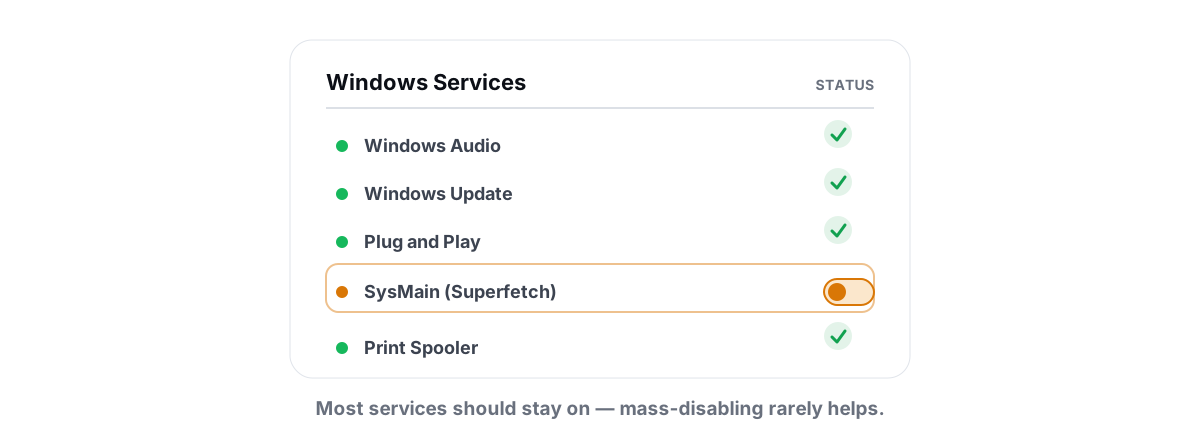
You searched "windows services to disable for performance," found a list of 30, and now your fingers are hovering over services.msc. Stop for two minutes. Most of those lists are copy-pasted nonsense, and a few of the "tweaks" actively make your PC slower.
I've cleaned up after these lists for years — the machines that came in stuttering or failing to boot because someone disabled the wrong thing. The honest truth is that disabling Windows services is one of the lowest-yield "optimizations" you can do, and the short list of services that are genuinely safe to stop won't move your frame rate. Here's what actually matters and what to leave alone.
The Problem With Viral "Windows Services to Disable for Performance" Lists
The classic list has 30 to 50 services, no explanation of what any of them do, and a promise of "huge FPS gains." Almost all of it is wrong for three reasons.
First, most services on those lists are already idle. A Windows service set to "Manual" or "Manual (Trigger Start)" isn't running unless something asks for it. Disabling a service that's already stopped frees zero RAM and zero CPU. You're flipping a switch on an empty room.
Second, services use almost nothing when they sit still. A typical idle service holds a few megabytes of working set and zero CPU. Killing ten of them might claw back 30-50 MB on a machine with 16 GB. That's noise. If you think RAM is your problem, read what free RAM actually means before you start hunting services.
Third — and this is the dangerous part — the lists rarely separate "harmless" from "this breaks Windows Update" or "this kills your audio." People disable Windows Audio, Windows Time, or Background Tasks Infrastructure Service and then spend a weekend wondering why the clock drifts, Discord won't connect, or apps crash on launch.
What SysMain (Superfetch) Actually Does — Leave It On
SysMain, formerly Superfetch, is the single most misunderstood service on Windows. Every list tells you to disable it "to free RAM and stop disk usage." Both reasons are based on a misreading of how Windows uses memory.
SysMain watches which apps you launch and when, then pre-loads their code and data into unused RAM so they open faster. The critical word is unused. Windows treats free RAM as wasted RAM — empty memory does no work. SysMain fills it with stuff you're likely to need, and the moment a program actually wants that memory, Windows hands it over instantly. Cached pages are not "used up." They're standby memory, available on demand.
So when Task Manager shows high memory and you blame SysMain, you're misreading the meter. That memory is a cache working for you, not a leak.
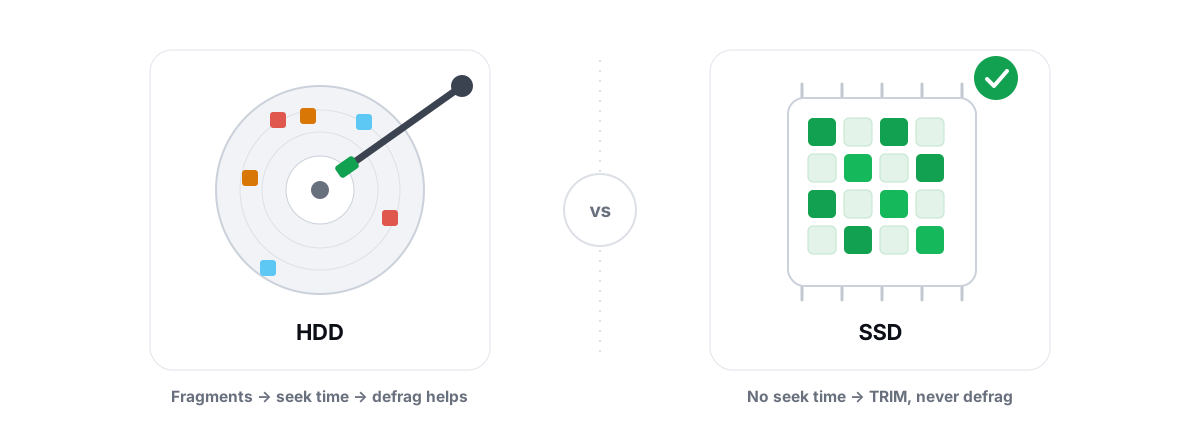
The "high disk usage" complaint is real but situational. On a slow mechanical hard drive, SysMain's background pre-fetching can occasionally compete with what you're doing and feel sluggish. On an SSD — which is nearly every gaming PC now — its activity is fast and invisible. If you're on an SSD, disabling SysMain does nothing good and removes a feature that makes app launches snappier.
On an SSD, leave SysMain on. It uses spare RAM you weren't using anyway and gives it back the instant anything needs it. Disabling it is a downgrade dressed up as a tweak.
The only defensible case for stopping SysMain is an old machine on a spinning hard drive where you've actually watched Resource Monitor and confirmed SysMain is the process hammering the disk during your normal workflow. Even then, the right fix is usually an SSD, not a disabled service.
Prefetch, Search Indexing and the SSD Myth
Two more "must disable on SSD" claims that won't die: turn off Prefetch, and turn off Windows Search indexing.
Prefetch
Prefetch is the data SysMain uses — small files in C:\Windows\Prefetch that record what a program loads at startup so Windows can read it more efficiently next time. The myth says it's pointless on SSDs and causes wear. Neither holds up. The files are tiny, the writes are negligible against an SSD's endurance, and on modern Windows the prefetcher still helps app cold-starts. There is no measurable speed win from disabling it, and you lose a small optimization. Leave it.
Search indexing (Windows Search / WSearch)
This one is more honest, but the framing is still off. Indexing builds a database so Start menu and File Explorer searches return instantly instead of crawling your whole drive. It does periodic background disk and CPU work to keep that database current.
If you genuinely never search your files, disabling Windows Search is one of the few service changes with a visible upside: less background I/O, and you stop the indexer from chewing CPU after a big file change. But you trade away fast search — every Start menu query and Explorer search gets slower. That's a real preference choice, not a free win. Most people who disable it end up turning it back on.
Services You Can Safely Disable (Short List)
Here's the honest short list. These are services that genuinely do nothing useful for many people, where stopping them won't break the system. Note the gain: it's cleaner background behavior and a little less idle chatter, not FPS.
| Service | What it does | Safe to disable if… |
|---|---|---|
| Fax | Sends/receives faxes via a modem | You don't own a fax modem. Nobody does. |
| Windows Mobile Hotspot Service | Shares your connection as a Wi-Fi hotspot | You never tether other devices through this PC. |
| Print Spooler (Spooler) | Manages print jobs | You have no printer at all. (Also a recurring security target.) |
| Bluetooth Support Service | Bluetooth device pairing/connectivity | You have no Bluetooth hardware or devices. |
| Remote Registry | Lets remote machines edit your registry | Always — it's off by default; keep it off. |
| Geolocation Service (lfsvc) | Supplies your location to apps | No app you use needs location. |
| Downloaded Maps Manager (MapsBroker) | Offline maps for the Maps app | You never use the Maps app. |
| Windows Insider Service (wisvc) | Manages Insider preview builds | You're not on the Insider program. |
Notice what's not here: no audio, no scheduler, no networking core, no Update components, no SysMain. The "safe" list is short and boring on purpose. That's the point. None of these will change how a game runs — they just stop a handful of features you don't use.
Telemetry Services: Privacy vs. Performance
The big one people want gone is DiagTrack — the Connected User Experiences and Telemetry service. Lists sell disabling it as a performance fix. It isn't, really. DiagTrack's job is collecting diagnostic and usage data and sending it to Microsoft. Its CPU and disk footprint on an idle gaming PC is small.
So be clear about your motive. Disabling DiagTrack is a privacy decision, and a reasonable one. It is not a performance decision — you won't feel a frame of difference. If privacy is your goal, own that and do it deliberately. If you only care about FPS, leave it; you're chasing a number that isn't there.
A warning on telemetry "debloat" scripts: the aggressive ones disable dozens of services and scheduled tasks, edit Group Policy, and sometimes break Windows Update or the Microsoft Store as collateral. If something later won't update or install and you can't explain why, a debloat script is the usual culprit. Make changes you understand and can reverse one at a time.
A focused, reversible telemetry toggle beats a sledgehammer script. BRUTAL Optimizer's Privacy Center flips documented telemetry, ads, and tracking settings and lets you revert each one to its Windows default — no mystery, no broken Update.
How to Disable Reversibly and Roll Back
If you do change a service, do it so you can undo it cleanly. The mechanism matters more than which services you touch.
- Write down the original Startup type first. Open
services.msc, double-click the service, and note whether it's Automatic, Manual, Manual (Trigger Start), or Disabled. You can't restore what you didn't record. - Prefer Manual over Disabled. "Manual" lets Windows start the service if something genuinely needs it; "Disabled" hard-blocks it and is what causes mystery breakage. Manual is the safer setting for anything you're unsure about.
- Take a System Restore point before a batch of changes. If a change breaks boot or a core feature, you roll the whole system state back in minutes. Here's how to create a restore point — do it before any bulk tweaking.
- Change one thing, then reboot and use the PC. Batch changes are how people end up with an unidentifiable problem. One change at a time means you always know what to undo.
If you ran a script that flipped 40 services and now something's broken, the fastest recovery is the restore point you (hopefully) took, or sfc /scannow followed by DISM /Online /Cleanup-Image /RestoreHealth to repair system components. Those are the same in-box repair tools any honest optimizer wraps rather than replaces.
Why We Don't Ship a One-Click "Kill Services" Button
People ask why BRUTAL Optimizer doesn't have a big "disable 40 services" button like the bloatware tools do. Because it would be dishonest. The RAM it'd "free" is rounding error, the FPS it'd add is zero, and the support tickets it'd generate — broken audio, dead Update, no Bluetooth — would be real.
That's the line we hold across the whole app: no placebo. We don't ship a fake RAM booster meter, we never defrag an SSD, and we don't dump a services-massacre on your system and call it a tune-up. Every setting change the app does make is reversible per-module, and it attempts a System Restore point before anything big. If a tweak doesn't produce a real, measurable result, we don't ship it — that philosophy is laid out in our look at whether PC optimizers actually work.
If your PC feels slow, services are almost never the cause. The real culprits are startup bloat, a full or failing drive, thermal throttling, or a GPU/CPU bottleneck in the game itself. Work through the nine real causes of a slow PC first — every one of them will move the needle more than any service list ever could.
If you'd rather skip the manual service hunt entirely, BRUTAL Optimizer (free, Windows 10 and 11) gives you the honest tools instead: a Startup Manager to cut what actually loads at boot, a Privacy Center with reversible telemetry toggles, and a live CPU/GPU/RAM monitor so you can see where the load really is — no kernel driver, no placebo, anti-cheat safe alongside Vanguard and EAC.
Frequently asked questions
Should I disable SysMain (Superfetch) for gaming?
No, not on an SSD. SysMain pre-loads apps into unused RAM and hands that memory back the instant anything needs it, so it costs you nothing and speeds up launches. Disabling it removes a useful feature and adds zero FPS. The only edge case is an old spinning hard drive where you have confirmed SysMain is the process hammering the disk during normal use.
Does disabling Windows services actually increase FPS?
No. Idle services use a few megabytes each and zero CPU, so stopping a batch of them frees rounding-error RAM and changes nothing in games. There is no list of services that adds meaningful frame rate. Trimming startup programs and fixing thermal or drive issues will do far more.
Is it safe to disable DiagTrack telemetry?
Yes, disabling Connected User Experiences and Telemetry (DiagTrack) is safe and is a reasonable privacy choice. Just be clear it is a privacy decision, not a performance one: its footprint on an idle PC is tiny and you will not feel a frame of difference. Avoid aggressive debloat scripts that disable dozens of services at once, since they often break Windows Update or the Store.
Which Windows services are genuinely safe to disable?
A short list, only if the feature does not apply to you: Fax, Print Spooler (no printer), Bluetooth Support Service (no Bluetooth), Remote Registry, Geolocation, Downloaded Maps Manager, Windows Mobile Hotspot, and Windows Insider Service. None of these affect game performance; they just stop features you do not use.
How do I undo a service change if something breaks?
Set services to Manual rather than Disabled so Windows can start them when needed, and write down the original Startup type before changing anything. Take a System Restore point before a batch of changes so you can roll back in minutes. If a debloat script broke something, restore that point or run sfc /scannow followed by DISM RestoreHealth.
Keep reading
 Myths & Honest Truths
Do RAM Boosters Work? What Free RAM Really Means
Why free RAM is wasted RAM, how aggressive trimming causes stutter, and the rare times a memory tool actually helps.
 Windows Performance
How to Disable Startup Programs in Windows (Safely)
What each startup entry actually does, which ones are safe to disable, and why reversible toggles beat any boot optimizer that deletes entries.
 Myths & Honest Truths
Should You Defrag an SSD? No - Here's Why
Defragging an SSD is pointless and wears it out. Here's what flash actually needs - TRIM and ReTrim - and how to check it.
Stop guessing. Measure it.
BRUTAL Optimizer is the honest way to speed up Windows — 17 free modules, a real FPS overlay, verified disk cleanup and drive health. No kernel driver of our own, no game hooks, every setting change reversible.