Do RAM Boosters Work? What Free RAM Really Means

A RAM booster watches a number go up, frees some memory, and shows you a number going down. That feels like progress. On a modern Windows PC, it almost never is — and it can make your games stutter.
The myth: "free RAM = fast PC"
The pitch is simple and that's why it sells. You install a tool, it shows "82% RAM used," you tap a button, and the bar drops to 40%. Looks like the tool just did something useful.
It didn't. The assumption underneath — that empty RAM is good RAM — is backwards. Unused memory does nothing for you. It's an empty shelf in a warehouse you already paid for.
Windows is built to fill RAM on purpose, because RAM that holds your recently used apps and files is faster to read from than a disk. A "high" memory number is usually a sign the operating system is doing its job, not a problem to fix.
Empty RAM isn't a reserve you're saving for later. It's capacity you're not using. The fast PC is the one with full, well-managed memory — not the one with a half-empty bar.
How Windows actually uses memory (standby is good)
Windows splits physical memory into a few buckets. The two that matter for this myth are In use and Standby (also called cached).
- In use — memory actively held by running processes. The OS will not casually take this away.
- Standby / cached — pages Windows is keeping around just in case you need them again: code from apps you closed, file data you read recently, prefetched startup data. This is opportunistic caching.
- Free — genuinely empty pages. Windows keeps this pool small on purpose. A tiny "Free" number is normal and healthy.
- Modified — changed pages waiting to be written to disk before they can be reused.
Here's the part most people miss: standby memory is available memory. The instant a program needs more RAM, Windows hands over standby pages with no disk access required. It's cache, not a wall. The system reports it separately from "Free," but for the purpose of "do I have room to launch a game," standby counts as room.
That's why Task Manager shows "Available" as a bigger number than "Free." Available is roughly Free plus most of Standby. When a memory tool screams that you're at 85% used, a big chunk of that 85% is reclaimable cache the OS releases on its own, in microseconds, the moment anything asks.
The Memory Compression feature (Windows 10 and 11) makes this even better. Instead of writing cold pages to the pagefile, Windows compresses them in RAM, so it can keep more useful data resident. You'll see a "Compressed" figure inside the In-use bar in Task Manager — that's a feature working, not bloat.
What RAM boosters do: working-set trimming
So if RAM is already self-managing, what is the booster actually doing when the bar drops? Almost always one of two things, and both are blunt.
1. Working-set trimming
Every process has a working set — the pages it currently has resident in physical RAM. Windows exposes an API (EmptyWorkingSet / SetProcessWorkingSetSize) that forces a process to give those pages up. The booster loops over your running processes and calls it on each one.
The pages don't vanish. They get pushed to standby or, if they were modified, written out to the pagefile on disk. Your "used" number drops because the pages are no longer counted against any process's working set — but the data still has to live somewhere.
2. Allocating a giant block of memory
The cruder trick: the tool allocates a huge chunk of RAM all at once, which forces Windows to evict other apps' pages to standby/pagefile to make room, then the tool immediately frees its block. The bar plummets. You've just flushed every app's hot memory to disk for a screenshot-worthy graph.
Neither technique creates capacity. They relabel it. The RAM was never the bottleneck — and now your apps have to page their working data back in.
Why aggressive trimming can cause stutter
Forcing pages out of working sets has a real, measurable cost: the next time a program touches one of those pages, it's a page fault. If the page is on standby, that's cheap. If it got written to the pagefile, the CPU stalls while it's read back from disk.
For a game, that's the exact recipe for a frametime spike. You alt-tab, a "memory optimizer" trims the game's working set, you alt-tab back, and the engine hitches as it faults its textures and code pages back into RAM. You traded a meaningless lower number for a visible stutter. If you've been chasing inconsistent frametimes, that's worth understanding — see our guide on fixing stutter and frametime spikes.
Run a "boost on a schedule" tool and you create a loop: trim → fault back in → memory climbs again → trim again. You're spending CPU cycles and disk I/O to fight Windows' own caching, which was helping you. On a laptop, that's also wasted battery.
When freeing memory is actually useful
This isn't "memory tools are always pointless." There's a narrow set of real cases — they're just not the everyday "my bar is high" panic.
A genuine memory leak
Some apps leak — they allocate memory and never release it, climbing for hours until the machine swaps constantly. Chrome with 80 tabs, a buggy game launcher, certain creative apps left open for days. The fix is to close and reopen the offending app, not to trim everything. Trimming a leaking process just delays the crash by a few minutes while hammering your disk.
You're genuinely out of RAM
If "Available" (not "In use") is near zero and your pagefile is thrashing, you actually need memory. The honest answers, in order: close what you're not using, identify the hog in Task Manager, and — if this is a constant problem — buy more RAM. 16 GB is a sane floor for gaming in 2026; 8 GB is where you'll feel the squeeze. No software can manufacture RAM you don't have.
Standby list getting in the way of one huge app
A real edge case: a single process that wants a very large contiguous allocation right now (a heavy simulation, a 4K video render, a VM). Windows usually services this fine from the standby list, but on memory-starved systems clearing standby first can occasionally help. This is rare, advanced, and not what a one-click "boost" button is doing.
Trimming when a game launches — done right
There's a defensible version of this: once, at the moment a game starts, trim idle background apps' working sets so the game gets a clean run at memory. The key differences from a scammy booster are that it's targeted (background bloat, never the game), it's one-shot (not a thrashing timer), and it never touches your foreground app. BRUTAL Optimizer's optional background tuner does this kind of one-time trim when it detects a game — and it never wipes the cache the game itself depends on.
Reading memory in Task Manager correctly
You don't need any tool to understand your memory. Open Task Manager (Ctrl+Shift+Esc), go to Performance → Memory, and read it like this:
| What you see | What it actually means |
|---|---|
| In use | RAM actively held by apps right now. Includes Compressed. This is the only number a "high usage" worry should look at. |
| Available | What's instantly usable for new work = Free + reclaimable Standby. This is the number that matters. If it's healthy, you're fine. |
| Cached / Standby | Helpful data the OS parked for speed. Counts toward Available. Not a problem. |
| Committed (e.g. 22/35 GB) | Memory promised to apps vs. your total commit limit (RAM + pagefile). If the second number is close to the first, you're under real pressure. |
| Free | Truly idle pages. A small number here is normal and good — empty RAM is wasted RAM. |
The honest rule of thumb: if Available is comfortable and you're not swapping, your RAM is fine no matter how scary "In use" looks. If Available is near zero and Committed is pinned at the limit, that's a real signal — and the fix is closing apps or adding RAM, not a boost button.
To find which process is the actual hog, sort the Processes tab by Memory. If one app is eating gigabytes you didn't expect, that's your target. High memory is rarely the root cause of a slow PC anyway — disk, startup load, thermals, and background services usually matter more. We walk through all of them in why your PC is so slow, with real causes and fixes, and the broader, honest tune-up in how to speed up Windows 11 without placebo. If a specific program is pinning the CPU instead of RAM, see fixing 100% CPU usage without guesswork.
Our honest take on memory tools
RAM boosters belong in the same bin as registry cleaners and SSD "defraggers" — software that performs a ritual so you'll feel something happened. The number moving on screen is real. The benefit is not. For the full pattern across the whole category, read our honest look at whether PC optimizers actually work.
A booster cannot give you more memory than you bought. The best it can do is shuffle pages around, and the most likely outcome of doing that aggressively is a stutter where there wasn't one. Windows' memory manager has had thirty years of tuning. It is smarter than a tray icon with a broom on it.
That stance is the whole point of BRUTAL Optimizer: it refuses placebo. No fake RAM meter, no "boosted!" toast. Its memory work is limited to a targeted, one-time working-set trim of idle background apps when a game launches, and a live monitor that shows you the truth — Available, Standby, Committed — so you can decide for yourself. The real wins come from things that move actual numbers: trimming startup load, fixing thermals, cleaning genuine junk for verified disk space, and tuning the network. Every setting change it makes is reversible, and it never touches the kernel.
If you take one thing from this: stop watching the "used" bar. Watch Available, close what's leaking, and buy RAM if you're truly out. That's the entire honest playbook.
Frequently asked questions
Do RAM boosters actually work?
For everyday use, no. They lower the used-memory number by forcing apps to drop their working sets to standby or the pagefile, but they don't create capacity. Windows already manages RAM well, so the dropped number is cosmetic and can even trigger stutter when apps page their data back in.
Is high RAM usage normal on Windows?
Yes. Windows fills RAM on purpose with cached data because reading from memory is far faster than disk. A high In-use figure usually means the OS is doing its job. The number that actually matters is Available, not In use.
Why does my RAM usage stay high even when idle?
Most of it is standby (cached) memory holding recently used apps and files so they reload instantly. Windows releases those pages the moment anything needs them. Empty RAM does nothing for you, so the OS keeps the free pool small on purpose.
How do I free up RAM in Windows the right way?
Close apps you are not using, restart anything that is leaking memory, and check Task Manager's Available figure rather than In use. If Available is consistently near zero and you are swapping, add physical RAM. No software can manufacture memory you do not have.
Can a RAM cleaner cause game stutter?
It can. Trimming a game's working set forces page faults when the engine touches that memory again. If pages were written to the pagefile, the CPU stalls reading them back from disk, which shows up as a frametime spike. A scheduled booster makes this worse by repeating the trim.
Keep reading
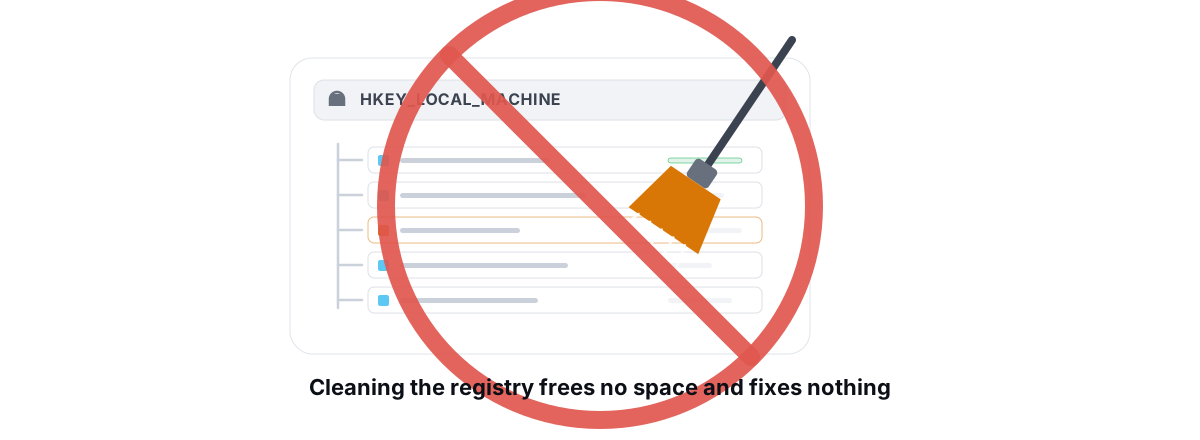 Myths & Honest Truths
Do Registry Cleaners Work? (Short Answer: No)
Registry cleaners have never measurably sped up a PC, and the worst ones break Windows. Here is the truth and what to do instead.
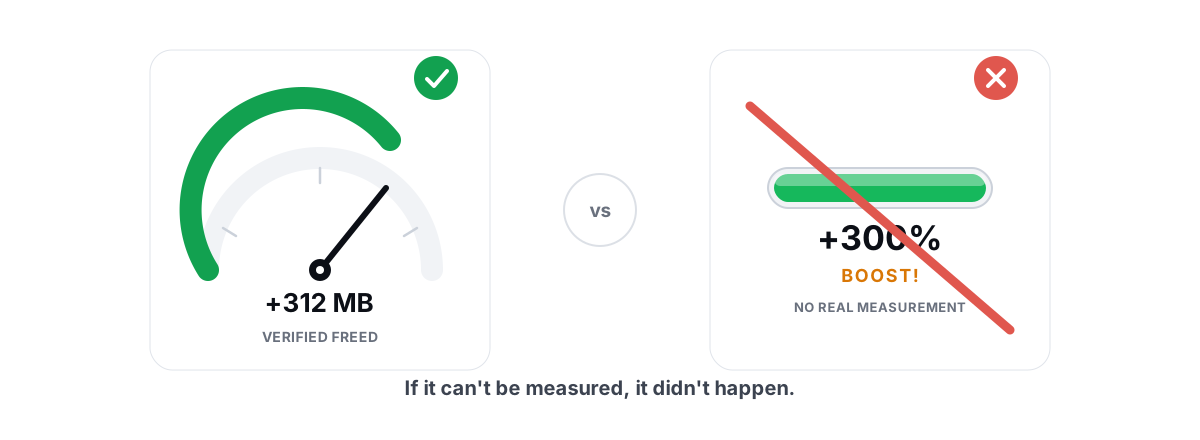 Myths & Honest Truths
Do PC Optimizers Actually Work? An Honest Look
Some PC optimizers make real, small gains; most sell a meter that means nothing. Here is how to tell the difference.
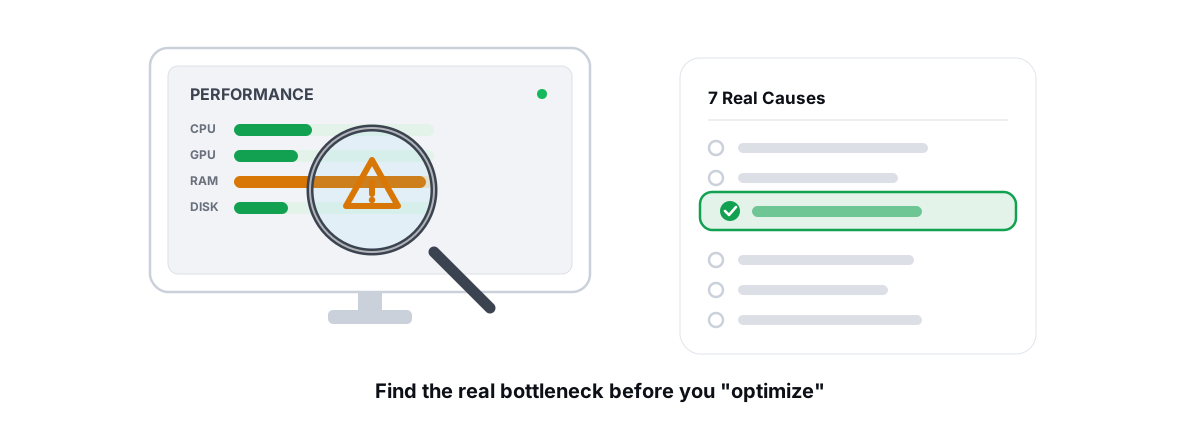 Windows Performance
Why Is My PC So Slow? 7 Real Causes (and Fixes)
A diagnosis-first guide to finding the real reason your PC is slow with built-in tools, then fixing only what matters.
Stop guessing. Measure it.
BRUTAL Optimizer is the honest way to speed up Windows — 17 free modules, a real FPS overlay, verified disk cleanup and drive health. No kernel driver of our own, no game hooks, every setting change reversible.