Fix 100% CPU Usage in Windows Without Guesswork
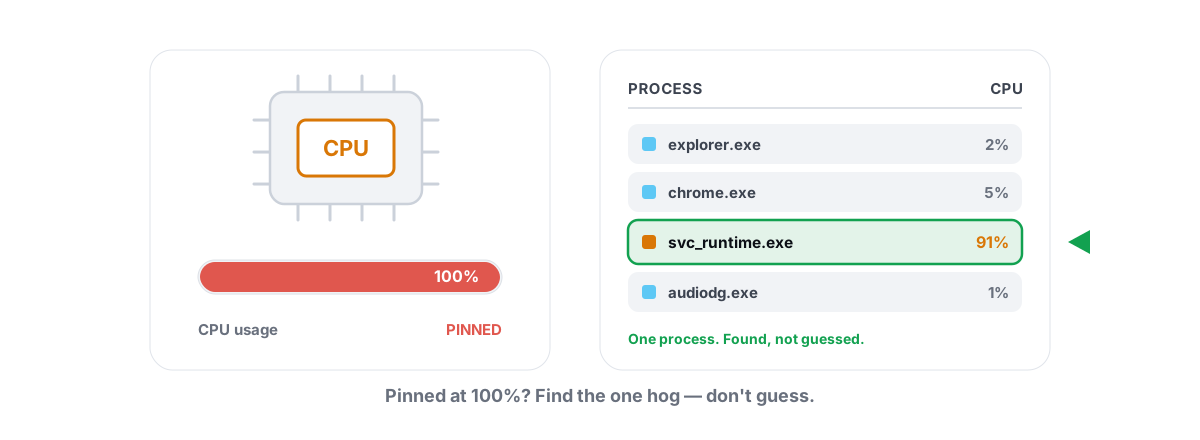
Your fan is screaming, the machine is sluggish, and Task Manager says 100. Hitting 100 percent CPU usage in Windows isn't something you "clean up" — you find the one process or driver doing the work, then deal with that specifically.
Pinned CPU is a symptom, not a diagnosis. Something is running flat out: a scanner, an indexer, a stuck driver in an interrupt loop, a runaway browser tab, or — occasionally — malware. Each has a different cause and a different fix. Blanket "optimizers" that promise to fix high CPU with one button are guessing, and they're usually wrong.
This is the methodical version. You'll confirm the load is real, name the exact culprit, and apply the fix that matches it. No registry voodoo, no placebo.
Confirm 100 percent CPU usage is real: Task Manager and Process Explorer
Open Task Manager (Ctrl+Shift+Esc), go to the Details tab, and click the CPU column header to sort descending. Watch for 30 seconds. You're looking for one of three patterns.
- One process at the top, sustained. That's your culprit — note its name. This is the easy case.
- "System Interrupts" or "System" high. That's kernel/driver work, not a normal app. Different playbook (covered below).
- Nothing obvious, but total CPU is high. The cost is spread across many small processes, or a process is hiding. Time for a better tool.
Task Manager rounds aggressively and hides some kernel detail. For the messy cases, get Microsoft's free Process Explorer (part of Sysinternals — a signed Microsoft tool, not third-party junk). Run it as administrator. It shows per-process CPU with more precision, the full command line, and — critically — it breaks out Interrupts and DPCs as their own rows so you can tell hardware/driver load apart from a normal program.
If you can't name the process eating your CPU, you can't fix it. Every step below starts with a name.
Antimalware Service Executable eating your CPU
If the top process is MsMpEng.exe (shown as "Antimalware Service Executable"), that's Microsoft Defender. It's the single most common "why is my CPU pinned" answer, and most of the time it's doing legitimate work — a scheduled scan or real-time scanning of files you're actively touching.
When it's a problem, it's usually one of two things: a long scan running at a bad time, or Defender scanning files that get written constantly (compilers, game shader caches, download folders, VM disks). Defender can also get into a loop scanning itself if another security product is installed alongside it.
What actually helps
- Reschedule the scan. Open Task Scheduler →
Microsoft\Windows\Windows Defender→ "Windows Defender Scheduled Scan." Move it to a time you're not using the PC, and uncheck "Run with highest privileges" only if it's misbehaving on battery. - Add narrow exclusions — carefully. If you build code or play games that compile shaders, excluding the specific build/cache folder stops Defender from re-scanning thousands of churning files. Exclude folders you trust, never your whole drive.
- Remove duplicate antivirus. Running a second real-time AV next to Defender doubles the scanning and can cause the loop. Pick one.
- Let a first big scan finish once. On a fresh install or after a big update, the initial full scan is heavy and then settles. Don't fight it on day one.
System Interrupts and DPC latency explained
"System Interrupts" isn't a program. It's a placeholder Windows shows for the time the CPU spends servicing hardware interrupts (IRQs) and deferred procedure calls (DPCs) — the low-level handoffs between devices and their drivers. A few percent is normal. Sustained 10–30%+ on System Interrupts almost always means a misbehaving driver or failing hardware, not a normal app you can close.
Common causes, roughly in order of likelihood:
- A bad or outdated device driver stuck in an interrupt storm — network, audio, USB, and storage controllers are frequent offenders.
- A failing USB device or cable spamming connect/disconnect events.
- Power-management quirks — some drivers spin under aggressive C-state or USB selective-suspend settings.
- Failing storage (a dying drive retrying reads) or a flaky external dock.
How to find the driver
You can't see which driver from Task Manager. Use Microsoft's free LatencyMon: run it for a few minutes during the spike and it names the worst .sys file by DPC time. Once you have the file name (for example a network or audio driver), you know which device to fix.
- Update that specific driver from the device maker's site, not a random driver-pack tool. Network and storage drivers matter most here. Our guide on updating GPU drivers safely applies the same caution to any driver.
- If a recent update caused it, roll back: Device Manager → the device → Properties → Driver → Roll Back Driver.
- Unplug USB devices one at a time and watch System Interrupts. A single bad peripheral or cable is a classic cause.
- Test a different USB port or a different cable for the suspect device.
If you only ever update drivers reactively, the broader question — should you keep everything bleeding-edge? — is worth a read: should you always update drivers (not always). Newer isn't automatically better; the right driver is the stable one for your hardware.
Windows Update, Search Indexing and background jobs
A big share of "100% CPU at idle" reports are Windows doing scheduled housekeeping while you weren't looking. These are real jobs, not bugs, and they finish on their own — but they can hammer the CPU for a while.
| Process | What it's doing | Sensible response |
|---|---|---|
TiWorker.exe / wuauclt | Installing or cleaning up Windows updates | Let it finish; reboot when prompted |
SearchIndexer.exe | Building the search index after big file changes | Settle it down or rebuild the index |
SysMain (Service Host) | Superfetch prefetching apps into RAM | Usually fine; only touch if it's a sustained problem |
Runtime Broker | Checking permissions for Store apps | Find the misbehaving Store app and close/update it |
Search Indexing is the one most worth taming. After you move a large library or unpack a huge archive, SearchIndexer.exe can run hot for an hour. Open Indexing Options and narrow what gets indexed — there's no reason to index entire data drives. If it's stuck, "Rebuild" the index once; it's heavy briefly, then quiet.
SysMain on a healthy SSD expecting a speed boost — it isn't a meaningful CPU drain on modern systems, and the standby-memory it uses is doing its job. The honest take on this lives in our which Windows services to disable piece. Most "disable these 30 services" lists are cargo-cult advice.If your machine feels slow even when CPU isn't pinned, the cause is often elsewhere — startup bloat, a dying disk, or thermal throttling. Why is my PC so slow — 9 real causes walks the whole tree.
Browser tabs and hidden web helpers
Modern browsers are operating systems wearing a trench coat. A single tab running a heavy web app, an autoplaying video, a runaway ad script, or a misbehaving extension can hold a core at 100% indefinitely — and you won't see "Chrome" as one line, because each tab and extension is its own process.
Every Chromium browser (Chrome, Edge, Brave) has its own task manager: press Shift+Esc inside the browser. It lists every tab and extension by CPU. Sort by CPU, find the offender, close that tab or remove that extension. This is faster and more precise than guessing in Windows Task Manager.
- Extensions are common culprits. Crypto-related, coupon, and "shopping assistant" extensions are notorious for background scripts. Disable them one by one.
- Hardware acceleration can shift load between CPU and GPU. If a browser is pinning the CPU on video, toggling it sometimes helps — test both ways.
- Background apps. Many browsers keep running after you close the window (Settings → "Continue running background apps"). That's where a "closed" browser keeps eating CPU.
Discord, Spotify, Steam, and similar apps embed the same web engine and behave the same way — a background helper quietly burning a core. Close them fully (not to tray) when you need the headroom.
Malware, cryptominers and driver loops
If the load is high but no legitimate process explains it — or a process is consuming CPU yet vanishes the moment you open Task Manager — treat malware as a real possibility. Cryptojacking is the obvious motive: someone else's miner using your CPU, often throttling itself to stay under the radar and spiking when the machine is idle.
Tells worth taking seriously:
- A process with a random-looking name in an odd location (
%AppData%,%Temp%, a user profile folder) pegging the CPU. - CPU that drops to zero the instant you open Task Manager and climbs back when you close it (some miners watch for monitoring tools).
- A "system" process whose file path or publisher looks wrong in Process Explorer (right-click → Properties → verify the signature).
What to do, in order:
- Run a full Microsoft Defender Offline scan (Windows Security → Virus & threat protection → Scan options). It boots outside Windows so rootkit-style miners can't hide.
- Second-opinion with the free Malwarebytes scanner.
- Check Startup and scheduled tasks for the persistence mechanism — see how to manage startup programs in Windows. Miners almost always reinstall themselves via a startup entry or a scheduled task.
- If you can't get it clean, back up your data and reinstall Windows. With a confirmed miner, that's often the honest answer.
Not every mystery is malware. Corrupted system files cause the same loops. sfc /scannow followed by DISM /Online /Cleanup-Image /RestoreHealth from an elevated prompt repairs the Windows component store and clears a surprising number of phantom-CPU issues.
Fixing the cause vs. masking the symptom
Here's the line that separates real fixes from theater. A real fix removes the work: you stopped a scan from running at a bad time, updated the driver that was storming, killed the runaway tab, removed the miner. The CPU drops because there's genuinely less to do.
Masking does the opposite. "RAM boosters," registry cleaners, and one-click "CPU optimizers" don't find your culprit — they run a generic script, flash a green checkmark, and leave the actual process still pinned. Worse, some raise process priorities or kill services blindly, which can make the machine less stable. If you've ever wondered whether those tools do anything, the evidence is in do PC optimizers actually work.
| Symptom in Task Manager | Real fix |
|---|---|
| One named app pinned | Close/update/uninstall that app; check its settings |
| Antimalware Service Executable | Reschedule scan, narrow exclusions, remove duplicate AV |
| System Interrupts / DPCs high | LatencyMon → update or roll back the named driver; swap USB |
| TiWorker / SearchIndexer | Let it finish; narrow indexing scope |
| Browser at the top | Shift+Esc → kill the tab/extension |
| Unknown process, hides from you | Defender Offline + Malwarebytes; reinstall if needed |
The honest tools in this space don't claim to fix CPU. They help you see what's happening and only touch things reversibly. BRUTAL Optimizer's live CPU/GPU/RAM monitor and its startup manager help you spot a pinned process and cut what auto-launches at boot, and its System Repair runs the same sfc and DISM repairs above. There's no fake "boost" meter to pretend it lowered your CPU, and every setting change it makes is undoable.
That's the whole method: confirm, name, fix the cause. Once you've named the process and applied the matching fix, your CPU is busy because you told it to be — not because something's quietly stealing cycles. If you want a tool that monitors honestly and keeps every setting change reversible, the diagnostic and repair tools in BRUTAL Optimizer are free, which is all most people need here.
Frequently asked questions
Why is my CPU at 100% when nothing is open?
Something is still running. The usual suspects are Windows Update (TiWorker), Search Indexing (SearchIndexer), a scheduled Defender scan (Antimalware Service Executable), or a browser still running in the background. Sort Task Manager by CPU to name it. If nothing legitimate explains it, scan for a cryptominer with Defender Offline.
What is System Interrupts and why is it using so much CPU?
System Interrupts is a placeholder for the time the CPU spends servicing hardware and drivers, not a real program. A few percent is normal. Sustained double-digit usage usually means a misbehaving driver or failing hardware. Use the free LatencyMon tool to find the worst .sys file, then update or roll back that specific driver and test your USB devices.
Should I disable Antimalware Service Executable to fix high CPU?
No. That is Microsoft Defender, your antivirus, and Windows re-enables it anyway. Instead reschedule its scan to a time you are not using the PC, add narrow exclusions for folders with constantly changing files like build or shader caches, and remove any second antivirus that is scanning alongside it.
Can a PC optimizer fix high CPU usage?
Not by itself. One-click optimizers run a generic script and flash a checkmark, but they cannot identify the specific process or driver pinning your CPU. The real fix is finding the culprit and dealing with it. A monitoring tool helps you see the load, but it cannot make the underlying work disappear.
How do I tell if high CPU is caused by malware?
Watch for a random-looking process in a folder like AppData or Temp, CPU that drops to zero the moment you open Task Manager and climbs back when you close it, or a system process whose file path and signature look wrong in Process Explorer. Run a full Microsoft Defender Offline scan plus a Malwarebytes second opinion, and check startup entries for the persistence.
Keep reading
 Windows Performance
Why Is My PC So Slow? 7 Real Causes (and Fixes)
A diagnosis-first guide to finding the real reason your PC is slow with built-in tools, then fixing only what matters.
 Hardware & Drivers
How to Update GPU Drivers Safely in 2026
The clean-install method that prevents stutter and crashes, when to roll back a bad GPU driver, and why a restore point comes first.
 Windows Performance
How to Disable Startup Programs in Windows (Safely)
What each startup entry actually does, which ones are safe to disable, and why reversible toggles beat any boot optimizer that deletes entries.
Stop guessing. Measure it.
BRUTAL Optimizer is the honest way to speed up Windows — 17 free modules, a real FPS overlay, verified disk cleanup and drive health. No kernel driver of our own, no game hooks, every setting change reversible.