Should You Update Drivers? Which Matter, Which to Skip
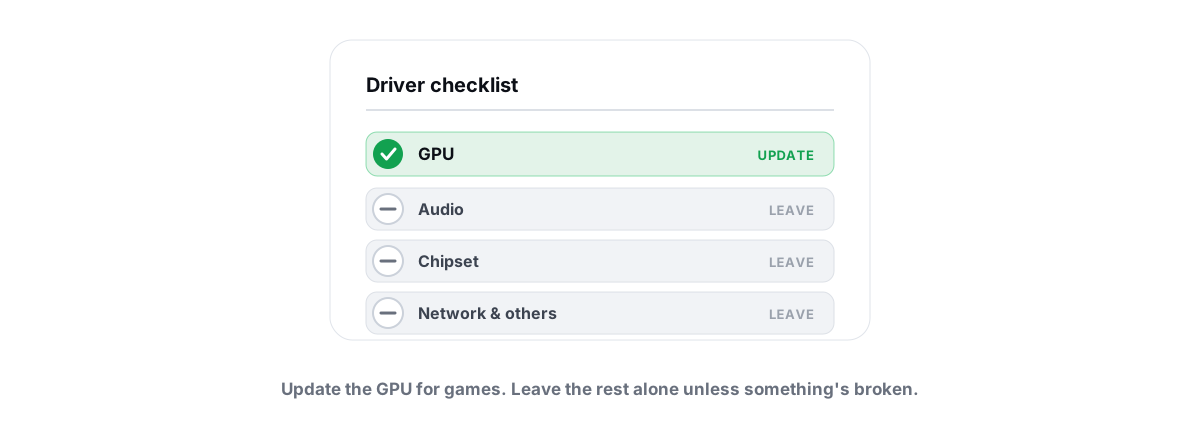
"Update all your drivers" is the advice everyone repeats and almost nobody questions. So should you update drivers as routine maintenance? Mostly no. A few genuinely matter, most do nothing you can measure, and the tools that promise to manage them for you are mostly there to sell a subscription.
The driver update myth: newer isn't always better
A driver is the software that lets Windows talk to a piece of hardware — your GPU, your network card, your storage controller, your touchpad. When it works, you never think about it. The myth is that a newer version is always faster or safer, so you should chase the latest one for everything.
That's not how driver releases work. A vendor ships a new driver to fix a specific bug, add support for a new product, or improve one workload — not to make your three-year-old card mysteriously faster. If your hardware is doing its job, a new driver usually changes nothing you can measure, and occasionally introduces a regression that breaks something that was fine.
The old workshop rule fits here: if it ain't broke, don't fix it. A driver is a low-level component your whole system depends on, and every change to it carries a small risk. You take that risk when there's a payoff — a fix you need, a feature you want, a card that's brand new — not as routine hygiene.
The right question isn't "is there a newer driver?" It's "do I have a problem this update solves?" If the answer is no, leave it alone.
That "update everything" reflex is exactly what driver-updater tools exploit. They show you a long list of "outdated" drivers, most of which are working perfectly, and frame the count as a problem you need to pay to fix. It isn't.
Drivers worth updating: GPU, chipset, NIC
A small number of drivers do real, measurable work, and keeping them reasonably current is worth it. Here's the short list and why each one earns the effort.
GPU (graphics)
This is the one driver that actually changes gaming performance. GPU vendors ship game-ready updates that fix crashes, add optimizations for specific new titles, and occasionally claw back a few FPS in games that were running badly. If you game, a current GPU driver is the single update that's almost always worth doing.
"Almost" is doing work in that sentence. Brand-new GPU drivers sometimes ship with their own bugs — a bad release can cause stutter, black screens, or crashes in specific games. The sane move is to stay roughly current, not bleeding-edge: wait a few days after a release, skim the known-issues notes, and update when you have a reason. The exact safe procedure is in how to update GPU drivers safely.
Chipset
The chipset driver tells Windows how to handle your motherboard's core plumbing — power management, PCIe lanes, the CPU's preferred-core scheduling. On AMD Ryzen systems especially, the right chipset driver affects how cores are parked and boosted, which shows up as smoother behavior and correct power states. It's not a frequent update, but install the current one from your motherboard or CPU vendor when you build or reinstall.
Network (NIC)
A network driver update can fix real, annoying problems: dropped connections, Wi-Fi that won't wake from sleep, throughput lower than your line should deliver, or high latency under load. If your connection is misbehaving, the NIC driver is a legitimate suspect. If it's solid, there's no prize for updating it — and a bad Wi-Fi driver update can cost you a working connection, so only chase it when you have a symptom.
Drivers best left alone
Most of the drivers a tool flags as "outdated" fall into this bucket. They work, the version Windows shipped or the vendor installed years ago is fine, and updating them buys you nothing but risk.
- Audio drivers — if sound works, leave it. New audio drivers are a common source of crackling, missing devices, or a mysteriously muted output after an update. The Realtek-style "high definition audio" driver Windows ships is fine for the vast majority of people.
- USB and chipset sub-drivers — the individual USB host controller entries almost never need touching. If your ports work, updating them is pure downside.
- Storage controller (AHCI/NVMe) drivers — the in-box Microsoft driver is mature and fast. Swapping in a vendor storage driver rarely helps and can, in bad cases, stop your system from booting. Don't.
- Printers, webcams, card readers, Bluetooth — update only if the device is actually broken or you need a feature the new version adds.
- Anything labeled "System device" you don't recognize — these are usually working components with a generic name. A driver-updater flags them to pad its count. Ignore them.
A useful instinct: the further a driver is from "active work you can perceive," the less an update helps. Your GPU renders frames you watch and your NIC carries packets you feel as latency — those can change. Your card reader's driver does the same trivial job no matter the version number.
Why "driver updater" tools are often scams
This is the part most articles tiptoe around. Third-party "driver updater" programs — the ones that scan your PC, announce that 27 drivers are "out of date" or "corrupt," and ask for money to fix them — are overwhelmingly a bad deal, and a fair number are outright malware.
Here's how the trick works:
- They inflate the count. The scan flags healthy drivers as "outdated" by comparing version strings, ignoring that the current version works fine. A scary number is the whole product.
- They fake urgency. "Outdated drivers detected! Your PC is at risk!" invents a problem so the subscription feels necessary.
- They source drivers from a generic pool. Instead of the exact build for your specific hardware from the manufacturer, many pull a generic version that can be older, mismatched, or wrong for your device. That's how a "driver updater" can break a working one.
- They bundle junk. The installer often drags in a "PC cleaner," a "registry optimizer," and a browser toolbar — the same family of placebo tools. If you're curious why those don't help either, we broke it down in our honest look at whether PC optimizers work.
- Some are flat-out malware. Several well-known "driver updater" brands have been classified as potentially unwanted programs or worse by security vendors, precisely because they hold your "fix" hostage behind a payment and resist removal.
So: do you need driver updater software? No. Windows Update already delivers the drivers Microsoft has tested for your hardware, and the three drivers that actually matter — GPU, chipset, NIC — are better pulled straight from the vendor. A standalone updater adds risk, cost, and a wrong-driver hazard while solving a problem you don't have.
Are driver updaters safe? A few are merely useless. Many are unsafe — either because they install mismatched drivers or because the bundled extras and aggressive nag-ware make them malware-adjacent. The category as a whole is one to avoid.
How to tell if a driver is actually the problem
Before you update anything, confirm the driver is the cause. Chasing driver updates for a problem that isn't driver-related is how people waste an evening and sometimes make things worse.
Signs a driver genuinely is the culprit:
- The problem started after a specific change — a Windows update, a driver update, a new device. That timeline points straight at the driver, and rolling it back is often the fix, not rolling forward.
- One device misbehaves while everything else is fine — Wi-Fi drops but Ethernet is solid, or one game stutters after a GPU driver release. A targeted symptom points to a targeted driver.
- Device Manager shows a warning — a yellow triangle, an error code, or a device that keeps disappearing. That's a real driver problem, not a version-number cosmetic one.
- Stutter, frametime spikes, or DPC latency — a misbehaving driver can cause hitching that low-FPS tweaks won't fix. The free tool LatencyMon names the worst
.sysfile so you know which driver to roll back or update. We walk through this in fixing stutter and frametime spikes.
And the cases where a driver is almost certainly not the problem: a generally slow PC (that's usually startup bloat, low disk space, or thermals — see the real causes of a slow PC), a process pegging your CPU (trace it in Task Manager instead), or high ping in online games (that's your network path, not your driver). Updating a driver to fix one of those is shooting in the dark.
Roll back before you roll forward. If a problem started right after a driver update, the newer version is the suspect — reverting to the previous one is the first thing to try, not the last.
Safe sources vs. sketchy driver sites
Where you get a driver matters as much as whether you need it. There's a clear hierarchy of trust.
| Source | Trust | Use it for |
|---|---|---|
| Windows Update | High | Most drivers, automatically. Microsoft tests these for your hardware. |
| GPU vendor (NVIDIA / AMD / Intel) | High | Graphics drivers — always pull these direct from the vendor's official site or app. |
| Motherboard / laptop maker | High | Chipset, NIC, and platform drivers, matched to your exact model. |
| Device maker (Realtek, Intel, etc.) | Medium-High | A specific device when the OEM page is outdated — match the part exactly. |
| Random "driver download" sites | Avoid | Nothing. These wrap drivers in adware installers or serve the wrong file. |
| Third-party "driver updater" apps | Avoid | Nothing. Covered above — wrong drivers, bundled junk, subscription traps. |
The rule is simple: get drivers from the company that made the hardware or from Microsoft, and nowhere else. Sites with names like "driverhub" or "driverscloud" that aggregate downloads are a classic malware vector — even when the driver inside is real, the wrapper around it often isn't. Bookmark the official sources for your machine — Windows Update, your GPU vendor, your motherboard or laptop maker, and any specific device vendor — and never type a driver name into a search engine and click the first download.
A sane driver-update routine
Put it together and the whole thing fits on a postcard. You don't need a tool running in the background nagging you. You need a short, deliberate habit.
- Let Windows Update handle the boring drivers. Leave it on. It quietly delivers tested drivers for audio, USB, storage, and the rest — exactly where you don't want to be making manual decisions.
- Update your GPU driver on purpose, not on reflex. If you game, check for a new driver when a game you play just launched or got a big patch, or when you hit a graphics bug. Stay a few days behind bleeding-edge so you skip the worst day-one regressions.
- Install chipset drivers at build/reinstall time. Grab the current chipset package from your CPU or motherboard vendor once, after a fresh Windows install or a new build. Then forget about it.
- Touch the NIC driver only with a symptom. Dropouts, slow throughput, latency under load — those justify a network driver update. A working connection doesn't.
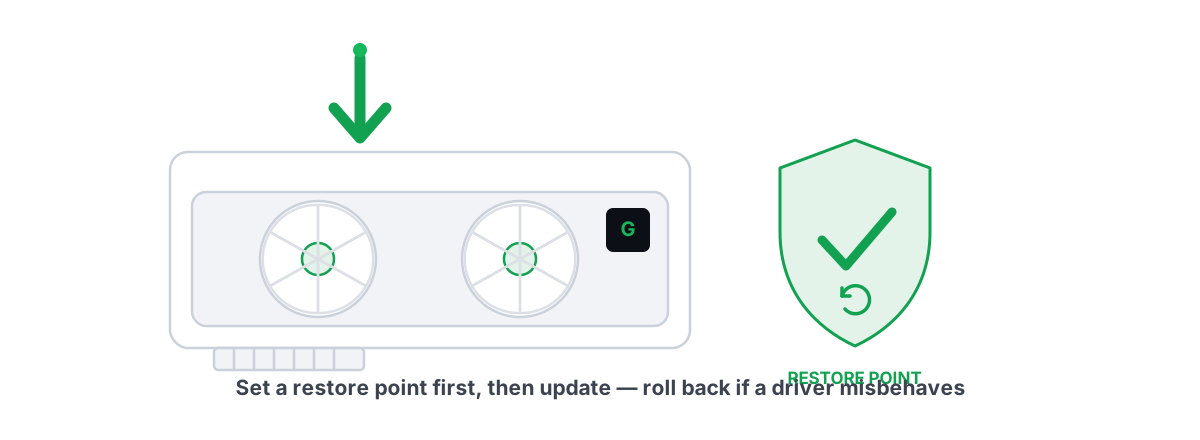
- Make a restore point before anything low-level. Before a chipset or storage-related change, create a System Restore point so a bad update is one rollback away. Here's how. For drivers specifically, Device Manager's Roll Back Driver button is your fast undo.
- Confirm the cause before you update. If you're updating to fix something, verify the driver is actually the problem first (the section above). If you're updating because a tool told you to, stop — you don't have a problem.
That's the entire routine. Three drivers worth attention, a clear set of safe sources, a restore point before the risky ones, and a hard pass on standalone updater tools.
If you'd rather see your drivers than dig through Device Manager, an honest scanner just shows you what's installed and what has a genuine update available, with the manufacturer link, and never invents an "outdated" count to scare you. That's the approach BRUTAL Optimizer takes: its driver scan is free, it points you at the real vendor source, and Pro installs come from Windows Update and the Microsoft Update Catalog rather than a scraped driver pool. It also leaves the drivers that don't need touching alone, which is the part every "driver updater" gets wrong. For the bigger picture of what's actually worth doing on a Windows gaming PC, our honest guide to speeding up Windows 11 puts drivers in their proper, modest place.
Frequently asked questions
Should I always update my drivers?
No. Most driver updates fix a specific bug or add support for new hardware, not make your existing parts faster. If a device works, leave its driver alone. The updates worth doing are GPU (for gaming), chipset (after a build or reinstall), and NIC (when you have a connection problem). For everything else, follow the rule: if it is not broken, do not change it.
Are driver updater tools safe?
Mostly no. Many inflate the count of outdated drivers to create urgency, install generic drivers that can mismatch your hardware, and bundle junk like registry cleaners and toolbars. Several well-known ones are flagged as potentially unwanted programs by security vendors. You do not need one. Windows Update plus the vendor sites for GPU, chipset, and NIC cover everything that matters.
Do I need driver updater software at all?
No. Windows Update already delivers tested drivers for most hardware automatically, and the three drivers that genuinely matter are better pulled straight from the manufacturer. A standalone updater adds cost, the risk of installing the wrong driver, and bundled bloat, while solving a problem you do not actually have.
How do I know if a driver is causing my problem?
Look for a clear timeline or a single misbehaving device. If a problem started right after a Windows or driver update, that driver is the suspect and rolling it back is the first fix. If one device acts up while everything else is fine, or Device Manager shows a yellow warning, that points at a driver. A generally slow PC, high CPU, or high ping is almost never a driver issue.
Where is it safe to download drivers?
Only from Windows Update, your GPU vendor (NVIDIA, AMD, or Intel), your motherboard or laptop maker, or the specific device manufacturer for your exact model. Avoid generic driver-download sites and third-party updater apps. Even when the driver inside is real, the installer wrapper around it is often adware or worse.
Keep reading
 Hardware & Drivers
How to Update GPU Drivers Safely in 2026
The clean-install method that prevents stutter and crashes, when to roll back a bad GPU driver, and why a restore point comes first.
 Myths & Honest Truths
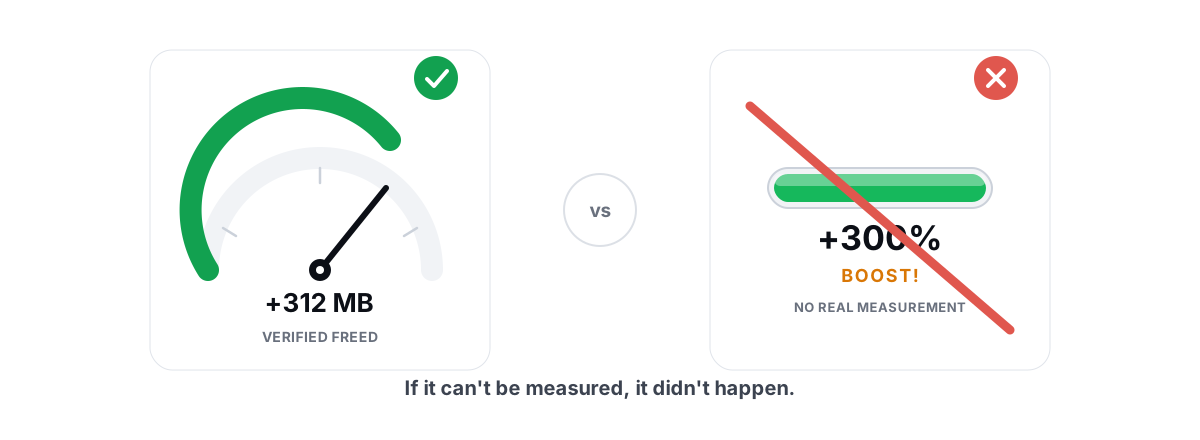
Do PC Optimizers Actually Work? An Honest Look
Some PC optimizers make real, small gains; most sell a meter that means nothing. Here is how to tell the difference.
 Gaming & FPS
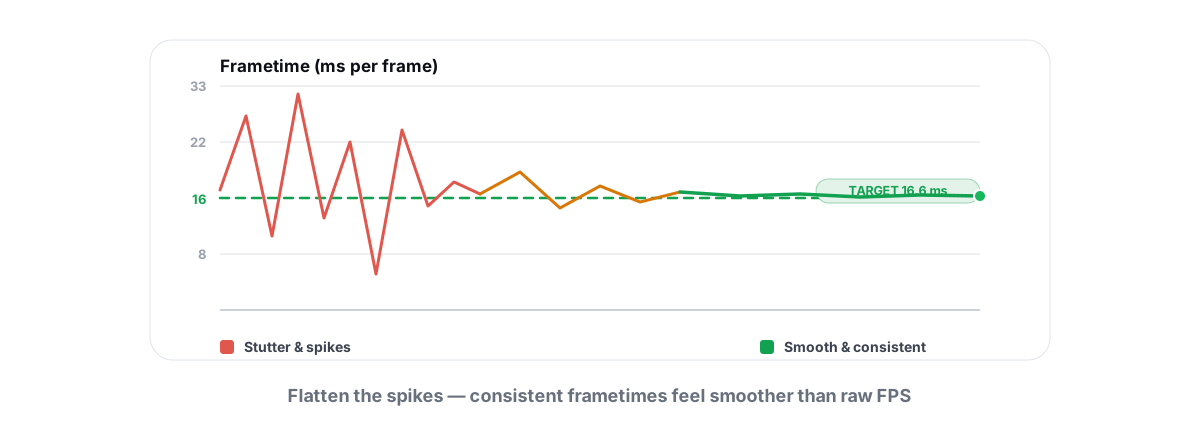
How to Fix Stuttering in Games (Frametime Spikes)
Stutter is a frametime problem, not an average-FPS one — isolate the real causes and confirm each fix with 1% lows.
Stop guessing. Measure it.
BRUTAL Optimizer is the honest way to speed up Windows — 17 free modules, a real FPS overlay, verified disk cleanup and drive health. No kernel driver of our own, no game hooks, every setting change reversible.