How to Speed Up Windows 11 Honestly in 2026
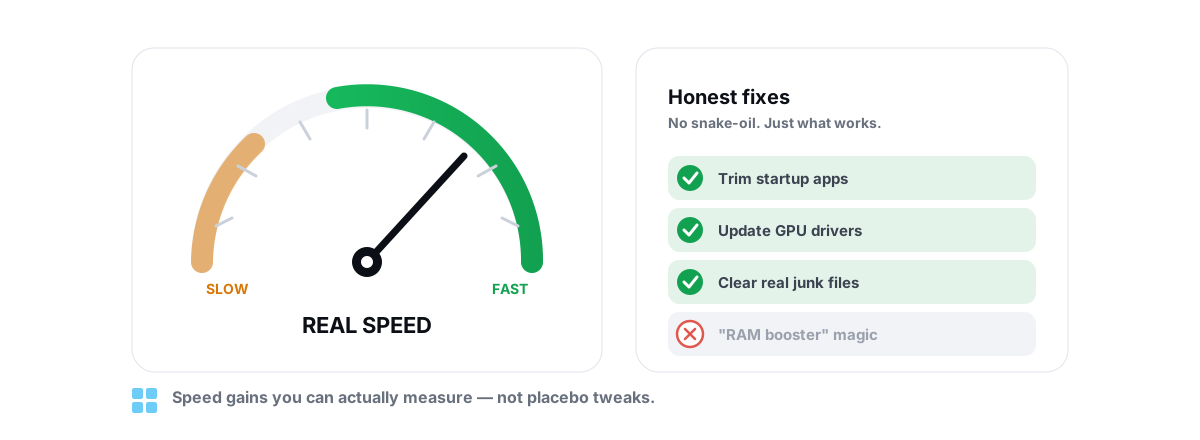
Here is how to speed up Windows 11 without snake oil: four or five changes with real, measurable impact, every one of them reversible, plus a short list of popular "tips" that do nothing but make you feel busy.
Most "make Windows 11 faster" guides are padded with placebo. They tell you to clean the registry, delete the pagefile, and run a "RAM booster" that empties memory Windows was using on purpose. None of that helps, and some of it hurts. This guide sticks to the handful of tweaks that actually move the needle, explains what each one does mechanically, and shows you how to undo it.
Set your expectations honestly. On a healthy PC you are looking at a few extra FPS, smoother frametimes, fewer background stutters, and sometimes input latency you can genuinely feel in fast games. Nobody is doubling your performance with a registry edit. If something promises that, close the tab.
Measure your baseline before you tweak anything
You cannot tell whether a tweak worked if you never measured the "before." This is the step most guides skip, and it is exactly why people swear by changes that did nothing.
Spend ten minutes on a baseline. Open Task Manager (Ctrl+Shift+Esc), check the Performance and Processes tabs, and note your idle CPU, RAM in use, and disk activity with nothing running. Then capture numbers under load: in a game, watch your average FPS and, more importantly, your frametime consistency. A steady 90 FPS feels better than a 120 FPS that keeps dipping to 60.
For gaming, you want frametimes and 1% lows, not just an average. An overlay that reports those tells you far more than the average ever will. If you are chasing stutters rather than raw frames, our guide on fixing stutter and frametime spikes walks through reading frametime graphs properly.
If you change four things at once and your FPS goes up, you have no idea which one did it. Change one thing, re-measure, keep what helped, revert what didn't.
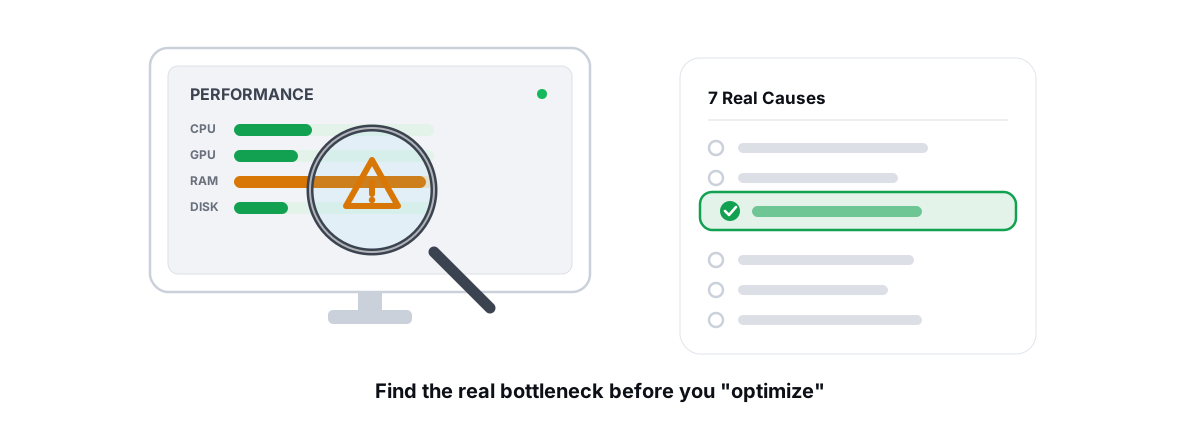
If your PC is broadly sluggish rather than just gaming-limited, find the actual cause before you tweak. A failing drive, thermal throttling, or one runaway process explains more slowdowns than any registry setting. We cover the usual suspects in 9 real causes of a slow PC.
Pick the right power plan (and why "Ultimate" isn't magic)
Windows power plans control how aggressively your CPU ramps clock speed and whether cores are allowed to park. On a desktop, the default Balanced plan is conservative about waking cores quickly, which can add a few milliseconds of latency before the CPU responds to a load spike.
Switching to High performance keeps cores at higher minimum clocks and stops them parking as aggressively. That is the real mechanism: less time spent ramping up, fewer micro-stutters from a core waking late. On a desktop that stays plugged in, it is a sensible default.
What about "Ultimate Performance"?
The Ultimate Performance plan exists, and you can enable it with powercfg -duplicatescheme e9a42b02-d5df-448d-aa00-03f14749eb61. Be honest about what it is: a slightly more aggressive variant of High performance that removes a few more idle-saving behaviors. On most systems the gap between High performance and Ultimate is within measurement noise.
One caveat: some modern CPUs, especially AMD Ryzen and Intel hybrid chips, ship with their own power management that already keeps clocks responsive. On those, the gap between Balanced and High performance is smaller than it used to be. Measure, don't assume.
Trim startup programs and scheduled tasks
This is the highest-impact change on most machines, and it costs you nothing in stability. Every program that launches at sign-in steals CPU and disk during boot, then sits in RAM holding background handles. Cut the ones you don't need running constantly.
Open Task Manager > Startup apps. Windows shows a "Startup impact" rating — a rough estimate of how much each entry slows boot. Disable the obvious offenders: chat clients, update helpers, GPU vendor companion apps, cloud-sync agents you don't actively use, and the "QuickStart" launchers that bundle with printers and peripherals.
Disabling a startup entry does not uninstall the app. It just stops the auto-launch — you can still open it manually and re-enable it in two clicks. There is no risk here as long as you leave drivers and security software alone.
Don't forget scheduled tasks
Startup apps are only half the picture. A lot of background activity runs through Task Scheduler — updater checks, telemetry uploads, and vendor "experience improvement" tasks that wake on a timer. These don't appear in the Startup list, so they survive the obvious cleanup.
You don't need to hunt these down by hand in most cases. But if your disk pegs at 100% a few minutes after boot, a scheduled task is often the culprit. For a careful, step-by-step approach to both startup entries and what is safe to disable, see how to manage startup programs in Windows.
Turn off visual effects that cost real frames
Windows 11 spends GPU and CPU time on animations, transparency, and shadow effects. On a strong system you'll never notice the cost. On older hardware, integrated graphics, or when you're GPU-bound in a game, those effects compete for the exact resources you want spent on frames.
Go to Settings > System > About > Advanced system settings > Performance > Settings, or just search "adjust the appearance and performance of Windows." You can pick "Adjust for best performance" to kill everything, or — better — keep "Smooth edges of screen fonts" so text stays readable and turn off the rest.
The effects with real cost are transparency (the acrylic/Mica blur behind menus and the taskbar), window animations, and the peek/shadow effects. Transparency in particular asks the GPU to composite a live blur of whatever is behind a surface. Turning it off frees a little GPU headroom and can shave latency on the desktop.
| Effect | Real cost | Recommendation |
|---|---|---|
| Transparency (Mica/acrylic blur) | GPU compositing every frame | Turn off on weak GPUs / iGPUs |
| Window animations | Small CPU/GPU, adds perceived lag | Off if you want a snappier feel |
| Drop shadows / peek | Minor | Optional — taste, not performance |
| Smooth screen fonts | Negligible | Keep it on (readability) |
Debloat telemetry and background apps safely
"Debloat" earned its bad reputation because aggressive scripts rip out components Windows depends on and leave the OS in a state that breaks on the next feature update. You can get most of the benefit with none of that risk by being targeted.
Three categories are safe and worth addressing:
- Telemetry and diagnostics. Windows 11 sends usage and diagnostic data, some of it as background tasks. Lowering the diagnostic data level and turning off the advertising ID and "tailored experiences" cuts background work and is a privacy win. These are documented Settings toggles and registry policies — reversible, not destructive.
- Background apps. Under Settings > Apps > Installed apps, you can stop UWP apps from running in the background. Weather, the Xbox companion, and similar apps don't need to update constantly.
- Preinstalled junk. Uninstall the apps you'll never open. That reclaims disk and stops their updaters — it's housekeeping, not a performance miracle.
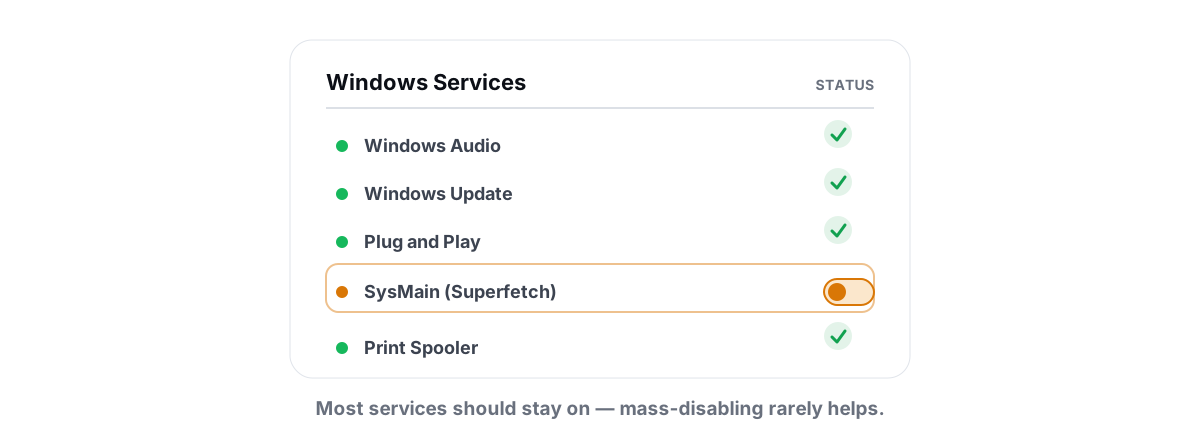
What makes debloat safe is reversibility. A telemetry change that flips a registry policy should be one you can flip back. The dangerous scripts are the ones that Remove-AppxPackage system components or disable services the OS needs. Before you touch services, read the honest list of which Windows services to disable — the short version is "far fewer than the tutorials claim."
If you'd rather not edit registry policies by hand, this is where a tool that keeps every change reversible earns its place. BRUTAL Optimizer's Privacy Center exposes the telemetry, ad-ID, and tracking toggles as on/off switches you can revert, and its Startup Manager handles other apps' startup entries the same way Task Manager does — without deleting anything.
Keep it reversible: undo and system restore points
This is the rule that separates a safe tune-up from a reinstall. Before any change that touches the registry, boot configuration, or services, make sure you can get back to where you started.
For most of what's in this guide, "reversible" just means the setting has an obvious off switch — re-enable the startup app, switch the power plan back, turn visual effects on again. Keep a note of what you changed.
For anything deeper — boot flags via bcdedit, service changes, or batch registry edits — take a System Restore point first. It's a five-minute insurance policy. Open "Create a restore point," confirm System Protection is on for your system drive, and create one. If a tweak causes a boot or stability problem, you roll back.
The difference between a power user and someone who reinstalls Windows twice a year is a restore point and the discipline to change one thing at a time.
Honesty matters here too. Some changes genuinely can't be "undone" — emptying a temp folder or clearing a cache reclaims space that's just gone, and that's fine because nothing of value was there. But a registry or boot change you can't reverse is a change you shouldn't make. A good optimizer captures the before-state of every registry value it writes and stores a per-change backup, so undo is a button, not a guess — and it takes an automatic restore point before big operations. That is what "reversible" should actually mean.
How to speed up Windows 11 without the placebo tweaks
Half of knowing how to speed up Windows 11 is knowing what to ignore. Here's the popular advice that doesn't earn a place in a serious tune-up. Skipping these is part of doing it right.
The pattern across all of these: they target things that aren't bottlenecks, or they fight Windows' own sensible behavior. A few carry real downside risk. None belong in a tune-up that respects your time.
Re-measure: did it actually help?
Go back to the baseline you captured at the start and compare. This is the step that turns guesswork into knowledge.
Check the things that should have moved: boot time and idle RAM after trimming startup apps; desktop responsiveness and GPU headroom after cutting visual effects; CPU ramp behavior under load after the power plan change. In a game, compare average FPS and — the number that matters — your 1% lows and frametime consistency.
If something didn't help on your hardware, revert it. There's no prize for keeping a tweak that did nothing. A change that helps a GTX-era laptop might be noise on a current desktop, and that's expected — your machine is the only benchmark that counts.
If you're still CPU- or GPU-limited after all this, no software setting will fix it; you've hit a hardware ceiling. Working out which component is the limit is its own skill, covered in how to tell a GPU vs CPU bottleneck.
If you'd rather not measure, tweak, and revert by hand, that's the loop a tool can run for you. BRUTAL Optimizer is built around this honest approach: a free FPS overlay with 1% lows and frametimes for measuring, optimization modules that capture a backup before every registry change, a System Restore point attempted before big operations, and a disk cleaner that reports verified freed bytes instead of an inflated estimate. It's a user-mode wrapper over the same Windows tools — powercfg, the registry, fsutil — with no kernel driver, so it runs alongside Vanguard and Easy Anti-Cheat without putting your account at risk. Handy if you want the safe tweaks one click away; entirely optional if you'd rather do it yourself with the steps above.
Frequently asked questions
What is the single most effective way to speed up Windows 11?
Trimming startup programs. Every app that launches at sign-in steals CPU and disk during boot and then holds RAM at idle. Disabling the ones you do not need is reversible, risk-free, and makes the biggest day-to-day difference on most machines.
Does the Ultimate Performance power plan really boost FPS?
Not in any way you will measure. It is a slightly more aggressive variant of High performance that removes a few idle-saving behaviors. It improves clock-ramp latency and core parking, not raw throughput. On a desktop, High performance is plenty; on a laptop on battery, skip it.
Will a registry cleaner make Windows 11 faster?
No. The registry is not a performance bottleneck and orphaned keys are tiny. Cleaning them changes nothing measurable, and a cleaner that deletes the wrong key can break an app or your boot. It is one of the tweaks worth skipping entirely.
Is it safe to disable visual effects and transparency in Windows 11?
Yes, and it is fully reversible. The biggest win is turning off transparency on weak GPUs or integrated graphics, since the blur is composited every frame. Keep smooth screen fonts on for readability. The gains show up mostly on the desktop and in borderless-windowed games, not fullscreen exclusive.
Do I need a System Restore point before tweaking Windows 11?
For surface settings like startup apps and power plans, no. For anything that edits the registry in bulk, changes boot flags, or touches services, yes. A restore point takes five minutes and lets you roll back if a change causes a boot or stability problem.
Keep reading
 Windows Performance
Why Is My PC So Slow? 7 Real Causes (and Fixes)
A diagnosis-first guide to finding the real reason your PC is slow with built-in tools, then fixing only what matters.
 Windows Performance
How to Disable Startup Programs in Windows (Safely)
What each startup entry actually does, which ones are safe to disable, and why reversible toggles beat any boot optimizer that deletes entries.
 Windows Performance
Windows Services to Disable for Performance: Honest List
Most viral service-disabling lists are copy-pasted nonsense. Here is what is actually safe to stop and what to leave alone.
Stop guessing. Measure it.
BRUTAL Optimizer is the honest way to speed up Windows — 17 free modules, a real FPS overlay, verified disk cleanup and drive health. No kernel driver of our own, no game hooks, every setting change reversible.