How to Increase FPS in Games (Honest 2026 Guide)
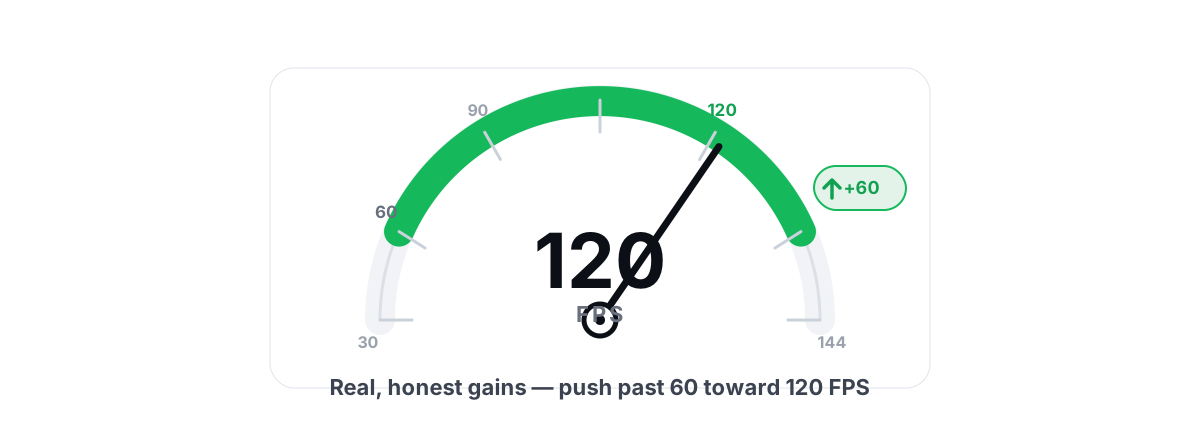
Most guides on how to increase FPS bury the two changes that matter under twenty that don't. The honest version is a short list, ranked by impact, plus a few popular "boosters" that do nothing. Here is what actually moves the number, in order — and where to stop wasting your time.
Set Expectations: What "More FPS" Really Looks Like
If your hardware is the limit, no setting tweak invents frames that the silicon can't draw. A GTX 1650 will not run Cyberpunk at 144 FPS maxed out, and nothing you download changes that.
What software changes can do is real but bounded. Dropping one or two heavy settings often recovers a solid chunk of frames in a GPU-bound title — sometimes well into the double digits as a percentage, depending on the game. Closing a CPU hog or fixing thermal throttling claws back frames you were silently losing. A driver update after a major game launch sometimes adds a meaningful amount. Stack those and you get "noticeably smoother," not "300% faster." Anyone selling you that second number is selling you a placebo.
The biggest single lever is almost always in-game settings. Everything else on this list is smaller, even when it's worth doing.
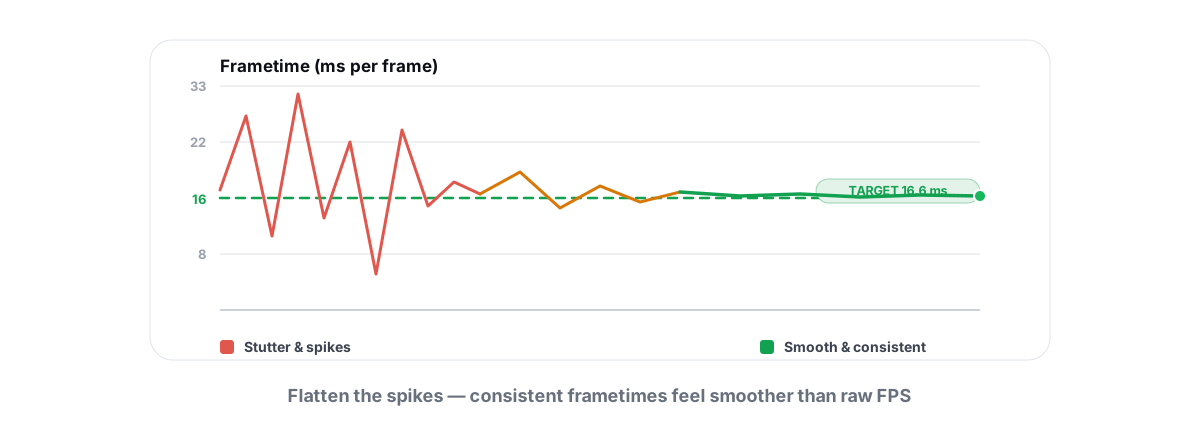
One more honesty point: average FPS isn't the whole story. A game that runs 90 FPS average but hitches every few seconds feels worse than a steady 70. So part of "more FPS" is really "more consistent frametimes," and we'll measure both at the end. If your problem is hitching rather than a low average, that's a different fix — jump to fixing stutter and frametime spikes.
Step 1: The Fastest Way to Increase FPS Is In-Game Settings
Start here every time. The in-game graphics menu is where the largest, safest, fully reversible gains live. The catch is that settings are not equal — some cost 20 FPS for a difference you'd need a screenshot zoom to see, and others are nearly free.
The single most expensive setting in most games is resolution, followed by anything labeled "ultra" that touches lighting. Here's the rough order of cost-to-benefit:
| Setting | FPS cost | Visual impact | Verdict |
|---|---|---|---|
| Shadow quality | High | Low-medium | Drop to medium first |
| Ray tracing / global illumination | Very high | High | Off if you're hunting FPS |
| Ambient occlusion | Medium | Low | Medium or off |
| Volumetric fog / clouds | High | Low | Low |
| Anti-aliasing (MSAA) | High | Medium | Use TAA/FXAA instead |
| Texture quality | Low (if you have VRAM) | High | Keep high |
| Anisotropic filtering | Near zero | Medium | Keep on (16x) |
| View distance / draw distance | Medium (CPU) | Medium | Tune to taste |
The practical method: set everything to High, then knock shadows, reflections, and any ray-tracing option down a notch each and re-test. Those three usually return the most frames per unit of visual loss. Leave textures and anisotropic filtering high — they're cheap and they're most of what your eye reads as "this looks good."
For a setting-by-setting breakdown of where to spend your frame budget, see best game settings for FPS vs. quality. It goes deeper than the table above.
Step 2: Update GPU Drivers the Safe Way
A fresh GPU driver matters most right after a big game launches — vendors ship game-ready optimizations that can add real frames in that specific title. Outside of launch windows, the gains are usually small, and a brand-new driver occasionally introduces a regression. Newer is not automatically better.
So the rule is: update when there's a reason (a game you play just got a "game ready" or "Adrenalin optimized" driver), not reflexively every week. We unpack that nuance in should you always update drivers?
Do it safely:
- Download from the vendor directly — NVIDIA, AMD, or Intel. Avoid third-party "driver updater" tools that bundle junk and sometimes install the wrong package.
- Use the driver-only / clean-install option when offered. You rarely need the extra companion software running in the background.
- If you're switching GPU vendors or chasing a stubborn corruption bug, a clean wipe with DDU in Safe Mode is the gold standard. For a normal update, the installer's clean option is enough.
- Create a restore point first so you can roll back a bad driver.
The full walkthrough, including when DDU is overkill, is in how to update GPU drivers safely.
Step 3: Close Background Apps and Overlays
Background apps steal FPS in two ways: they eat CPU cycles your game wants, and some of them — overlays especially — hook into the render path and add overhead or stutter.
The usual suspects:
- Browsers with a pile of tabs (hardware-accelerated tabs use real GPU). Close them while you play.
- Chat and store overlays — Discord, Steam, Epic, GeForce/Adrenalin overlays. They're handy, but each one is another hook into your frames. If you get stutter, turn overlays off one at a time to find the culprit.
- Recording and streaming software idling in the background.
- Sync clients (cloud drives, backup tools) that wake up and hammer the disk mid-match.
You don't need to micromanage this every session. The bigger win is stopping junk from launching at boot in the first place. See how to manage startup programs in Windows — fewer resident apps means fewer things competing with your game without you lifting a finger.
If a single process is pinning a core at 100%, that's a CPU bottleneck, not background noise — chase it down with our guide to fixing 100% CPU usage.
Step 4: Fix Thermal Throttling
This is the gain people miss most. When a CPU or GPU gets too hot, it lowers its own clock speed to protect itself — that's thermal throttling, and it shows up as FPS that starts fine and sags after a few minutes, or random dips on a hot day.
How to tell: watch your temps during a long session. A GPU pegged at its thermal limit (often around 83-87°C on the core, higher on hotspot/memory) or a CPU repeatedly hitting 95-100°C is throttling. The fix is heat, not software:
- Clean the dust. A clogged heatsink or fan is the number-one cause. This alone can recover several lost FPS on an older machine.
- Improve case airflow. Make sure intake and exhaust fans aren't blocked and the case isn't crammed against a wall.
- Repaste if the machine is several years old and runs hot even when clean. Thermal paste dries out.
- Undervolt (advanced) to run cooler at the same clocks — a real, free performance recovery on many chips, done through your GPU vendor's tools or BIOS.
You can't fix what you don't measure. Keep an eye on temps over a full session rather than a 30-second glance — monitoring CPU and GPU temps to stop throttling covers what's normal and what's a red flag.
Step 5: Resolution Scaling and Upscaling (DLSS/FSR/XeSS)
Resolution is the most expensive thing your GPU does, which makes it the most powerful FPS dial — and modern upscalers let you turn it without the ugliness of just dropping resolution.
DLSS (NVIDIA RTX), FSR (any GPU), and XeSS (Intel Arc, and others in fallback mode) render the game at a lower internal resolution and reconstruct it back up to your display resolution. You get most of the FPS of the lower resolution with image quality close to native. On a heavy, GPU-bound title the gain is large — often a meaningful jump in the tens of percent at the Quality preset — because you're paying for fewer pixels.
| Upscaler | Works on | Best quality |
|---|---|---|
| DLSS | NVIDIA RTX only | Generally the sharpest |
| FSR | Any GPU (NVIDIA, AMD, Intel) | Close, broadest support |
| XeSS | Best on Intel Arc; runs elsewhere | Strong, fewer games |
Pick the Quality preset first — it's the cleanest. Drop to Balanced or Performance only if you still need frames; the lower presets get softer and can shimmer. Avoid stacking aggressive upscaling with heavy sharpening, which exaggerates artifacts.
One caveat on frame generation (DLSS 3/FSR 3 frame-gen): it raises the FPS counter by inserting generated frames, but it adds latency and won't make a game feel more responsive. It's great for smoothing a single-player title on a high-refresh display; it's the wrong tool for a competitive shooter where input lag matters more than the number.
Step 6: Game Mode, Power Plan and Latency Tweaks
These are the smallest gains on the list. Set them once and forget them — but don't expect a transformation.
- Windows Game Mode (on by default in Windows 11) deprioritizes background work while you play. Leave it on. It won't add frames on its own, but it can smooth things on busier systems.
- Power plan. On a desktop, make sure you're not stuck on a power-saver plan that caps CPU clocks. Balanced is fine for most; High Performance / Ultimate Performance prevents downclocking at the cost of a little more heat and power. On a laptop, plug it in — battery mode throttles hard.
- Hardware-accelerated GPU scheduling (Windows graphics settings) can help latency on supported GPUs. Try it; if a game stutters more with it on, turn it back off.
- NVIDIA Reflex / anti-lag, where a game supports it, lowers input latency without costing FPS. Turn it on in competitive titles.
The advanced latency tweaks — timer resolution, interrupt affinity, USB polling, disabling power throttling — exist and are real, but they're for shaving input lag in fast games, not for raising your average FPS. If that's your goal, treat it as its own project: how to reduce input lag you can actually feel. Do these last, and only after the four big levers above.
Measure With an FPS Overlay (Not a Fake Booster Meter)
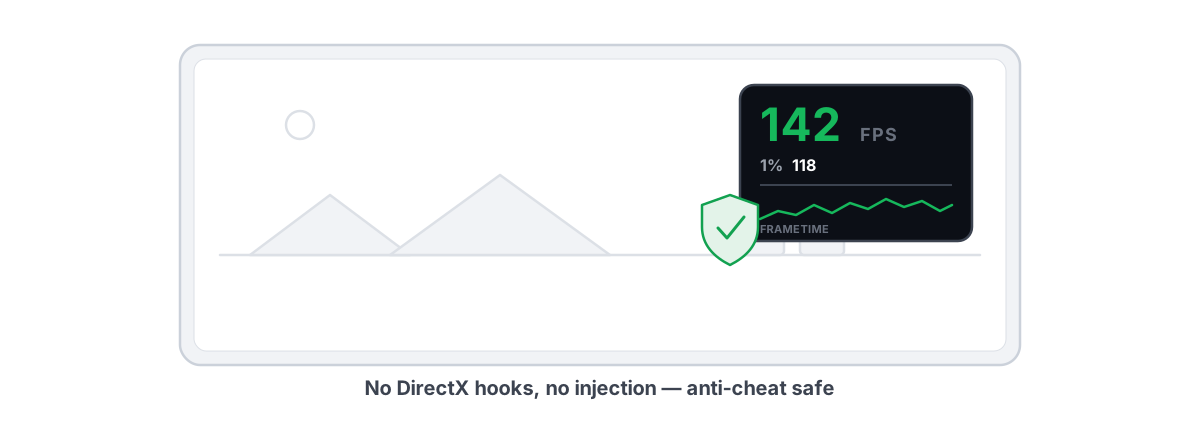
You can't tell if a change helped unless you measure before and after. Use a real overlay that shows average FPS, 1% lows, and frametime — not a "boost" gauge that animates a fake percentage.
The 1% lows number is the one that matters most for how a game feels. If your average climbs but your 1% lows stay low, you fixed the headline number and not the stutter. A good overlay shows you both so you can tell the difference between a real win and a placebo.
Whatever overlay you use, it must be anti-cheat safe — one that reads frame timing without injecting into the game, so it runs alongside Vanguard, EAC, and BattlEye without flagging you. BRUTAL Optimizer's free overlay counts presented frames (DWM composition / D3DKMT) rather than hooking the game, and shows 1% lows and frametimes — exactly the numbers you want for before/after testing. More on picking one in the best anti-cheat-safe FPS overlay.
Method: pick a repeatable scene (same area, same time of day in-game), record average and 1% lows for 60 seconds, change one thing, and re-test the same scene. One variable at a time — that's the only way to know what actually worked.
When the Real Answer Is a Hardware Upgrade
Sometimes the honest answer is that you've hit the silicon. If you've dropped settings, enabled upscaling, fixed thermals, and you're still GPU-bound at 100% utilization below your target FPS, no further tweak will help. The GPU is the ceiling.
Spend money where the bottleneck is:
- GPU-bound at high settings → a faster GPU is the upgrade.
- CPU-bound (CPU pegged, GPU coasting) — common in sims, strategy, and high-refresh competitive play → a faster CPU, and sometimes faster RAM.
- Stutter with low average RAM headroom → more RAM, and check that it's running in dual-channel at its rated XMP/EXPO speed. A surprising number of "slow" PCs are running RAM at default JEDEC speeds because XMP was never enabled in BIOS.
- Long load stutters from a hard drive → an SSD won't raise your FPS, but it kills load-time and texture-streaming hitches.
Before you assume it's hardware, rule out the cheap stuff — a genuinely slow or cluttered system masks real performance. If the whole machine feels sluggish, not just games, start with why is my PC so slow and how to speed up Windows 11 honestly.
If you want one tool to do the measuring and the safe, reversible parts of this list, that's what BRUTAL Optimizer is built for — a free anti-cheat-safe FPS overlay with 1% lows, a live CPU/GPU/RAM monitor to catch throttling, a driver scanner, and reversible system tweaks with a restore point attempted before anything big. It won't promise you 300% more FPS, because nothing honestly can. It just helps you find and keep the real frames — and tells you straight when the answer is new hardware.
Frequently asked questions
Can software really increase my FPS?
Yes, within limits. Lowering heavy settings, enabling upscaling like DLSS or FSR, fixing thermal throttling, and closing background hogs can add a meaningful chunk of frames. But software cannot exceed what your GPU and CPU are physically capable of, so expect a few to several FPS or a noticeable percentage, not miracle multipliers.
What is the single biggest FPS gain I can make?
Lowering in-game graphics settings, especially resolution, shadows, reflections, and ray tracing. Modern upscalers like DLSS, FSR, and XeSS at the Quality preset render fewer pixels and reconstruct the image, so on a GPU-bound title they often add frames well into the double digits as a percentage with image quality close to native. That makes resolution the most powerful dial you have.
Do FPS booster apps actually work?
Most are placebo. Apps that claim to free RAM for more FPS do nothing useful, because Windows reclaims free memory the instant a game needs it, and trimming working sets mid-game causes stutter. Registry FPS tweaks and disabling random services rarely help and can break things. What works is closing what you do not need and fixing real bottlenecks.
Why does my FPS drop after a few minutes of playing?
Usually thermal throttling. When your CPU or GPU gets too hot it lowers its own clock speed to protect itself, so frames start fine and sag over a session. Clean dust from the fans and heatsink, improve case airflow, and watch your temps. A clean cooler can recover several lost frames on an older machine.
Will updating my GPU driver give me more FPS?
Sometimes, mostly right after a big game launches when vendors ship game-ready optimizations for that title. Outside those windows the gains are small, and a brand-new driver can occasionally cause a regression. Update from the vendor directly when there is a reason, not reflexively, and take a restore point first.
Keep reading
 Gaming & FPS
Best FPS Overlay That's Anti-Cheat Safe
Why a present-frame fps overlay is the anti-cheat-safe choice, and how to read 1% lows and frametimes properly.
 Gaming & FPS
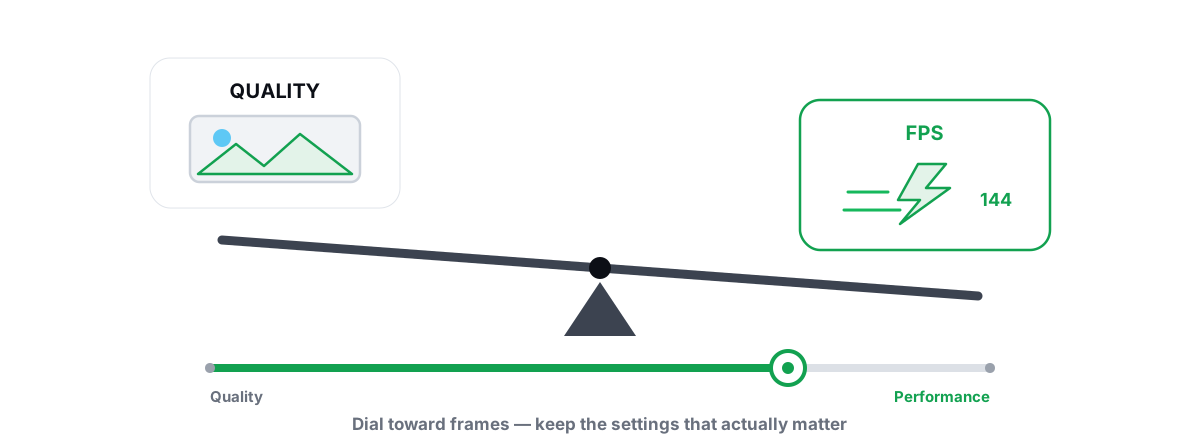
Best Graphics Settings for FPS vs. Quality
A settings-by-impact tier list so you trade quality only where it buys real frames.
 Gaming & FPS
How to Fix Stuttering in Games (Frametime Spikes)
Stutter is a frametime problem, not an average-FPS one — isolate the real causes and confirm each fix with 1% lows.
Stop guessing. Measure it.
BRUTAL Optimizer is the honest way to speed up Windows — 17 free modules, a real FPS overlay, verified disk cleanup and drive health. No kernel driver of our own, no game hooks, every setting change reversible.