The Best FPS Overlay Is the One That Never Touches Your Game
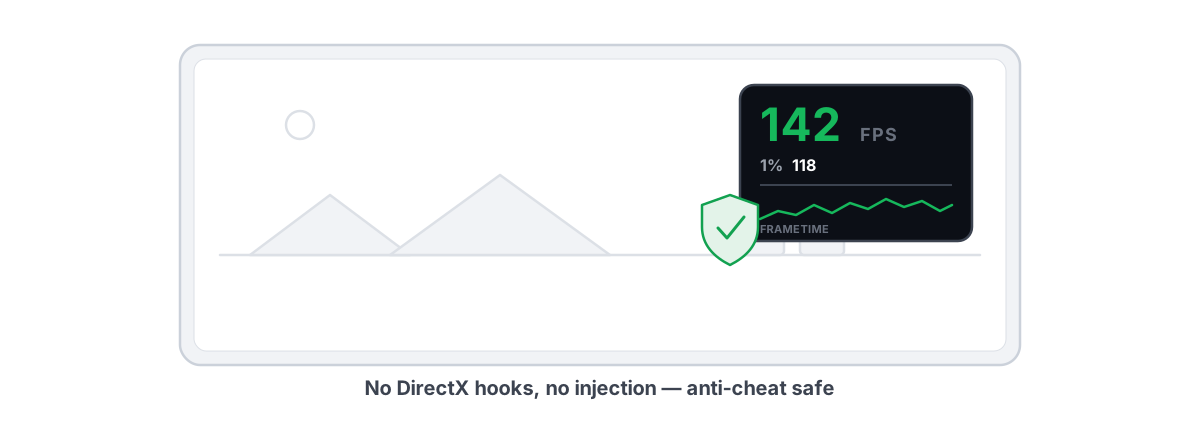
A good fps overlay answers two questions while you play: how many frames per second you're getting, and whether those frames arrive smoothly. The trap is that the wrong overlay gets that number by hooking into the game's renderer — and that's exactly the behavior kernel anti-cheat treats as a threat. The safe way reads frames from outside the game entirely.
This guide covers what an overlay actually measures, why 1% and 0.1% lows tell you more than average FPS, and how an overlay can read your framerate without ever touching the game. If you run Valorant, Fortnite, Apex, or anything with a kernel anti-cheat, the gap between "reads present frames" and "injects into the process" is the gap between safe and sorry.
What an FPS overlay measures: frames vs. frametimes
Your GPU finishes rendering a frame and hands it to Windows to display. Count those handoffs in one second and you have your FPS. That's the number every fps counter shows in the corner.
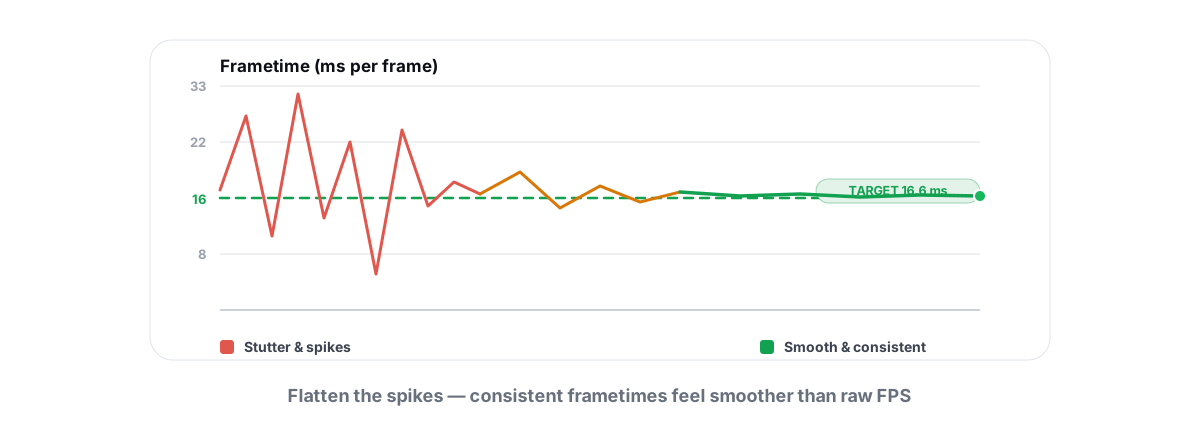
But FPS is an average, and averages hide the spikes that ruin a match. The more honest measurement is the frametime — how many milliseconds each individual frame took. At a steady 60 FPS, every frame takes about 16.7 ms. At 144 FPS, about 6.9 ms. Smoothness isn't a high average; it's consistent frametimes with no sudden jumps.
Here's why that distinction matters. You can run at "100 FPS average" and still feel like garbage, because the average smooths over a single 50 ms frame that landed mid-fight. Your eyes don't see the average. They see the stutter.
FPS tells you the ceiling. Frametimes tell you whether you actually live near that ceiling, or keep falling off it.
A good overlay shows both: a live FPS number for quick glances, and a frametime graph — a small line that should read like a flat ribbon, not a mountain range. If a game ever "feels" worse than its FPS suggests, the frametime graph is where the answer hides. We cover the deeper diagnosis in fixing stutter and frametime spikes.
1% and 0.1% lows: the numbers that reveal stutter
This is the part most people skip, and it's the most useful number on the screen.
Take every frametime over the last 60 seconds and sort them from best to worst. The 1% low is the FPS at the 99th percentile of frametimes — the slowest 1% of your frames were at least that bad. The 0.1% low goes further: the worst one frame in a thousand. Those are your stutters, your hitches, the moments the game lurched.
Why watching 1% lows beats staring at average FPS:
- Average FPS hides the pain. 120 average with a 40 FPS 1% low is a stuttery mess. 120 average with a 95 FPS 1% low is buttery.
- The gap is the diagnosis. A wide spread between average and 1% low points to inconsistency — shader compilation, background tasks, thermal throttling, or a CPU that can't keep up with the GPU.
- It's measurable, not vibes. Apply one change, replay the same area, and check whether the 1% low moved. That's how you tune honestly instead of guessing.
A practical reading: if average and 1% low are close (within roughly 15-20%), your experience is smooth, and you can chase a higher average if you want more. If the gap is huge, fix consistency first — more average FPS won't fix stutter. If the stutter tracks one component maxing out, the next step is figuring out whether your GPU or CPU is the bottleneck.
How most overlays hook the game — and the anti-cheat risk
To draw an FPS counter inside the game window, most overlay tools insert their own code into the game's graphics pipeline. The common methods:
- DLL injection — loading the overlay's code into the game's process so it can hook DirectX/Vulkan calls and draw on top.
- API hooking — intercepting
Present()(the Direct3D call that shows a finished frame) from inside the game to count frames and render the counter.
This works, and for years it was normal. The problem: injecting code into a running game and hooking its render calls is indistinguishable from how many cheats operate. Aimbots and wallhacks use the same techniques.
So kernel-level anti-cheat — Riot's Vanguard, Easy Anti-Cheat, BattlEye — watches for exactly this. Depending on the title and the tool, an injecting overlay can get blocked, make the game refuse to launch, trigger a crash, or in the worst case flag your account. Even when it's "allowed," you're relying on the anti-cheat vendor to keep whitelisting that specific tool, version by version.
Not every injecting overlay gets you banned. But you've handed your account's safety to a tool whose method looks like cheating, and you're trusting two vendors to keep agreeing it's fine. That's a bet you don't need to make. We go deeper on where that line sits in the rules of anti-cheat-safe optimization and whether a PC tool can get you banned.
The anti-cheat-safe approach: present frames, no injection
There's a way to count frames without touching the game. Windows itself knows when each frame is presented, because the game asks Windows to display it.
Two mechanisms make this possible from outside the game:
- DWM composition — the Desktop Window Manager composites what's on screen. Counting composition frames gives a reliable FPS reading without going near the game's process.
- D3DKMT present statistics — the kernel graphics layer exposes present-event counters per process. You read the count of frames the GPU presented; you inject nothing to get it.
The key property: this is observation, not interception. The overlay sits in its own process, reads counters Windows already publishes, and draws its own always-on-top window beside the game. The game's memory is untouched. No DLL goes into it. No render call is hooked. From the anti-cheat's view, nothing suspicious is happening inside the protected process — because nothing is.
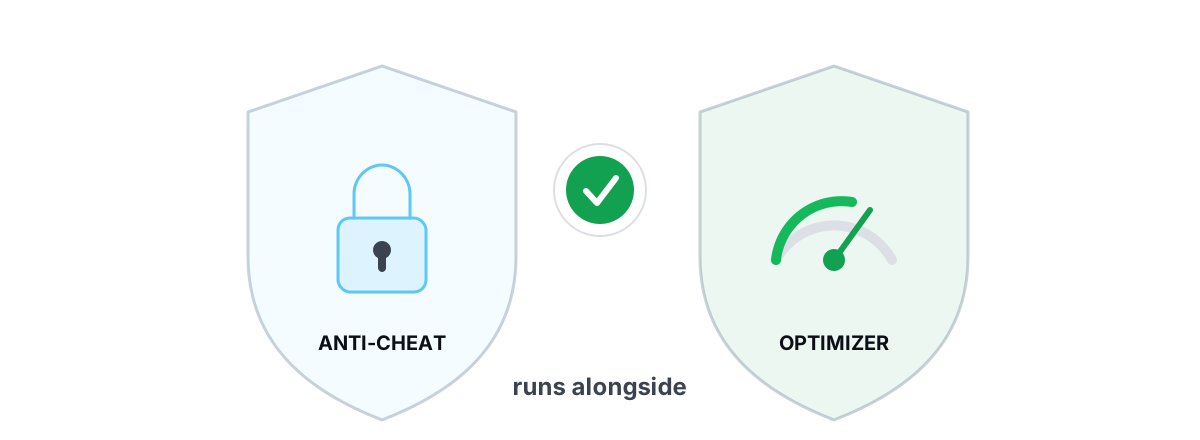
This is how BRUTAL Optimizer's free overlay works. It counts DWM composition / D3DKMT present frames, derives FPS, frametimes, and 1% lows from that stream, and renders in a separate transparent window. There's no kernel driver and no injection anywhere in the app, which is why it runs alongside Vanguard, EAC, and BattlEye instead of fighting them. If you specifically run Riot's anti-cheat, we wrote a dedicated piece on whether it's safe with Valorant.
The honest trade-off: an external overlay can't read engine-internal values an injecting tool can, like per-draw-call GPU timings. For nearly everyone who wants FPS, frametimes, and 1% lows to judge smoothness, that doesn't matter — present statistics give you those just as accurately.
Reading your overlay while you play
Numbers are useless if you don't know what to do with them. Here's how to actually use the overlay mid-game.
Set a frametime target, not just an FPS target
Pick the frametime your monitor can show: 16.7 ms for 60 Hz, 6.9 ms for 144 Hz, 4.2 ms for 240 Hz. Your goal is for the frametime line to sit near that value and stay flat. A flat 8 ms line at 120 FPS feels better than a jittery line averaging 140.
Watch the spikes, not the average
When you feel a hitch, glance at the frametime graph. A single tall bar is a one-off stutter — often shader compilation the first time you see an effect, or a background process waking up. Repeated bars in the same spot are a consistent bottleneck worth fixing.
Correlate FPS with what's loaded
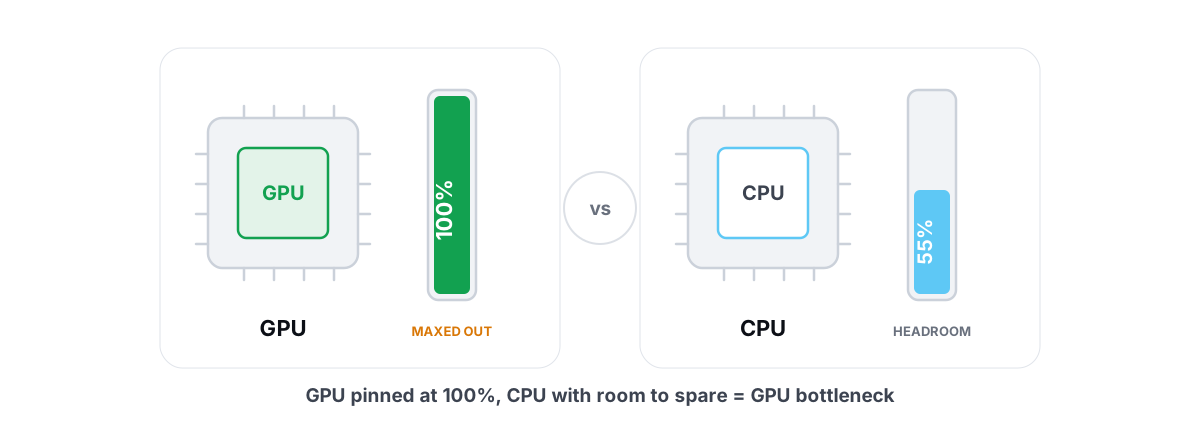
Pair the overlay with a look at CPU and GPU usage. If the GPU sits at 99% and FPS drops, you're GPU-bound — lower settings or resolution. If the GPU is at 70% while FPS tanks and the CPU is pinned, you're CPU-bound, and more graphics settings won't help. If temperatures climb and clocks fall as FPS sags, you're throttling, which is its own fix — monitoring temps to stop throttling covers it.
For the settings side — what to lower for the biggest FPS gain at the least visual cost — see FPS vs. quality settings. If your FPS is simply low across the board, start with how to increase FPS the honest way.
Overlay vs. in-game counters vs. driver counters
You have a few ways to see FPS. They're not equal.
| Source | Shows 1% lows / frametimes? | Anti-cheat method | Works across all games? |
|---|---|---|---|
| In-game FPS option | Rarely — usually just average FPS | None (it's the game itself) | No — only games that include one |
| Driver overlay (vendor software) | Sometimes | Usually present-based; varies by version | Most games, vendor-dependent |
| Injecting third-party overlay | Yes, detailed | Hooks/injects — anti-cheat risk | Most games, until anti-cheat blocks it |
| Present-frame overlay (DWM/D3DKMT) | Yes — FPS, frametimes, 1% lows | Observes only — no injection | Yes, any DirectX/composited game |
The built-in counter some games ship is fine for a glance but almost never shows 1% lows. Vendor driver overlays are decent, and many now read present statistics safely, but coverage and detail depend on your GPU brand and driver version. An external present-frame overlay gives you the full picture — FPS, frametimes, 1% lows — in every game, with no injection. That combination is the reason to prefer it.
Why the overlay belongs in the free tier
An FPS overlay is a diagnostic tool. You shouldn't have to pay to see whether your frames are smooth, and you definitely shouldn't have to risk your account to read a number.
BRUTAL Optimizer's overlay — FPS, frametimes, and 1% lows — sits in the free tier, alongside the live CPU/GPU/RAM/FPS monitor and 17 of the 22 optimization modules. The whole app is a user-mode wrapper over tools Windows already ships; there's no kernel driver and no game injection anywhere in it, which is the entire reason the overlay is safe to run next to anti-cheat. You can read more about that design on the no-kernel-driver safety page, or see how the free tier stacks up.
If you want the overlay plus an honest way to raise your numbers — no placebo "FPS boosters," no registry snake oil — the gaming optimizer is the place to start. Measure with the overlay, change one thing, and let the 1% low tell you the truth. That loop, done patiently, beats any miracle tweak you'll read about elsewhere.
Frequently asked questions
Can an FPS overlay get me banned?
An overlay that injects into the game or hooks its render calls can be flagged by kernel anti-cheat, blocked, or in the worst case risk your account. An overlay that only reads DWM composition or D3DKMT present frames never touches the game, so it runs safely next to Vanguard, EAC, and BattlEye.
What is a 1% low and why does it matter?
It is the FPS at the 99th percentile of your frametimes, meaning the slowest 1% of frames were at least that bad. It exposes stutter that average FPS hides. A high average with a low 1% feels worse than a slightly lower average that stays consistent.
Is the BRUTAL Optimizer FPS overlay free?
Yes. The overlay with FPS, frametimes, and 1% lows is in the free tier, along with the live CPU/GPU/RAM/FPS monitor and 17 of the 22 optimization modules. There is no kernel driver and no game injection anywhere in the app.
What is the difference between FPS and frametimes?
FPS counts how many frames render in a second, so it is an average. Frametime is how long each individual frame took in milliseconds. Frametimes reveal whether your frames arrive evenly, which is what smoothness actually depends on.
Does a present-frame overlay work in every game?
Yes for any DirectX or composited game, because it reads frame-present events Windows already publishes rather than relying on the game to provide a counter. It cannot read engine-internal values an injecting tool can, but for FPS, frametimes, and 1% lows that does not matter.
Keep reading
 Gaming & FPS
How to Fix Stuttering in Games (Frametime Spikes)
Stutter is a frametime problem, not an average-FPS one — isolate the real causes and confirm each fix with 1% lows.
 Hardware & Drivers
GPU vs. CPU Bottleneck: How to Tell in Gaming
Read GPU and CPU utilization to find which part is capping your frames — then tweak or upgrade the right one instead of guessing.
 Anti-Cheat & Safety
Is BRUTAL Optimizer Safe With Valorant?
Why BRUTAL Optimizer runs alongside Riot Vanguard without touching Valorant: no kernel driver, no DirectX hook, no injection.
Stop guessing. Measure it.
BRUTAL Optimizer is the honest way to speed up Windows — 17 free modules, a real FPS overlay, verified disk cleanup and drive health. No kernel driver of our own, no game hooks, every setting change reversible.