GPU vs. CPU Bottleneck: How to Tell in Gaming
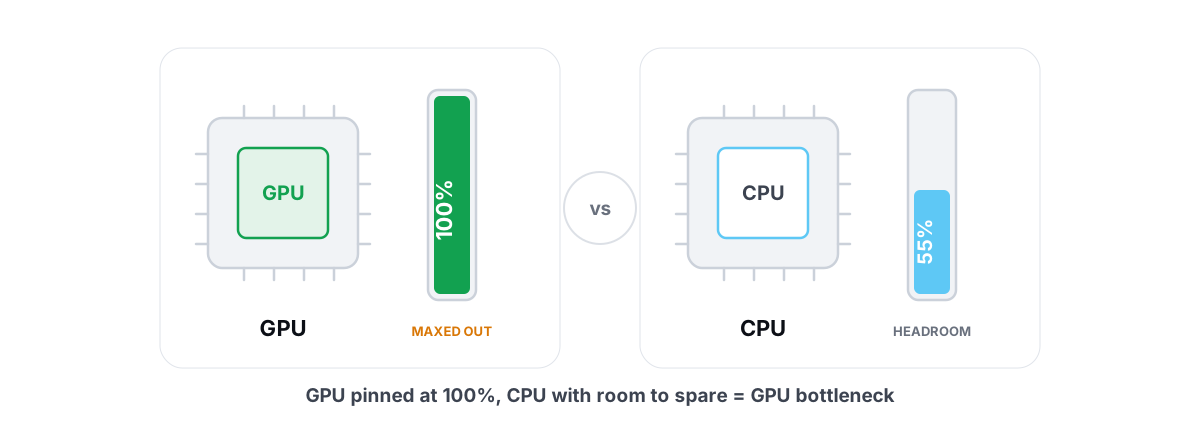
Every gaming PC has a bottleneck — the only question is which part. The whole GPU vs CPU bottleneck argument comes down to one number you can read in under a minute: which component is pinned and which one is coasting. Once you know that, you stop guessing and spend your time and money on the part that actually moves frames. Here's the test.
What a Bottleneck Means (and Why You Always Have One)
A bottleneck is just the slowest part of the chain for the work you're doing right now. To draw a frame, your CPU prepares it (physics, AI, draw calls, game logic) and hands it to the GPU, which renders the pixels. Whichever one finishes its job last sets your frame rate.
That means you always have a bottleneck. There's no such thing as a perfectly balanced PC with zero limiting component — at any instant, one of them is waiting on the other. The goal isn't to eliminate the bottleneck. It's to know which component it is, so the time and money you spend lands where it actually moves frames.
You don't "fix" a bottleneck by buying a balanced PC. You identify which part is the limit for the games you play, then tune or upgrade that one.
The good news: Windows already exposes the two numbers you need — GPU utilization and CPU utilization while a game runs. You don't need a benchmark suite or a paid tool. You need a live monitor and one minute of reading it correctly.
The 99% Rule: Reading GPU Utilization
Open your game, get into actual gameplay (not a menu), and watch GPU utilization. This single number answers most of the question.
- GPU sitting at 97-100% → you are GPU-bound. The graphics card is working flat out and is the thing holding your frame rate. This is the normal, healthy state for most single-player games at high settings.
- GPU well below 100% (say 60-80%) while FPS is lower than you'd like → something else is the limit, and it's usually the CPU. The GPU has spare capacity it isn't allowed to use because it's waiting on frames to render.
That's the core test. A maxed GPU means the GPU is your ceiling; an idling GPU paired with disappointing FPS means the ceiling is somewhere upstream. The "99% rule" is shorthand: if your GPU is pinned near 99%, stop looking — you're GPU-bound.
One caveat that trips people up: if you've capped your frame rate (V-Sync, an in-game limiter, or a 60 Hz monitor) and you're hitting that cap comfortably, your GPU will sit below 100% on purpose. That's not a bottleneck — that's the cap doing its job. Remove the cap, or test in a heavy scene that pushes past it, before you diagnose anything.
When the CPU Is the Limit: Low GPU, Low FPS
The classic CPU-bound signature is low GPU usage and low FPS at the same time. Your expensive graphics card is coasting at 70%, your frame rate is stuck at 80, and it won't climb no matter how low you set the graphics. That's the tell.
The reason it won't climb is that the CPU can't feed frames fast enough. Lowering resolution or texture quality only lightens the GPU's load — and the GPU wasn't the problem. So nothing happens. If you drop every setting to Low and your FPS barely moves, you've just proved you're CPU-bound.
Which games hit the CPU hardest?
- Strategy and simulation (Total War, Cities: Skylines, Factorio, Stellaris) — thousands of units or agents to calculate.
- Competitive shooters at high refresh — pushing 240+ FPS means the CPU has to prepare 240+ frames per second, which is genuinely hard.
- Open-world games in dense areas — towns and cities full of NPCs hammer the CPU with logic and draw calls.
- Emulators — they lean heavily on single-thread CPU performance.
A subtler CPU bottleneck is a single pegged core. Many games rely on one main thread, so a CPU showing 45% total usage can still be bottlenecked if one core is pinned at 100% while the rest idle. Don't trust the overall CPU percentage alone — check per-core load. If one core is maxed, that's your limit, even though the total looks relaxed.
If you find a core or the whole CPU pinned at 100% outside of gameplay too, that's a separate problem worth chasing on its own — start with our guide to fixing 100% CPU usage without guesswork. And if the whole machine feels slow, not just games, the cause is often one of these nine real things, not your GPU.
Resolution Changes the Answer
Here's the part most "bottleneck calculators" get wrong: your bottleneck isn't a fixed property of your PC. It moves with resolution. The same machine can be CPU-bound at 1080p and GPU-bound at 4K.
Why? The CPU's workload barely changes with resolution — it prepares roughly the same frame whether you're at 1080p or 4K. The GPU's workload, though, scales hard with pixel count. 4K is four times the pixels of 1080p. So as you raise resolution, you pile work onto the GPU while leaving the CPU's job nearly untouched.
| Resolution | GPU load | Typical bottleneck |
|---|---|---|
| 1080p | Lightest | More likely CPU-bound (esp. at high refresh) |
| 1440p | Middle | Depends on the pairing — often balanced |
| 4K | Heaviest | Almost always GPU-bound |
This has a practical payoff. If you're CPU-bound at 1080p, raising resolution to 1440p can actually give you a free image upgrade — your FPS may not drop much, because the CPU was the limit and you just handed the idle GPU more work to do. You were leaving graphics-card performance on the table.
It also explains why benchmark reviewers test CPUs at 1080p, not 4K. At 4K, the GPU is the bottleneck in nearly every game, so two very different CPUs post identical frame rates. Low resolution is how you expose the CPU's real ceiling. Keep this in mind when you read upgrade advice online — the resolution they tested at decides which component looks like it matters.
Diagnose the GPU vs CPU Bottleneck With a Live Monitor
To do this properly you want three numbers on screen while you play: GPU utilization, CPU utilization (ideally per-core), and FPS. An overlay that shows them in real time turns the whole diagnosis into a glance.
Here's the step-by-step:
- Launch the game and load into real gameplay. Menus don't count.
- Make sure no frame cap is hiding the truth — uncap FPS, or at least confirm you're pushing past your cap in a heavy scene.
- Find a demanding, repeatable spot and watch the overlay for 30-60 seconds.
- Read GPU usage first. Pinned near 100% → GPU-bound. Coasting while FPS is low → keep going.
- Read CPU usage, per-core. One core at 100% (or all cores high) with the GPU underused → CPU-bound.
One caution on measuring FPS: the overlay you use should read frame timing without hooking the game's render path or injecting code, so it can't trip an anti-cheat. BRUTAL Optimizer's free FPS overlay counts presented frames through Windows' own compositor (DWM composition / D3DKMT) instead of injecting, and pairs that with a live CPU/GPU/RAM monitor — exactly the picture this test needs. For how to vet one, see the best anti-cheat-safe FPS overlay.
While you're watching, glance at temperatures too. A GPU or CPU that throttles when it gets hot will look like a bottleneck — frame rate sags after a few minutes — but the real fix is heat, not a new part. Monitoring temps to catch throttling tells you whether you're chasing a phantom.
Tweaks That Help Each Type of Bottleneck
Once you know the bottleneck, the right moves are obvious — and so are the wrong ones.
If you're GPU-bound
- Lower the expensive settings. Shadows, ray tracing, and reflections cost the most GPU for the least visible gain. Our breakdown of FPS vs. quality settings shows where to cut first.
- Turn on upscaling (DLSS, FSR, XeSS). It renders at a lower internal resolution and reconstructs the image — often a 30-60% jump because it directly lightens the GPU's load, which is your actual limit here.
- Drop resolution if you must. It's the single most effective GPU lever, since pixel count is what's drowning the card.
If you're CPU-bound
- Close background CPU hogs. Browsers with dozens of tabs, sync clients, and overlays all steal cycles the game wants. Trim what launches at boot — managing startup programs is the durable fix.
- Raise resolution for free quality. As covered above, the GPU has headroom — use it.
- Enable XMP/EXPO in BIOS. A startling number of "slow" PCs run RAM at default JEDEC speeds. CPU-bound games are sensitive to memory speed, and turning on the rated profile is a genuine, free gain.
- Don't expect graphics tweaks to help. They won't. The CPU is the wall.
There's a category of low-latency tweaks — timer resolution, interrupt affinity, USB polling, power throttling — that some players use to shave input lag in fast games. They're real, and BRUTAL Optimizer ships reversible versions of them, but they trim latency, not your average frame rate. Treat them as a separate project (reducing input lag you can feel), not a bottleneck fix.
Upgrade Decisions Backed by Data
This is where the test pays for itself. Before you spend money, run the diagnosis across the games you actually play, and let the numbers pick the part.
| What you see | Bottleneck | Where to spend |
|---|---|---|
| GPU at ~100%, FPS below target | GPU | Faster GPU (or upscaling first — it's free) |
| GPU coasting, one core pegged, FPS stuck | CPU | Faster CPU; sometimes faster RAM |
| Stutter + low free RAM in heavy scenes | Memory | More RAM, in dual-channel, XMP/EXPO on |
| Long load/texture hitches, average FPS fine | Storage | An SSD — won't raise FPS, kills load stutter |
A few honest notes on this table. If you're GPU-bound, try upscaling before you buy anything — it's free performance that targets exactly the right component. If you're CPU-bound, check whether new RAM at the right speed closes the gap before springing for a new chip and motherboard. And remember a storage upgrade improves load times and streaming stutter, not your frame rate — don't buy an SSD expecting more FPS.
One last reality check: measure each game at the resolution you actually play. Buying a faster CPU because a 1080p benchmark said so is pointless if you game at 4K, where you'll be GPU-bound regardless. The data only helps if it matches your real conditions.
If you'd rather not juggle separate tools, BRUTAL Optimizer puts the whole diagnosis in one place — a free, anti-cheat-safe FPS overlay with 1% lows and frametimes, a live CPU/GPU/RAM monitor to spot which component is the ceiling and whether you're throttling, plus reversible system tweaks with a System Restore point attempted before anything big. It won't pretend to move work off a busy CPU onto an idle GPU, because nothing can. It just hands you the numbers so you tune — or buy — the right part.
Frequently asked questions
Am I CPU or GPU bottlenecked?
Watch GPU utilization during real gameplay. If the GPU sits near 99-100 percent, you are GPU-bound and the graphics card is your limit. If the GPU coasts below 100 percent while your FPS stays low, you are CPU-bound. Also check per-core CPU load: one core pinned at 100 percent means a CPU bottleneck even when the overall percentage looks relaxed.
How do I check for a bottleneck on my PC?
You do not need a benchmark suite. Use a live overlay that shows GPU usage, CPU usage and FPS, load into a demanding scene, uncap your frame rate, and read it for 30-60 seconds. A pinned GPU means GPU-bound; an idle GPU with low FPS means CPU-bound. BRUTAL Optimizer has a free, anti-cheat-safe overlay and monitor that show all three at once.
Why is my GPU usage low but my FPS is also low?
That is the classic CPU bottleneck signature. The graphics card has spare capacity but the CPU cannot prepare frames fast enough to keep it busy. Lowering graphics settings will not help, because the GPU was not the problem. Look for a single CPU core pinned at 100 percent, and close background CPU hogs first.
Does resolution affect whether I am CPU or GPU bottlenecked?
Yes, a lot. The CPU does roughly the same work at any resolution, but the GPU's load scales hard with pixel count. So the same PC can be CPU-bound at 1080p and GPU-bound at 4K. If you are CPU-bound at 1080p, raising resolution often gives a free image upgrade with little FPS loss.
Should I upgrade my CPU or GPU first?
Let the data decide, measured at the resolution you actually play. If the GPU is at 100 percent and FPS is below target, a faster GPU (or free upscaling) is the answer. If the GPU coasts while a core is pegged, upgrade the CPU — but check that your RAM is running at its rated XMP/EXPO speed first, since that is a free gain.
Keep reading
 Gaming & FPS
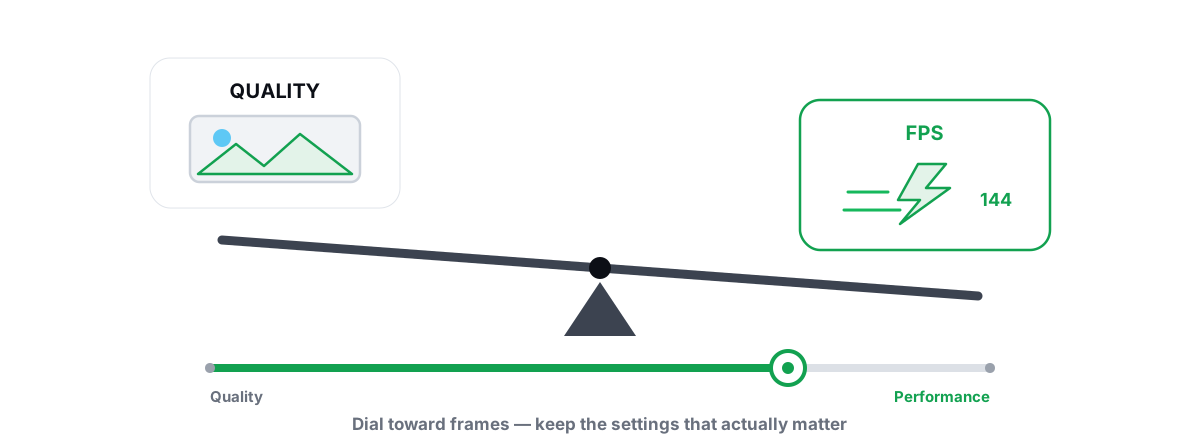
Best Graphics Settings for FPS vs. Quality
A settings-by-impact tier list so you trade quality only where it buys real frames.
 Windows Performance
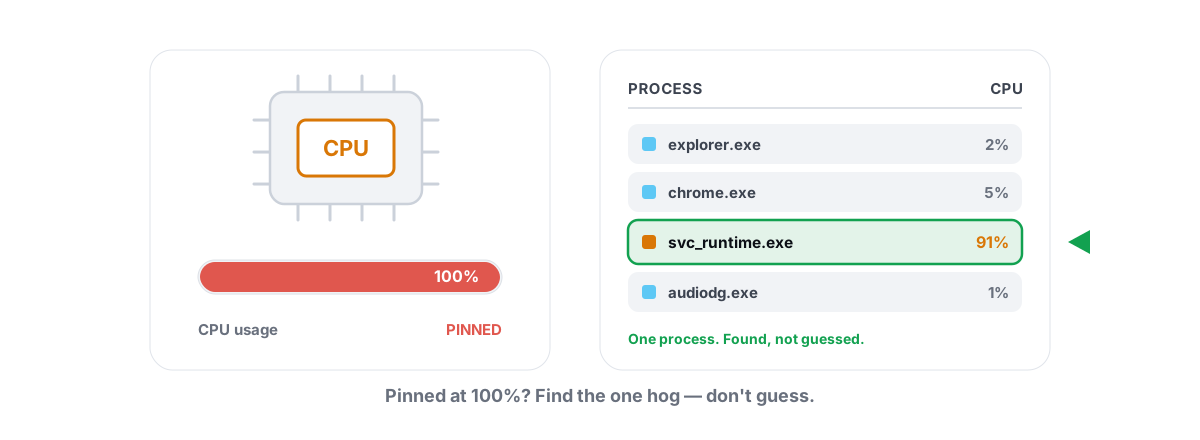
Fix 100% CPU Usage in Windows Without Guesswork
A methodical trace from Task Manager to the exact culprit pinning your CPU - then the fix that actually matches it.
 Gaming & FPS
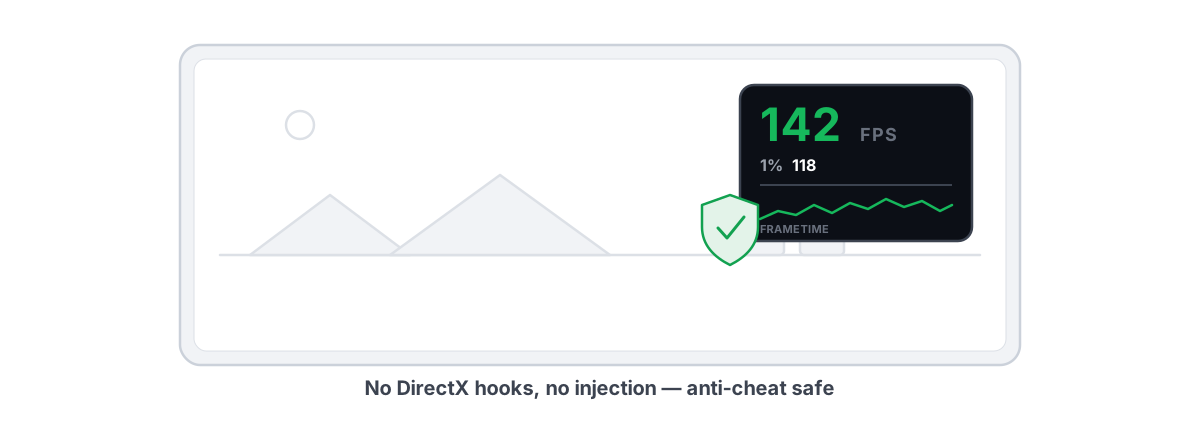
Best FPS Overlay That's Anti-Cheat Safe
Why a present-frame fps overlay is the anti-cheat-safe choice, and how to read 1% lows and frametimes properly.
Stop guessing. Measure it.
BRUTAL Optimizer is the honest way to speed up Windows — 17 free modules, a real FPS overlay, verified disk cleanup and drive health. No kernel driver of our own, no game hooks, every setting change reversible.