How to Reduce Input Lag You Can Actually Feel
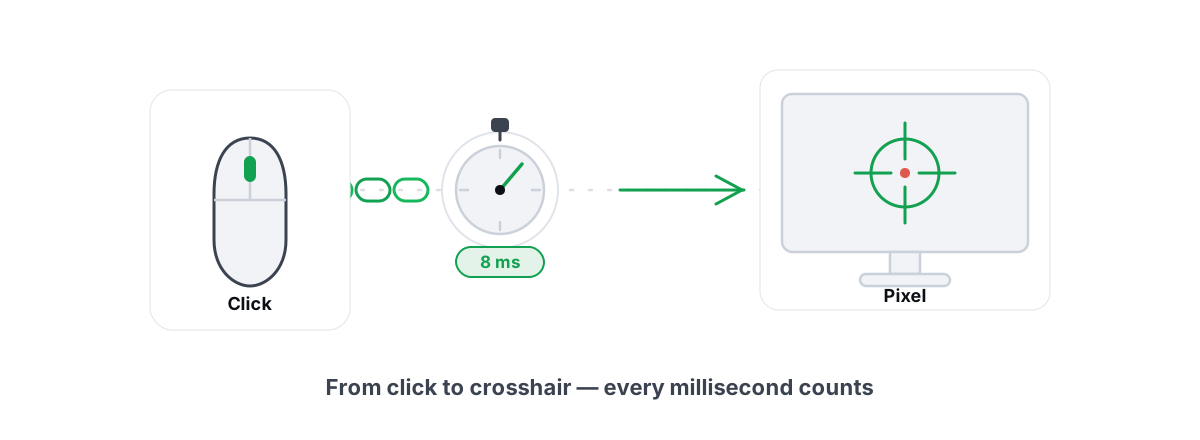
Input lag is the gap between your hand moving and the screen responding. Most of it lives in a few specific places, and once you know where they are, learning how to reduce input lag is mostly about fixing the big ones and ignoring the tweaks that do nothing. This guide walks the whole chain from click to photon and tells you, honestly, which milliseconds you'll feel.
What Input Lag Actually Is (Click to Photon)
The honest way to measure latency is end to end: from the moment a photon leaves the screen showing a target, through your reaction, the mouse click, the USB poll, the game's input read, the render, and the next frame lighting up your pixels. That whole loop is click-to-photon latency, and it's the only number that matters.
The hardware chain has roughly these stages, each adding its own slice:
- Mouse sensor + USB poll — 1 to 8 ms depending on polling rate.
- OS input handling — usually under 1 ms, more if the system is starved.
- Game simulation + render queue — the big one, often 10 to 50+ ms, scales with FPS and queue depth.
- GPU render time — one frame's worth, so 16.7 ms at 60 FPS, 6.9 ms at 144 FPS.
- Display processing + pixel response — 2 to 40 ms depending on the panel.
Notice the pattern: the largest, most controllable chunks are framerate and the render queue, not your mouse. People obsess over polling rate and ignore the 30 ms they're leaving on the table at 60 FPS. We'll fix the big rocks first.
Higher framerate is the single biggest latency lever you have. Each frame you add shortens every stage that's measured in frames. A game running at 200 FPS feels sharper than 60 FPS partly because of latency, not just smoothness.
Mouse Polling Rate and USB Latency
Polling rate is how often your mouse reports its position. 125 Hz means a report every 8 ms; 1000 Hz means every 1 ms; the newer 4000 and 8000 Hz mice report every 0.25 and 0.125 ms. The lag this removes is the average wait for the next report — half the interval — so going from 125 Hz to 1000 Hz saves about 3.5 ms on average. Real, and worth doing.
Beyond 1000 Hz the returns shrink fast. Jumping to 8000 Hz saves under 1 ms versus 1000 Hz, and it costs measurably more CPU because the system processes eight times as many input events per second. On a mid-range CPU that extra load can add stutter and cancel the tiny latency gain. Test it, don't assume it.
USB Deep Latency tuning (a Pro module) helps here, but only if you've already maxed framerate.One real culprit people miss: mouse acceleration. It doesn't add lag in milliseconds, but it makes the cursor's response non-linear so movement feels inconsistent, which reads as "laggy." Turn off "Enhance pointer precision" in Windows mouse settings and any in-game acceleration. Set raw input on where the game offers it.
The Render Queue, V-Sync and Frame Cap Sweet Spot
This is where most of your avoidable lag hides. The GPU normally buffers a queue of frames the game has already simulated. A deep queue keeps the GPU fed and FPS high, but every frame in that queue is a frame of old input waiting its turn — pure latency.
V-Sync is the worst offender. When you're GPU-bound with V-Sync on, the queue fills completely and the game stalls waiting for the display, adding a full frame or more of lag (often 20-50 ms). That's the soft, floaty feeling. The fix is not to blindly disable V-Sync and eat screen tearing, but to cap your framerate just below your refresh rate.
Here's the mechanism. If you cap FPS slightly under your monitor's refresh, the GPU never fully saturates, the render queue stays shallow, and frames present without the V-Sync stall. With a variable-refresh display (G-Sync / FreeSync), this combination gives you tear-free and low-latency.
| Refresh rate | FPS cap (G-Sync/FreeSync + V-Sync on) |
|---|---|
| 60 Hz | 57-58 |
| 144 Hz | 138-141 |
| 165 Hz | 158-162 |
| 240 Hz | 233-237 |
Without VRR, you're choosing: V-Sync off for lowest latency but visible tearing, or V-Sync on for no tearing but added lag. There's no free lunch on a fixed-refresh panel. A frame cap still helps by keeping the queue shallow.
NVIDIA Reflex and AMD Anti-Lag
NVIDIA Reflex and AMD Anti-Lag attack the same problem from inside the game and driver. Instead of you guessing an FPS cap, they dynamically keep the render queue near-empty and sync the CPU so it starts each frame at the latest possible moment. The result is genuinely lower latency, especially when you're GPU-bound.
Reflex is the more impactful of the two because it's integrated into the game engine, not just the driver. In supported titles (most competitive shooters) it can cut 10-30 ms with effectively no downside. Turn it on. "On + Boost" locks the GPU clocks higher and shaves a little more, at the cost of power and heat.
If your game has Reflex, it largely replaces the manual frame-cap dance above — it manages the queue for you. You can still cap FPS for thermals and frametime consistency, but the latency-tuning job is done.
Display Input Lag and Refresh Rate
Your monitor adds latency in two ways that get conflated: processing lag (how long the panel takes to act on the signal) and pixel response (how fast pixels actually change color). They're different problems.
Processing lag is the silent killer. A cheap TV in its normal picture mode can add 40-100 ms of pure delay before the image even appears. The fix is free: switch the display to Game Mode, which bypasses most of the image processing. On a TV this alone can remove more lag than every other tweak in this article combined.
Refresh rate matters because a higher-Hz panel shows new frames sooner. The difference between 60 Hz and 144 Hz isn't just smoothness — each refresh is a fresh chance to display your latest input, so the average wait drops from ~8 ms to ~3.5 ms. Make sure Windows is actually running the panel at its rated refresh (Display settings → Advanced display), because it silently defaults to 60 Hz more often than you'd think.
Pixel response (the GtG number, overdrive settings) affects ghosting and clarity in motion, not really click-to-photon latency. Set overdrive to the level that's clean without inverse-ghosting and move on; it's a clarity dial, not a latency dial.
How to Reduce Input Lag from Windows: Timer, Power and EcoQoS
Windows itself can inject jitter into the loop, mostly when the CPU is being throttled or starved. These fixes are smaller than framerate and queue, but they're real and they're about consistency — killing the occasional spike, not lowering the average by much.
Power plan. A laptop or a desktop on "Balanced" can downclock the CPU between frames, so the next frame starts late. Set the power plan to High Performance (or the Ultimate Performance plan) so cores stay ready. This is one of the few "gaming tweaks" with an honest, measurable basis.
EcoQoS / power throttling. Windows 11 can throttle background-classified processes to save power. If it misjudges your game or emulator, you get stutter. Keeping the game off the throttled list helps frametime consistency. The deeper Timer + Power Throttling module in BRUTAL Optimizer handles this at the system level, and every change it makes is reversible with a per-module undo.
Timer resolution. A higher-resolution system timer (0.5 ms vs the default) tightens the scheduler so threads wake closer to when they should, which can trim scheduling jitter. The effect is modest and helps frametime smoothness more than raw latency — don't expect a transformation. It's a real mechanism, not snake oil, but it's a polish step, not a headline.
If your latency problem is actually network lag in online games — high ping, jitter, packet loss — none of the above touches it. That's a separate chain entirely, and you'll get further with the real fixes for ping and a check for bufferbloat on your connection.
How Many Milliseconds Can You Actually Feel?
Here's the part most guides won't tell you. Trained competitive players can reliably feel differences around 5 to 10 ms in fast games; below that, perception gets blurry and individual. So spend your effort where the milliseconds are large.
| Tweak | Typical latency saved | Can you feel it? |
|---|---|---|
| 60 FPS → 144+ FPS | 20-40 ms | Yes, clearly |
| V-Sync stall fixed (cap + VRR) | 20-50 ms | Yes, clearly |
| TV/monitor Game Mode on | 30-90 ms (on bad panels) | Yes, dramatically |
| Reflex / Anti-Lag on | 10-30 ms | Often, in fast games |
| 125 Hz → 1000 Hz mouse | ~3.5 ms | Sometimes |
| High Performance power plan | 2-10 ms (mostly fewer spikes) | Sometimes |
| 1000 Hz → 8000 Hz mouse | under 1 ms | No (and may add CPU load) |
| Timer resolution 0.5 ms | 1-3 ms jitter reduction | Rarely, as smoothness |
The order is the strategy. Get framerate up, fix the V-Sync/queue configuration, turn on Game Mode and Reflex — that's where the felt milliseconds live. The mouse and Windows tweaks are the last few percent, real but small. If your FPS is the limiter, start with getting more FPS honestly before anything else; latency follows framerate.
If you want to actually see these numbers instead of feeling around in the dark, watch your frametimes. An anti-cheat-safe FPS overlay that shows 1% lows tells you whether a change smoothed your frame delivery or did nothing. BRUTAL Optimizer's overlay does this for free, counts DWM/D3DKMT present frames rather than hooking the game, and runs fine alongside Vanguard and EAC — which matters, because a latency tweak you can't measure is just a feeling.
You don't need to install anything to use this guide — Game Mode, refresh rate, an FPS cap, and Reflex are all built into your system and games. If you do want the deeper, reversible Windows-side tuning (timer, power throttling, USB latency) handled safely, with a System Restore point attempted first, BRUTAL Optimizer's gaming tools do exactly that, with a per-module undo for each setting.
Frequently asked questions
What causes the most input lag in games?
Low framerate and a deep render queue, usually made worse by V-Sync. At 60 FPS with V-Sync on you can carry 30 to 50 ms of avoidable lag. Raising FPS and capping it just below your refresh rate removes far more than any mouse setting.
Does a higher mouse polling rate reduce input lag?
Yes, but only up to a point. Going from 125 Hz to 1000 Hz saves about 3.5 ms on average, which is worth doing. Jumping to 8000 Hz saves under a millisecond and can add CPU load that hurts frametimes, so test it rather than assuming it helps.
Should I turn V-Sync off to reduce lag?
Not necessarily. The low-latency setup on a G-Sync or FreeSync monitor is V-Sync on in the driver plus an FPS cap a few frames below your refresh rate. That keeps the render queue shallow and avoids the V-Sync stall while staying tear-free. On a fixed-refresh panel you trade tearing for latency either way.
Is NVIDIA Reflex worth enabling?
Yes. Reflex keeps the render queue near-empty inside the game engine and can cut 10 to 30 ms when you are GPU-bound, with no image-quality cost. Turn it on in every supported title. On or On+Boost both work; Boost holds clocks higher for a little more.
How many milliseconds of input lag can a person actually feel?
Trained competitive players reliably feel differences around 5 to 10 ms in fast games. Below that it gets individual and hard to notice. That is why the big wins are framerate, the V-Sync fix, Game Mode and Reflex, while the last few sub-millisecond tweaks are real but minor.
Keep reading
 Gaming & FPS
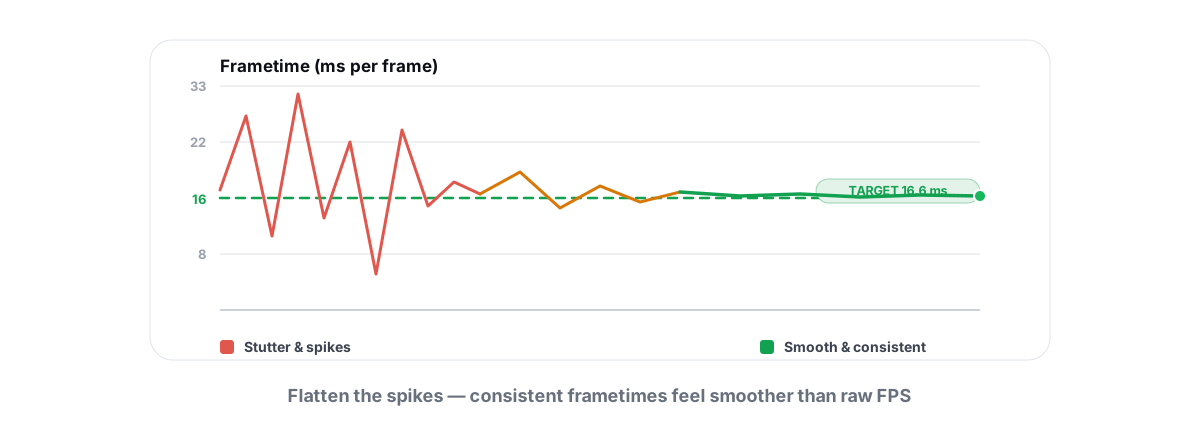
How to Fix Stuttering in Games (Frametime Spikes)
Stutter is a frametime problem, not an average-FPS one — isolate the real causes and confirm each fix with 1% lows.
 Gaming & FPS
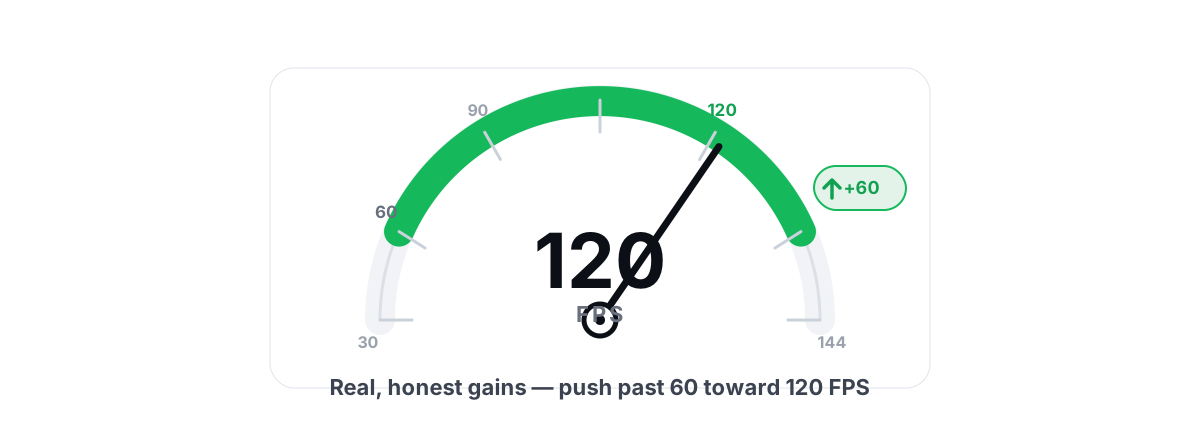
How to Increase FPS in Games (Honest 2026 Guide)
Realistic ways to increase FPS, ranked by impact: settings, drivers, thermals and upscaling, with the placebo tweaks called out.
 Gaming & FPS
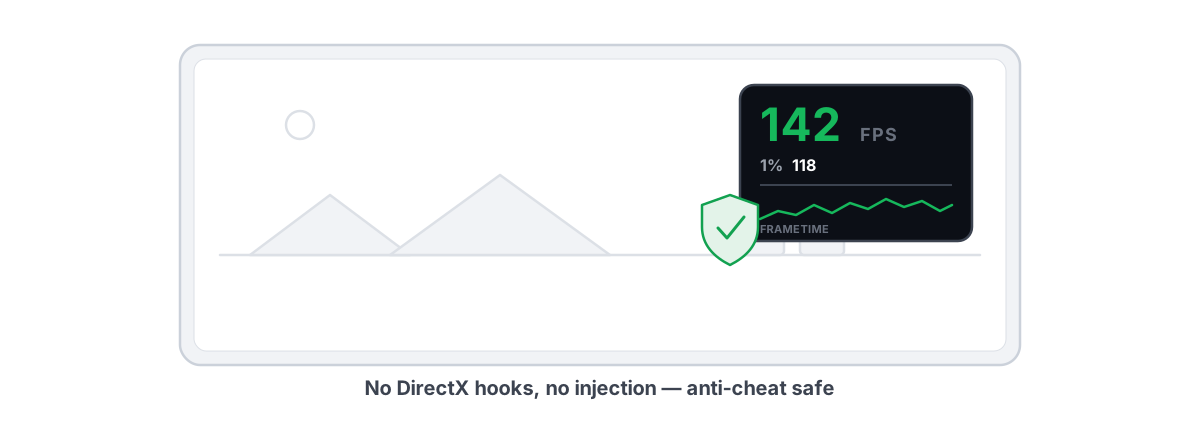
Best FPS Overlay That's Anti-Cheat Safe
Why a present-frame fps overlay is the anti-cheat-safe choice, and how to read 1% lows and frametimes properly.
Stop guessing. Measure it.
BRUTAL Optimizer is the honest way to speed up Windows — 17 free modules, a real FPS overlay, verified disk cleanup and drive health. No kernel driver of our own, no game hooks, every setting change reversible.