How to Reduce Ping in Online Games: The Real Fixes
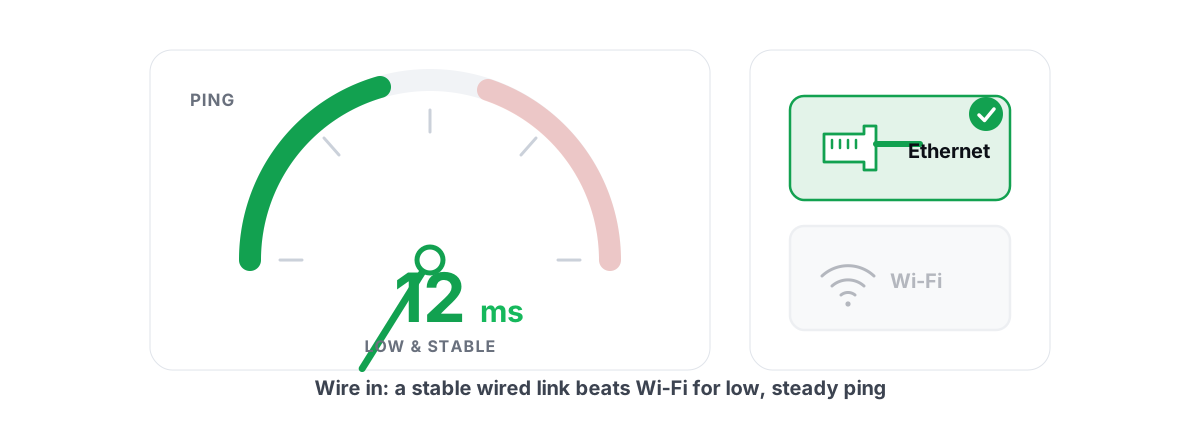
If you searched how to reduce ping, here's the honest split: some of your ping is fixable in ten minutes, and the rest is the speed of light. No app beats physics. This guide sorts the two so you stop paying for the part nobody can change.
Ping is the round-trip time between your PC and the game server, measured in milliseconds. Lower is better, and in fast games the gap between 20 ms and 90 ms is the gap between trading shots and dying behind a wall.
Most "boost your ping" guides hide one thing: a big chunk of your number is fixed by distance and geography, and the rest is a short list of real causes you can actually fix. We'll cover both, and name the snake oil so you don't buy it.
Ping vs. FPS: two different problems
People mix these up constantly, then apply the wrong fix. They are unrelated systems.
FPS (frames per second) is how many images your GPU draws each second. It lives entirely inside your PC — graphics card, CPU, settings, drivers, thermals. It has nothing to do with your internet.
Ping (latency) is how long a packet takes to reach the server and come back. It lives in your network — your router, your ISP, the route to the data center, the distance involved. A monster gaming rig on a bad connection will have buttery FPS and an unplayable ping.
| Symptom | This is a... | Fix lives in |
|---|---|---|
| Game looks choppy, low frame counter | FPS problem | GPU, settings, drivers, heat |
| You shoot first but die, rubber-banding, "lag" | Ping problem | Router, Wi-Fi, ISP, server choice |
| Stutter every few seconds while FPS stays high | Frametime spikes (PC-side) | Background load, drivers, storage |
If your frame rate is the issue, this is the wrong article — read how to increase FPS honestly instead. If the game feels delayed, warps you backward, or shows a high in-game ping number, you're in the right place. Hitchy frame pacing with a high frame counter is its own thing; see fixing stutter and frametime spikes.
Ping is a network number. FPS is a graphics number. No network tweak raises FPS, and no graphics setting lowers ping. Diagnose which one you have before you change anything.
The floor you can't beat: distance and physics
Light in fiber travels at roughly two-thirds the speed of light in a vacuum. That sounds fast until you do the math on distance, because every packet has to go there and back.
A rough rule: figure about 1 ms of round-trip latency per 100 km of fiber, before you add any equipment. Real routes aren't straight lines, so the practical floor is higher.
| Your distance to the server | Best-case ping (physics floor) |
|---|---|
| Same city (under ~50 km) | 1-5 ms |
| Same country (~500 km) | 10-20 ms |
| Neighboring country (~1,500 km) | 25-40 ms |
| Across a continent (~4,000 km) | 60-90 ms |
| Across an ocean (~10,000 km) | 140-200 ms+ |
If you're in India playing on a Singapore server, your ping will never drop below the physics floor for that distance, no matter what you install. A "ping booster" promising to cut a transoceanic ping in half is lying — the only way to beat distance is to play on a closer server.
So the strategy is simple: get as close to the physics floor as you can for the closest available server, and remove every avoidable millisecond your own setup adds on top. That's the part you control.
Pick the right server region
This is the single biggest lever you have, and it's free. Most online games let you choose a server or matchmaking region in the settings. Picking the closest one with a healthy population beats every other tweak combined.
The trap: many games default to "auto" and sometimes guess wrong, or you joined a friend's lobby in another region months ago and never switched back. Open the network or matchmaking settings and check which region you're actually on.
Closest isn't always lowest-ping, though. Routing matters. Your ISP might take a clean path to a "farther" data center and a congested, scenic detour to a nearer one. The way to know is to measure, not guess.
One caveat on population: the absolute lowest-ping server is useless if nobody's on it and you wait ten minutes for a match. Balance latency against player count. A 35 ms server with instant queues usually beats a 22 ms ghost town.
Wired vs. Wi-Fi and the lag it adds
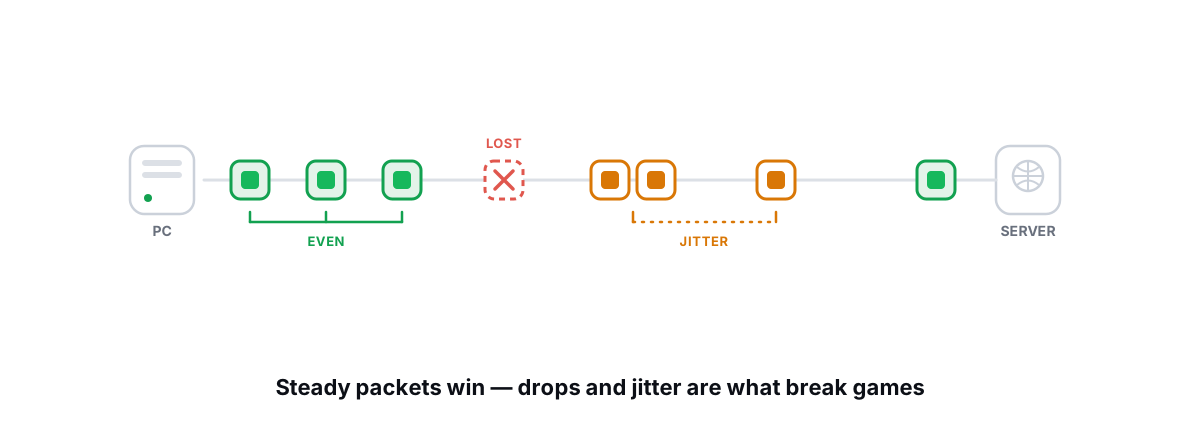
Wi-Fi is convenient, and it's the most common self-inflicted ping problem in gaming. It doesn't just add a few milliseconds of average latency — it adds jitter (latency that varies packet to packet) and occasional packet loss, and those two are what actually make a game feel laggy even when the average ping looks fine.
The mechanism: Wi-Fi is a shared, half-duplex radio medium. Your microwave, your neighbor's network, a Bluetooth headset, and every other device on your channel compete for airtime. When there's contention, packets wait or get retransmitted, and your latency spikes for a moment. In a shooter, that moment is a death.
| Connection | Typical added latency | Jitter / loss risk |
|---|---|---|
| Wired Ethernet | ~1 ms, rock steady | Essentially none |
| 5 GHz Wi-Fi, close to router | 3-10 ms | Low, but variable |
| 2.4 GHz Wi-Fi or far from router | 10-50 ms+, spiky | High — this is where "lag" lives |
The fix is boring and it works: run an Ethernet cable. A flat cable under a rug or along the skirting board takes ten minutes and removes the single most common source of jitter in home gaming. If you do exactly one thing from this guide, do this.
If a cable truly isn't possible, get as close to the router as you can, use the 5 GHz band (less crowded, more bandwidth), and pick a clean channel. Powerline adapters or MoCA (Ethernet over your coax) are decent middle grounds — far steadier than Wi-Fi, no drilling required. If your "lag" is mostly spikes and warping rather than a high steady ping, this is almost certainly your cause; see fixing packet loss and jitter for the deeper diagnosis.
Bufferbloat: the fix most guides miss
This is the one almost nobody mentions, and it's the reason your ping is fine until someone in the house starts a download or uploads a video. Here's what's happening.
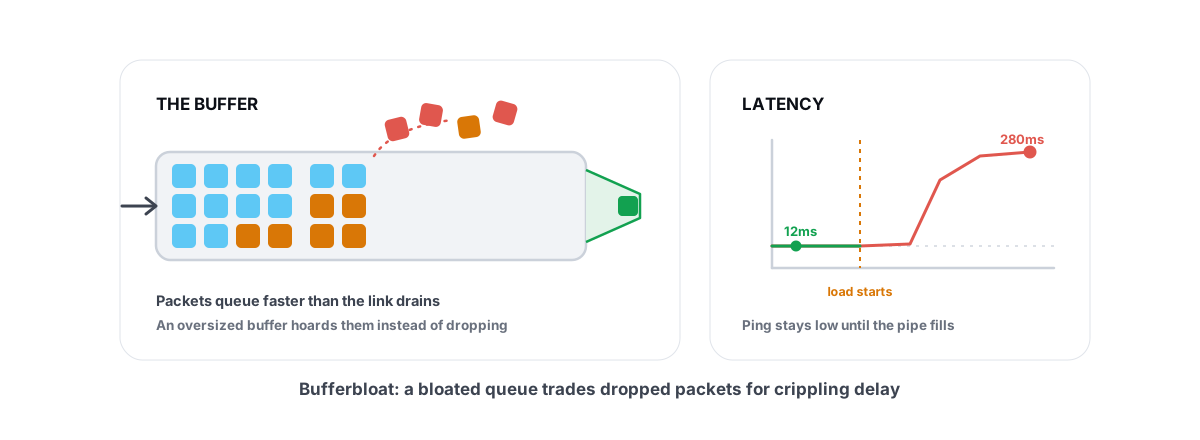
Your router has a buffer — a queue for packets waiting to go out over your connection. When the link saturates (a big upload, a cloud backup, a game patch downloading), that buffer fills. Your game's tiny, time-critical packets get stuck at the back of the queue behind a fat download. Your ping under load jumps from 25 ms to 200, 400, even 1,000+ ms.
That's bufferbloat. Your idle ping looks great in a speed test, but the moment the line is busy, latency explodes. It's invisible to most people because they only ever ping-test an idle connection.
You can see it yourself. Ping a server while idle, note the number, then start a large upload and ping again. If the ping triples or worse, you have bufferbloat. Web tools grade this A through F automatically by saturating the line and measuring latency during the load.
cake or fq_codel queue management. You set your real upload/download speeds slightly below your line rate, and the router keeps the buffer from bloating — turning an F-grade connection into an A. For households that share a connection, this is the highest-impact fix on the whole list.If your router has no SQM option, even a basic QoS rule that prioritizes your gaming PC — or simply not running big uploads while you play — helps a lot. The full mechanism and fix are worth understanding in detail; see what bufferbloat is and how to kill it. BRUTAL Optimizer's network lab includes a bufferbloat test that grades your line A-F under load, so you can confirm whether this is your problem before you touch router settings.
Why "ping boosters" and game VPNs rarely help
The "ping booster" category is mostly marketing wrapped around one of two things: a VPN, or a list of harmless Windows registry tweaks dressed up as magic. Neither makes packets travel faster than the route allows.
Be precise about when a VPN can help, because it occasionally does, and why it usually doesn't.
When a gaming VPN actually helps
A VPN routes your traffic through the provider's server first. The only way that lowers ping is if your ISP's default route to the game server is genuinely bad — congested or scenic — and the VPN's path happens to be shorter or cleaner. That's real but uncommon. You're betting the VPN has a better route than your ISP, which is a coin flip you can only win by testing.
Why it usually makes things worse
By default a VPN adds a hop and distance. Your packets now go you → VPN server → game server instead of straight there. That's extra latency, plus encryption overhead. If your ISP's route was already fine, a VPN can only make it worse. Most people who "feel" an improvement are experiencing placebo or a server change they'd have gotten for free.
netsh command. No app can shrink the distance to the server.If you want to try a VPN as a routing experiment, fine — measure your ping to the actual game server before and after, on the same server, and keep it only if it genuinely drops. Don't trust the app's own "improvement" number.
Tracing your route to find the bottleneck
When your ping is high and you've ruled out Wi-Fi and bufferbloat, the next question is where the latency is added. A traceroute answers it by mapping every router (hop) between you and the server, with the latency at each step.
Run it from a command prompt with tracert followed by the server's IP or hostname. Each line is one hop. Watch where the latency jumps:
- Hop 1-2 (your router, your ISP's first node): a big jump here means a local problem — Wi-Fi, a bad cable, an overloaded router. This is the part you can fix.
- Middle hops (your ISP's backbone): a jump here is congestion or bad routing inside your provider. You can't fix it, but you can report it, and it's evidence for a support ticket.
- Later hops (long-distance transit, the data center): a jump here is usually distance and peering between networks. Mostly the physics floor — not a fault, just geography.
One important caveat: don't panic over a single hop showing high latency or asterisks. Many routers deliberately deprioritize the ping replies traceroute relies on, so an intermediate hop can show 200 ms while traffic passing through it is fine. What matters is the latency at the final hop (the server) and a sustained jump that every later hop inherits. A spike that doesn't carry forward is just a busy router answering you slowly.
If the bottleneck is in your ISP's network or the long-haul transit, the honest answer is you can't tweak it away — your options are a different server, a different ISP, or a support ticket with your traceroute attached. A full walkthrough of reading these results is in traceroute explained for gamers.
What about DNS for gaming?
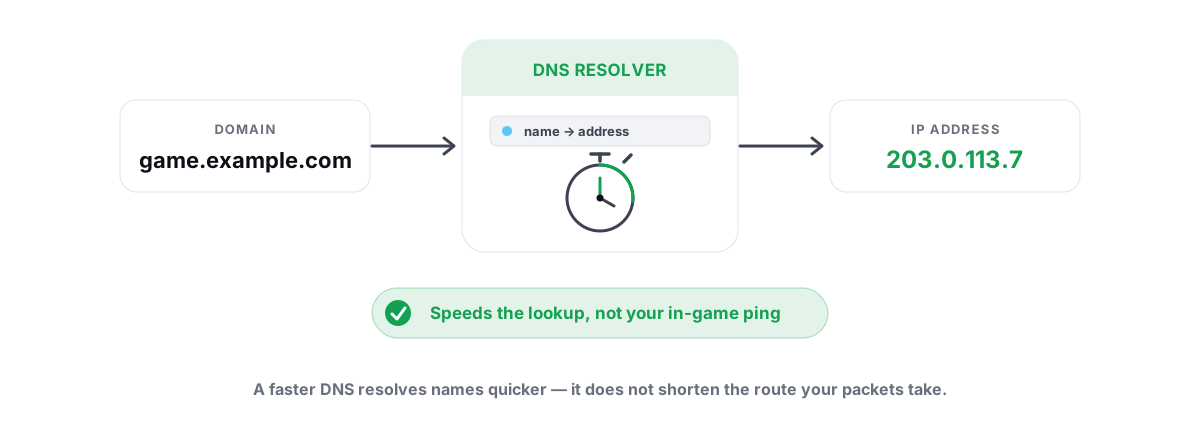
Changing your DNS server (to Cloudflare's 1.1.1.1, Google's 8.8.8.8, and so on) is worth doing for faster name lookups and sometimes a cleaner path to a server. But be clear about what it does: DNS resolves the server's name to an IP once, before you connect. It does not lower your in-game ping during play. It can make matchmaking and web pages snappier; it won't shave milliseconds off your shots. The honest version is in best DNS for gaming.
How to reduce ping: the honest priority order
Do these in order and stop when your ping is good. Most people only need the first three.
- Pick the closest healthy server region. Free, biggest impact, often the whole fix.
- Get on Ethernet. Kills the jitter and packet loss that cause most "lag" that isn't distance.
- Test and fix bufferbloat. Critical if you share your connection. SQM turns an F into an A.
- Don't saturate your line while playing. Pause cloud backups, big downloads, and 4K uploads.
- Traceroute to find where latency is added before blaming your PC or buying anything.
- Consider a different ISP only if traceroutes consistently show their network is the bottleneck.
Notice what's not on the list: no registry "ping booster," no miracle VPN, no app that promises to beat distance. None of those move packets faster than the route allows.
If you want to measure all of this in one place — real ICMP ping, jitter and packet-loss numbers, an A-F bufferbloat grade under load, a proper traceroute with hop classification, and a DNS benchmark you can apply with one click — that's what the network lab in BRUTAL Optimizer does. It's free, it's a user-mode tool that uses the same ICMP and netsh mechanisms Windows already ships, and it doesn't pretend it can break the speed of light. Everything above also works with the tools already on your PC, which is the point.
Frequently asked questions
What is a good ping for online games?
Under 20 ms feels instant, 20-50 ms is great for competitive play, 50-100 ms is fine for most games, and above 100 ms you start to feel the delay in fast shooters. Your achievable floor depends mostly on how far you are from the server, so judge your ping against the distance, not against an absolute number.
Does a VPN lower ping for gaming?
Usually it raises ping, because it adds an extra hop and distance plus encryption overhead. A VPN only lowers ping in the uncommon case where your ISP takes a bad route to the server and the VPN happens to take a shorter, cleaner one. Test your ping to the actual game server before and after on the same server, and keep the VPN only if it genuinely drops.
Why is my ping fine until someone downloads something?
That is bufferbloat. When your connection saturates, your router queue fills with the download and your game packets wait behind it, so ping jumps from 25 ms to several hundred. The fix is Smart Queue Management (SQM, such as cake or fq_codel) on your router, which keeps the buffer from bloating under load.
Will a ping booster app actually reduce my ping?
No app can shrink the physical distance to the server, so booster apps that only change registry settings do almost nothing. The few real Windows network tweaks they touch are free to change yourself and have a tiny, situational effect. Real ping reduction comes from a closer server, wired Ethernet, and fixing bufferbloat - not from a paid booster.
Is high ping the same as low FPS?
No, they are unrelated. Ping is network latency to the server and FPS is how many frames your GPU draws per second inside your PC. A great gaming rig on a bad connection has high FPS and high ping. If the game feels delayed or warps you backward it is ping; if it looks choppy with a low frame counter it is FPS.
Keep reading
 Network & Latency
What Is Bufferbloat? The Hidden Lag in Your Net
Why your ping spikes the moment anything downloads, how to grade it A-F, and the one router-side fix (SQM) that actually works.
 Network & Latency
How to Fix Packet Loss and Jitter in Games
Measure loss and jitter properly over time, find where they come from, and fix the parts you actually control at home.
 Network & Latency
Best DNS for Gaming: Does It Lower Ping?
A faster DNS speeds up connects, menus and browsing, not in-game ping. How to find and apply the genuinely fastest resolver for your line.
Stop guessing. Measure it.
BRUTAL Optimizer is the honest way to speed up Windows — 17 free modules, a real FPS overlay, verified disk cleanup and drive health. No kernel driver of our own, no game hooks, every setting change reversible.