How to Fix Packet Loss and Jitter in Games
If you want to know how to fix packet loss and jitter, the first thing to accept is that a single ping test telling you "0 ms loss" proves almost nothing. Both problems come and go. You have to watch them over time, in the right place, before you can fix the one that's actually wrecking your games.
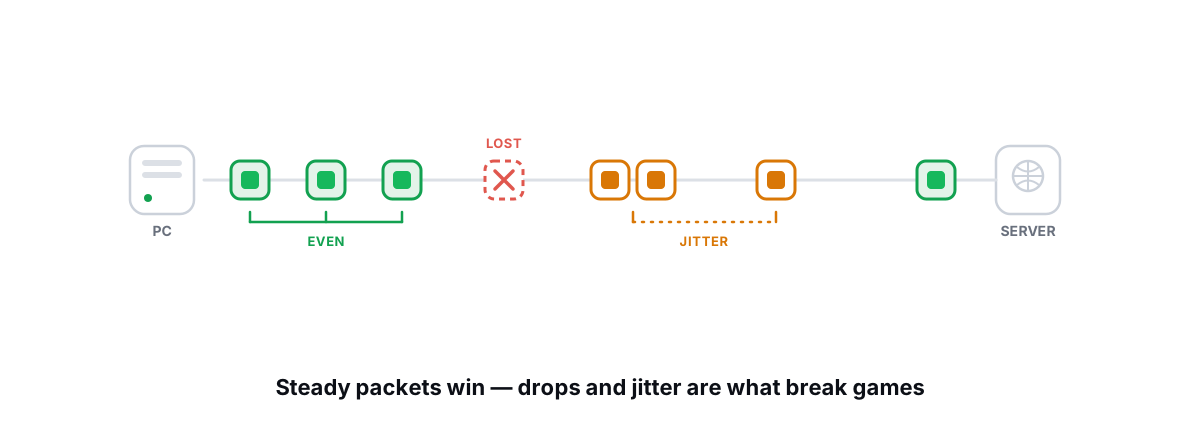
Rubberbanding, teleporting enemies, hits that don't register — most of the time that isn't raw ping. It's loss (packets that never arrive) and jitter (packets that arrive at wildly uneven intervals). Both break the steady stream of updates your game needs, and both hide from a quick speed test.
Here's how to measure them honestly, find where they're coming from, and fix the parts you control. Some of it is a five-minute Wi-Fi change. Some of it is your ISP's problem, and the best you can do is prove it and make them own it.
Packet loss vs. jitter vs. latency
These three get lumped together as "lag," but they're different failures with different causes.
- Latency (ping) is how long one packet takes to reach the server and come back, in milliseconds. It's mostly distance and routing. 20 ms to a nearby server is great; 120 ms across an ocean is just physics.
- Jitter is the variation in that latency. If your ping bounces 30, 90, 35, 110, 28 ms, your average looks fine but the stream is ragged. Jitter is what the game feels as stutter even when the average ping is low.
- Packet loss is packets that never arrive at all, shown as a percentage. The game either waits (a hitch) or guesses where things should be and corrects when the real data shows up — that correction is the rubberband.
A fast connection can still feel terrible. You can have a 15 ms average ping and rubberband constantly if 2% of packets drop or jitter is swinging 80 ms. Average ping is the headline number every tool shows you, and it's the least useful of the three for diagnosing this.
Low average ping with high jitter or loss feels worse than steady high ping. Online games tolerate consistent delay far better than chaos.
How loss and jitter cause rubberbanding
Online games run on a constant exchange of small UDP packets — your inputs going up, the authoritative game state coming down, usually 20 to 64 times per second. The client predicts what happens between updates so movement looks smooth. When the real state arrives and matches the prediction, you see nothing. When it doesn't, you get corrected.
Packet loss breaks the correction. A position update goes missing, your client keeps predicting on stale data, and when the next good packet lands the server says "no, you're actually over here" — and snaps you back. That snap is rubberbanding. Lose several in a row and you teleport.
Jitter breaks the timing. Even with no packets lost, packets that arrive in uneven clumps leave the client alternately starved and flooded. Some netcode buffers against this — a "jitter buffer" deliberately adds a little delay to smooth the stream — but a buffer can only absorb so much before it either adds noticeable lag or gives up and stutters.
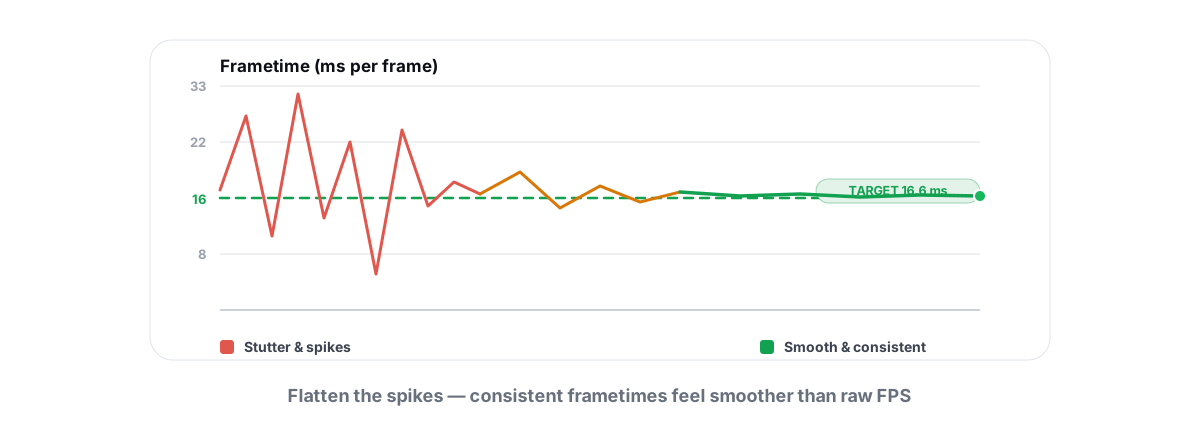
This is also why loss and jitter wreck hit registration. If the packet carrying your shot arrives late or not at all, the server processes it out of order, or after you're already dead on someone else's screen. Frame rate isn't the issue here; if you're chasing smoothness on the rendering side too, fixing stutter and frametime spikes is a separate job from fixing the network.
Measuring them properly over time
The number one mistake is running one ping test, seeing a clean result, and deciding the network is fine. Loss and jitter are bursty. They show up when the Wi-Fi channel gets busy, when someone streams 4K, when your ISP's evening congestion kicks in. A 4-packet test at 2 p.m. misses all of it.
Run a continuous ping, not a snapshot
The simplest honest test is a long-running ping you let sit for several minutes — ideally while the problem is happening. Open Command Prompt and run a continuous ping to a stable target:
ping -t 1.1.1.1
Let it run for five to ten minutes, then press Ctrl+C to stop and read the summary. You want three things from it:
- Packets lost — the summary shows sent/received/lost and a percentage. Anything consistently above ~1% to a nearby target is a real problem worth chasing.
- The spread between minimum and maximum — that gap is your jitter in crude form. Min 12 ms / Max 180 ms means something is badly wrong even if the average looks okay.
- Whether spikes line up with activity — note the time when someone starts a download or walks to another room with a laptop. Correlation tells you the source.
Test two targets to split the problem in half. Ping your own router first (its local IP, usually 192.168.1.1). If you see loss or jitter to your own router, the problem is inside your house — Wi-Fi or cabling — and the internet isn't involved at all. If the router is clean but a public target like 1.1.1.1 is messy, the problem is past your front door.
Look at the distribution, not the average
A proper measurement reports the shape of the latency, not just the mean. The numbers that matter for games are the median (typical case), p95 (the worst 5% — your spikes), jitter (how much it varies), and loss percentage. A tool that shows you only "your ping is 24 ms" is hiding exactly the data you need.
This is where a dedicated network lab beats a single ping. BRUTAL Optimizer's network tools run an ICMP burst and report the full distribution — median, p95, jitter and loss — plus a separate bufferbloat A-to-F grade, which catches the most common real cause of in-game jitter on home connections. It's a measurement, not a "boost": there's no kernel driver and nothing touches your network stack, so it runs safely alongside Vanguard or Easy Anti-Cheat. Knowing the shape of your loss and jitter is most of the battle.
Don't ignore bufferbloat
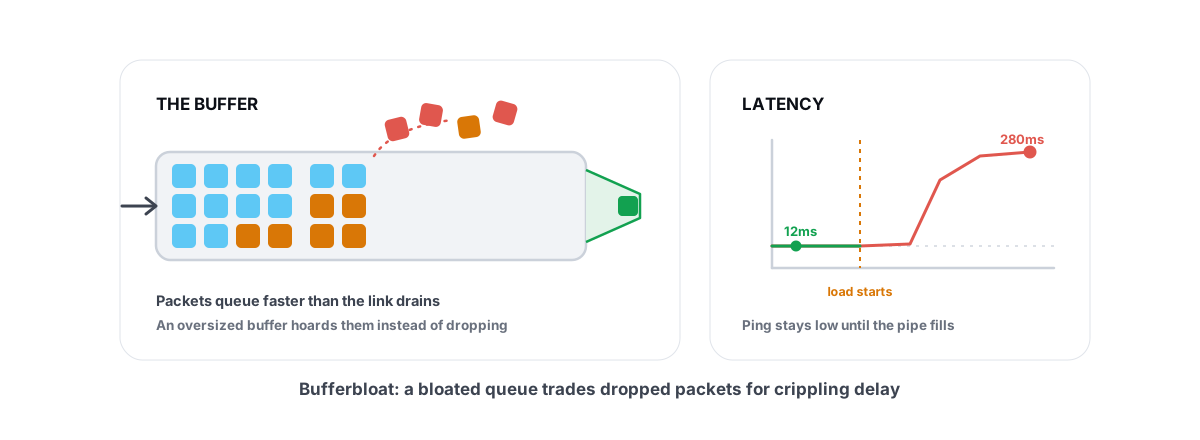
If your jitter only appears when something else is using the connection — a game update downloading, someone uploading video, a cloud backup — you probably have bufferbloat. Oversized buffers in your router or modem hold packets in a queue under load, and latency balloons from 20 ms to 200+ ms the moment the pipe fills. It's one of the most common and most fixable causes of "my ping is fine but I lag when anyone else is online." The fix is covered in detail in what bufferbloat is and how to beat it.
Wi-Fi interference and the 5 GHz fix
If your continuous ping to the router shows loss or jitter and you're on Wi-Fi, you've almost certainly found your culprit. Wi-Fi is a shared, noisy, half-duplex medium. It retransmits lost frames automatically, which hides loss from some tools but surfaces as jitter — those retransmissions add unpredictable delay.
Move to 5 GHz and pick a clean channel
The 2.4 GHz band is crowded. It reaches further and through more walls, but it overlaps with your neighbors, microwaves, Bluetooth, and baby monitors, and it has only three non-overlapping channels. For gaming, 5 GHz is almost always the right call — far more channels, much less congestion, and plenty of bandwidth, at the cost of shorter range.
- Connect to the 5 GHz network. Many routers name the bands separately (e.g. "MyWiFi" and "MyWiFi-5G"). If yours uses one name with "band steering," your device may be sticking to 2.4 GHz — split the bands and join the 5 GHz one directly.
- Pick a quiet channel. Use a free Wi-Fi analyzer to see which channels your neighbors crowd, then set your router to a clear one instead of "Auto," which often parks everyone on the same few.
- Get closer or remove obstacles. 5 GHz hates walls. One wall between you and the router can be the whole difference. A mesh node or access point in the same room as the PC fixes range problems honestly.
- Drop the 6 GHz fantasy for distance. 6 GHz (Wi-Fi 6E/7) is even cleaner but even shorter range. Great in the same room, useless two rooms away.
Honestly, the single most effective fix for Wi-Fi loss and jitter is to stop using Wi-Fi for the gaming PC — which is the next section.
Cabling, ports and hardware faults
A wired Ethernet connection eliminates an entire category of problems at once. No interference, no retransmissions, no contention with other devices in the air, far lower jitter, and far more consistent loss numbers. If you take one thing from this article: run a cable to the gaming PC if you possibly can. A flat Cat6 cable under a rug, or a pair of decent powerline/MoCA adapters, often beats even good Wi-Fi for consistency.
But cabling has its own faults, and they masquerade as ISP problems:
- A damaged or cheap cable. A kinked, crushed, or no-name cable drops frames intermittently. Swap in a known-good Cat5e/Cat6 cable as a test — it's the cheapest diagnostic you'll ever run.
- A bad port or worn connector. Try a different port on the router. A loose RJ45 clip that no longer seats firmly causes random, maddening dropouts.
- A duplex/speed mismatch. Rarely, a NIC and router negotiate the wrong speed and you get heavy loss. Check that the link is at the expected speed (e.g. 1 Gbps) in the Windows network adapter status; force it only if auto-negotiation is genuinely failing.
- A failing router or modem. Old or overheating consumer routers drop packets under load. If every device in the house has loss to the router, the router is the suspect — reboot it, and if it's years old and runs hot, replace it.
Driver state matters less than people think, but a genuinely outdated or buggy NIC driver can cause loss. Get it from the motherboard or NIC maker, not a driver-pack tool — the same caution applies here as in updating drivers safely. Don't reinstall network drivers as a first move, though; cable and port swaps catch far more real faults.
When it's your ISP (and how to prove it)
You've ruled out Wi-Fi (clean ping to the router) and cabling (clean with a swapped cable on a different port). The loss and jitter only show up to public servers. Now it's the path between you and the game — and a chunk of that path is your ISP's.
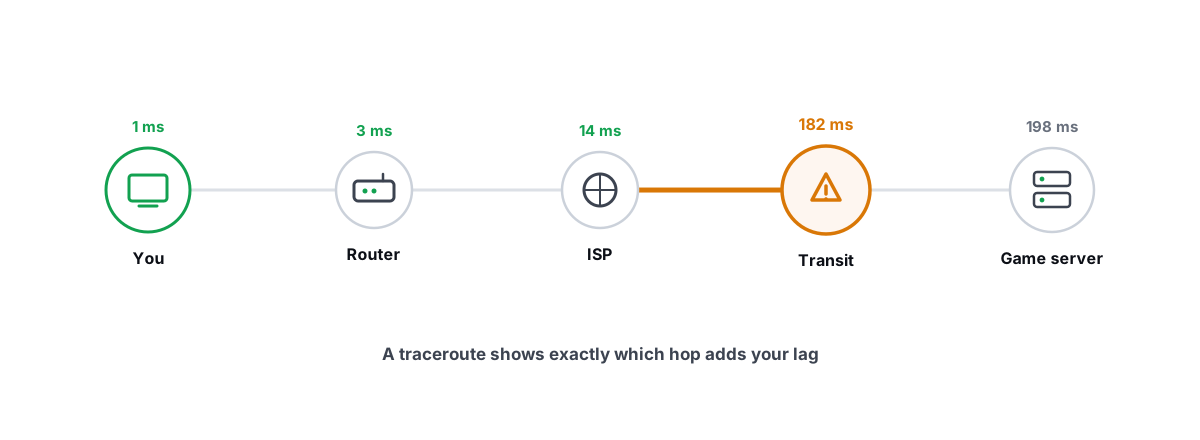
To pin it down, you need to see where on the route the trouble starts. That's what traceroute is for. It shows every hop between you and the destination with the latency at each one. Loss or a latency cliff that begins at a specific hop and persists for every hop after it points the finger at that point in the path.
Two cautions that trip everyone up:
- Some hops show high ping or loss but pass traffic fine. Routers deprioritize replying to traceroute (ICMP) versus forwarding real traffic. A single hop spiking to 200 ms while the hops after it are fine is that router being lazy about replies — not a problem. Only loss or latency that continues to the destination matters.
- The first hop is your router; hops 2-3 are usually your ISP's local gear. Trouble that starts at hop 2 or 3 and continues is your ISP. Trouble that only appears deep in the path (hop 9+) is often international transit you can't do much about except route around with a different server region.
Run it from an elevated Command Prompt:
tracert 1.1.1.1
For a real case, run it to the game server's IP if you can find it. Traceroute explained for gamers walks through reading the output hop by hop, and a network lab that classifies hops as local, ISP, or international transit for you saves you squinting at raw numbers. Pair the traceroute with your long continuous-ping logs as evidence.
Build a case the ISP can't wave away
Support lines deflect vague complaints. They can't deflect data. Bring:
- A continuous ping log showing sustained loss or jitter to a public server (e.g.
1.1.1.1) but a clean ping to your own router taken at the same time. This proves it isn't your Wi-Fi. - A traceroute showing the loss begins at their gear (hop 2-3) and persists downstream.
- Times and dates. "Every evening 8-11 p.m." is a congestion pattern they recognize and have to address.
- Wired results. If you tested on Ethernet, say so — it removes their favorite excuse ("it's your Wi-Fi").
Ask them specifically to check your line stats and signal levels, and to look for packet loss on your segment. If you're on cable, ask about upstream/downstream power and SNR; degraded signal causes exactly this. None of this is a tweak you apply — it's leverage. A clean, timestamped paper trail is the difference between "we'll reset your modem" and an actual technician visit.
What you genuinely can't fix at home
Be honest with yourself about the ceiling. If the game server is physically far away, no tool lowers the speed of light — your base ping is your base ping, so pick the nearest server region. Congestion deep in international transit, peering disputes between networks, and an oversubscribed neighborhood node are the ISP's to fix or yours to route around. A different DNS can shave a little connection-time and occasionally route you to a closer CDN edge, but it does not reduce in-game packet loss — see whether DNS actually lowers ping before you expect miracles from it.
Tools that help vs. tools that lie
This space is full of products that promise to "reduce packet loss" or "stabilize your connection" with a button. Most can't, and the honest ones don't pretend to. Here's the split.
| Claim | Reality |
|---|---|
| "Reduces packet loss with one click" | Loss happens on the wire, in the air, or on the ISP's gear. Software on your PC can't un-drop a packet that died before it arrived. Measure and fix the source. |
| "Optimizes your network stack for gaming" | Windows' defaults are fine for almost everyone. A handful of adapter settings (interrupt moderation, flow control) can shave latency marginally on wired links, but they don't fix loss or Wi-Fi jitter. |
| "Game accelerator / lag-reducer VPN" | Sometimes genuinely helps — only if it routes you around a bad path. Just as often it adds a hop and makes things worse. Test with traceroute before and after; don't take the marketing on faith. |
| "Registry tweak to stop rubberbanding" | Placebo. There's no registry value that recovers lost packets. If anything changes, it's coincidence with network conditions improving on their own. |
| "Ping booster" | You can't boost below the physical round-trip time. The honest version is choosing a closer server and fixing bufferbloat — both real, neither a "boost." |
What an honest tool does is measure: a proper loss/jitter test over time, a traceroute that classifies hops, a bufferbloat grade, a DNS benchmark you can choose to apply. The fixes that actually work are the unglamorous ones in this article: go wired, move to 5 GHz, swap the bad cable, tame bufferbloat, and bring data to your ISP.
Measure before you change anything, fix one variable at a time, and re-measure to confirm. If you want a free, honest way to see your real loss, jitter, bufferbloat grade and route — with no kernel driver and safe to run next to any anti-cheat — that's exactly what the network lab in BRUTAL Optimizer is built for. It won't promise to delete your packet loss. It'll show you where it's coming from so you can.
Frequently asked questions
How do I test for packet loss properly?
Run a continuous ping for five to ten minutes, ideally while the problem is happening, not a quick 4-packet snapshot. In Command Prompt run ping -t to a stable target, let it sit, then press Ctrl+C and read the lost-packet percentage and the min-max spread. Test your own router and a public server separately so you know whether the loss is inside your house or past your front door.
What causes rubberbanding in online games?
Rubberbanding is the game correcting your position after packets go missing or arrive late. Your client predicts movement between server updates, and when a real update finally lands it snaps you to where the server says you actually are. Packet loss and jitter cause it far more often than raw ping does, which is why a low average ping can still feel terrible.
Is packet loss caused by my ISP or my own network?
Test both to find out. Ping your router first: if you see loss or jitter to your own router, the problem is inside your house, usually Wi-Fi or a bad cable. If the router is clean but a public server is messy, run a traceroute. Loss that begins at hop 2 or 3 and continues to the destination points at your ISP, and that data is your evidence when you call them.
Will a registry tweak or network optimizer fix packet loss?
No. Packets are lost on the wire, in the air, or on the ISP's gear, often before Windows ever sees them, so no registry value or one-click tool can recover them. The real fixes are physical: go wired, move to 5 GHz, swap a damaged cable, tame bufferbloat, and bring evidence to your ISP. Honest tools measure loss and jitter so you can find the source, they do not claim to delete it.
Does switching from 2.4 GHz to 5 GHz reduce jitter?
Usually yes, if Wi-Fi is your problem. The 2.4 GHz band is crowded and overlaps with neighbors, microwaves and Bluetooth, which causes retransmissions you feel as jitter. 5 GHz has far more channels and much less congestion, at the cost of shorter range. The most consistent fix of all is a wired Ethernet cable to the gaming PC, which removes interference entirely.
Keep reading
 Network & Latency
What Is Bufferbloat? The Hidden Lag in Your Net
Why your ping spikes the moment anything downloads, how to grade it A-F, and the one router-side fix (SQM) that actually works.
 Network & Latency
How to Read a Traceroute: Find Your Lag's Real Source
Read a real ICMP traceroute and classify every hop so you know whether the lag is your router, your ISP, or the game server.
 Gaming & FPS
How to Fix Stuttering in Games (Frametime Spikes)
Stutter is a frametime problem, not an average-FPS one — isolate the real causes and confirm each fix with 1% lows.
Stop guessing. Measure it.
BRUTAL Optimizer is the honest way to speed up Windows — 17 free modules, a real FPS overlay, verified disk cleanup and drive health. No kernel driver of our own, no game hooks, every setting change reversible.