Best Free PC Optimizer for Gaming in 2026
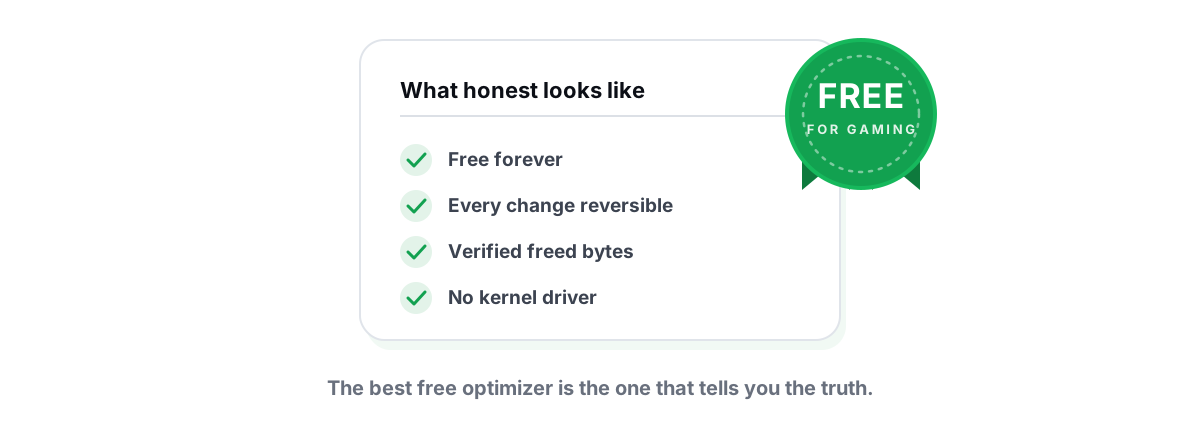
The best free PC optimizer is the one that makes real, reversible changes, tells you the truth about the result, and won't get you banned. Most free optimizers fail all three: they're ad-funded placebo with a one-click button that fakes a number and a paywall on the parts that matter. You can do better, for free, once you know what to look for.
This is a buyer's guide, not a popularity contest. Pick on the terms above and the field thins out fast.
What "best free pc optimizer" should actually mean
"Best" gets stamped on whatever scored well on screenshots. For a gaming optimizer it should mean something narrower: it changes things Windows actually exposes, it tells you the truth about the result, and it leaves your system recoverable.
A good optimizer is mostly a convenient front-end for tools you already own — powercfg, fsutil, defrag.exe, netsh, the registry, Windows Update, DISM, SFC. There is no secret API that triples your FPS. Anyone claiming otherwise is selling a meter, not a result.
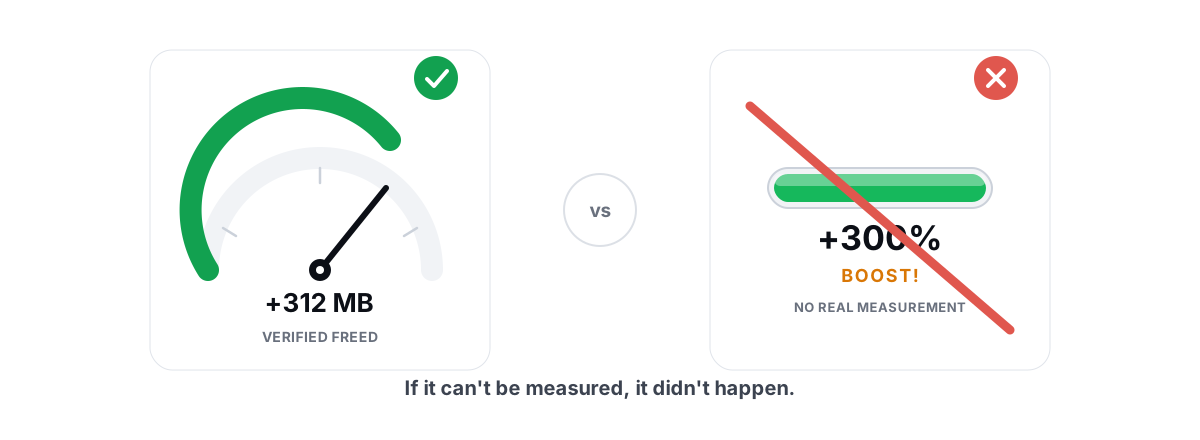
The honest gains are modest and worth having: a few to several extra FPS, smoother frametimes with fewer stutters, lower input latency you can sometimes feel in fast games, and a few hundred MB to several GB of real disk space back. If a tool promises "2x speed" or "300% more FPS," close the tab.
The four tests: reversible, measured, anti-cheat safe, no placebo
A tool that fails any one of these is not the best, no matter how slick it looks.
1. Reversible
Every registry or system change should be undoable, per-change, and the tool should take a System Restore point before anything big. If a tweak helps in your favorite game but hurts another, you need to walk it back in seconds — not reinstall Windows. A tool that applies a wall of changes with no undo is a liability. Making a restore point yourself is the baseline; the tool should do it for you automatically.
2. Measured
Results should be verified, not asserted. When a cleaner says it freed 4 GB, it should have re-measured free space before and after and shown you the real delta. "Up to 10 GB" on a progress bar means nothing. The same goes for performance — you want a real FPS counter and frametime graph, not a glowing "BOOSTED" badge.
3. Anti-cheat safe
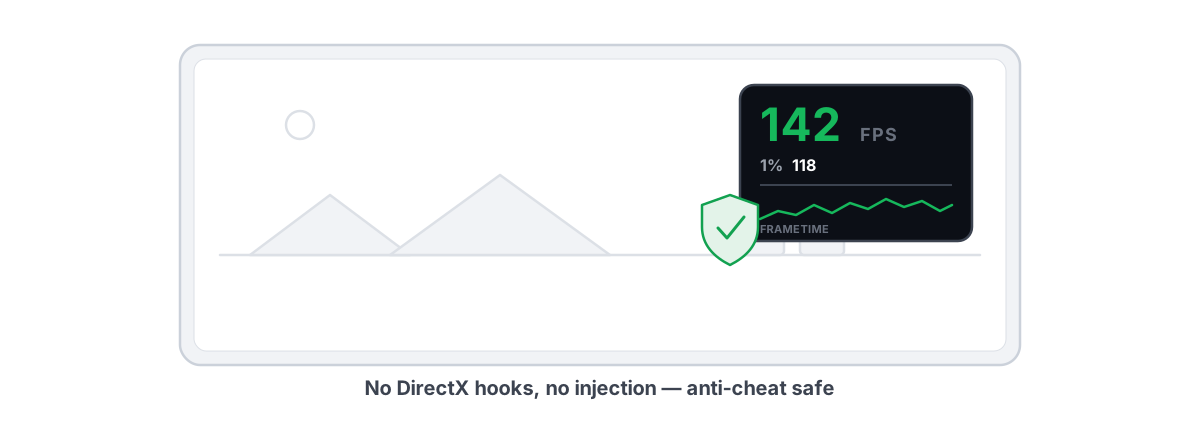
This is non-negotiable if you play anything with Vanguard, Easy Anti-Cheat, or BattlEye. The safe pattern is a user-mode tool that wraps the Windows utilities above. The dangerous pattern is a kernel driver, a DirectX hook, or process injection — exactly the techniques cheats use, and exactly what anti-cheat flags. A safe FPS overlay reads DWM composition or D3DKMT present frames; it does not inject into the game. The rules for anti-cheat-safe optimization are worth ten minutes if you're unsure where the line is.
4. No placebo
The tool must refuse the tricks that look productive and do nothing — or cause harm. No fake RAM/FPS "booster" meters, no registry cleaning for speed, no defragging an SSD, no deleting the pagefile. Refusing placebo is harder to build than shipping it, which is why so few tools bother.
If a tool can't pass reversible, measured, anti-cheat safe, and no-placebo, it doesn't get to call itself the best free option — it's just the loudest.
Free vs. paid: what should never be paywalled
Most of these mechanisms cost the developer nothing to run, because Windows does the work. Locking them behind a subscription is a tell that the "value" is the paywall, not the feature.
Here's a reasonable line between what should be free and what's fair to charge for.
| Should be free | Fair to charge for |
|---|---|
| FPS overlay with 1% lows and frametimes | Always-on background auto-tuning |
| Disk cleaning with verified freed bytes | Per-game automatic profiles |
| Drive health (SMART, TRIM verify, media-gated maintenance) | Driver auto-install |
| Network diagnostics (traceroute, bufferbloat, DNS test) | GPU fan/power curve tuning |
| Startup manager, privacy toggles, basic registry tweaks | Advanced low-latency modules + deep DISM cleanup |
The left column is mostly Windows plumbing with a nicer face. The right column is convenience, automation, and the fiddly low-latency work that genuinely takes engineering to get right and safe. Charging for the right column is honest. Charging for a disk cleaner is not.
Red flags that disqualify a tool
You can rule out most of the market with a quick scan. Any one of these is enough to walk away.
- A "RAM booster" with a live meter. Freeing RAM doesn't speed anything up — Windows uses spare RAM as cache on purpose, and emptying it just forces re-reads from disk. The meter exists to look busy. Here's what "free RAM" actually means.
- A registry cleaner sold as a speed fix. Modern Windows does not get slow from "junk" registry entries, and deleting the wrong key breaks apps. Registry cleaners don't make your PC faster.
- It defrags your SSD. Defragmenting flash does nothing for speed and burns write cycles. SSDs need TRIM, not defrag. A tool that defrags an SSD doesn't understand storage.
- It installs a kernel driver to "optimize" gaming. That's a ban risk and a stability risk for zero proven benefit over user-mode tools.
- It counts a flushed DNS cache or freed RAM as "disk space cleaned." Those are different resources. Conflating them is a deliberate lie to inflate the headline number.
- One giant "Optimize" button with no undo and no log. If you can't see what it changed or reverse it, you're trusting a black box with Administrator rights.
What a genuinely free tier looks like
A free tier built in good faith gives you the diagnostic and maintenance tools outright, because that's where most people's problems actually live. You shouldn't have to pay to find out your drive is dying or your network has bufferbloat.
Concretely, a strong free tier covers:
- Measurement first. A real FPS overlay with 1% lows and frametime data, plus a live CPU/GPU/RAM monitor — so you can tell whether you're GPU- or CPU-bound before changing anything.
- Honest disk work. An allow-listed cleaner with an age-gate so it never deletes a file an installer is still using, a treemap and SHA-256 duplicate finder to see where space went, and drive health that verifies TRIM with
fsutiland only defrags confirmed spinning drives. - Network diagnosis. Real ICMP traceroute with hop classification, a bufferbloat grade, ping/jitter/loss numbers, and a DNS benchmark — the difference between guessing at lag and finding where it comes from.
- Safe system hygiene. A startup manager, privacy toggles, system repair via SFC and DISM, and the lighter registry tweaks. The toggles and tweaks are all reversible.
That's enough to fix the common causes of a slow machine without spending a rupee. If you've never done a pass, the real causes of a slow PC is the right starting checklist.
Where BRUTAL Optimizer fits (and where it doesn't)
I'll name one tool built around these criteria, because it's the reason this guide exists — and I'll be straight about its limits.
BRUTAL Optimizer is a Windows 10/11 tool whose whole pitch is honesty. Its free tier includes 17 of its 22 optimization modules, the full FPS overlay with 1% lows and frametimes, the disk cleaner with verified freed bytes, the disk analyzer, drive health, the network lab, the live monitor, system repair, the startup manager, the privacy center, and a driver scanner. It attempts a System Restore point before big changes, and every registry change is reversible per-module. It ships no kernel driver, no DirectX hook, and no injection, so it runs alongside Vanguard, EAC, and BattlEye. The anti-cheat safety page spells out exactly how it stays on the safe side.
Where it doesn't fit: if you want a single magic button and a big number, this isn't it — it shows you the real, modest deltas and makes you choose. Its Pro tier is automation and the advanced low-latency work: the Guardian background auto-tuner, per-game profiles, driver auto-install, GPU fan and power tuning via documented vendor libraries, and the five advanced low-latency modules. None of that is required to fix a typical slow or stuttery PC — the free tier handles that.
What Pro costs, explained plainly
The free tier needs no card and doesn't expire. Pro is $4.99 (charged as ₹499) a year, and Ultra, which adds Smart Route, is $9.99 (charged as ₹899) a year. Both renew each year until you cancel, and the pricing page lays out exactly what each tier includes.
If you let Pro lapse, you drop back to the free tier with your settings intact. The free tools don't expire.
How to try any optimizer risk-free
Whatever tool you pick — this one or another — test it like a skeptic. The process is the same, and it protects you from your own enthusiasm.
- Make a restore point first, even if the tool does it automatically. Two minutes of insurance.
- Measure before you touch anything. Record your average FPS and 1% lows in your main game, and note your ping and bufferbloat grade. Without a baseline, "it feels faster" is just hope.
- Change one category at a time. Apply the disk and startup cleanup, then retest. Then network. Then the latency tweaks. Bundling changes hides which one helped — or hurt.
- Verify the cleaner's claim. Check your free space before and after. A real tool's number will match. A fake one's won't.
- Keep what helps, undo what doesn't. This is the whole point of reversibility. If a tweak does nothing for you, roll it back and move on.
Do this and you'll learn more about your own machine than any optimizer can tell you — and you'll know exactly which tool earned a place on it. For a broader tune-up by hand, the honest way to speed up Windows 11 walks through it without installing anything at all.
If you want a tool that already follows every rule above, BRUTAL Optimizer's free tier is built on exactly this checklist — reversible, measured, anti-cheat safe, no placebo. Download it, measure your baseline, and keep only what moves the numbers. If nothing does, you've still learned the truth about your PC, which is the honest version of a win.
Frequently asked questions
What is the best free PC optimizer for gaming?
The best one is whichever passes four tests: every setting change is reversible, results are verified rather than asserted, it ships no kernel driver or game hook (anti-cheat safe), and it refuses placebo like RAM boosters and registry cleaning. Tools that fail any of those are out, regardless of how polished they look.
Are free PC optimizers safe to use?
Some are, many aren't. A safe one is a user-mode wrapper over tools Windows already ships (powercfg, fsutil, defrag, netsh, DISM) and takes a restore point before big changes. Avoid anything that installs a kernel driver, hooks DirectX, or injects into games. Always make a System Restore point first and change one category at a time.
What should never be paywalled in a PC optimizer?
Diagnostics and basic maintenance, because Windows does the actual work. An FPS overlay, a disk cleaner with verified freed bytes, drive health checks, and network tests cost the developer nothing to run. It's fair to charge for automation, per-game profiles, driver auto-install, and advanced low-latency tuning. Charging for a disk cleaner is a red flag.
How much faster will a PC optimizer make my games?
Honestly, not dramatically. Realistic gains are a few to several FPS, smoother frametimes with fewer stutters, and sometimes lower input latency you can feel in fast games. Any tool promising 2x speed or 300 percent more FPS is faking the result. Disk cleanup can free a few hundred MB to several GB of real space, which is separate from frame rate.
Will a free optimizer get me banned in Valorant or other games?
Not if it stays in user mode and avoids kernel drivers, DirectX hooks, and process injection. Those are the techniques anti-cheat systems flag. A tool that only wraps built-in Windows utilities runs alongside Vanguard, Easy Anti-Cheat, and BattlEye without issue. Check whether the tool publishes how it avoids those techniques before trusting it.
Keep reading
 Myths & Honest Truths
Do PC Optimizers Actually Work? An Honest Look
Some PC optimizers make real, small gains; most sell a meter that means nothing. Here is how to tell the difference.
 Gaming & FPS
Best FPS Overlay That's Anti-Cheat Safe
Why a present-frame fps overlay is the anti-cheat-safe choice, and how to read 1% lows and frametimes properly.
 Myths & Honest Truths
Do RAM Boosters Work? What Free RAM Really Means
Why free RAM is wasted RAM, how aggressive trimming causes stutter, and the rare times a memory tool actually helps.
Stop guessing. Measure it.
BRUTAL Optimizer is the honest way to speed up Windows — 17 free modules, a real FPS overlay, verified disk cleanup and drive health. No kernel driver of our own, no game hooks, every setting change reversible.