Should You Defrag an SSD? No - Here's Why
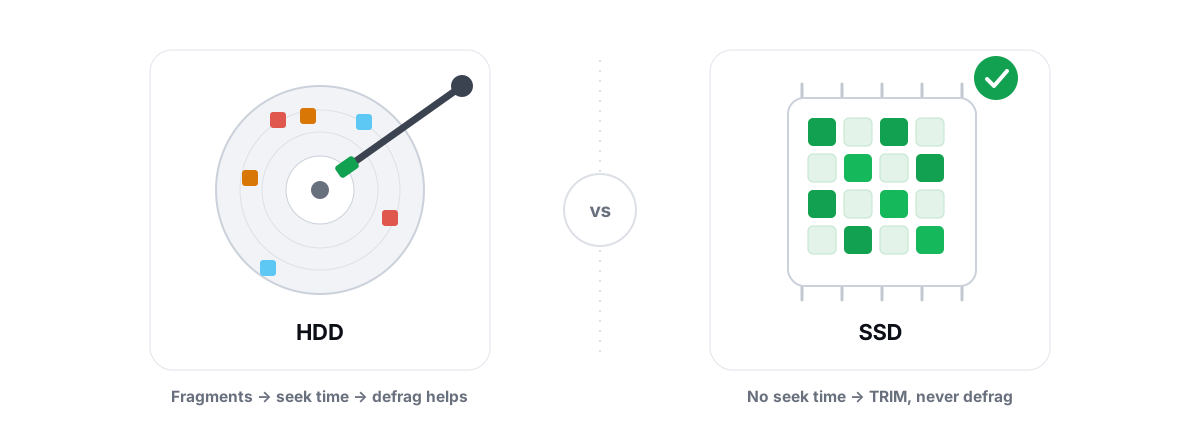
No, you should not defrag an SSD. Defragmentation solves a problem that flash storage doesn't have, and running it on purpose burns through a finite resource — your drive's write endurance — for zero speed gain.
If your drive is an SSD or NVMe, fragmentation is a non-issue. The mental model from the spinning-disk era does not transfer to flash. Below is exactly why, what your SSD actually needs instead (TRIM and occasional ReTrim), and why the "Optimize Drives" button in Windows is not the defrag you remember.
Defrag explained: why it helped spinning disks
A traditional hard drive (HDD) is a stack of spinning platters with a physical arm that swings a read/write head to the right track, then waits for the right sector to rotate under it. That movement is called seek time, and it's measured in milliseconds — an eternity in computing terms.
When a file gets written, deleted, and rewritten over months, its pieces end up scattered across the platter. Reading a fragmented file means the head has to jump to track 4,000, then track 12, then track 9,500, waiting for the platter to spin into position each time. On a busy HDD that adds up to real, measurable slowdown.
Defragmentation rearranges those pieces so each file sits in one contiguous run. The head reads it in one sweep instead of a dozen seeks. On a fragmented mechanical drive, a good defrag genuinely helps — file loads get faster and the drive stops thrashing.
The key word is mechanical. The entire benefit comes from reducing physical head movement. Take away the moving parts and you take away the entire reason defrag exists.
Should you defrag an SSD? Why flash doesn't care about fragmentation
An SSD has no platters, no head, no arm. It's a grid of NAND flash chips, and a controller maps logical block addresses to physical cells. There is no seek time. Reading block A then block Z takes effectively the same time as reading two adjacent blocks.
So "fragmentation" on an SSD is just a logical layout detail with no performance cost. Whether a file's pieces are scattered across a hundred flash pages or sit in a tidy row, the controller fetches them in parallel at the same speed. The arrangement that mattered so much on an HDD is invisible to you on flash.
There's a second layer that makes the whole idea moot: the controller hides where data physically lives. The drive does its own internal shuffling through wear leveling — it spreads writes across cells so no single cell wears out early. The "address" Windows sees has little to do with the real cell, and it changes constantly behind your back. Windows can't meaningfully defragment something it can't actually see.
Fragmentation is a problem of physical seek time. SSDs have no seek time, so on an SSD there is no problem to solve.
This is the same reason so many "speed up your PC" tweaks are placebo on modern hardware — they assume a machine that no longer exists. If you've ever wondered why your PC feels slow despite an SSD, fragmentation is almost never the cause. The real causes are usually startup bloat, a full or failing drive, thermal throttling, or background processes eating CPU.
How defragging flash wastes write endurance
Here's where it goes from "pointless" to "actively harmful." Every flash cell can only be written and erased a finite number of times before it wears out — that limit is its program/erase (P/E) cycle count. Modern TLC and QLC drives are rated for hundreds to a few thousand P/E cycles per cell.
A defrag pass works by reading data and writing it back to a new location to make files contiguous. On an HDD that's free — you're just moving the head. On an SSD, every one of those relocations is a real write that consumes P/E cycles for absolutely nothing, because contiguity buys you no speed.
It also makes flash management worse, not better. Flash erases in large blocks but writes in small pages. When you force a mass rewrite, you trigger extra write amplification — the controller has to read-modify-erase-rewrite whole blocks to satisfy your pointless shuffle. You're paying double or triple the write cost to achieve nothing.
Scale matters, so be precise: a single accidental defrag will not kill your drive. Endurance budgets are large, and one pass is a rounding error. The problem is the recurring cost for a non-existent benefit — and some tune-up apps schedule it weekly, which is just slow, silent wear.
TRIM and ReTrim: the real SSD maintenance
SSDs do need maintenance — just a completely different kind. The real one is TRIM, and on a healthy system it already runs automatically.
When you delete a file, the OS normally just marks those blocks as free in its own table; it doesn't tell the drive. An HDD doesn't care. But an SSD does care, because of how flash erases. If the controller doesn't know a block is logically empty, it will faithfully preserve that dead data during wear leveling and garbage collection — copying garbage around and inflating write amplification.
TRIM is the command that tells the SSD "these blocks are no longer in use, you can treat them as free." With that knowledge the controller can:
- Erase those blocks ahead of time, so future writes land on already-clean cells (which keeps write speed high instead of letting the drive slow down as it fills).
- Stop wasting cycles relocating data you already deleted, which lowers write amplification and extends the drive's life.
- Make better wear-leveling decisions because it has an accurate picture of what's actually live.
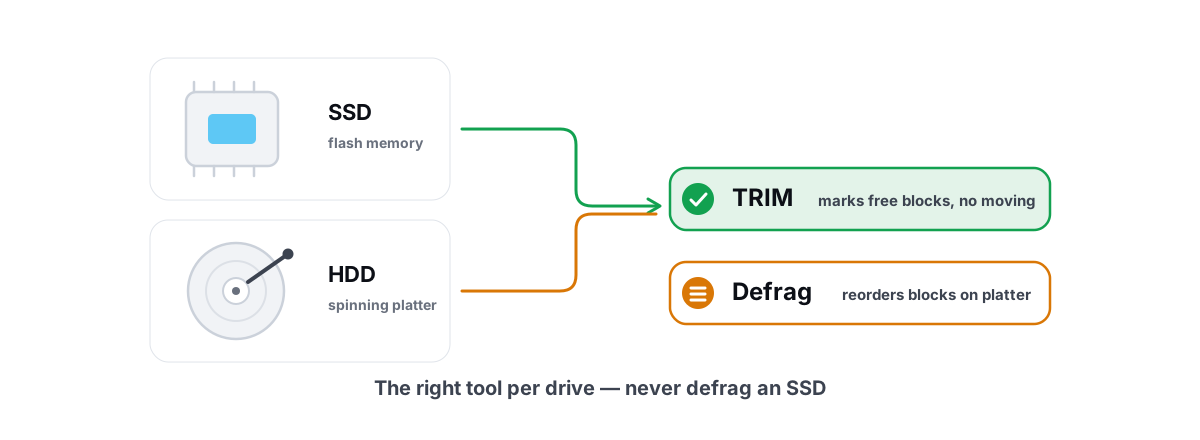
On Windows 10 and 11, TRIM is sent in real time as you delete files, assuming it's enabled (it is by default). ReTrim is a periodic sweep that re-issues TRIM for the whole volume to catch anything that slipped through — for instance, deletes that happened while the drive was busy. Windows schedules ReTrim automatically, typically weekly. That's the SSD equivalent of "maintenance," and it costs essentially nothing.
What 'Optimize Drives' actually does to an SSD
This is the part that confuses people, and it's understandable. Open the Start menu, type dfrgui, and you'll land on a window titled Optimize Drives. Older Windows versions literally called this tool "Disk Defragmenter." The button still says "Optimize." So surely it's defragging your SSD?
No. Microsoft kept one button but made it do completely different work depending on the drive type. Windows checks the media type and branches:
| Drive type | What "Optimize" actually runs | Touches your data? |
|---|---|---|
| SSD / NVMe | ReTrim (re-issues TRIM for the volume) | No file movement |
| Mechanical HDD | Traditional defragmentation (contiguity pass) | Yes, rearranges files |
So when "Optimize Drives" reports your SSD as optimized, it ran a TRIM sweep, not a defrag. It did not rearrange your files and did not waste write cycles relocating data. The label is a leftover from the HDD era; the behavior underneath is correct.
One caveat worth knowing: Windows does still occasionally run a real defrag on an SSD in a very narrow case — when System Restore / Volume Shadow Copy is active and file fragmentation climbs high enough to strain the shadow-copy limit. That's a deliberate, rare housekeeping exception, not routine maintenance, and it's not something you should ever trigger by hand.
How we media-gate: defrag HDDs only, never flash
This media-type check is exactly the logic any honest drive tool has to get right, and it's a place where a lot of "optimizers" quietly fail — they expose a "defragment" button that fires regardless of what's underneath, because checking is more work than not checking.
In BRUTAL Optimizer's Drive Health tool we wrapped the same in-box Windows engine (fsutil and defrag.exe) behind a hard media gate. Before any optimize action, it classifies the drive through Windows' own storage data:
- Confirmed internal HDD → it offers a true defrag (a contiguity pass via
defrag.exe /D), with a confirmation prompt because it's a long job. - SSD / NVMe / any flash → the defrag option is disabled at the UI level, and the underlying call refuses a defrag request even if something tried to force one. Flash gets ReTrim (
defrag.exe /L) instead — never an overwrite pass. - Removable, RAID, or Storage Spaces → treated as not-a-proven-HDD, so no defrag, by default.
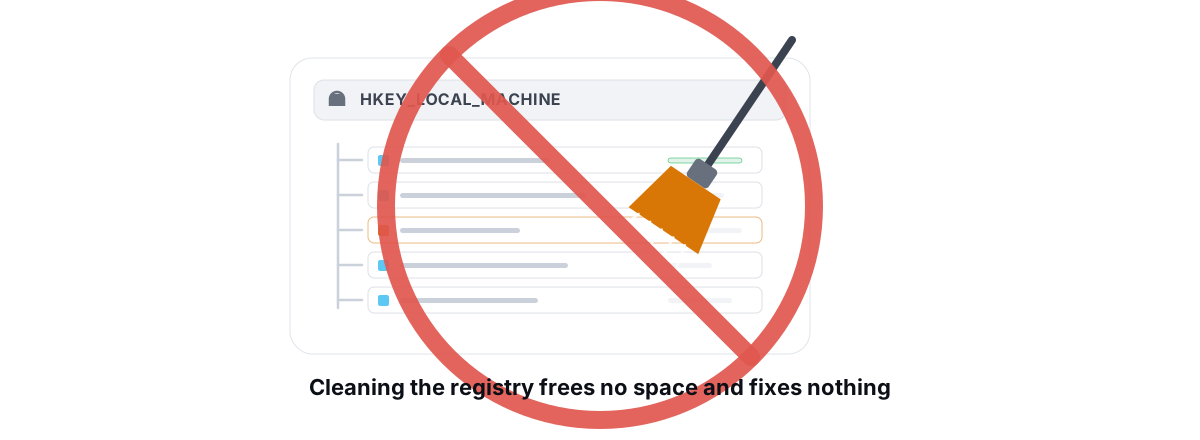
The principle is simple: anything that isn't provably a spinning HDD never gets defragmented. That's "honesty as the moat" in practice — the tool does the boring, correct thing instead of the impressive-looking, wrong thing. It's the same reasoning behind why we don't ship a registry cleaner and why we refuse fake RAM-booster meters.
How to check your TRIM status
You can confirm TRIM is on in about ten seconds. Open an elevated Command Prompt (right-click Start, "Terminal (Admin)" or "Command Prompt (Admin)") and run:
fsutil behavior query DisableDeleteNotify
Read the result like this:
DisableDeleteNotify = 0→ TRIM is enabled. This is what you want. Do nothing.DisableDeleteNotify = 1→ TRIM is disabled.
On modern Windows you'll usually see a line for both NTFS and ReFS. The 0 (enabled) state is the default, so most people never need to touch it. If yours somehow shows 1, you can turn it back on with:
fsutil behavior set DisableDeleteNotify NTFS 0
To confirm Windows is running its scheduled ReTrim, open dfrgui (Optimize Drives), select your SSD, and check the "Last analyzed or optimized" date and the scheduled-optimization status. If it's running on a schedule, you're done — there is nothing else to do.
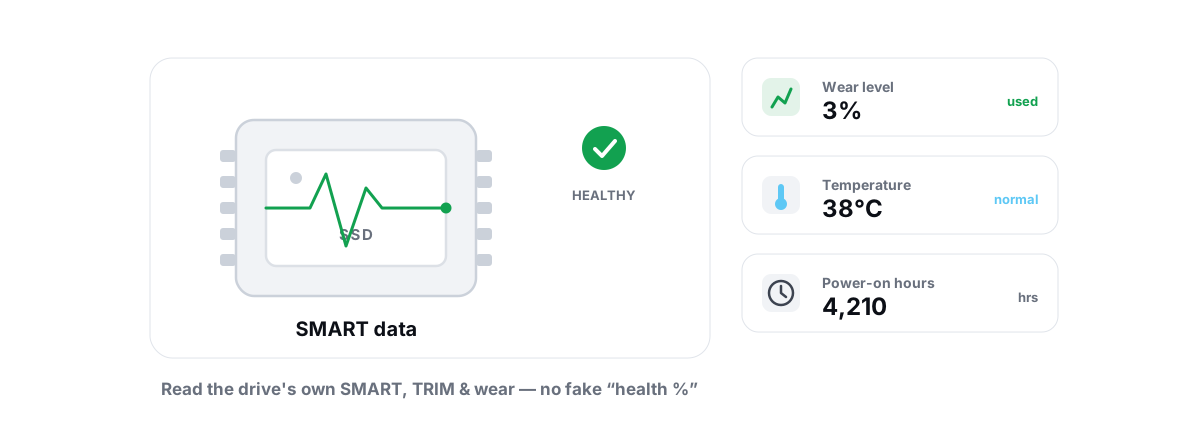
Want the sensor side too — wear percentage, power-on hours, temperature, reallocated sectors? Those come from the drive's SMART data, not from TRIM status. We walk through reading them honestly (and why you should ignore any tool that prints a made-up "health %") in how to check SSD health.
The bottom line
Defragmentation was a real fix for a real, physical problem on spinning disks. On an SSD there's no head to move, so there's nothing to optimize by rearranging files — and forcing it spends write endurance for no return. Let TRIM and scheduled ReTrim do their quiet, automatic job, leave "Optimize Drives" on its default schedule, and spend your effort on changes that actually move the needle: trimming startup load, fixing thermals, and clearing genuine junk.
If you'd rather see the truth about your drive at a glance — TRIM status, SMART wear and temperature, and a maintenance action that's media-gated so it can never defrag flash — that's what BRUTAL Optimizer's free Drive Health tool is for. No kernel driver, nothing that touches your files: just the in-box Windows engine (fsutil and defrag.exe) with the correct guardrails around it.
Frequently asked questions
Should you defrag an SSD?
No. Defrag fixes physical seek time on spinning hard drives, and SSDs have no moving parts and no seek time. Rearranging files on flash gives zero speed gain and spends write endurance for nothing.
Does defragging an SSD actually damage it?
One accidental pass will not kill a drive, but every defrag relocation is a real write that consumes program/erase cycles and increases write amplification. Doing it on a schedule is slow, silent wear with no benefit, so there is no reason to run it.
Why does Windows have an Optimize button for my SSD?
Optimize Drives runs different work depending on media type. On an HDD it defragments; on an SSD it runs ReTrim, which re-issues TRIM and does not move your files. The label is a leftover from the old Disk Defragmenter, but the behavior underneath is correct.
What maintenance does an SSD actually need?
TRIM, which tells the drive which blocks are free so it can manage flash efficiently, plus Windows' scheduled ReTrim sweep. Both run automatically by default and cost essentially nothing. That is the entire routine.
How do I check if TRIM is enabled in Windows?
Open an elevated Command Prompt and run fsutil behavior query DisableDeleteNotify. A result of 0 means TRIM is enabled, which is the default and what you want. A result of 1 means it is disabled.
Keep reading
 Disk, Drive & Cleanup
TRIM vs. Defrag: The Right Maintenance Per Drive
ReTrim for SSDs, defrag for confirmed HDDs only - and the media-gating check that stops the classic maintenance mistake.
 Disk, Drive & Cleanup
How to Check SSD Health (SMART, TRIM, Wear)
Read the real SMART data, wear and errors Windows exposes, verify TRIM with fsutil, and learn the true warning signs of a failing SSD.
 Myths & Honest Truths
Do Registry Cleaners Work? (Short Answer: No)
Registry cleaners have never measurably sped up a PC, and the worst ones break Windows. Here is the truth and what to do instead.
Stop guessing. Measure it.
BRUTAL Optimizer is the honest way to speed up Windows — 17 free modules, a real FPS overlay, verified disk cleanup and drive health. No kernel driver of our own, no game hooks, every setting change reversible.