TRIM vs. Defrag: The Right Maintenance for Each Drive
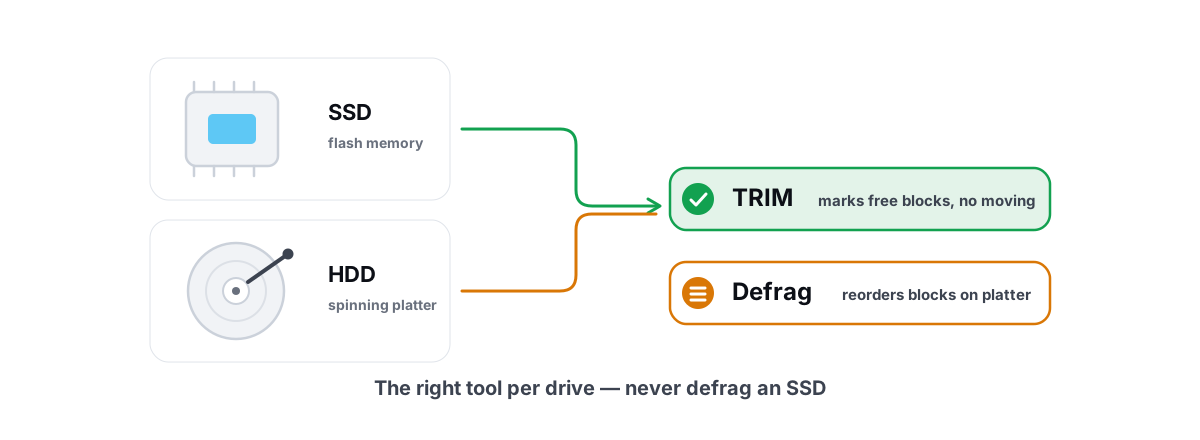
The whole TRIM vs defrag question comes down to one thing: they are not two names for the same chore. TRIM keeps an SSD fast by telling it which blocks are free. Defrag reorders files on a spinning disk so the head stops thrashing. Run the wrong one on the wrong drive and you either waste write endurance or accomplish nothing.
Here's the short, correct version of "which drive gets which maintenance." ReTrim for SSDs. Defrag for confirmed mechanical HDDs only. A media-type check in front of both so you never make the classic mistake. Below is how each job works, why the distinction matters, and how to set a schedule you can forget about.
Two drive types, two different maintenance jobs
The reason there are two jobs is that there are two completely different storage technologies under the hood, and they fail in different ways.
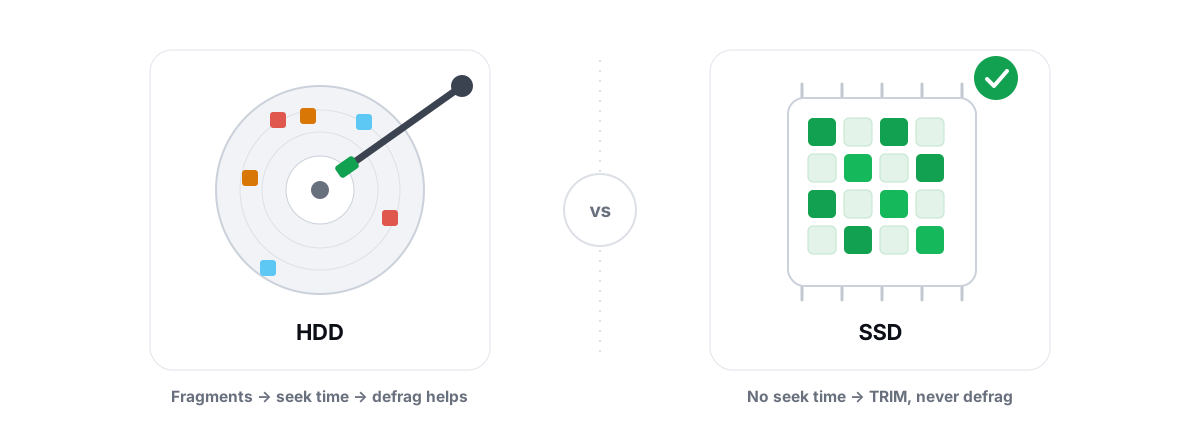
A hard disk drive (HDD) is mechanical: spinning platters and a physical arm that swings a read/write head to the right track. Moving that head takes milliseconds. When a file's pieces are scattered across the platter, reading it means many separate seeks, and that physical movement is slow. Defrag fixes this by putting each file back into one contiguous run.
An SSD (including NVMe drives) has no moving parts. It's a grid of NAND flash chips with a controller that maps logical addresses to physical cells. There's no head, no seek time, so the physical layout of a file is irrelevant to read speed. What an SSD needs instead is to know which blocks are genuinely empty, so it can keep writes fast and manage wear. That's what TRIM provides.
| HDD (mechanical) | SSD / NVMe (flash) | |
|---|---|---|
| What slows it down | Scattered files = many physical seeks | Drive not knowing which blocks are free |
| Correct maintenance | Defrag (contiguity pass) | TRIM, plus periodic ReTrim |
| Moves your files? | Yes, rearranges them | No file movement at all |
| Cost of running it | Time only | Near zero (ReTrim) / harmful if you defrag instead |
The single rule that prevents every mistake: defrag is for spinning disks, TRIM is for flash. Apply each to the technology it was built for and you're done.
How TRIM keeps an SSD fast
To understand TRIM you need one fact about flash: it can't overwrite data in place. Flash writes in small pages but can only erase in much larger blocks. To change a page that already holds data, the controller has to read the whole block, erase it, and write it back. That read-erase-rewrite overhead is called write amplification, and it's the main thing that slows an SSD down as it fills.
Now the problem TRIM solves. When you delete a file, Windows normally just marks those blocks free in its own table — it doesn't tell the drive. An HDD doesn't need to be told. But the SSD controller, left in the dark, assumes that deleted data is still live and faithfully copies it around during garbage collection and wear leveling. You're paying write-amplification cost to preserve data you already threw away.
TRIM is the command that closes that gap. It tells the SSD "these blocks are no longer in use." With that knowledge the controller can:
- Erase those blocks ahead of time, so future writes land on already-clean cells and stay fast.
- Stop relocating dead data, which lowers write amplification and extends the drive's life.
- Make smarter wear-leveling decisions because it has an accurate map of what's actually live.
On Windows 10 and 11, TRIM is issued in real time as you delete files, and it's enabled by default. You don't schedule it and you don't run it by hand. It just happens. The result is an SSD that keeps its write speed instead of degrading into a slow, full-feeling drive over a year of use. If your machine still feels sluggish despite an SSD, the cause is almost always elsewhere — startup bloat, thermals, or a nearly full drive — not fragmentation.
ReTrim and what Windows 'Optimize' really does
Real-time TRIM is excellent but not perfect. A delete that happens while the drive is busy, or blocks freed by certain operations, can slip through without a TRIM command being sent. Over weeks, a small backlog of "the drive thinks this is live, but it isn't" can build up.
ReTrim is the cleanup sweep. It re-issues TRIM across the entire volume, catching anything the real-time path missed. Windows schedules it automatically — typically weekly — through the same tool that used to be the defragmenter.
That tool is now called Optimize Drives (open Start, type dfrgui). This is where people get confused, because older Windows called it "Disk Defragmenter" and the button still says "Optimize." It is not defragging your SSD. Windows checks the media type and branches:
| Drive type | What "Optimize" actually runs |
|---|---|
| SSD / NVMe | ReTrim — re-issues TRIM for the volume, no file movement |
| Mechanical HDD | Traditional defrag — a real contiguity pass |
So when "Optimize Drives" says your SSD is optimized, it ran a TRIM sweep, not a defrag. It didn't rearrange files and it didn't spend write cycles relocating data. The label is a leftover from the HDD era; the behavior underneath is correct. The same media-aware branching is the whole point of this article — and the reason you should never run a manual "defrag" tool on an SSD that ignores drive type.
When defrag still matters (HDDs only)
Defrag isn't obsolete — it's just narrow. If you have an actual spinning hard drive, fragmentation is a genuine, measurable problem and defrag is the genuine fix.
Picture a movie file written in twenty pieces scattered across the platter. Reading it means the head swings to one location, reads, swings to another, waits for the platter to rotate into position, reads again — twenty times. Each of those seeks costs milliseconds. Defrag rewrites the file as one contiguous run so the head reads it in a single sweep. On a busy, heavily fragmented HDD, that's the difference between snappy and grinding.
Mechanical drives are still common as bulk storage — large external backup disks, the secondary drive full of game installs and video, NAS volumes. Those benefit from the occasional defrag, same as they always did. Windows already handles this on its weekly schedule, so for an internal HDD you usually don't need to do anything manual.
Media-gating: detecting drive type before acting
Everything above collapses into one practical requirement: before you run any maintenance, you must know what kind of drive you're touching. Get that wrong and ReTrim-vs-defrag becomes a coin flip with your write endurance on the line.
This is where a lot of "optimizer" tools quietly fail. They expose a single "defragment" button that fires defrag.exe /D regardless of what's underneath, because checking the media type is more work than not checking. On an SSD, that's the exact mistake this whole article exists to prevent.
Windows itself solves this by reading the drive's media type and reliability data from its own storage layer. You can do the same check by hand. Open Optimize Drives (dfrgui) and look at the Media type column — it labels each volume "Solid state drive" or "Hard disk drive." That label is your gate. From PowerShell you can read it directly:
Get-PhysicalDisk | Select FriendlyName, MediaType, BusType
A MediaType of SSD (or a BusType of NVMe) means ReTrim only — never a defrag. A MediaType of HDD on an internal disk is the one case where a defrag is appropriate. Anything ambiguous should default to "no defrag," because the cost of guessing wrong is real wear on flash.
This is exactly the logic BRUTAL Optimizer's free Drive Health tool puts in front of every action. It classifies each drive through Windows' own storage data, then gates the maintenance: a confirmed internal HDD can run a true defrag (with a prompt, since it's a long job), while any flash drive gets ReTrim and has the defrag path disabled — and the underlying call refuses a defrag request even if something tried to force one. It's a thin, honest wrapper over the in-box fsutil and defrag.exe engines, with the one guardrail most tools skip. That same refusal-to-do-the-wrong-thing is why we don't ship a registry cleaner either.
The rule that prevents every mistake: never defrag anything you can't prove is a spinning HDD. When in doubt, ReTrim or do nothing.
Hybrid and USB drives: the edge cases
The clean SSD-vs-HDD split covers most machines, but a few drives sit in the gray zone.
SSHD (hybrid drives)
An SSHD pairs a spinning platter with a small flash cache that the drive manages internally. To Windows it usually presents as a mechanical drive, because the bulk of your data lives on the platter and the flash portion is invisible and self-managed. Treat it like an HDD: a defrag of the platter is fine and the onboard cache isn't yours to maintain. These are rare in new machines now, but they still turn up in older laptops.
USB flash drives and SD cards
These are flash, so the no-defrag rule applies — defragging a USB stick or SD card just burns its (often low-grade) write endurance. But they're also a special case: many cheap USB flash devices don't pass TRIM through their controller, so the command may not reach the actual flash. Don't lose sleep over it. For a thumb drive or camera card, the correct maintenance is essentially none. Just don't run a defrag tool on them.
External USB hard drives
A spinning external backup drive in a USB enclosure is still a mechanical HDD and can fragment like one. Whether to defrag it depends on how you use it — a write-once archive barely fragments, while a drive you constantly add and delete from can. The catch is that some tools (and some Windows configurations) treat anything on USB as "removable" and won't offer defrag at all, which is a safe default rather than a bug.
RAID and Storage Spaces
When drives are pooled into RAID or Windows Storage Spaces, the physical layout is abstracted away by the array, and running a naive defrag against the virtual volume can fight the array's own logic. The safe default — and what an honest tool does — is to treat anything that isn't a single, provable internal HDD as "do not defrag."
Setting a sane automatic schedule
The good news is that for the vast majority of people, the right schedule is the one Windows already set up. You don't need a third-party scheduler or a "weekly optimize" suite.
Here's the sane setup, in order:
- Confirm TRIM is enabled. Open an elevated Command Prompt (right-click Start, choose Terminal or Command Prompt as admin) and run
fsutil behavior query DisableDeleteNotify. A result of0means TRIM is on — that's the default and what you want.1means it's off, which you can fix withfsutil behavior set DisableDeleteNotify NTFS 0. - Leave Optimize Drives on its default schedule. In
dfrgui, scheduled optimization should be On (weekly). That single schedule correctly runs ReTrim on your SSDs and defrag on your HDDs — no manual choice required, because Windows checks media type per drive. - Don't add a second, dumber scheduler. If a "PC optimizer" wants to run its own nightly defrag-all-drives job, that's the thing to disable. It can only do harm relative to Windows' media-aware default.
- Check, don't fiddle. Once a year, glance at Optimize Drives to confirm the "Last run" dates are recent. If they are, your drives are maintained.
One thing worth your attention that this schedule won't fix: free space. An SSD that's nearly full has fewer clean blocks to work with, which raises write amplification and slows writes no matter how good TRIM is. Keeping roughly 10–15% free does more for sustained SSD speed than any maintenance command. If you're tight on space, a real disk analyzer that shows you what's actually eating the drive beats guessing — see how to find the large files and duplicates hiding on your disk, and how to free up space safely without falling for the usual cleanup myths.
TRIM vs defrag: the bottom line
TRIM and defrag solve different problems for different hardware. TRIM keeps flash fast by telling the SSD which blocks are free; defrag keeps spinning disks fast by putting files back in one piece. ReTrim is the periodic version of TRIM that Windows runs for you; a real defrag belongs only on a confirmed mechanical HDD. The whole skill is just knowing which drive is which before you act — and defaulting to "no defrag" whenever you can't prove it's a spinning disk.
If you'd rather see your drive's real media type, TRIM status, and SMART wear in one place — with a maintenance action that's media-gated so it physically can't defrag flash — that's what BRUTAL Optimizer's free Drive Health tool does. No kernel driver, nothing that touches your files, just the in-box Windows engine with the one guardrail most tools forget.
Frequently asked questions
What is the difference between TRIM and defrag?
TRIM tells an SSD which blocks are free so it can manage flash efficiently and stay fast. Defrag rearranges files on a spinning hard drive so the read head stops seeking all over the platter. They fix different problems on different hardware and are not interchangeable.
Should I defrag my SSD or run TRIM?
Run TRIM, never defrag. SSDs have no moving parts, so rearranging files gives no speed gain and just wastes write endurance. Windows issues TRIM automatically and runs a weekly ReTrim sweep, which is the entire SSD maintenance routine.
What does ReTrim do?
ReTrim re-issues the TRIM command across an entire SSD volume to catch any deletes the real-time path missed while the drive was busy. Windows schedules it automatically, usually weekly, through Optimize Drives, and it costs essentially nothing.
Does the Optimize Drives button defrag my SSD?
No. Optimize Drives checks the media type per drive. On an SSD it runs ReTrim with no file movement; only on a mechanical HDD does it run a real defrag. The button keeps the old name but does the correct work underneath.
How do I check if TRIM is enabled in Windows?
Open an elevated Command Prompt and run fsutil behavior query DisableDeleteNotify. A result of 0 means TRIM is enabled, which is the default and what you want. A result of 1 means it is disabled.
Keep reading
 Myths & Honest Truths
Should You Defrag an SSD? No - Here's Why
Defragging an SSD is pointless and wears it out. Here's what flash actually needs - TRIM and ReTrim - and how to check it.
 Disk, Drive & Cleanup
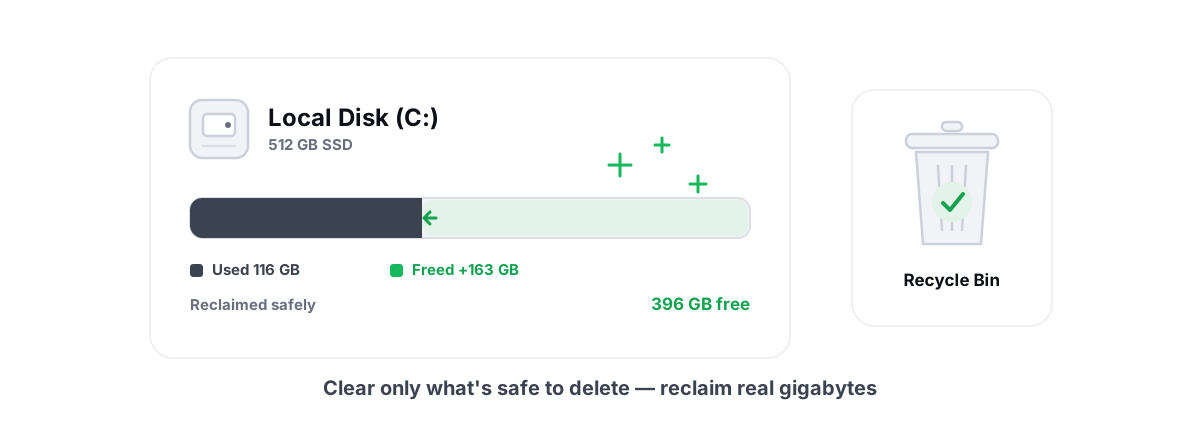
How to Free Up Disk Space in Windows (Safely)
Reclaim real disk space in Windows safely - temp, caches, dumps and WinSxS via DISM, with a 24h age gate and verified freed bytes, not marketing numbers.
 Disk, Drive & Cleanup
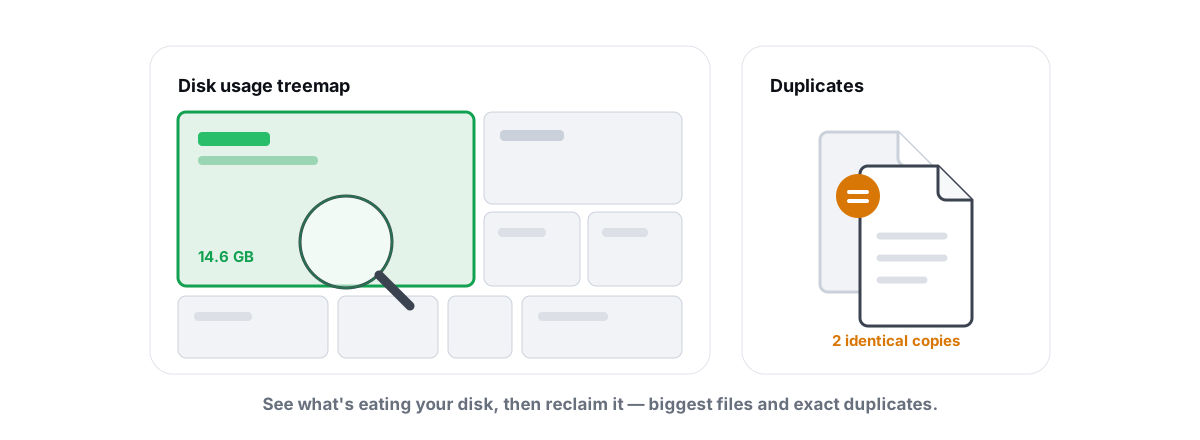
Find Large Files on Windows: Treemap & Duplicates
Map your drive with a treemap and a SHA-256 duplicate finder, then delete the real space hogs via the Recycle Bin instead of trusting a blind cleaner.
Stop guessing. Measure it.
BRUTAL Optimizer is the honest way to speed up Windows — 17 free modules, a real FPS overlay, verified disk cleanup and drive health. No kernel driver of our own, no game hooks, every setting change reversible.