Find What's Eating Your Disk: Large Files and Dupes
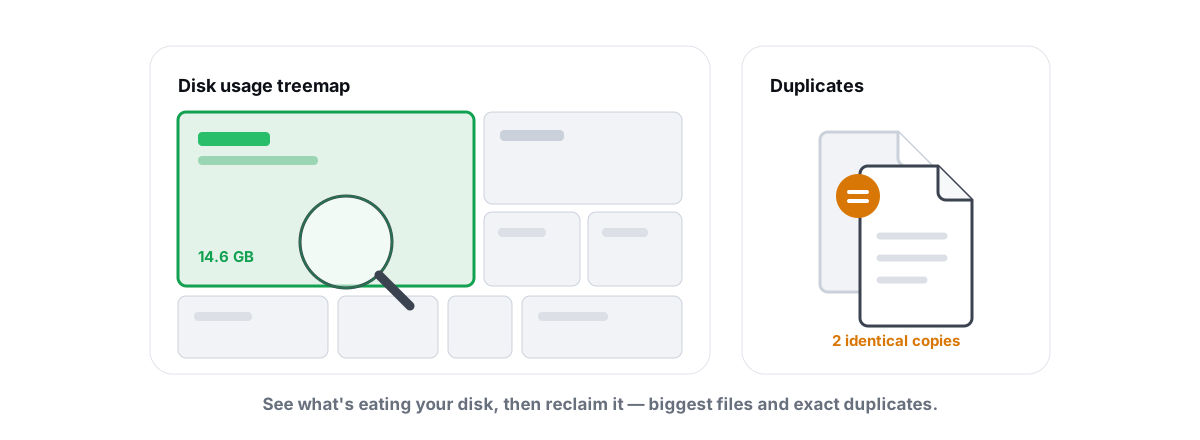
When Windows says your drive is full, the worst move is to fire a cleaner at it and hope. To find large files on Windows you need a map of where the space actually went — then you delete a handful of real culprits, not a thousand harmless temp files.
Why "My Disk Is Full" Needs a Map, Not a Cleaner
Most one-click cleaners are good at sweeping caches and temp folders. That gets you back a few hundred megabytes, maybe a couple of gigabytes. It does nothing about the 40 GB of old game installs, the 12 GB of forgotten video exports, or the three copies of the same ISO sitting in different folders.
Those big wins are almost always a small number of large items. A cleaner can't see them because they're not "junk" by any rule — they're your files, just ones you forgot about. To find them you need a tool that measures every folder by total size and shows you the biggest first.
That's what a disk usage analyzer does. It walks the drive, sums the bytes under each folder, and ranks everything. You stop guessing and start reading a ranked list where the top five rows usually explain 80% of your "full" drive.
A cleaner answers "what's safe to delete automatically?" An analyzer answers "where did my space actually go?" Those are different questions, and the second one is what you're really asking.
If you're here because the whole machine feels sluggish and not just full, a packed boot drive is one real cause — see why your PC is slow and the real causes. But for "where did 200 GB go," keep reading.
Reading a Disk Usage Treemap
A treemap turns your drive into nested rectangles. Each folder is a box, and the box's area is proportional to how much space it holds. Big folders are big rectangles. A 60 GB folder dwarfs a 600 MB one on screen, instantly, with no scrolling.
This matters because folder names tell you nothing about size. In a normal list sorted by name, a giant nested folder looks identical to an empty one. The treemap collapses the whole tree into one picture, so a single fat block jumps out and you click straight into it.
What the blocks are telling you
- One huge block — usually a single offender: a game, a VM disk, a video project, a Steam
steamappsfolder, or an old Windows.old. - Many medium blocks of the same color — a folder full of large files of one type (renders, recordings, RAW photos).
- A swarm of tiny blocks — lots of small files. High file count, low total size. Not your problem; leave it.
The trap is spending an hour deleting thousands of tiny files to reclaim 300 MB while a 30 GB block sits ignored two folders over. The treemap exists so you stop doing that.
Hunt Down the Biggest Folders and Files
Once you can see the heavy folders, drill in. The goal is a short list of specific, named items you recognize and can decide on — not a vague "the Users folder is big."
The usual suspects on a Windows drive, roughly in order of how often they're the real cause:
| What it is | Typical size | Where it hides |
|---|---|---|
| Game installs (Steam/Epic/etc.) | 20–150 GB each | steamapps\common, Epic Games folder |
| Old Windows update backup | 10–30 GB | C:\Windows.old |
| Video / screen recordings | 1–80 GB | Videos, OBS output, Captures |
| Downloads you forgot | 5–50 GB | Downloads (ISOs, installers, zips) |
| Hibernation file | = a chunk of your RAM | C:\hiberfil.sys (don't delete — see below) |
| WinSxS component store | 5–15 GB | C:\Windows\WinSxS (don't touch manually) |
| Duplicate media / backups | varies, often huge | scattered — needs a dupe finder |
The biggest single files deserve a separate look. A "top largest files" list cuts past folder structure and shows the individual heavyweights: a 40 GB game pak, an 18 GB disk image, a forgotten 9 GB video export. These are easy yes/no calls because they're single objects, not folders you have to reason about.
BRUTAL Optimizer's Disk Analyzer does exactly this — a recursive walk that builds the treemap, lists the largest folders, and surfaces the top individual files, with reparse points and junctions skipped so it doesn't double-count or loop forever. It's free, no account. You can also do most of this with the open-source WinDirStat or WizTree if you'd rather not install anything from us.
Find True Duplicates With SHA-256 (Not Just Names)
Duplicate finders are where a lot of tools quietly cut corners. The lazy approach matches on filename and size. That's fast and wrong: two different videos can share a name and byte count, and two identical files often have completely different names.
Deleting based on name alone is how people lose the wrong copy. You need to know the files are actually identical, byte for byte, before you trust a tool to call them duplicates.
How content hashing makes it safe
A content hash like SHA-256 reads the bytes of a file and produces a 64-character fingerprint. Change one pixel, one frame, one byte, and the fingerprint changes completely. If two files produce the same SHA-256, they hold the same bytes — the odds of a false match are vanishingly small.
So a proper duplicate finder hashes file contents and groups files with matching hashes. Name, location, and date are irrelevant. vacation.mp4 and copy of clip (2).mp4 get flagged as the same file if — and only if — their bytes match.
One practical detail: hashing every byte of every file is slow on a full drive. Good finders only hash files past a size threshold (tiny files aren't worth deduping and there are too many of them), and they pre-filter by size first — two files can't be identical if their sizes differ, so there's no point hashing across size groups. BRUTAL Optimizer's duplicate finder uses SHA-256 and only considers files of 1 MB and up, which keeps the scan on duplicates that actually free meaningful space.
Safe Deletion: Recycle Bin First
Once you've found real culprits, delete them in a way you can undo. The single most important habit: send things to the Recycle Bin, not a permanent shred, until you're sure nothing broke.
The Recycle Bin is your safety net. If that 6 GB folder you nuked turns out to hold your save games or a project you half-forgot, you right-click and restore it. Permanent deletion gives you no second chance, and "I was sure it was junk" has ruined plenty of afternoons.
A few rules that keep deletion boring, which is exactly what you want:
- Delete to Recycle Bin, verify, then empty. Use the machine for a day. If nothing's missing, empty the bin to actually reclaim the space.
- Uninstall games and apps through their launcher or Settings, not by deleting the folder. Deleting
steamapps\common\SomeGameby hand leaves Steam confused and may not free everything cleanly. Uninstall properly. - Remember the bin holds the space until emptied. Deleting a 30 GB file to the Recycle Bin does not free 30 GB — it just moves it. Your free-space number won't jump until you empty.
- One change at a time for anything you're unsure about. Delete, check, proceed. Don't clear ten mystery folders in one pass.
BRUTAL Optimizer's analyzer deletes through the Recycle Bin by default for this exact reason, and it warns you before removing anything oversized enough that the bin might not hold it. The honest version of "free up space" is reversible until you say otherwise. For the cache-and-temp side of cleanup — the stuff that genuinely is junk — the safe guide to freeing disk space in Windows covers the allow-listed approach with verified freed bytes.
Big Files You Should Not Touch
A few large files on your C: drive are big on purpose. Deleting them either does nothing useful or actively breaks Windows. Analyzers will show them in the top-largest list, so know what they are before you get trigger-happy.
| File | What it does | Verdict |
|---|---|---|
pagefile.sys | Virtual memory — Windows offloads RAM here. | Leave it. Deleting it can cause instability and crashes under load. Windows manages its size. |
hiberfil.sys | Stores RAM contents for hibernation / fast startup. | Only remove via powercfg /h off if you never hibernate — never by hand. |
C:\Windows\WinSxS | Component store for updates and features. | Never delete manually. Use DISM component cleanup, not Explorer. |
System Volume Information | Restore points and shadow copies. | Manage through System Protection settings, not deletion. |
The pagefile myth is the stubborn one. People see a multi-gigabyte pagefile.sys and assume it's wasted space. It isn't — it's part of how Windows handles memory pressure, and removing it to "save space" trades a few GB for random crashes. A flushed RAM cache or a disabled pagefile is not reclaimed disk space, and any tool that counts it as such is lying to you.
One more: don't confuse a full drive with a slow drive. If your SSD feels sluggish, the fix is checking SSD health, TRIM, and wear — not deleting files in a panic. And defragging an SSD to "speed it up" is pure placebo, covered in should you defrag an SSD.
A Repeatable Monthly Space Audit
The reason your drive fills up again two months later is that nobody keeps a routine. Make it a five-minute habit and you'll never hit the panic stage. Here's a clean, repeatable pass:
- Scan the drive. Run the analyzer, let it build the treemap and the top-folders and top-files lists.
- Read top-down. Look only at the biggest blocks. Identify the three or four heaviest folders and the largest individual files.
- Decide per item. Old game you haven't launched in a year? Uninstall it. Finished video export sitting in Downloads? Move it to an external drive or delete it.
- Run the duplicate finder. Hash-based, on files 1 MB and up. Keep one copy of each verified match, send the rest to the Recycle Bin.
- Delete to the bin, live with it for a day, then empty. Your free-space number only jumps after you empty.
- Then sweep the small stuff. Run a cache/temp cleaner for the last few hundred MB — after the big wins, not instead of them.
Do that once a month, or whenever Windows starts nagging about low space, and you keep control of the drive instead of the drive controlling you. The whole point is that you see what you're deleting and can undo it if you're wrong.
If you want the treemap, the SHA-256 duplicate finder, and Recycle-Bin-first deletion in one place, the free Disk Analyzer in BRUTAL Optimizer bundles them — no kernel driver, no telemetry, and it reports the real space you reclaimed instead of an inflated marketing number. But the method matters more than the tool: map first, delete the few real culprits, and verify before you empty the bin.
Frequently asked questions
What is the fastest way to find large files on Windows?
Use a disk usage analyzer that builds a treemap and a top-largest-files list. It walks the whole drive, ranks folders and files by total size, and shows the biggest first, so you find the real space hogs in seconds instead of clicking through folders.
How do I find duplicate files safely?
Use a finder that compares file contents with a hash like SHA-256, not just names and sizes. Identical hashes mean the files are byte-for-byte the same. Always review the paths and keep one copy yourself rather than letting a tool auto-delete.
Can I just delete pagefile.sys or hiberfil.sys to free space?
No. The pagefile is part of how Windows handles memory and deleting it can cause crashes. Only disable hibernation with powercfg /h off if you never hibernate. Never remove either file by hand in Explorer.
Does deleting files to the Recycle Bin free up disk space?
Not until you empty it. The Recycle Bin still holds the data, so your free-space number does not jump until you empty the bin. Delete to the bin first, verify nothing broke for a day, then empty to actually reclaim the space.
Is a disk analyzer better than a one-click cleaner?
They answer different questions. A cleaner sweeps caches and temp files for a few hundred MB. An analyzer maps where your space actually went and surfaces the large game installs, videos, and duplicates that are the real cause of a full drive.
Keep reading
 Disk, Drive & Cleanup
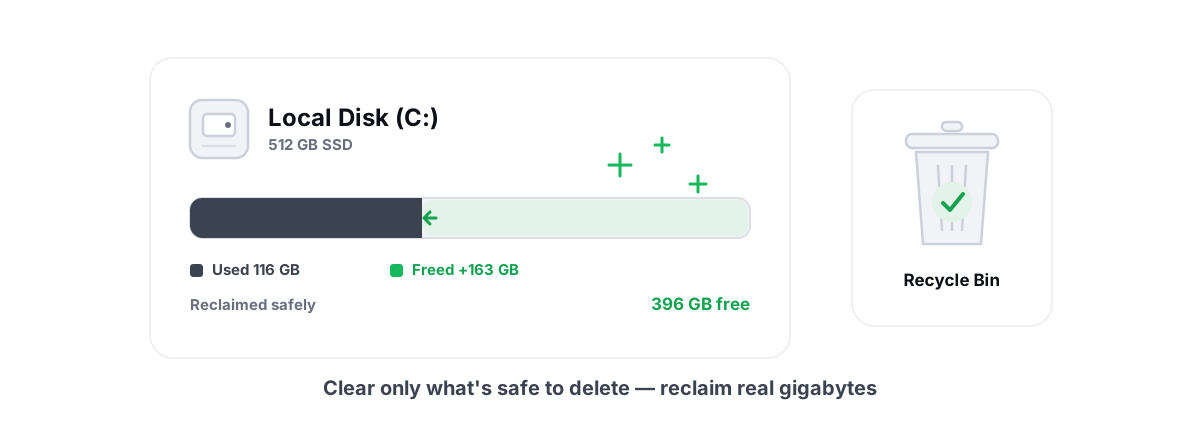
How to Free Up Disk Space in Windows (Safely)
Reclaim real disk space in Windows safely - temp, caches, dumps and WinSxS via DISM, with a 24h age gate and verified freed bytes, not marketing numbers.
 Disk, Drive & Cleanup
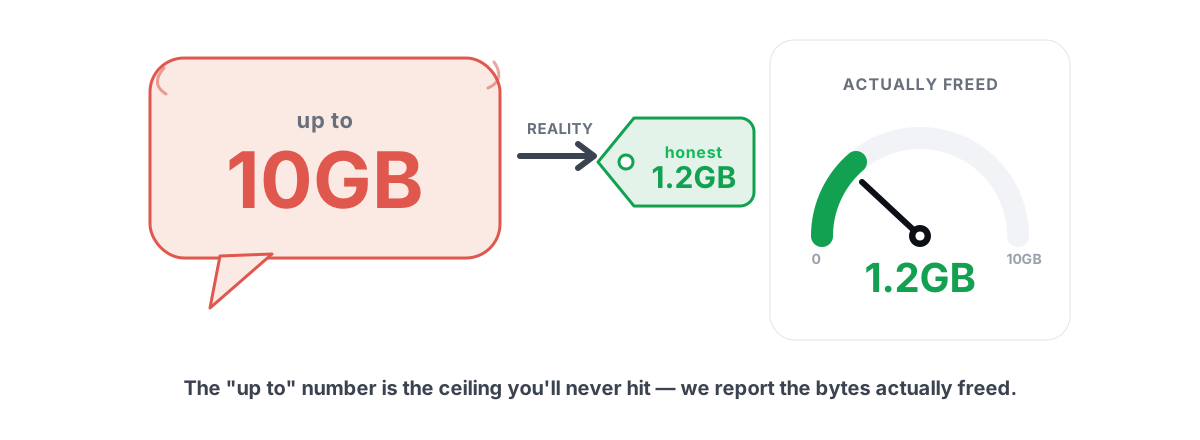
Disk Cleanup Myths: What 'Up to 10GB' Hides
How PC cleaners inflate 'up to 10GB freed' by counting RAM and DNS flushes, and why measuring free space before and after is the only honest metric.
 Disk, Drive & Cleanup
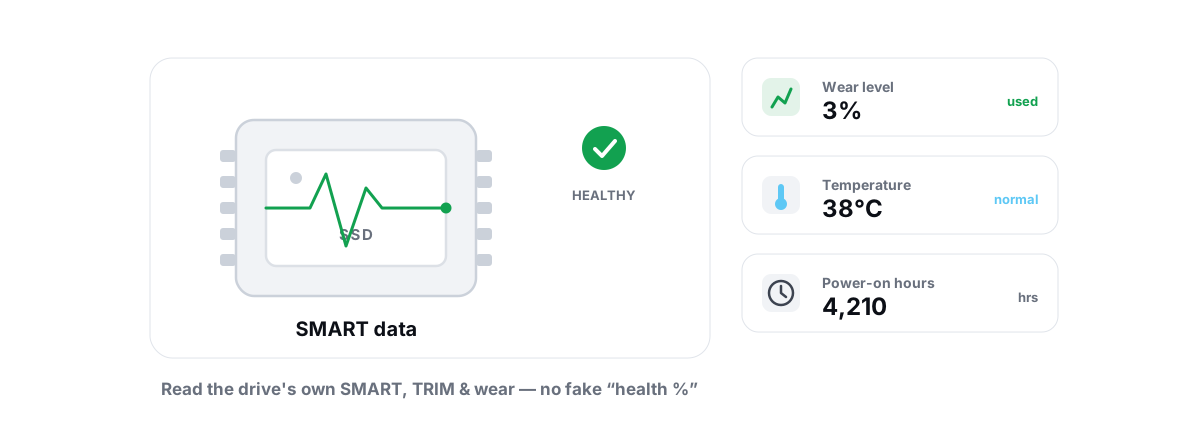
How to Check SSD Health (SMART, TRIM, Wear)
Read the real SMART data, wear and errors Windows exposes, verify TRIM with fsutil, and learn the true warning signs of a failing SSD.
Stop guessing. Measure it.
BRUTAL Optimizer is the honest way to speed up Windows — 17 free modules, a real FPS overlay, verified disk cleanup and drive health. No kernel driver of our own, no game hooks, every setting change reversible.