Disk Cleanup Myths: What 'Up to 10GB' Actually Hides
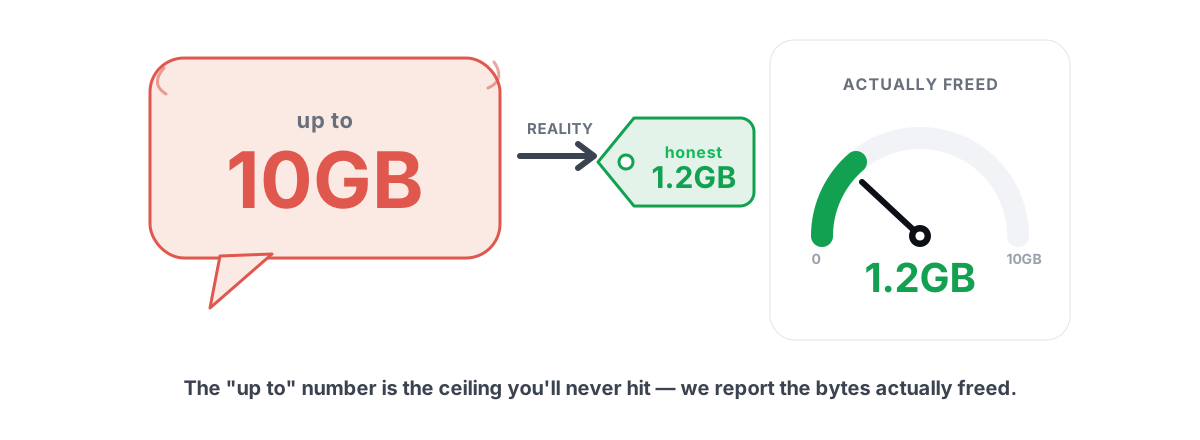
Most disk cleanup myths trace back to one trick: "up to 10GB freed" is a number designed to sell you software, not to describe what happened on your disk. Once you understand how that figure is built, you stop trusting the meter and start trusting the only thing that matters — the free space your drive reports before and after.
The "Up To 10GB Freed" Sales Trick
Watch the wording. It is almost never "freed 10GB." It is "up to 10GB," "potential savings," or "found 10GB of junk." Those are estimates of what might be cleanable in a best-case scenario across every machine the marketing team imagined — not a measurement of your machine.
The estimate is usually the sum of file sizes the scanner found, not the space that gets reclaimed when those files are deleted. Those two numbers differ for real reasons:
- Files in use. A browser cache file the browser has open won't delete. The scanner counted it anyway.
- Hardlinks and reparse points. Some "found" data shares storage with files outside the scan. Deleting one copy frees nothing.
- Cluster slack and compression. A 4KB file on disk isn't always 4KB of reclaimable space, and NTFS compression skews the math further.
- Stuff that instantly comes back. Logs and thumbnail databases get recreated within seconds, so the net reclaim is near zero.
A scanner that adds up file sizes and shows you the total has every incentive to count generously and no incentive to check what actually came off the drive afterward. The honest move — re-reading free space when the work is done — is the one most cleaners skip, because the real number is smaller and less impressive.
If a cleaner shows you a number before it has finished deleting, that number is a guess. Treat it like a guess.
Counting RAM and DNS Flush as "Disk Space"
This is the dishonest one. A surprising number of "PC cleaners" pad their headline figure with things that have nothing to do with your drive.
"Freed" RAM is not disk space
When a cleaner "frees" 2GB of memory, it forced data out of RAM that Windows was deliberately keeping there as cache. Your storage didn't change by a single byte. Worse, the next time you open those apps, Windows has to read everything back from disk, so you trade a number on a meter for slower launches. Empty RAM isn't fast RAM — it's wasted RAM. We unpack that fully in do RAM boosters work.
Flushing the DNS cache frees nothing
The DNS resolver cache lives in memory and holds a few kilobytes of hostname-to-IP mappings. Running ipconfig /flushdns clears it. Some cleaners count this toward "junk removed." It is measured in kilobytes, it lives in RAM, and it rebuilds the instant you load a website. Counting it as reclaimed disk space is pure theater.
Re-Adding Caches You Just "Cleaned"
Most cache deletion is a treadmill. You clear it, the program rebuilds it, and within hours you're back where you started — except some of those caches were doing real work.
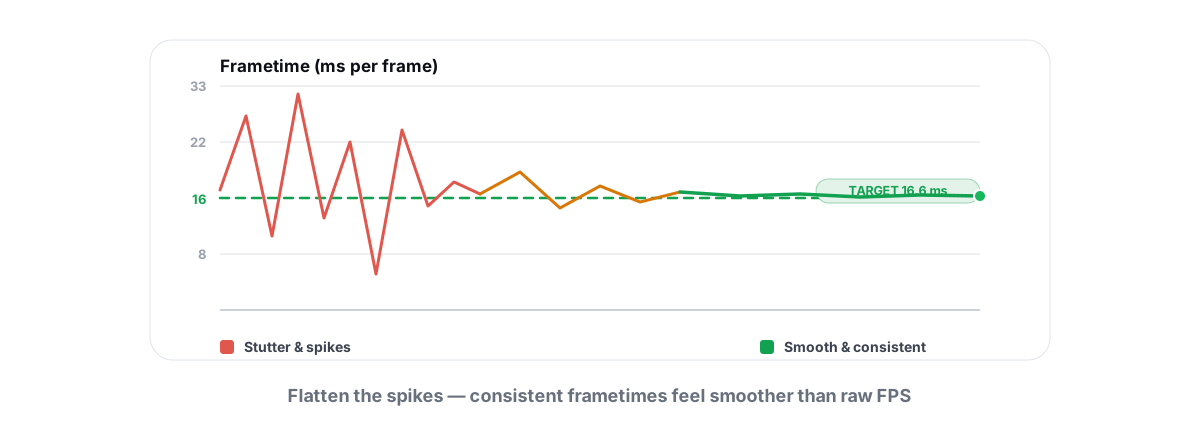
Shader caches are the clearest example. Your GPU compiles game shaders once and stores the result. Wipe that cache and the next session recompiles everything on the fly, which shows up as exactly the stutter you were trying to avoid. If you fight frametime spikes, deleting shader caches is a step backward — see fix stutter and frametime spikes.
Browser caches exist so pages load from disk instead of the network. Clear them and your next browsing session is slower until the cache refills. The space you "freed" gets re-consumed almost immediately, so the long-term reclaim is roughly nothing.
A cleaner that reports the same few gigabytes "freed" every single day isn't cleaning a backlog. It's deleting caches that rebuild on schedule and counting the rebuild as a fresh win each time. That's a loop, not progress.
Why Verified Before/After Bytes Are the Only Truth
There is exactly one honest way to report a disk clean, and it doesn't involve adding up file sizes. You read the drive's free space, you delete, and you read free space again. The difference is what you actually reclaimed. Windows exposes this through the volume's free-byte count, and it accounts for everything the file-size method gets wrong: locked files, shared storage, slack, and instant rebuilds.
| Method | What it reports | Honest? |
|---|---|---|
| Sum of "found" file sizes | A best-case guess, pre-deletion | No — inflated |
| "Up to X" marketing number | A hypothetical ceiling for any PC | No — not your machine |
| Free space before vs. after | The exact bytes your drive gained | Yes — measured |
The before/after number is usually smaller than the scary scan total, and that's the point. It's the truth. When a tool reports a verified figure, you can check it yourself: open This PC, note the free space on C:, run the clean, and look again. The numbers should match. If they don't, the tool is lying to you.
This is the standard BRUTAL Optimizer holds itself to. Its Disk Cleaner re-measures free space before and after and reports only the verified bytes it actually reclaimed — never a "found" total, never RAM, never a DNS flush dressed up as storage. If a clean frees 600MB, it says 600MB.
The Danger of Aggressive "Deep Clean" Modes
To make the numbers look bigger, some tools offer a "deep" or "aggressive" mode that reaches into places it shouldn't. This is where cleaners go from useless to harmful.
- Deleting the pagefile or hibernation file. You'll "free" several gigabytes that Windows immediately needs back. Touch the pagefile wrong and you invite crashes and out-of-memory errors under load.
- Wiping browser data indiscriminately. Aggressive modes happily delete cookies, saved logins, and Local Storage along with the cache. Now you're logged out of everything and your "junk cleaner" cost you an evening of re-authentication.
- Clearing Windows Update caches mid-cycle. Do this at the wrong moment and you can break an in-progress update or force gigabytes of re-downloads.
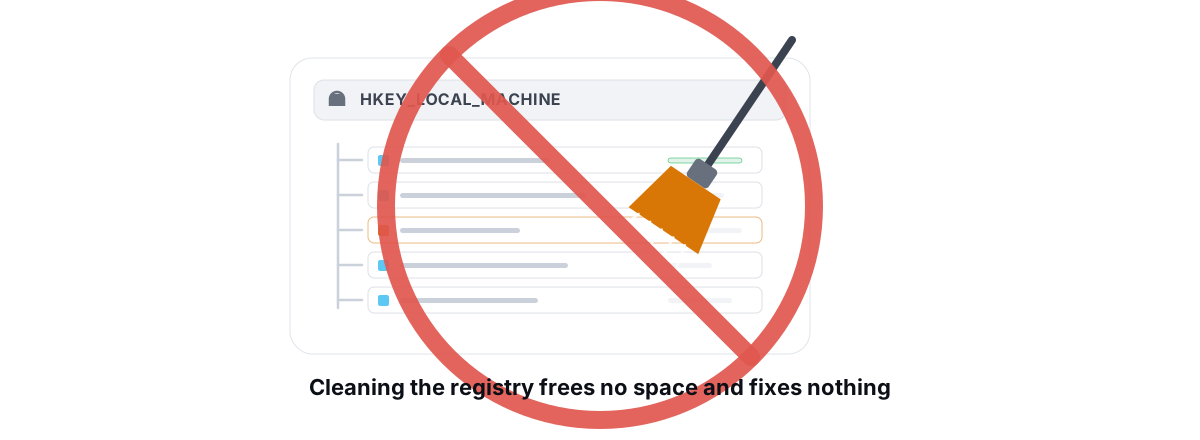
- Registry "cleaning" for space. The registry is tiny and deleting keys frees no meaningful disk space while risking real breakage. We cover why in do registry cleaners work.
The safe path is boring on purpose: an allow-list of known-reclaimable locations, an age gate so fresh files survive, and deletion that never touches your logins or your data. A 24-hour age gate is the small detail that matters — an installer's temp files from five minutes ago shouldn't get yanked out from under it, and cookies, saved passwords, and Local Storage should be off the table entirely.
Past the Disk Cleanup Myths: What's Genuinely Safe to Clear
Real disk space exists, and you can reclaim it without theater. Here's what's worth deleting and what to leave alone.
| Clear this | Why it's safe | Rough payback |
|---|---|---|
| Temp files (24h+) | Scratch data apps forgot to remove | A few hundred MB to a couple GB |
| Recycle Bin | You already chose to delete these | Varies — sometimes huge |
| Windows Update cleanup | Superseded packages no longer needed | 1-6GB on older installs |
| Crash / memory dumps | Diagnostic files you'll never read | Hundreds of MB to several GB |
| Thumbnail cache | Rebuilds automatically, no data lost | Tens to hundreds of MB |
For the bigger wins, stop guessing and look. The space hogs on most drives aren't temp files — they're forgotten game installs, old downloads, duplicate media, and abandoned project folders. A treemap and a duplicate finder show you exactly where the gigabytes went, which is far more productive than any "clean" button. That approach is laid out in finding what's eating your disk, and a broader safe walkthrough lives in how to free up disk space in Windows.
How to Audit Any Cleaner's Claims
You don't need to trust marketing. You can test any cleaner in about two minutes and catch the inflation yourself.
- Record free space first. Open
This PC, right-click your drive, hit Properties, and write down the exact free bytes. Or runfsutil volume diskfree C:for a precise figure. - Run the clean. Use whatever mode you'd normally use. Note the number the tool claims it freed.
- Re-read free space. Same drive, same Properties dialog. Subtract. That delta is the real reclaim.
- Compare. If the tool claimed 5GB and your drive gained 400MB, you've found the inflation. If they match within a rounding error, the tool is honest.
- Run it again tomorrow. If it "finds" the same gigabytes every day, it's deleting caches that instantly rebuild — a treadmill, not a cleanup.
This same skepticism applies to every "optimizer" claim, not just disk cleaning. A tool that can't back its numbers with something you can verify yourself is selling a feeling. If you want the wider version of this test applied to RAM boosters, FPS boosters, and registry cleaners, read do PC optimizers actually work.
The honest tools welcome this audit because their numbers survive it. BRUTAL Optimizer reports verified before/after bytes precisely so you can check the math against your own drive — and across the rest of the app, every registry change is reversible and a System Restore point is attempted before anything major. If you're comparing it against a typical cleaner, the no-kernel-driver safety page and the full feature list spell out exactly what it does and doesn't touch.
You don't have to install anything to clean your disk well. Windows ships Storage Sense and Disk Cleanup, and the manual before/after test above keeps any tool honest. But if you want a cleaner that refuses to lie about its own numbers — and a free disk analyzer to find the real space hogs — that's the bar BRUTAL Optimizer was built to clear.
Frequently asked questions
Why does a cleaner say it freed 10GB but my drive barely changed?
Most cleaners report the sum of file sizes they found, not the space actually reclaimed. Locked files, shared storage, and caches that instantly rebuild mean the real before/after gain is usually far smaller than the scary scan total.
Do PC cleaners count freed RAM as disk space?
Some do, and it is dishonest. Freed RAM and a flushed DNS cache live in memory, not on your drive, and rebuild within seconds. Counting them toward a disk-space figure is pure padding.
How can I tell if a disk cleaner is exaggerating?
Record your drive's free space before cleaning, run the clean, then check free space again. The difference is the real reclaim. If the tool claimed gigabytes but your drive gained megabytes, you have found the inflation.
Is it safe to use a deep clean or aggressive mode?
Be cautious. Aggressive modes often delete cookies, saved logins, the pagefile, or in-progress update files to inflate the number. Stick to allow-listed temp files, the Recycle Bin, and update leftovers, and avoid anything that will not list exactly what it deletes.
What is genuinely safe to clear for real disk space?
Windows temp files older than a day, the Recycle Bin, superseded Windows Update packages, crash and memory dumps, and thumbnail caches. For bigger wins, use a treemap and duplicate finder to locate forgotten installs and large files.
Keep reading
 Myths & Honest Truths
Do RAM Boosters Work? What Free RAM Really Means
Why free RAM is wasted RAM, how aggressive trimming causes stutter, and the rare times a memory tool actually helps.
 Gaming & FPS
How to Fix Stuttering in Games (Frametime Spikes)
Stutter is a frametime problem, not an average-FPS one — isolate the real causes and confirm each fix with 1% lows.
 Myths & Honest Truths
Do Registry Cleaners Work? (Short Answer: No)
Registry cleaners have never measurably sped up a PC, and the worst ones break Windows. Here is the truth and what to do instead.
Stop guessing. Measure it.
BRUTAL Optimizer is the honest way to speed up Windows — 17 free modules, a real FPS overlay, verified disk cleanup and drive health. No kernel driver of our own, no game hooks, every setting change reversible.