How to Free Up Disk Space in Windows (Safely)
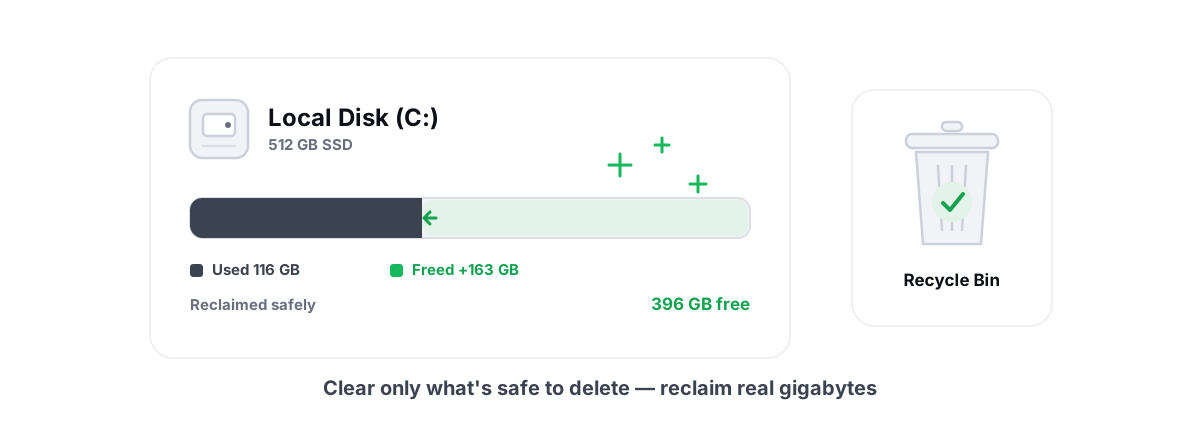
A full C: drive is one of the few "my PC is slow" problems with a fast, real fix. Knowing how to free up disk space in Windows comes down to deleting the right gigabytes — temp files, caches, crash dumps, and the Windows component store — without touching anything you'll miss, then measuring what you actually got back instead of trusting an "up to 10 GB" promise.
This is a do-it-by-hand guide first. Every step below works with tools Windows already ships. Nowhere does it ask you to install anything. Where a dedicated tool genuinely saves time, I'll say so plainly — but you can reclaim real space on your own with what follows.
The approach here is an allow-list, not a blast radius. Instead of "scan everything and delete whatever looks old," you target a known set of safe-to-clear locations, apply a 24-hour age gate so in-progress installs survive, and re-measure free space before and after so the number you see is true.
Before you free up disk space in Windows, find what's eating it
Before you delete a single file, look at where the space went. Guessing wastes time and tempts you into deleting things that matter. Two minutes of measurement saves you from clearing 200 MB of temp files when the real problem is a 40 GB folder of old game installs or a runaway log.
Windows has a built-in view. Open Settings > System > Storage. It breaks your drive down into categories — Apps, Temporary files, Documents, System & reserved — and each one is clickable. Storage Sense lives here too, but leave its automatic mode off for now; you want to see the breakdown first.
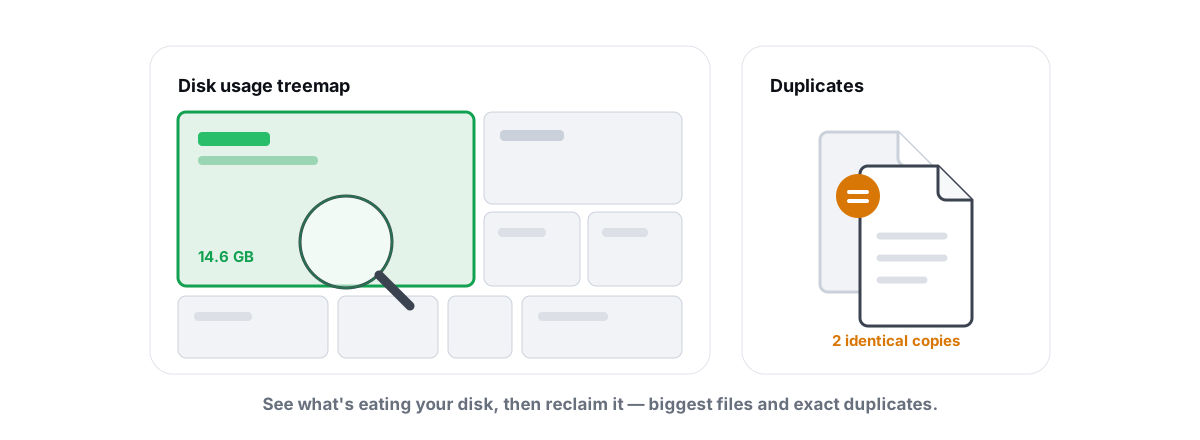
The Settings view is coarse. It won't tell you that one folder buried four levels deep is holding 30 GB. For that you need a treemap — a visual map where each file's rectangle is sized by how much space it eats, so the space hogs are impossible to miss.
If you'd rather not eyeball folders one at a time, a disk analyzer that walks the drive and draws that treemap (plus finds byte-for-byte duplicate files via a content hash) does the job in one pass. We built one into BRUTAL Optimizer's Disk Analyzer, and there are good standalone tools too. The point isn't the tool — it's that you look before you delete.
The biggest disk wins are almost never temp files. They're forgotten installers, old game caches, leftover folders from uninstalled apps, and duplicate media. Find those first, then clean the small stuff.
Safe-to-delete: temp, caches, crash dumps
This is the bread and butter of disk cleanup — files Windows and your apps create as scratch space and then forget about. They rebuild themselves on demand, so deleting them is safe. Here's what's genuinely safe to clear and what each one is.
Temp folders
Windows has two main temp locations: your user temp at %TEMP% (which resolves to something like C:\Users\you\AppData\Local\Temp) and the system temp at C:\Windows\Temp. Installers, updaters, and apps drop working files here and frequently never clean up after themselves. Over a year this can quietly grow to several gigabytes.
The one rule that matters: don't delete temp files that are in active use. A file an installer wrote 30 seconds ago might be mid-extraction. This is why a blind "delete everything in Temp" can break an install that's running right now.
Crash and memory dumps
When Windows blue-screens, it writes a memory dump to disk for debugging. A full kernel dump at C:\Windows\MEMORY.DMP can be hundreds of megabytes to several gigabytes — it's a snapshot of RAM at the moment of the crash. Per-app crash mini-dumps and LiveKernelReports pile up too.
Unless you're actively debugging a specific blue screen with a kernel analyst, these are dead weight. Delete them. Windows writes a fresh one next time something crashes; you lose nothing but the old forensic data you were never going to read.
Windows Error Reporting (WER)
Every time an app crashes, Windows queues a report in ReportQueue and ReportArchive (under both ProgramData and your LocalAppData). If you've never seen the "looking for a solution" dialog actually solve anything, that's because these usually just accumulate. They're safe to clear.
Thumbnail and icon cache
Explorer caches thumbnails so folders full of photos open quickly. The cache can bloat, and it sometimes corrupts (the symptom is wrong or blank thumbnails). Clearing it forces a rebuild — the first time you open a big image folder afterward it'll be slightly slower, then it's fine.
AppData deleting folders you don't recognize. Plenty of folders in there hold real settings, saves, and license data. The safe set is the known scratch locations above — temp, dumps, WER, thumbnail cache, and verified app caches. "Delete anything old in AppData" is how people lose game saves.Browser caches done right (without nuking logins)
Browser caches are one of the bigger safe wins — a heavy Chrome or Edge user can be sitting on 1–4 GB of cached page assets. But this is exactly where careless "cleaners" cause grief, because the cache lives right next to your logins, and the difference matters.
Inside a browser's profile there are two completely different kinds of data:
| Safe to delete (rebuilds itself) | Never touch (this is your session) |
|---|---|
Cache, Code Cache, GPUCache | Cookies |
Service Worker CacheStorage / ScriptCache | Login Data |
Shader caches (GrShaderCache, ShaderCache) | Local Storage / IndexedDB |
The left column is downloaded copies of images, scripts, and fonts. Delete them and the browser re-downloads on your next visit — you lose nothing but a few seconds on first load. The right column is your identity: cookies and Login Data are what keep you signed in, and Local Storage / IndexedDB hold app state for sites like web mail and docs. Wipe those and you're logged out everywhere, with two-factor prompts waiting.
That's the whole reason a generic "clear browser data" sweep is risky — too many tools treat the profile as one blob. Clear the cache directories, leave cookies and Local Storage alone, and you free real space without the logout headache. (Note one quirk: the shader caches live at the profile root, not inside each sub-profile, so a tool that only walks per-profile folders misses them.)
The Recycle Bin and Downloads folder
Two of the easiest wins, and two places people forget.
The Recycle Bin is not free space. Deleting a 10 GB file just moves it there; the space stays occupied until you empty the bin. If your drive is full, empty it — right-click the desktop icon, or it's a category in Settings > Storage. The only caveat: be sure nothing in there is something you might still want, because empty is permanent.
Your Downloads folder is the classic graveyard. Installers you ran once, ZIP files you already extracted, PDFs you read and forgot. Nothing automatically cleans this — it's all yours, so Windows won't touch it. Sort by size, scan for the big stuff, and delete what you don't need. This is frequently where the surprise 20 GB hides.
Deep cleanup: DISM component store (carefully)
Here's the one most cleanup guides skip because it sounds scary, and it's often the single largest safe reclaim on an older Windows install: the WinSxS folder, also called the component store.
WinSxS is where Windows keeps the components it needs to service itself — every update, every optional feature, plus the older versions of files it superseded. This is why you can uninstall a bad update or add a Windows feature without the install media. It's load-bearing. You do not delete it manually, and you never run a third-party tool that promises to "clean WinSxS" — that's how you brick the ability to update.
What you can do is have Windows safely remove the superseded older versions it no longer needs. There's a built-in command for exactly this. First, ask Windows whether cleanup is even recommended:
DISM /Online /Cleanup-Image /AnalyzeComponentStore
That's read-only — it just reports the store size and tells you whether it thinks a cleanup would help. If it says "Component Store Cleanup Recommended : Yes," then run:
DISM /Online /Cleanup-Image /StartComponentCleanup
This removes only the superseded versions of components. On a Windows install that's a couple of years deep with many cumulative updates, this can reclaim several gigabytes. Two honest warnings:
- Run it from an elevated terminal (admin), and don't interrupt it mid-run. Killing a servicing operation halfway is the actual risk here, not the cleanup itself.
- Don't add
/ResetBaseunless you understand the trade-off — it removes all superseded components, which prevents uninstalling currently-installed updates. The plain/StartComponentCleanupis the safe, reversible-enough choice.
Because interrupting a servicing run is the one genuinely risky part, this is a place where automation earns its keep — a good tool takes a System Restore point first, runs the analyze-then-clean sequence, streams the live output, and refuses to let you cancel mid-servicing. But the manual command above costs nothing and does the same core work. Run it from an elevated prompt, walk away, and let it finish.
Verified freed bytes vs. "up to X GB" lies
Here's the part the optimizer industry doesn't want you thinking about. When a cleaner says it freed "up to 12.4 GB," ask: measured how?
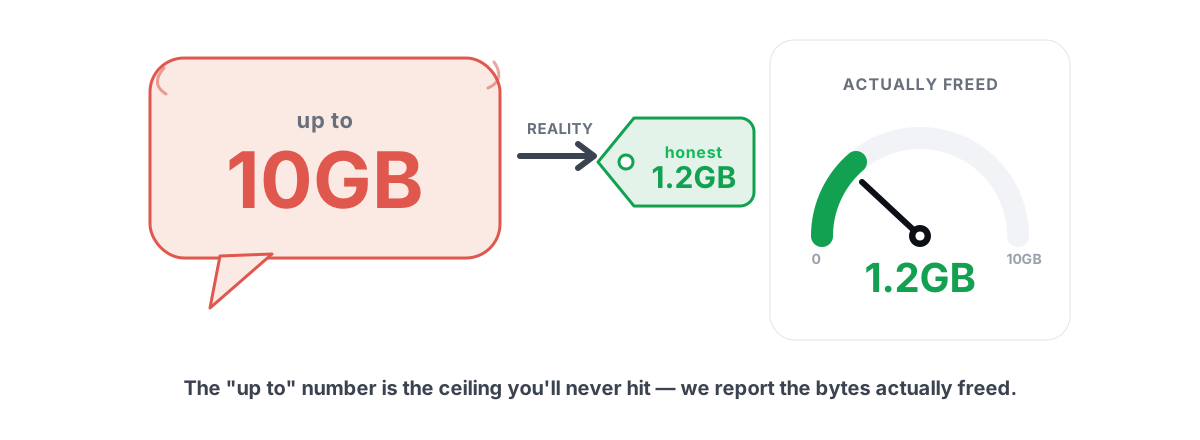
Most "up to" numbers are the sum of file sizes it identified, not the actual change in free space. Those differ for real reasons. The Recycle Bin already counts as used space, so "recovering" a file that's already in the bin double-counts. Reparse points and hard links get tallied more than once. And — the big one — a lot of tools inflate the headline by counting things that were never disk space to begin with.
The honest way to report a freed-space number is dead simple: read free space before, do the work, read free space after, subtract. That delta is the truth. It accounts for the Recycle Bin, for files that were locked and didn't actually delete, for everything. It's also harder to make look impressive, which is precisely why marketing-driven tools avoid it.
This is the design principle behind BRUTAL Optimizer's Disk Cleaner: it scans an allow-list of known-reclaimable locations, snapshots the drive's free space before and after with a re-measure, and reports the verified freed bytes — the real before/after delta, not a sum of file sizes and never RAM or a DNS flush. If only a few hundred MB came back, it says a few hundred MB.
What you should never delete (and why)
An honest cleanup is defined as much by what it leaves alone as by what it removes. These are the "free up space" tricks that are pointless, risky, or both — skip them whether you're doing it by hand or judging a tool that claims to do it for you.
- The pagefile (
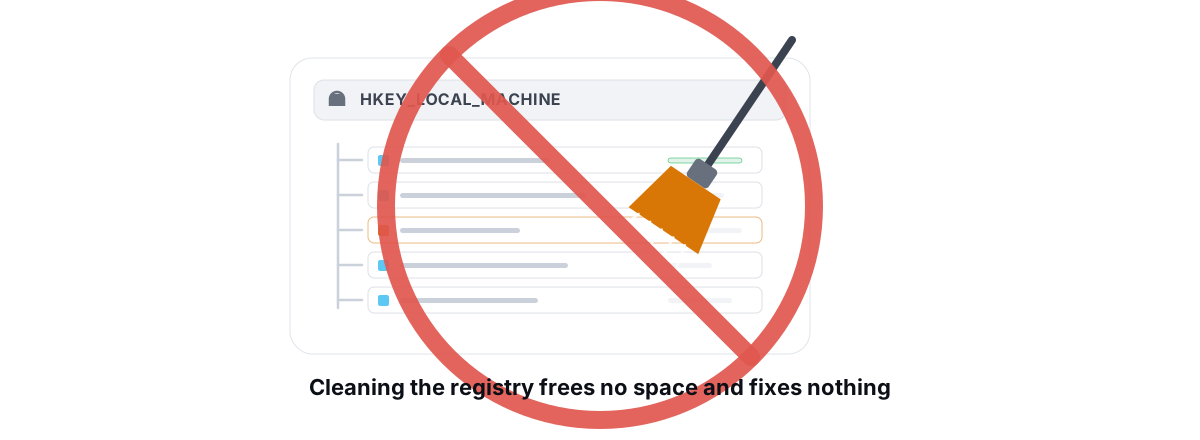
pagefile.sys) and hibernation file (hiberfil.sys). Deleting the pagefile to "save space" can destabilize the system under memory pressure, and Windows often just recreates it. Hiberfil powers fast startup and hibernate. Reclaiming a few GB here isn't worth breaking either feature. - The registry, "for speed." Registry cleaning frees no meaningful disk space and doesn't make Windows faster — the registry isn't your bottleneck. The downside (deleting a key something needed) is all risk, no reward. More on why registry cleaners don't work.
- Shadow copies via
vssadmin delete shadows. That's your System Restore points and previous-version history. Nuking them to free space removes your safety net right when you might need it. - Event logs and manual WinSxS surgery. Clearing event logs frees trivial space and destroys your troubleshooting trail. Hand-editing WinSxS breaks servicing. Let DISM handle the component store.
- Anything counted as disk space that isn't. Standby RAM, DNS cache, "boosted" memory. Real, but not your drive.
The pattern across all of these: the impressive-sounding move is usually the wrong one. A clean drive comes from removing genuine junk — temp, caches, dumps, superseded components — not from deleting load-bearing system files to make a number look bigger. If your PC still feels slow after the drive has breathing room, the cause is probably elsewhere; our guide to why your PC is slow and how to speed up Windows 11 honestly walk through the real suspects.
If you'd rather not run these steps one at a time, BRUTAL Optimizer's free Disk Cleaner does exactly the allow-list approach above — temp with a 24-hour age gate, crash dumps, WER, browser caches that spare your logins, and the Recycle Bin — and reports the verified freed bytes instead of a marketing number. The deep DISM component cleanup is included too, with a restore point attempted first and a non-cancellable guard. No kernel driver, nothing that touches your documents, just the honest in-box Windows tools with the right guardrails around them. And if you'd prefer to do it all by hand, everything here works without it.
Frequently asked questions
What is the safest way to free up disk space in Windows?
Target a known allow-list of scratch locations: temp folders (only files older than a day), crash and memory dumps, Windows Error Reporting queues, browser caches, the Recycle Bin, and superseded components via DISM. Avoid blanket deletes of AppData or system files.
Is it safe to delete temp files in Windows?
Yes, with one rule: only delete temp files older than about 24 hours. Files an installer or updater wrote moments ago may be in active use, and deleting those can break an install in progress. Anything that has sat in Temp for days is safe to remove.
How do I clean the C drive in Windows 11 without losing anything?
Empty the Recycle Bin, clear old files from Downloads, delete temp files older than a day, remove crash dumps and error reports, and clear browser caches while leaving cookies and Login Data alone. Then run DISM component cleanup to remove superseded update files.
Can I delete the WinSxS folder to free space?
Never delete WinSxS by hand or with a third-party tool - it stores the components Windows needs to service and update itself. Instead run DISM /Online /Cleanup-Image /StartComponentCleanup, which removes only the superseded versions Windows no longer needs and can reclaim several GB safely.
Why does a cleaner say it freed more space than my drive actually gained?
Most 'up to X GB' figures are the sum of file sizes the tool identified, not the real change in free space. They double-count files already in the Recycle Bin, tally hard links twice, and some inflate the total by counting freed RAM or a flushed DNS cache, which are not disk space at all. The honest number is free space measured before and after.
Keep reading
 Disk, Drive & Cleanup
Find Large Files on Windows: Treemap & Duplicates
Map your drive with a treemap and a SHA-256 duplicate finder, then delete the real space hogs via the Recycle Bin instead of trusting a blind cleaner.
 Disk, Drive & Cleanup
Disk Cleanup Myths: What 'Up to 10GB' Hides
How PC cleaners inflate 'up to 10GB freed' by counting RAM and DNS flushes, and why measuring free space before and after is the only honest metric.
 Myths & Honest Truths
Do Registry Cleaners Work? (Short Answer: No)
Registry cleaners have never measurably sped up a PC, and the worst ones break Windows. Here is the truth and what to do instead.
Stop guessing. Measure it.
BRUTAL Optimizer is the honest way to speed up Windows — 17 free modules, a real FPS overlay, verified disk cleanup and drive health. No kernel driver of our own, no game hooks, every setting change reversible.