How to Check SSD Health: SMART, TRIM and Wear
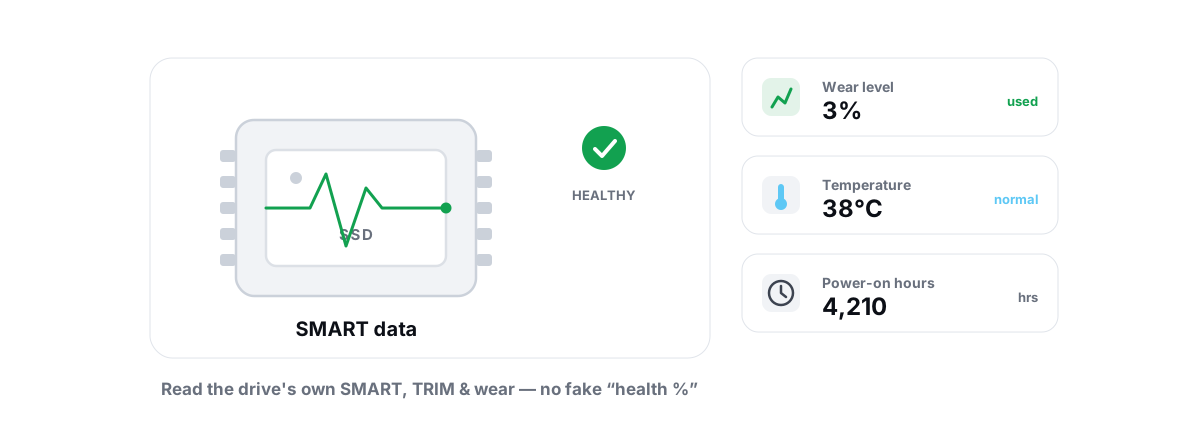
Your SSD already tracks how worn out it is, how many hours it has run, and how many errors it has hit. You don't need a magic "health score" to read that data - you need to look at the real numbers Windows already exposes and know which ones actually matter.
This guide shows you how to check SSD health the honest way: read the SMART and reliability counters (wear, power-on hours, errors), confirm TRIM is doing its job with fsutil, and recognize the real early-warning signs of a failing drive. No invented percentages, no scare-meter, no tool required - though one safe option is mentioned at the end.
What SSD health really means
An SSD doesn't degrade like a hard drive. There's no spinning platter to scratch and no head to crash. Instead, each NAND flash cell can only be erased and rewritten a finite number of times - its program/erase (P/E) cycle budget. SSD "health" is mostly a question of how much of that write budget you've spent, plus whether the controller and cells are still error-free.
That gives you three honest dimensions to look at:
- Wear - how much of the drive's rated write endurance you've used. This is the slow, predictable aging.
- Errors - read/write failures, reallocated sectors, and controller faults. This is the sudden-death signal.
- TRIM and free space - whether the drive can keep managing flash efficiently, which protects both speed and lifespan.
Two failure modes matter. The slow one is wear-out: after years of writes the cells stop holding charge reliably, and a good drive responds by going read-only so you can still rescue your data. The fast one is electronic - a controller or firmware fault that can take the drive offline with little warning. Wear you can predict from the numbers. Sudden controller death you mostly catch through error counters and behavior, which is why backups matter regardless of what any score says.
An SSD's real health is a handful of concrete counters - wear percent, power-on hours, error counts - not a single number a program made up to look reassuring.
How to check SSD health from SMART and reliability counters
SMART (Self-Monitoring, Analysis and Reporting Technology) is built into the drive itself. The drive keeps the counters; your job is just to read them. Windows exposes a clean, modern subset through its storage reliability counters, and that's the best starting point because it's already normalized into human units.
The fast way: PowerShell reliability counters
Open Windows Terminal or PowerShell as Administrator (right-click Start, pick the Admin option) and run:
Get-PhysicalDisk | Get-StorageReliabilityCounter | Format-List
You'll get back the fields the drive actually reports. The ones worth reading:
| Field | What it tells you | What's normal |
|---|---|---|
Wear | Percent of rated write endurance consumed | 0 = new, climbs slowly; worry near 90-100 |
PowerOnHours | Total hours the drive has been powered | Context only - high hours alone is fine |
Temperature | Current drive temperature (C) | Roughly 30-50 C idle/light; throttles in the 70s |
ReadErrorsTotal / WriteErrorsTotal | Cumulative read/write failures | 0 or a tiny static number; rising is the red flag |
StartStopCycles | Power/idle cycles | Context only |
Not every drive reports every field. A cheap USB enclosure or some NVMe controllers will return blanks - that's a limitation of the drive and its bridge, not a problem you can fix. The honest move is to read only what's actually there. Any tool that fills in the gaps with confident-looking numbers is guessing, and you shouldn't trust a guess about your data's safety.
The overall verdict line
For a quick pass/warn check, run:
Get-PhysicalDisk | Select-Object FriendlyName, MediaType, HealthStatus, OperationalStatus
HealthStatus reports Healthy, Warning, or Unhealthy - this is the drive's own self-assessment via predictive-failure flags, not a synthesized percentage. Healthy is good. Anything else means back up now and investigate. It won't catch every failure (sudden controller death can skip the warning entirely), but when it does flag, take it seriously.
Raw SMART attributes
If you want the raw SMART table - reallocated sector count, media wear-out indicator, uncorrectable errors, and the rest - Windows doesn't surface all of it natively. A reputable read-only utility like CrystalDiskInfo (or smartctl from the smartmontools project) dumps the full attribute list. Use those tools to read; ignore the parts of any tool that offer to "fix" or "repair" SMART, because SMART is a report, not something you patch.
Wear and the error totals - a number that's slowly climbing is informative, a number that suddenly jumps is a warning. The whole check takes under a minute and needs nothing installed.Wear level, TBW and power-on hours
These three get confused constantly, so here's what each one actually means and how much weight to give it.
Wear level (the one that matters most)
Wear is the percentage of your drive's write-endurance budget you've used. On the SMART side this is often called the media wear-out indicator or percentage used. A reading of 4 means you've consumed about 4% of the rated writes - so at a normal pace this drive has many years left.
It climbs with total data written, not with age or hours. A drive that's been powered for five years but barely written to can sit near 1-2% wear. A drive hammered by video editing or a busy database can hit double digits in a single year. Wear is the number to actually track.
TBW - the endurance rating
TBW (Terabytes Written) is the manufacturer's warranty rating for how much you can write before they stop guaranteeing the drive. A typical 1 TB consumer SSD is rated somewhere around 300-600 TBW. To put that in perspective: writing 30 GB every single day for five years is about 55 TB - a fraction of the budget. Most people never come close.
TBW is a conservative warranty floor, not a cliff. Drives routinely survive well past their rated TBW in endurance testing. Cross-reference your Wear percent against the drive's TBW spec (search your exact model) to sanity-check, but don't panic as you approach it - approaching TBW means "watch and back up," not "the drive dies tomorrow."
Power-on hours - mostly context
PowerOnHours is just how long the drive has had power. On its own it tells you almost nothing about SSD health, because flash doesn't wear from sitting powered - it wears from writes. A high hour count on a lightly-written drive is completely fine.
Verifying TRIM is on with fsutil
TRIM is the command that tells your SSD which blocks are no longer in use so it can keep them pre-erased and ready. Without it, write speed degrades as the drive fills and the controller does more pointless work, which adds wear. It's enabled by default on Windows 10 and 11, but it's worth a ten-second confirm - some old "tweak" guides and bad optimizer apps disabled it years ago.
Open an elevated Command Prompt or Terminal and run:
fsutil behavior query DisableDeleteNotify
Read the result:
DisableDeleteNotify = 0-> TRIM is enabled. This is what you want. Do nothing.DisableDeleteNotify = 1-> TRIM is disabled.
On current Windows you'll usually see a line for both NTFS and ReFS. The 0 state is the default. If yours somehow reads 1, turn it back on with:
fsutil behavior set DisableDeleteNotify NTFS 0
Note the limits of this check: DisableDeleteNotify is a system-wide filesystem setting, not a per-drive one, and it tells you that Windows is allowed to send TRIM - not that a specific external/USB drive actually honors it. For internal SATA and NVMe SSDs, a 0 here is what you want. To confirm the periodic sweep is happening, open dfrgui (Optimize Drives), select your SSD, and check the last-optimized date and schedule - on an SSD that "optimize" is a ReTrim, not a defrag.
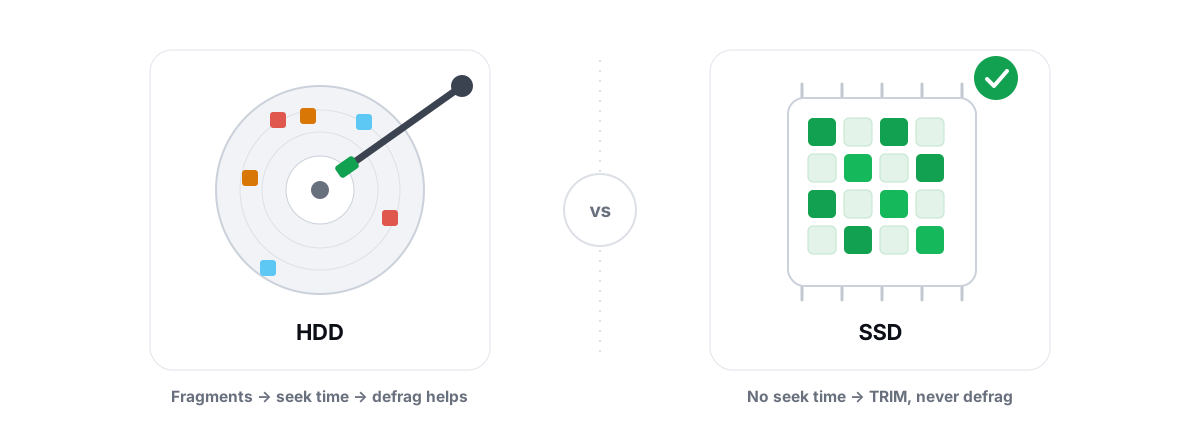
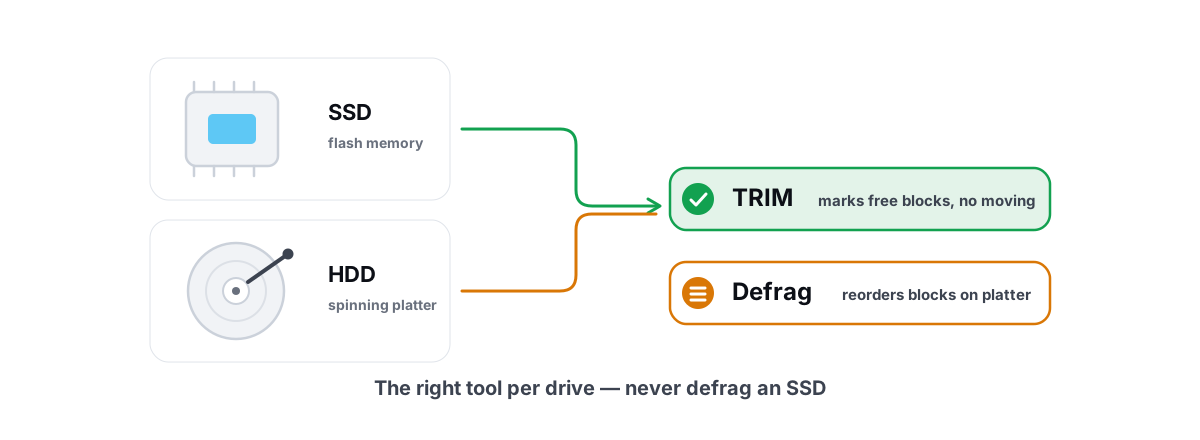
That distinction trips up a lot of people. If you're unsure why your SSD shows up in a tool called "Optimize Drives," read should you defrag an SSD and TRIM vs. defrag: the right maintenance per drive - short version, flash gets ReTrim, only spinning HDDs get a real defrag.
Early warning signs of a failing SSD
The counters are your early-warning system, but behavior often shows up first. If you see any of these, check the counters above and get a backup going immediately.
- Files vanish or refuse to save - the drive flips to read-only or starts rejecting writes. On an SSD this is a classic end-of-life behavior, and it's often the drive protecting your data by refusing further writes.
- Corruption you didn't cause - files that won't open, checksum mismatches, or apps complaining about damaged data. Pair this with rising
ReadErrorsTotaland it's a strong signal. - Freezes and hard stalls - the whole system hangs for seconds during disk access, then recovers. Intermittent controller trouble looks exactly like this.
- The drive disappears and reappears - it drops out of BIOS/Disk Management, then comes back after a reboot. Treat this as serious; a drive that vanishes once will usually do it again, permanently.
- HealthStatus reads Warning or Unhealthy, or SMART shows climbing reallocated/uncorrectable counts. Any upward trend on errors is the drive telling you cells are going bad.
- Wear near 100% with heavy ongoing writes - not an emergency by itself, but the runway is short. Plan the replacement.
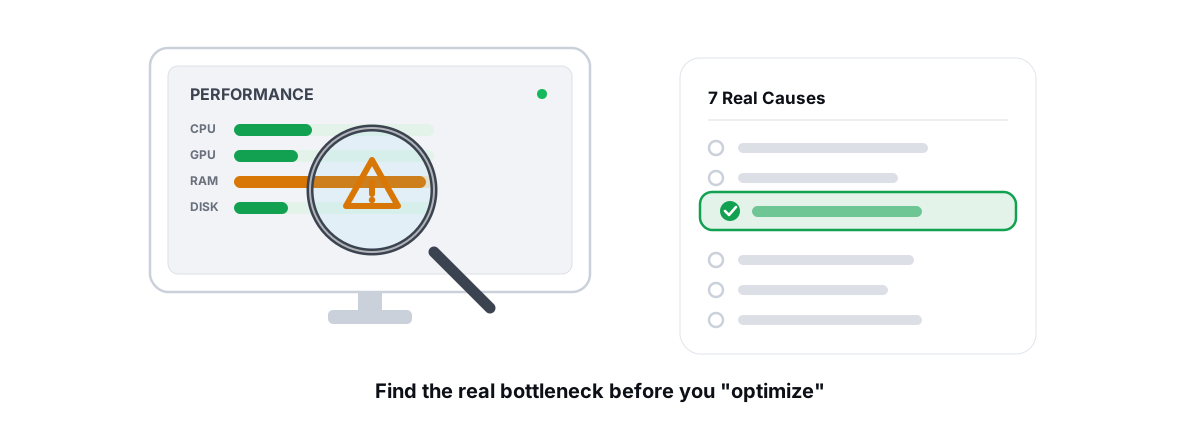
One thing to rule out first: not every "my drive is dying" feeling is the drive. A nearly-full SSD slows down on its own (the controller has fewer free blocks to work with), and stutter or sluggishness often traces to startup load, background processes, or thermals instead. If the symptoms are slowness rather than errors or disappearances, work through why your PC feels slow before you assume hardware failure - and keep at least 10-15% of the drive free so flash management has room to breathe.
Why we never show a made-up 'health percentage'
Plenty of "drive health" tools print one big confident number - "Health: 87%" - in a colored ring. It looks authoritative. The problem is that there's no standard, drive-reported field that maps cleanly to a single percentage across every make and model. So that number is almost always a formula the app invented, usually some weighting of wear, hours, and a couple of SMART attributes the developer picked.
That's dishonest in a way that actually matters, because it cuts both ways. It can read a reassuring "92%" on a drive that's about to drop offline from a controller fault SMART never flagged. And it can show a scary "70%" on a perfectly fine drive just because it has high power-on hours - nudging you to "fix" or replace something that's healthy. A fabricated score is worse than no score, because people trust it.
This is the same principle behind everything else we refuse to fake. We don't ship a placebo RAM booster or an invented FPS meter, and we don't print a synthetic drive-health percentage. The honest approach is to show you the fields the drive actually reports - wear, power-on hours, temperature, error counts, TRIM status - and let the real data speak. If a field is blank because your drive doesn't report it, we leave it blank instead of inventing a value.
BRUTAL Optimizer's free Drive Health tool does exactly that: it reads SMART and reliability counters through the same in-box Windows engine you used above (PowerShell reliability counters plus fsutil for TRIM), surfaces only what your drive genuinely reports, and never synthesizes a fake "health %." There's no kernel driver and nothing that touches your files - it's a read-only wrapper over the tools Windows already ships.
When to back up and replace
Backups aren't a "when the drive is dying" task - they're the baseline, because SSDs can fail electronically with no warning at all. The 3-2-1 rule still holds: at least three copies, on two different media, with one off-site (a cloud backup counts). If the only copy of something lives on one SSD, you're one controller fault away from losing it, regardless of what any health reading says.
That said, here's when to move from "watch it" to "act now":
- HealthStatus is Warning or Unhealthy, or SMART reallocated/uncorrectable counts are rising -> back up immediately, then replace. A drive that's started reallocating tends to accelerate.
- The drive has gone read-only or dropped offline even once -> rescue the data now while you still can, and replace it. Don't keep using it for anything you care about.
- Wear is in the 90s with ongoing heavy writes -> no emergency, but order the replacement and migrate on your schedule rather than the drive's.
- Counters are clean, wear is low, HealthStatus is Healthy -> nothing to do but keep your normal backups and re-check occasionally. A healthy SSD needs no babysitting.
When you do replace, treat the failing drive as untrustworthy: copy your data off, verify the copies open correctly, and don't wipe-and-reuse a drive that's throwing errors. The cost of a new SSD is trivial next to the cost of losing the data on a dying one.
If you'd rather see all of this on one screen - TRIM status, SMART wear and temperature, power-on hours, and error counts, with the maintenance action media-gated so it can never defrag flash - that's what BRUTAL Optimizer's free Drive Health tool was built for. It reads the honest numbers, shows the blanks as blanks, and leaves the fake percentage to everyone else.
Frequently asked questions
How do I check my SSD health in Windows?
Open PowerShell as Administrator and run Get-PhysicalDisk | Get-StorageReliabilityCounter | Format-List to read wear, power-on hours, temperature and error counts. Then run Get-PhysicalDisk | Select FriendlyName, HealthStatus for the drive's own pass or warn verdict. Both read the drive's real SMART data and need nothing installed.
What is a normal wear level for an SSD?
Wear is the percent of write endurance used, so 0 is new and it climbs slowly with how much data you write, not with age. Most consumer drives sit in low single digits for years. Start planning a replacement as wear approaches 90 to 100 percent, but it is not an instant-death cliff.
How can I tell if my SSD is failing?
Watch for the drive going read-only or refusing writes, files corrupting on their own, system freezes during disk access, the drive vanishing from BIOS and reappearing, or HealthStatus reading Warning. Rising read/write error counts or reallocated sectors in SMART are the clearest signal. Back up immediately if you see any of these.
How do I check if TRIM is enabled on my SSD?
Open an elevated Command Prompt and run fsutil behavior query DisableDeleteNotify. A result of 0 means TRIM is enabled, which is the default and what you want. A result of 1 means it is disabled, and you can re-enable it with fsutil behavior set DisableDeleteNotify NTFS 0.
Why don't you show a single SSD health percentage?
Because there is no standard drive-reported field that maps to one percentage across all models, so any single health number is a formula the app invented. That can read a reassuring high score on a drive about to fail, or scare you about a healthy one. We show only the real fields the drive reports - wear, hours, temperature, errors and TRIM status - and leave blanks blank.
Keep reading
 Myths & Honest Truths
Should You Defrag an SSD? No - Here's Why
Defragging an SSD is pointless and wears it out. Here's what flash actually needs - TRIM and ReTrim - and how to check it.
 Disk, Drive & Cleanup
TRIM vs. Defrag: The Right Maintenance Per Drive
ReTrim for SSDs, defrag for confirmed HDDs only - and the media-gating check that stops the classic maintenance mistake.
 Windows Performance
Why Is My PC So Slow? 7 Real Causes (and Fixes)
A diagnosis-first guide to finding the real reason your PC is slow with built-in tools, then fixing only what matters.
Stop guessing. Measure it.
BRUTAL Optimizer is the honest way to speed up Windows — 17 free modules, a real FPS overlay, verified disk cleanup and drive health. No kernel driver of our own, no game hooks, every setting change reversible.