Why Optimizers Need Administrator Rights (and the Risks)
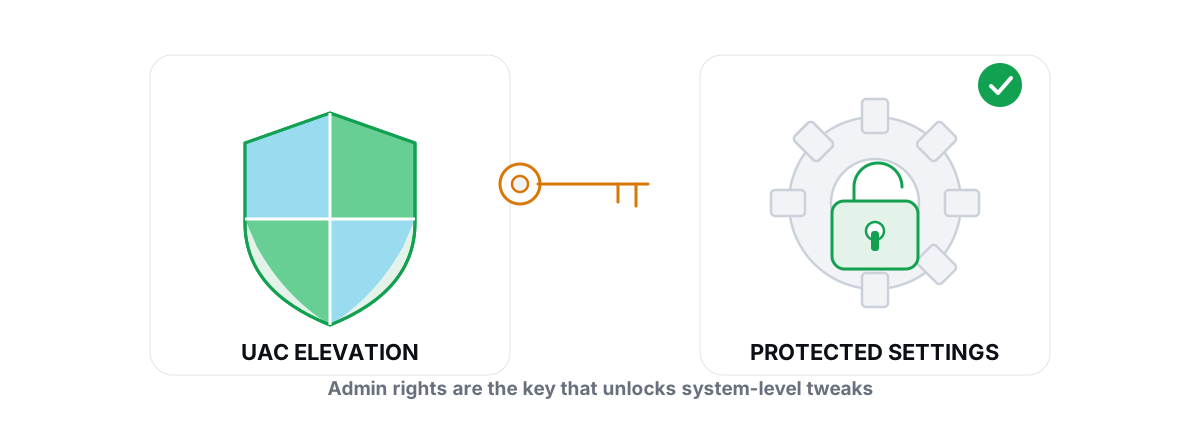
If you've ever wondered why an optimizer needs administrator rights, the short answer is that the tweaks worth doing live behind a wall Windows put up on purpose. That UAC prompt is doing real work — and it's also exactly where bad software hides. Here's which changes genuinely need elevation, what a trustworthy tool does with it, and the red flags that mean you should click "No."
What Administrator Rights Actually Allow
Windows runs most things as a standard user on purpose. A standard process can read and write your own files, change your own settings, and run normal apps. It cannot touch the parts of the system that affect every account on the machine.
Administrator (elevated) rights lift that fence. An elevated process can write to machine-wide registry hives like HKEY_LOCAL_MACHINE, start and stop Windows services, change power and boot configuration, install drivers, and modify protected system files. That's the power optimizers need — and the power malware wants.
The prompt you see is User Account Control (UAC). It is not a formality. UAC is the boundary between "this can mess up my user profile" and "this can change the whole operating system." Treat every elevation request as a real decision, not a box to dismiss.
Admin rights aren't a switch that makes software "more powerful." They unlock a specific set of system-wide capabilities. The question to ask is always: does this tool actually need those capabilities for what it claims to do?
Why an Optimizer Needs Administrator for Registry, Service and Power Tweaks
Most genuine performance and maintenance work sits behind the admin boundary because it changes settings that apply to the entire machine, not just your login. There's no way around that — Windows is doing its job by gating it.
Here's what actually requires elevation, and why:
| The change | Why it needs admin |
|---|---|
Machine-wide registry tweaks (HKLM) | These keys affect every user and core Windows behavior, so Windows blocks standard users from writing them. |
| Starting/stopping Windows services | The Service Control Manager rejects non-elevated requests to change service state or startup type. |
Power plans (powercfg) | Switching to a high-performance plan or editing plan settings changes system policy, which is admin-gated. |
Boot configuration (bcdedit) | Toggling features like HPET or virtualization-based security writes to the boot store — admin only. |
| Driver scan/install (Windows Update) | Querying and installing drivers touches system-wide device state. |
Disk maintenance (defrag.exe, fsutil) | Reading SMART data, verifying TRIM, or running a defrag/ReTrim needs elevated access to the volume. |
System repair (sfc, DISM) | These repair protected system files and the component store, both off-limits to standard users. |
Notice the pattern: every one of those is a tool Windows already ships. A power plan switch is the same powercfg you can run yourself in an elevated terminal. A defrag is the same defrag.exe in the Optimize Drives window. The elevation requirement comes from Windows, not from the optimizer being sketchy.
This is also why you can't get the real gains from a portable, no-install, no-admin "booster." If it never elevated, it literally could not change a service, a power plan, or a machine-wide registry value. Anything claiming big system-wide wins without ever asking for admin is either doing nothing or lying about what it does. We dug into that gap in our honest look at whether PC optimizers actually work.
What a Trustworthy Tool Does With Admin
Granting admin is granting trust. A tool that deserves it behaves like a careful technician working on your machine, not a stranger with the keys. Four habits separate the trustworthy from the reckless.
It stays in user mode where it can
The most dangerous thing software can do with elevation is load a kernel driver — code that runs at the deepest level of Windows, where a bug is a blue screen and a backdoor is total compromise. Plenty of "optimizers" and "boosters" ship a kernel driver because it's the lazy way to claim deep control.
It's also the way to get you banned from games. Anti-cheats like Vanguard, Easy Anti-Cheat and BattlEye watch for exactly that kind of low-level hooking. A tool that's admin-but-user-mode — one that wraps the in-box Windows tools instead of injecting a driver — does the real work without the risk. That distinction is the whole basis of anti-cheat-safe optimization.
It changes only what it tells you it's changing
Elevation should be scoped to specific, named actions you triggered — apply this module, run this scan, install this driver. It should not be a license to roam. A good tool can list every tweak it makes before it makes one.
It keeps a way back
Anything reversible should be reversible. Machine-wide registry edits and service changes ought to be captured before they're applied so you can undo them per change, not "reset everything and pray." More on that below.
It earns the prompt, then gets out of the way
You should see the UAC prompt once, do the work, and be done. A tool that re-prompts constantly, or installs a permanently elevated background service you never asked for, is taking more than it needs.
Red Flags: When NOT to Grant Admin
Most of the harm done by "optimizer" software isn't from a virus — it's from legitimate-looking tools doing reckless things with the rights you handed them. Here's when to stop and not click yes.
- No undo, no restore point. If a tool makes sweeping changes with no per-change rollback and never offers to create a System Restore point, you have no safe way back when something breaks. That's disqualifying for anything touching services or the boot config.
- It won't tell you what it changes. "Optimizing…" with a progress bar and no detail means you're trusting blind. A tool confident in its changes shows them.
- Placebo features that still demand admin. A "RAM booster" meter, a "registry cleaner for speed," a one-click "FPS boost" with a made-up number — these do nothing real, yet they ask for full system access. Why hand the keys to a tool whose headline feature is fake? See what "free RAM" really means and why registry cleaners don't speed anything up.
- Aggressive nagware and subscriptions. Tools that "find 1,200 problems" every week and lock the fix behind a recurring fee are manufacturing urgency. The problems are usually invented.
- Unsigned or unverifiable. If Windows SmartScreen flags it hard and the publisher is anonymous, the elevation prompt is the last gate before that code owns your machine. Don't.
- It demands admin to do trivial things. A flashlight app doesn't need root, and a tool that only shows you stats doesn't need to write to
HKLM. Scope mismatch is a tell.
The honest test: a tool should ask for exactly the rights its real features require, no more, and it should be able to explain every one. If it can't, the elevation prompt is where you say no.
Reversibility and Restore Points as a Safety Net
Elevation is only as safe as your ability to undo what it did. This is the part cheap optimizers skip, and it's the part that matters most when a tweak doesn't agree with your hardware.
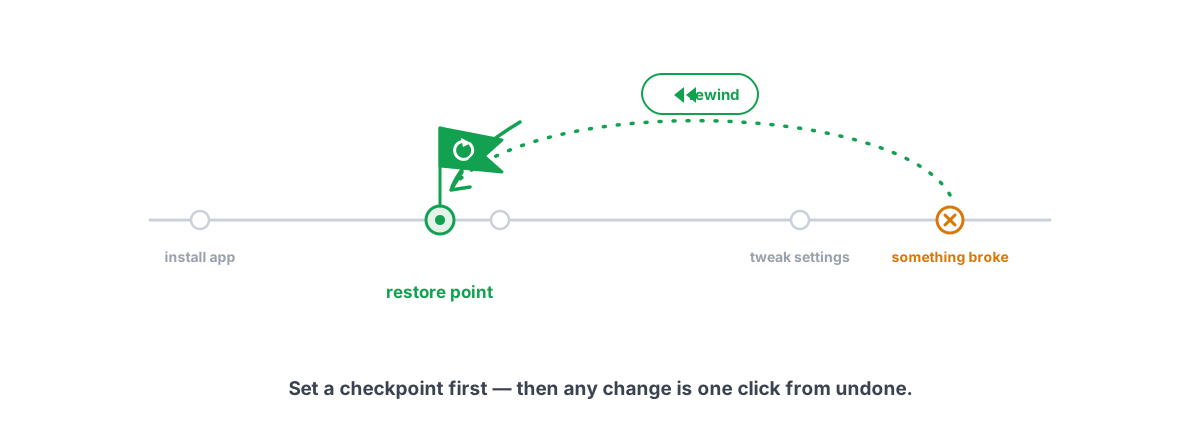
Two layers of safety net should exist. The first is per-change undo: before a tool writes a registry value or changes a service, it records the original state, so any single change can be reversed without affecting the others. Reverting one aggressive tweak shouldn't mean wiping out the nine that helped.
The second is a System Restore point before anything big. A restore point snapshots the registry, drivers, and system files, so if a change causes a boot problem or a driver conflict, you roll the whole machine back to before it. It's the difference between a five-minute recovery and a reinstall.
If you're going to run any system-level tool — ours or anyone's — make your own restore point first. It costs you nothing and takes a few seconds. We wrote a short walkthrough on how to create a System Restore point and why it's worth it.
Reading What a Tool Changes Before It Runs
You don't have to be a sysadmin to vet an optimizer. You just have to insist on transparency before you grant elevation.
Ask these questions of anything you're about to give admin:
- What exactly does each action do? A trustworthy tool names its changes — "switches to a high-performance power plan," "disables this telemetry service," "sets this registry value." Vague "optimization" is a warning sign.
- Can I pick and choose? You should be able to apply individual tweaks, not be forced into an all-or-nothing blast. Modular control means you can skip anything you're unsure about.
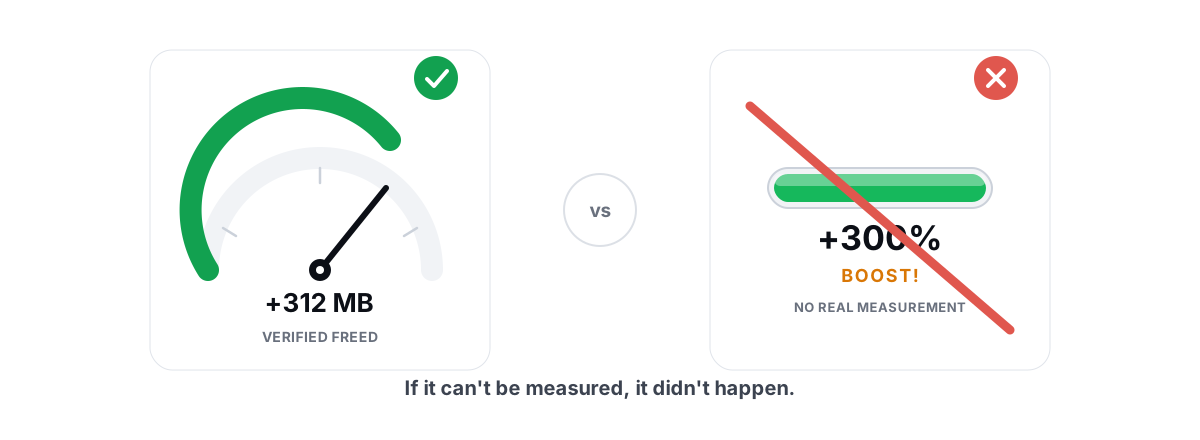
- What does it claim, and is the claim honest? "A few to several FPS," "smoother frametimes," "a few hundred MB to several GB of real disk space" are believable. "300% faster" and "2x FPS" are not — those numbers are invented, and a tool that prints them is telling you how it treats the truth.
- Does cleanup report verified results? A disk cleaner should re-measure free space before and after and report the actual bytes freed, not an inflated "up to 10 GB" estimate. We pulled apart that trick in the disk cleanup myths piece.
If you can answer those four questions before clicking the UAC prompt, you're not granting blind trust — you're making an informed call. That's the entire goal.
How We Limit What Elevation Touches
BRUTAL Optimizer requires Administrator, and we'd rather explain why than pretend it doesn't. Every real change it makes — power plans, services, machine-wide registry tweaks, driver scans, disk maintenance — sits behind the same admin boundary Windows uses for its own tools, because it is those tools: powercfg, bcdedit, defrag.exe, fsutil, sfc, DISM, Windows Update, and the registry. It's a user-mode wrapper over what Windows already ships.
What it deliberately does not do with that elevation is the important part. No kernel driver. No DirectX hook, no process injection, no network-stack or NIC driver. That's why it runs alongside Vanguard, Easy Anti-Cheat and BattlEye instead of tripping them — the full reasoning is on our anti-cheat safety page. Every registry and system change is captured before it's applied so you get per-module undo, and it attempts a System Restore point before the big stuff. It refuses the placebo features that demand admin for nothing — no fake RAM meter, no registry-cleaning-for-speed, no invented FPS multiplier. You can see exactly what each module changes and apply them one at a time.
That's the standard to hold any elevated tool to, ours included: it should need admin only for genuine system work, touch only what it tells you, stay out of the kernel, and always leave you a way back. If a tool clears that bar, the UAC prompt is doing its job. If it doesn't, the prompt is your last chance to walk away — and now you know which it is.
Frequently asked questions
Why does a PC optimizer need administrator rights?
Because the changes that actually matter are machine-wide. Editing the HKLM registry hive, starting or stopping Windows services, switching power plans, changing boot configuration, scanning for drivers, and running disk maintenance all affect every account on the PC, so Windows blocks standard users from doing them. The elevation requirement comes from Windows protecting the system, not from the tool being shady.
Is it safe to run an optimizer as administrator?
It is safe if the tool is trustworthy and risky if it is not. Admin rights are exactly what malware wants, so the question is what the tool does with them. The safe pattern is: no kernel driver, every change reversible, a System Restore point before big changes, and a clear list of what it modifies. A tool that loads a kernel driver, hides what it changes, or offers no undo should not get elevation.
Can I optimize Windows without granting admin rights?
Only superficially. Without elevation a tool cannot change a service, switch a power plan, write a machine-wide registry value, or run a defrag, so it cannot deliver real system-wide gains. Any no-install booster that never asks for admin is either doing nothing meaningful or misrepresenting what it does. The genuine tweaks live behind the admin boundary by design.
What are the red flags that an optimizer should not get admin?
A kernel-mode driver for deep optimization, no per-change undo and no restore point, refusal to show what it changes, placebo features like a RAM booster or registry-cleaner-for-speed that still demand full access, aggressive weekly nagware, and an unsigned or anonymous publisher. Any of these means the UAC prompt is your last chance to say no.
Does BRUTAL Optimizer install a kernel driver when I grant admin?
No. It uses admin to run the same in-box Windows tools you could run yourself, such as powercfg, bcdedit, defrag.exe, fsutil, sfc, DISM, Windows Update, and the registry. It installs no kernel driver, no DirectX hook, no process injection, and no NIC driver, which is why it runs alongside Vanguard, Easy Anti-Cheat and BattlEye. Every setting change is reversible, and it attempts a System Restore point before major changes.
Keep reading
 Myths & Honest Truths
Do PC Optimizers Actually Work? An Honest Look
Some PC optimizers make real, small gains; most sell a meter that means nothing. Here is how to tell the difference.
 Anti-Cheat & Safety
Anti Cheat Safe Optimization: The 4 Bright Lines
The four bright lines that separate safe user-mode tweaks from the tools that get your game account flagged.
 Anti-Cheat & Safety
How to Create a System Restore Point (and Why)
Enable System Protection, snapshot before any deep tweak, and roll back in minutes when a driver or change breaks something.
Stop guessing. Measure it.
BRUTAL Optimizer is the honest way to speed up Windows — 17 free modules, a real FPS overlay, verified disk cleanup and drive health. No kernel driver of our own, no game hooks, every setting change reversible.