Core Parking and CPU Unparking: Myth vs Reality
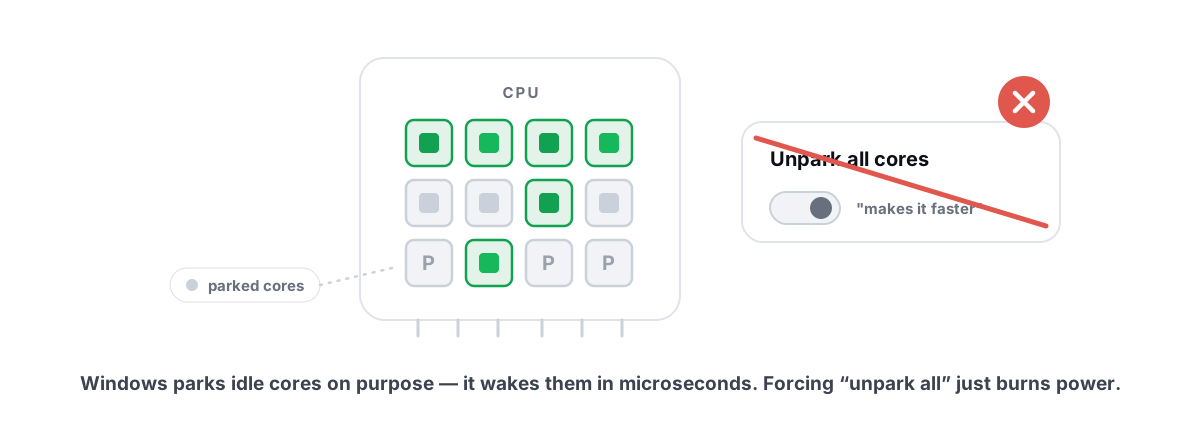
Disabling core parking is one of the most popular "free FPS" tweaks on the internet, and one of the most over-sold. On a modern Windows scheduler, core parking and gaming barely interact — it almost never moves your frame rate. Here's what the feature really does, where it matters, and why the unparker packs floating around forums can quietly make things worse.
If you've watched a tweak video in the last decade, you've heard the pitch: Windows is "parking" half your cores to save power, you're only using a fraction of your CPU, unpark everything and watch your FPS jump. It's a clean story. It's also mostly wrong on Windows 10 and 11.
This is a straight, mechanism-level look at core parking and CPU unparking — what the feature is, why the current scheduler already handles it for gaming, the narrow cases where it genuinely matters, and why third-party unparker tools can backfire. No magic numbers, no placebo.
What core parking actually does for gaming
Core parking is a power-management feature. When the system has light load, Windows can flag some logical cores as "parked" — it stops scheduling new threads onto them so they can drop into a deep low-power idle state. The point is to save power and reduce heat when you don't need every core awake.
Two things matter here, and they're the part the hype skips.
First, a parked core is not a disabled core. It is not "off." Parking is a hint to the thread scheduler, and the scheduler can unpark a core in microseconds the instant real work shows up. There's no BIOS toggle being flipped, no core being physically powered down for the duration of your game.
Second, parking only happens when the system is mostly idle. The moment you launch a game and put sustained load on the CPU, Windows unparks the cores it needs on its own. By the time you're in a match, a demanding game has already pulled the cores out of park because there's work to run.
Core parking is a power-saving idle behavior, not a performance cap. It does not throttle a busy CPU. When load arrives, Windows unparks cores in microseconds — long before a frame is late.
So the foundational claim — "you're only using half your cores because they're parked" — confuses cause and effect. If half your cores are parked, it's because nothing is asking them to do work. Give them work and they wake up. Manually unparking them just means an idle core sits awake doing nothing, burning a little extra power.
Why the modern Windows scheduler already handles it
The "unpark for free FPS" advice is a fossil. It comes from the Windows 7 era, roughly 2010-2013, when the parking heuristics were genuinely lazy. Back then the scheduler could be slow to unpark under bursty, single-thread-heavy loads, and on some systems you could measure a real difference by forcing cores awake. That window closed years ago.
The scheduler in Windows 10 and 11 unparks far more aggressively and reacts to load almost instantly. It also got smarter about which cores to wake — favoring cores that share cache, keeping a thread near its data, and on newer chips understanding the difference between fast and efficient cores.
On top of that, the default Balanced plan on most modern gaming desktops already parks very little under load, and the High performance plan effectively disables parking through normal, documented power settings. You don't need a forum tool to get there. If you've ever wondered which plan to run, that's covered in our breakdown of Windows power plans for gaming — the plan is the honest lever, not a registry hack.
The net result: by the time a frame needs to be rendered, the cores that frame depends on are already awake. Unparking them in advance changes nothing about the work that gets done, because the scheduler was going to wake them anyway.
The 'unpark for free FPS' claim, measured
When people actually benchmark this on a current Windows build with a real frame-time capture, the FPS difference between "default parking" and "fully unparked" on a gaming load lands inside the margin of error. Run the same scene twice with parking untouched and you'll see more variance than the tweak supposedly adds.
The reason is simple. A game that's pushing your CPU is already keeping the relevant cores unparked. There's no pool of "locked" performance for unparking to release. You can't free up cores that the workload already woke.
Here's the honest split.
| Claim | Reality on Windows 10/11 |
|---|---|
| "Unparking adds 20-30 FPS" | No. Busy cores are already unparked; gains are within run-to-run noise. |
| "Windows parks cores during gameplay" | No. Sustained game load unparks them in microseconds. |
| "You're only using half your CPU" | Misread. Idle cores are idle because nothing needs them, not because they're locked. |
| "Parking causes stutter" | Rarely, and only in specific bursty single-thread cases — see below. |
| "More awake cores = more performance" | No. An awake-but-idle core does no work; it just draws power. |
Narrow cases where parking actually matters
This isn't "parking never matters." There are real, narrow situations where forcing cores awake can shave a small amount of latency or smooth a rough edge. They're specific, and they're not most people.
Very bursty, latency-sensitive single-thread loads
Some workloads spike hard for a millisecond, go quiet, then spike again — certain audio-production chains, some emulators, a few older game engines. On those, the brief moment between "work arrives" and "core fully spun up" can occasionally matter. Keeping cores unparked removes that tiny wake-up step. We're talking about smoothing rare micro-spikes, not adding frames.
Some laptops and aggressive OEM power profiles
A few laptops and prebuilts ship with vendor power profiles that park far more aggressively than stock Windows, in the name of battery life and quiet fans. On those specific machines you can sometimes feel a difference switching to a less aggressive plan — but the fix is the power plan, not a registry unparker.
If you're already chasing every microsecond
If you're tuning a competitive setup where input latency is the whole game, keeping cores awake is one small piece among many. It belongs in the same bucket as timer behavior and interrupt handling — real, measurable, and tiny. If that's you, our guide to input lag you can actually feel covers the changes that move the needle more than parking ever will.
How a power plan affects parking
Core parking isn't a standalone switch you have to hunt down. It's one policy inside your power plan, alongside minimum/maximum processor state and the clock ramp policy. The plan is the clean, reversible way to control it.
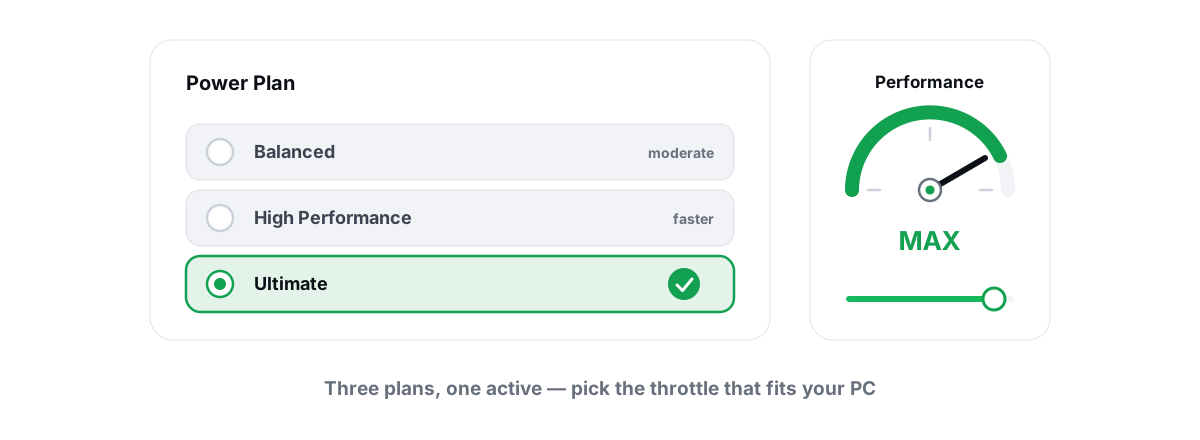
- Balanced — allows parking when idle. On modern desktops this still unparks fast under load, so the practical impact on gaming is small.
- High performance — effectively disables parking by keeping the processor state pinned high. Cores stay ready. This is the normal, supported way to "unpark."
- Ultimate Performance — trims a few more idle behaviors on top of High performance. The step up from High performance is small.
If you want cores unparked, switch to High performance. That's it. You get the same result an unparker promises, through a setting Microsoft supports, that any other app understands, and that you can revert in two clicks. No registry archaeology, no third-party driver, nothing that confuses other software about your CPU's state.
Tools that respect this — including BRUTAL Optimizer's power-plan module — apply the documented power-plan path and capture the previous plan so you can undo it cleanly. That's the difference between a tweak and a gamble.
Why third-party 'unparker' tweaks can backfire
The classic forum advice is to run a tool that scans the registry for parking-related values and zeroes them out across the board. This is where it gets risky.
The first problem is that those tools often write directly to hidden power-setting values and to per-core registry entries, not through the supported power-plan interface. When you later change power plans, update Windows, or move a laptop on and off battery, the OS and your hacked values can disagree. You end up in a state Windows didn't expect, and good luck cleanly reverting it.
The second problem is power and thermals. Forcing every core awake at all times raises idle power draw and idle temperature. On a desktop that's a small waste. On a laptop it's worse battery life, hotter idle, louder fans — for a gaming gain that, again, you won't measure.
The third problem is the company those tools keep. Unparkers usually arrive bundled in "all-in-one game booster" packs alongside service-disabling scripts, a fake RAM cleaner, and a registry "cleaner." Those packs are exactly the kind of placebo-and-risk bundle we keep warning about — see our honest test of game booster apps for what's really inside them.
And to be blunt: a registry unparker won't get you banned, but it's part of the same mindset that leads people to disable Defender, kill core services, and inject overlays into games. If you care about staying out of trouble with anti-cheat, the four bright lines of anti-cheat-safe optimization are worth reading before you run anything from a forum.
Hybrid CPUs change the picture
On newer Intel chips with performance cores (P-cores) and efficient cores (E-cores), and on similar hybrid designs, "just unpark everything" goes from useless to actively counterproductive.
These CPUs depend on Windows and the hardware's own director (Intel calls it Thread Director) to route work to the right kind of core — your game's heavy threads to fast P-cores, background tasks to efficient E-cores. Parking and scheduling are part of how that routing stays correct.
When a blunt unparker forces every core awake and overrides the parking heuristics, it can interfere with that placement. In the worst case you nudge game threads onto slower E-cores or scatter them in ways the scheduler was specifically trying to avoid. People chasing "more cores awake" on a hybrid chip sometimes lose a little smoothness instead of gaining it.
The right move on a hybrid CPU is to let the scheduler and Thread Director do their job, keep your drivers and Windows current, and use a normal high-performance plan if you want parking off. Hand-editing per-core parking values on these chips is how you create problems that are genuinely hard to diagnose later.
What to actually do, if anything
For the overwhelming majority of gamers, the honest answer is: leave parking alone and spend your time on something that moves the frame counter. If you still want cores unparked, do it the boring, reversible way.
- Don't install an unparker. It won't add FPS in CPU-heavy games and it can complicate your power state, especially on a laptop or a hybrid CPU.
- If you want parking off, switch to High performance. Same result, documented setting, two-click revert. That's the whole tweak.
- Take a restore point before any power or registry change — including ones you trust. Creating a System Restore point takes a minute and saves hours if a tweak misbehaves.
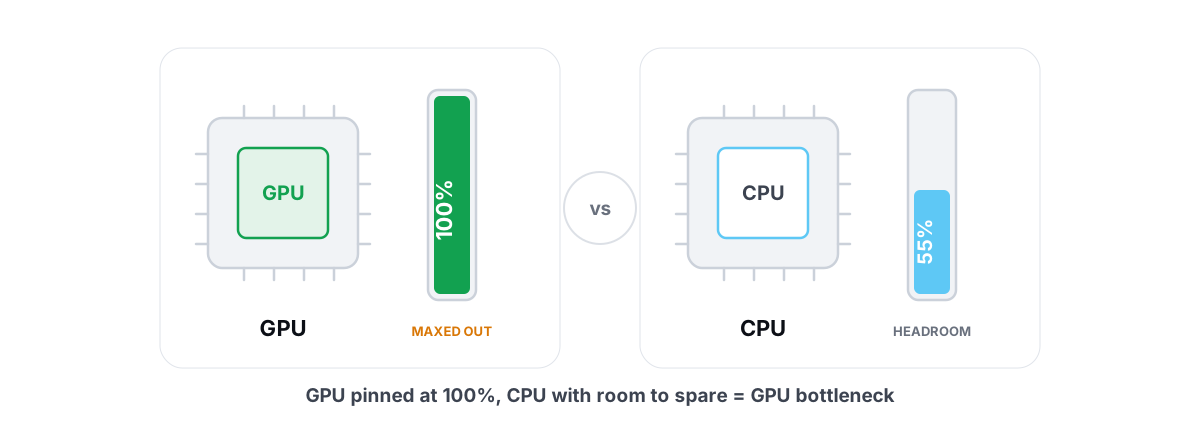
- Find your real bottleneck first. If your FPS is low, it's almost always the GPU, the CPU as a whole, your settings, or thermals — not parked cores. Checking whether you're GPU- or CPU-bound tells you where the frames are actually going.
- Verify, don't believe. If you try any tweak, capture frame times before and after. An honest 1% low and frametime graph will tell you the truth a YouTube thumbnail won't.
Core parking is real, the unparking myth is mostly not, and the modern scheduler made the whole argument quieter than the forums admit. If you want a tool that controls parking through the supported power plan, captures the previous state, and refuses the placebo tweaks entirely, that's the lane BRUTAL Optimizer stays in — every setting change reversible, a restore point attempted before the big ones, and nothing that pretends an awake-but-idle core is free FPS. Most readers can close this tab, set High performance if they like, and move on.
Frequently asked questions
Does disabling core parking increase FPS in games?
On Windows 10 and 11, almost never. A game that loads your CPU already unparks the cores it needs in microseconds, so there is no locked performance left for unparking to release. In real frame-time tests the difference between default parking and fully unparked sits inside run-to-run noise. If your FPS is low, the cause is your GPU, CPU, settings, or thermals, not parked cores.
What is core parking in Windows?
Core parking is a power-saving feature. When the system is mostly idle, Windows flags some logical cores as parked and stops scheduling new threads onto them so they can drop into a deep low-power state. A parked core is not disabled or turned off. It is a scheduler hint, and Windows unparks the core in microseconds the instant real work arrives.
Why does my CPU show parked cores when I check?
Because nothing is asking those cores to do work at that moment. Parking is a symptom of an idle system, not a cause of low performance. Put a sustained load on the CPU, like launching a demanding game, and Windows wakes the cores it needs on its own. Manually keeping them awake just leaves idle cores burning a little extra power.
Are third-party CPU unparker tools safe?
They are risky and usually pointless. Many write directly to hidden power-setting and per-core registry values instead of using the supported power-plan interface, so they can fight Windows after a plan change, update, or battery switch with no clean undo. They also raise idle power and temperature. On hybrid P-core and E-core CPUs they can interfere with thread placement and reduce smoothness.
How should I disable core parking if I really want to?
Use a power plan. Switching to High performance keeps the processor state pinned high, which effectively disables parking through documented settings you can revert in two clicks. That gives you the same result an unparker promises without registry hacks or third-party drivers. Take a System Restore point first, then confirm any change with a real frame-time capture.
Keep reading
 Windows Performance
Best Windows Power Plan for Gaming: Honest Guide
A straight comparison of Balanced, High performance and Ultimate Performance, with the real mechanisms and reversible powercfg steps.
 Gaming & FPS
How to Reduce Input Lag You Can Actually Feel
The real chain of input lag from click to photon, and which milliseconds you can actually feel versus the placebo tweaks.
 Hardware & Drivers
GPU vs. CPU Bottleneck: How to Tell in Gaming
Read GPU and CPU utilization to find which part is capping your frames — then tweak or upgrade the right one instead of guessing.
Stop guessing. Measure it.
BRUTAL Optimizer is the honest way to speed up Windows — 17 free modules, a real FPS overlay, verified disk cleanup and drive health. No kernel driver of our own, no game hooks, every setting change reversible.