Do 'Game Booster' Apps Actually Work? An Honest Test
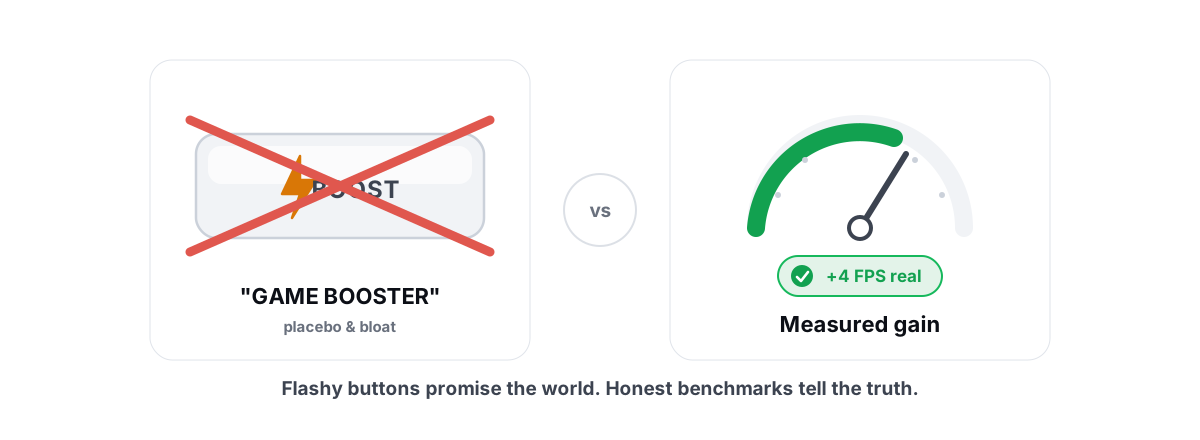
Game booster apps promise free frames from one glowing button. So do game boosters work? A few of the things underneath are real. Most of what you see on screen is theater — and a fair amount of it ships ads and junk along for the ride.
Here's the honest version from someone who has measured this. A booster can do three or four genuinely useful things, all of which Windows already exposes. Everything else is a number designed to make you feel like something happened.
This piece separates the real levers from the placebo, shows you how to tell whether anything actually changed, and walks through doing the real parts yourself — reversibly, with nothing to uninstall later.
Do Game Boosters Work? What Boosting Can and Can't Mean
There is no hidden "go faster" switch in Windows. Your frame rate comes from your GPU, your CPU, your in-game settings, and your thermals. A third-party app can't add silicon or rewrite the game engine.
So what can a booster actually touch? A short list. It can free CPU and RAM by closing background apps. It can raise your game's scheduling priority so it gets the CPU first. It can switch your power plan so the CPU doesn't downclock mid-fight. And it can disable a few latency-adding Windows behaviors. That's the real surface area.
Notice what's missing: none of that creates performance out of nothing. It removes things competing with your game. On a clean, powerful PC that isn't fighting anything, a booster has almost nothing left to remove — which is exactly why honest gains are "a few to several FPS," not "300%."
A game booster doesn't make your hardware faster. At best it stops other software from stealing what you already have. That ceiling is low when nothing is stealing in the first place.
The Real Levers: Priority, Power Plan, Background Apps
These three actually do something measurable. Each one has a real Windows mechanism behind it, and each one you can do by hand in under a minute.
Closing background apps
A Chrome window with 40 tabs, Discord rendering animated emojis, a launcher updater, and an antivirus mid-scan all eat CPU cycles and RAM. If your game is CPU-bound, freeing those cycles can hand you a few frames and — more importantly — fewer stutters when something wakes up mid-match.
The honest part: this only helps if something was actually competing. Close the heavy stuff before you launch, and you've captured most of the benefit a booster's "close background apps" button gives you. The deeper version is in fixing high CPU usage without guesswork and disabling startup programs safely so they're not running to begin with.
Setting process priority
Windows hands CPU time out by priority. Bump your game to High and the scheduler favors it when the CPU is contested. The effect is real but situational — it matters most when your CPU is pegged and a background task would otherwise steal a slice at the wrong moment.
You can do it yourself: open Task Manager, find the game on the Details tab, right-click, Set priority, High. Don't use Realtime — it can starve the input and audio threads and make things worse. A booster automating this is fine; a booster claiming it "unlocks hidden power" is lying about what priority does.
Switching the power plan
On a laptop especially, a balanced or power-saver plan lets the CPU drop clocks to save energy. In a fast game that downclocking shows up as frametime dips. A high-performance plan keeps clocks up. This is a genuine, sometimes-noticeable win. The full breakdown of which plan to use is in Windows power plans explained.
The Placebo Levers: RAM Cleaners, Fake FPS Meters, "Turbo"
Now the features that exist to sell the app, not improve your game. If a booster leans on these, that tells you what kind of product it is.
| Booster feature | The claim | What actually happens |
|---|---|---|
| RAM cleaner / "memory boost" | "Freed 3.2 GB, smoother gaming" | It forces apps to drop their working sets to standby or the pagefile. The used-memory number falls, but you just evicted cache your game wanted — which can cause a stutter as it pages back in. What free RAM really means. |
| FPS booster meter | A gauge or slider that "boosts frames" | A decoration. Frame rate is produced by your GPU and settings, not a slider in a third-party app. The number is animated, not earned. |
| "Turbo" / "Game Turbo" mode | One button overclocks everything | Usually it just sets priority and closes a few apps — the real levers above — dressed up as something exotic. No app turbocharges your CPU from user mode. |
| Registry "game tweaks" | "Hundreds of FPS tweaks applied" | Most are placebo or duplicate Windows defaults. A few are real; many are cargo-culted from forum posts and never measured. With no undo, you're gambling your install for nothing. Registry myths, explained. |
| "Defrag for gaming" | "Optimize your drive for faster loads" | On an SSD this is useless and adds wear — flash uses TRIM, which Windows already runs. Why you never defrag an SSD. |
The pattern is always the same: a big, satisfying number that moves while nothing useful happens. The RAM cleaner's freed gigabytes are cache you wanted back. The FPS meter is paint. "Turbo" is a rename of the boring real work so it feels worth paying for.
Why Many Boosters Ship Ads and Bundled Junk
Ask how a free booster makes money. The honest answers are uncomfortable.
Many are funded by ads injected into the app itself, by a "driver updater" upsell that scares you with invented "outdated" counts, or by bundled installers — a browser toolbar, a changed default search engine, a second "PC cleaner" you didn't ask for. The optimizer is the bait; the monetization is the hook.
This matters beyond annoyance. A tool whose business model is ads and bundles has every incentive to run constantly in the background, phone home, and show you problems that aren't real. That background process is itself competing with your game — the exact thing a booster claims to fix. You installed an app to close background apps, and it became one.
A trustworthy tool tells you what it sends and why, and doesn't bundle anything. If you want to think through what an optimizer should and shouldn't be allowed to do on your machine, does a PC optimizer spy on you lays out the privacy questions plainly.
Measuring Whether Anything Changed (1% Lows, Not Vibes)
Here's the test that ends every argument: measure before and after. Not the booster's meter — your own numbers. If you can't measure a change, you can't trust it, and "it feels smoother" is exactly the feeling these apps are engineered to produce whether or not anything happened.
The number that matters for smoothness isn't average FPS. It's your 1% lows — the slowest 1% of frames. A game can average 140 FPS and still feel terrible if it drops to 45 every few seconds. Stutter lives in the lows, so that's where a real improvement shows up.
How to measure honestly:
- Pick one repeatable scene — the same map, the same path, the same 60 seconds.
- Record average FPS, 1% lows, and frametime with an overlay before you touch anything.
- Run the booster (or do the manual tweaks).
- Run the exact same scene again and compare.
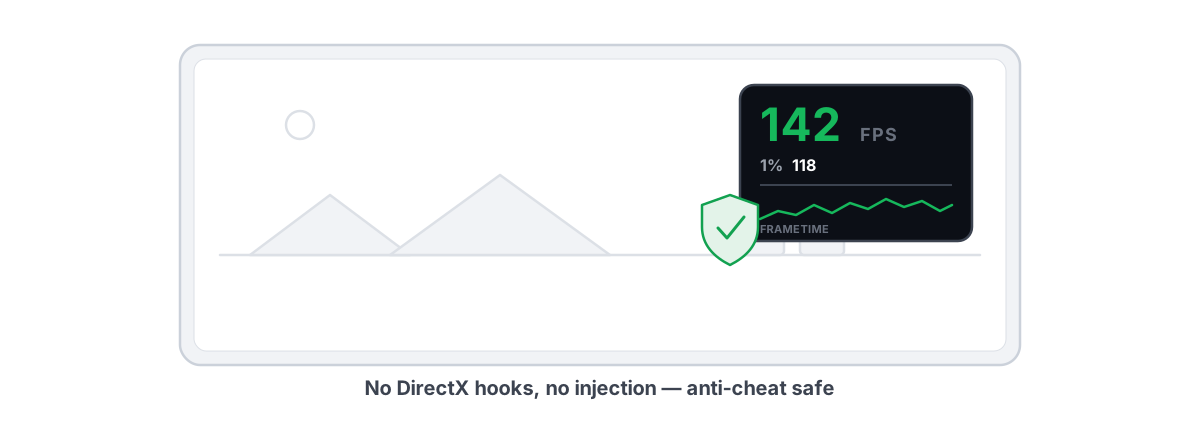
Use an overlay that reports frametimes and 1% lows, not just a big FPS number. The safe kind counts DWM composition or D3DKMT present frames instead of injecting into the game — which keeps it clear of anti-cheat. More on that in the best anti-cheat-safe FPS overlay. If your problem is hitching rather than low average FPS, how to fix frametime spikes is the right read.
If a booster won't survive a before-and-after on the same scene with 1% lows side by side, it didn't do anything. Most don't survive it.
One more honest check while you measure: watch GPU usage. If your GPU is already pinned near 100%, you're GPU-bound and no booster will help — your frames are gated by the graphics card, and the fix is settings or hardware. If the GPU sits low while frames are capped, you're CPU- or engine-limited. Telling a GPU bottleneck from a CPU one tells you which lever even has a chance of working.
Doing the Real Parts Yourself, Reversibly
Everything real a booster does, you can do with tools already on your PC. Here's the whole list.
- Background apps: close the heavy ones before launch. Disable the ones that auto-start at login in Task Manager so they're not there in the first place.
- Priority: Task Manager → Details → right-click the game → Set priority → High. Never Realtime.
- Power plan: set High performance (or Ultimate Performance) in Control Panel's power options, especially on a laptop.
- Drivers: install your GPU driver from the vendor, not a third-party updater. A current driver is one of the few things that genuinely adds frames. See updating GPU drivers safely.
- Settings: the biggest free FPS gains live in the game's own graphics menu, not any external app. Which settings cost the most is worth ten boosters.
The thing the manual route gives you that most boosters don't: you know exactly what changed, and you can put it back. Any change worth making to your system should be reversible, and big changes should be preceded by a System Restore point — here's how to make one before you let anything touch your config at scale. That seatbelt costs nothing and saves entire afternoons.
If you'd rather not chase a real, broader fix piecemeal, the honest FPS guide consolidates the levers that actually move frames in priority order.
Anti-Cheat: Why Some Boosters Are Riskier Than the Game
This is the part most "free FPS" videos skip, and it's the one that can cost you an account.
Modern anti-cheat — Vanguard, Easy Anti-Cheat, BattlEye — watches for software that behaves like a cheat: kernel drivers loading at odd times, code injecting into the game process, hooks into DirectX, tampering with game memory. The problem is that plenty of game boosters use exactly those techniques to do their "magic." A kernel-level RAM tweaker or a booster that injects an overlay into the game looks, from the anti-cheat's seat, a lot like the thing it's built to ban.
You can get flagged or banned not for cheating, but for running a tool that trips the same wires. The booster gets the frames-per-second headline; you get the suspension. This is a real risk, not a hypothetical — covered in can a PC optimizer get you banned.
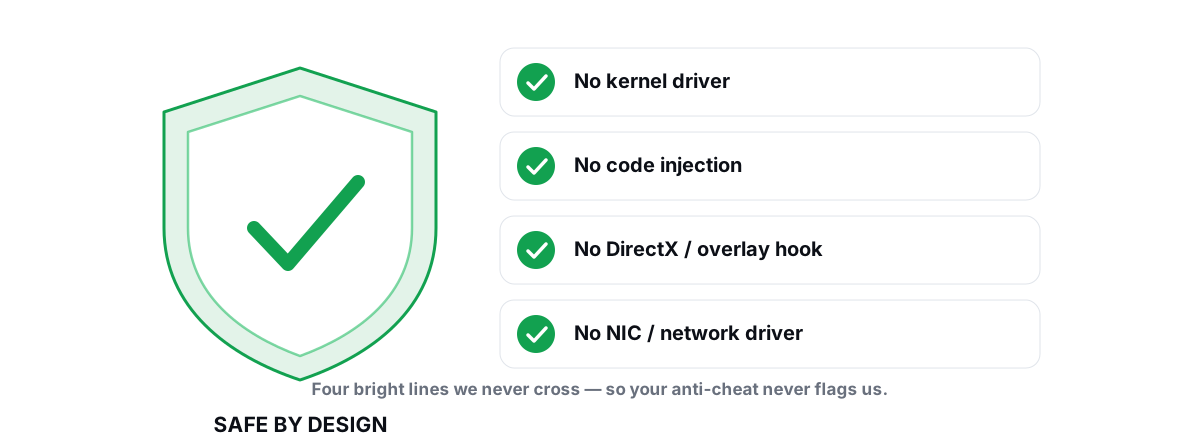
The safe boundary is simple: a tool should be a user-mode wrapper over what Windows already ships — priority, power plans, file cleanup, the registry — with no kernel driver, no DirectX hook, no process injection. The four bright lines that keep a tool clear of anti-cheat are laid out in the anti-cheat-safe optimization guide.
What an Honest Tool Does Differently
If you do want one app to consolidate the real work, the bar is straightforward. It pulls the genuine levers — priority, power plan, background cleanup, driver checks — and refuses the placebo. No RAM booster, no FPS slider, no "Turbo," no registry-clean-for-speed, no SSD defrag. The absence of fake features is the strongest signal a tool is honest.
That's the standard we built BRUTAL Optimizer to. It's a user-mode wrapper over the tools Windows already ships, with no kernel driver, no DirectX hook, and no injection — so it runs alongside Vanguard, EAC, and BattlEye. Every registry and system change is reversible, and it attempts a System Restore point before the big ones. Its FPS overlay shows 1% lows and frametimes by counting composition frames, so you can run the before-and-after test yourself instead of trusting a meter. It deliberately ships no RAM booster and no FPS slider, because those don't work.
Naming it here isn't the point — the checklist is. Whether you install anything or just do the work by hand, judge a game booster by one question: can it prove a change with your own 1% lows, and can it undo it? Pull the three real levers, measure honestly, stay clear of anything that loads a driver or injects into your game, and you'll never pay for animated frames again.
Frequently asked questions
Do game booster apps actually work?
A little, in specific cases. They can close background apps, raise your game's CPU priority, and switch your power plan, which can hand you a few FPS and fewer stutters when something was competing for resources. They cannot make your hardware faster, and the RAM cleaners, FPS sliders, and Turbo buttons most of them ship are placebo. Honest gains are a few to several FPS, never the 300 percent the ads promise.
Will a game booster increase my FPS?
Only if your CPU or RAM was being stolen by background software. Freeing those resources can add a few frames in a CPU-bound game. If your GPU is already pinned near 100 percent you are GPU-bound, and no booster will help because frames are gated by the graphics card. The real FPS gains live in your in-game settings and your GPU driver, not an external app.
Are game boosters worth it?
Usually not, because everything real they do is free and built into Windows. You can close background apps, set the game to High priority in Task Manager, and pick a high-performance power plan yourself in under a minute. A tool is only worth it if it pulls those levers safely, proves the change with your own 1 percent lows, and lets you undo it, instead of selling an animated meter.
Can a game booster get me banned?
Some can. Boosters that load a kernel driver, inject code into your game, or hook DirectX behave like the exact things anti-cheat is built to catch, so Vanguard, Easy Anti-Cheat, or BattlEye can flag the tool and suspend your account. A safe tool stays in user mode and wraps the utilities Windows already ships, with no driver, no hook, and no injection.
How do I tell if a booster actually changed anything?
Run a before-and-after test on the same scene and compare your 1 percent lows, not the booster's meter. Pick a repeatable 60 seconds, record average FPS, 1 percent lows, and frametime with a safe overlay, run the booster, then run the identical scene again. If the lows do not improve, nothing happened. Vibes are exactly the feeling these apps are engineered to produce.
Keep reading
 Myths & Honest Truths
Do RAM Boosters Work? What Free RAM Really Means
Why free RAM is wasted RAM, how aggressive trimming causes stutter, and the rare times a memory tool actually helps.
 Anti-Cheat & Safety
Anti Cheat Safe Optimization: The 4 Bright Lines
The four bright lines that separate safe user-mode tweaks from the tools that get your game account flagged.
 Gaming & FPS
Best FPS Overlay That's Anti-Cheat Safe
Why a present-frame fps overlay is the anti-cheat-safe choice, and how to read 1% lows and frametimes properly.
Stop guessing. Measure it.
BRUTAL Optimizer is the honest way to speed up Windows — 17 free modules, a real FPS overlay, verified disk cleanup and drive health. No kernel driver of our own, no game hooks, every setting change reversible.