PC Optimizer Privacy: Does It Spy on You? Honest Look
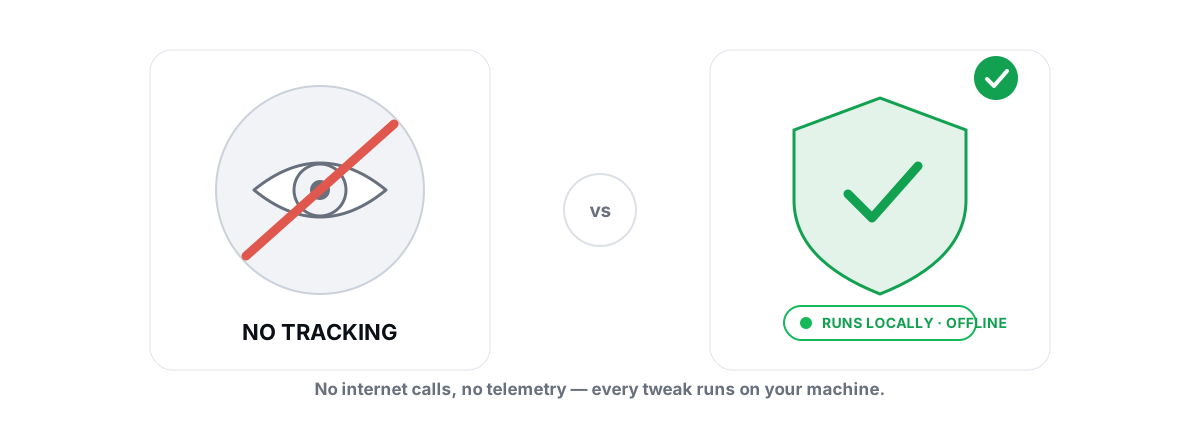
A PC optimizer asks for administrator rights and then runs quietly in the background. Being nervous about that is the correct instinct. This is the honest version of pc optimizer privacy: what an admin-level tool could do with that access, what reasonable network use actually looks like, and how to verify any of it yourself instead of trusting a marketing page — ours included.
Admin rights mean trust: what's really at stake
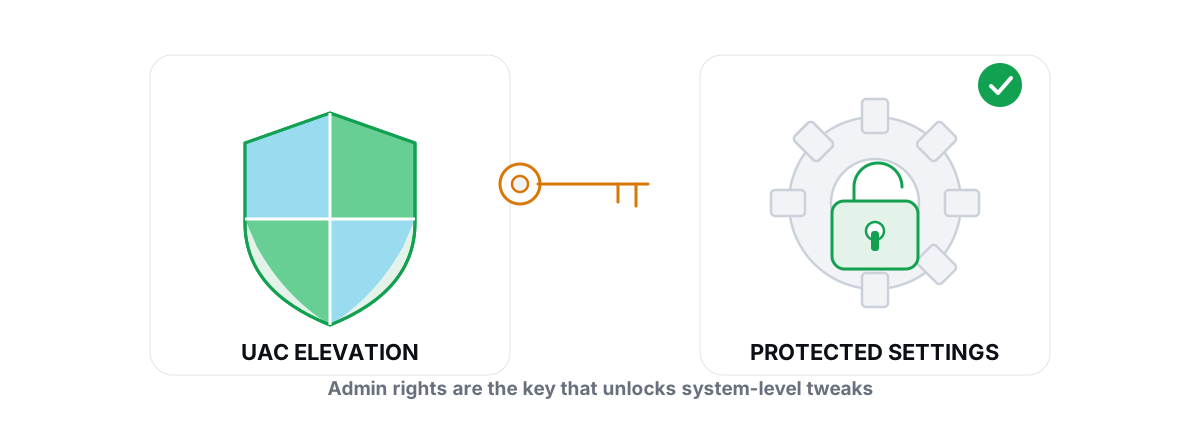
The moment you click "Yes" on a UAC prompt, the program runs with the same power as Windows itself. It can read any file on the disk, write any registry key, start or stop services, and reach the network. That's not a flaw specific to optimizers — it's true of every elevated process. The question is what a given tool does with that power.
An optimizer genuinely needs elevation to do real work. Switching a power plan, changing boot configuration, running a defrag, scanning for drivers, editing the machine-wide registry hive — Windows blocks all of that for standard users by design. So "it asked for admin" is not, by itself, a red flag. The reasoning is laid out in why an optimizer needs administrator rights.
But the same elevation that lets a tool switch your power plan also lets it copy your documents, log what you type, or send anything off the machine. Nothing in the UAC prompt separates "tune the OS" from "harvest the user." That line has to come from the tool's design and from your ability to check it.
Admin rights aren't the danger. The danger is granting them to a tool you can't verify. The fix isn't to avoid elevation — it's to demand transparency from anything you elevate.
Legitimate network use vs phoning home
"Does it connect to the internet?" is the wrong question, because almost every useful tool does. The right question is what it sends, when, and whether you can see it.
Plenty of network calls are not just legitimate but necessary:
- License checks. A paid tool verifies your key against a server. This needs your key and usually a machine fingerprint so one license isn't shared across a hundred PCs. That's a normal, narrow exchange.
- Update checks. Asking "is there a newer version?" is a tiny request and a security feature — you want the patch when a bug is found.
- The feature you asked for. A DNS benchmark, a traceroute, a ping test, a driver scan against Windows Update — these are network operations. The tool can't measure your route to a game server without sending packets to it. That traffic is the product working, not spying.
"Phoning home" is the different thing: telemetry you didn't ask for and can't see. A continuous stream of usage data, hardware inventory, or anything tied to your identity that flows out on a schedule whether or not you're using a feature. The tell is silence. It happens in the background, it's not tied to a button you pressed, and the privacy policy describes it in soft terms like "to improve our services."
A useful gut check: a tool that runs a real ICMP traceroute or a DNS benchmark has to talk to the internet to do its job, and you can watch exactly which servers it hits. That's the line between purposeful traffic you triggered and background telemetry you didn't. If you want to understand what those network measurements actually show you, reading a traceroute is a good place to start.
Bundled software and the ad-funded trap
The biggest privacy risk in this category usually isn't a clever spyware payload. It's the business model. A tool that's "free" with no clear way it makes money is often monetizing you — through bundled installers, an ad SDK that profiles you, or a "scan" that always finds problems only the paid version fixes.
Watch for these patterns at install time and after:
- Bundled extras. A browser toolbar, a "free" antivirus, a system "cleaner" you didn't ask for, pre-checked during setup. Each one is a separate program with its own permissions and its own data appetite.
- Third-party ad SDKs. Ad networks inside a desktop app frequently collect a device profile to target ads. That profiling is the point of the SDK, and it runs with whatever access the host app has.
- Scareware scans. "1,247 problems found!" in red, with a paywall to fix them. The number is theater. Real reclaimable space or real driver updates are specific and verifiable, not a panic counter.
This is why placebo features and privacy risk travel together. A tool comfortable shipping a fake "RAM booster" meter is a tool comfortable lying to you, and a tool comfortable lying to you is not one to trust with admin rights. If the headline number is invented, ask what else is. We took apart the worst of these claims in whether game booster apps actually work and what "free RAM" really means.
How to inspect what an app actually touches
You don't have to take anyone's word, a privacy policy's included. Windows ships the tools to watch a program's behavior yourself, and they're not hard to use. Spend a few minutes here and you'll know more than any review tells you.
Watch its network connections
Open Resource Monitor (resmon), go to the Network tab, and find the app under "Processes with Network Activity." You'll see every remote address it's talking to and how much data is moving. A license check is a brief connection to one server. A constant trickle to ad or analytics domains while the app sits idle is telemetry. For a point-in-time view, netstat -b in an elevated terminal lists active connections with the owning program.
See what files and keys it changes
Microsoft's free Process Monitor (Sysinternals) logs every file and registry operation a process makes, in real time. Filter by the app's process name, run the feature you're unsure about, and read the list. A disk cleaner should touch temp folders and cache paths. If it's reading your Documents or your browser's saved-password store, that's a conversation-ender.
Check the publisher and the signature
Right-click the .exe, open Properties, and look at the Digital Signatures tab. A trustworthy tool is signed by a named, consistent publisher. No signature, or a signature that doesn't match the brand, means you can't be sure the binary is what it claims.
Reversibility as a trust signal
Privacy and safety overlap more than people expect, and reversibility is where they meet. A tool that can cleanly undo every change it makes is a tool that knows exactly what it changed — which means it can tell you, and which means a mistake isn't permanent.
The opposite is the tell. A tool that writes dozens of registry values and offers no "undo" either didn't track what it did or doesn't want you to. Both are reasons to walk. The honest pattern looks like this:
- Per-change undo. Before each tweak, the original value is recorded so it can be put back exactly.
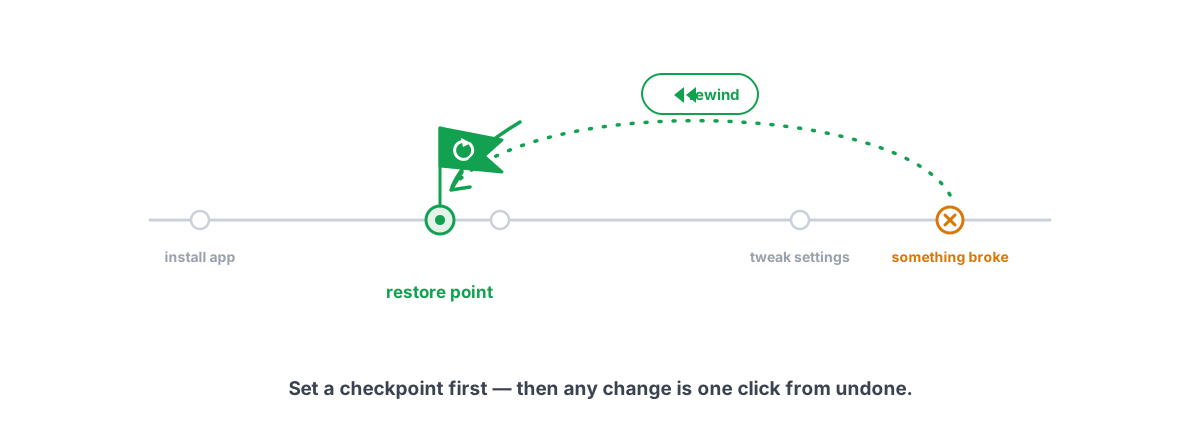
- A restore point before big changes. A System Restore point is a free, OS-level safety net. A tool that takes one before deep changes is treating your system the way you would. Here's how to create a restore point yourself so you're never dependent on the tool for it.
- Verifiable results, not claimed ones. When a disk cleaner says it freed 3 GB, the trustworthy version re-measured free space before and after to prove it, rather than adding up the file sizes it intended to delete.
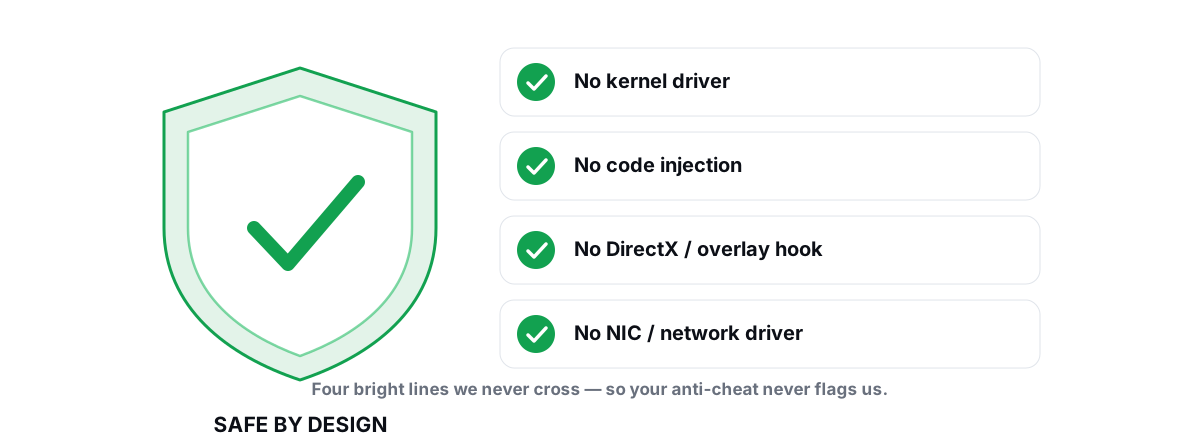
Reversibility is the single best proxy for honesty in this category. It's hard to fake and easy to test: make a change, undo it, and confirm the system is back where it started. The bright lines that keep an optimizer safe overall — no kernel driver, no injection, fully reversible — are spelled out in the anti-cheat-safe optimization guide.
What a privacy center does (and doesn't)
"Privacy Center" is a feature name a lot of tools use, and it means very different things. Used honestly, it's a control panel over the telemetry Windows itself collects — the advertising ID, the diagnostic data level, app-tracking and tailored-experience flags. These are real registry and policy settings you could change by hand; a privacy center just gathers them in one place with plain-language toggles.
What it should do:
- Toggle documented Windows telemetry, ad-ID, and tracking settings, each one reversible.
- Tell you what each toggle changes, so you can decide rather than flipping everything blindly.
- Leave a setting alone when turning it off would break something you use — some "tracking" is how Find My Device or sync works.
What it should never do is pretend to "block" telemetry it can't reach, or — the dark irony — collect its own data while claiming to protect your privacy. A privacy feature that needs an account, phones home, or can't undo its own changes is arguing against itself. The test is the same as everywhere else here: can you see what it changed, and can you put it back?
Reading a privacy policy without the legalese
You don't have to read all of it. You have to find a few specific answers, and most policies bury or dodge them. Search the page (Ctrl+F) for these words and read the surrounding sentences:
| Search for | What you're checking | Good answer |
|---|---|---|
| "collect" / "we collect" | What data leaves your machine | A short, specific list — not "various information" |
| "third part" (third party / third-party) | Who else gets it | None, or named providers with a clear reason |
| "sell" / "share" | Whether your data is a product | "We do not sell your data," stated plainly |
| "opt out" / "opt-out" | Whether you have a choice | Telemetry is opt-in or clearly switchable |
| "retain" / "retention" | How long they keep it | A defined period, not "as long as necessary" |
Two things matter more than the prose. First, specificity beats reassurance — "we collect your processor model and OS version to size optimizations" tells you more than three paragraphs of "we take your privacy seriously." Second, match the policy against what you observed in Resource Monitor and Process Monitor. If the policy says "no personal data" but you watched it read your browser profile, the policy is the lie, not the network capture.
A checklist for vetting any optimizer
Run any tool — free or paid, ours or anyone's — through this before you give it admin rights and a slot in your startup. A tool worth trusting passes all of it without effort.
- How does it make money? If you can't answer, you might be the product. Paid, ad-free, no bundles is the cleanest model.
- What does it send, and can you see it? Watch it in Resource Monitor. Purposeful traffic you triggered is fine; idle background streams to analytics domains are not.
- Does it bundle anything? Decline every pre-checked extra at install. A clean tool doesn't ship passengers.
- Is every change reversible? No undo and no restore point means no accountability. Test the undo before you trust it.
- Does it show verifiable facts or panic numbers? Real freed space and real driver versions are specific. A red problem-counter is marketing.
- Is the binary signed by a named publisher? Check the signature tab. Anonymous binaries with admin rights are a hard no.
- Can you read its privacy policy in two minutes? Use the
Ctrl+Flist above. If the specifics aren't there, assume the worst.
If a tool fails the first four, no feature list redeems it. The convenience of automation never outweighs an unverifiable program running as administrator on your daily machine.
That checklist is the bar BRUTAL Optimizer is built to clear. It's a user-mode wrapper over the same tools Windows already ships — no kernel driver, no injection, no NIC driver — with every system change reversible and a restore point attempted before anything big. Its network use is the work you asked for: license and update checks, plus the DNS benchmarks, traceroutes, and driver scans you trigger. Its disk cleaner reports re-measured freed bytes instead of claimed ones, and its Privacy Center toggles documented Windows telemetry settings you could flip by hand. The best outcome of this article, though, is that you can now verify all of that yourself — for any tool you install, not just ours.
Frequently asked questions
Does a PC optimizer need internet access?
Usually yes, for legitimate reasons. License verification, update checks, and the network features you actually use (DNS benchmarks, traceroute, ping tests, driver scans against Windows Update) all require connections. The question is not whether it connects, but what it sends, when, and whether you can see it. Purposeful traffic you triggered is fine; a constant background stream to analytics domains while the app sits idle is telemetry you should be able to inspect and turn off.
How can I tell if an optimizer is collecting my data?
Watch it yourself. Open Resource Monitor (resmon), go to the Network tab, and see every server the app talks to and how much data moves. Use Microsoft's free Process Monitor to log every file and registry key it touches. A disk cleaner should only touch temp and cache paths; if it reads your Documents folder or browser password store, that is a red flag. Five minutes of watching tells you more than any privacy policy.
Is it safe to install a PC optimizer?
It depends entirely on the tool. The safe pattern is: a clear way it makes money (paid, no bundles, no ad SDK), every change reversible, a System Restore point before big changes, a signed binary from a named publisher, and network use limited to features you trigger. The risky pattern is bundled extras, scareware problem-counters, no undo, and vague privacy claims. Run any tool through those checks before granting it administrator rights.
What is the difference between telemetry and phoning home?
Telemetry done honestly is opt-in, anonymous, and clearly described, such as counting how many people use a feature with no personal identifier. Phoning home is data you did not ask to send and cannot see: a background stream of usage, hardware inventory, or identity-linked signals that flows out on a schedule regardless of what you are doing. The tell is silence. If it is not tied to a button you pressed and you cannot turn it off, treat it as a cost, not a feature.
Does BRUTAL Optimizer collect or sell my data?
Its network use is the work you asked for: license checks, update checks, and the DNS benchmarks, traceroutes, and driver scans you trigger. It is a user-mode wrapper over tools Windows already ships, with no kernel driver and no ad SDK. Every system change is reversible and it attempts a System Restore point before big changes. Its Privacy Center toggles documented Windows telemetry settings you could change by hand. The point of the article is that you can verify all of this yourself with Resource Monitor and Process Monitor.
Keep reading
 Anti-Cheat & Safety
Why Does an Optimizer Need Administrator Rights?
Which PC tweaks genuinely need admin rights, what a trustworthy tool does with elevation, and the red flags that mean you should not grant it.
 Anti-Cheat & Safety
Anti Cheat Safe Optimization: The 4 Bright Lines
The four bright lines that separate safe user-mode tweaks from the tools that get your game account flagged.
 Anti-Cheat & Safety
How to Create a System Restore Point (and Why)
Enable System Protection, snapshot before any deep tweak, and roll back in minutes when a driver or change breaks something.
Stop guessing. Measure it.
BRUTAL Optimizer is the honest way to speed up Windows — 17 free modules, a real FPS overlay, verified disk cleanup and drive health. No kernel driver of our own, no game hooks, every setting change reversible.