SSD vs HDD for Gaming: What Actually Changes
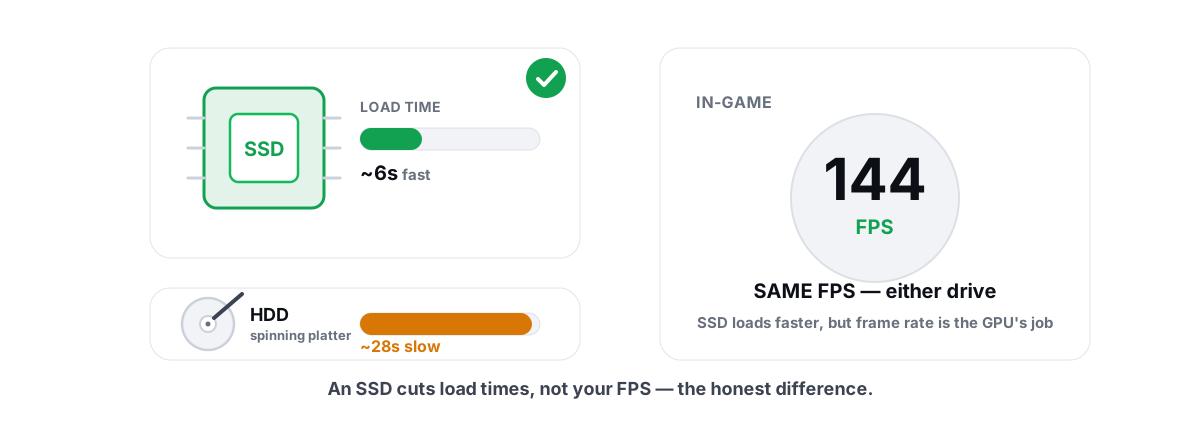
The honest answer to SSD vs HDD for gaming: an SSD is the single biggest "feel" upgrade most gaming PCs can get, but it fixes load times, boots, and streaming stutter — not your steady-state frame rate. Here's exactly where the drive helps and where it does nothing.
The honest claim: SSDs fix load times, not FPS
Your frame rate is set by how fast your GPU and CPU can render each frame. Storage is not in that loop once a frame is being drawn. The textures, meshes, and shaders for what's on screen already live in your VRAM and system RAM by the time the GPU goes to work.
So the answer to "does an SSD increase FPS" is mostly no. In a level that's already loaded and running, an SSD and an HDD will hand you the same average FPS, because neither drive is being touched on the per-frame critical path. Anyone showing you a benchmark where the SSD "adds 40 FPS" is either measuring a loading screen or a game that streams assets badly on a slow drive.
An SSD changes how long you wait and how smooth traversal feels. It does not change how many frames your GPU can push in a scene that's already in memory.
That's not a knock on SSDs. The things it does fix — minute-long load screens, a desktop that takes 90 seconds to become usable, that one corner of the map where the game hitches as new assets pop in — are the things you actually notice every single session. If you want the full picture of what moves frame rate, look at your GPU, CPU, and settings — storage is a small slice of it, covered later in this guide.
Where you feel it: boot, level loads, texture streaming
This is the real win, and it's huge. The gap between a SATA SSD and a 5400 RPM laptop HDD is not subtle — it's the difference between waiting and not waiting.
Boot and game launch
Windows boot is thousands of small random reads scattered across the disk. HDDs are catastrophically bad at random reads because the head physically seeks. An SSD has no moving parts, so those reads complete in microseconds. Moving Windows to an SSD typically takes a cold boot from a minute-plus down to ten to fifteen seconds. Launching a large game shrinks the same way.
Level and map loads
Loading a level means pulling gigabytes of assets off disk and into memory. This is where the published numbers come from:
| Task | 5400 RPM HDD | SATA SSD | NVMe SSD |
|---|---|---|---|
| Windows cold boot | 60-120s | 12-18s | 10-15s |
| Large open-world load | 50-90s | 15-25s | 10-20s |
| Fast-travel in same map | 20-40s | 5-12s | 4-9s |
| In-scene average FPS | No difference — GPU/CPU bound | ||
Notice the last row. Across every storage tier, the in-game FPS column is the same. The wins are all in the waiting, and the biggest jump by far is HDD to any SSD — not SATA to NVMe.
Texture streaming and pop-in
Modern open-world games don't load the whole map at once. They stream assets in as you move, loading high-res textures for what's near and dumping what's far. On an HDD, if you move faster than the drive can feed the engine, you get visible texture pop-in (blurry surfaces that sharpen a second later) and micro-stutters as the game waits on disk.
An SSD's higher random throughput keeps that streaming buffer fed, so surfaces are sharp when you arrive and the hitches mostly disappear. This is the closest storage gets to "smoothing" gameplay — but it's smoothing frametimes during traversal, not raising the average.
Open-world traversal stutter and storage
Here's where people misdiagnose things. Traversal stutter — those rhythmic hitches as you sprint, fly, or drive across a big map — has two common causes, and they look identical from the driver's seat.
One is asset streaming off a slow disk, which an SSD genuinely fixes. The other is shader compilation, where the game stutters because it's building GPU shaders on the fly — a CPU and engine problem an SSD won't touch. Swapped in an SSD and still stuttering? You were probably hitting the second one, and the fix is in the frametime spike walkthrough.
The honest way to tell them apart is to watch a frametime graph, not the FPS number. A real FPS overlay with 1% lows and frametimes shows whether the spikes line up with movement (streaming or shaders) or with something else. BRUTAL Optimizer's overlay does this without injecting into the game — it counts D3DKMT present frames, so it runs safely next to Vanguard and EAC.
SATA SSD vs NVMe: real-world difference
This is the question with the most marketing noise around it. A SATA SSD tops out near 550 MB/s. A good NVMe Gen4 drive advertises 7,000 MB/s. So NVMe must load games twelve times faster, right?
No. In real gaming workloads the gap is small — usually a second or two on a load screen, sometimes nothing you can perceive. Three reasons:
- Game loading is not pure sequential. Those 7,000 MB/s numbers are big sequential transfers. Real loads are a messy mix of reads, plus CPU work to decompress and place assets. The CPU often becomes the limit before the NVMe drive does.
- Most engines weren't built to saturate NVMe. A game coded for the era of hard drives and SATA SSDs simply doesn't ask the disk for data fast enough to use Gen4 bandwidth.
- Queue depth in games is shallow. NVMe's huge advantage shows up at high queue depths — many requests in flight at once, like a server. Games issue far fewer parallel requests, so they never reach the part of the curve where NVMe pulls away.
The jump that matters is HDD to SSD. The jump from SATA SSD to NVMe is real but minor for gaming, and you'll feel it far more in things like video editing or large file copies than in load screens. Don't pay a premium for Gen5 expecting faster games.
DirectStorage and what it changes in 2026
DirectStorage is Microsoft's API that lets a game pull assets straight from an NVMe SSD with the GPU handling decompression, instead of routing everything through the CPU. On paper it's the thing that finally makes NVMe's bandwidth matter for games, by cutting load times and reducing the CPU bottleneck during streaming.
As of 2026 it's real but still uncommon. A handful of titles use it, and where they do, load times on a fast NVMe drive drop noticeably and traversal streaming gets smoother. But most of your library doesn't support it, and DirectStorage does nothing for in-scene FPS — same rule as always, it's a loading-and-streaming feature.
It's a reasonable tiebreaker if you're already buying an SSD: a decent NVMe drive positions you for the games that do use it. It is not a reason to panic-upgrade. If a game you play supports it, you'll feel it on loads, not on your frame counter.
Putting the OS and games on the right drive
If you have one SSD and one HDD, placement matters more than most "optimization" tweaks people chase.
- Windows goes on the SSD. This is non-negotiable. The OS does constant small random reads — the exact workload HDDs handle worst. A slow-feeling Windows install on an HDD is almost always disk-bound, not a CPU or RAM problem. (If your boot is still slow on an SSD, the cause is usually startup bloat, not the drive.)
- Your active games go on the SSD. Prioritize the ones you play now and anything with bad streaming or long loads.
- Use the HDD for cold storage. Finished single-player games, recordings, backups, your media library. A game you load once a month does not need SSD speed.
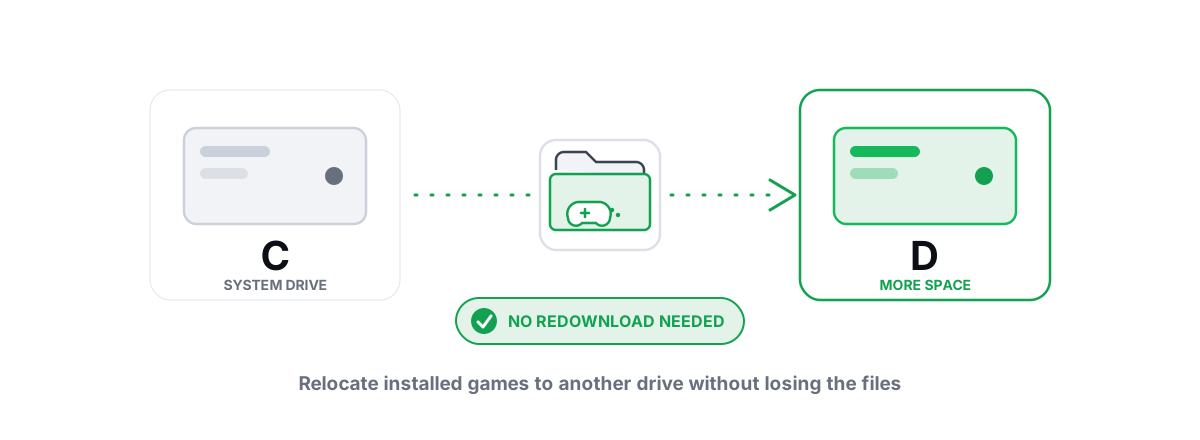
You don't have to redownload to shuffle games between drives. Steam, the Epic launcher, and others can move an installed game to another drive in place — the walkthrough is in move games to another drive without redownloading. When your SSD fills up, that's your tool for rebalancing.
When an HDD is still fine (and when it's the bottleneck)
HDDs aren't useless. Cost per terabyte, they're still the cheapest bulk storage you can buy, and for the right job they're perfectly good.
An HDD is fine for: storing games you rarely launch, holding video and screenshot recordings, backups, and any large media you stream sequentially. Sequential reads are the one thing HDDs do acceptably, and they're cheap enough that a big one makes sense as a second drive.
An HDD is the bottleneck when: Windows lives on it (everything feels sluggish), you're loading levels off it (minute-long screens), or you're playing an open-world game that streams assets faster than the head can seek (constant pop-in and hitching). If any of those describe you, an SSD is the fix — and the cheapest SSD that fits will solve it. The drive you buy matters less than getting off the HDD at all.
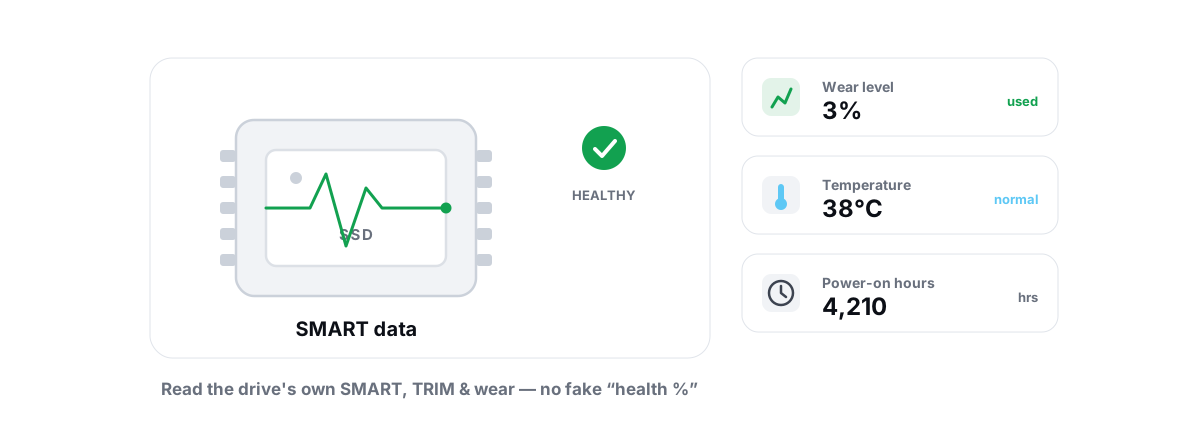
One thing worth checking before you blame the disk for everything: a drive that's failing, full, or running without TRIM will feel slow regardless of type. You can read SMART data, confirm TRIM is on, and check wear with the steps in how to check SSD health. And if you're staring at a constantly pegged drive, the cause is often a background process, not the hardware.
SSD vs HDD for gaming: buying advice without the upsell
Stripped of marketing, the priority order for a gaming PC is simple:
| Situation | Do this |
|---|---|
| You're still on an HDD for Windows/games | Buy any SSD that fits your budget and size needs. This is your #1 upgrade. |
| You have a SATA SSD already | Don't bother "upgrading" to NVMe for gaming alone. Spend on a bigger drive or your GPU instead. |
| Building new in 2026 | Get an NVMe SSD (Gen4 is plenty) for OS + games. Add a cheap HDD or second SSD for bulk storage if you need capacity. |
| You want more in-game FPS | Storage won't do it. Look at your GPU, settings, and whether you're CPU-bound — start with the bottleneck guide. |
Capacity over raw speed. A 2 TB Gen4 drive that holds your whole library beats a 1 TB Gen5 drive you have to keep juggling. And ignore the rated sequential speeds on the box — for games, real-world load times between any modern NVMe drives are within a second or two of each other.
The bottom line
An SSD is the best "feel" upgrade in PC gaming because it kills the waiting — boots, loads, fast travel, and the streaming hitches in big open worlds. It does not raise your steady-state frame rate, and NVMe over SATA is a minor gain for games specifically. Buy an SSD for the time it gives you back, size it to hold your library, and don't overpay for bandwidth you won't use.
Once your games are on the right drive, the honest maintenance is small: keep some free space, let Windows handle TRIM on the SSD (never defrag flash), and clean real junk rather than chasing placebo "boosters". That's the part BRUTAL Optimizer handles — a Disk Cleaner that reports verified freed bytes instead of an inflated "up to" number, a Drive Health panel that checks SMART and TRIM and only defrags confirmed hard drives, and a free FPS overlay to prove for yourself whether a stutter is storage or something else. Those tools are free, run alongside Vanguard and EAC, and won't pretend an SSD adds frames it can't add.
Frequently asked questions
Does an SSD increase FPS in games?
Not really. Your frame rate is set by the GPU and CPU rendering each frame, and storage is not in that loop once a level is loaded into memory. An SSD dramatically cuts load times and reduces texture-streaming stutter, but the average FPS in a scene that is already loaded is the same on an SSD or an HDD.
Is NVMe noticeably faster than a SATA SSD for gaming?
For games specifically, the difference is small, usually a second or two on a load screen. Game loading is not pure sequential reads, most engines do not saturate NVMe bandwidth, and games use shallow queue depths where NVMe's advantage barely shows. The big jump is HDD to any SSD, not SATA to NVMe.
Will an SSD stop my game from stuttering?
Sometimes. If the stutter comes from streaming assets off a slow disk, an SSD fixes it. But if the hitches come from shader compilation, an SSD will not help because that is a CPU and engine issue. Watch a frametime graph to tell them apart before assuming storage is the cause.
Should I put Windows and my games on the SSD or HDD?
Put Windows and your most-played games on the SSD, since the OS does constant small random reads that HDDs handle worst. Use the HDD for cold storage like finished games, recordings, and backups. You can move installed games between drives without redownloading.
Is an HDD still worth using in 2026?
Yes, as bulk storage. HDDs are the cheapest cost per terabyte and are fine for games you rarely launch, video recordings, backups, and media you read sequentially. They become a bottleneck only when Windows or actively played games live on them.
Keep reading
 Disk, Drive & Cleanup
Move Games to Another Drive (No Redownload)
A launcher-by-launcher guide to relocating Steam, Epic, Xbox and EA game installs to free your C drive or move them to an SSD, with no redownload.
 Disk, Drive & Cleanup
How to Check SSD Health (SMART, TRIM, Wear)
Read the real SMART data, wear and errors Windows exposes, verify TRIM with fsutil, and learn the true warning signs of a failing SSD.
 Disk, Drive & Cleanup
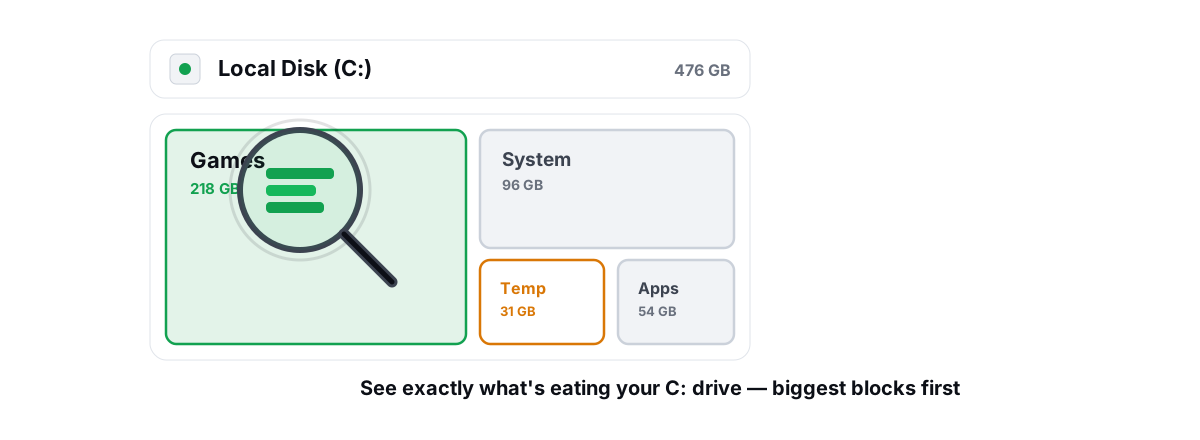
What's Filling Up My C Drive? Find It and Fix It
Names the real space hogs on a full C drive and shows how a treemap finds them, with honest warnings about what to leave alone.
Stop guessing. Measure it.
BRUTAL Optimizer is the honest way to speed up Windows — 17 free modules, a real FPS overlay, verified disk cleanup and drive health. No kernel driver of our own, no game hooks, every setting change reversible.