What's Filling Up My C Drive? Find It and Fix It

Your C drive has 4GB left, Windows is nagging, and you have no idea where the space went. If you're asking what is filling up my C drive, the answer is almost always a handful of predictable hogs — games, Windows.old, caches, a few big system files — and a treemap finds them in about two minutes.
What is filling up my C drive, and why it fills first
Your C drive is where Windows lives, and almost everything defaults to it. New programs install there unless you change the path. Game launchers drop their libraries there. Browsers, Windows Update, crash dumps, and temp files all pile up on C without asking.
If you have a second drive, it usually sits half-empty while C chokes. That's not a Windows bug — it's just where defaults point. The fix is rarely "buy a bigger drive." It's finding the few folders eating tens of gigabytes and dealing with them properly.
Before you delete anything, you need to see what's actually there. File Explorer's "size" column lies — it doesn't show folder sizes, and it hides system folders by default. So people guess, delete the wrong thing, and either free nothing or break something.
The usual suspects: games, downloads, caches
Start with the obvious, because it's usually the answer. On a typical gaming PC, the single biggest consumer is installed games. Modern titles run 80–150GB each. Three or four of them and you've spent half a terabyte.
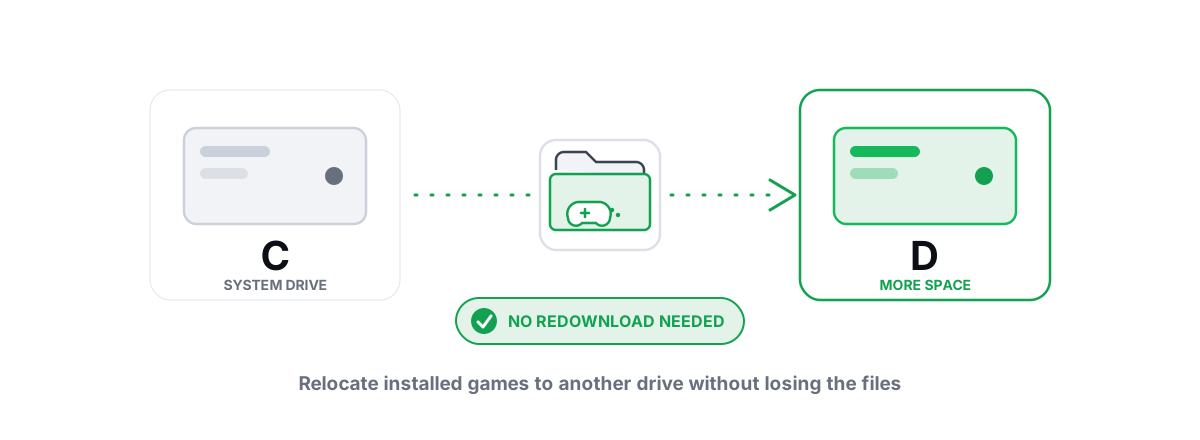
Check your Steam, Epic, and Battle.net libraries. A game you haven't launched in a year is still sitting there in full. You don't have to delete it — you can move games to another drive without redownloading if you have a second drive with room.
After games, the common offenders are:
- Your Downloads folder. ISOs, installers, video files, that 9GB game patch you double-downloaded. People forget this folder entirely. It can hold dozens of gigabytes of stuff you'll never open again.
- Browser caches. Chrome, Edge, and Brave each keep multi-gigabyte caches per profile. Useful for speed, safe to clear, and they rebuild on their own.
- Shader caches. GPUs cache compiled shaders (NVIDIA
DXCache/GLCache, AMDDxCache, Steamshadercache) so they don't recompile them mid-game. These can hit several gigabytes. Safe to clear — but clearing them means the next launch hitches while they rebuild, so don't do it mid-session. - OneDrive and cloud sync. If files are set to "always keep on this device," your cloud storage is also eating local disk.
None of these need special tools. You can open File Explorer, sort by size where it's visible, and clear caches through each browser's settings. The work is finding them, not deleting them.
Windows.old and leftover update files
After a Windows feature update or a reinstall, Windows keeps your old installation in a folder called C:\Windows.old. This is your rollback option — it's how you revert if the update broke something. It can be 15–30GB.
Windows deletes Windows.old automatically after 10 days. If you're impatient and certain the new build is fine, you can remove it sooner through Settings → System → Storage → Cleanup recommendations, or the old Disk Cleanup tool under "Previous Windows installations."
Windows.old through Storage Sense or Disk Cleanup is safe and frees real space — often 20GB+. Just understand you give up the one-click rollback to the previous Windows version once it's gone.The other update-related hog is the Windows Update download cache (C:\Windows\SoftwareDistribution\Download). Windows usually cleans this itself, but it can bloat after a string of updates. Disk Cleanup's "Windows Update Cleanup" handles it safely. Don't go deleting files in there by hand while updates are pending — let the tool do it.
Hibernation file and pagefile size
Two big system files live at the root of C and confuse a lot of people: hiberfil.sys and pagefile.sys.
hiberfil.sys
The hibernation file stores your RAM contents when the PC hibernates. It's sized at roughly 40% of your installed RAM — so 6–13GB on a 16–32GB machine. It also powers Windows' Fast Startup.
If you genuinely never hibernate and don't care about Fast Startup, you can disable hibernation from an admin Command Prompt with powercfg /hibernate off, which deletes the file. If you do use sleep/hibernate or want faster boots, leave it alone — the space is doing a job.
pagefile.sys
The pagefile is virtual memory — disk space Windows uses as overflow when RAM fills. It's typically several gigabytes and scales with your usage. People love to "optimize" this. Almost all of that advice is wrong.
WinSxS: big, scary, and mostly off-limits
Open C:\Windows\WinSxS in File Explorer and it'll claim to be 8–15GB or more. This is the component store — it holds the files Windows needs to add features, repair itself, and uninstall updates. It looks enormous, and people panic and try to delete it.
Here's the catch: that size is a lie, and you must not delete from it manually. WinSxS uses hard links, so files appear to live in multiple places but only take up space once. The "size" Explorer reports double-counts heavily. Its real footprint is usually far smaller than the number you see.
Deleting files in WinSxS by hand will corrupt your ability to update or repair Windows, sometimes fatally. There is exactly one safe way to shrink it, and it's a built-in tool.
The only correct way to trim WinSxS is DISM /Online /Cleanup-Image /StartComponentCleanup, which removes superseded component versions that Windows no longer needs. Never touch the folder with Explorer or a third-party "cleaner."
That DISM command typically reclaims a few hundred MB to a couple of gigabytes — real, but rarely the jackpot people hope for. Run it from an admin prompt, or let a tool that wraps the same command do it for you with a System Restore point attempted first. It's the deep-cleanup move, not the first thing you reach for.
Using a treemap to see space instantly
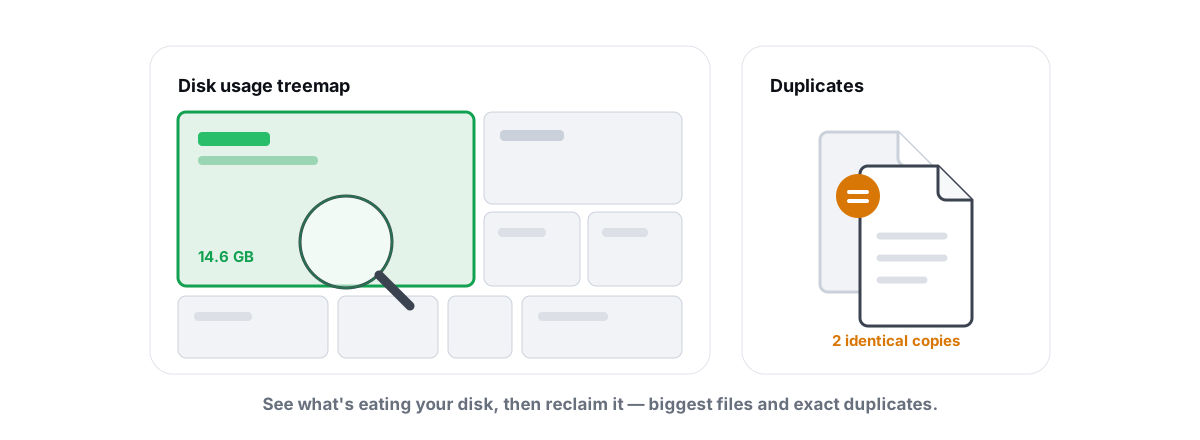
The fastest way to find what's eating your drive is a treemap — a visual map where every file and folder is a rectangle sized by how much disk it uses. One glance and the 60GB game folder is a giant block while the trivial stuff is invisible. No guessing, no manually opening folders one by one.
A treemap surfaces the things you'd never think to check: a forgotten 40GB virtual machine image, a runaway log file, a video project you archived and forgot. It scans the whole drive, attributes every byte, and shows you the truth.
BRUTAL Optimizer's Disk Analyzer does exactly this — a recursive treemap of your drive plus a list of your largest files, so the hogs are obvious in seconds. It also has a SHA-256 duplicate finder for the copies of the same file living in three places. If you want the full walkthrough, see finding large files with a treemap and duplicate finder.
A treemap only shows you space — it doesn't decide what's safe to remove. That part is on you, which is why the next section matters.
What's safe to clear vs what to leave alone
Once you can see the space, sort it into three buckets: delete freely, clean with a tool, and never touch.
| Item | Verdict | Why |
|---|---|---|
| Old games you don't play | Safe | Uninstall or move; redownload anytime |
| Downloads folder junk | Safe | Old installers and ISOs you'll never open |
| Browser / shader caches | Safe | Rebuild automatically; clear when idle |
| Recycle Bin, temp files, crash dumps | Safe | Reclaimable; nothing depends on them |
Windows.old | Safe via tool | Use Storage Sense / Disk Cleanup; loses rollback |
| WinSxS | DISM only | Manual deletion breaks Windows updates/repair |
pagefile.sys | Leave it | System-managed; deleting causes crashes |
hiberfil.sys | Conditional | Disable only if you never sleep/hibernate |
| Program Files, System32, drivers | Never | Deleting breaks Windows or installed apps |
The rule of thumb: if you created the file or it's an obvious cache, it's fair game. If Windows created it and you don't know exactly what it does, leave it or use the built-in tool designed to clean it. Most "I freed space and now my PC won't boot" stories come from someone deleting a system file a forum post promised was junk.
This is also why we're allergic to one-click "cleaners" that promise to wipe gigabytes. The honest approach uses an allow-list of locations known to be safe — temp folders, recycle bin, browser and shader caches, crash dumps — and leaves everything else untouched. For the full safe routine, see how to free up disk space in Windows safely.
Verified freed bytes, not optimizer fantasy numbers
Here's the part the cleanup industry hides. Most "optimizers" show you a giant "12.4GB freed!" number that's pure theater. They count the same file twice, include things they didn't actually delete, or — the classic — count flushed RAM and a cleared DNS cache as "disk space." None of that frees a single byte on your drive.
A flushed DNS cache is a few kilobytes of network lookups. Freed RAM isn't disk at all. When a tool rolls those into one inflated "space cleaned" figure, it's lying to make the progress bar feel good. We dig into this in what "up to 10GB" really hides.
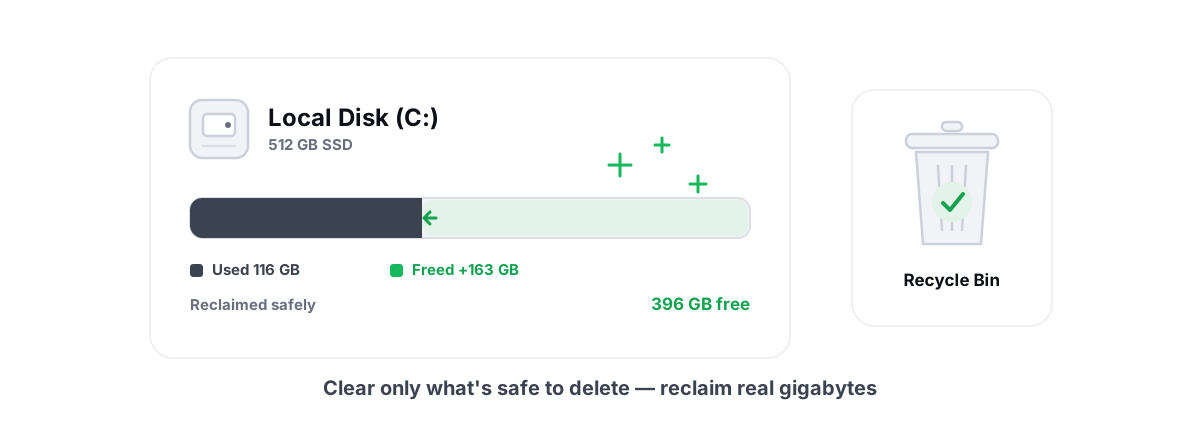
The honest measure is dead simple: check free space on the drive, do the cleanup, check free space again, and report the difference. That's a verified number — the actual bytes the operating system says came back. It's the only figure worth trusting.
BRUTAL Optimizer's Disk Cleaner works this way on purpose: it re-measures the drive before and after and reports the real delta, with a 24-hour age gate so it never grabs files an installer is still using. It's free, it touches only allow-listed locations, and it never inflates the number. That, plus the Disk Analyzer treemap, is usually all you need to take a full C drive from red to comfortable — without deleting anything you'll regret.
Find the biggest blocks, clear the safe ones, let DISM handle WinSxS, and leave the system files Windows put there for a reason. That's the whole job. No magic, no miracle gigabytes — just the real space, found honestly and freed honestly.
Frequently asked questions
What is usually filling up my C drive?
On most PCs the biggest consumers are installed games (80-150GB each), a forgotten Downloads folder, browser and shader caches, the Windows.old folder after an update, and the hibernation and pagefile system files. A treemap shows you which one is the real problem in seconds.
Is it safe to delete the Windows.old folder?
Yes, as long as you do it through Settings, Storage, Cleanup recommendations, or Disk Cleanup rather than by hand. It frees 20GB or more, but you lose the one-click rollback to your previous Windows version once it's gone. Windows deletes it automatically after 10 days anyway.
Why is my WinSxS folder so huge, and can I delete it?
WinSxS uses hard links, so File Explorer double-counts its size and reports it far larger than its real footprint. Never delete from it manually, doing so breaks Windows updates and repair. The only safe way to trim it is the built-in command DISM /Online /Cleanup-Image /StartComponentCleanup.
Can I delete pagefile.sys or hiberfil.sys to free space?
Leave pagefile.sys on system-managed, deleting it causes crashes and a bigger one does not boost speed. You can remove hiberfil.sys with powercfg /hibernate off only if you never use sleep, hibernate, or Fast Startup. Otherwise both files are doing a job.
Why do PC optimizers show such big freed-space numbers?
Many inflate the figure by counting freed RAM, a flushed DNS cache, or registry entries as disk space, none of which free a byte on your drive. The honest measure is to check free space before and after a cleanup and report the actual difference, which is what verified freed bytes means.
Keep reading
 Disk, Drive & Cleanup
Move Games to Another Drive (No Redownload)
A launcher-by-launcher guide to relocating Steam, Epic, Xbox and EA game installs to free your C drive or move them to an SSD, with no redownload.
 Disk, Drive & Cleanup
Find Large Files on Windows: Treemap & Duplicates
Map your drive with a treemap and a SHA-256 duplicate finder, then delete the real space hogs via the Recycle Bin instead of trusting a blind cleaner.
 Disk, Drive & Cleanup
How to Free Up Disk Space in Windows (Safely)
Reclaim real disk space in Windows safely - temp, caches, dumps and WinSxS via DISM, with a 24h age gate and verified freed bytes, not marketing numbers.
Stop guessing. Measure it.
BRUTAL Optimizer is the honest way to speed up Windows — 17 free modules, a real FPS overlay, verified disk cleanup and drive health. No kernel driver of our own, no game hooks, every setting change reversible.