Move Games to Another Drive (Without Redownloading)
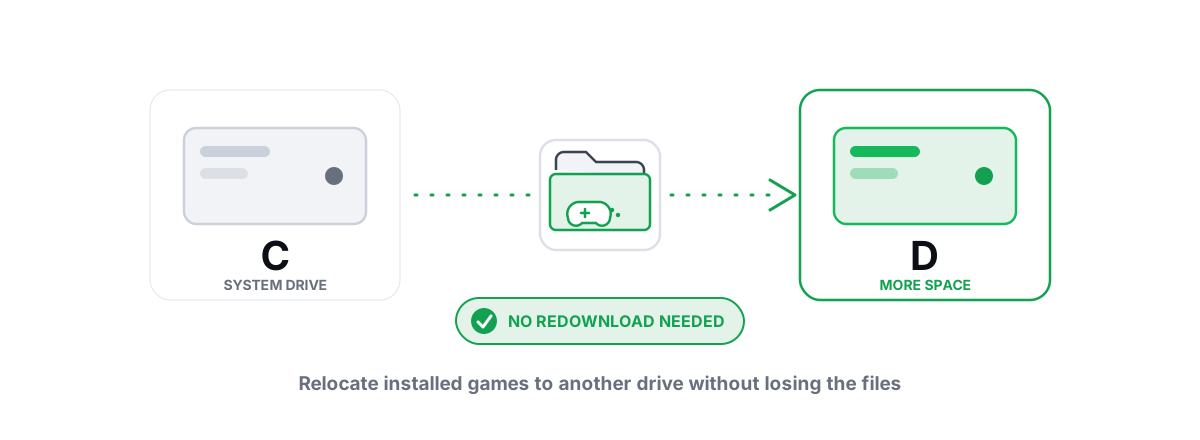
You can move games to another drive in a few clicks with zero gigabytes of download. Most launchers have a built-in relocate that copies the files and re-points the install — the trick is using it instead of the uninstall-and-reinstall that wastes a night of bandwidth.
The reason your C: drive fills up is simple: launchers default to it, modern games are 50–150 GB each, and nobody changes the install path until the drive turns red. The fix isn't deleting games. It's relocating them to a roomier drive — ideally an SSD if they're still on a hard disk — without re-fetching a single byte.
This goes launcher by launcher, because each one handles it differently. Steam is clean. Epic needs a small trick. Xbox/Game Pass and the EA app each have their own move button. You'll also see the cases where a redownload is genuinely unavoidable, plus the symlink last resort for launchers that won't cooperate.
Why your C drive fills up with games
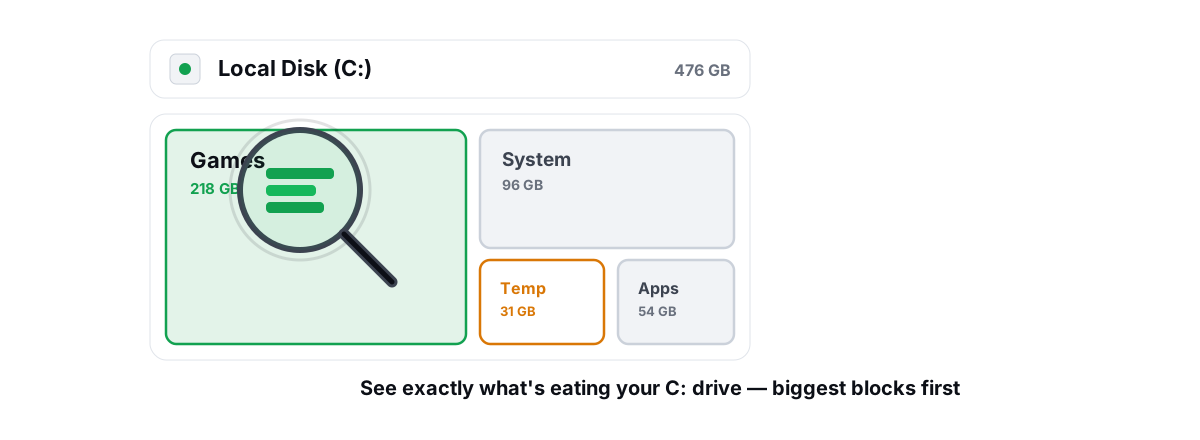
When you install a game, the launcher drops it wherever it was last pointed — and out of the box, that's your Windows drive. Stack a few AAA titles and their day-one patches, and you've eaten 300–500 GB without trying. Add shader caches, save data, and the launcher's own download cache, and the C: drive is suddenly the bottleneck for the whole machine.
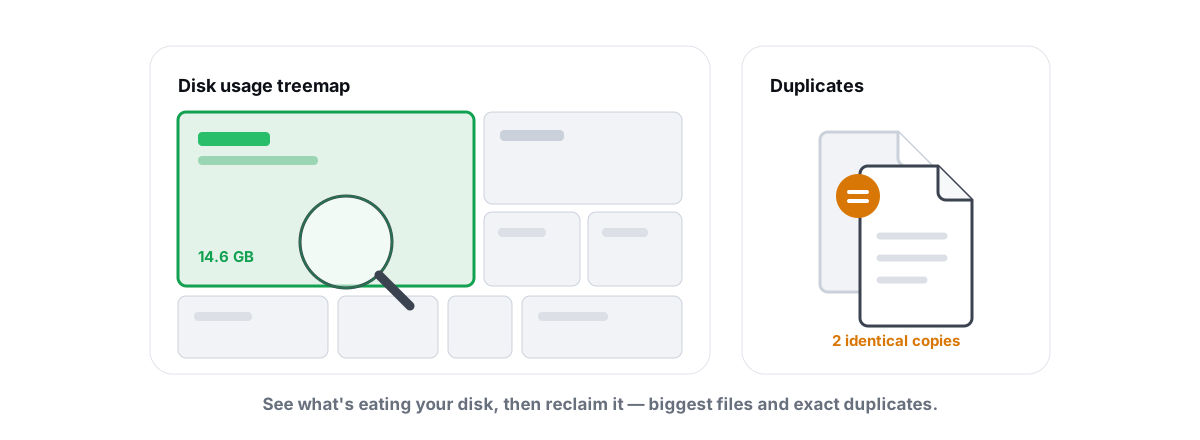
A nearly full system drive isn't just an inconvenience. Windows needs free space for the pagefile, temp files, and updates; below roughly 10 percent free, things get flaky. Before you start moving things, it helps to see exactly what's eating the drive — a treemap makes the big folders obvious. Our guide to finding large files with a treemap and duplicate finder covers it, and there's a broader walkthrough of what's actually filling your C drive.
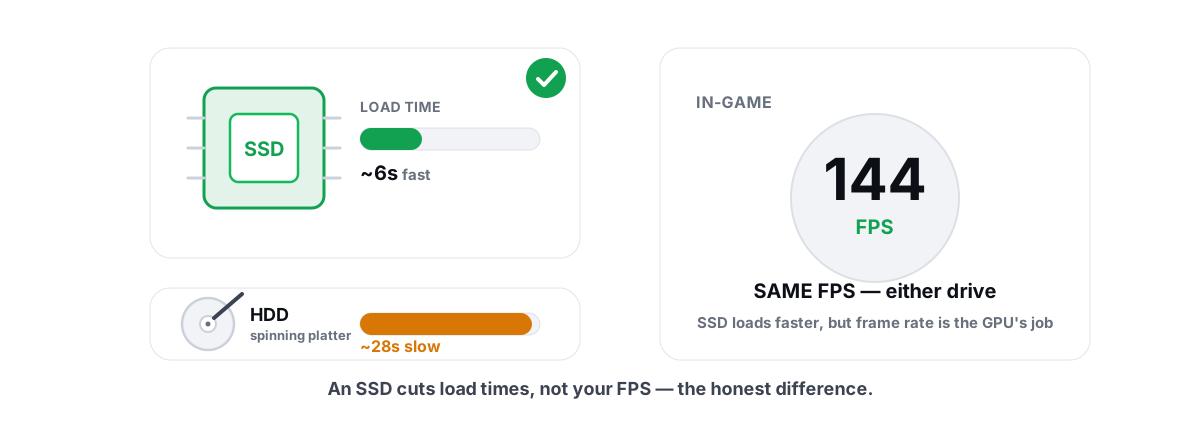
There's a second reason to move games: speed. If your games sit on an old spinning hard disk and you have an SSD with room, relocating them cuts level-load and texture-streaming times noticeably. It won't raise your average FPS — that's GPU and CPU work — but it kills the long loads and some of the streaming stutter in open-world titles. We break down exactly what changes in SSD vs HDD for gaming.
Moving a game changes where the files live, not how fast it renders. Expect faster loads and less streaming hitch on an SSD — not higher frame rates.
Steam: move install folders the built-in way
Steam has the best relocate feature of any launcher, and it copies the files — no redownload. There are two ways in.
The fast way (one game)
- Right-click the game in your Library and choose Properties.
- Go to the Installed Files tab.
- Click Move install folder.
- Pick the target drive's Steam library (or create one — see below), then confirm.
Steam copies the game data to the new drive, verifies it, deletes the old copy, and updates the install path. You watch a progress bar; you don't watch a 90 GB download.
Setting up a library on the other drive
If the target drive has no Steam library yet, make one first. Go to Steam > Settings > Storage, click the drive dropdown at the top, choose Add Drive, and pick your other disk. Steam creates a SteamLibrary folder there. From the same Storage screen you can select multiple installed games with checkboxes and hit Move to relocate them in one batch.
One caveat: the move needs enough free space on the destination for the whole game before it deletes the source. If the target is tight, move your largest game first to free the most room, or clear space on the destination first.
Epic Games: the relocate-and-verify trick
The Epic Games Launcher has no real "move" button. But there's a reliable manual method that skips the download entirely, and it works because Epic will adopt an existing install if the files are sitting where it expects them.
- Move the folder. Close the launcher. Cut the game's folder from its current location (for example
C:\Program Files\Epic Games\Fortnite) and paste it onto the new drive — sayD:\Epic Games\Fortnite. Use cut/paste or drag with Shift held so it moves rather than copies. - Uninstall in the launcher. Reopen Epic. It now shows the game as installed but the files are gone from the old path, so it may flag an error. Uninstall the game from the launcher — since the folder is already moved, this just clears Epic's record, not your files.
- Reinstall to the new location. Click Install, and set the install location to the parent folder you moved the game into (
D:\Epic Gamesin the example, not the game's own subfolder). - Let it verify. Epic sees the existing files, checks them, and downloads only what's missing — usually nothing. Instead of a full fetch, you get a quick verification pass.
The detail people get wrong is step 3: point the installer at the parent directory, the one that contains the game's folder, not the game folder itself. Get that right and Epic re-adopts the install instead of starting fresh.
Xbox/Game Pass and EA app moves
These two have proper built-in move tools, so there's no trickery — but each has a quirk worth knowing.
Xbox app and Game Pass
Modern Xbox/Game Pass games install through the Xbox app and store, and they support an in-place move:
- Open the Xbox app, go to your library or the game's page, click the ••• menu, and choose Manage (or open Settings > Apps > Installed apps in Windows, find the game, and use Move).
- Pick the destination drive and confirm. Windows relocates the install package; no redownload.
The catch is the drive itself. Xbox games install to a protected WindowsApps container, and the destination drive has to be formatted NTFS — not exFAT. An external SSD you've used for general file storage may be exFAT, in which case the move target won't appear until you reformat it (which erases it). Internal drives are almost always NTFS already, so this mainly bites people aiming at a USB SSD.
EA app
The EA app (the successor to Origin) has a clean move:
- Open your Game Library.
- Click the ••• (or the download/manage icon) on the game's tile.
- Choose Move Game and select the new drive.
It copies the files across and re-points the install in place. As with Steam, make sure the destination has room for the full game before you start, and don't pull the power mid-move.
Battle.net, GOG Galaxy, and Riot's client mostly fall back to the manual move-then-reinstall-to-existing-folder pattern from the Epic section — move the folder, then point a fresh install at it so the launcher verifies instead of downloads. The exact menu names differ, but the mechanism is identical.
Move games to another drive without redownloading: what works
The whole goal here is to avoid re-fetching tens of gigabytes. Here's the honest map of when you can and when you can't.
| Launcher | Built-in move? | Redownload needed? |
|---|---|---|
| Steam | Yes (Move install folder / Storage) | No |
| Xbox / Game Pass | Yes (Move, NTFS target) | No |
| EA app | Yes (Move Game) | No |
| Epic | No — manual move + verify | No (verifies existing files) |
| Battle.net / GOG / Riot | No — manual move + verify | No (verifies existing files) |
The pattern: every major launcher can relocate a game without a fresh download, either with a real move button or with the move-the-folder-then-verify trick. The redownload only happens when you do the obvious-but-wrong thing — uninstall through the launcher (which deletes the files) and then reinstall to the new drive from scratch.
Two things that do not move with the game and you don't need to chase: cloud saves (Steam Cloud, EA, Epic save sync re-sync automatically) and most launcher download caches (scratch space that rebuilds). Your local saves usually live with the game or in your user profile and come along or re-sync on first launch.
Verifying files after the move
After any move — especially the manual Epic/Battle.net kind — verify the install before you assume it's fine. A move can drop a file if the drive hiccups, and a half-copied game crashes in confusing ways.
- Steam: Right-click the game > Properties > Installed Files > Verify integrity of game files. Steam checksums every file and re-downloads only the broken ones.
- Epic: Click the game's ••• > Manage > Verify.
- EA app: Game tile ••• > Repair.
- Battle.net: Gear icon next to Play > Scan and Repair.
Verification reads the files you just moved and compares them against the launcher's manifest. If everything copied cleanly, it finishes fast and downloads nothing. If a file got mangled in transit, it pulls just that file — a few MB, not the whole game.
This is also your sanity check that the move actually saved space. Open the old drive and confirm the original game folder is gone or empty. Some manual moves leave an orphaned husk behind; if so, you can safely delete the leftover folder once verification on the new drive passes.
Symlinks: the advanced last resort
If a stubborn launcher refuses to relocate and the manual trick fails, there's a Windows-native fallback: a directory symbolic link (junction). It tells Windows "this folder is actually over there," so the launcher still sees the game on C: while the real files live on another drive.
You move the real folder to the new drive, then create a junction at the old path pointing to the new location:
mklink /J "C:\Program Files\Epic Games\Fortnite" "D:\Games\Fortnite"
Run that from an elevated Command Prompt. From then on, anything that opens the old C: path is transparently redirected to D:. The launcher is none the wiser.
mklink only when nothing else works.One genuine, safe use of junctions: relocating a launcher's download cache or shader cache off C:, rather than the game install itself. But for moving an actual game, the per-launcher methods above are cleaner and won't surprise you later.
Keeping the OS drive lean afterward
Once your games are on the right drive, set the default so this doesn't creep back. In Steam, the library you move things to can be set as the default install location (Settings > Storage, pick the drive). Epic and EA let you choose the install path per game — just pick the big drive each time. Xbox uses whatever you set under Settings > Apps in Windows.
Then clean up the residue moving games leaves behind. Old shader caches, orphaned folders from games you relocated, and the launcher download caches all sit on C: and add up. A re-measure-honest disk clean clears the safe scratch and reports the actual bytes freed rather than a marketing "up to" number — that's the design behind BRUTAL Optimizer's free Disk Cleaner, which sticks to an allow-list and a 24-hour age gate so it never touches an in-progress download. If you'd rather do it by hand, our guide to freeing up disk space in Windows safely walks through every location.
If you moved games specifically to put them on an SSD, do the SSD a favor and verify TRIM is on — that's the maintenance flash actually needs, not defragging. There's a full explainer in TRIM vs defrag, the right maintenance per drive, and a quick way to check your SSD's health, SMART data and TRIM status. Never let any tool defrag an SSD; it does nothing useful and wears the drive.
That's the whole job: use each launcher's real move or the verify trick, skip the uninstall-reinstall trap, verify after, and keep the OS drive clear. BRUTAL Optimizer doesn't move games for you — no honest tool should reach into a launcher's manifest — but its free Disk Analyzer finds the space hogs and the Disk Cleaner reclaims the leftover caches, reporting the bytes it actually freed. The moving itself is yours to do, and now you've got the clean path for every store.
Frequently asked questions
Can I move a game to another drive without redownloading it?
Yes. Steam, Xbox/Game Pass and the EA app have built-in move buttons that copy the files and re-point the install. Epic, Battle.net and GOG need a manual folder move plus a verify pass, which checks the existing files instead of downloading them again.
How do I move Steam games to another drive?
Right-click the game, open Properties then Installed Files, and click Move install folder. Pick a Steam library on the other drive, or create one under Steam Settings then Storage. Steam copies, verifies, and deletes the old copy with no redownload.
Why does Epic make me redownload when I move a game?
Only if you uninstall through the launcher first, which deletes the files. Instead, move the game folder to the new drive manually, then reinstall to the parent folder you moved it into. Epic finds the existing files and verifies them rather than downloading.
Does moving a game to an SSD increase FPS?
No. An SSD speeds up level loads and texture streaming, so you get faster loading and fewer streaming hitches, but average frame rate is set by your GPU and CPU. Moving the install changes where files live, not how the game renders.
Is it safe to use a symlink to move a game?
It works but it is a last resort. Junctions can confuse launcher space accounting and some anti-cheat systems, and if you remove the destination drive later the link breaks in a confusing way. Use each launcher's built-in move or the verify trick first.
Keep reading
 Disk, Drive & Cleanup
Find Large Files on Windows: Treemap & Duplicates
Map your drive with a treemap and a SHA-256 duplicate finder, then delete the real space hogs via the Recycle Bin instead of trusting a blind cleaner.
 Disk, Drive & Cleanup
What's Filling Up My C Drive? Find It and Fix It
Names the real space hogs on a full C drive and shows how a treemap finds them, with honest warnings about what to leave alone.
 Disk, Drive & Cleanup
SSD vs HDD for Gaming: What Actually Changes
An SSD transforms load times, boot, and streaming stutter, but it won't raise your steady-state FPS. Here's where NVMe actually matters.
Stop guessing. Measure it.
BRUTAL Optimizer is the honest way to speed up Windows — 17 free modules, a real FPS overlay, verified disk cleanup and drive health. No kernel driver of our own, no game hooks, every setting change reversible.