Low GPU Usage in Games? Why Your FPS Is Capped
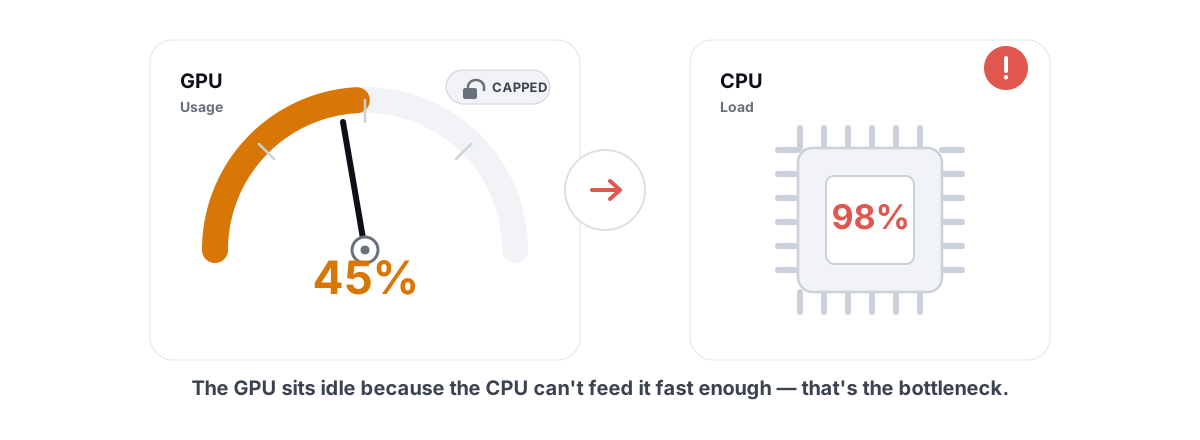
Your GPU sits at 40% while your frames crawl, and you've been told to "just optimize Windows." That symptom is actually useful — a GPU that won't hit 100% is telling you something is feeding it slowly, not that the card is broken.
What low GPU usage actually tells you
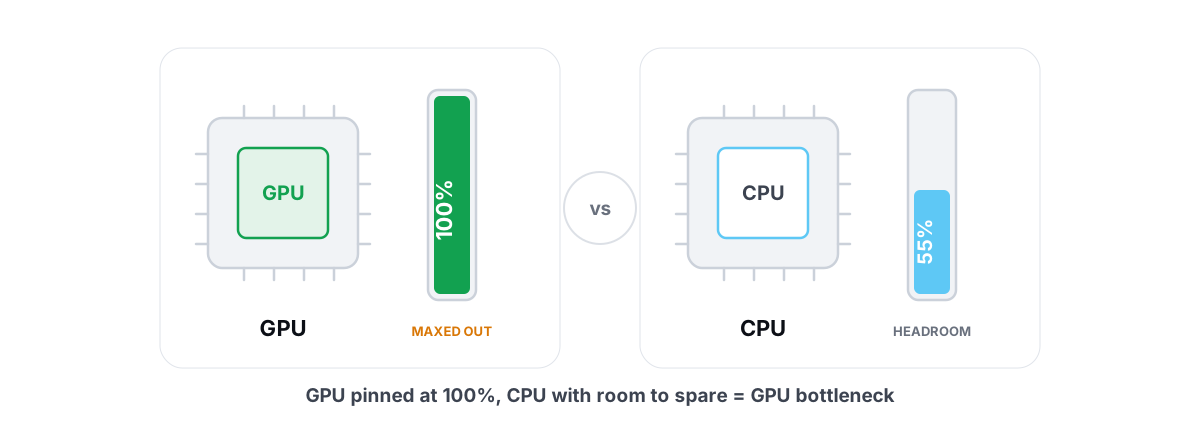
GPU usage is the percentage of time your graphics card spends doing work each second. When it reads 95-100% in a demanding game, the GPU is the limiting part — it's the slowest link, and your FPS is roughly the most that card can produce at those settings. That's the normal, healthy state for single-player or graphically heavy titles.
When usage sits low — 40%, 60%, sometimes bouncing around — the GPU is finishing each frame and then waiting. Something else is deciding how fast frames arrive. The card has spare capacity it isn't allowed to use.
That "something else" is almost always one of five things: your CPU can't prepare frames fast enough, a frame cap is holding you back, a power setting is parking the GPU's clocks, background processes are eating CPU time, or your settings are so light that no part of the system is stressed. The fix depends entirely on which one it is, so the goal here is to identify, not guess.
Low GPU usage with low FPS is a diagnosis, not a defect. It means the bottleneck is upstream of the graphics card.
The most common cause: a CPU bottleneck
Before the GPU can draw a frame, the CPU has to build it — physics, AI, draw calls, game logic. If the CPU can't keep up, the GPU runs out of work and idles. This is a CPU bottleneck, and it's the number one reason a capable GPU sits half-idle.
It shows up hardest in specific situations:
- Competitive shooters and battle royales at low settings and high refresh targets — CS2, Valorant, Fortnite, Warzone. You're chasing 200+ FPS, and the CPU is the wall.
- Simulation and strategy games with lots of units or entities — Total War, factory builders, large city sims. The simulation thread maxes out one core.
- Older or single-threaded engines that lean on one or two cores even when you have eight.
The tell is in the numbers. If one or two CPU cores are pinned near 100% while the GPU loafs at 50-70%, you've found it. Total CPU usage can look modest — say 35% across 12 threads — because the bottleneck lives in a single thread that the average hides. Watch per-core load, not just the overall figure. To learn the difference cold, see GPU vs. CPU bottleneck: how to tell in gaming.
Frame caps you forgot you set
A frame cap holds your FPS at a fixed ceiling on purpose. When you're capped, the GPU does exactly enough work to hit that number and then stops — so usage drops below 100% by design. This is the most overlooked cause because the cap is often something you, your driver, or your monitor set months ago.
Check every layer, because they stack and the lowest one wins:
| Cap source | Where to look | Why it's there |
|---|---|---|
| In-game limiter | Graphics/Video settings, often labeled "Max FPS" or "Frame Rate Limit" | Manually set, sometimes defaults to 60 |
| V-Sync | In-game or driver control panel | Caps FPS to your refresh rate to stop tearing |
| Driver frame limiter | NVIDIA Control Panel "Max Frame Rate" / AMD "Frame Rate Target" | A global or per-game cap you may have set once |
| VRR / G-Sync / FreeSync | Driver + monitor — caps just under refresh | Keeps frames inside the variable-refresh window |
| Battery / power profile | Windows or laptop vendor app | Laptops cap FPS to save power, especially unplugged |
If your monitor is 60Hz and V-Sync is on, you'll see GPU usage drop the moment you hit 60 FPS — that's working as intended, not a fault. The trap is forgetting a 60 or 120 cap is active while you wonder why a 144Hz panel never goes past 120. If you run G-Sync or FreeSync, a small cap just under your refresh ceiling is actually correct; the details are in V-Sync vs G-Sync vs FreeSync.
Power settings throttling the GPU
A GPU only clocks high when Windows and the driver let it draw power. Wrong power settings can keep the card in a low-power state, so it never ramps to full clocks — and you see low usage with low boost frequencies.
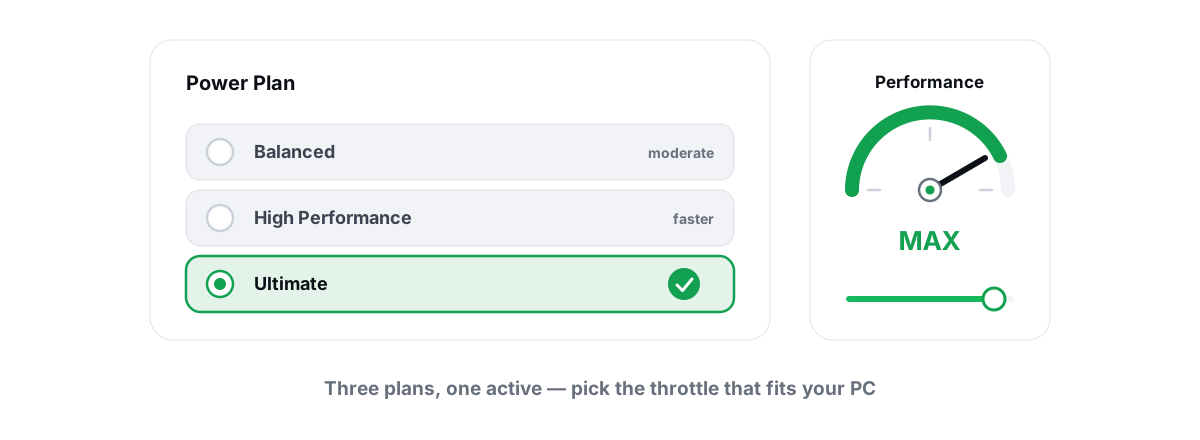
On desktops, the usual culprits are the Windows power plan and the NVIDIA/AMD power-management mode. If Windows is on a battery-saver or balanced plan that aggressively idles components, or the driver is set to "Optimal Power" / "Power Saving," the GPU may not boost when it should. Set Windows to a performance-oriented plan and the driver's power mode to "Prefer Maximum Performance" (NVIDIA) or the high-performance equivalent. Our honest take on which plan to pick is in Windows power plans explained.
On laptops, the effect is much bigger. Unplugged, most laptops throttle the GPU hard to save battery and limit heat — you can lose half your frames. Plug in, set the vendor app (Armoury Crate, Legion, etc.) to its performance/turbo profile, and confirm the discrete GPU is the one rendering the game rather than the integrated chip.
Background apps stealing CPU time
If background software is chewing through CPU cycles, your game's frame-prep thread gets less time, which looks exactly like a CPU bottleneck — GPU idle, FPS down, stutters. This is common and easy to miss because the offender runs minimized.
The frequent offenders:
- Browser tabs with video, ads, or heavy web apps left open behind the game.
- A background virus scan or Windows Update kicking off mid-session.
- Game launchers and overlays — Discord, Steam, Epic, GeForce overlay — and chat apps doing more than you'd think.
- Cloud sync (OneDrive, Dropbox) re-indexing, or a "system optimizer" running its own scans.
- Shader compilation in newer titles — a legitimate, temporary CPU spike on first launch or after a driver update.
Open Task Manager (Ctrl+Shift+Esc), sort by CPU, and tab into your game for 30 seconds, then back. Anything sitting high that isn't the game is a suspect. If a process is constantly pinning the CPU even at the desktop, work through fixing high CPU usage without guesswork first. Trimming what launches with Windows helps too — see how to disable startup programs safely.
Resolution and settings that shift the load
Where the bottleneck lands depends partly on the knobs you've chosen. Lower resolution and lighter settings shrink the GPU's work, so the CPU becomes the limiter sooner — which is exactly why esports players running 1080p low on strong GPUs see low GPU usage. That's expected, not a bug.
Two settings categories pull in different directions:
- GPU-bound settings — resolution, texture quality, anti-aliasing, shadows, view distance, ray tracing. Raising these loads the GPU. If you're CPU-limited, turning them up costs little FPS and uses the GPU's spare capacity.
- CPU-bound settings — draw distance, crowd/NPC density, physics, some shadow modes. These add CPU work. If you're CPU-limited, lowering these is what actually raises your frames.
Upscalers like DLSS and FSR render the game at a lower internal resolution, which reduces GPU load. On a CPU-limited game that can make GPU usage drop further while barely moving FPS, because the GPU wasn't the problem. We break down where they help and where they don't in DLSS, FSR and frame gen explained, and there's a fuller settings guide in best graphics settings for FPS vs. quality.
Reading CPU and GPU usage live to confirm
Every fix above hinges on one question: what's actually limiting the frame? You answer it by watching CPU and GPU usage while the game runs, not by reading forum advice and guessing.
The reliable method:
- Open an overlay or monitor that shows GPU usage, total CPU usage, and ideally per-core load and FPS, then play normally for a minute.
- GPU pinned at 95-100%, FPS lower than you'd like → you're GPU-limited. Lower GPU-heavy settings, enable an upscaler, or accept the card's ceiling. More frames here means a faster GPU or lighter visuals.
- GPU well under 90% with one or more CPU cores near 100% → you're CPU-limited. Close background load, lower CPU-heavy settings, and check for frame caps.
- Both GPU and CPU low → look for a frame cap (V-Sync, in-game, driver, VRR), a power-saving state, or a background process hogging a core the average hides.
A capture-card or injection-based overlay can trip anti-cheat. A safer approach reads frames from how Windows already composits them — that's the philosophy behind an anti-cheat-safe FPS overlay. BRUTAL Optimizer's free FPS overlay and live CPU/GPU/RAM/FPS monitor count DWM composition / D3DKMT present frames rather than hooking the game, so they run alongside Vanguard, EAC and BattlEye without injection. That's enough to read the usage numbers and settle the diagnosis. If you also see frametime spikes rather than just low average FPS, the cause is different — work through fixing stutter and frametime spikes.
Fixes ranked by how often they're the answer
Work top to bottom. Most low-GPU-usage cases are solved by the first three.
- Remove the frame cap you forgot. Check in-game limiter, V-Sync, driver "Max Frame Rate," and your monitor's refresh rate. Free, instant, and shockingly often the whole answer.
- Close background CPU hogs. Browser, scans, sync, extra launchers. Confirm in Task Manager. Real CPU time returned to the game.
- Accept or shift a CPU bottleneck. If a core is pinned, raise GPU settings (free eye candy at the same FPS) or lower CPU-heavy settings (draw distance, density) to actually gain frames. A CPU upgrade is the only way past a true wall.
- Fix power states. Performance power plan, driver set to prefer maximum performance, laptop plugged in on its turbo profile. Rules out throttling.
- Update the GPU driver. A clean, current driver can fix usage and stutter bugs — but it's not a guaranteed FPS boost. Update GPU drivers safely and don't expect miracles.
- Check temps last. If the card hits thermal limits it throttles, though that usually shows as high usage with dropping clocks, not low usage. Still worth ruling out — see monitoring temps and stopping throttling.
The whole problem is diagnostic — find the real limiter, then fix that one thing. BRUTAL Optimizer is the honest, anti-cheat-safe way to read the live numbers (free overlay and monitor, no kernel driver, no injection) and to handle the boring-but-real wins like trimming startup load and updating drivers — every system setting change is reversible, with a System Restore point attempted before the big ones. If you want the broader, no-hype version, our honest guide to increasing FPS covers the rest.
Frequently asked questions
Why is my GPU usage low but FPS is also low?
The GPU is finishing each frame and then waiting on something upstream. Usually that means a CPU bottleneck, a frame cap (V-Sync, in-game, driver, or VRR), a power-saving state holding clocks down, or background apps eating CPU time. Watch per-core CPU and GPU usage live to find which one it is.
Is low GPU usage always a CPU bottleneck?
No. A CPU bottleneck is the most common cause, but a forgotten frame cap, V-Sync limiting you to your refresh rate, a battery or power-saving profile, or a background process pinning one core can all do the same thing. Check for caps and background load before assuming it is the CPU.
How do I know if I am CPU or GPU limited?
Watch usage while playing. GPU pinned near 95-100 percent means you are GPU-limited. GPU under 90 percent with one or more CPU cores near 100 percent means you are CPU-limited. If both are low, look for a frame cap or a power-saving state.
Will raising graphics settings fix low GPU usage?
If you are CPU-limited, yes in a useful way. Higher resolution or heavier effects shift work back to the GPU, raising its usage toward 100 percent with little or no FPS loss. You get a better-looking image at the same frame rate because the GPU had spare headroom.
Can monitoring GPU usage in games trigger anti-cheat?
Capture-card or injection-based overlays can. An overlay that reads frames from how Windows already composits them does not inject into the game. BRUTAL Optimizer's overlay counts DWM composition and D3DKMT present frames, so it runs alongside Vanguard, EAC and BattlEye without hooking the game.
Keep reading
 Hardware & Drivers
GPU vs. CPU Bottleneck: How to Tell in Gaming
Read GPU and CPU utilization to find which part is capping your frames — then tweak or upgrade the right one instead of guessing.
 Windows Performance
Best Windows Power Plan for Gaming: Honest Guide
A straight comparison of Balanced, High performance and Ultimate Performance, with the real mechanisms and reversible powercfg steps.
 Gaming & FPS
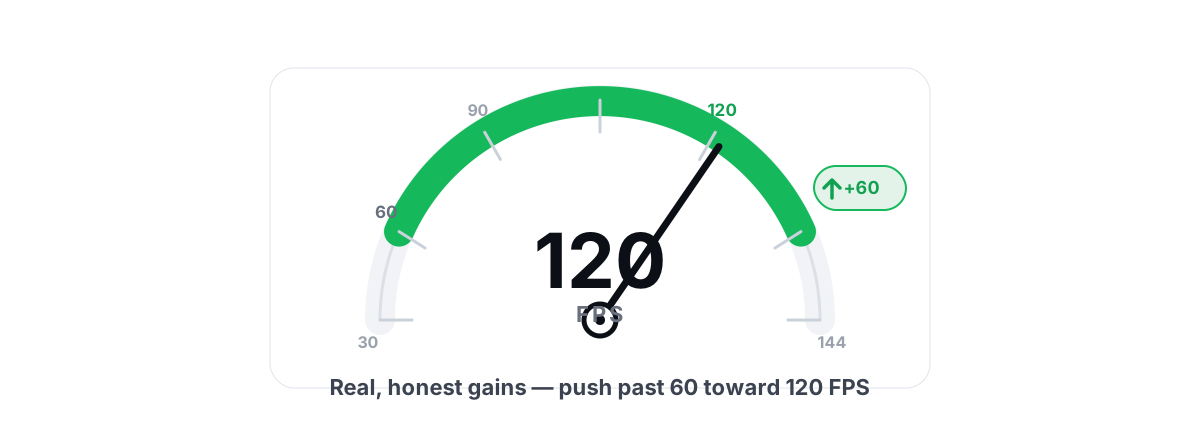
How to Increase FPS in Games (Honest 2026 Guide)
Realistic ways to increase FPS, ranked by impact: settings, drivers, thermals and upscaling, with the placebo tweaks called out.
Stop guessing. Measure it.
BRUTAL Optimizer is the honest way to speed up Windows — 17 free modules, a real FPS overlay, verified disk cleanup and drive health. No kernel driver of our own, no game hooks, every setting change reversible.