V-Sync vs G-Sync vs FreeSync: Stop Screen Tearing
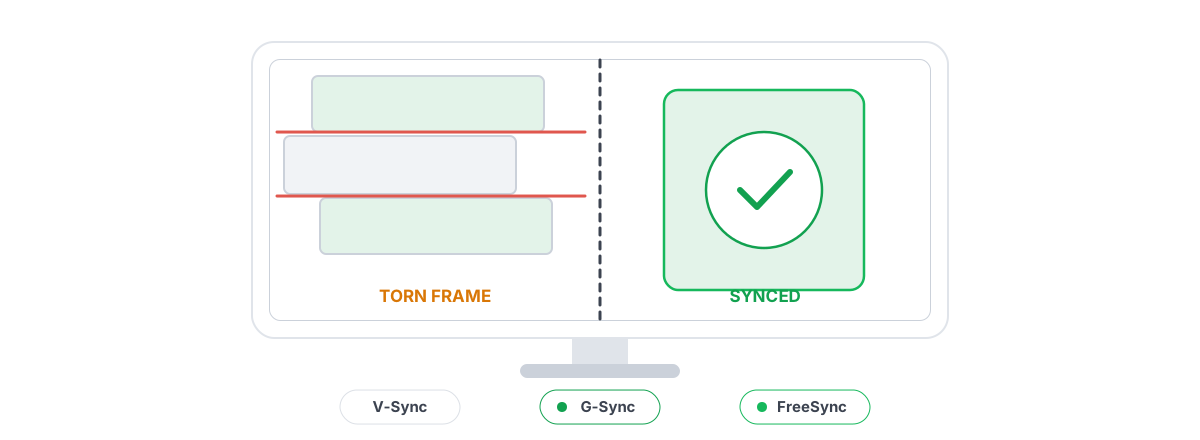
Screen tearing is a sync problem, not a hardware fault, and you fix it by deciding how your GPU and monitor agree on when to show a frame. This guide untangles plain V-Sync from adaptive variable refresh (G-Sync and FreeSync), explains the tearing-versus-latency trade you're actually making, and gives you the exact frame-cap recipe for smooth, low-latency, tear-free gameplay.
Why screen tearing happens in the first place
Your monitor redraws the screen at a fixed pace — 60, 144, 165, 240 times a second. Your GPU finishes frames whenever it finishes them, which almost never lines up with that pace. Tearing is what you see when the two disagree.
Here's the mechanism. The GPU writes finished frames into a buffer the monitor reads from. If the GPU swaps in a new frame while the monitor is halfway through drawing the screen, the top half shows the old frame and the bottom half shows the new one. The seam between them is the tear.
You see it most when the camera pans sideways — a fence post or a doorway splits and shifts. The faster your FPS relative to refresh, the more tears per second, because the GPU swaps buffers more often mid-scan.
Tearing is a timing mismatch, full stop. The GPU presents a new frame mid-refresh and the display draws two frames stacked. Every solution below is just a different rule for when the swap is allowed to happen.
That framing matters because it tells you what won't help. Tearing isn't caused by a slow drive, a full pagefile, or background services. Cleaning the registry or freeing RAM does nothing to it — these are placebo fixes for a problem that lives entirely in frame timing. The real levers are V-Sync, variable refresh, and frame caps.
Plain V-Sync: smooth but adds latency
V-Sync is the old answer, and it works by force. It tells the GPU it may only swap buffers at the start of a refresh cycle — never mid-scan. No mid-refresh swap means no tear. Simple.
The cost is timing rigidity, and it bites in two ways. First, if your GPU can't finish a frame in time for the next refresh, V-Sync makes it wait for the one after that. On a 60 Hz panel a missed deadline drops you from 60 to a hard 30 FPS, sometimes 20, because output is locked to clean fractions of the refresh. That's the stutter people associate with V-Sync.
Second, and worse for fast games, is latency. When you're GPU-bound with V-Sync on, the render queue fills and the game stalls waiting for the display to be ready. That stall adds a full frame or more of input lag — often 20 to 50 ms — and it's the soft, floaty mouse feel competitive players hate.
The deeper input-lag story behind that V-Sync stall — the render queue, frame pacing, and what you can actually feel — is worth reading if you chase latency, in the guide to input lag you can actually feel.
G-Sync and FreeSync: how variable refresh fixes it
Variable refresh rate (VRR) flips the relationship around. Instead of forcing the GPU to wait for the monitor, it lets the monitor wait for the GPU. The display holds each refresh open until the GPU has a frame ready, then draws it immediately.
Because the frame is always drawn at the start of a fresh refresh — there's no mid-scan swap — you get no tearing. And because the monitor adapts to the GPU's pace instead of the GPU stalling for the monitor, you don't eat the V-Sync latency penalty or the drop to 30 FPS. That's the whole pitch, and it's real.
G-Sync is NVIDIA's implementation; FreeSync is AMD's. Both solve the identical problem with the same core idea — the display syncs to the GPU within a supported refresh window. The difference is mostly in how it's certified and, historically, the hardware.
Every VRR system has a variable refresh window — say 48 to 144 Hz. Inside that window, frames present tear-free with no added lag. Below the floor (under ~48 FPS here), the monitor can't slow down further, so good implementations use Low Framerate Compensation to repeat frames and stay smooth. Above the ceiling, you've exited VRR entirely and tearing or a V-Sync stall returns — which is exactly why the frame-cap recipe below matters.
| Plain V-Sync | VRR (G-Sync / FreeSync) | |
|---|---|---|
| Tearing | Eliminated | Eliminated (inside the window) |
| Added latency | High when GPU-bound (20-50 ms) | Minimal |
| FPS drops | Snaps to 30/20 on a miss | Adapts smoothly |
| Needs special monitor | No | Yes (VRR panel) |
| Works above max refresh | Yes | No — must cap below |
G-Sync Compatible, certified, and module versions
The branding is a mess, so here's the plain version. There are three NVIDIA tiers and they describe how the panel does VRR, not whether it works.
- G-Sync Compatible — the monitor uses the open VESA Adaptive-Sync standard (the same one FreeSync uses) and NVIDIA has tested it. No special chip. This is the vast majority of modern VRR monitors and it's perfectly good for most people.
- G-Sync (certified) — the panel contains a dedicated NVIDIA G-Sync hardware module. It adds variable overdrive (cleaner motion across the refresh range) and a wider VRR window down to 1 Hz. A genuine but modest upgrade for most players.
- G-Sync Ultimate — the same module plus stricter HDR and brightness requirements. Relevant if you care about high-end HDR, not about tearing.
The practical takeaway: because G-Sync Compatible and FreeSync both ride the same VESA Adaptive-Sync standard, a modern FreeSync monitor usually works as G-Sync Compatible on an NVIDIA card, and a "G-Sync Compatible" panel works as FreeSync on an AMD card. The marketing implies a wall between camps that mostly isn't there.
G-Sync vs FreeSync: which is better?
For the experience that matters — tear-free, low-lag gameplay inside the refresh window — they are functionally equivalent. The honest differences are at the edges: certified G-Sync modules handle variable overdrive and very low framerates a little more gracefully, and premium FreeSync tiers (FreeSync Premium / Premium Pro) guarantee LFC and tighter ranges. Buy the panel that's good (response time, brightness, resolution, refresh) and matches your GPU brand for the simplest setup. Don't pay a large premium for the badge alone.
The low-latency recipe: VRR + frame cap + Reflex/Anti-Lag
This is the part most people get wrong. VRR alone doesn't give you the best result — you combine three things. The goal is to stay inside the variable refresh window at all times, because the moment your FPS hits your max refresh you fall out of VRR and tearing or a V-Sync stall comes back.
The recipe, in order:
- Enable VRR — G-Sync or FreeSync on, at both the monitor's OSD and in the driver.
- Turn V-Sync on in the driver (NVIDIA Control Panel or AMD Adrenalin), not in the game. This acts only as a safety net to catch the rare frame that escapes the VRR window — it does not add the usual V-Sync latency because your cap keeps you below the ceiling.
- Cap your FPS a few frames below max refresh, using an in-game limiter or the driver's frame-rate limiter. The cap keeps the render queue shallow so frames present fresh, and keeps you under the ceiling so you never leave VRR.
| Monitor refresh | FPS cap (VRR + V-Sync on) |
|---|---|
| 60 Hz | 57-58 |
| 120 Hz | 116-117 |
| 144 Hz | 138-141 |
| 165 Hz | 158-162 |
| 240 Hz | 233-237 |
Why a few frames and not one? VRR timing has a little jitter near the ceiling, so leaving 3 to 7 frames of headroom keeps you reliably inside the window without bouncing in and out. The exact number isn't sacred; a round, stable value your PC can always hold is more important than squeezing the last frame.
The fourth piece is the latency reducer. NVIDIA Reflex and AMD Anti-Lag keep the render queue near-empty from inside the game and driver, so the CPU starts each frame at the latest sensible moment. With a VRR + cap setup they're complementary — Reflex manages the queue dynamically and can replace the manual cap in supported titles, though capping for thermals and frametime consistency is still fine.
Fullscreen vs borderless and why it matters for VRR
How the game presents to the screen changes whether VRR even works, so this isn't a cosmetic choice.
Exclusive fullscreen hands the GPU's output directly to the display, bypassing the Windows desktop compositor (DWM). VRR has always worked reliably here, and so does the lowest-latency present path. The downside is slow alt-tabbing and, on some setups, a black screen when you switch away.
Borderless windowed renders through DWM, the desktop compositor. On older Windows this broke VRR because the compositor imposed its own fixed timing. Windows 10 and 11 now support VRR for borderless games through flip-model presentation, exposed as "Optimizations for windowed games" in the graphics settings, so borderless can get variable refresh — but it's more fragile, and a stray overlay or a second app drawing on screen can quietly knock it out of VRR.
One related trap: if your frametimes are uneven even with VRR set up correctly, the culprit is usually pacing or background interference, not the sync method. Work through fixing stutter and frametime spikes before blaming G-Sync — a smooth queue is what VRR was built to display.
Measuring tearing and latency yourself
Don't trust feel alone; tearing and latency are both measurable, and the test tells you whether a setting actually changed anything.
For tearing, the simplest check is a horizontal-pan test: load a scene with strong vertical lines and pan the camera sideways. With tearing you'll see the seam jump; with VRR working you won't. The website testufo.com has a tearing test that makes the seam obvious, and it confirms whether VRR is actually engaged.
For latency and frame pacing, watch your frametime graph and 1% lows, not the average FPS. A clean VRR setup shows a flat frametime line; a V-Sync stall or a fall-out-of-window shows spikes. An FPS overlay that reports 1% lows and frametimes turns "it feels smoother" into a number you can compare before and after.
This is one place a tool earns its keep. BRUTAL Optimizer's FPS overlay is free, shows 1% lows and frametimes, and counts DWM composition / D3DKMT present frames rather than hooking the game — so it runs fine alongside Vanguard, EAC and BattlEye while you A/B test a frame cap. If you want the broader picture of overlays that don't risk a ban, see the rundown of anti-cheat-safe FPS overlays.
The method is always the same: pick a repeatable scene, record a baseline, change exactly one setting, run the identical scene again, and compare the frametime graph. If nothing improved, revert it. That discipline is what separates a real fix from a forum myth.
A simple settings decision tree
Strip away the branding and it comes down to what your monitor supports and what you're playing.
- You have a G-Sync or FreeSync monitor (most modern panels): Enable VRR, turn V-Sync on in the driver, cap FPS a few frames below your refresh, and enable Reflex/Anti-Lag where available. Tear-free and low-latency at once. This is the answer for almost everyone with a VRR display.
- Fixed-refresh monitor, competitive shooter: V-Sync off, accept some tearing, cap FPS at or just under refresh to keep the queue shallow, and turn on Reflex/Anti-Lag. You're choosing the lowest latency over a perfect image, which is the right call in fast games.
- Fixed-refresh monitor, single-player or slow-paced game: V-Sync on for a clean image, ideally cap a frame or two below refresh. The latency cost doesn't matter when you're not flicking onto targets.
- Fixed-refresh monitor and you can't decide: Try Fast Sync (NVIDIA) or Enhanced Sync (AMD). It only swaps complete frames so it removes tearing without the hard V-Sync latency stall — but it needs FPS comfortably above refresh and can feel uneven below it. A compromise, not a cure.
None of this needs an app — VRR, V-Sync, an FPS cap, and Reflex/Anti-Lag are all built into Windows, your GPU driver, and your games, and this guide works fully without installing anything. If you do want to measure the result honestly — frametimes and 1% lows, anti-cheat-safe — or you're interested in the deeper, fully reversible low-latency tuning (timer, power throttling, USB latency), BRUTAL Optimizer's gaming tools handle that with per-module undo and a System Restore point attempted first, and never pretend a sync setting is something it cleaned off your disk.
Frequently asked questions
Should I use V-Sync if I have a G-Sync or FreeSync monitor?
Yes, but turn it on in the GPU driver, not in the game, and pair it with an FPS cap a few frames below your refresh. In that setup V-Sync only acts as a safety net for the rare frame that escapes the variable refresh window, so it doesn't add the usual latency. The cap keeps you inside VRR, where frames present tear-free with minimal lag.
What is the real difference between G-Sync and FreeSync?
For the experience that matters, almost none. Both sync the display to the GPU within a supported refresh range to remove tearing without the V-Sync latency penalty. The honest differences are at the edges: certified G-Sync modules add variable overdrive and a wider low-framerate range, while premium FreeSync tiers guarantee low-framerate compensation. Buy a good panel that matches your GPU brand and skip the badge premium.
Why do I still get tearing with G-Sync or FreeSync turned on?
Usually because your FPS exceeded your max refresh and fell out of the variable refresh window, or VRR dropped out in borderless mode. Cap your FPS a few frames below refresh so you stay inside the window, and prefer exclusive fullscreen for the most reliable VRR. Also confirm it is enabled at both the monitor OSD and in the driver.
Does V-Sync add input lag?
Plain V-Sync can add a lot when you are GPU-bound, often 20 to 50 ms, because the render queue fills and the game stalls waiting for the display. That is the floaty, sluggish feel. Pairing VRR with a frame cap below refresh avoids that stall, which is why the combination feels far better than V-Sync alone.
Will a PC optimizer or registry tweak fix screen tearing?
No. Tearing is purely a frame-timing mismatch between the GPU and the monitor, decided by V-Sync and VRR settings. Cleaning the registry, freeing RAM, or disabling services does nothing to it. The only real fixes are enabling variable refresh, using V-Sync correctly, and capping your frame rate.
Keep reading
 Gaming & FPS
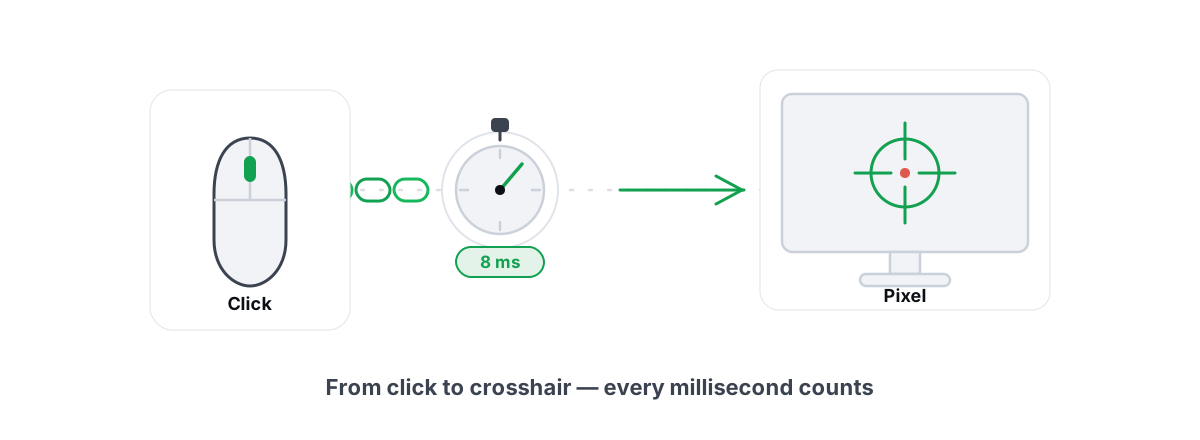
How to Reduce Input Lag You Can Actually Feel
The real chain of input lag from click to photon, and which milliseconds you can actually feel versus the placebo tweaks.
 Gaming & FPS
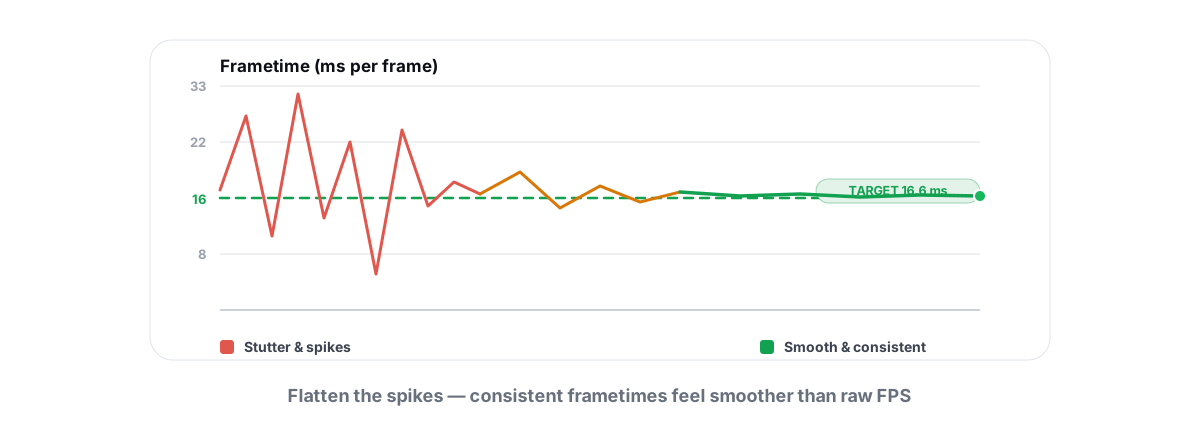
How to Fix Stuttering in Games (Frametime Spikes)
Stutter is a frametime problem, not an average-FPS one — isolate the real causes and confirm each fix with 1% lows.
 Gaming & FPS
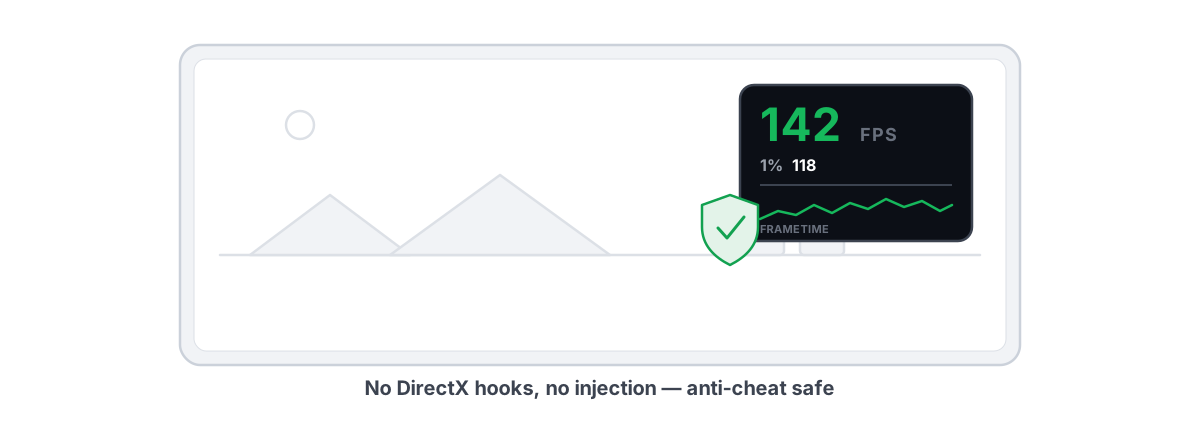
Best FPS Overlay That's Anti-Cheat Safe
Why a present-frame fps overlay is the anti-cheat-safe choice, and how to read 1% lows and frametimes properly.
Stop guessing. Measure it.
BRUTAL Optimizer is the honest way to speed up Windows — 17 free modules, a real FPS overlay, verified disk cleanup and drive health. No kernel driver of our own, no game hooks, every setting change reversible.