AMD Adrenalin: Best Settings for Gaming (No Hype)
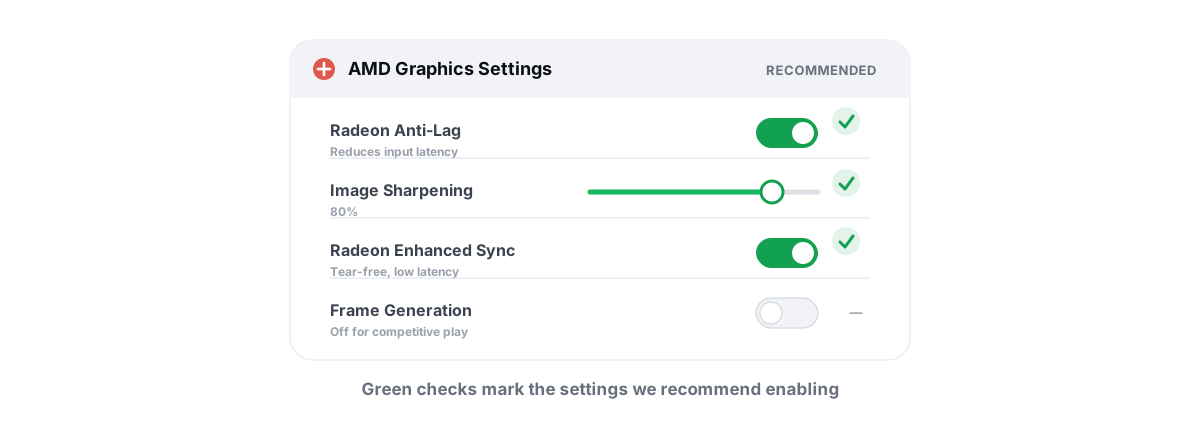
The best AMD Adrenalin settings are not a copy-paste list — they depend on your GPU, your monitor, and the game. A few toggles deliver real frames; several quietly hurt your frametimes if you max them. This is the mechanism-first version, so you know what each one actually does before you flip it.
Adrenalin is the same software whether you have a Radeon RX 6600 or an RX 9070 XT. The names move around between driver versions, so the menus you see may not match a year-old screenshot. What doesn't change is what these features do at the hardware level. Get that right and you can decide for yourself, instead of copying a settings list from someone with a different GPU and a different monitor.
If you came from the green team, this is the Radeon-side companion to our NVIDIA Control Panel best settings guide. Same philosophy: measure, don't assume.
The best AMD Adrenalin settings start with profiles
Before any single toggle, understand the structure. Adrenalin has a Global Graphics profile and per-game profiles. Settings you change globally apply to everything; a per-game profile overrides the global one for that single title.
This matters because the right answer differs per game. Radeon Chill is great in a slow RPG and actively wrong in a competitive shooter. Anti-Lag belongs in fast games and does nothing useful in a turn-based strategy title. If you set everything globally, you're applying one compromise to games that want opposite things.
The sane workflow:
- Keep your global profile conservative — close to defaults, with only the things you genuinely want everywhere (driver-level sharpening at a low value, maybe).
- Create a per-game profile for the handful of titles you actually play seriously, and tune those.
- Don't set aggressive options globally "to be safe." That's how you end up with one game stuttering and never knowing why.
The single biggest Adrenalin mistake is enabling latency and power features globally. Tune per game, because a competitive shooter and a single-player RPG want opposite settings.
Anti-Lag and Anti-Lag 2: the latency story
Anti-Lag reduces the input-to-display delay by controlling how far ahead the CPU is allowed to queue frames for the GPU. Normally the CPU can prepare several frames in advance; when the GPU is the bottleneck, that queue grows and your inputs sit in line waiting their turn. Anti-Lag paces CPU frame submission so the queue stays short, which means the frame you're looking at is built from more recent input.
The honest framing: Anti-Lag helps most when you are GPU-bound — when your graphics card is pinned near 100% and frames are backing up. If your FPS is capped by your CPU and the GPU is coasting at 60%, there's barely any queue to trim, so the benefit shrinks toward nothing. Not sure which one you are? Our guide on telling a GPU vs CPU bottleneck shows how to check in two minutes.
Anti-Lag vs Anti-Lag 2
The original Anti-Lag worked at the driver level for a broad range of titles. Anti-Lag 2 is integrated per game by the developer, so it can place the latency-reduction step more precisely in the render pipeline. That tighter integration is also why it shipped in a limited, growing list of supported games rather than everywhere at once.
There's history worth knowing here. An earlier driver-injected version of Anti-Lag was pulled because, in some competitive titles, it altered game files in a way anti-cheat flagged — and a few players got banned. AMD reworked the approach; Anti-Lag 2's developer-integrated design exists partly to avoid touching the game in ways anti-cheat dislikes. The lesson generalizes: anything that injects into a protected game is playing with fire. We wrote about the ban risk of optimization tools if you want the full reasoning.
For the bigger latency picture — frame caps, sync settings, peripheral polling — pair this with our guide to reducing input lag you can actually feel. Anti-Lag is one link in that chain, not the whole chain.
Radeon Chill: power savings vs consistency
Radeon Chill dynamically lowers your frame rate when on-screen action is calm and ramps it back up when you move or fight. You set a min and max FPS; Chill rides between them based on input activity. Less motion, fewer frames rendered, less power drawn and less heat produced.
For its intended purpose — saving power and quieting fans in slower games — it works. On a laptop, or a small-form-factor build that throttles when it gets hot, Chill can be a genuinely good trade. Fewer wasted frames in menus and quiet moments means a cooler, quieter machine.
The catch is frame-rate consistency. Chill deliberately varies your FPS, and variable frame rate is the enemy of smooth motion. In a fast game the swing between min and max can feel like micro-stutter, because your frametimes are bouncing by design. If you also run a variable refresh monitor, you're handing it inconsistent input to smooth.
If your real goal is a steady frame rate rather than power savings, a plain frame rate cap (set a fixed limit a few FPS under your refresh rate) gives you consistency without Chill's deliberate swing. That's usually the better choice for smoothness.
Radeon Boost and dynamic resolution
Radeon Boost lowers your render resolution during fast motion — when you're whipping the camera around — then restores it when you slow down. The bet is that you can't perceive the detail loss while everything's a blur anyway, so you get extra frames exactly when the GPU is most stressed.
In practice it's a mixed bag. In supported games it can lift FPS during heavy motion, and because the drop only happens when you're moving fast, it's often less noticeable than a permanent resolution cut. But it is still trading image quality for frames, and on a sharp display you may catch the resolution shimmer at the edges of fast turns.
Treat Boost as situational, not a default. If a game stutters or drops frames specifically during fast camera movement and you're GPU-bound, it can help. If your frame rate is already comfortable, you're giving up clarity for frames you didn't need. For the broader trade between sharpness and frame rate, see our breakdown of graphics settings for FPS vs quality.
Image Sharpening and Super Resolution
These two get confused constantly, so separate them clearly.
Radeon Image Sharpening (RIS) is a near-free post-process sharpening pass. It doesn't change your render resolution; it just makes the existing image look crisper using a contrast-adaptive filter. The performance cost is tiny — typically a frame or two — and it can genuinely make a slightly soft game look sharper. It's one of the few "leave it on at a modest level" toggles, though crank it too high and you get an over-sharpened, gritty look with haloing around edges.
Radeon Super Resolution (RSR) is a different animal. It renders the game at a lower resolution and then upscales to your display resolution, using a spatial upscaling algorithm (the FSR 1 lineage) applied at the driver level. That's where the FPS comes from — you're rendering fewer pixels. The cost is image quality: driver-level spatial upscaling is the bluntest version of the technique, softer and more artifact-prone than a game's built-in FSR 2/3 or an equivalent temporal upscaler.
| Feature | What it does | FPS gain | Image cost | Use when |
|---|---|---|---|---|
| Image Sharpening (RIS) | Sharpens the existing image | ~none (1-2 frames) | Minimal at modest values | Almost always, at a low setting |
| Super Resolution (RSR) | Renders lower, upscales to display | Real, sometimes large | Noticeable softening | Older GPU needs frames, no in-game FSR |
The honest priority order: if a game has built-in FSR 2/3 or its own upscaler, use that over driver-level RSR — it's temporally aware and looks markedly better. Reserve RSR for older titles with no built-in upscaling where you need the frames and can live with the softness. For the full picture on upscalers and frame generation, read DLSS, FSR and frame gen: free FPS or fake frames?.
Enhanced Sync vs FreeSync
These solve different problems and are often confused, so be precise.
FreeSync is variable refresh rate (VRR). Your monitor refreshes when a frame is actually ready, instead of on a fixed schedule. That eliminates tearing without the latency penalty of traditional V-Sync, as long as your FPS stays inside the monitor's FreeSync range. If you have a FreeSync display, enable it — it's the single best anti-tearing setting available and it's nearly free. Make sure it's on in both Adrenalin and your monitor's OSD.
Enhanced Sync is AMD's alternative to V-Sync for when your frame rate exceeds your refresh rate. Instead of capping you to refresh (classic V-Sync) or letting the screen tear (V-Sync off), it drops the older of two finished frames to reduce tearing while keeping latency lower than V-Sync. It's a fallback for situations FreeSync doesn't cover — like running above your FreeSync range.
The clean setup for most people: FreeSync on + an in-game (or driver) frame cap a few FPS below your refresh rate. That keeps you inside the VRR window, kills tearing, and avoids the latency cost of V-Sync entirely. You usually don't need Enhanced Sync on top of that. If your sync settings are a tangle, our V-Sync vs G-Sync vs FreeSync guide untangles which layer does what.
Settings that look impressive but do little
Adrenalin has a row of toggles that sound powerful and, for most people most of the time, change very little — or change the wrong thing. Honesty means naming them.
- "Performance" tuning presets / one-click overclock: The built-in auto-tuning can squeeze a small overclock or undervolt, but the gains are modest (a few percent) and the auto-OC can be unstable on some cards. If you don't want to test stability yourself, leave it default. A bad auto-OC shows up as crashes, not free FPS.
- Anti-Aliasing / Anisotropic Filtering overrides at the driver level: Forcing these from Adrenalin often does nothing in modern games, which manage their own AA internally and ignore the driver override. Set image quality in the game's own menu; the driver-level override is mostly a relic.
- Texture Filtering Quality "Performance": Dropping this from Standard to Performance trades visible texture quality for a frame rate gain so small you won't measure it reliably. Not worth the visual hit.
- Surface Format Optimization and similar micro-toggles: Real, but their effect is tiny and situational. Don't expect a felt difference.
- Resizable BAR: This one is real and worth a mention — on supported platforms it can help in some games. But it's a motherboard/BIOS feature, not an Adrenalin slider, and the benefit varies a lot by title. Enable it if your board supports it, but don't expect it everywhere.
None of these are scams. They're just small. The mistake is treating a 1% setting like a 20% setting and stacking five of them expecting a transformation. The big levers in any game are resolution, the heaviest one or two graphics settings, and whether you're CPU- or GPU-bound — not a driver micro-toggle. Our honest guide to increasing FPS covers where the real frames actually come from.
Test, measure, and revert safely
Every recommendation above ends the same way: test it yourself, because your GPU, monitor, and games aren't identical to anyone else's. The method is simple and it's the part most "best settings" lists skip.
- Change one thing at a time. Flip a single setting, not five. If you change a batch and FPS moves, you've learned nothing about which toggle did it.
- Use a repeatable test. A built-in benchmark is ideal because it's identical every run. Otherwise, run the same 60-second route in the same spot.
- Watch frametimes and 1% lows, not just average FPS. Average FPS hides stutter. A higher average with worse 1% lows is a downgrade. The shape of the frametime graph tells you whether motion is actually smooth.
- Record before and after. You can't claim a setting helped if you never wrote down the "before."
For the readout, you want a frametime overlay that won't trip anti-cheat. An anti-cheat-safe FPS overlay reads frame timing from Windows' own DWM composition and present counters instead of hooking into the game, so it runs fine alongside Vanguard, Easy Anti-Cheat, or BattlEye. That no-injection approach is the whole reason it's safe to leave running while you test Radeon settings.
Adrenalin's own driver settings are easy to reset — there's a "reset to default" in the Graphics profile, and per-game profiles can be deleted to fall back to global. If you've also been changing Windows-side settings while chasing frames, that's the place to be more careful: anything that touches power plans, the registry, or how Windows boots should be reversible, and you should take a system restore point before a batch of low-level tweaks. That's cheap insurance for the changes Adrenalin's reset button can't undo.
If you'd rather measure than guess across both the driver and Windows side, that's what BRUTAL Optimizer is for: a free FPS overlay with 1% lows and frametimes, a live CPU/GPU/RAM monitor to spot which one is your bottleneck, and a user-mode, no-kernel-driver design that runs next to every major anti-cheat. The Adrenalin settings here work exactly the same whether or not you ever install it — see the gaming optimizer for the full, honest list of what it does and doesn't do.
Frequently asked questions
What are the best AMD Adrenalin settings for gaming?
There is no single list that fits every rig. Keep your global profile near default, then tune per-game: enable FreeSync with a frame cap a few FPS under your refresh rate, turn on Anti-Lag in fast GPU-bound games, leave Image Sharpening at a low value, and skip Radeon Chill in competitive titles. Test each change with frametimes before keeping it.
Does AMD Anti-Lag increase FPS?
No. Anti-Lag reduces input latency by keeping the CPU from queuing too many frames ahead, not by raising frame rate. It helps most when you are GPU-bound and your card is near 100 percent. If you are CPU-bound with the GPU half-idle, there is little queue to trim, so the benefit is small.
Should I enable Radeon Chill?
Only in slow games or to save power and heat on a laptop or small build. Chill deliberately varies your frame rate based on motion, which can feel like micro-stutter in fast games. For competitive titles use a fixed frame cap instead, which gives consistency without Chill's intentional FPS swing.
What is the difference between Radeon Image Sharpening and Super Resolution?
Image Sharpening is a near-free post-process filter that crisps the existing image without changing render resolution. Super Resolution renders the game at a lower resolution and upscales it to your display, which gains real FPS but softens the image. If a game has built-in FSR, use that instead of driver-level RSR.
Can AMD Adrenalin settings get me banned?
The settings themselves are safe. An older driver-injected version of Anti-Lag was pulled because it altered game files in a way anti-cheat flagged, and some players were banned. Anti-Lag 2 uses developer integration to avoid touching the game. As a rule, anything that injects into a protected game is the part to be cautious about.
Keep reading
 Hardware & Drivers
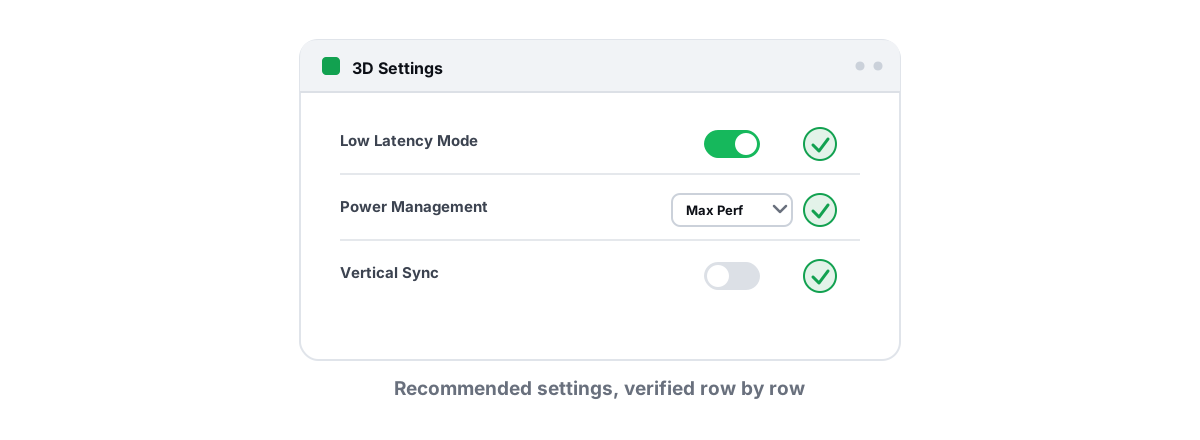
NVIDIA Control Panel: Best Settings for Gaming 2026
A setting-by-setting walk through the NVIDIA Control Panel: what each toggle does, which move FPS or latency, and which are pure placebo.
 Gaming & FPS
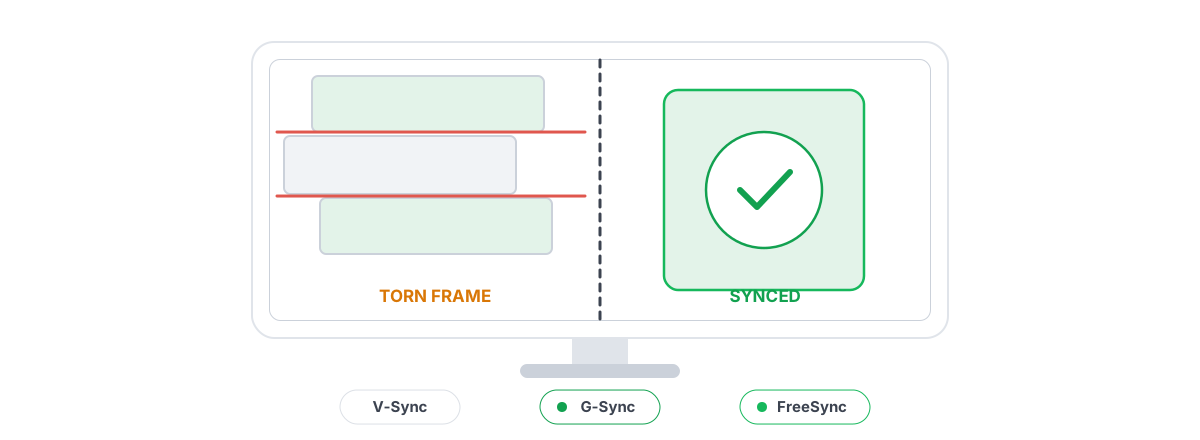
V-Sync vs G-Sync vs FreeSync: Stop Screen Tearing
The honest difference between fixed V-Sync and adaptive VRR, plus the exact frame-cap recipe for tear-free, low-latency gameplay.
 Gaming & FPS
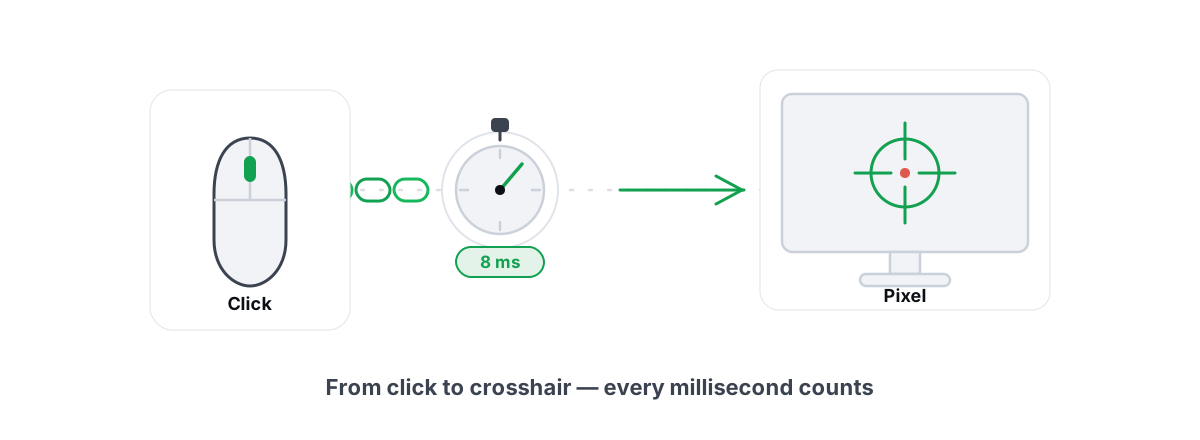
How to Reduce Input Lag You Can Actually Feel
The real chain of input lag from click to photon, and which milliseconds you can actually feel versus the placebo tweaks.
Stop guessing. Measure it.
BRUTAL Optimizer is the honest way to speed up Windows — 17 free modules, a real FPS overlay, verified disk cleanup and drive health. No kernel driver of our own, no game hooks, every setting change reversible.