DLSS vs FSR & Frame Gen: Free FPS or Fake Frames?
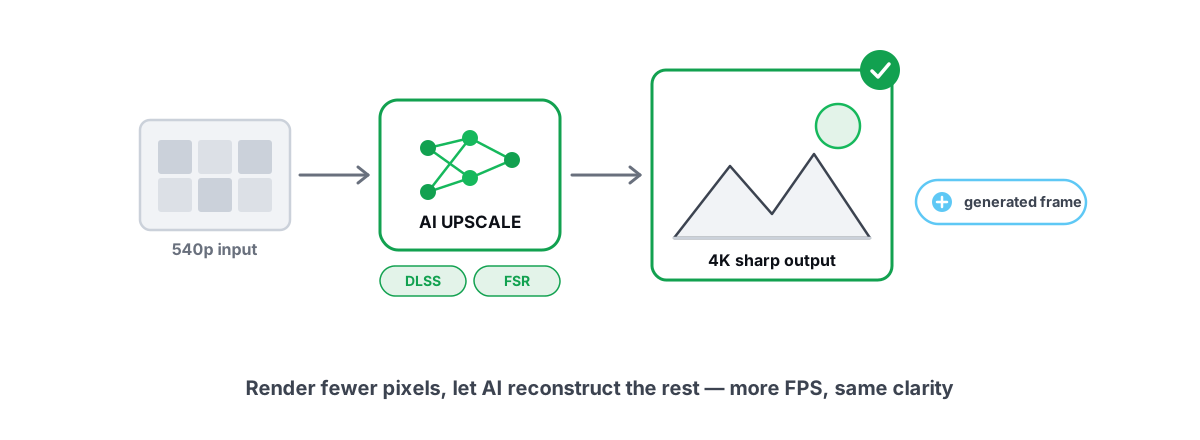
DLSS vs FSR is the wrong fight to pick first. The real split is between upscaling and frame generation — two tricks that ship in the same menu and do opposite things to how your game feels. One renders fewer pixels and reconstructs the rest, which genuinely raises your FPS and lowers latency. The other invents whole frames between real ones, which makes the counter go up but doesn't make the game more responsive. Knowing the difference saves you from chasing a number that lies.
Here's the part most explainers bury: these are game and driver features. They live inside the renderer, gated by the GPU vendor's libraries. No PC optimizer, "booster," or registry tweak can add them, and any tool that claims to is lying to you. What you can do is understand exactly what each one trades, then turn the right knob in the game's own settings.
Upscaling vs frame generation: two different tricks
People lump these together because they ship in the same menu, often under the same brand name. They work in completely different ways and cost completely different things.
Upscaling renders the game at a lower internal resolution — say 1280×720 — then reconstructs a sharper 1920×1080 image from it. Your GPU is drawing far fewer pixels per frame, so each frame is cheaper, so you get more frames per second. The reconstruction uses motion vectors and (for DLSS/XeSS) a trained neural network to fill in detail. This is a real workload reduction. The frames it produces are real frames your inputs affected.
Frame generation is different. It takes two real, sequential frames and synthesizes one or more interpolated frames to insert between them. Your FPS counter roughly doubles. But the generated frames are guesses based on past motion — your mouse and keyboard did not influence them. The game's simulation didn't advance for them. They make motion look smoother on screen without making the game feel more responsive.
Upscaling raises FPS by rendering fewer pixels — those are real frames. Frame generation raises the FPS number by inserting predicted frames between real ones — smoother to look at, but they carry no new input. One lowers latency; the other slightly raises it.
You can run upscaling alone, frame gen alone, or both stacked. Most people who turn on "frame gen" are actually running upscaling plus frame gen together, which muddies the conversation. Keep them separate in your head and the trade-offs get obvious.
DLSS vs FSR vs XeSS at a glance
Three vendors, three families, overlapping ideas. The short version:
| Tech | Vendor | Upscaling method | Frame gen | Runs on |
|---|---|---|---|---|
| DLSS | NVIDIA | Neural network, runs on Tensor cores | Yes (DLSS 3 / DLSS 4 Multi Frame Gen) | RTX cards only |
| FSR | AMD | FSR 2/3 spatial+temporal; FSR 4 is ML-based | Yes (FSR 3 / FSR 4) | Vendor-agnostic (FSR 4 ML needs RDNA 4) |
| XeSS | Intel | Neural network (best on Arc XMX cores) | Yes (XeSS 2 Frame Gen) | Arc native; reduced path on other GPUs |
The practical distinctions that matter to you:
- DLSS generally produces the cleanest image, but it's locked to NVIDIA RTX hardware because it leans on dedicated Tensor cores. If you don't own an RTX card, it isn't an option, full stop.
- FSR is the universal one. FSR 2 and 3 run on almost anything — NVIDIA, AMD, Intel, even some older cards — because they don't require special ML hardware. Image quality historically trailed DLSS, especially in motion. FSR 4 switched to a machine-learning model and closed much of that gap, but the ML path needs RDNA 4 (RX 9000-series).
- XeSS looks best on Intel Arc because it uses the Arc XMX units, but it has a fallback that runs on other GPUs at lower quality. It's a solid third option, particularly on Arc.
One nuance worth knowing: a game decides which of these it ships. You can't force DLSS into a title that only implemented FSR. Some games offer all three; many offer one or two.
Why upscaling genuinely raises FPS
This is the honest win, and it's bigger than people expect. Rendering cost scales roughly with pixel count. Drop from native 4K (about 8.3 million pixels) to a 1080p internal resolution (about 2.1 million) and you've cut the per-frame shading work by roughly 75% before reconstruction. That's why a card that can't hold 60 FPS at native 4K can comfortably clear it with DLSS or FSR on a "Quality" or "Balanced" preset.
The quality presets are just internal-resolution targets:
- Quality — renders around 67% of output resolution. Smallest FPS gain, best image. Usually the right default.
- Balanced — around 58%. A reasonable middle.
- Performance — 50%. Bigger FPS jump, softer image, more artifacts in motion.
- Ultra Performance — 33%. Large gains, noticeable quality loss; really a 4K-only mode.
Because these frames are produced by actually rendering and reconstructing, your input latency goes down with upscaling — more real frames per second means a fresher frame on screen when you click. This is the closest thing to free FPS in modern gaming, and on a GPU-bound game it's the first setting I'd reach for before dropping textures or shadows. If you're not sure whether your GPU is even the bottleneck, check GPU vs. CPU bottleneck: how to tell in gaming first — upscaling only helps when the GPU is the limiter.
Frame gen: smoother numbers, but watch the latency
Frame generation is the one that earns the "fake frames" jab, and the criticism is half right. The frames are real pixels on a real display — they're just not simulated frames. The game logic doesn't tick for them, and your inputs don't change them.
That has two consequences. First, the visual smoothness is genuine: going from 60 to 120 on the counter does make panning and motion look noticeably smoother, especially on a high-refresh display. Second, the responsiveness does not improve and usually gets slightly worse. To insert a frame between two real frames, the GPU has to hold the newest real frame back until it has interpolated the in-between one. That adds a small amount of latency on top of whatever your real framerate already had.
Here's the trap. Imagine your game runs at 45 real FPS. Turn on frame gen and the counter reads 90. It looks smoother, so you assume it feels better — but your click-to-photon latency is still anchored to that 45 FPS base, plus the interpolation hold. You're looking at 90 FPS and feeling worse than a true 60. In a fast shooter that mismatch is something you can notice.
This is exactly why NVIDIA bundles Reflex with DLSS Frame Generation and AMD pairs Anti-Lag with FSR frame gen. Those features claw back latency on the CPU-submission side to offset what interpolation adds. With Reflex on, frame-gen latency often lands near the non-frame-gen baseline — better than the naive math suggests, but still not as responsive as the same FPS rendered for real.
The other thing frame gen needs: Hardware-Accelerated GPU Scheduling turned on in Windows. NVIDIA's frame gen flatly requires it. If the option is greyed out, that's usually why — see whether to enable Hardware-Accelerated GPU Scheduling for how to check it. And if responsiveness is your real goal, the broader fixes in how to reduce input lag you can actually feel matter more than any frame-gen toggle.
Image-quality tradeoffs and ghosting
Neither technique is free of artifacts. Knowing what to look for helps you decide whether the trade is worth it in a given game.
Upscaling artifacts show up mostly in motion. Watch for shimmer on thin geometry like power lines and chain-link fences, smearing or ghosting trails behind fast-moving objects, and loss of fine detail on distant textures. DLSS and FSR 4 (ML) handle these best; older FSR 2 is the weakest in fast motion. Higher quality presets reduce all of it, which is why I default to Quality unless I need the extra frames.
Frame-gen artifacts appear on the interpolated frames specifically. The classic ones are warping or smearing around the HUD, the crosshair, and fast UI elements, because the interpolation has to guess at overlapping layers. They're most visible when your base framerate is low — the bigger the gap between two real frames, the more the algorithm has to invent, and the more it gets wrong. At a high base framerate they're often hard to spot.
A practical rule: the lower your base FPS, the worse both kinds of artifacts get, because there's less real information to work from. High base framerate hides a multitude of sins.
Which GPUs support what in 2026
Support is fragmented by vendor and generation. The honest map as it stands:
| GPU | DLSS upscale | DLSS Frame Gen | FSR (up to 3) | FSR 4 (ML) | XeSS |
|---|---|---|---|---|---|
| NVIDIA RTX 50-series | Yes (DLSS 4) | Yes (Multi Frame Gen) | Yes | No | Yes (fallback) |
| NVIDIA RTX 40-series | Yes | Yes | Yes | No | Yes (fallback) |
| NVIDIA RTX 20/30-series | Yes | No (upscale only) | Yes | No | Yes (fallback) |
| AMD RX 9000 (RDNA 4) | No | No | Yes | Yes | Yes (fallback) |
| AMD RX 6000/7000 | No | No | Yes (incl. FSR 3 frame gen) | No | Yes (fallback) |
| Intel Arc (A/B-series) | No | No | Yes | No | Yes (native XMX) |
| Older GPUs (GTX 10/16, etc.) | No | No | Yes (FSR 2/3) | No | Yes (fallback) |
Two takeaways. If you own anything that isn't a current NVIDIA card, FSR is your universal fallback — it'll run on practically any GPU, and on older hardware it's often the only upscaler a game will offer you. And frame generation, regardless of vendor, is a recent-hardware feature: DLSS Frame Gen needs RTX 40 or newer, FSR 3 frame gen is broader but still wants a reasonably modern card to feel good.
Whatever you run, keep the driver current — these features ship and improve through driver updates, and a stale driver can mean a missing or buggy implementation. Do it the clean way, not via some "driver booster": our guide on how to update GPU drivers safely in 2026 covers it.
Why no "optimizer" can add these (they're in the game)
This is the part that cuts through marketing. DLSS, FSR, XeSS and frame generation are implemented inside each game's render pipeline, calling vendor libraries (NVIDIA's NGX/Streamline, AMD's FidelityFX, Intel's XeSS SDK) that talk directly to your GPU driver. The game developer integrates them. The GPU vendor ships the runtime. Windows and your driver expose the hardware paths.
There is no registry key, no background service, no "FPS boost" toggle in any third-party app that can inject these into a game that doesn't support them. A tool would have to rewrite the game's renderer and hook the graphics API — which is precisely the kind of injection that gets you flagged or banned by anti-cheat. So when an "optimizer" advertises that it adds DLSS or doubles your frames, it's either lying or doing something that'll get your account banned.
What an honest PC tool can do is the surrounding work: make sure your GPU driver is current so the feature exists and behaves, confirm HAGS is on so frame gen can engage, keep your frametimes clean so the base framerate frame gen builds on is stable, and measure the result so you can tell whether a setting actually helped. That's the lane. BRUTAL Optimizer stays in it — it's a user-mode wrapper over tools Windows already ships, with no DirectX hook and no injection, so it runs alongside Vanguard, Easy Anti-Cheat and BattlEye. It will never claim to add DLSS, because nothing outside the game can. If you want the reasoning behind that boundary, the anti-cheat-safe optimization guide lays out the four bright lines.
Honest recommendations by use case
Match the tool to the goal instead of cranking everything on:
- You want more FPS and your GPU is the bottleneck: Turn on upscaling at Quality. It's real performance, it lowers latency, and the image hit is small. This is the single best graphics setting most people aren't using fully.
- You play competitive shooters and care about response: Use upscaling, be cautious with frame gen. The added latency works against you even with Reflex/Anti-Lag. If you use frame gen at all, make sure your real base FPS is already high. Pair it with the input-lag reduction guide.
- You have a 144Hz+ monitor and a single-player game running at 60–80 real FPS: This is frame gen's sweet spot. Turn it on, enable Reflex/Anti-Lag, enjoy the smoother motion. The latency cost is tolerable when the game isn't twitch-reactive.
- You're on an older or non-NVIDIA GPU: FSR (and XeSS where offered) is your path. FSR Quality upscaling is the win; FSR frame gen is situational and wants a decent base framerate.
- Your base framerate is low (under ~50): Fix that first — lower a couple of settings, use upscaling — before touching frame gen. Frame gen on a weak base feels bad and looks worse. See the best graphics settings for FPS vs. quality for what to drop.
The one-line summary: upscaling is the closest thing to free FPS and you should use it; frame generation is a smoothness feature, not a performance feature, and it's worth it only when you already have frames to spare and aren't chasing input latency.
None of this requires installing anything — turn the right toggle in each game's settings and you've got 90% of the benefit. Where a tool genuinely helps is the boring, honest groundwork: a current driver so the feature exists, HAGS on so frame gen can run, and a frametime overlay that reads Windows' own present counters (no injection, anti-cheat-safe) so you can prove a setting helped instead of guessing. BRUTAL Optimizer's free anti-cheat-safe FPS overlay with 1% lows and frametimes does exactly that, and the rest of the app keeps to the same rule: it never fakes a frame, never claims a placebo win, and every setting change is reversible. The features still live in the game — that's where they belong.
Frequently asked questions
What is the difference between DLSS and FSR?
Both upscale a lower internal resolution to a sharper output. DLSS is NVIDIA-only and runs a neural network on RTX Tensor cores, generally giving the cleanest image. FSR is vendor-agnostic and runs on almost any GPU; FSR 2 and 3 use a non-ML method, while FSR 4 switched to a machine-learning model that needs RDNA 4. If you do not own an RTX card, FSR is usually your only upscaling option.
Is frame generation worth it?
It depends on what you want. Frame gen inserts predicted frames between real ones, so the FPS counter roughly doubles and motion looks smoother, but the generated frames carry no new input and add a little latency. It is worth it on a single-player game where your real framerate is already 60 or higher and you want to fill a high-refresh monitor. It is a poor fix for a low base framerate or for competitive shooters where responsiveness matters.
Does frame generation increase input lag?
Slightly, yes. To insert a frame between two real ones, the GPU holds the newest real frame back until it interpolates the in-between frame, which adds latency on top of your real framerate. NVIDIA Reflex and AMD Anti-Lag offset most of it on the submission side, so frame-gen latency often lands near the non-frame-gen baseline, but it is never as responsive as the same FPS rendered for real.
Can a PC optimizer add DLSS or frame generation to a game?
No. These features are built into each game's render pipeline and call vendor libraries that talk directly to the GPU driver. Nothing outside the game can inject them without rewriting the renderer and hooking the graphics API, which is exactly the kind of injection that gets you flagged or banned by anti-cheat. Any tool claiming to add DLSS or double your frames is either lying or risking your account.
Does upscaling lower image quality?
There is some loss, mostly in motion: shimmer on thin geometry, ghosting trails behind fast objects, and softer distant detail. Higher quality presets reduce all of it, which is why the Quality preset is the right default for most people. DLSS and FSR 4 handle motion best; older FSR 2 is the weakest. At a high base framerate the artifacts are usually hard to notice.
Keep reading
 Hardware & Drivers
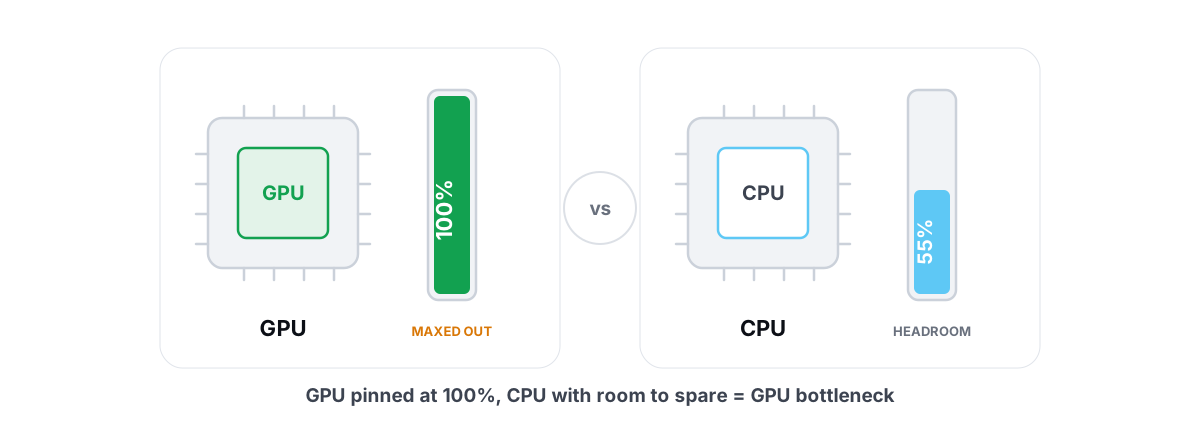
GPU vs. CPU Bottleneck: How to Tell in Gaming
Read GPU and CPU utilization to find which part is capping your frames — then tweak or upgrade the right one instead of guessing.
 Gaming & FPS
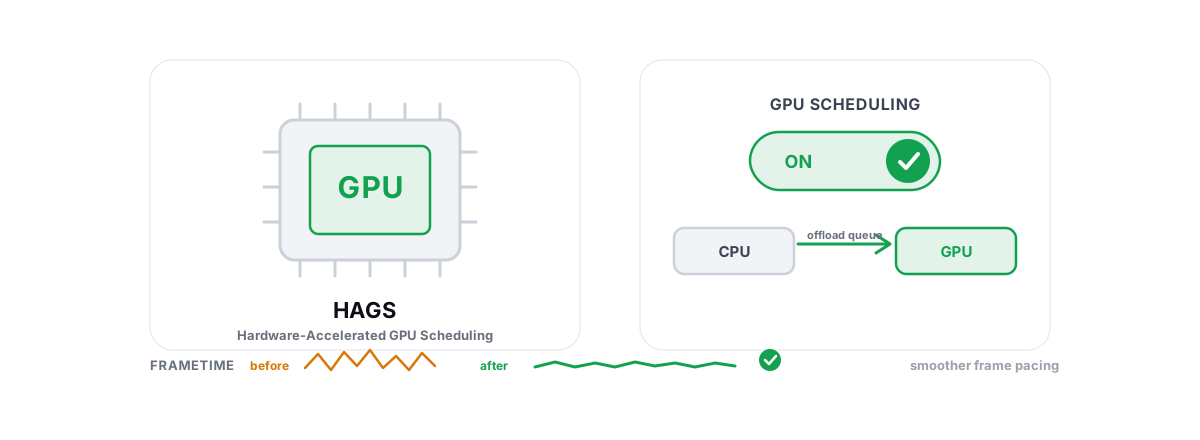
Hardware-Accelerated GPU Scheduling: On or Off?
Whether to enable HAGS depends on your GPU and features. Here is how to test it yourself with frametimes instead of trusting a forum.
 Gaming & FPS
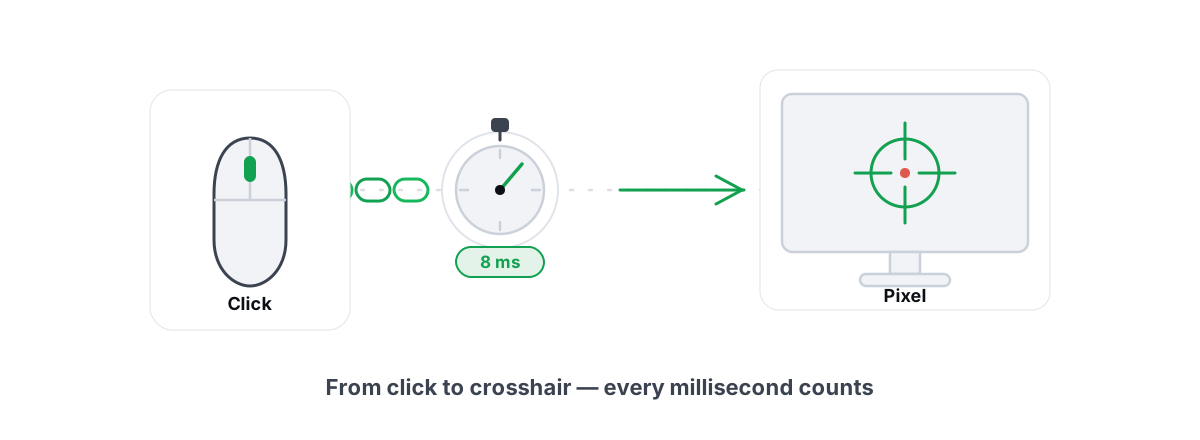
How to Reduce Input Lag You Can Actually Feel
The real chain of input lag from click to photon, and which milliseconds you can actually feel versus the placebo tweaks.
Stop guessing. Measure it.
BRUTAL Optimizer is the honest way to speed up Windows — 17 free modules, a real FPS overlay, verified disk cleanup and drive health. No kernel driver of our own, no game hooks, every setting change reversible.