Hardware-Accelerated GPU Scheduling: On or Off?
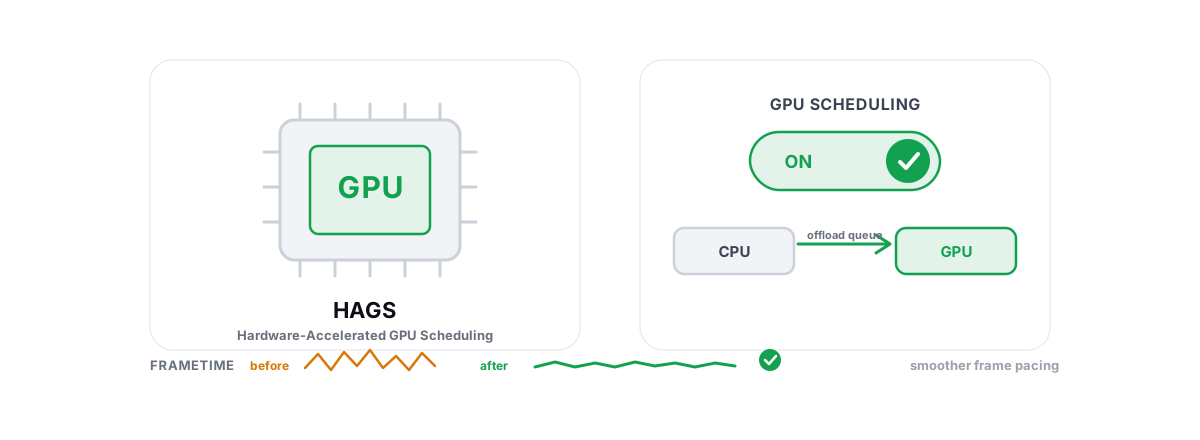
Hardware accelerated GPU scheduling is one of those toggles people flip because a forum told them to, then never measure. The honest answer to "on or off" is: it depends on your GPU, the features you run, and what you can actually feel. This guide hands you the test so you stop guessing.
HAGS arrived in Windows 10 version 2004 and is standard on Windows 11. It changes who manages the queue of work going to your graphics card. That sounds small. On modern GPUs running frame generation it can matter; on a five-year-old card it often does nothing, and occasionally it makes stutter worse. There is no universal "best" here, and anyone who tells you there is hasn't tested across enough hardware.
What hardware accelerated GPU scheduling changes under the hood
Every frame your game draws becomes GPU work — draw calls, memory allocations, command buffers — that has to be scheduled and submitted to the graphics card. Normally a piece of Windows called the WDDM (Windows Display Driver Model) graphics scheduler, running on your CPU, batches that work and hands it off. The CPU does the queuing; the GPU does the drawing.
With HAGS on, a dedicated scheduling processor on the GPU takes over much of that queue management. The idea is to cut a layer of CPU overhead and let the GPU manage its own pipeline more directly, which can shave a small amount of latency between the CPU finishing a frame's prep and the GPU starting on it.
Two honest clarifications, because both get mangled online:
- It is not "offloading the CPU to the GPU." Your CPU still does almost all the game logic, physics and draw-call generation. HAGS only moves a thin slice of scheduling overhead. It will not fix a CPU bottleneck. If you want to know whether you even have one, read GPU vs. CPU bottleneck: how to tell in gaming.
- It requires driver and GPU support. NVIDIA exposes it from Pascal (GTX 10-series) up; AMD from roughly RX 5000 and newer; Intel Arc supports it. If your hardware or driver doesn't support it, the toggle won't appear at all.
HAGS doesn't make your GPU faster. It changes which chip schedules the GPU's work, removing a little CPU-side overhead. The effect ranges from "a couple of frames" to "literally nothing" depending on your rig.
Where to find the toggle in Windows
It lives in one place in the OS, and the path is the same on Windows 10 and 11:
- Open Settings → System → Display.
- Scroll to Graphics (on Windows 11 it's
Settings > System > Display > Graphics; on Windows 10 it's under Graphics settings). - Click Change default graphics settings.
- Toggle Hardware-accelerated GPU scheduling.
- Reboot. The setting does not take effect until the graphics stack reloads.
If the toggle is missing, your GPU, driver, or Windows build doesn't support it. Update your graphics driver first and check again — and do that the safe way, not by trusting some random "driver booster." Our guide on how to update GPU drivers safely covers the clean approach.
When HAGS helps: frame generation and latency features
This is where the setting pays off on current hardware. Several modern features were built assuming the GPU manages its own scheduling, and some flatly require HAGS to be on.
Frame generation
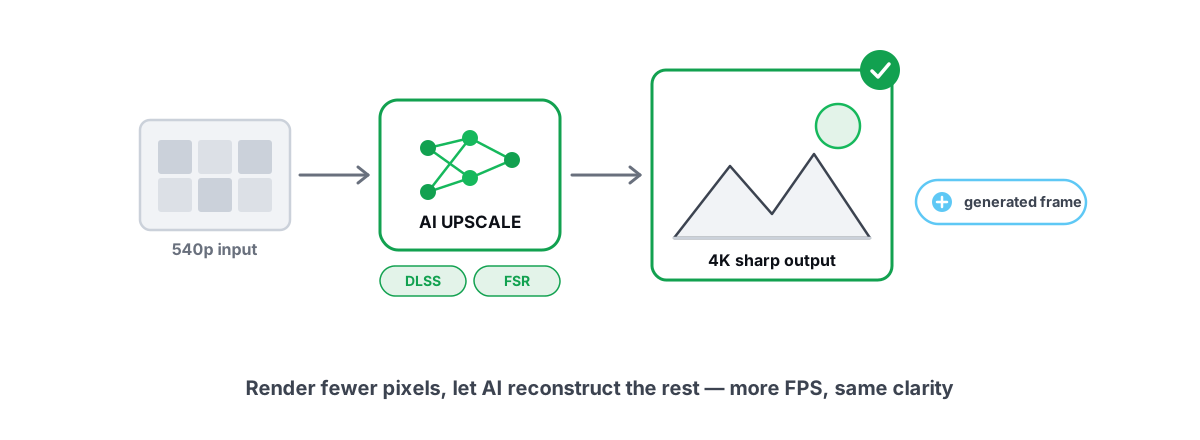
NVIDIA DLSS Frame Generation requires HAGS. Turn HAGS off and the frame-gen option is greyed out or refuses to engage. If you run an RTX 40 or 50-series card and use DLSS 3/4 frame generation, HAGS isn't optional — it's a prerequisite. AMD's FSR frame generation is less strict but still behaves better with it on. If you're unsure what these features actually do to your frames, we wrote a plain-English breakdown in DLSS, FSR and frame gen: free FPS or fake frames?.
Latency reduction
NVIDIA Reflex and the broader low-latency paths play nicely with GPU-side scheduling. On a well-supported RTX card you can sometimes measure a few milliseconds off the click-to-photon chain with HAGS on. It's not dramatic, but in a twitch shooter "a few milliseconds, consistently" is real. If shaving latency is your goal, pair this with the broader checklist in our guide to reducing input lag you can actually feel.
Who benefits most
- RTX 40/50-series and RDNA 3/4 owners using frame generation.
- Players on competitive titles using Reflex or equivalent low-latency modes.
- Anyone on a recent driver and a current GPU who wants the modern feature set to behave as designed.
When to leave it off: older GPUs and stutter reports
HAGS is not a free win for everyone, and pretending otherwise is the kind of dishonesty that gives "optimization" a bad name.
On older GPUs — think GTX 10-series and early-RDNA cards — the scheduling processor is present but the gains are usually within noise. You'll measure the same FPS within run-to-run variance, which means the "improvement" you read about was someone's placebo or a bad benchmark.
Worse, there are real, repeated reports of HAGS introducing frametime hitches and micro-stutter on certain driver and hardware combinations. It interacts with how some games pace frames, and the result on the wrong setup is occasional spikes you didn't have before. If you're already chasing stutter, treat HAGS as a suspect, not a cure — flip it off and retest. Our guide to fixing stuttering and frametime spikes walks through isolating the real cause.
How to A/B test it on your own rig with the overlay
This is the part most "best settings" articles skip, because measuring is harder than asserting. You don't need a lab. You need a repeatable scene and a frametime readout.
- Pick a fixed test. A built-in benchmark is ideal because it's identical every run. If a game has none, use the same 60-second route in the same spot — a training range, a quiet corner of a map, a replay.
- Watch frametimes, not just average FPS. Average FPS hides stutter. The number that tells the truth is your 1% low and the shape of the frametime graph. A higher average with worse 1% lows is a downgrade, not an upgrade.
- Run HAGS off first. Record average FPS, 1% low, and whether the frametime line is smooth or spiky. Reboot is required each time you flip it.
- Run HAGS on. Same scene, same settings, same duration. Record the same three numbers.
- Compare honestly. If the difference is inside a frame or two and the frametime graph looks the same, the setting is doing nothing measurable on your rig — keep whichever you want. If frame gen now works, or 1% lows clearly improved, leave it on. If new spikes appeared, turn it off.
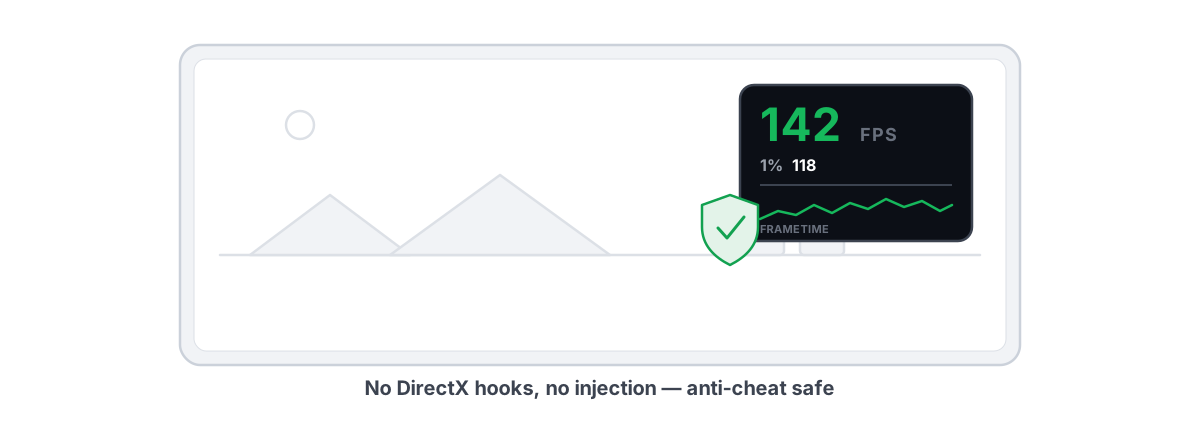
You want a frametime overlay that won't get you flagged by anti-cheat for this. An anti-cheat-safe FPS overlay is the right tool — one that reads frame timing from Windows' own present counters instead of hooking into the game. BRUTAL Optimizer's free overlay does exactly that: FPS, 1% lows and frametimes, with no DirectX hook or injection, so it runs fine next to Vanguard or Easy Anti-Cheat. That's the whole point of measuring instead of guessing.
| What you observe after A/B | What it means | Do this |
|---|---|---|
| Frame gen option now available | HAGS is a requirement for it | Leave HAGS on |
| 1% lows up, frametime graph smoother | Genuine improvement on your rig | Leave HAGS on |
| Average and 1% lows within ~1-2 frames | No measurable effect | Either is fine; pick on |
| New frametime spikes or stutter | Bad interaction on your setup | Turn HAGS off, reboot |
HAGS, G-Sync, and VRR interactions
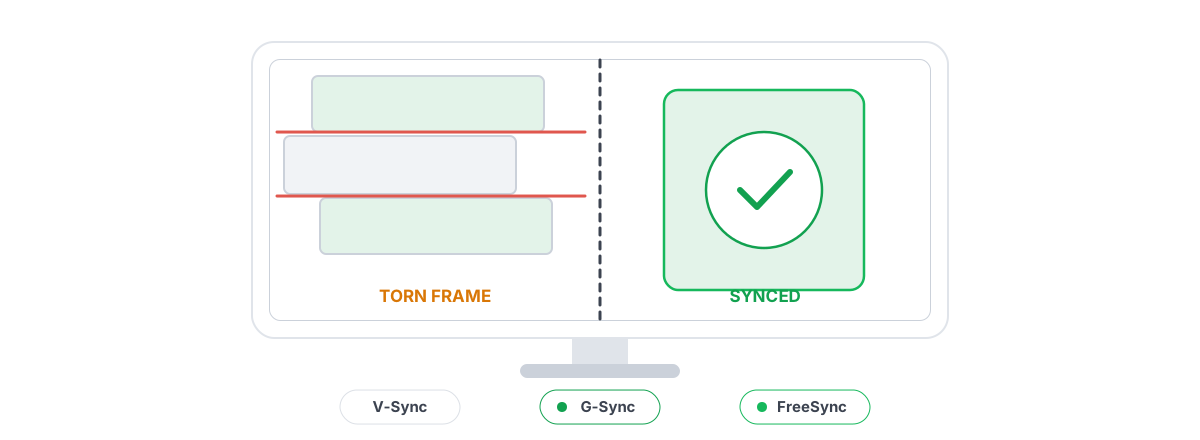
HAGS doesn't override or conflict with variable refresh rate. G-Sync and FreeSync work at the display-sync layer — they tell your monitor to refresh when a frame is ready. HAGS works upstream, at the scheduling layer. They're solving different problems and run together fine.
That said, frame pacing is where they meet. VRR depends on consistent frametimes to feel smooth; if HAGS introduces micro-stutter on your particular setup, that irregularity is exactly what VRR struggles to hide. So if your G-Sync experience feels off after enabling HAGS, that's a real signal to A/B test, not a coincidence. If you're still sorting out your sync settings in general, start with V-Sync vs G-Sync vs FreeSync and get that layer right first.
One more honest note: HAGS won't fix tearing, won't add VRR to a monitor that lacks it, and won't compensate for a refresh-rate mismatch. Those are separate settings. Don't expect one toggle to solve a different category of problem.
Reverting and why a reboot is required
Turning HAGS off is the same path in reverse: Settings > System > Display > Graphics > Change default graphics settings, flip the toggle, reboot. There's no command-line dance and no third-party tool needed.
The reboot isn't bureaucracy. HAGS changes how the WDDM graphics stack and your GPU driver initialize at boot — the scheduler hands off control to the GPU's scheduling processor (or doesn't) when the display driver loads. That handoff can't be reconfigured live without reloading the whole graphics subsystem, which in practice means a restart. If you flip it and don't see a change, you almost certainly skipped the reboot.
This is also a setting that lives in the registry under the graphics driver's key. You don't need to touch that manually, and you shouldn't — the Settings toggle does it correctly. A reminder that matters generally: changes that alter how Windows boots its graphics or kernel components are exactly the kind you want reversible and backed up. Taking a system restore point before a batch of low-level tweaks is cheap insurance, and it's why a tool that respects you takes one automatically before big changes rather than hoping nothing breaks.
The honest verdict for most gamers
Here's the short version, by who you are:
- RTX 40/50 or RDNA 3/4 owner using frame generation: HAGS on. Frame gen needs it, and the latency behavior is what the feature was designed around.
- Recent GPU, competitive shooter, chasing latency: Try it on, A/B test, keep it if your 1% lows hold or improve.
- Older GPU (GTX 10-series, early RDNA), no frame gen: Don't bother. The gain is noise. If you're already debugging stutter, off is the safer default.
- Anyone seeing new micro-stutter after enabling it: Turn it off, reboot, problem likely gone.
The mistake isn't choosing on or off. The mistake is choosing without measuring, then defending the choice you can't back up. HAGS is a small, situational setting — treat it like one. Flip it, reboot, run the same scene twice, and let your own frametime graph decide.
If you'd rather measure than guess, BRUTAL Optimizer's free anti-cheat-safe overlay shows FPS, 1% lows and frametimes without injecting into your game, and the rest of the app is the same kind of honest: every setting change is reversible, nothing fakes a benchmark, and it never claims a placebo win. For the full picture of what it does and doesn't do, see the gaming optimizer. The settings work the same whether or not you ever install it — that's how it should be.
Frequently asked questions
Should I enable HAGS?
It depends. If you have an RTX 40/50 or RDNA 3/4 GPU and use frame generation, enable it because frame gen requires it. On older GPUs with no frame gen, the gain is usually within measurement noise, so off is a fine default. The only honest way to decide is to A/B test it on your own rig.
Does HAGS increase FPS?
Not really. HAGS moves a thin slice of GPU scheduling overhead off the CPU; it does not make the GPU faster or fix a CPU bottleneck. On supported modern hardware you might measure a couple of frames or slightly better 1% lows, but on older GPUs it often changes nothing measurable.
Can HAGS cause stutter?
Yes, on some driver and hardware combinations it can introduce frametime hitches or micro-stutter that were not there before. If you are already chasing stutter, treat HAGS as a suspect: turn it off, reboot, and retest the same scene.
Why do I need to reboot after changing HAGS?
HAGS changes how the WDDM graphics stack and GPU driver initialize at boot, including whether scheduling is handed to the GPU. That handoff cannot be reconfigured while the graphics subsystem is running, so a restart is required for the setting to take effect.
Does HAGS conflict with G-Sync or FreeSync?
No. Variable refresh rate works at the display-sync layer while HAGS works at the scheduling layer, so they run together fine. The one caveat is frame pacing: if HAGS introduces micro-stutter on your setup, that irregularity is exactly what VRR struggles to smooth, which is a reason to test.
Keep reading
 Gaming & FPS
DLSS vs FSR & Frame Gen: Free FPS or Fake Frames?
Upscaling gives real FPS by rendering fewer pixels; frame generation adds smoothness but costs latency. Here is when each is worth it.
 Gaming & FPS
V-Sync vs G-Sync vs FreeSync: Stop Screen Tearing
The honest difference between fixed V-Sync and adaptive VRR, plus the exact frame-cap recipe for tear-free, low-latency gameplay.
 Gaming & FPS
Best FPS Overlay That's Anti-Cheat Safe
Why a present-frame fps overlay is the anti-cheat-safe choice, and how to read 1% lows and frametimes properly.
Stop guessing. Measure it.
BRUTAL Optimizer is the honest way to speed up Windows — 17 free modules, a real FPS overlay, verified disk cleanup and drive health. No kernel driver of our own, no game hooks, every setting change reversible.