Clean GPU Driver Install with DDU: When and How
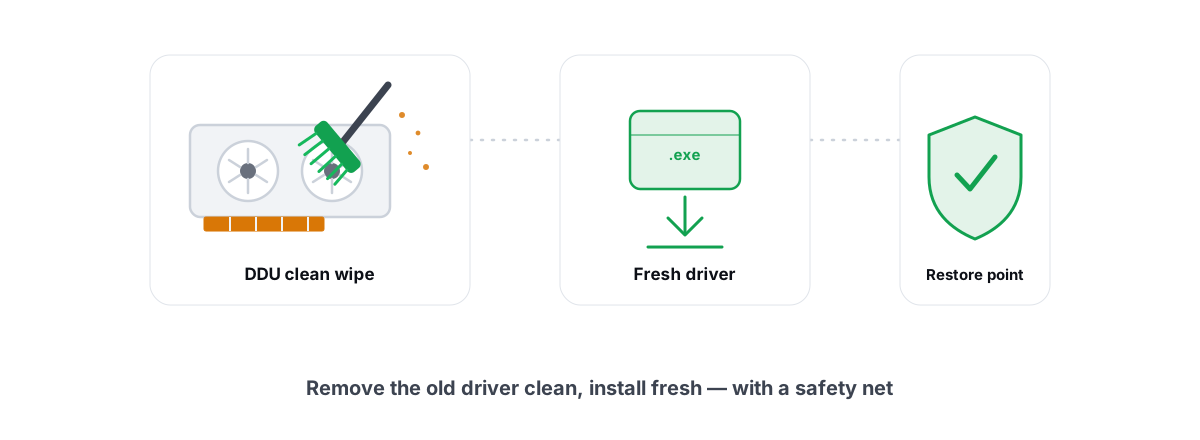
A clean GPU driver install means wiping every trace of the old driver before installing the new one. It fixes a specific set of real problems — and it's overkill for almost everything else.
Most of the time a normal driver update is fine. You download the latest package, the installer replaces the old files, and you move on. But sometimes a driver carries forward broken state: stale registry entries, mismatched files from a half-finished install, leftover bits from your old GPU vendor. That's when a DDU clean GPU driver install earns its keep.
This guide tells you how to spot those cases, how to do the wipe safely with Display Driver Uninstaller (DDU), and how to verify the result. It also tells you when to skip the whole ritual, because doing this every driver release is a waste of your time.
What "driver cruft" actually is
A GPU driver isn't one file. It's a kernel-mode display driver, a user-mode runtime, control-panel software, a handful of services, and a pile of registry keys under HKLM\SYSTEM\CurrentControlSet\Control\Class\{4d36e968-e325-11ce-bfc1-08002be10318}. A normal install updates most of that in place.
"Cruft" is what survives when an install doesn't go cleanly. A few real examples:
- Vendor leftovers. You swapped an NVIDIA card for an AMD one. The new Adrenalin install doesn't remove the old NVIDIA service, control panel, or registry profiles — they just sit there, occasionally fighting for the same display.
- Version mismatch. An update failed partway, or you installed over a beta with a release build. You end up with files from two different driver versions coexisting.
- Stale profiles and overrides. Per-application 3D settings, color profiles, or overclocking entries that point at hardware or game executables you no longer have.
This cruft is mostly harmless. It doesn't slow your games down in any measurable way, and it doesn't cost you FPS. What it can do is cause instability — black screens on wake, driver-timeout crashes (TDRs), the control panel refusing to open, or a fresh driver that won't install over the wreckage of a failed one.
A clean install is a stability tool, not a performance tool. If your goal is "more FPS," wiping your driver is the wrong lever.
When a DDU clean GPU driver install is worth it
The honest split: a clean wipe solves install-state problems. It does nothing for problems that live elsewhere — thermals, a CPU bottleneck, a bad game patch, network lag. Match the fix to the symptom.
Before you reach for DDU, confirm the driver is actually your problem. A lot of "driver" crashes are really heat. If your GPU is hitting 83°C and throttling under load, no reinstall fixes that — check your temps and throttling first. Same with stutter: frametime spikes are more often a shader-compilation or CPU issue than a corrupt driver.
| Symptom | Clean install likely to help? | Better first step |
|---|---|---|
| Switched GPU vendor | Yes | DDU, then install new vendor's driver |
| Driver won't install / rolls back | Yes | DDU, then retry the installer |
| Repeated TDR crashes / black screens | Often | Check temps and PSU first, then DDU |
| Control panel won't open | Yes | Clean install of the same driver |
| Low FPS / stutter | Rarely | Temps, settings, bottleneck check |
| New game hitches on first run | No | It's shader compilation, not the driver |
DDU basics: safe mode, network off, the right vendor
Display Driver Uninstaller is a free tool from Wagnardsoft. It does one thing well: it removes a GPU driver and its leftovers far more thoroughly than the Windows uninstaller or the vendor's own "remove" option. It's a maintenance utility, not a hack — it edits the same registry and file locations Windows already exposes.
Three rules make it safe and effective:
- Run it in Safe Mode. DDU itself recommends this. In Safe Mode, Windows loads a basic display driver and nothing has a lock on the real driver's files. That's the difference between a clean removal and a half-removal that leaves pieces behind. Hold Shift while you click Restart, then go to
Troubleshoot → Advanced options → Startup Settings → Restartand pick Safe Mode. - Cut the network first. Unplug Ethernet or turn off Wi-Fi before you reboot to Safe Mode. If you leave Windows online, Windows Update will happily shove a generic GPU driver back on the moment DDU finishes — and now you're racing it. Offline, the slate stays clean until you install the driver you actually want.
- Select the correct vendor. In DDU, pick GPU as the device type, then the right brand: NVIDIA, AMD, or Intel. If you're switching cards, clean the old vendor's driver. DDU's "Clean and restart" is the standard choice.
After the clean-and-restart, Windows comes back with its basic display driver — low resolution, no acceleration. That's expected. You're one install away from done.
The clean-install option in NVIDIA/AMD installers
Not every situation needs Safe Mode and DDU. Both NVIDIA and AMD ship a lighter clean option right inside their installers, and for most same-card refreshes it's enough.
- NVIDIA: in the installer, choose Custom (Advanced) and tick Perform a clean installation. This removes existing NVIDIA driver settings and profiles before installing, without a Safe Mode trip.
- AMD: the Adrenalin installer offers a Factory Reset option that wipes existing AMD driver components first.
The difference matters. The installer's clean option resets that vendor's settings. DDU in Safe Mode strips the driver down to bare metal and can remove a different vendor's leftovers — which the installer's option cannot. So:
- Same card, persistent weirdness → try the installer's clean/factory-reset option first.
- Vendor switch, failed install, or the clean option didn't help → full DDU in Safe Mode.
Take a restore point first
Before you wipe a driver, give yourself an undo button. A System Restore point captures your current driver and registry state, so if the new install behaves worse than the old one, you can roll back in minutes instead of hunting down the exact previous driver version.
Open rstrui.exe or search "Create a restore point," and create one manually before you start. It takes thirty seconds. If you've never done this, here's the full walkthrough.
This is also the part most "one-click driver tool" workflows quietly skip. A clean install touches kernel-mode display state — that's exactly the kind of change that deserves a snapshot first. If you run BRUTAL Optimizer, its driver tools attempt a System Restore point before any install, and every registry/system change it makes is individually reversible.
Reinstalling cleanly and verifying the result
Once DDU has restarted you into a stripped display driver, install the driver you actually want:
- Get the driver from the vendor, not from Windows Update. Download the package directly from NVIDIA, AMD, or Intel for your exact GPU model. Grab it before you go offline so the file's already on disk.
- Reconnect the network only after the install starts (or after it finishes). You no longer care about Windows Update racing you once your real driver is in.
- Run the vendor installer. With DDU having cleared everything, you don't strictly need the installer's clean option this time, but ticking it does no harm.
- Reboot once more after install, even if it doesn't demand it. It settles the display stack.
Now verify. Don't assume — check:
- Version: open the NVIDIA or AMD control panel (or Windows Settings → System → Display → Advanced display) and confirm the driver version matches what you installed.
- Device Manager: your GPU should appear under Display adapters with no yellow warning triangle and no "Microsoft Basic Display Adapter" left over.
- Behavior: run the game or app that was crashing. The honest test of a clean install is whether the original symptom is gone — not a synthetic benchmark number.
If you reinstalled specifically because a driver was crashing and now it's stable, you're done. If the crash persists across a clean install, the driver was probably never the cause — look at heat, power, or a flaky GPU. A reinstall that didn't help is useful information.
Shader-cache cleanup after a driver swap
Here's the step people forget. Your GPU driver builds a shader cache — precompiled shader code stored on disk so games don't have to recompile shaders every launch. When you swap drivers, that cache can go stale, because shaders compiled by the old driver may not match the new one's expectations.
A stale shader cache shows up as extra stutter for the first hour or two after a driver change: the game re-compiles shaders on the fly, and you feel the hitches. Clearing the cache after a clean install forces a fresh rebuild, which is the behavior you want.
The caches live in predictable spots — NVIDIA's DXCache and GLCache folders, AMD's DxCache, plus the generic D3DSCache, and per-game caches that some titles keep themselves. You can clear them by hand, but it's fiddly and easy to delete the wrong thing.
A safer route is a cleaner that targets only the known shader-cache locations. BRUTAL Optimizer's Disk Cleaner has a GPU shader-cache category for exactly this — and because clearing it mid-session causes the very stutter you're trying to avoid, it deliberately skips that category while a game or emulator is running. It also reports the actual bytes freed, re-measured before and after, instead of a made-up "up to X GB."
If shader stutter is your main complaint and you haven't changed drivers, that's a different problem — read why new games hitch on first run before you blame the driver.
Anti-cheat note: drivers are user-space, this is safe
People worry that wiping and reinstalling a driver, or running cleanup tools afterward, might trip an anti-cheat system. It won't, and it's worth understanding why.
DDU, the vendor installer, and a shader-cache cleaner all operate through normal Windows mechanisms — the same uninstall, install, and file-deletion paths any program uses. They don't inject into your game, they don't hook the rendering pipeline, and they don't sit in memory while you play. Vanguard, Easy Anti-Cheat, and BattlEye care about code that tampers with a running game, not about maintenance you did while the game was closed.
Installing a GPU driver is one of the most ordinary things you can do on Windows — the OS practically expects it. The reinstall itself is invisible to anti-cheat. And reputable optimizers stay on the safe side of the same line: no kernel driver, no injection, no rendering hooks. If you want the full picture of where that line sits, these are the four bright lines that separate safe tools from bannable ones, and our safety page lays out exactly what stays user-mode.
One caveat: do the clean install while your game and its anti-cheat are fully closed. Not because the install is risky, but because you can't replace a display driver that a running game is actively using anyway.
The bottom line
A clean DDU install is the right fix for a narrow set of problems: vendor switches, failed installs, and persistent driver crashes. For those, it's the cleanest way back to a working machine. For everything else — routine updates, low FPS, general stutter — it's effort spent in the wrong place.
Take a restore point, go offline, wipe in Safe Mode with the correct vendor selected, install the driver you actually want, clear the shader cache, and verify the original symptom is gone. That's the whole job.
If you'd rather not juggle restore points and shader-cache folders by hand, BRUTAL Optimizer handles the surrounding steps honestly — a restore point attempted before driver installs, a shader-cache cleaner that won't run mid-game, and verified-freed-bytes reporting instead of inflated promises. It's free, it's anti-cheat-safe, and it never pretends a reinstall gave you FPS it didn't. See what it actually does.
Frequently asked questions
Do I need to run DDU for every GPU driver update?
No. A clean DDU install is for vendor switches, failed installs, and persistent driver crashes. For a routine version bump on the same card, let the normal installer do its job, or use the installer's own clean-install checkbox.
Why does DDU recommend Safe Mode?
In Safe Mode, Windows loads a basic display driver and nothing holds a lock on the real driver's files, so DDU can remove everything cleanly. Outside Safe Mode you risk a half-removal that leaves leftovers behind.
Will a clean driver install give me more FPS?
Almost never. A clean install is a stability tool, not a performance tool. It fixes crashes, black screens, and install-state problems. If you want more FPS, look at temperatures, in-game settings, and bottlenecks instead.
Can DDU or shader-cache cleanup get me banned by anti-cheat?
No. DDU, vendor installers, and shader-cache cleaners use normal Windows install and file-deletion paths. They do not inject into a running game or hook rendering. Just do the work while the game and its anti-cheat are fully closed.
Should I clear the shader cache after swapping drivers?
Yes. The old driver's precompiled shaders can go stale after a swap, causing extra stutter for the first hour. Clearing the known shader-cache folders forces a fresh rebuild and smooths things out.
Keep reading
 Hardware & Drivers
How to Update GPU Drivers Safely in 2026
The clean-install method that prevents stutter and crashes, when to roll back a bad GPU driver, and why a restore point comes first.
 Anti-Cheat & Safety
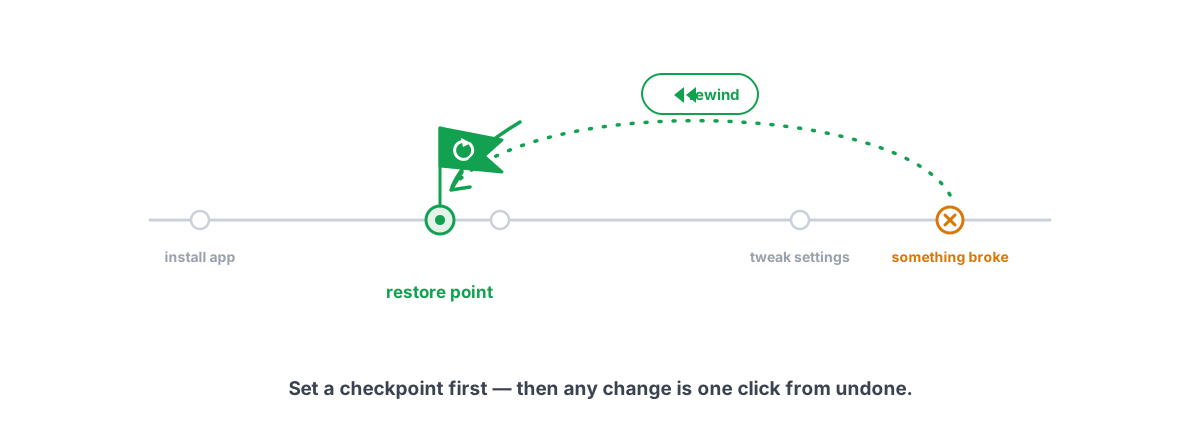
How to Create a System Restore Point (and Why)
Enable System Protection, snapshot before any deep tweak, and roll back in minutes when a driver or change breaks something.
 Gaming & FPS
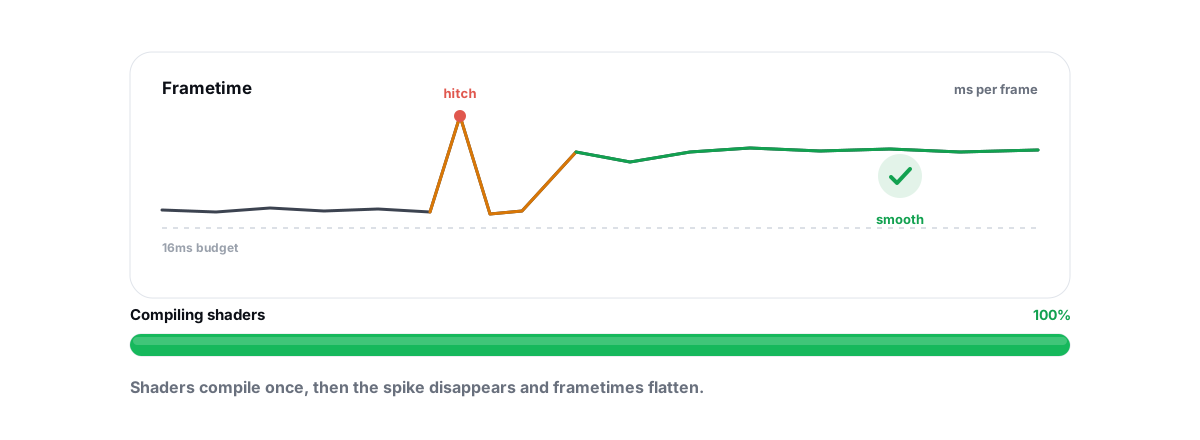
Fix Shader Stutter: Why New Games Hitch
Shader stutter is the game compiling shaders on the fly. Here is how to pre-compile, when clearing the cache helps, and what no tool can fix.
Stop guessing. Measure it.
BRUTAL Optimizer is the honest way to speed up Windows — 17 free modules, a real FPS overlay, verified disk cleanup and drive health. No kernel driver of our own, no game hooks, every setting change reversible.