How to Optimize Windows for Gaming Safely Without Breaking It
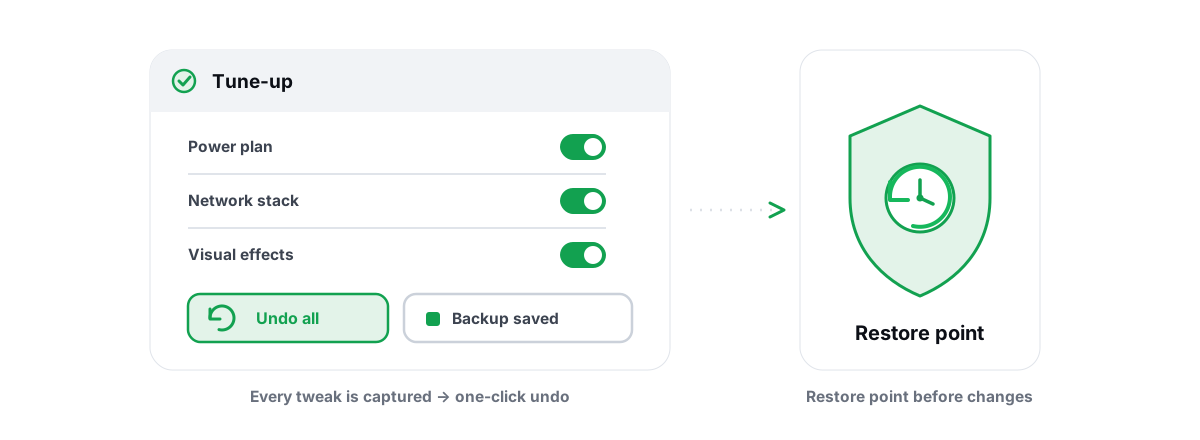
You can optimize Windows for gaming safely and get real, felt gains — a few to several FPS, smoother frametimes, lower input latency. You can also nuke your install, lose audio, or break Windows Update by trusting a script someone uploaded with 200 deleted services in it. The difference is entirely in how you do it: every change reversible, every result measured.
This is the safety-first version. Every change here is either reversible or trivial to confirm before you commit. No mystery scripts, no "run as admin and pray." If a tweak can't be undone or doesn't have a real mechanism behind it, it doesn't make the list.
Why most "ultimate tweak" guides are a trap
The typical "ultimate Windows gaming tweak" pack is a batch file or PowerShell script that does forty things at once. It disables dozens of services, edits hundreds of registry keys, strips Windows components, and tells you to reboot. When something breaks — and it often does — you have no idea which of the forty changes caused it.
That's the core problem: no isolation and no undo. A tweak you can't reverse is a tweak you can't safely test. If disabling a service kills your microphone two days later, you need to know exactly what changed and how to put it back. A blind script gives you neither.
The second problem is placebo. A big chunk of these guides recycle tweaks that did nothing on Windows 7 and do less on Windows 11. "RAM optimizers," registry cleaners "for speed," giant pagefile edits, core-parking toggles that the scheduler ignores. They make the script look busy. They don't make games run faster. We'll name the worst offenders below.
A tweak you can't undo and can't measure isn't optimization. It's gambling with your install.
Always start with a System Restore point
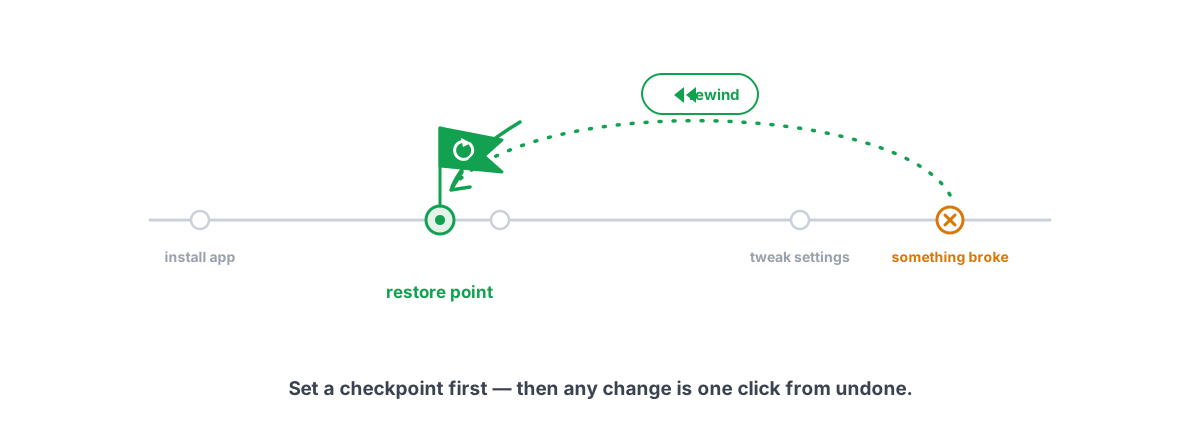
Before you touch anything system-level, make a restore point. It's the single cheapest insurance you'll ever buy, and most people skip it because Windows hides it.
Open the Start menu, type Create a restore point, and hit Enter. In the System Protection tab, make sure protection is On for your system drive (it's often off by default on a fresh install — select the drive, click Configure, turn it on, give it 2-5% disk). Then click Create, name it something like "before gaming tweaks," and wait for it to finish.
A restore point rolls back the registry, drivers, and system files to that snapshot. It does not touch your personal files, and it's not a full backup — so it won't save you from a deleted Steam library, but it will save you from a registry edit that breaks boot. If you want the longer version, here's a full walkthrough on creating a System Restore point the right way.
Optimize Windows for gaming safely: the reversible tweaks
These have a real mechanism, a small-but-honest payoff, and a clear path back. None of them require kernel drivers or third-party hooks.
- Update your GPU drivers. The most reliable FPS source on this list. New drivers often add per-game optimizations. Do it cleanly and you can roll back via Device Manager if a release regresses — here's how to update GPU drivers safely.
- Set a high-performance power plan.
powercfgswaps power plans without touching anything permanent. On a desktop this stops the CPU from down-clocking aggressively between frames. Reversible by switching back to Balanced. - Enable Hardware-Accelerated GPU Scheduling (HAGS). A documented Windows toggle in Settings > System > Display > Graphics. It can smooth frame delivery on modern GPUs; test it both ways since results vary. See when HAGS actually helps.
- Turn off Game DVR / background recording if you don't use it. Stops the Xbox Game Bar from capturing in the background. Pure reversible registry/Settings change.
- Clean junk and verify the space. Temp files, browser caches, crash dumps, old Windows Update files. This is safe when it's allow-listed and re-measured — not when a tool guesses. More on the disk cleanup myths worth skipping.
- Manage startup programs. Disabling a startup entry (it stays disabled, never deleted) cuts boot time and frees RAM. Fully reversible from the same screen — the honest version of "speed up Windows." See managing startup programs.
- Tune your network for latency, not bandwidth. Picking a faster DNS, checking for bufferbloat, and using Ethernet over Wi-Fi all reduce ping and jitter without editing the network stack driver.
Notice what's missing: nothing here disables Defender, strips services, or rewrites the NIC driver. The payoff is modest and real. That's the whole point.
The tweaks to skip: registry cleaning, service nuking, debloat scripts
Here's where the "ultimate" guides earn their reputation. These do nothing for FPS, or actively break things.
Debloat scripts that remove Windows components (not just preinstalled apps, but actual system features) are the worst of the bunch, because the damage often shows up weeks later when an update fails to install. Removing a Candy Crush stub is fine. Ripping out Edge, the Store framework, or servicing components is how you end up reinstalling Windows.
Anti-cheat-safe versus risky: how to tell
If you play anything with Vanguard (Valorant), Easy Anti-Cheat, or BattlEye, this section matters more than FPS. The wrong "optimizer" doesn't just risk your install — it can flag your account.
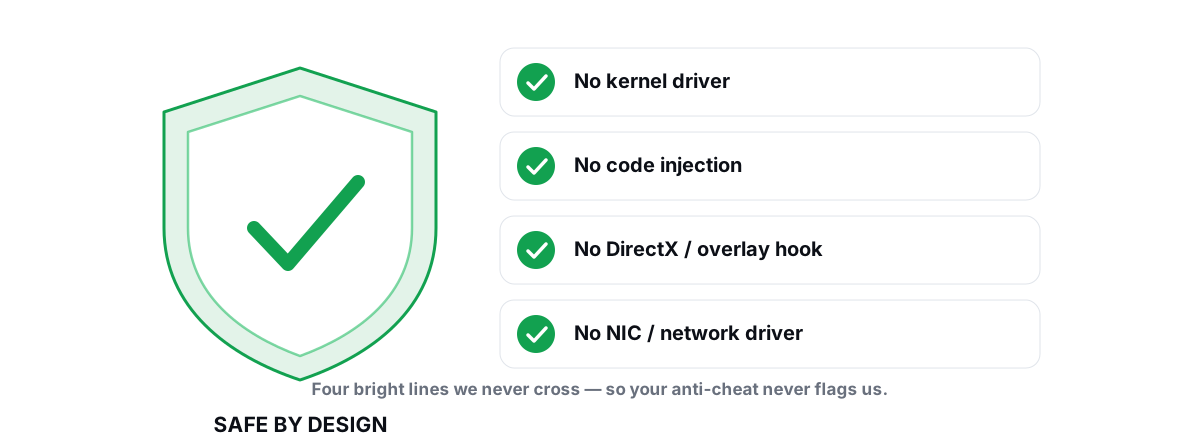
The line is simple. Anti-cheat systems care about anything that injects into games or sits in the kernel. A tool is risky when it:
- Loads a kernel-mode driver to "boost" timers or memory — anti-cheat drivers run in the same space and can react to unknown kernel modules.
- Hooks DirectX or injects a DLL for its FPS overlay — that's indistinguishable from how some cheats draw on screen.
- Writes to game memory or modifies a running game process.
- Replaces the network stack or NIC driver for "lag reduction."
A tool is safe when it's a user-mode wrapper over what Windows already ships — powercfg, fsutil, defrag.exe, bcdedit, registry edits, Windows Update, netsh. Those are the same commands Microsoft documents. They don't touch the game. An overlay that counts DWM composition or D3DKMT present frames reads frame timing from Windows — it never injects into the game, so anti-cheat has nothing to see.
Tuning Windows itself — power plan, timer resolution, drivers, disk — does not get you banned. Touching the game does. If you want the full breakdown, read the anti-cheat-safe optimization guide and the plain answer to whether PC optimizers get you banned.
| Approach | Anti-cheat-safe? | Why |
|---|---|---|
| Power plan, drivers, disk cleanup | Yes | Touches Windows, never the game |
| DWM / D3DKMT frame-counting overlay | Yes | Reads frame timing, no injection |
| Kernel "timer/RAM" driver | Risky | Unknown kernel module next to anti-cheat |
| DirectX-hook overlay | Risky | Looks like a cheat drawing on screen |
| Memory/process editing | Risky | Direct game tampering |
Per-module undo and why it matters
The fix for the "forty changes, no idea which broke it" problem is isolation. Apply changes in named groups, and keep a separate undo for each group. That way a bad result rolls back one thing, not your whole config.
This is the difference between a script and a tool you can trust. A script is all-or-nothing and the "undo" is usually "reinstall Windows." Grouped, reversible changes let you test the network tweaks, decide they helped, then test the power tweaks separately — and back out whichever one didn't.
It also lets you be honest with yourself about results. If you apply ten things at once and FPS goes up two, you don't know which one did it (or whether it was variance). Apply one group, benchmark, then the next, and you actually learn what your machine responds to.
How BRUTAL captures backups before every change
This is exactly how BRUTAL Optimizer is built, and it's the one place a tool genuinely beats doing it by hand. Before any module writes a registry value, it reads and stores the original first. Command-based changes (powercfg, bcdedit, netsh) are stored as forward/reverse pairs, so undo replays the exact reverse command. Backups are written to disk as JSON, so the undo button still works after a reboot or a week later.
The honesty rules are baked in: it attempts a System Restore point before the big changes, it never defrags an SSD or ships a fake RAM/FPS meter, disk cleaning reports the verified freed bytes (re-measured before and after, not estimated), and there's no kernel driver, no DirectX hook, and no process injection — so it runs alongside Vanguard, EAC, and BattlEye. Of the 22 optimization modules, 17 are free, and each one has its own undo. The free FPS overlay counts present frames, so it's safe over competitive games too — more on anti-cheat-safe FPS overlays.
You don't need the app to do any of this. But if you're going to apply twenty tweaks, having each one captured and individually reversible is the difference between confident testing and crossing your fingers.
A sane order to apply and verify changes
Order matters because it lets you attribute gains. Change one category, measure, then move on. Don't stack everything and reboot — you'll have no idea what worked.
- Baseline first. Note your current FPS and frametimes in a game you play, using an overlay that shows 1% lows. Without a baseline, every "improvement" is a guess.
- Restore point. Make it now, before anything else.
- Drivers. Clean GPU driver update. Reboot, re-test. This alone is often the biggest single change — the full FPS guide starts here too.
- Power plan + HAGS. Set high-performance, toggle HAGS, re-test. Keep what helps.
- In-game settings. The heavy hitters — shadows, view distance, anti-aliasing, ray tracing, upscaling — move more FPS than any Windows tweak. Balance them per FPS vs quality.
- Disk + startup cleanup. Free real space, trim startup apps. Reversible, low-risk.
- Network last. DNS, bufferbloat, Ethernet. This affects ping and stutter in online games, not raw FPS — keep it separate so you don't confuse a smoother connection for higher framerate.
After each step, ask one question: did the number actually move outside normal variance, and did anything break? If yes to broken, undo that step and only that step. If a tweak did nothing measurable, undo it anyway — there's no reason to carry a change that earns nothing. Stuttering specifically has its own causes; if frametime spikes persist, work through fixing frametime spikes rather than piling on more tweaks.
Optimization isn't a one-shot script. It's a loop: baseline, change one thing, measure, keep or revert. Done that way, you can't break Windows — because every step has a door back.
If you'd rather not track all that by hand, an honest tool that captures a backup before every change and reports only verified results does the bookkeeping for you. BRUTAL Optimizer is free for 17 of its 22 modules, attempts a restore point automatically, and keeps a per-module undo so testing stays safe. Whatever you use, the rule is the same: reversible, measured, and never anything that touches the game.
Frequently asked questions
Can optimizing Windows for gaming get me banned?
Tuning Windows itself does not. Anti-cheat cares about anything that injects into the game or loads a kernel driver, not about power plans, drivers, or disk cleanup. Avoid tools with kernel drivers, DirectX-hook overlays, or memory editing, and you are safe alongside Vanguard, EAC, and BattlEye.
Should I make a System Restore point before tweaking Windows?
Yes, always, before any batch of registry, service, or driver changes. Type Create a restore point in Start, confirm protection is on for your system drive, and click Create. It rolls back system state without touching your personal files and turns a broken install into a five-minute fix.
Are debloat scripts safe to run?
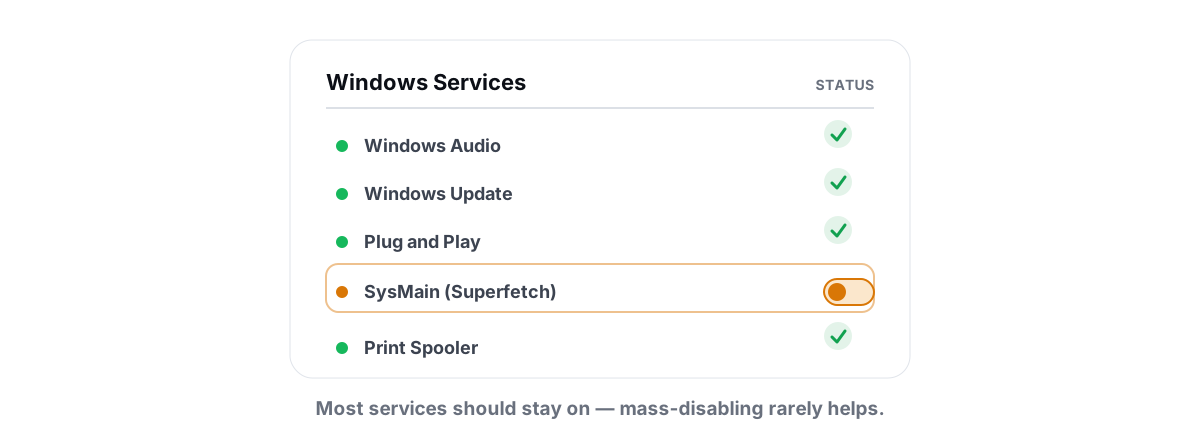
Removing preinstalled junk apps is fine, but scripts that strip actual Windows components or mass-disable services are the top cause of broken installs. The damage often appears weeks later as failed updates or dead audio, and there is usually no clean undo.
Do registry cleaners and RAM boosters improve FPS?
No. The registry is a database, so deleting orphaned keys does not speed up reads in any measurable way. Forcibly emptying RAM just makes Windows reload data from disk a moment later, which causes stutter rather than higher framerate.
What is the safest order to apply Windows gaming tweaks?
Baseline your FPS first, make a restore point, then change one category at a time: drivers, power plan and HAGS, in-game settings, disk and startup cleanup, and network last. Measure after each step and revert anything that does not help or breaks something.
Keep reading
 Anti-Cheat & Safety
How to Create a System Restore Point (and Why)
Enable System Protection, snapshot before any deep tweak, and roll back in minutes when a driver or change breaks something.
 Anti-Cheat & Safety
Anti Cheat Safe Optimization: The 4 Bright Lines
The four bright lines that separate safe user-mode tweaks from the tools that get your game account flagged.
 Windows Performance
Windows Services to Disable for Performance: Honest List
Most viral service-disabling lists are copy-pasted nonsense. Here is what is actually safe to stop and what to leave alone.
Stop guessing. Measure it.
BRUTAL Optimizer is the honest way to speed up Windows — 17 free modules, a real FPS overlay, verified disk cleanup and drive health. No kernel driver of our own, no game hooks, every setting change reversible.