Is It Safe to Disable Windows Services? Read First
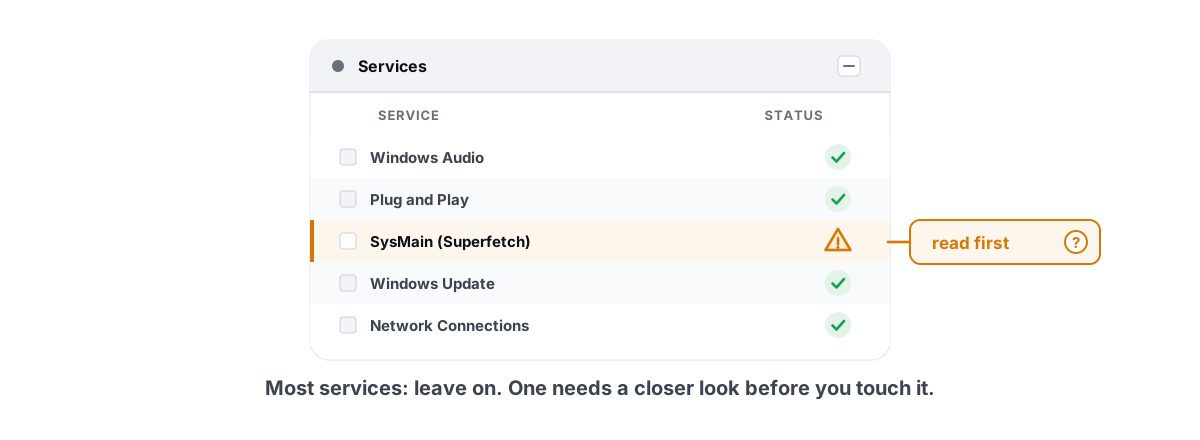
Is it safe to disable Windows services? It is right up until it isn't — and the difference is entirely in how you do it. Done carelessly, one flipped switch breaks your audio, your Wi-Fi, or your next boot. Done properly, it's reversible in thirty seconds.
This is the companion piece to the question of which services are actually worth disabling (short answer: very few, and none for FPS). This article is about the part the viral lists skip entirely: the method. How to change a service so you never brick a feature, never trip anti-cheat, and can always walk it back.
I've recovered plenty of machines that came in dead because someone pasted a 40-service list and hit Disabled on all of them. Every one of those was avoidable. Here's the safe way.
Is it safe to disable Windows services blindly? No
A Windows service isn't a standalone toggle. It's a component other things depend on, and Windows doesn't always warn you before something downstream breaks.
The danger comes in three flavors. First, dependencies: a service you've never heard of might be the thing your network stack, audio, or login process quietly relies on. Disable it and the symptom shows up somewhere unrelated — no sound, no internet, an app that won't launch.
Second, delayed breakage. A bad change often doesn't fail immediately. The service was already idle, so nothing happens today. Then a week later you plug in a Bluetooth headset, or Windows Update tries to run, and now it silently fails because you killed the trigger. By then you've forgotten what you changed.
Third, boot impact. Set a few load-bearing services to Disabled and you can land at a black screen or a recovery loop. That's the worst case, and it's entirely preventable with a restore point you took beforehand.
Be honest with yourself about the math: most service changes give you rounding-error RAM and zero FPS, while carrying real downside risk. The reward is small and the failure mode is large. That asymmetry is why the method matters more than the list.
Manual vs Disabled vs Automatic, explained
Almost everyone who breaks something does it by choosing Disabled when they should have chosen Manual. These Startup types are the single most important thing to understand before you touch anything.
| Startup type | What it means | When to use it |
|---|---|---|
| Automatic | Starts at boot, every time. | The default for core services. Leave these alone. |
| Automatic (Delayed Start) | Starts shortly after boot, so login feels faster. | Used for non-urgent background services. Fine as-is. |
| Manual | Stays stopped until something explicitly asks for it, then starts on demand. | The safe choice for anything you're unsure about. |
| Manual (Trigger Start) | Like Manual, but starts on a specific event (a device plugged in, a network change). | Windows' own modern default for many services. Don't override it. |
| Disabled | Hard-blocked. Windows refuses to start it even if something needs it. | Only for services you are certain nothing on your system uses. |
This is the part the lists never explain: a service set to Manual that nobody calls is already costing you nothing. It's stopped. It uses no CPU and no RAM. Setting it to Disabled instead frees exactly the same amount — nothing — but removes the safety net that lets Windows start it if a real need shows up.
Prefer Manual over Disabled for anything you're not 100% sure about. Manual gives you the "off" you wanted while letting Windows turn the service back on when something legitimately needs it. Disabled is the setting that causes mystery breakage.
So in practice you rarely need Disabled at all. Manual covers most of what people are trying to achieve, and it fails gracefully instead of catastrophically.
Service dependencies that bite back
Every service in services.msc has a Dependencies tab — and it's the tab nobody reads. Double-click any service, click that tab, and you'll see two trees: what this service depends on, and what depends on it.
That second tree is the one that bites. Disable a service and everything in "the following system components depend on this service" can stop working too. The classic examples:
- Remote Procedure Call (RPC) — a huge swath of Windows depends on it. Disabling RPC can make the system unbootable. People do it because it sounds like "remote" networking they don't use. It isn't.
- Windows Audio depends on Windows Audio Endpoint Builder and RPC. Kill the wrong one and you lose all sound, not just one app.
- Network List Service and Network Location Awareness underpin how Windows decides if you're on a private or public network — break them and firewall rules and connectivity get strange.
- Background Tasks Infrastructure Service (BrokerInfrastructure) is required by so many modern apps that disabling it can stop apps from launching at all.
The viral lists never mention dependencies because checking them takes effort and the list-maker never tested on your machine. Your hardware, drivers, and installed apps create dependency chains theirs didn't have. This is also why a tweak that "worked fine for that guy on YouTube" bricks your specific PC: different dependencies.
Services anti-cheat and Windows Update rely on
Two categories deserve a hard "do not touch," because the failure here is either a broken core feature or a game that won't launch.
Anti-cheat services
Modern anti-cheat runs as a Windows service or kernel driver: Vanguard (vgc/vgk) for Valorant, Easy Anti-Cheat, BattlEye, Faceit. If a "gaming optimization" list tells you to disable these, it's telling you to stop being able to play the game. Worse, some anti-cheats interpret a service that was tampered with or force-stopped as a sign of interference and refuse to launch — or flag the session.
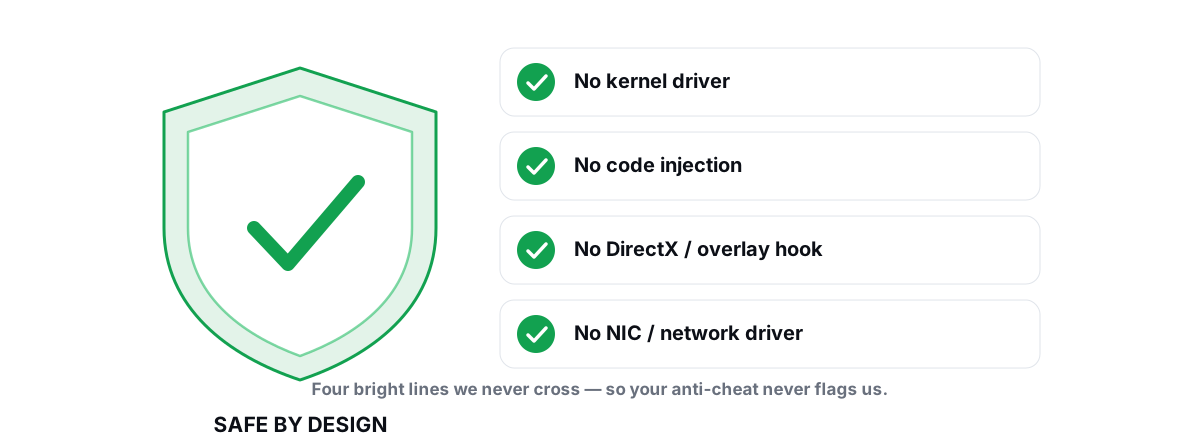
This is the same reason you don't want an "optimizer" poking at these in the background. The short version: a tool that touches anti-cheat services, injects into games, or loads its own kernel driver is a tool that can get you banned. The full bright lines for staying safe are in our anti-cheat-safe optimization guide. Leave anti-cheat services exactly as the game installed them.
Windows Update services
Update is the other landmine. The chain involves Windows Update (wuauserv), Background Intelligent Transfer Service (BITS), Windows Installer (msiserver), Cryptographic Services, and Windows Update Medic Service. Disable pieces of this and you don't just stop updates — you can break the ability to install anything via MSI, repair the OS, or receive security patches.
People disable Update services to "stop forced restarts," then months later can't figure out why a program won't install or why their PC is full of unpatched holes. If forced reboots are the problem, the right fix is configuring Active Hours and update settings — not severing the service chain. The aggressive debloat scripts that sever it are the number-one cause of "my Windows Update is broken and I don't know why" tickets.
Take a restore point before touching anything
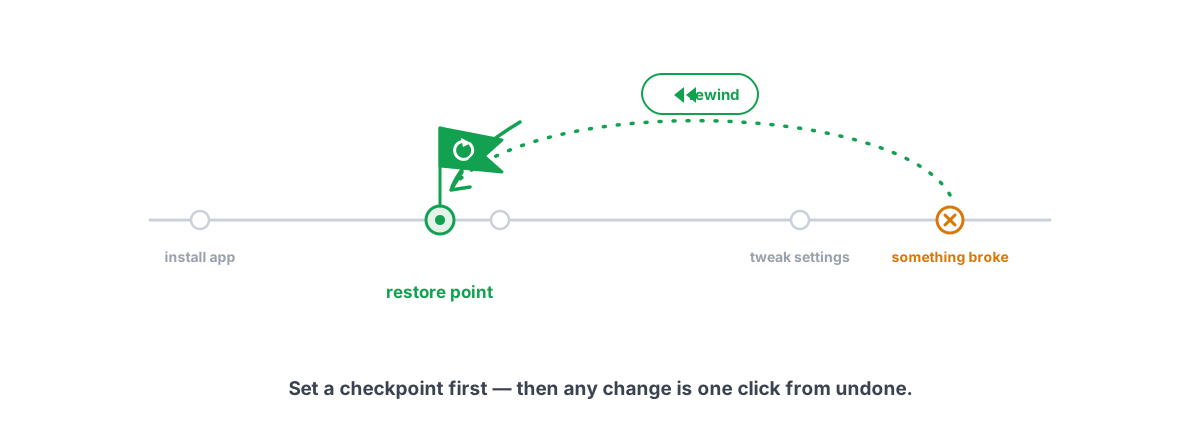
This is the step that turns a scary change into a safe one. A System Restore point snapshots your system configuration — including service settings, the registry, and drivers — so if a change breaks boot or a core feature, you roll the whole state back in a few minutes.
Create one before any batch of service changes. The full walkthrough is in how to create a System Restore point, but the fast path is: open SystemPropertiesProtection.exe, make sure protection is on for your system drive, and click Create. Thirty seconds of insurance.
One caveat worth knowing: System Restore reverts system state, not every kind of change. It's excellent for service Startup types and registry edits, which is exactly the category here. It won't recover deleted personal files, so don't treat it as a backup for documents.
If you'd rather not manage restore points by hand, that's one of the things an honest optimizer does for you — BRUTAL Optimizer attempts a System Restore point automatically before any significant change and keeps a per-module undo, so reverting isn't a guessing game.
How to test, log, and revert a change
The whole method comes down to changing one thing, watching what happens, and keeping a record. Here's the loop I use on every machine.
- Record the original. Open
services.msc, double-click the service, and note the current Startup type (Automatic, Manual, Manual Trigger Start, or Disabled). You cannot restore what you didn't write down. - Read the Dependencies tab. If anything important depends on it, stop here.
- Change one service, and prefer Manual. Set the Startup type, click Apply. If you want it stopped now, click Stop. Then click OK.
- Reboot and actually use the PC. Play a round, open your usual apps, check audio, network, Bluetooth, and that Windows Update still runs. Bugs from service changes love to hide until you hit the exact feature you broke.
- Log it. Keep a plain text file: service name, old value, new value, date. When something breaks three weeks later, this file is the difference between a two-minute fix and a reinstall.
- To revert: set the Startup type back to what you wrote down, click Start if it should be running now, and reboot. Or roll back to the restore point if you changed several things and can't isolate the culprit.
If a change already broke something and you skipped the restore point, the in-box repair tools are your fallback: sfc /scannow to repair system files, then DISM /Online /Cleanup-Image /RestoreHealth to repair the component store. Those are the same Microsoft-shipped tools any honest optimizer wraps rather than replaces.
The few services it's reasonable to set Manual
Keeping the promise that this is useful even if you install nothing: here are services it's genuinely reasonable to set to Manual (not Disabled), if the condition is true for you. Note the gain is cleaner background behavior, not frames.
| Service | Set to Manual if… | What you give up |
|---|---|---|
| Print Spooler (Spooler) | You have no printer at all | Printing, until you set it back. Also a frequent security target. |
| Fax | Always — nobody uses a fax modem | Nothing. |
| Bluetooth Support Service | You have no Bluetooth hardware or devices | Bluetooth pairing. |
| Windows Mobile Hotspot Service | You never tether other devices through this PC | Sharing your connection as a hotspot. |
| Downloaded Maps Manager (MapsBroker) | You never use the Maps app | Offline maps. |
| Windows Insider Service (wisvc) | You're not in the Insider program | Nothing, unless you join Insider. |
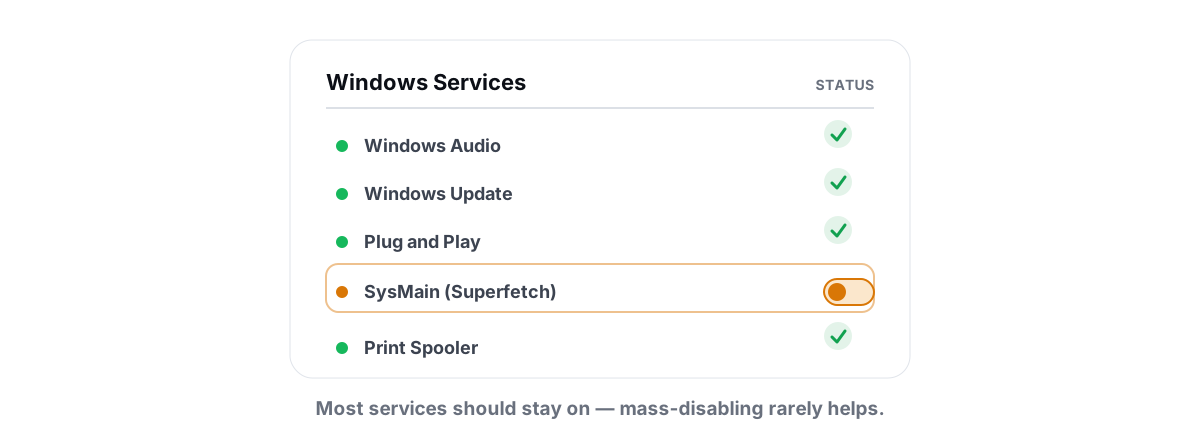
Notice what's absent: no audio, no networking core, no RPC, no Update components, no SysMain. On that last one specifically, the "disable it to free RAM" advice is a misread of how Windows caches memory — the full reasoning is in whether SysMain is worth disabling. The safe list is short and boring by design, and none of it will change a single frame in a game.
If your real goal is less background load, you're aiming at the wrong target. Idle services cost almost nothing; startup programs that auto-launch cost real RAM and CPU. That's where the measurable savings actually live.
Why an honest tool prefers reversible over aggressive
The bloatware "optimizers" ship a one-click "disable 40 services" button because it looks powerful in a screenshot. We don't, and the reason is the whole point of this article: the RAM it frees is rounding error, the FPS it adds is zero, and the broken-audio and dead-Update tickets it generates are real.
That's the line across the entire app — no placebo, and nothing that can't be undone. Every registry or system change BRUTAL Optimizer makes is reversible with a per-module undo, and it attempts a System Restore point before anything significant. It's a user-mode wrapper over the tools Windows already ships (fsutil, defrag.exe, powercfg, DISM, sfc, the registry), with no kernel driver and no game injection, so it runs alongside Vanguard, EAC, and BattlEye without drama. The trust details are on the safety page if you want the specifics.
If your PC feels slow, services are almost never the cause. Look at startup bloat, a full or failing drive, thermal throttling, or a plain GPU/CPU bottleneck in the game. Any one of those moves the needle more than a service list ever will — and you'll have spent your effort on a real fix instead of a risky one with nothing to show for it.
Frequently asked questions
Is it safe to disable Windows services?
It can be, if you do it the right way. The safe method is to set a service to Manual instead of Disabled, check its Dependencies tab first, change one service at a time, and take a System Restore point before you start. Disabling core services like RPC, Windows Audio, or Windows Update components can break boot, sound, or the ability to install programs, so those should never be touched.
What is the difference between Manual and Disabled for a service?
Manual means the service stays stopped until something explicitly needs it, then starts on demand. Disabled hard-blocks it so Windows refuses to start it even when a feature needs it. A Manual service that nobody calls already uses zero CPU and RAM, so Disabled frees nothing extra while removing the safety net. Prefer Manual for anything you are not completely sure about.
Can disabling services get me banned from games?
Disabling a normal service will not. But disabling or tampering with anti-cheat services like Vanguard, Easy Anti-Cheat, or BattlEye can stop the game from launching and, in some cases, be treated as interference. Leave anti-cheat services exactly as the game installed them and never let an optimizer touch them.
How do I undo a service change if something breaks?
If you wrote down the original Startup type, set it back to that value, click Start if the service should be running, and reboot. If you changed several services and cannot tell which one broke things, roll back to the System Restore point you took beforehand. As a last resort, run sfc /scannow and then DISM /Online /Cleanup-Image /RestoreHealth to repair system components.
Does disabling services increase FPS?
No. Idle services use a few megabytes each and no CPU, so stopping them frees rounding-error RAM and adds zero frames. Low FPS comes from your GPU, CPU, in-game settings, or thermal throttling, not from background services. Trimming startup programs and fixing a full or failing drive will help far more than any service list.
Keep reading
 Windows Performance
Windows Services to Disable for Performance: Honest List
Most viral service-disabling lists are copy-pasted nonsense. Here is what is actually safe to stop and what to leave alone.
 Anti-Cheat & Safety
Anti Cheat Safe Optimization: The 4 Bright Lines
The four bright lines that separate safe user-mode tweaks from the tools that get your game account flagged.
 Anti-Cheat & Safety
How to Create a System Restore Point (and Why)
Enable System Protection, snapshot before any deep tweak, and roll back in minutes when a driver or change breaks something.
Stop guessing. Measure it.
BRUTAL Optimizer is the honest way to speed up Windows — 17 free modules, a real FPS overlay, verified disk cleanup and drive health. No kernel driver of our own, no game hooks, every setting change reversible.