Should You Disable SysMain (Superfetch)? An Honest Answer
Should you disable SysMain (Superfetch)? The standard tweak-guide advice is to kill it for high disk usage and more FPS. Most of the time that advice is wrong. Here's what the service actually does, why disabling it won't add frames, and the one narrow case where setting it to Manual is fair.
What SysMain/Superfetch actually does
SysMain is a Windows service that watches which programs you open and when, then pre-loads parts of them into spare RAM before you ask for them. The idea is simple: an app that's already sitting in memory launches faster than one read fresh off the drive.
It's the modern name for Superfetch. Microsoft renamed the service to SysMain in Windows 10 version 1809, but the behavior and the old "Superfetch" reputation carried over. On Windows 10 and 11 you'll see it in services.msc as SysMain.
The key word is spare. SysMain only uses memory Windows isn't otherwise using. The pages it loads sit in "standby" memory — cached, but instantly reclaimable. The moment a real program needs that RAM, Windows hands it over with no delay. SysMain does not "eat" your RAM in any way that costs you.
It also feeds ReadyBoost (using a USB stick as cache, mostly irrelevant today) and prioritizes which cached pages to keep based on your habits. None of this involves a kernel driver doing anything exotic — it's standard memory management Windows has shipped for over a decade.
Why "disable it for FPS" is mostly a myth
The pitch in tweak guides goes like this: SysMain uses your disk and RAM, so turning it off frees both and gives you more frames. Each half of that sentence sounds true and the conclusion still doesn't follow.
While a game is running, your spare RAM is already spoken for. SysMain's standby cache gets reclaimed for the game automatically. It isn't competing with your game for memory — it's holding pages the game isn't using, and releasing them the instant the game asks. Disabling the service doesn't hand your game any RAM it wouldn't already get.
The disk angle is weaker still. SysMain does its prefetching when the system is idle, not during a GPU-bound frame loop. Once your game is loaded and running, SysMain has very little to do. It is not reading your SSD in the background while you're in a firefight.
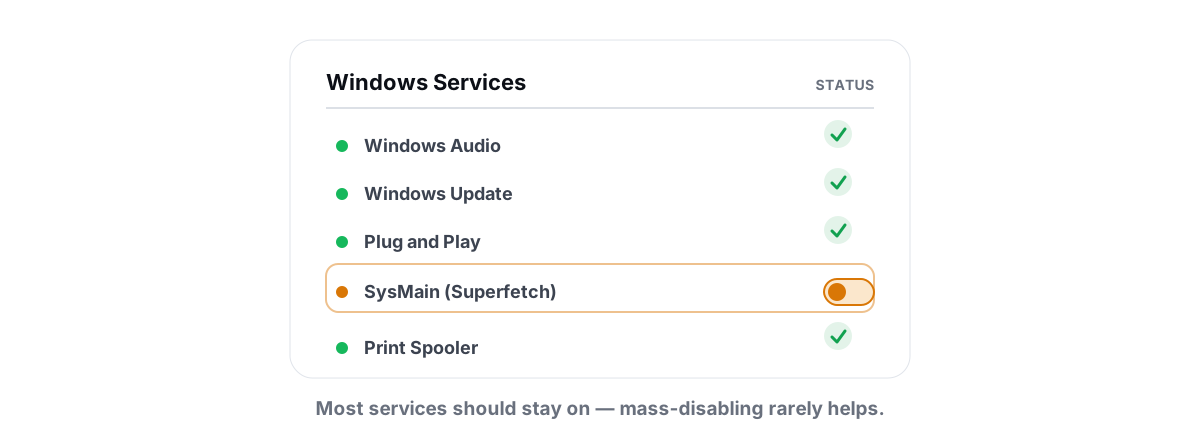
This is the same pattern behind most "services to disable" lists: a real Windows component, a plausible-sounding mechanism, and a conclusion that doesn't survive measurement. We went through the broader version in the honest list of Windows services to disable, and SysMain is the poster child.
The high-disk-usage accusation, examined
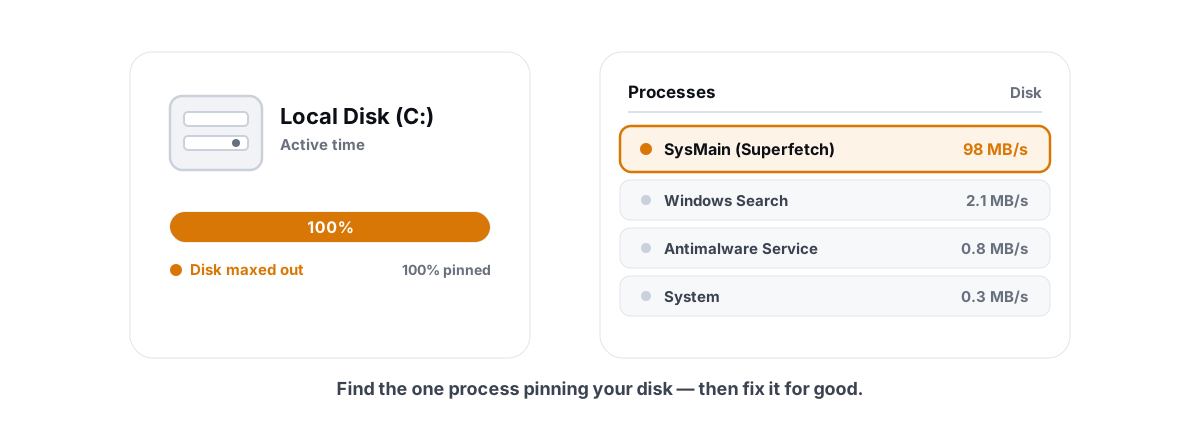
This is the one with a grain of truth, so it deserves a careful look. People open Task Manager, see Service Host: SysMain pinned near 100% disk, and conclude the service is broken. Usually the picture is more complicated.
On a fast SSD, SysMain's reads are so quick they barely register. On a mechanical hard drive, the same prefetching shows up as sustained disk activity because the drive is slow and SysMain is reading a lot of small files. The service isn't malfunctioning — it's doing normal work on a drive that can't keep up.
There's a second trap. Task Manager shows you which service is reading the disk, not what's making it busy. A common real cause of 100% disk on older machines is a failing or heavily fragmented HDD, a Windows Update churning in the background, or the search indexer — and SysMain just happens to be visible while the disk is saturated. Killing SysMain "fixes" the symptom on the wrong drive and leaves the actual problem in place.
Before you blame any one service, work the disk itself. Our walkthrough on fixing 100% disk usage in Windows covers the real culprits in order, so you don't disable something useful and call it solved.
SysMain causing visible disk load is almost always a symptom of a slow or unhealthy drive, not a bug in SysMain. Fix the drive and the symptom usually goes with it.
SSD vs HDD: does it still matter?
Here the honest answer splits in two, because the drive underneath you changes everything.
| Your setup | What SysMain does for you | Worth disabling? |
|---|---|---|
| NVMe / SATA SSD | Tiny benefit, near-zero cost. Reads are too fast to feel and the standby cache is harmless. | No. Leave it on. |
| Healthy mechanical HDD | Real launch-time benefit, but prefetch reads can be noticeable when the drive is busy. | Usually no. Only if you measure a specific problem. |
| Slow / thrashing HDD (system drive) | The one case where prefetch can fight foreground work and add stutter. | Maybe — set to Manual and measure. |
On an SSD, the argument for disabling SysMain collapses. Random reads on flash are so fast that the time SysMain saves is negligible, and the standby cache costs you nothing. Windows tunes SysMain's behavior down on SSDs automatically. The old claim that SysMain "wears out your SSD with constant writes" is also wrong — it reads to populate cache; it isn't burning write cycles. If you're worried about flash longevity, the honest checks live in how to check SSD health, not in this service.
If you're still on a mechanical system drive and deciding what to upgrade, the bigger win is the drive itself — see SSD vs HDD for gaming. A cheap SATA SSD does more for load times and stutter than any service tweak ever will, and it makes the entire SysMain debate moot.
The narrow case where disabling actually helps
There is a legitimate scenario. I won't pretend otherwise.
If your system drive is a slow, possibly aging HDD, and you can measure that SysMain's prefetch reads are colliding with foreground work — long hangs right after boot, a spinning cursor when launching apps, sustained disk activity attributed to SysMain while you're trying to do something else — then setting it to Manual is a fair experiment. On a drive that can't service two read streams at once, removing the speculative one can smooth things out.
The honest conditions, all of which should be true before you touch it:
- Your system drive is a mechanical HDD, not an SSD.
- You actually see SysMain pinned high in Task Manager's Disk column during the moments that feel slow — not just once at boot, which is normal.
- You've ruled out the usual suspects: Windows Update, the search indexer, a failing drive, and malware.
- You're prepared to measure before and after, and put it back if nothing improves.
If your complaint is stutter inside games rather than sluggish app launches, SysMain is almost certainly the wrong suspect. Frametime spikes have their own causes — shader compilation, background processes, thermal throttling, a CPU bottleneck. Start with how to fix stuttering and frametime spikes instead of disabling memory caching.
Set it to Manual reversibly, not nuke it
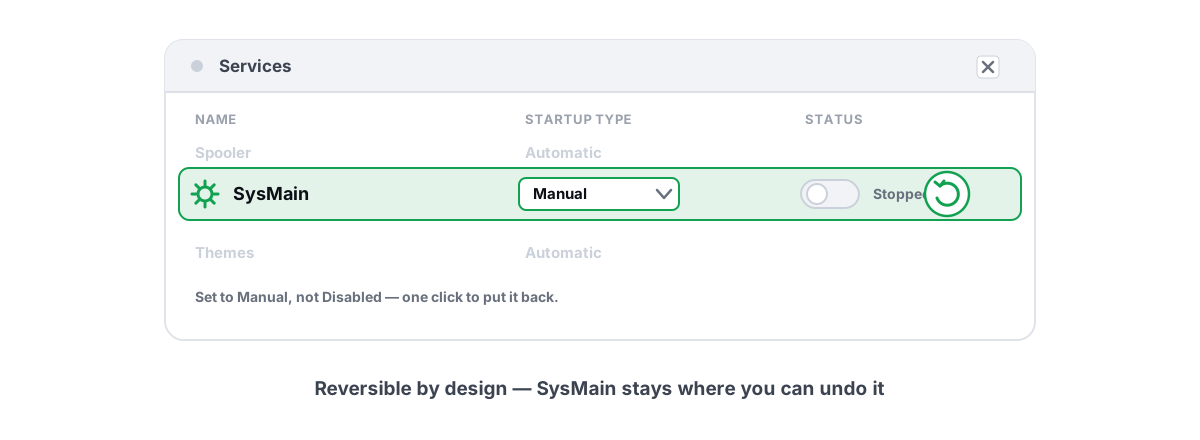
If you've met the conditions above, set it to Manual rather than Disabled, and keep the steps so you can undo them. Manual lets Windows still start the service if something genuinely needs it; Disabled slams the door.
- Press
Win + R, typeservices.msc, press Enter. - Find SysMain in the list. Double-click it.
- Click Stop to halt it for the current session.
- Set Startup type to Manual (not Disabled), click OK.
- Reboot and use the machine normally for a day or two.
To reverse it, set Startup type back to Automatic and click Start. That's the whole undo. Because you used Manual, you haven't left anything in a broken state if you forget.
This is also a good moment to take a System Restore point before changing service startup states — not because this single change is dangerous, but because it's the right habit any time you touch system services. A restore point is your free undo for the whole machine.
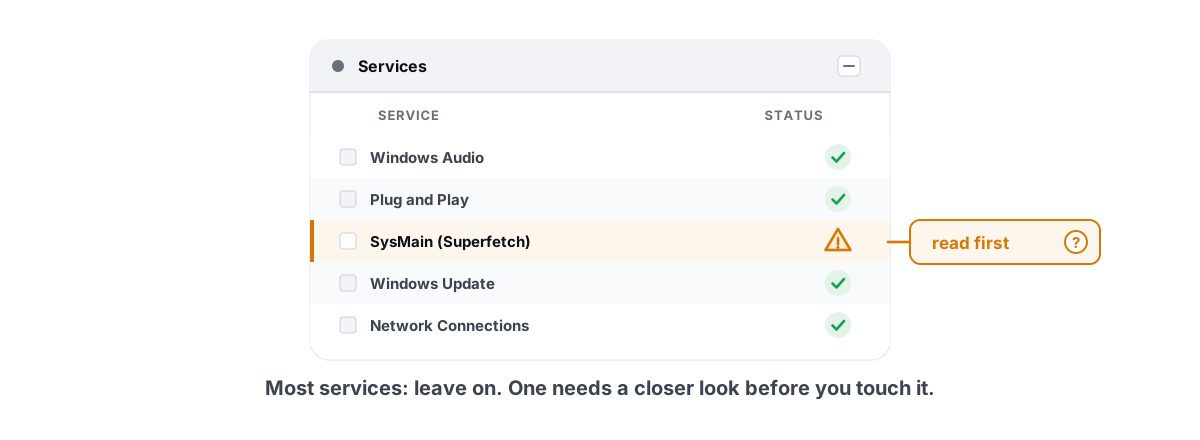
One warning about the "Disabled forever" approach: blanket service-disabling guides routinely tell you to kill SysMain alongside a dozen other services, and that's how people end up with a machine that boots slower and breaks search. If those lists tempt you, read is it safe to disable Windows services first.
Measure before you decide
"It feels faster" is not data. If you're going to change a service that affects load times, prove it changed something.
The cheapest measurement is Task Manager itself. Open the Performance tab, watch Disk activity during the slow moments, and check whether SysMain is actually the process attributed to the reads. Then do the same after you set it to Manual. If the disk was already at 100% from Windows Update, you'll see SysMain wasn't the problem.
For something more concrete, time the things you care about: cold app launches, boot-to-usable, the in-game load screen that bugs you. Use a stopwatch and run each three times. A real improvement is consistent and obvious; a placebo is one good run you remember and two slow ones you don't.
If your actual goal is more frames or smoother frametimes, measure those directly with an overlay that shows 1% lows and frametimes, not just an average FPS number. BRUTAL Optimizer's free FPS overlay does this without injecting into the game — it counts DWM composition frames, so it runs alongside Vanguard, Easy Anti-Cheat and BattlEye. Watch your 1% lows before and after any tweak; if they don't move, the tweak didn't do anything. The same logic applies to every "boost" you'll ever try, which is the whole point of our honest test of game booster apps.
The honest default: leave it on
For the overwhelming majority of machines — anything with an SSD, and most healthy HDD systems — the correct setting for SysMain is the one it already has. It uses spare RAM you weren't using, releases it on demand, speeds up app launches, and does essentially nothing to your in-game frame rate. Turning it off to chase FPS is a tweak that measures as zero.
The one honest exception is a slow, contended mechanical system drive where you can see and measure SysMain fighting your foreground work. There, Manual is a fair, reversible experiment. Everywhere else, it's a fix for a problem you don't have.
If you want to spend effort where it actually moves numbers, BRUTAL Optimizer is built around that idea. It refuses placebo, makes every system change reversible with per-module undo, and attempts a System Restore point before big changes. It runs as a user-mode wrapper over the same tools Windows already ships, so it's safe to use with anti-cheat. Skip the services-to-disable folklore and speed up Windows honestly instead.
Frequently asked questions
What is SysMain in Windows 10 and 11?
SysMain is the service formerly called Superfetch. It watches which programs you use and pre-loads parts of them into spare RAM so they launch faster. Microsoft renamed Superfetch to SysMain in Windows 10 version 1809, but the behavior is the same. It only uses memory Windows isn't otherwise using, and releases it instantly when a program needs it.
Does disabling SysMain increase FPS in games?
No. On a healthy machine the frame-rate difference is inside the margin of error. SysMain uses spare RAM that your game reclaims automatically, and it does its prefetching when the system is idle, not during gameplay. If your frames are low, the cause is your GPU, CPU, or settings, not a memory cache.
Why does SysMain show high disk usage in Task Manager?
On a slow mechanical hard drive, SysMain's prefetch reads show up as sustained disk activity because the drive can't keep up. On an SSD this barely registers. Often the disk is saturated by something else entirely, like Windows Update or the search indexer, and SysMain is just visible while the disk is busy. Fix the drive or the real culprit first.
Should I disable SysMain on an SSD?
No. On an SSD the reads are too fast to feel and the standby cache costs you nothing. Windows already tunes SysMain down on SSDs. The claim that it wears out flash with writes is wrong: it reads to populate cache, it does not hammer write cycles.
How do I disable SysMain reversibly?
Open services.msc, find SysMain, click Stop, then set Startup type to Manual rather than Disabled, and click OK. To undo it, set Startup type back to Automatic and click Start. Using Manual instead of Disabled lets Windows still start the service if something genuinely needs it, so nothing breaks.
Keep reading
 Windows Performance
Fix 100% Disk Usage in Windows (Real Causes)
100% disk is a symptom to diagnose by culprit - HDD, SysMain, indexing, a stuck update - and an old hard drive is often the real answer.
 Windows Performance
Windows Services to Disable for Performance: Honest List
Most viral service-disabling lists are copy-pasted nonsense. Here is what is actually safe to stop and what to leave alone.
 Anti-Cheat & Safety
Is It Safe to Disable Windows Services? Read First
How to disable a Windows service the right way - Manual vs Disabled, dependencies, restore points - without breaking features or anti-cheat.
Stop guessing. Measure it.
BRUTAL Optimizer is the honest way to speed up Windows — 17 free modules, a real FPS overlay, verified disk cleanup and drive health. No kernel driver of our own, no game hooks, every setting change reversible.