Fix 100% Disk Usage in Windows: The Real Causes
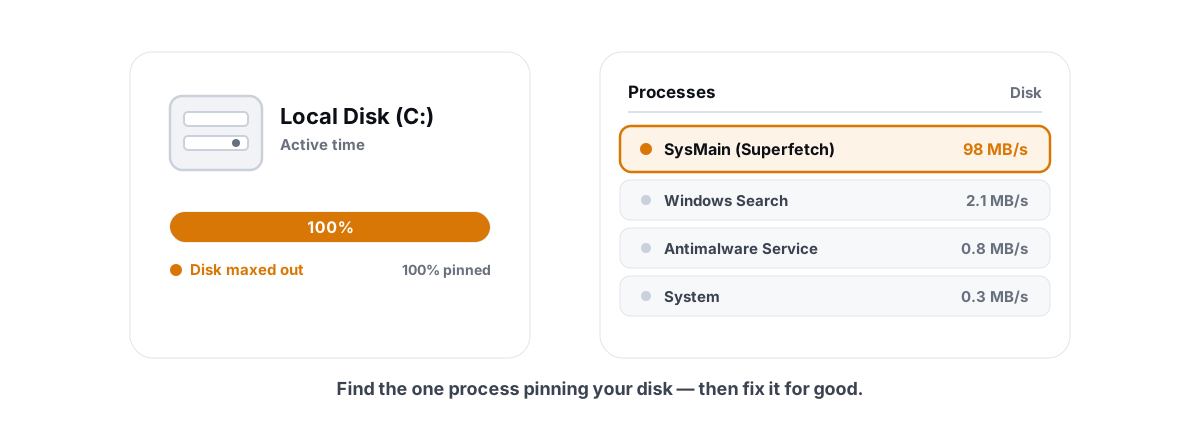
Task Manager says your disk is at 100%, the whole machine feels like it's wading through mud, and every click takes a beat too long. That 100 percent disk usage number is a symptom, not a verdict — and the honest answer is usually one specific culprit, sometimes an old hard drive that's simply out of headroom.
100% disk usage means one thing precisely: the storage device has more read/write work queued than it can clear, so requests pile up and everything that needs the disk waits. Find what's filling the queue, deal with that, and the number drops on its own. Generic "speed up your PC" buttons don't find it — they guess.
Here's the diagnostic version, by culprit, in the order worth checking.
What "100% disk" in Task Manager really measures
Open Task Manager (Ctrl+Shift+Esc), go to the Processes tab, and click the Disk column to sort descending. The percentage at the top of that column isn't throughput — it's active time. It's the fraction of the last second the disk spent busy with at least one request outstanding.
That distinction matters. A fast NVMe SSD can hit 100% active time while moving gigabytes per second and you'll never feel it. A tired 5400 RPM laptop hard drive hits 100% while moving 2–3 MB/s, and the machine becomes unusable. Same number, completely different problem.
So before you chase any process, look at two more columns Task Manager already shows you:
- The actual transfer rate (MB/s) next to that 100%. Single-digit MB/s at 100% active time is the signature of a mechanical drive at its limit.
- Response time — open Resource Monitor (
resmon) and the Disk tab to see it. Sustained response times in the hundreds or thousands of milliseconds mean requests are stuck in a long queue.
If the disk is at 100% but moving real data fast and nothing feels slow, you don't have a problem. 100% busy is fine when the work is getting done. You only act when the queue is backing up and the machine stalls.
The HDD elephant in the room (and the SSD fix)
The most common real cause of chronic 100 percent disk usage is the least popular answer: you're running Windows 11 or a modern Windows 10 on a mechanical hard drive. It isn't a misconfiguration you can tweak away. The drive is the bottleneck.
A spinning HDD delivers maybe 80–160 MB/s in a perfect sequential read, but performance collapses on random access — the read head physically seeking across the platter. Modern Windows does a lot of small, scattered reads and writes: indexing, telemetry, update servicing, antivirus, dozens of background apps. Every one of those is a seek. The queue fills faster than the head can drain it, and you sit at 100% active time at a crawl.
You can shave the load (the rest of this article does exactly that), but you can't change the physics. If the OS and your apps live on an HDD, the single highest-impact fix on the entire list is moving them to an SSD.
Two honest caveats. First, the drive doesn't have to be your boot disk to hurt — a game library or a heavily-used data folder on an old HDD can pin that disk and make the apps using it stall, even with an SSD as C:. Second, if a clean-installed Windows on an SSD shows constant 100% disk, the disk isn't the cause; one of the culprits below is, so keep reading.
SysMain/Superfetch: when it helps, when it thrashes
SysMain (the service formerly called Superfetch) preloads apps you open often into spare RAM so they launch faster. On a machine with an SSD and enough memory, it's quietly helpful and you should leave it alone.
On an HDD, the story flips. SysMain does its preloading by reading from disk, and on a slow mechanical drive those background reads compete with whatever you're actually trying to do. The classic symptom: Service Host: SysMain sitting near the top of the Disk column for minutes at a time, especially right after boot.
This is one of the few cases where disabling a service is defensible — but only under specific conditions.
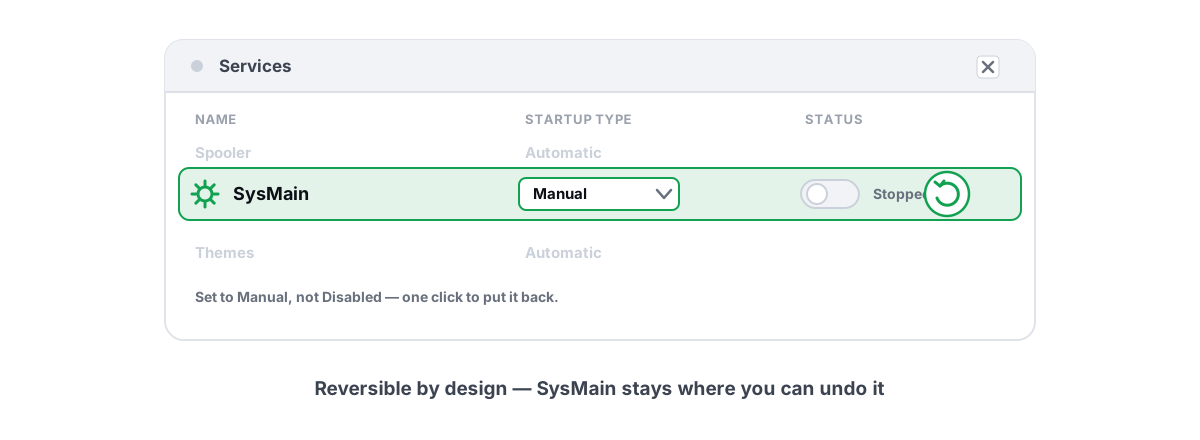
services.msc, find SysMain, stop it, and set Startup type to Disabled. Watch the Disk column for a day. If boot-time disk pressure eases and nothing feels slower, leave it off.Windows Search indexing spikes
Microsoft Windows Search Indexer (SearchIndexer.exe) builds the index that makes Start-menu and File Explorer search instant. Building that index is disk-heavy, and after a big change — you moved a large library, unpacked a huge archive, restored a backup, or just installed Windows — it can run hot for an hour or more.
If indexing is your 100% culprit, you'll see SearchIndexer.exe near the top of the Disk column, and it'll calm down once the index catches up. The fixes are about scope and recovery, not nuking the feature.
- Narrow what gets indexed. Open Indexing Options, click Modify, and uncheck whole data drives you never search by content. There's no reason to index a 4 TB media drive full of video files.
- Let a one-time rebuild finish. If the index is corrupt and stuck, Indexing Options → Advanced → Rebuild. It's heavy for a while, then goes quiet for good.
- On a slow HDD, consider Classic mode. In Windows Settings → Searching Windows, "Classic" limits indexing to libraries and the desktop instead of the whole drive ("Enhanced" indexes everything).
A stuck Windows Update or Delivery Optimization
A huge share of "100% disk for no reason" reports are Windows Update doing its job in the background. Two processes show up:
TiWorker.exe(Windows Modules Installer) andService Host: Windows Update— downloading, expanding, and installing updates, then servicing the component store afterward.Service Host: Delivery Optimization— the peer-to-peer update cache. It can read and write hard while staging updates, and by default it can also upload pieces of updates to other PCs.
Most of the time the right move is to let it finish and reboot when prompted — fighting an in-progress update is how you get a half-installed mess. But updates do get genuinely stuck, and Delivery Optimization can churn longer than it should.
- Give it real time first. A large feature update can hammer the disk for 30+ minutes, longer on an HDD. Check Settings → Windows Update to confirm something is actually downloading or installing.
- If it's wedged, reset it. Stop the
wuauservandbitsservices, delete the contents ofC:\Windows\SoftwareDistribution\Download, then restart the services and re-check for updates. This clears a corrupt download queue safely. - Tame Delivery Optimization uploads. Settings → Windows Update → Advanced options → Delivery Optimization, and turn off "Allow downloads from other PCs" if you don't want your disk and bandwidth seeding updates to strangers.
If updates fail repeatedly and keep re-churning the disk, the component store itself may be corrupt. An elevated DISM /Online /Cleanup-Image /RestoreHealth followed by sfc /scannow repairs it. BRUTAL Optimizer's System Repair runs exactly those two commands with live output if you'd rather not type them, but the commands are free and built into Windows — you lose nothing by running them yourself.
Telemetry and background apps writing constantly
Beyond the big-name services, a steady trickle of small writes from background apps can keep a slow disk saturated all day. Individually each is tiny; together, on an HDD, they keep the head seeking and the queue full.
The usual suspects:
| Process | What it's writing | Sensible response |
|---|---|---|
DiagTrack (Connected User Experiences) | Windows telemetry/diagnostic logs | Reduce via Privacy settings; reversible |
| OneDrive / Dropbox / Google Drive | Syncing and re-indexing files | Pause sync, exclude huge folders |
| Discord / Steam / Epic / Spotify | Caches, logs, shader/web caches | Close fully; clear bloated caches |
| Antivirus (Defender or 3rd-party) | Real-time scanning of churning files | Add narrow folder exclusions you trust |
| Browsers in background | Cache writes, history, sync | Stop "run in background" after close |
Two things are worth doing here. Reduce Windows telemetry through Settings → Privacy & security — it's reversible, and BRUTAL Optimizer's Privacy Center exposes the same registry toggles with one-click undo, so nothing it changes is permanent. And cut what auto-launches at boot, because every background app you don't need is a few more writes you don't need: see how to disable startup programs safely.
Drive health check: rule out a failing disk first
Before you spend an afternoon tuning services, rule out the ugly possibility: a dying drive. A failing HDD retries failed reads over and over, and a failing or write-exhausted SSD slows to a crawl — both show up as 100% disk usage with miserable response times. No software tweak fixes hardware that's on the way out.
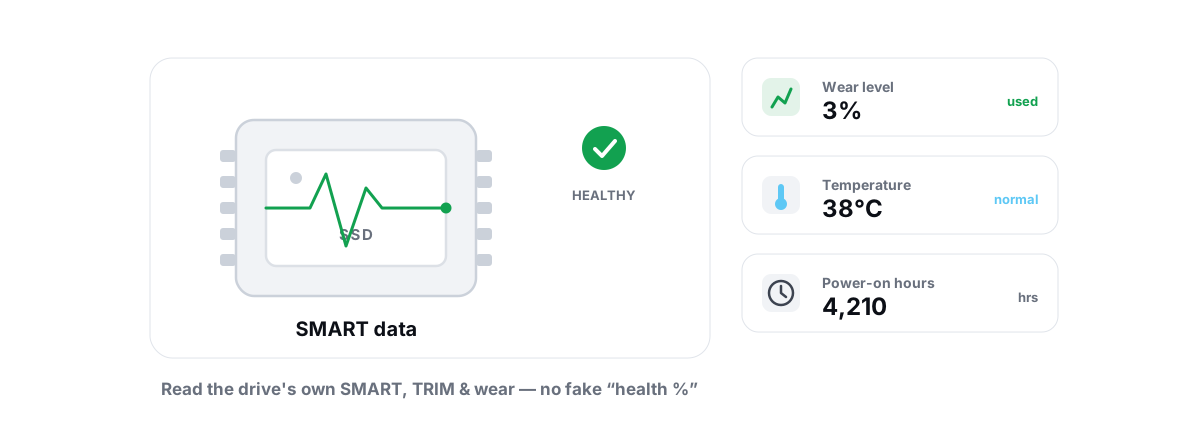
Check the SMART data and reliability counters the drive already reports:
- Reallocated/pending sectors climbing on an HDD is a clear "replace this now" signal.
- Wear level / percentage used on an SSD nearing its limit, or a drive that's run far past its rated terabytes-written.
- Read/write error counts that keep rising between checks.
- Audible signs — clicking or repeated spin-up on an HDD means stop and back up immediately.
BRUTAL Optimizer's Drive Health reads these straight from Windows — SMART/reliability counters and TRIM status via fsutil — and it only displays what the drive actually reports, never a made-up "health %." Our guide to checking SSD health with SMART, TRIM and wear walks through reading the numbers yourself.
One honest note on maintenance: if the drive is a healthy mechanical HDD and badly fragmented, a proper defrag genuinely helps random read performance. If it's an SSD, it never needs defragging — TRIM is the only maintenance it wants, and defragging it just burns write cycles for nothing. The full why is in TRIM vs defrag, the right maintenance per drive.
Reversible fixes, in the order worth trying
Work top to bottom and stop when the disk calms down. Each step is reversible, and none of it requires a third-party "optimizer" to do.
- Name the culprit. Task Manager → Disk column, sorted. Note the top process and whether the MB/s is pathetic (HDD-bound) or fine (something specific is misbehaving).
- Let active jobs finish. If it's Windows Update, indexing after a big file change, or a first-boot Defender scan — wait it out and reboot if prompted. These end on their own.
- Check drive health. SMART/reliability counters. If the drive is failing, back up and replace it; nothing else matters.
- Reset a stuck update if Windows Update is wedged (clear
SoftwareDistribution\Download), and turn off Delivery Optimization uploads. - Narrow Search indexing scope, or rebuild the index once if it's stuck.
- Test SysMain off — only if you're on an HDD and it's visibly pinning the disk.
- Cut background writers — pause cloud sync, close tray apps, reduce telemetry, trim startup entries, add narrow AV exclusions.
- If it's a mechanical drive, plan the SSD. Everything above is mitigation; this is the cure.
Notice what's not on this list: registry cleaning, "RAM boosters," disabling the pagefile, or any one-click button claiming to fix disk usage. None of those address why the disk queue is full, and some make things worse. A registry cleaner has never lowered anyone's disk active time — here's why registry cleaners don't work — and tools that promise a magic disk fix are selling the symptom-masking we warned about up top.
If you'd rather see the load and clear the easy wins with tools that don't lie about results, BRUTAL Optimizer is free for all of this: a live disk/CPU/RAM monitor, Drive Health that reads real SMART data, a Disk Cleaner that reports verified freed bytes (re-measured before and after, never "up to 10GB" fiction), Startup Manager, and reversible privacy toggles. It attempts a System Restore point before any big change, and every setting change it makes can be undone. It won't turn a 5400 RPM drive into an SSD — nothing can — but it'll help you find the real culprit and stop guessing.
Frequently asked questions
Why is my disk at 100% in Task Manager?
The 100% is active time, not throughput - the disk has more read/write work queued than it can clear, so requests pile up and everything waits. The cause is a specific culprit: most often an old mechanical hard drive at its limit, but also SysMain, Search indexing, a stuck Windows Update, Delivery Optimization, or a swarm of background apps writing constantly. Sort the Disk column to name the top process, then check whether the MB/s is tiny, which points to an HDD bottleneck.
Does disabling SysMain fix 100% disk usage?
Sometimes, but only on a mechanical hard drive where SysMain is visibly pinning the disk after boot. On an SSD there is nothing to gain - preloading from flash costs almost nothing - and you lose the launch-time benefit. Test it on an HDD by stopping SysMain in services.msc, watch the Disk column for a day, and keep it off only if disk pressure eases.
Is 100% disk usage always a problem?
No. The number measures how busy the disk is, not whether work is getting done. A fast NVMe SSD can sit at 100% active time moving gigabytes per second and you will never feel it. You only have a problem when the queue backs up - tiny MB/s, response times in the hundreds of milliseconds, and the machine stalling - which is the signature of a mechanical drive at its limit.
Will moving to an SSD fix 100% disk usage?
Usually yes, if the cause is an old hard drive. An SSD turns random reads and writes from milliseconds into microseconds, so the queue drains instead of backing up. It is the single highest-impact fix when Windows and your apps live on a mechanical HDD. If a clean Windows on an SSD still shows constant 100% disk, the disk is not the cause - look at SysMain, indexing, updates, or a failing drive.
Could 100% disk usage mean my drive is failing?
Yes, and it is worth ruling out first. A failing HDD retries failed reads endlessly and a write-exhausted SSD slows to a crawl, both showing as 100% disk with terrible response times. Check the drive SMART and reliability data for rising reallocated or pending sectors, high wear level, or climbing read/write errors. Clicking or repeated spin-up on an HDD means back up and replace it now - no software tweak fixes dying hardware.
Keep reading
 Disk, Drive & Cleanup
SSD vs HDD for Gaming: What Actually Changes
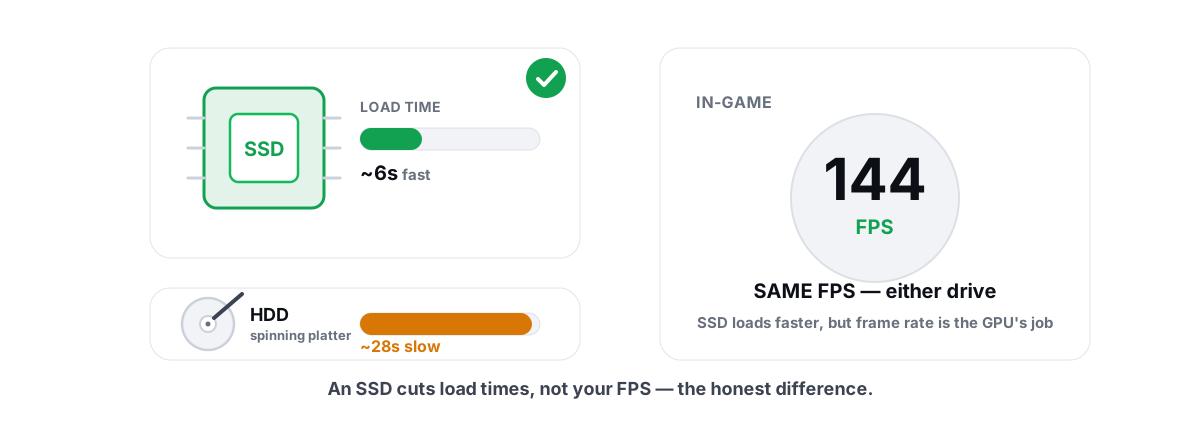
An SSD transforms load times, boot, and streaming stutter, but it won't raise your steady-state FPS. Here's where NVMe actually matters.
 Windows Performance
Disable SysMain Superfetch? An Honest Answer
What SysMain actually does, why disabling it won't boost FPS, and the one slow-HDD case where setting it to Manual is fair.
 Disk, Drive & Cleanup
How to Check SSD Health (SMART, TRIM, Wear)
Read the real SMART data, wear and errors Windows exposes, verify TRIM with fsutil, and learn the true warning signs of a failing SSD.
Stop guessing. Measure it.
BRUTAL Optimizer is the honest way to speed up Windows — 17 free modules, a real FPS overlay, verified disk cleanup and drive health. No kernel driver of our own, no game hooks, every setting change reversible.