Does a Bigger Pagefile Boost Performance? The Honest Answer
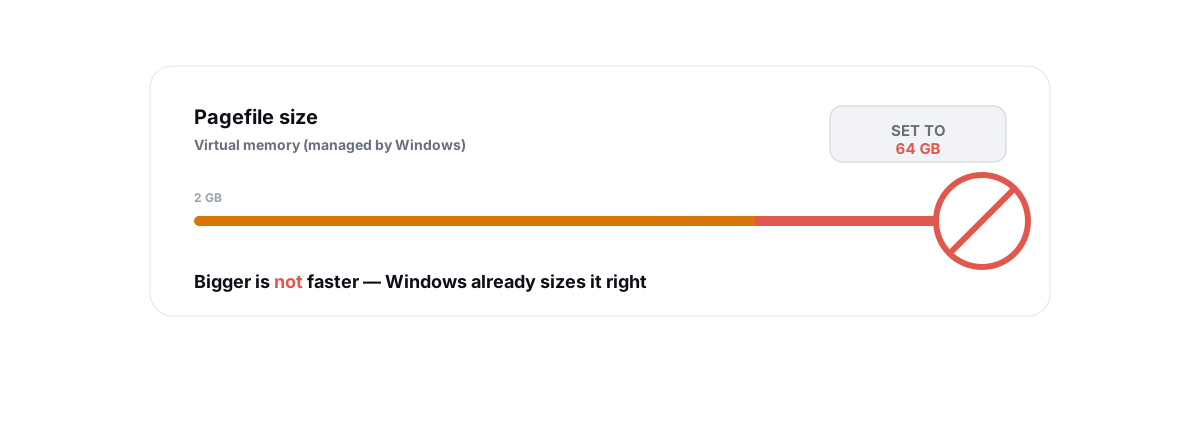
Somewhere on a forum you read that a 32 GB pagefile would make your games "load faster," and somewhere else that deleting the pagefile entirely "frees RAM for more FPS." Both are wrong, in opposite directions. The bigger pagefile performance gain people chase doesn't exist, and neither does the FPS you supposedly free by killing it. Here's what the pagefile is actually for, and why the right setting is almost always the boring one.
The question of whether a bigger pagefile means better performance is one of the most misunderstood knobs in Windows. The pagefile (also called the swap file or virtual memory) gets cranked up by people hoping for speed, or killed by people hoping for headroom. Both moves rest on a mental model that doesn't match how the OS works. Fix the model first and the right settings fall out on their own.
What the pagefile actually does
Windows hands every process a chunk of virtual address space — a private map of memory that doesn't correspond one-to-one with physical RAM. The OS backs that map with two things: your actual RAM, and a file on disk called pagefile.sys sitting at the root of your system drive.
When physical RAM gets tight, Windows moves the coldest pages — memory that hasn't been touched in a while — out to pagefile.sys to make room for what you're using right now. When that paged-out data is needed again, it gets read back in. That's "paging," and it's a release valve, not a performance feature.
The pagefile also serves a second, quieter job: it's where the committed memory limit comes from. Every time a program asks Windows to reserve memory, that reservation counts against a budget equal to RAM plus pagefile size. A program can commit memory it never actually writes to — lots of apps over-reserve as a habit — and that commitment has to be backed by something, even if it never touches disk.
The pagefile isn't "slow RAM" you're forced to use. It's an overflow file Windows leans on when physical memory runs short, plus the backing store that lets the commit budget exceed your installed RAM.
That distinction matters for everything below. Paging to disk happens because you ran out of fast memory — it's a symptom of pressure, not a tuning dial you turn up for speed.
The bigger pagefile performance myth, debunked
The pitch sounds reasonable: more virtual memory means more room, which means more speed. It doesn't. A larger pagefile does not make your CPU faster, your GPU faster, or your RAM faster. It changes exactly one thing — how much committed memory Windows will allow before it starts refusing allocations.
Disk is orders of magnitude slower than RAM. An NVMe SSD reads in the tens of microseconds; RAM reads in tens of nanoseconds — roughly a thousand times faster. Anything that lives in the pagefile and gets touched mid-game is a stall waiting to happen. You don't want your game running out of the pagefile; you want it running out of RAM.
So making the pagefile huge doesn't pull more of your game into fast memory. If your game fits in RAM, the pagefile barely gets used regardless of its size. If your game doesn't fit in RAM, a bigger pagefile just means Windows pages more aggressively to a slow disk — which is the cause of stutter, not a cure for it. If you're chasing smoother frametimes, the fix lives in how to fix stuttering and frametime spikes, not in the pagefile dialog.
The one grain of truth buried in the myth: if you have very little RAM and a program is constantly hitting the commit limit, a slightly larger pagefile can stop "out of memory" errors. That's avoiding a crash, not gaining speed. Big difference.
The opposite myth: delete it to free RAM/FPS
The other camp tells you to disable the pagefile entirely. The logic: "If Windows can't dump my RAM to disk, it'll keep everything in fast memory, and I'll get more FPS." This one is more dangerous than the bigger-is-better myth, because it can break things you'll only notice later.
Disabling the pagefile does not free up any RAM. Your installed memory is the same 16 or 32 GB it always was. What you've actually done is shrink the commit limit down to just your physical RAM — so the moment your committed memory exceeds installed RAM, programs start failing to allocate and crash, even though Task Manager shows "free" memory.
This is the same confusion behind RAM boosters and the "free RAM" myth: people read empty memory as good and any use of disk as bad. Windows doesn't see it that way. It keeps a pagefile around so it can evict genuinely cold pages and keep more useful data hot. Take that ability away and you force the OS to hold onto junk it would rather have parked.
And here's the kicker for the FPS argument: in normal gaming, on a machine with enough RAM, the pagefile is barely touched anyway. So disabling it gives you no measurable frame-rate benefit — you're trading a real safety net for a placebo. If your goal is genuinely more frames, work through the honest ways to increase FPS instead.
Why disabling it causes crashes and lost dumps
Two concrete failures show up when people turn the pagefile off.
Commit-limit crashes
With no pagefile, your commit limit equals physical RAM minus what the kernel holds. Modern games, Chrome with thirty tabs, a video editor, Discord, and an emulator can collectively commit well past your installed RAM even when they're not actively using it all. The instant a process can't get the commitment it asks for, it fails — usually as a hard crash, sometimes as a cryptic "your computer is low on memory" warning while you stare at gigabytes of "free" RAM. The number that ran out was commit, not physical RAM.
Lost crash dumps
When Windows blue-screens, it writes a crash dump so the cause can be diagnosed later. That dump is written through the pagefile on the system drive. No pagefile (or one too small) on the system drive means no usable dump — so when you finally get a BSOD you want to understand, there's nothing to read. You've blinded your own troubleshooting.
If you've already disabled it and you're seeing random app crashes or missing dump files, that's your culprit. Turn it back to system-managed and the problem usually disappears.
When a manual size genuinely makes sense
System-managed is right for almost everyone. But there are a few real cases where setting a manual size is reasonable — none of them are "more FPS."
- You capture full kernel or complete memory dumps. Driver developers and people debugging persistent BSODs sometimes need the system-drive pagefile sized to hold a full dump. That's a deliberate, documented reason — not a speed tweak.
- You're constrained on a small system SSD. If your C: drive is tiny and Windows' default pagefile is eating space you need, you can set a sane fixed size (say, a few GB minimum, with a higher maximum) rather than letting it grow unbounded. You're managing disk space, not chasing performance. The what's filling up my C drive walkthrough covers finding the rest.
- A specific application demands it. A handful of professional tools (some databases, some scientific software) document a required pagefile size. Follow the vendor's number, not a forum's.
Notice the pattern: every legitimate manual case is about capacity or compatibility, never about going faster. If your reason starts with "for gaming," it isn't one of these.
Pagefile on SSD vs HDD
Where the pagefile lives matters far more than how big it is. Put it on your fastest drive — which on any modern machine is the SSD, ideally the NVMe one — because when paging does happen, you want it to hurt as little as possible.
There's an old worry that putting the pagefile on an SSD "wears it out." For any normal desktop or gaming workload, this is a non-issue. Modern SSDs are rated for hundreds of terabytes written, and the actual page traffic on a machine with adequate RAM is a tiny fraction of daily writes. Microsoft itself recommends the pagefile on SSD. Moving it to a slow HDD "to save the SSD" just makes every page fault slower — exactly backwards.
| Drive for pagefile | What you get | Verdict |
|---|---|---|
| NVMe SSD | Fastest paging when it happens; negligible wear at real-world volumes | Best — and usually the default |
| SATA SSD | Still far faster than any HDD; same negligible-wear story | Fine |
| HDD | Slow page faults that show up as freezes and stutter | Only if you have nothing else |
If you run a mix of drives and want to see which is which — and check that the SSD is healthy and TRIM is on — that's a quick look with the SSD health check (SMART, TRIM, wear). SSD endurance is real but it's measured in years of heavy use, not pagefile paranoia.
How RAM amount changes the math
The honest truth is that the pagefile question is downstream of one number: how much physical RAM you have. The more RAM you have, the less the pagefile ever gets touched, and the less any of this matters.
- 8 GB: You'll page sometimes, especially gaming with a browser open. Keep the pagefile system-managed and on your SSD. The real upgrade here is more RAM, not pagefile tuning.
- 16 GB: The common sweet spot. Most games sit comfortably in RAM, the pagefile is lightly used, and system-managed is correct. Nothing to tweak.
- 32 GB and up: You'll rarely touch the pagefile at all under gaming loads. Still leave it system-managed — it costs you nothing and keeps crash dumps and the commit budget intact.
If you're genuinely paging hard at 8 or 16 GB — frametime spikes that line up with disk activity, "low memory" warnings — that's the signal to add RAM, not to grow the pagefile. And if you're deciding between adding sticks or buying faster ones, more RAM vs faster RAM for gaming lays out which actually moves the needle.
The pagefile is a backstop for when you run short on RAM. The fix for running short on RAM is more RAM, not a bigger backstop.
The honest setting: system-managed, leave it alone
Here's the whole recommendation in one breath: set Automatically manage paging file size for all drives, keep the pagefile on your SSD, and stop touching it.
To check or restore the default: press Win + R, run sysdm.cpl, go to the Advanced tab, click Settings under Performance, then the Advanced tab again, and click Change under Virtual memory. The top checkbox, Automatically manage paging file size for all drives, should be ticked. That's it. Reboot if you changed it.
Windows sizes the pagefile dynamically based on your RAM, your commit pressure, and your crash-dump settings. It grows when needed and stays out of the way when it isn't. It has been good at this for many Windows versions. A forum number you paste in by hand is almost never better, and a disabled pagefile is reliably worse.
| Claim | Reality |
|---|---|
| Bigger pagefile = more FPS | Myth. Changes commit limit only; disk is ~1000x slower than RAM. |
| Delete pagefile = free RAM / more FPS | Myth and risky. Frees no RAM, causes commit-limit crashes, kills crash dumps. |
| Pagefile on SSD wears it out | Negligible at real-world write volumes. Microsoft recommends SSD. |
| Manual size for gaming | No benefit. Legit manual cases are capacity/compatibility only. |
| System-managed on SSD | Correct for almost everyone. Leave it alone. |
This is the kind of "tweak" that survives precisely because it feels active — you changed a setting, you saw a number move, you felt in control. But the honest move here is to do nothing, and that's a harder sell than a magic slider. The same pattern shows up across half the "speed" advice online; speeding up Windows 11 honestly walks through which tweaks are real and which are theater.
If you'd rather spend your effort where it actually pays off, BRUTAL Optimizer deliberately leaves the pagefile alone — it never deletes it and never sells you a fake "virtual memory boost" — and instead does the honest work: a real FPS overlay with 1% lows, verified-bytes disk cleaning, drive health and TRIM checks, and a network lab for ping and bufferbloat. It's the honest PC optimizer for Windows, and the things it touches are the ones that move real numbers.
Frequently asked questions
Does a bigger pagefile improve gaming performance?
No. A larger pagefile only raises how much memory Windows will let programs commit before refusing allocations. It does not make your CPU, GPU, or RAM faster. Disk is roughly a thousand times slower than RAM, so anything running out of the pagefile is a stall, not a speed boost. If your games fit in RAM the pagefile is barely used regardless of its size.
Should I disable the pagefile to free up RAM for more FPS?
No, and it can break things. Disabling the pagefile frees zero RAM because your installed memory is unchanged. It only shrinks the commit limit to your physical RAM, so programs that commit more than that crash even with free memory showing. You also lose crash dumps, which makes blue screens impossible to diagnose.
What is the best pagefile size for gaming?
System-managed. Tick Automatically manage paging file size for all drives in Windows and leave it. Windows sizes it based on your RAM, commit pressure, and crash-dump settings, and adjusts as needed. A hand-typed number from a forum is almost never better, and a disabled pagefile is reliably worse.
Is it bad to put the pagefile on an SSD?
No. For normal gaming and desktop use the wear is negligible because page traffic on a machine with enough RAM is a tiny fraction of daily writes, and SSDs are rated for hundreds of terabytes written. Microsoft recommends the pagefile on the fastest drive. Moving it to a slow HDD to protect the SSD just makes every page fault slower.
How much RAM do I need so the pagefile stops mattering?
Most games sit comfortably in 16 GB, where the pagefile is lightly used and system-managed is correct. At 32 GB and up you will rarely touch it under gaming loads. If you are paging hard at 8 GB with stutter that lines up with disk activity, the fix is more physical RAM, not a bigger pagefile.
Keep reading
 Myths & Honest Truths
Do RAM Boosters Work? What Free RAM Really Means
Why free RAM is wasted RAM, how aggressive trimming causes stutter, and the rare times a memory tool actually helps.
 Gaming & FPS
How to Increase FPS in Games (Honest 2026 Guide)
Realistic ways to increase FPS, ranked by impact: settings, drivers, thermals and upscaling, with the placebo tweaks called out.
 Myths & Honest Truths
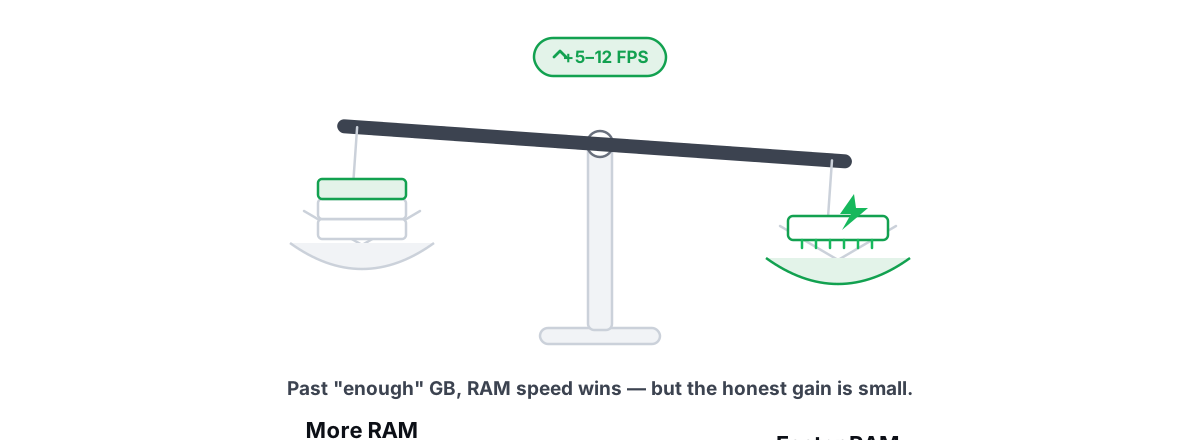
More RAM vs Faster RAM: What Actually Helps Gaming
Capacity is a floor and speed is the slope: why 16GB is usually enough, and where RAM speed and dual-channel actually buy FPS.
Stop guessing. Measure it.
BRUTAL Optimizer is the honest way to speed up Windows — 17 free modules, a real FPS overlay, verified disk cleanup and drive health. No kernel driver of our own, no game hooks, every setting change reversible.