Should You Disable Windows Defender for Gaming?
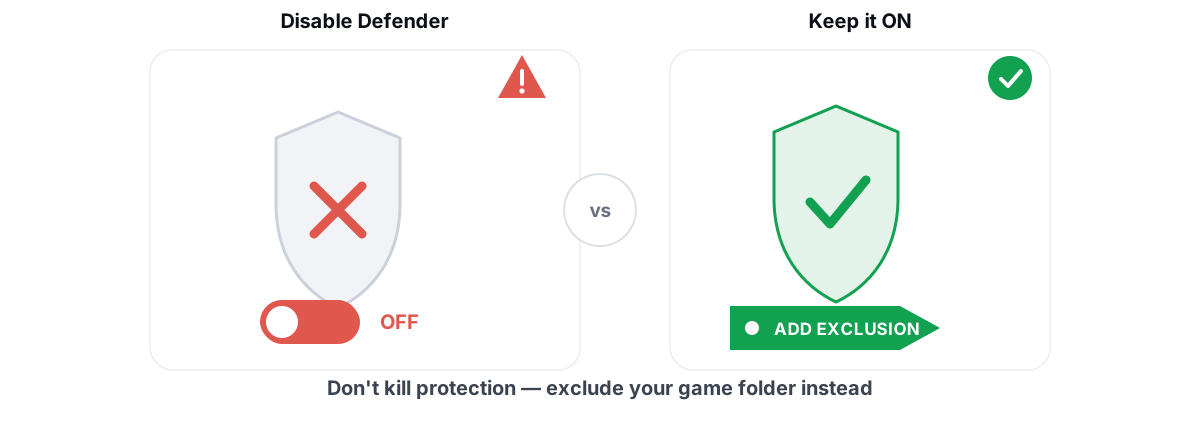
Every "boost your FPS" thread eventually tells you to disable Windows Defender for gaming. The advice is wrong. Defender's real cost is small, the security and anti-cheat downside is large, and the safe middle ground takes about thirty seconds to set up.
Does Defender actually cost you FPS?
A little, sometimes, in specific moments. Not in the way the guides imply.
Microsoft Defender Antivirus has two parts that touch performance: real-time protection inspects files as they're opened, written, or executed, and scheduled scans walk your disk in the background. Neither one sits inside your game's render loop. Defender doesn't read frames or hook DirectX, so it can't shave a flat percentage off your steady-state FPS the way the myth suggests.
Where it shows up is during file activity. A game loading hundreds of assets off disk, a shader cache compiling, a level streaming in — those trigger real-time scans of the files being touched. On a fast NVMe SSD with a modern CPU, that overhead is in the low single digits of percent and usually invisible during play. On a slow HDD or an older quad-core, you can occasionally feel it as a longer load or a brief hitch the first time a file is read.
The bigger, more legitimate complaint is the scheduled scan. If Defender decides to run a full scan while you're mid-match, it pins a CPU core or two and hammers your disk. That can cause a real, ugly stutter — but it's a scheduling problem, not a reason to disable the whole thing. More on the clean fix below.
Defender's steady-state cost to in-game FPS is small — usually a few percent at most, and often nothing you can measure. The visible pain almost always comes from a scan firing at the wrong time, not from real-time protection itself.
Real-time scanning vs the gaming reality
Real-time protection works on access. When a file is opened or written, the filter checks it; if nothing's changed and it's already known-clean, Defender caches that verdict and skips re-scanning it. So the first launch of a game after an update is the expensive one — assets and shaders get inspected as they're read or built. Later launches barely touch the scanner, because the files are unchanged and already cleared.
This is why people "see" Defender cost FPS once, disable it, and credit the disable for a smoother second session that was going to be smoother anyway. The cache did the work, not the toggle.
If your game stutters consistently, real-time scanning is rarely the culprit. The usual suspects are shader compilation, a thermal-throttling CPU or GPU, or background apps fighting for the disk. Rule those out before you blame your antivirus — start with why frametime spikes happen and how to fix them and why new games hitch while shaders compile. Defender is far down that list.
Why disabling it is the wrong trade
Set aside FPS for a second and look at what you're actually giving up.
Defender is the thing standing between you and the malware that targets gamers specifically: fake cheat downloads, cracked-game installers, Discord "nitro" links, and account-stealing infostealers that go straight for your Steam, Riot, and browser sessions. Gamers are a prime target precisely because they download a lot of executables from sketchy places. Switching off your only real-time scanner on that machine isn't a performance tweak — it's pulling the smoke detector to make the room quieter.
There's also a practical catch most guides skip: on Windows 10 and 11, you can't cleanly "turn Defender off" anymore. Tamper Protection re-enables real-time protection on its own, the toggle in the Security app flips itself back after a reboot, and people end up disabling it through registry hacks or Group Policy they don't understand and can't reliably undo. You break a security feature, get no measurable FPS, and leave your system in a half-configured state. That's a worse outcome on every axis.
If your goal is genuine performance work, do the things that actually move frametimes — driver hygiene, thermals, the right graphics settings — covered honestly in our guide to increasing FPS. Disabling your antivirus isn't on that list because it doesn't belong there.
Anti-cheat and Defender coexist by design
Here's the part the "disable everything" crowd gets backwards. Riot Vanguard, Easy Anti-Cheat, and BattlEye are built to run alongside Windows Defender. They expect it to be there.
Anti-cheat and antivirus aren't competitors fighting over your CPU. They watch for different things. Defender looks for malware signatures and malicious behavior; anti-cheat looks for code injected into the game, kernel drivers that hide, and tampering with the protected process. Both are designed to be normal background citizens on a healthy Windows install.
Disabling Defender doesn't make anti-cheat happier — if anything, a stripped-down or hacked-about security configuration is the kind of environment that looks abnormal. A clean machine running stock Windows security is exactly what these systems are tuned for. You don't earn smoother gameplay or fewer anti-cheat headaches by gutting Defender; you just add risk.
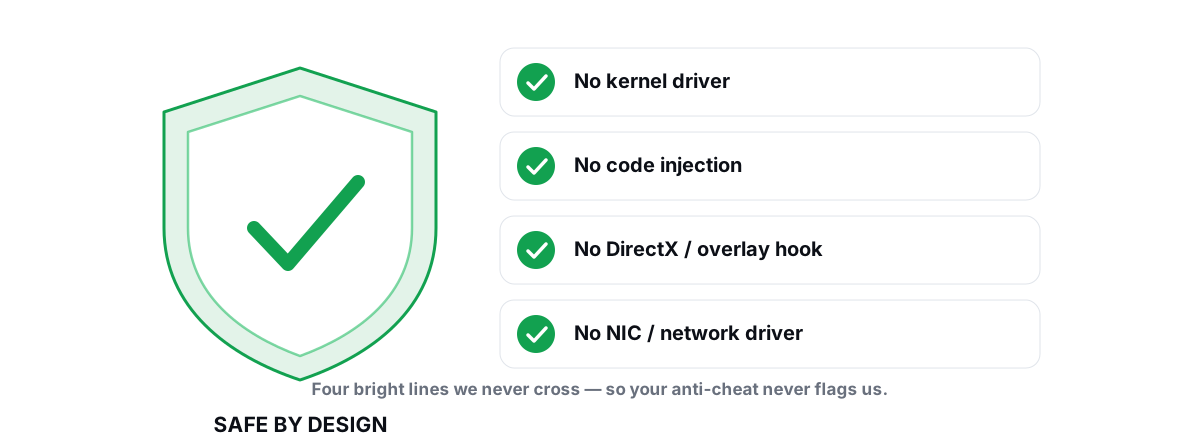
This is the same principle behind every safe tweak: stay in user-mode, don't install kernel drivers, don't touch the game's process. For the full breakdown of what keeps a tweak (or a tool) on the right side of anti-cheat, read the four bright lines of anti-cheat-safe optimization.
The safe middle ground: targeted exclusions
You don't have to choose between "Defender on, eating disk I/O" and "Defender off, wide open." There's a precise middle: tell Defender to stop scanning the folders where you keep trusted game installs, and fix when scheduled scans run. You keep full real-time protection everywhere else.
This is the only Defender change worth making for gaming, and it's the one almost no "turn it off" guide bothers to explain — because it requires understanding the tool instead of nuking it.
What to exclude, concretely:
- Game library folders only. For example a Steam library at
D:\SteamLibrary\steamapps\commonor your Epic install root. Exclude the directories your installed games live in — never the drive root, never your Downloads folder, neverC:\. - Shader cache locations if a specific title rebuilds shaders constantly, though the launcher library folder usually already covers these.
What to leave fully scanned: Downloads, your browser profile, temp folders, and anywhere you save files from the internet. Those are where threats actually arrive. An exclusion is a hole you punch on purpose in a place you trust — keep it small and specific.
How to set an exclusion without leaving yourself open
The whole thing lives in the built-in Windows Security app. No third-party tool required.
- Open Windows Security → Virus & threat protection → Manage settings (under "Virus & threat protection settings").
- Scroll to Exclusions → Add or remove exclusions → Add an exclusion → Folder.
- Point it at your game library directory specifically — the
steamapps\commonfolder, your Epic install root, your Riot Games folder. Add each one as its own folder exclusion.
To stop scheduled scans from interrupting you, open Task Scheduler → Microsoft\Windows\Windows Defender and check the trigger time on Windows Defender Scheduled Scan, or just make sure your PC is genuinely idle when scans are set to run. Defender already tries to avoid scanning while you're active, but a manually scheduled full scan can ignore that.
Two rules keep this safe:
- Exclude folders, not file types. Excluding
.exeglobally is how people get burned — it disables scanning for every executable on the system, everywhere. A folder exclusion stays contained to that path. - Never exclude a download or temp location. The exclusion is a statement that you trust everything in that folder. Only trusted, already-installed game files qualify.
C:\ root, your user profile, or file extensions like .exe. Each of those turns a surgical exclusion into a system-wide blind spot. If a guide tells you to exclude your whole disk "for performance," close the tab.Why "turn off your AV" guides are a red flag
Step back and notice the pattern. The same listicles that say "disable Defender for FPS" also tell you to delete your pagefile, defrag your SSD, clean your registry, and disable a dozen Windows services. None of those help, and some cause real harm. "Turn off your antivirus" sits in exactly that bucket — confident, copy-pasted, and untested.
There's a sharper reason to be suspicious, though. The single most common piece of advice attached to actual malware is "disable your antivirus before installing." A cracked game, a "free" cheat, an "FPS unlocker" that needs Defender off to run — that instruction exists to get the scanner out of the way so the payload lands. Any tool or guide that requires you to switch off Windows security to function is telling you something about itself.
This is the bar we hold our own software to. BRUTAL Optimizer runs with Defender fully on, alongside Vanguard, EAC, and BattlEye, because it's a user-mode wrapper over the same tools Windows already ships — no kernel driver, no injection, no asking you to lower your defenses. A real optimizer works with your security, not by dismantling it. To sanity-check whether performance tools can affect your account, we covered ban risk and PC optimizers in detail.
The honest verdict
Don't disable Windows Defender for gaming. The real-time cost is a few percent at most and usually unmeasurable; the security loss is large; and on modern Windows you can't even turn it off cleanly. What you're actually chasing — no mid-game scan stutter, no overhead on trusted files — is solved precisely by folder exclusions and a sane scan schedule, with protection intact everywhere it counts.
| Move | FPS effect | Risk | Verdict |
|---|---|---|---|
| Disable real-time protection | A few % at most, inconsistent | Loses live malware blocking | No |
| Disable Defender entirely | Negligible; won't stay off anyway | System wide open | No |
| Exclude game library folders | Removes on-access overhead for trusted files | Contained to those paths | Yes |
| Reschedule full scans off your play hours | Kills mid-match scan stutter | None | Yes |
If you want to find the stutter that's actually costing you — instead of guessing it's Defender — run a real frametime overlay and watch your 1% lows while you play. BRUTAL Optimizer's free FPS overlay shows 1% lows and frametimes by counting DWM composition frames, with no injection into the game, so you can see whether a hitch lines up with a disk-heavy moment or something else entirely. That's the honest way to chase smoothness: measure first, then fix the real cause.
Frequently asked questions
Does Windows Defender lower my FPS?
Only slightly, and rarely during steady play. Real-time protection scans files as they are opened or written, so a game loading assets off disk pays a small cost, usually a few percent at most on modern hardware. The visible stutter people blame on Defender almost always comes from a scheduled full scan firing mid-match, not from real-time scanning itself.
Is it safe to disable Defender for gaming?
No. The FPS gain is tiny and inconsistent, while you lose live blocking of the malware that targets gamers most, fake cheats, cracked installers, and account-stealing infostealers. On Windows 10 and 11 you also cannot cleanly turn it off, since Tamper Protection re-enables it and the toggle flips back after a reboot.
What should I do instead of turning Defender off?
Add a folder exclusion for your trusted game library directories, like your Steam steamapps common folder and your Epic install root, and move Defender scheduled scans off your play hours. That removes the on-access overhead for files you already trust and kills the mid-match scan stutter, while protection stays on everywhere else.
Will disabling Defender help with anti-cheat?
No. Vanguard, Easy Anti-Cheat, and BattlEye are built to run alongside Windows Defender and expect it to be present. A stripped-down or hacked-about security setup is more likely to look abnormal, not less. A clean machine running stock Windows security is exactly what these systems are tuned for.
Should I exclude my whole drive or all .exe files from Defender?
Never. Excluding a drive root, your user profile, or an extension like .exe creates a system-wide blind spot that malware can exploit. Exclude specific, trusted game install folders only, and leave Downloads, temp folders, and your browser profile fully scanned, since that is where threats actually arrive.
Keep reading
 Anti-Cheat & Safety
Anti Cheat Safe Optimization: The 4 Bright Lines
The four bright lines that separate safe user-mode tweaks from the tools that get your game account flagged.
 Anti-Cheat & Safety
Can a PC Optimizer Get You Banned in Games?
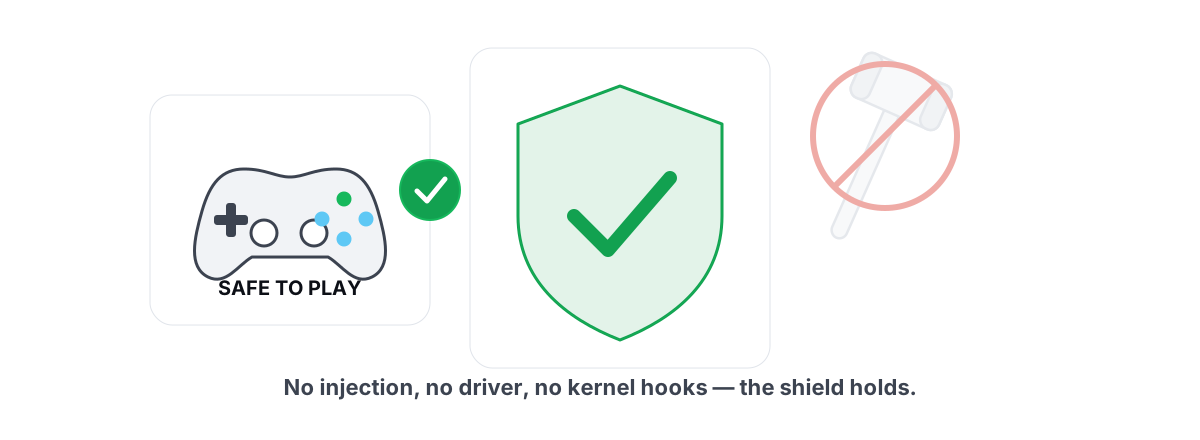
Injection, memory writes, and signed-driver abuse can get you banned. Registry and powercfg tweaks never do. Here is the honest line.
 Gaming & FPS
How to Increase FPS in Games (Honest 2026 Guide)
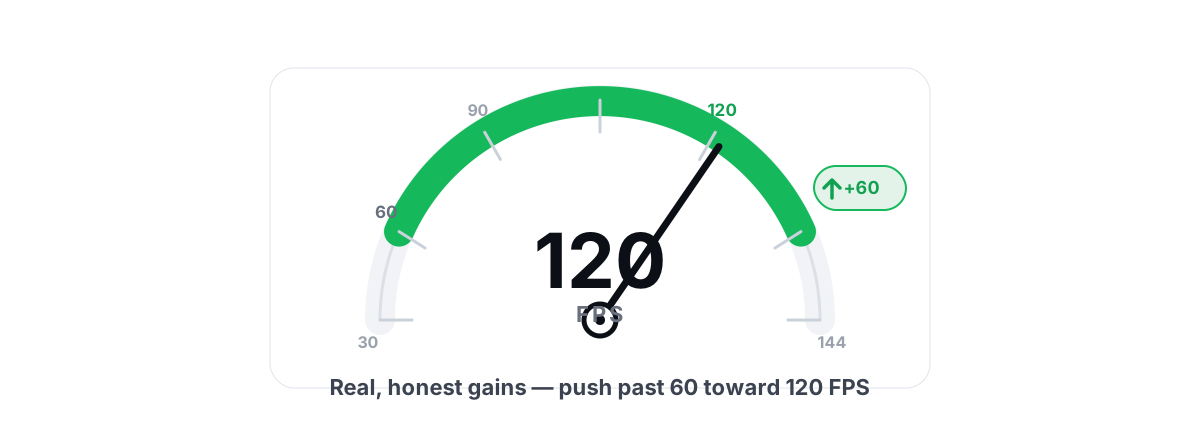
Realistic ways to increase FPS, ranked by impact: settings, drivers, thermals and upscaling, with the placebo tweaks called out.
Stop guessing. Measure it.
BRUTAL Optimizer is the honest way to speed up Windows — 17 free modules, a real FPS overlay, verified disk cleanup and drive health. No kernel driver of our own, no game hooks, every setting change reversible.