How to Make LDPlayer Run Faster Without Placebo
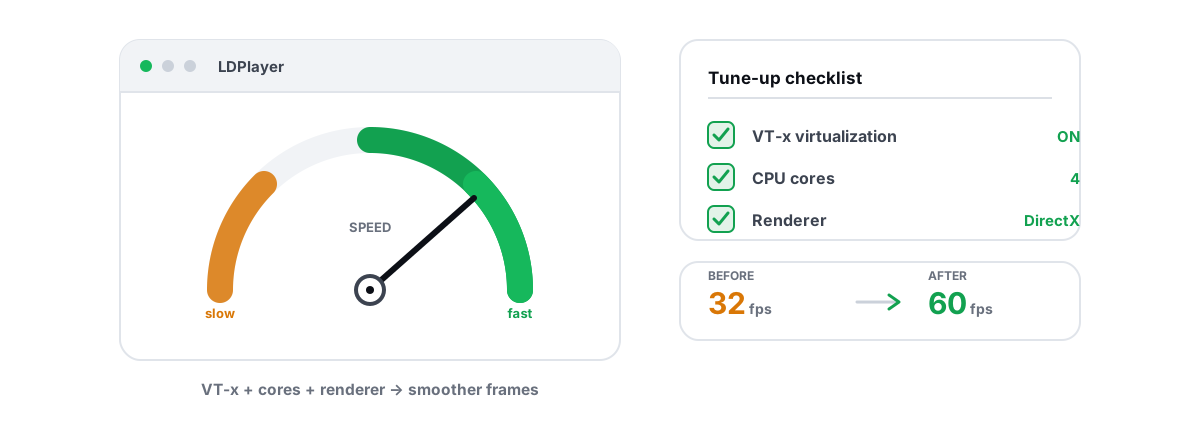
LDPlayer runs a full Android virtual machine on your PC, and that VM is the reason it feels heavier than your phone. To make LDPlayer run faster you feed the VM the right hardware and cut the things that fight it for resources — not the registry-cleaner theater most guides push.
This is the honest version. A handful of settings move real frames and smooth out stutter. The rest of what you read online is placebo, and this guide separates the two so you stop wasting time on tweaks that do nothing.
Why LDPlayer feels slow: the VM tax explained
An emulator isn't a lightweight skin over Android. LDPlayer boots a real ARM-to-x86 translation layer inside a virtual machine, with its own kernel, its own memory, and its own GPU pipeline that hands frames back to Windows through DirectX or OpenGL.
That layered design costs you CPU cycles and memory bandwidth a phone never spends. A phone's chip runs Android natively; your PC translates and virtualizes every instruction. So the goal is never "make it as light as a phone" — it's "remove the friction so the VM runs as fast as your hardware allows."
Three things dominate emulator performance: whether CPU virtualization is on, whether the VM has enough cores and RAM without starving Windows, and whether the renderer matches your GPU. Get those right and you've done 90% of the real work. Everything else is fine-tuning.
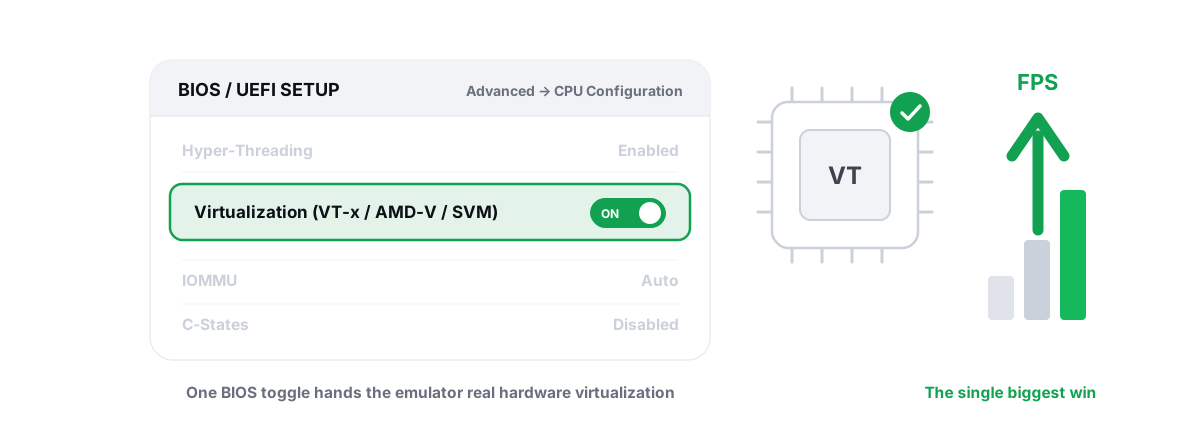
If virtualization is off in your BIOS, no in-app slider will save you. That single setting is almost always the biggest win, and it costs nothing.
First check: is hardware virtualization actually enabled?
This is step zero, and skipping it is why most "my LDPlayer is laggy" threads never get solved. Hardware virtualization (Intel VT-x or AMD SVM) lets the emulator run guest code directly on your CPU instead of emulating it in software. Without it, LDPlayer falls back to a slow software path and everything crawls.
Check it in seconds: open Task Manager, go to the Performance tab, click CPU, and look for Virtualization: Enabled. If it says Disabled, that's your problem.
To fix it, reboot into your BIOS/UEFI (usually Del or F2 at startup) and enable the setting. It's named differently per vendor:
- Intel:
Intel Virtualization TechnologyorVT-x - AMD:
SVM Mode(sometimes under CPU Configuration or Advanced)
One more catch on Windows 11: if Memory Integrity or another Hyper-V-based feature is grabbing the virtualization layer, LDPlayer's own VT may not engage cleanly. LDPlayer ships a compatibility mode for that, but the cleaner fix is making sure VT-x/SVM is on at the BIOS level first. The full walkthrough lives in our guide to enabling VT-x and AMD-V for emulators.
Allocating CPU cores and RAM that match your machine
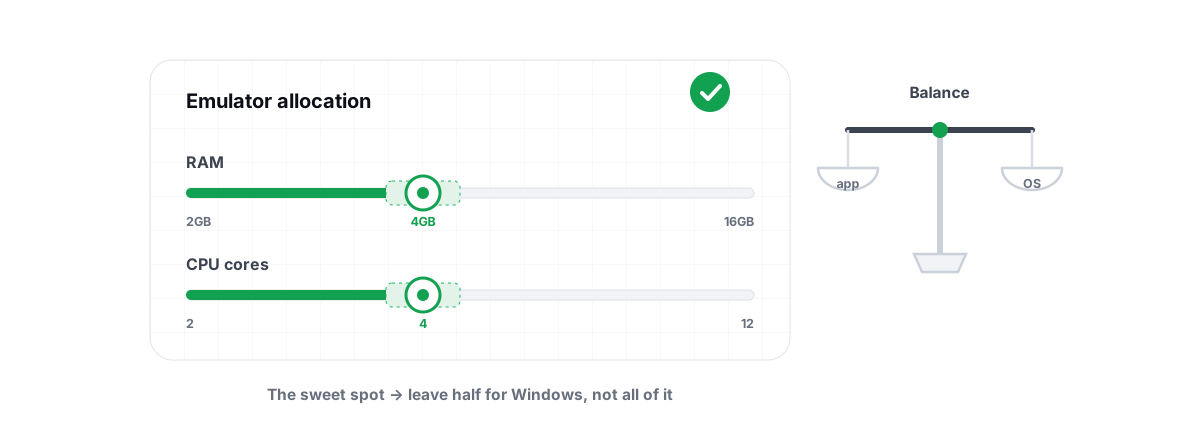
LDPlayer lets you assign CPU cores and RAM to the VM in its settings. More is not automatically better — over-allocating starves Windows and the result is worse, not faster.
The rule that actually works: leave headroom for the host OS. Windows, your browser, the LDPlayer UI itself, and background services all need cores and memory too. If you give the VM everything, the host chokes and you get stutter even though the emulator "has" the resources.
| Your PC | CPU cores to LDPlayer | RAM to LDPlayer |
|---|---|---|
| 4 cores / 8GB | 2 cores | 2GB (3GB max) |
| 6 cores / 16GB | 4 cores | 4GB |
| 8+ cores / 16GB+ | 4 cores | 4GB (6GB for heavy games) |
Why cap cores at 4 even on an 8-core chip? Most Android games don't scale past 4 threads, and leaving physical cores free for Windows scheduling reduces contention. Throwing 8 cores at a game that uses 3 just gives the OS less room to breathe.
RAM is the same story. 4GB is plenty for almost every title. Allocating 8GB on a 16GB machine leaves Windows fighting for what's left, and you'll see disk thrashing as the system pages to your drive. If you genuinely need more, the answer is more physical RAM, not a bigger slice of what you have — see how much RAM and how many cores an emulator really needs for the reasoning.
Choosing the renderer and frame-rate cap for your GPU
The graphics renderer is one of the few settings that can flip a game from stuttery to smooth, and the right choice depends on your GPU vendor.
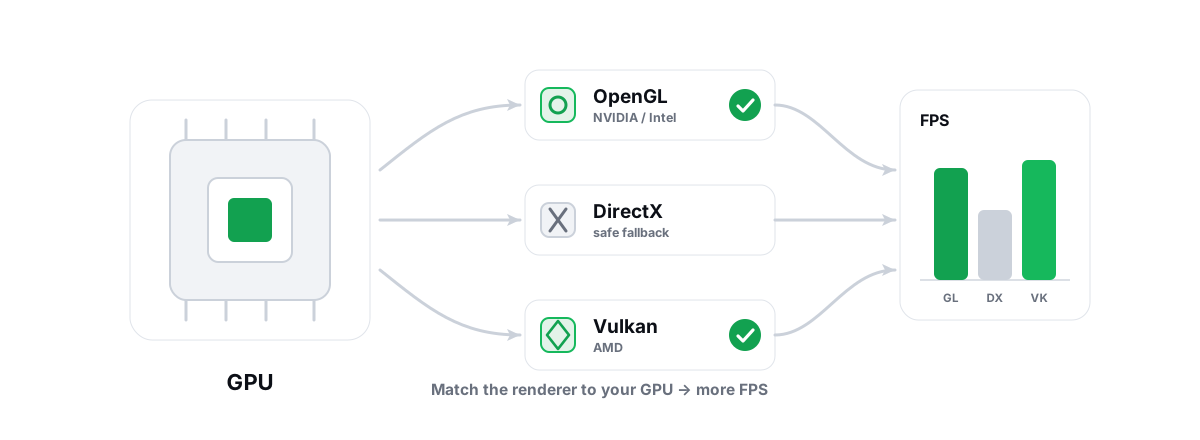
LDPlayer typically offers OpenGL and DirectX (and a Vulkan path on some versions). The honest guidance:
- NVIDIA GPUs: start with OpenGL; if a specific game stutters, try DirectX.
- AMD GPUs: Vulkan tends to be smoothest where available, otherwise DirectX.
- Intel integrated: OpenGL is usually the safe default.
There's no universal winner. Renderers interact with each game's engine differently, so the real method is: pick the vendor default above, play your actual game for a few minutes, and switch if you see stutter. Test, don't guess. Our breakdown of OpenGL vs Vulkan vs DirectX for emulators goes deeper per engine.
The frame-rate cap
LDPlayer's FPS limit setting controls how many frames the Android VM tries to render. Setting it absurdly high doesn't help if your GPU can't keep up — it just burns power and heat for frames you never see.
Match the cap to your monitor and what the game supports. A 60Hz panel gains nothing from a 120 FPS cap. If your display is 120Hz or 144Hz and the game supports high frame rates (many competitive titles do), then a 90 or 120 cap is worth setting. Otherwise leave it at 60. For the full picture on hitting high frame rates in emulators, see how to get 90-120 FPS on an Android emulator.
Resolution and DPI matter here too. Rendering at a higher resolution than you need is pure GPU load for no visible benefit on a windowed emulator. Pick a resolution that fits the window you actually play in.
Disk and antivirus exclusions that reduce stutter, safely
Emulators live on disk. The VM's virtual storage, the game's assets, and the texture caches all sit in LDPlayer's install folder, and your antivirus scans every file the VM touches in real time. On a busy game-load that scanning shows up as micro-stutter.
The safe fix is a targeted exclusion, not disabling protection. In Windows Security, add LDPlayer's install directory (and its .vmdk/data folders) to the exclusion list. This stops Defender from re-scanning known emulator files on every access while leaving real-time protection fully on for everything else.
The drive itself matters more than any tweak. An emulator on a SATA or NVMe SSD loads and streams assets far faster than one on a spinning HDD, and you feel it most in load times and texture pop-in. If LDPlayer sits on an old hard drive, moving it to an SSD is the single biggest hardware upgrade you can make for it. See SSD vs HDD for gaming for what that actually changes.
Cutting Windows background load with free tools
Your emulator competes with everything else Windows is running. Background updaters, a dozen startup apps, telemetry services, and a 100%-busy disk all steal the cycles and I/O your VM wants.
The real levers, in order of impact:
- Trim startup programs. Every app that launches at boot and sits resident is taking RAM and occasionally waking the CPU. Disable the ones you don't need from Task Manager's Startup tab. Guide: manage startup programs in Windows.
- Set a high-performance power plan. On a laptop especially, the default balanced plan can downclock your CPU mid-game. Windows power plans explained covers when this matters.
- Find what's pinning your disk. If Task Manager shows 100% disk while gaming, that's your stutter source. Fixing 100% disk usage walks through the real causes.
- Close the obvious hogs. A browser with 40 tabs, Discord screen-share, and a streaming app all eat into the budget. Shut what you don't need during a session.
BRUTAL Optimizer handles the tedious parts of this with free modules — its Startup Manager, the System Debloat module (core unparking, telemetry, visual effects), and the live CPU/GPU/RAM monitor so you can see what's actually competing for resources. Every setting change it makes is reversible with per-module undo, and it attempts a System Restore point before anything big. Nothing here requires the app, though — the manual steps above do the same job.
What does NOT help: RAM boosters, registry cleaning, fake sliders
This is where most "speed up LDPlayer" guides go off the rails. These do nothing, and some make things worse.
Other myths to ignore: disabling the pagefile (Windows needs it, and removing it causes crashes, not speed), the "disable these 20 services" lists (most break features for no real gain), and defragging an SSD (pointless and adds wear — flash drives don't fragment the way platters do). The honest framing of all of this is in our do PC optimizers actually work piece.
Make LDPlayer run faster automatically with Guardian (Pro)
Everything above is manual and it works. If you'd rather it happen automatically, that's what BRUTAL's Guardian service does on the Pro tier.
When Guardian detects LDPlayer (or any of the six supported emulators) running, it applies the matching tier-aware game profile, raises the emulator's CPU, I/O, and memory priority, sharpens the system timer resolution, and auto-shows the FPS overlay. When you close the emulator, it reverts everything. The free Module 9, "Emulator Performance Tuning", goes further — tuning IFEO priority, GPU, DWM, the VM, and network in one pass.
It's worth being clear about what this does and doesn't do. BRUTAL improves emulator performance. It does not hide LDPlayer from a game and never helps you evade anti-cheat — and that's deliberate.
Some games detect emulators on purpose. PUBG Mobile and BGMI put emulator players into emulator-only matchmaking, and a few titles restrict or ban emulator play entirely. That's the game publisher's policy, not something any tool changes — and trying to mask an emulator is itself a ban risk. The honest position is in is playing on an emulator bannable. BRUTAL is anti-cheat-safe precisely because it never injects, hooks, or spoofs anything.
Proving the gain with the overlay's frametime graph
Don't trust a tweak because a forum post said so. Measure it. The only way to know if a change helped is to look at frame rate and frametime before and after.
BRUTAL's FPS overlay is free and works over emulators. It counts DWM composition / D3DKMT present frames — it doesn't inject into the emulator or the game, so it's safe alongside any anti-cheat. The number that matters most isn't average FPS, it's the 1% lows and the frametime graph: a smooth, flat line means consistent pacing, while spikes are the stutters you actually feel.
Here's the honest method: turn on the overlay, play your game, note the average FPS and whether the frametime line is flat or jagged. Change one setting — the renderer, the core count, an exclusion. Play again. Compare. If the 1% lows came up and the spikes flattened, keep it. If nothing changed, revert it. This is how you separate real gains from placebo, and it's covered in fixing stutter and frametime spikes.
Set honest expectations. The combination of virtualization on, sane core/RAM allocation, the right renderer, and a quiet background typically buys you a few to several FPS and noticeably smoother frametimes — not a doubling. An emulator runs a VM, so it will always be heavier than a phone. The goal is a steady, stutter-free session, and that's very achievable.
If you want the manual steps done for you with per-module undo, BRUTAL Optimizer's emulator tools tune all six emulators, ship eight tier-aware game profiles, and the free FPS overlay lets you prove every change. But the levers in this article are real and free to do by hand — start with virtualization, and measure as you go.
Frequently asked questions
What is the single biggest thing that speeds up LDPlayer?
Enabling hardware virtualization in your BIOS (Intel VT-x or AMD SVM). Without it, LDPlayer runs guest code in a slow software path and everything crawls. Check Task Manager's Performance tab for Virtualization: Enabled before changing anything else.
How many CPU cores and how much RAM should I give LDPlayer?
Leave headroom for Windows. On a 6-core, 16GB machine, 4 cores and 4GB is a good balance. Over-allocating starves the host OS and causes more stutter, not less. Most Android games do not scale past 4 threads, so giving the VM 8 cores rarely helps.
Which renderer is fastest in LDPlayer?
It depends on your GPU and the game. Start with OpenGL on NVIDIA and Intel, Vulkan or DirectX on AMD, then test your actual game and switch if you see stutter. There is no universal winner because renderers interact with each game engine differently.
Do RAM boosters or registry cleaners make LDPlayer faster?
No. RAM boosters force-trim memory that your app immediately reloads, and registry cleaning does nothing for CPU translation speed. Both are placebo and registry cleaning carries breakage risk. Real gains come from virtualization, sane allocation, the right renderer, and a quiet background.
Can optimizing LDPlayer get me banned?
Improving emulator performance does not. But some games like PUBG Mobile and BGMI detect emulators on purpose and put those players in emulator-only matchmaking, and a few titles restrict emulator play. That is publisher policy. Trying to hide or spoof an emulator is itself a ban risk, which is why honest tools never do it.
Keep reading
 Emulators
Enable Virtualization for Emulator Speed: BIOS Guide
Enabling CPU virtualization in BIOS is the single biggest emulator speedup most people skip. Per-vendor steps plus the Hyper-V conflict nobody mentions.
 Emulators
How Much RAM for an Emulator (and How Many CPU Cores)?
More cores and RAM usually makes an emulator slower, not faster. Here are the sane numbers per PC tier and how to verify them.
 Emulators
Best Renderer for Emulator: OpenGL vs Vulkan vs DX
OpenGL, DirectX or Vulkan? The right emulator renderer depends on your GPU vendor. Here is the honest, GPU-aware way to choose and test it.
Stop guessing. Measure it.
BRUTAL Optimizer is the honest way to speed up Windows — 17 free modules, a real FPS overlay, verified disk cleanup and drive health. No kernel driver of our own, no game hooks, every setting change reversible.