How to Get 90 or 120 FPS on an Android Emulator
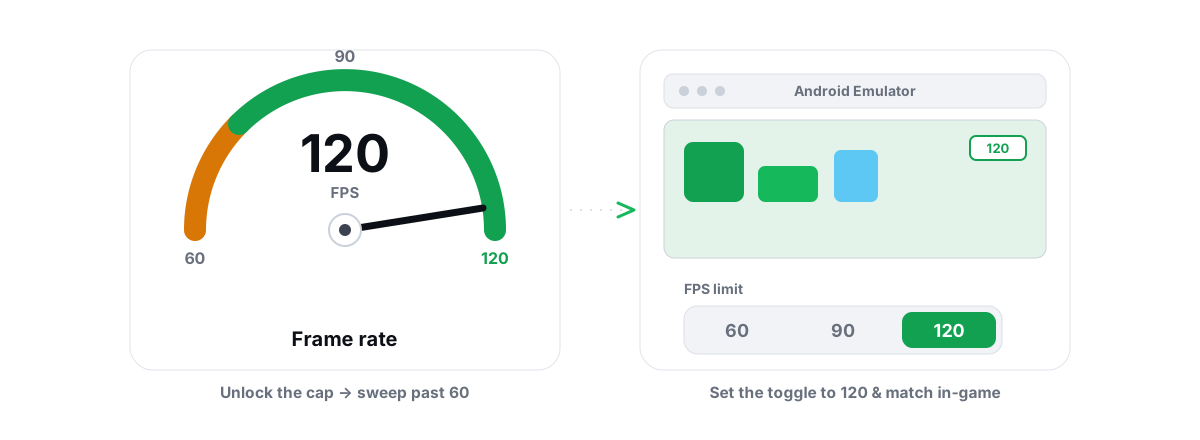
Getting 90 fps on an Android emulator (or 120) is a chain of caps you clear in order: the emulator, the game, then your monitor. Clear them out of order and you end up staring at a "120 FPS" toggle that changes nothing.
Here is the honest version. High-refresh emulator gaming is real, but it needs three things to line up, and the game itself is the one that quietly overrules you most often. This walks the whole chain so you stop guessing at the wrong gate.
Where the FPS cap really lives (emulator, game, monitor)
An emulator runs a full Android virtual machine on your PC. Every frame it shows passes through three gates, and your real frame rate is whatever the lowest gate allows.
- The emulator frame-rate cap. Most emulators ship with a 60 FPS limit on by default. This is the first gate and the easiest to lift.
- The game's own cap. Mobile games decide their own max frame rate, usually based on the device they think they're running on. Many cap at 60 and never expose a 90/120 option on an emulator at all. This is the gate people forget, and it's the one that wastes the most time.
- Your monitor's refresh rate. A 60 Hz panel physically cannot display more than 60 distinct frames per second. The game can render 120 internally, but you'll see 60 unless your display runs at 120 Hz or higher.
If your monitor is 60 Hz, stop here. No emulator or game setting gives you 90/120 frames on a 60 Hz panel. You need a 90/120/144 Hz display first. Everything below assumes you have one.
Check your refresh rate in Windows: right-click the desktop, Display settings → Advanced display, and read the refresh rate. If it shows 60 on a high-refresh monitor, set it to the higher value there — Windows often defaults new panels to 60.
Unlocking the frame-rate setting in your emulator
This is the part you control directly. Every major emulator has a frame-rate cap in its settings, and most default it to 60. Raise it.
| Emulator | Where the FPS cap lives | Typical max |
|---|---|---|
| LDPlayer | Settings → Display → Frame rate (slider/box, set to 120/144/240) | Up to 240 |
| BlueStacks | Settings → Performance → FPS slider (set high) + Enable high frame rate | Up to 240 |
| MEmu | Settings → Engine / Advanced → Frame rate | Up to 120+ |
| Nox | Settings → Advanced → FPS (max frame rate) | Up to 120+ |
| GameLoop | Settings → Engine → Smooth/Frame rate (tied to render mode) | Up to 120+ |
| MuMu | Settings → Performance / Display → Frame rate | Up to 120+ |
Set the emulator cap to at least your monitor's refresh rate. There's no point asking for 240 on a 120 Hz screen — you'll never see frames past 120, and the extra render load is wasted heat. Match the cap to the panel, then leave it.
Does the game even allow 90 fps on an Android emulator?
This is where most "why is it still 60?" threads die. The emulator cap is uncapped, the monitor is 120 Hz, and the game still runs at 60. The reason is simple: the game decides its own frame-rate ceiling, and on an emulator it often picks 60.
Mobile games gate their high-FPS modes by device. They read what hardware Android reports and only expose 90/120 on phones they recognize as capable. An emulator reports a generic virtual device, so the game frequently won't show the high-FPS option at all, or it shows it and silently holds at 60.
Two honest truths here:
- Some games simply cap emulator play at 60. No setting on your end changes that. It's the game's logic, not your PC.
- Some games expose 90/120 in-game. If they do, turn it on inside the game's graphics menu — the in-game frame-rate setting overrides everything below it. The emulator cap only sets the ceiling; the game's own setting picks the target underneath it.
So the real order is: lift the emulator cap, then open the game's graphics settings and look for a frame-rate / "Ultra" / "Extreme" / 90/120 option. If it's there, you're in business. If it isn't, no amount of emulator tuning conjures it — and you should not try to mask the emulator to fake a different device. That's a ban risk, and it's the kind of thing that gets accounts flagged.
Renderer and GPU settings that enable high refresh
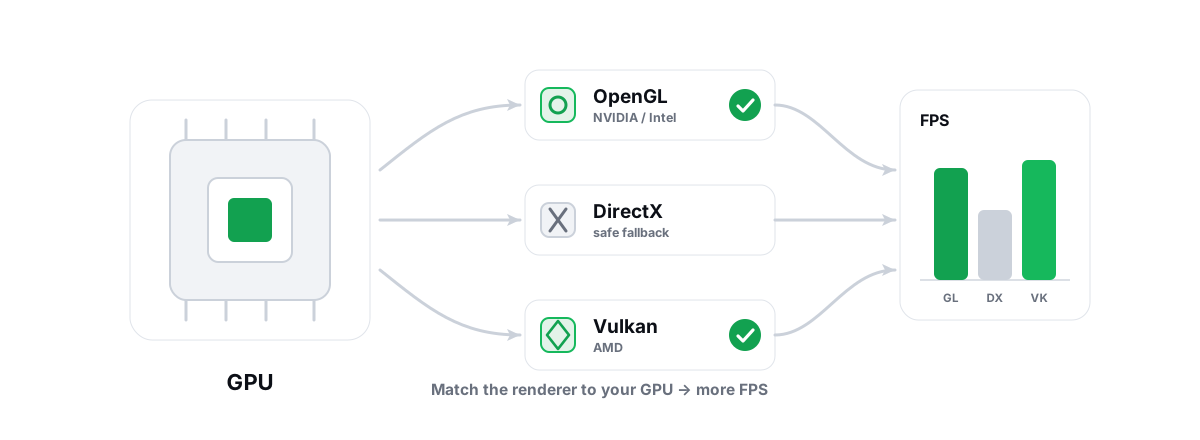
Once the game is actually rendering above 60, the bottleneck shifts to how the emulator draws frames. The graphics renderer is the biggest lever, and the right one depends on your GPU.
| Your GPU | Start with | Notes |
|---|---|---|
| NVIDIA | OpenGL (or the emulator's DirectX option) | Modern NVIDIA OpenGL drivers are strong; DirectX is a solid fallback if a game artifacts. |
| AMD | Vulkan | AMD's Vulkan path is usually the smoothest and lowest-overhead for emulators. |
| Intel (incl. Arc) | OpenGL | Most compatible on Intel iGPUs; test DirectX per game. |
Renderer choice isn't religion — it's per-game testing. Set the one for your GPU, run a real match, and if a specific game stutters or shows graphical glitches, switch to the other option and compare. There's no universal "best"; there's the one that's smooth for your GPU on that game. If you want the deeper version of this, the OpenGL vs Vulkan renderer comparison covers the trade-offs.
A few GPU-side settings that genuinely help at high refresh:
- Update your GPU driver before chasing settings. A current driver is one of the few free wins that actually moves frame rates and fixes renderer bugs. Do it the safe way — see how to update GPU drivers without breaking things.
- Set the emulator's exe to your discrete GPU in Windows Graphics settings (Settings → System → Display → Graphics) so a laptop doesn't quietly run it on the integrated chip.
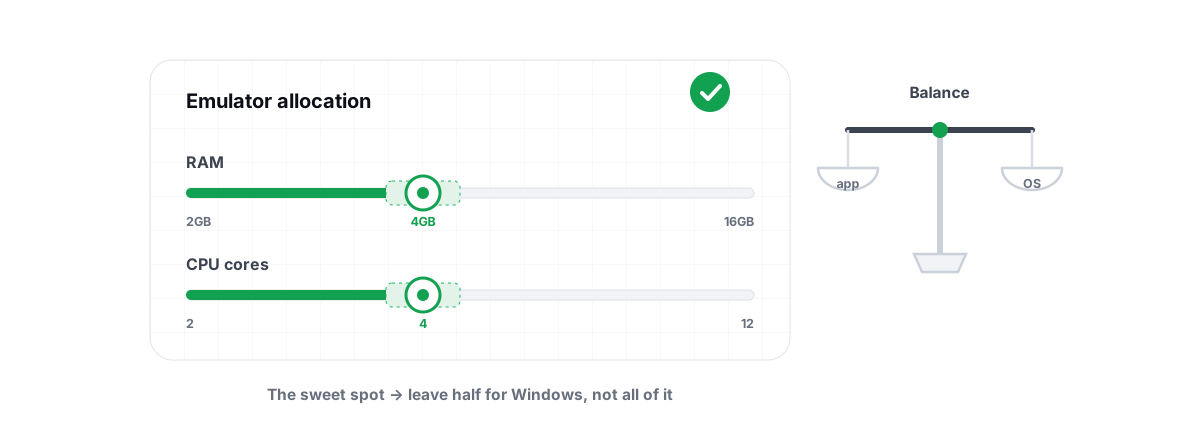
- Give the emulator enough cores and RAM — but don't over-allocate. Past a point you starve Windows and the GPU driver, and frametimes get worse. The right CPU cores and RAM for an emulator is its own piece; the short version is leave headroom for the host.
The hardware floor for steady 90/120
An emulator is heavier than the phone the game was built for, because it's emulating an entire device on top of Windows. Steady high-refresh needs real hardware, and one BIOS toggle matters more than any tweak.
CPU virtualization is the single biggest win. Intel VT-x or AMD-V / SVM must be enabled in your BIOS/UEFI. Without it, the emulator falls back to slow software translation and you'll never hold 90, let alone 120. Many PCs ship with it off. Check the emulator's settings panel — most warn you if VT is disabled — then enable it in BIOS. Full steps are in the enable VT-x / AMD-V guide.
Beyond virtualization, the realistic floor for steady 90/120 looks like this:
- CPU: a modern 6-core or better. Emulation is CPU-hungry; an old dual-core won't sustain high refresh no matter the settings.
- RAM: 16 GB total so you can give the emulator 4 GB and still leave Windows comfortable. 8 GB total means constant paging once the game and Chrome are open.
- GPU: any dedicated GPU from the last several generations clears emulator workloads easily. The CPU is usually the limiter, not the GPU — if you see low GPU usage, you're CPU-bound, which is normal for emulators.
- Storage: an SSD. Not for frame rate directly, but for load times and to keep the host responsive. SSD vs HDD for gaming explains why.
Module 9 Emulator Performance Tuning, explained honestly (free)
BRUTAL Optimizer ships a module named Module 9 — Emulator Performance Tuning, so here's exactly what it is and isn't.
It's a free module that tunes the Windows-side environment around the emulator: IFEO process priority, GPU preference, DWM behavior, the emulator VM, memory, and network settings. The point is to give the emulator more of the machine and reduce contention so frametimes are steadier. It's a user-mode wrapper over settings Windows already exposes — no kernel driver, no injection into the emulator or the game, every setting change reversible with per-module undo, and a System Restore point attempted before big changes.
What it does not do: it does not force a game to render at 120 if the game caps itself at 60, and it does not hide the emulator. Its job is to remove Windows-side bottlenecks so that the emulator and game can reach high refresh when they support it. If the game's ceiling is 60, the module won't break that — and it shouldn't, because faking the device to break it is the ban-risk path. The honest gain is what these tweaks always are: a few to several FPS and noticeably smoother frametimes, not a magic doubling.
For Pro users, the Guardian background service automates the same idea live — it detects a running emulator, applies the matching per-game profile (resolution, cores, RAM, FPS target, renderer for your tier), raises the emulator's CPU/IO/memory priority and timer resolution, and reverts it all when you close the emulator. None of it touches the game or the emulator's memory; it's the anti-cheat-safe approach to optimization applied automatically. The full picture of the emulator tooling is on the emulator optimizer page.
Why steady frametimes beat a high peak number
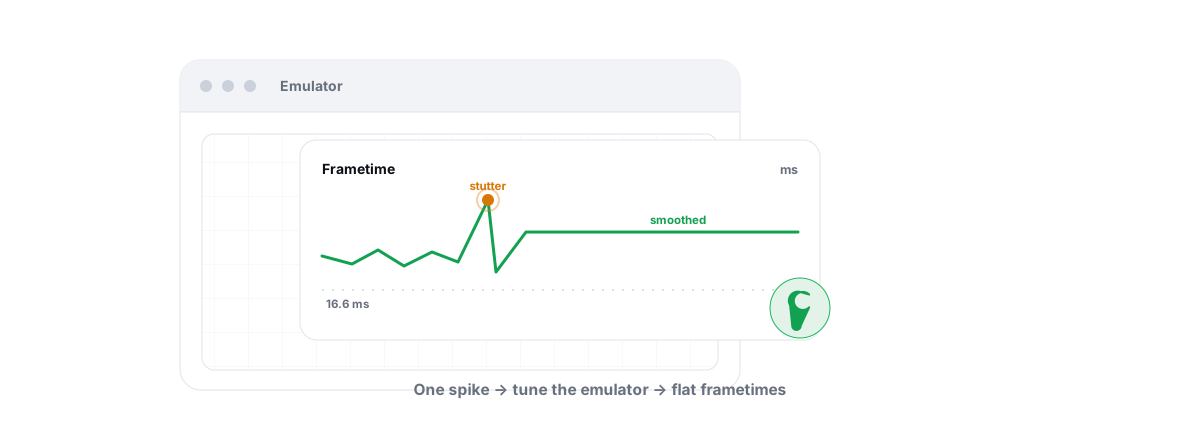
A "120 FPS" readout that bounces between 70 and 130 feels worse than a locked 90. Your eyes register the dips, not the peak. Most FPS chasing gets this backwards.
Frametime is how long each individual frame takes. At a true, steady 120 FPS every frame takes about 8.3 ms. A stutter is one frame suddenly taking 30–50 ms — a spike — and you feel it as a hitch even if the average FPS still reads high. Smoothness is consistency, not a big number.
So the goal isn't the highest peak; it's the flattest frametime line you can hold. That's why over-allocating cores or RAM backfires — it raises the peak occasionally but introduces spikes when the host starves. If you're fighting hitches specifically, the general guide to fixing stutter and frametime spikes applies to emulators too. And if the host PC itself feels heavy under the emulator, fixing emulator lag and stutter covers the contention side.
Chase a steady 90 you can hold, not a flickering 120 you can't. A locked frametime is what actually feels fast.
Measuring real sustained FPS with the overlay
You can't tune what you can't measure, and the in-game counter (when it even exists on an emulator) only shows an average. You want the sustained number and, more importantly, the 1% lows and the frametime graph — those reveal the stutters an average hides.
BRUTAL Optimizer's FPS overlay is free and works over emulators. It counts DWM composition / D3DKMT present frames — it does not inject into the game or the emulator, so it's safe to run alongside anything. It shows live FPS, 1% lows, and frametimes, which is exactly the data you need: not "is my peak high" but "is my floor steady." If you want the rationale for measuring this way, the anti-cheat-safe FPS overlay write-up covers it.
Run a real match, not a menu. Watch the 1% lows and the frametime line. If the average is 100 but the 1% low is 55, you have a contention problem to chase — not a frame-rate problem to celebrate.
That's the whole chain. Clear the emulator cap, confirm the game actually exposes a high-FPS mode (and accept it when it doesn't), pick the right renderer for your GPU, enable virtualization in BIOS, and judge the result by steady frametimes rather than a peak number. If you want the Windows-side tuning and live measurement done for you, BRUTAL Optimizer does exactly that — honestly, reversibly, and without ever hiding your emulator from a game.
Frequently asked questions
Why is my emulator still at 60 FPS after I raised the cap?
Almost always the game, not the emulator. Mobile games set their own frame-rate ceiling based on the device they detect, and on an emulator many cap at 60 and never expose a 90/120 option. Lifting the emulator cap only sets the ceiling; the game decides the target underneath it. Check the game's own graphics settings for a frame-rate or Ultra/Extreme mode.
Can a 60 Hz monitor show 90 or 120 FPS from an emulator?
No. A 60 Hz panel physically displays at most 60 distinct frames per second. The game can render 120 internally, but you will only see 60. You need a 90, 120, or 144 Hz display first, and you must set Windows to actually output that refresh rate.
What is the single biggest thing that helps emulator FPS?
Enabling CPU virtualization in BIOS, Intel VT-x or AMD-V/SVM. Without it the emulator falls back to slow software translation and cannot hold high refresh. Many PCs ship with it off, and most emulators warn you when it is disabled.
Which renderer gives the best emulator FPS, OpenGL or Vulkan?
It depends on your GPU and the specific game. As a starting point, NVIDIA does well on OpenGL or DirectX, AMD is usually smoothest on Vulkan, and Intel is most compatible on OpenGL. Set the one for your GPU, then test per game and switch if a title artifacts or stutters.
Does BRUTAL Optimizer hide my emulator to unlock high FPS?
No, and it never will. BRUTAL improves emulator performance only and never masks the emulator from a game. Masking an emulator to fake a device is a ban risk, and emulator FPS limits are the game publisher's policy, not something an optimizer should work around.
Keep reading
 Emulators
Best Renderer for Emulator: OpenGL vs Vulkan vs DX
OpenGL, DirectX or Vulkan? The right emulator renderer depends on your GPU vendor. Here is the honest, GPU-aware way to choose and test it.
 Emulators
How Much RAM for an Emulator (and How Many CPU Cores)?
More cores and RAM usually makes an emulator slower, not faster. Here are the sane numbers per PC tier and how to verify them.
 Emulators
Fix Android Emulator Lag and Stuttering
Diagnose the real cause of emulator lag and stutter with a five-check sequence instead of guessing at random tweaks.
Stop guessing. Measure it.
BRUTAL Optimizer is the honest way to speed up Windows — 17 free modules, a real FPS overlay, verified disk cleanup and drive health. No kernel driver of our own, no game hooks, every setting change reversible.