Best Renderer for an Emulator: OpenGL vs DirectX vs Vulkan
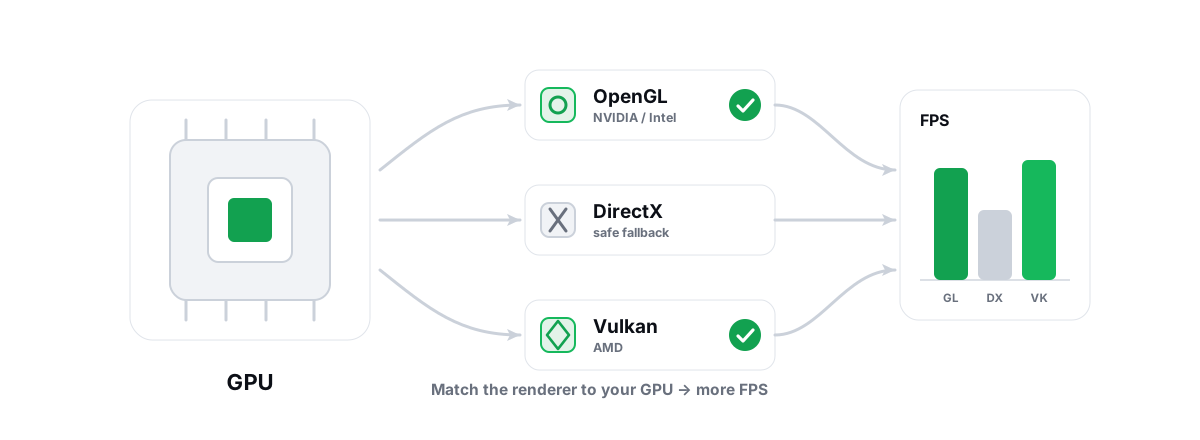
The renderer dropdown is the one emulator graphics setting that can swing FPS, fix a black screen, or stop a recurring stutter. But the best renderer for emulator performance depends entirely on which GPU you own, so the honest answer is GPU-aware, not one-size-fits-all.
What the renderer setting actually changes
Android emulators run a virtual machine, and inside that VM the app expects a GPU. The emulator takes the app's graphics calls — the game issues them in OpenGL ES or Vulkan, the mobile APIs — and translates them into something your real Windows GPU understands.
The renderer dropdown picks which translation path the emulator uses on the host. OpenGL, DirectX and Vulkan are three different host-side backends. Each hands the work to your GPU driver differently, and your driver is better at some paths than others.
So the renderer does not change the game's graphics. It changes the road the frames take to your screen. A bad match means extra CPU overhead, a stutter every few seconds, or in the worst case a black screen where the emulator falls back to slow software rendering.
There is no universal best renderer. There is the best one for your specific GPU and that specific emulator build, and the only way to know is to watch your own frametime graph for a few minutes.
OpenGL: the safe, broadly compatible default
OpenGL is the oldest, most-tested path, and the safest first choice on almost any machine. If you do nothing else, OpenGL usually just works — including on older drivers and integrated graphics where the newer backends get flaky.
Most emulators ship an "OpenGL+" or "Compatibility / Performance (OpenGL)" mode. The "+" or "Performance" variant uses a newer code path that runs faster on modern NVIDIA drivers in particular. Plain OpenGL is the fallback when the fast path breaks.
The trade-off: OpenGL can carry more CPU overhead per frame than Vulkan, because the driver does more state-tracking work on the main thread. In a CPU-bound session — lots of background apps, a busy six-core chip — that overhead is exactly what costs you frames. On a strong GPU with a quiet CPU, you will rarely notice it.
DirectX: where it pulls ahead and where it doesn't
DirectX — usually DirectX 11 in these emulators — is the native Windows graphics API, so on Windows it often has the most mature, best-optimized driver path, especially on NVIDIA and Intel hardware. When OpenGL gives you a black screen or weird artifacts, DirectX is frequently the fix.
On many NVIDIA setups DirectX and OpenGL+ trade blows. One will be a touch smoother in one game and the reverse in another. The gap is usually small — a few FPS and slightly different stutter behaviour, not a night-and-day jump.
Where DirectX clearly wins: compatibility on Windows when a specific game renders wrong on OpenGL, and stability on Intel integrated graphics, where the OpenGL driver has historically been weak. Where it does not help: it will not magically beat Vulkan on a modern AMD card, and it will not rescue a CPU pinned at 100% — that is a virtualization or core-count problem, not a renderer one.
Vulkan: the AMD sweet spot and its caveats
Vulkan is the modern low-overhead API. It pushes more work across multiple CPU threads and asks less of the main thread, which is why it can hold a smoother frametime when the CPU is the limiting factor. On AMD Radeon GPUs it is usually the best pick — AMD's Vulkan driver is excellent and often beats its OpenGL path by a clear margin in emulators.
Vulkan also tends to give the steadiest frametimes when it works, and steadiness matters more than peak FPS for how smooth a game feels. If you are chasing fewer micro-stutters rather than a bigger average number, Vulkan is worth a serious look on AMD.
The caveats are real. Vulkan support varies by emulator build and by GPU driver version, and an older or buggy driver can make it crash, black-screen, or stutter worse than OpenGL. It is also the path most likely to break after an emulator update. On some NVIDIA configs the emulator's Vulkan path is simply less polished than its OpenGL+ and DirectX paths, so it loses there.
One fix helps Vulkan on every vendor: keeping the driver current. A Vulkan regression is sometimes just an old driver, and a clean, recent driver clears it. If a renderer started misbehaving right after a driver change, a clean DDU reinstall is the honest fix, not a registry tweak.
GPU-aware picks: NVIDIA, AMD and Intel
This is the part most guides get wrong by giving one blanket answer. Match the backend to your GPU vendor, then verify. Here is the starting point:
| Your GPU | Try first | Try second | Why |
|---|---|---|---|
| NVIDIA (GTX/RTX) | OpenGL+ (Performance) | DirectX | NVIDIA's OpenGL and DX11 drivers are both very mature; these two trade blows. The Vulkan path is often less polished in emulators. |
| AMD (Radeon) | Vulkan | OpenGL+ / DirectX | AMD's Vulkan driver is strong and usually the smoothest; OpenGL on AMD is historically weaker. |
| Intel (UHD/Iris/Arc) | OpenGL+ | DirectX | Best compatibility on Intel integrated; DirectX is the fallback if a game renders wrong. Arc improves with current drivers. |
These are starting points, not laws. A specific game plus a specific driver version can flip the answer, which is exactly why you test rather than trust a chart — even this one.
If you do not know which GPU the emulator is even using — a real problem on laptops with both integrated and discrete graphics — fix that first. A laptop running the emulator on its weak integrated GPU will be slow no matter which renderer you pick. Force the emulator onto the discrete GPU in Windows Graphics settings or the NVIDIA/AMD control panel. The low GPU usage guide explains how to spot when the wrong GPU is doing the work.
Why the only real test is your own frametime graph
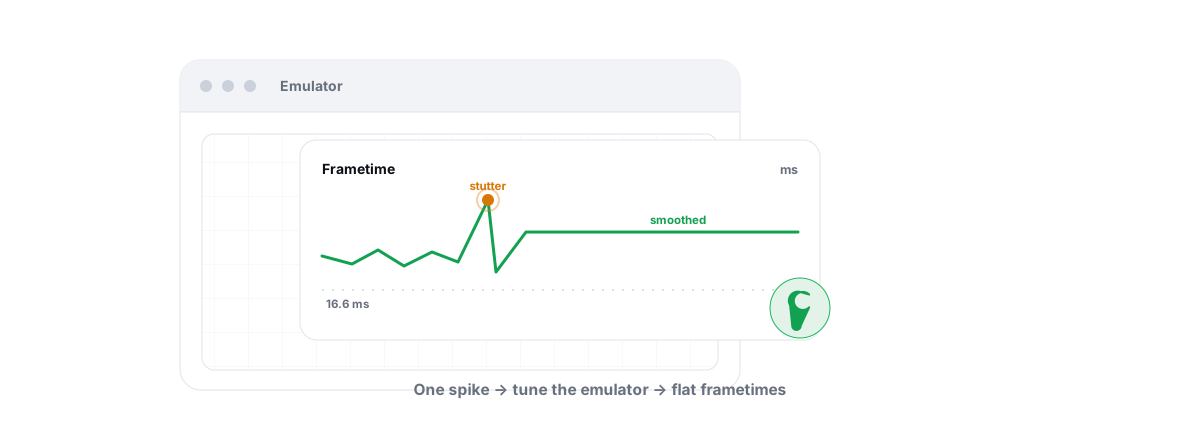
Average FPS is a bad way to judge a renderer. Two backends can both report 60 FPS while one is buttery and the other hitches every two seconds. What you feel is frametime consistency, not the average — a single 50ms spike is a visible stutter even if the average looks fine.
So measure it. Run the same scene — a real match or a busy menu, not the loading screen — on each renderer for a few minutes and watch the frametime graph and the 1% lows. The backend with the flatter line and the higher 1% low wins, even if its average is a frame or two lower.
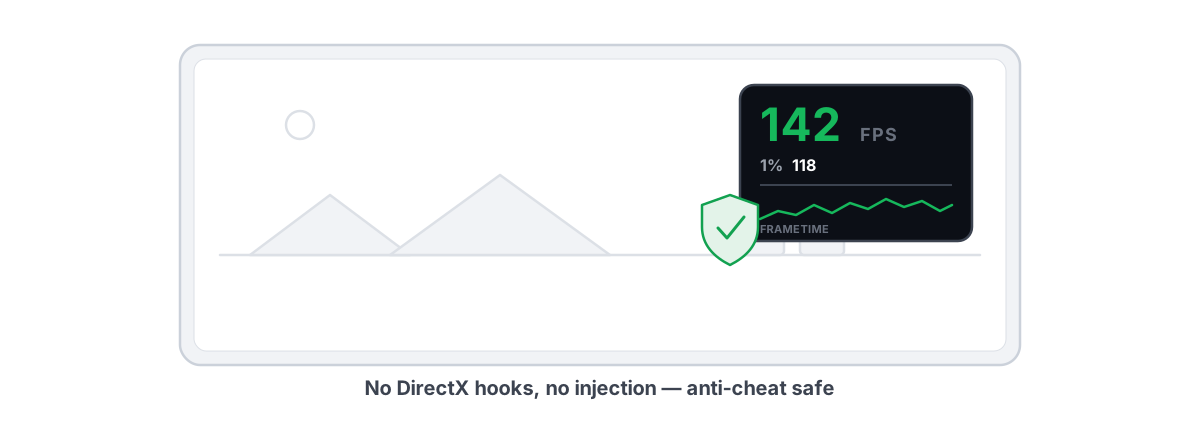
Any overlay that shows 1% lows and frametimes does the job. BRUTAL Optimizer's FPS overlay is free, shows both, and works over emulators — and because it counts DWM composition / D3DKMT present frames instead of hooking the game, it is anti-cheat-safe. If you are chasing stutters specifically, fixing frametime spikes goes deeper on what causes them.
How a GPU-aware tool recommends a renderer
BRUTAL Optimizer detects your GPU vendor and bakes these picks into its emulator and per-game profiles: NVIDIA → OpenGL+ / DirectX, AMD → Vulkan, Intel → OpenGL+. Its 8 tier-aware game profiles (PUBG Mobile/BGMI, COD Mobile, Free Fire, Genshin, Mobile Legends, Clash Royale, Asphalt 9, Arena of Valor) set a sensible renderer alongside resolution, CPU cores, RAM and FPS target for your hardware tier — so you start from a good baseline instead of guessing.
That is guidance, not a guarantee, and the app does not pretend otherwise. It points you at the renderer most likely to win for your GPU; you still confirm with the overlay. It also will not, and should not, touch the one thing that actually decides whether a renderer choice matters: whether the emulator can run the VM at full speed at all.
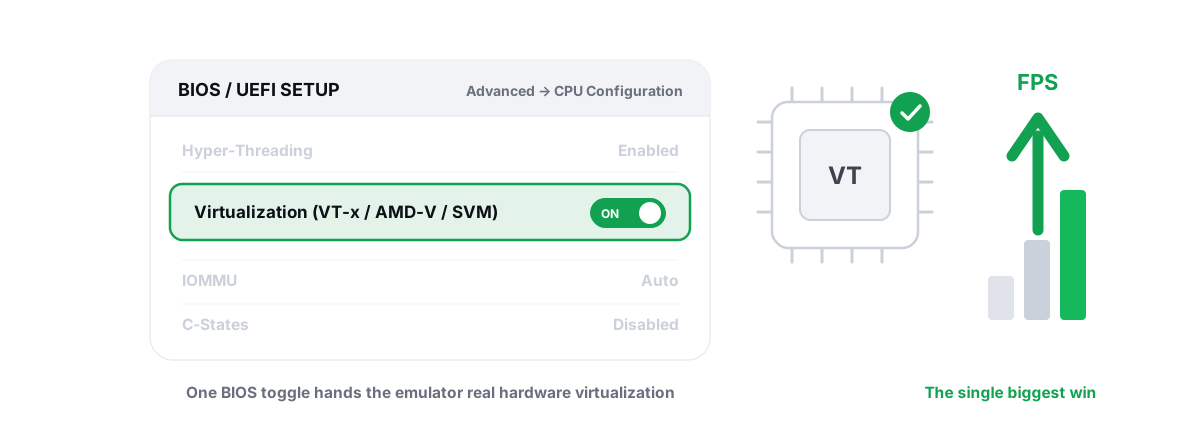
That comes down to CPU virtualization. If Intel VT-x or AMD-V/SVM is disabled in your BIOS, the emulator runs the VM in slow software mode and no renderer will save you. Enabling it is usually the single biggest emulator win there is — bigger than any renderer swap. If you have not checked, do that first: enabling VT-x / AMD-V for emulators is the highest-value ten minutes you will spend. Renderer tuning is the polish on top.
Be blunt about scope: a renderer change buys you smoother frametimes and sometimes a few FPS. It does not multiply your performance, and no honest tool claims it does. The emulator lag and stutter checklist covers the levers beyond the renderer — RAM allocation, core count, frame cap, background load.
Switching safely and reverting if it's worse
Changing renderer is low-risk and fully reversible inside the emulator — it is just a dropdown — but do it methodically so you can tell what actually helped.
- Change one thing at a time. Switch only the renderer; leave resolution, cores and RAM where they are, then test. Change five settings at once and you will never know which one mattered.
- Fully restart the emulator after switching. Most renderer changes only take effect on a clean restart of the emulator engine, not a game relaunch.
- Test the same real scene on each backend for a few minutes with the overlay up. Compare frametimes and 1% lows, not just the average.
- If it black-screens or crashes, the emulator usually falls back to OpenGL on its own. If it does not, switch back to OpenGL manually — that is your known-good baseline.
- Update the GPU driver before you write off Vulkan or DirectX. A backend that stutters on an old driver often runs clean on a current one.
Two honesty notes that matter more than the renderer. First, no renderer hides the fact that you are on an emulator, and you should never try to mask one. Some titles detect emulators on purpose: PUBG Mobile / BGMI puts emulator players in emulator-only matchmaking, and a handful of games restrict or ban emulator play outright. That is the publisher's policy, not a setting any tool changes, and trying to spoof it is itself a ban risk. A good optimizer improves emulator performance only — it never hides an emulator or helps dodge anti-cheat. If you are weighing the bigger picture, is playing on an emulator bannable covers it straight.
Second, performance still rests on the basics: virtualization on, enough free RAM, a sane core count, and a renderer that suits your GPU. Get those right and the renderer choice is the last few percent of polish.
If you would rather not eyeball every dropdown, BRUTAL Optimizer is free for the overlay and the renderer guidance, picks a starting renderer per GPU vendor, and its per-game emulator profiles (Pro) set the rest of the tier-aware settings for you. Either way the rule holds: pick by your GPU, confirm with your own frametime graph, and keep the change only if the line gets flatter.
Frequently asked questions
What is the best renderer for an Android emulator?
There is no single best renderer. Match it to your GPU: NVIDIA usually does best on OpenGL+ or DirectX, AMD on Vulkan, and Intel on OpenGL+. Then confirm by watching your own frametime graph and 1 percent lows over a few minutes of real gameplay, because a specific game and driver version can flip the answer.
Is Vulkan better than OpenGL for emulators?
On AMD Radeon cards Vulkan is usually smoother and the best pick, because AMD's Vulkan driver is strong and its OpenGL path is weaker. On NVIDIA the emulator's Vulkan path is often less polished than OpenGL+ or DirectX, so it can lose there. Vulkan also varies by emulator build and driver version, so test it rather than assuming.
Why does my emulator black-screen after changing the renderer?
The selected backend likely is not supported well by your current GPU driver or that emulator build, so it failed to initialize. Switch back to OpenGL, which is the safest baseline, then update your GPU driver and try the other backend again. Most emulators fall back to OpenGL automatically when a renderer fails.
Does the renderer matter more than CPU virtualization?
No. Enabling Intel VT-x or AMD-V/SVM in BIOS is usually the single biggest emulator win, because without it the emulator runs the virtual machine in slow software mode and no renderer can fix that. Sort virtualization first, then tune the renderer for the last few percent of smoothness.
Will changing the renderer get me banned in mobile games?
Changing the renderer only affects performance, not detection, so it does not create a ban risk by itself. But some games detect emulators on purpose. PUBG Mobile and BGMI put emulator players in emulator-only matchmaking, and a few titles restrict emulator play. That is the publisher's policy. Never try to hide or spoof an emulator, since that is itself a ban risk.
Keep reading
 Emulators
Enable Virtualization for Emulator Speed: BIOS Guide
Enabling CPU virtualization in BIOS is the single biggest emulator speedup most people skip. Per-vendor steps plus the Hyper-V conflict nobody mentions.
 Emulators
Fix Android Emulator Lag and Stuttering
Diagnose the real cause of emulator lag and stutter with a five-check sequence instead of guessing at random tweaks.
 Gaming & FPS
Best FPS Overlay That's Anti-Cheat Safe
Why a present-frame fps overlay is the anti-cheat-safe choice, and how to read 1% lows and frametimes properly.
Stop guessing. Measure it.
BRUTAL Optimizer is the honest way to speed up Windows — 17 free modules, a real FPS overlay, verified disk cleanup and drive health. No kernel driver of our own, no game hooks, every setting change reversible.