Fix Android Emulator Lag and Stuttering
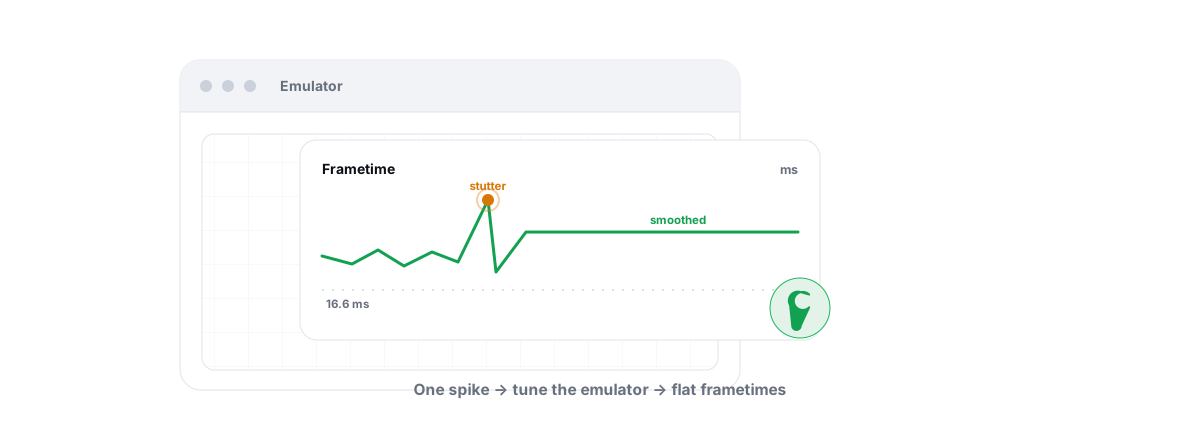
To fix emulator lag and stuttering, you diagnose it instead of guessing — almost every case traces back to one of five real causes. Work them in order and you can usually fix it in twenty minutes without installing a single "booster".
An Android emulator runs a full virtual machine on top of Windows. That makes it heavier than a phone by design, so the goal isn't magic — it's removing the specific thing choking it. Treat this as a checklist and work it top to bottom, because the first checks fix the largest share of cases.
Lag versus stutter: different symptoms, different causes
People use "lag" and "stutter" to mean the same thing. They aren't, and confusing them sends you chasing the wrong fix.
Lag is sustained low performance — the whole session feels heavy, FPS sits low, input feels delayed the entire time. That's a capacity problem: virtualization off, not enough CPU/RAM headroom, or the wrong renderer making your GPU do extra work.
Stutter is intermittent — smooth, then a hitch, then smooth again. The average FPS can look fine while individual frames spike. That's interference: a background process waking up, antivirus scanning a file, a thermal throttle, or shader compilation on a fresh scene.
If it's bad all the time, you have a capacity problem (Checks 1–3). If it's bad in bursts, you have an interference problem (Checks 4–5). The frametime graph tells you which.
Check 1: virtualization off, the classic killer
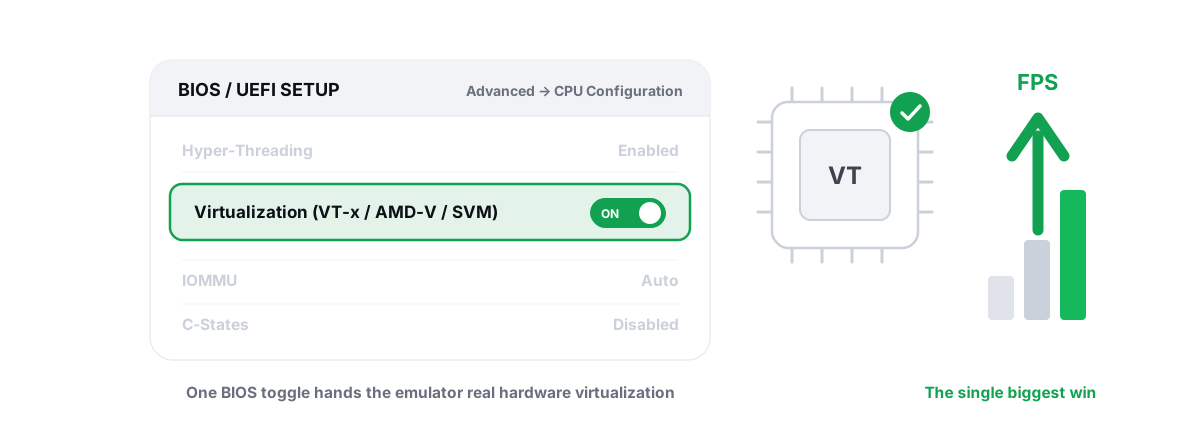
This is the single biggest emulator win, and most people complaining about lag have it switched off without knowing. CPU hardware virtualization — Intel VT-x or AMD-V / SVM — lets the emulator's VM run instructions directly on your CPU. Without it, the emulator falls back to slow software translation and everything crawls.
Check it fast: open Task Manager → Performance → CPU and look at "Virtualization". If it says Disabled, that's your problem. Most emulators also show a warning banner ("VT is disabled") in their settings or system check.
To turn it on, reboot into BIOS/UEFI (usually Del or F2 at boot) and enable:
- Intel: "Intel Virtualization Technology" or "VT-x", often under Advanced → CPU Configuration.
- AMD: "SVM Mode" or "AMD-V", usually under Advanced → CPU Configuration.
One Windows-side catch: if you run Hyper-V, WSL2, the Windows Sandbox, or have Memory Integrity / VBS on, Windows grabs the virtualization layer and some emulators drop into a slower compatibility mode. Modern BlueStacks and LDPlayer have a Hyper-V-compatible engine you can switch to in their settings; older builds need Hyper-V disabled. The full walkthrough is in our guide on enabling VT-x / AMD-V for emulators.
Check 2: RAM pressure and over-allocation
RAM is where people overcorrect. The instinct is "more is better", so they hand the emulator 8GB on a 16GB machine — and then Windows starts paging to disk, which causes exactly the stutter they were trying to avoid.
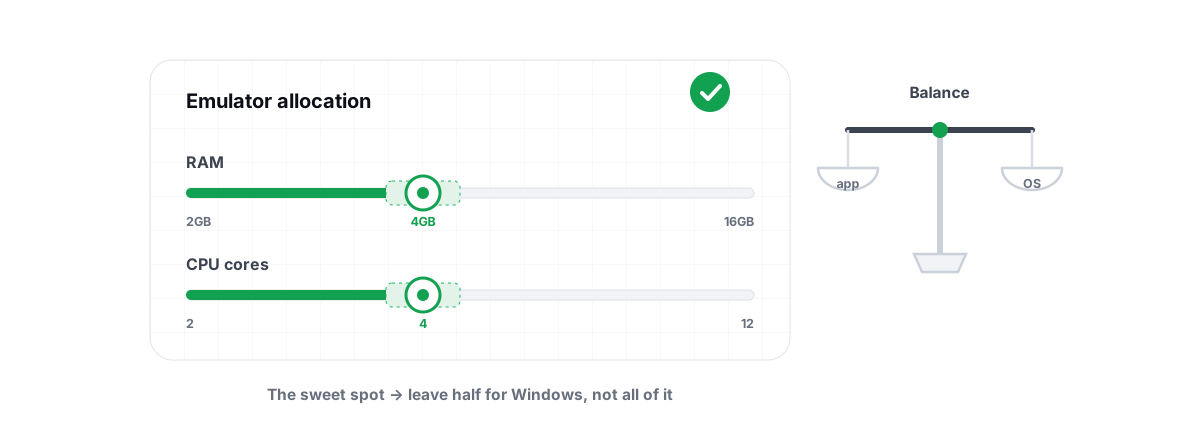
The emulator's RAM allocation is dedicated to the VM. Give it too much and Windows, your browser and the game itself fight over what's left. Give it too little and the Android side thrashes. You want a middle that leaves Windows breathing room.
| Your total RAM | Give the emulator | CPU cores |
|---|---|---|
| 8 GB | 2–3 GB | 2 cores |
| 16 GB | 4 GB | 4 cores |
| 32 GB | 4–6 GB | 4–6 cores |
More cores isn't automatically better either. Allocating every core leaves Windows nothing to schedule its own work on, which causes hitching. On a 6-core/12-thread chip, 4 cores to the emulator is a sane default. Our breakdown of how much RAM and how many cores to give an emulator covers the tier math.
Before you touch allocation, close the obvious memory hogs — a 40-tab Chrome window will undo any tuning. Check Task Manager's Memory column. If you're sitting at 90%+ used before the emulator even launches, fix that first.
Check 3: wrong renderer for your GPU
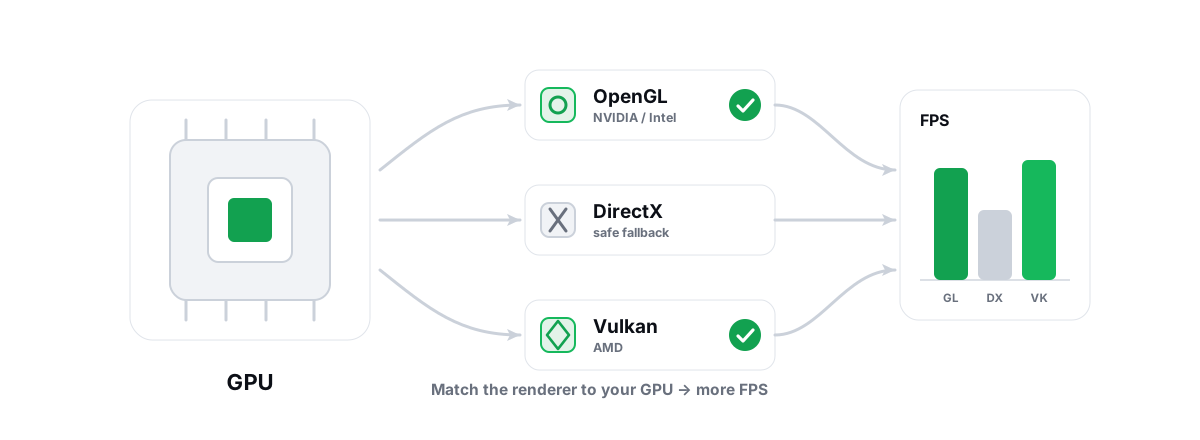
Every emulator lets you pick a graphics renderer — usually OpenGL, DirectX or Vulkan. The wrong one for your GPU forces extra translation work and shows up as both lag and uneven frametimes. The right choice is GPU-vendor-specific; there's no universal "best".
| Your GPU | Try first | Notes |
|---|---|---|
| NVIDIA | OpenGL or DirectX | Both are well-tuned in NVIDIA's driver; test both per emulator |
| AMD | Vulkan | AMD's Vulkan path is usually the smoothest |
| Intel (iGPU / Arc) | OpenGL | Most stable on Intel graphics |
This isn't a rule to obey blindly — it's a starting point. Renderers behave differently per emulator build and per game, so change one setting, restart the emulator (the renderer needs a full restart to take effect), and watch the frametime graph for a minute. If it's worse, switch back. We go deeper on the trade-offs in choosing OpenGL vs Vulkan for emulators.
Two related settings while you're in there. If the emulator offers a frame-rate cap, set it to match what your hardware can hold steady — an uncapped 60 that dips is worse than a locked 60, and pushing 90/120 on a GPU that can't sustain it just guarantees stutter. And if a game stutters on newer device profiles, check whether it's decoding ASTC textures on the CPU; some emulators have a hardware-decode toggle that helps.
Check 4: disk/antivirus interference and thermals
This is the big source of stutter specifically. The emulator's virtual disk is one large file on your drive, and two things love to grab that file and cause hitches.
Antivirus real-time scanning. When the on-access scanner inspects the emulator's disk image mid-game, you get a frametime spike. Adding the emulator's install folder and disk-image folder to your antivirus exclusions usually kills a whole class of periodic stutter. Do this only for the emulator's own folders, and only if you trust the source — never blanket-exclude your whole drive.
A slow or busy disk. If the emulator lives on a mechanical hard drive, load hitches and texture pop-in are baked in — moving it to an SSD is a real, noticeable upgrade. And if your drive is pinned at 100% from something else (Windows Update, a backup, SysMain indexing a fresh install), the emulator waits in line. Task Manager's Disk column shows the culprit.
Thermals. The sneaky one. If FPS is fine for the first ten minutes and then degrades, you're thermal throttling — the CPU or GPU hit its temperature limit and clocked itself down to stay safe. This is extremely common on laptops. Watch your CPU and GPU temps for throttling; sustained 90°C+ means you need better cooling or airflow, not more software tweaks. No optimizer fixes a clogged heatsink.
Check 5: Windows background load and power plan
Two quick Windows-side levers that genuinely move the needle.
Background load. Open Task Manager, sort by CPU, and look at what's running besides the emulator. Browser helper processes, Discord, overlays, a stuck updater — anything stealing cycles shows up as stutter. The biggest repeat offender is a pile of startup programs you never approved quietly eating RAM and CPU. Trim them.
Power plan. On a laptop especially, if Windows is on Balanced or a battery-saver plan, your CPU is held at low clocks to save power — which feels exactly like lag. Plug in, and push the power mode toward performance. Don't expect a miracle on a desktop that's already unthrottled, but on a throttled laptop it's a real, free gain. See how Windows power plans actually work.
Reading the frametime graph to find the spike source
Average FPS hides the truth. A game can average 60 FPS and still feel awful if every few seconds one frame takes 50ms instead of 16ms. That single long frame is the stutter you feel. The frametime graph — and the 1% low number — is where you see it.
Run an anti-cheat-safe FPS overlay on top of the emulator and watch the frametime line, not just the FPS number:
- A flat line with occasional tall spikes → interference. Something is interrupting smooth frames: an antivirus scan, a background process, disk contention. Back to Check 4 and Check 5.
- A line that's consistently jagged or high → capacity. The hardware or settings can't keep up steadily. That's virtualization, renderer or over-allocation — Checks 1–3.
- Spikes clustered when you enter a new area or fight → likely shader compilation or asset streaming. The first pass through new content is the worst; it often smooths out on a second run. Background on shader compilation stutter applies here too.
- FPS fine then sliding down over time → thermal throttling. Watch temps.
Matching the shape of the graph to the cause is the whole game. It turns "my emulator stutters" into "a process wakes up every 30 seconds and spikes one frame" — which you can actually fix. Our deep dive on reading frametime spikes walks through more patterns.
What software automates, and what stays manual
You can do every check above by hand — and you should, at least once, because understanding the cause matters more than any tool. Where software helps is the repetitive parts.
BRUTAL Optimizer's emulator optimizer detects six emulators (GameLoop, BlueStacks, LDPlayer, Nox, MEmu, MuMu) and ships tier-aware game profiles that set a sane resolution, CPU-core count, RAM allocation, FPS target and GPU-appropriate renderer for your hardware — the Check 2 and Check 3 math, done for you. The free FPS overlay shows frametimes and 1% lows over the emulator so you can read the graph above. The Guardian background tuner (Pro) detects a running emulator, raises its CPU/IO/memory priority and timer resolution, and reverts when you stop.
What it deliberately does not do: it can't enable virtualization for you (that's a BIOS setting only you can flip), and it never hides or spoofs the emulator. That last point matters.
BRUTAL improves emulator performance. It never masks an emulator from a game, because trying to dodge anti-cheat is itself a ban risk.
Some mobile games detect emulators on purpose. PUBG Mobile / BGMI puts emulator players in emulator-only matchmaking, and a handful of titles restrict or ban emulator play outright. That's the game publisher's policy, not something any optimizer changes — read the honest version in whether emulator play is bannable. Every change BRUTAL makes is the user-mode, no-kernel-driver kind that runs alongside Vanguard and Easy Anti-Cheat, with every setting change reversible; the reasoning is laid out in our anti-cheat-safe optimization guide.
If you want the manual route, this checklist is complete on its own. If you'd rather not redo the renderer and allocation math for every emulator and game, that's the part worth automating — and it's free to try. Whatever you use, fix the cause you actually have, not the one a forum post guessed at.
Frequently asked questions
What is the single biggest cause of emulator lag?
CPU virtualization being disabled. Intel VT-x or AMD-V/SVM lets the emulator run its virtual machine directly on your CPU; without it the emulator falls back to slow software translation and everything crawls. Check Task Manager, Performance, CPU, Virtualization. If it says Disabled, enable VT-x or SVM in your BIOS before trying anything else.
What is the difference between emulator lag and stutter?
Lag is sustained low performance that feels heavy the whole session, which points at a capacity problem like virtualization off, too little RAM headroom, or the wrong renderer. Stutter is intermittent hitching while the average FPS looks fine, which points at interference like an antivirus scan, a background process, or thermal throttling. The frametime graph tells you which one you have.
How much RAM and how many CPU cores should I give an emulator?
On 16GB total, 4GB and 4 cores is a sane default; on 8GB give 2 to 3GB and 2 cores. More is not better. Over-allocating RAM forces Windows to page to disk and causes the stutter you were trying to avoid, and handing the emulator every CPU core leaves Windows nothing to schedule, which also hitches. Leave Windows at least 6 to 8GB free.
Which graphics renderer should I use in my emulator?
It depends on your GPU. NVIDIA users should try OpenGL or DirectX, AMD users usually get the smoothest result with Vulkan, and Intel graphics tend to be most stable on OpenGL. Change one renderer, fully restart the emulator so it takes effect, and watch the frametime graph for a minute before deciding.
Will an optimizer hide my emulator so a game cannot detect it?
No, and you should not want that. BRUTAL improves emulator performance only and never masks or spoofs an emulator, because trying to dodge anti-cheat is itself a ban risk. Some games like PUBG Mobile detect emulators on purpose and put those players in emulator-only matchmaking. That is the publisher policy, not something any tool changes.
Keep reading
 Emulators
Enable Virtualization for Emulator Speed: BIOS Guide
Enabling CPU virtualization in BIOS is the single biggest emulator speedup most people skip. Per-vendor steps plus the Hyper-V conflict nobody mentions.
 Emulators
How Much RAM for an Emulator (and How Many CPU Cores)?
More cores and RAM usually makes an emulator slower, not faster. Here are the sane numbers per PC tier and how to verify them.
 Emulators
Best Renderer for Emulator: OpenGL vs Vulkan vs DX
OpenGL, DirectX or Vulkan? The right emulator renderer depends on your GPU vendor. Here is the honest, GPU-aware way to choose and test it.
Stop guessing. Measure it.
BRUTAL Optimizer is the honest way to speed up Windows — 17 free modules, a real FPS overlay, verified disk cleanup and drive health. No kernel driver of our own, no game hooks, every setting change reversible.