Enable Virtualization for Emulator Speed (VT-x / AMD-V BIOS Guide)
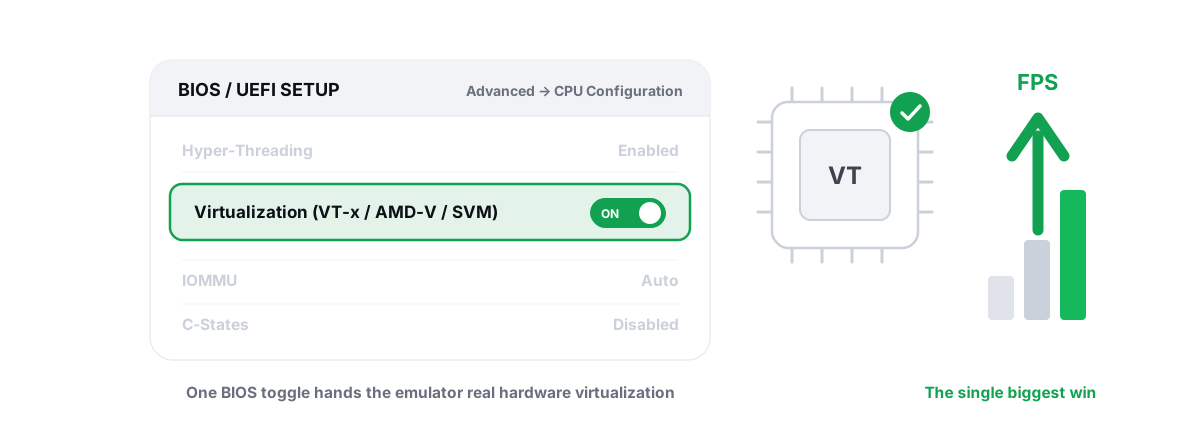
If you want to enable virtualization for your emulator, the fix is probably not in the emulator at all. It's one toggle in your BIOS, and most people never flip it. With it off, every Android emulator runs in software-emulation slow mode.
Hardware virtualization — Intel calls it VT-x, AMD calls it AMD-V or SVM Mode — lets your CPU run a virtual machine at near-native speed. Every Android emulator (GameLoop, BlueStacks, LDPlayer, Nox, MEmu, MuMu) is a virtual machine running Android x86. With virtualization off, the CPU has to fake that VM in software. With it on, the hardware does the heavy lifting directly.
This is the single biggest emulator speedup, and it's free. Here's how to check it, turn it on per vendor, and dodge the one Windows feature that quietly cancels out the win.
Why virtualization is the difference between crawling and playable
An emulator pretends to be a phone. Inside that pretend phone, an entire copy of Android runs, executing app code compiled for ARM or x86. The instructions that app issues have to be translated and scheduled by your real CPU.
Without VT-x / AMD-V, the emulator does this with software-based binary translation. It works, but it's slow — the CPU spends most of its budget managing the illusion instead of running your game. You get single-digit frame rates, audio that crackles, menus that stutter, and a CPU pinned at 100% doing very little useful work.
Turn virtualization on and the CPU's hardware-assisted extensions take over. Guest code runs closer to bare metal, the host stops burning cycles on translation, and the same emulator on the same PC can jump from barely-moving to genuinely playable. This isn't a small tune — it's the difference between "why is this 8 FPS" and "this is fine."
If an emulator feels broken-slow on hardware that should handle it, check virtualization first. Nothing else you change matters as much.
How to check if VT-x / AMD-V (SVM) is already on
You don't need to reboot into BIOS to find out. Windows tells you in two places.
Task Manager (fastest)
- Press
Ctrl+Shift+Escto open Task Manager. - Go to the Performance tab and click CPU.
- Look at the bottom-right for Virtualization. It says Enabled or Disabled.
If it says Enabled, your CPU supports it and it's already on — your slow emulator has a different cause (jump to the Hyper-V section, it's the usual culprit). If it says Disabled, that's your fix waiting in BIOS.
Command line (more detail)
Open Command Prompt and run:
systeminfo
Scroll to the Hyper-V Requirements block at the bottom. Virtualization Enabled In Firmware: Yes means it's on in BIOS. If you instead see a line saying a hypervisor was detected, Windows itself is already using virtualization — relevant later.
Inside the emulator there's a third place to confirm: most engines (LDPlayer, BlueStacks, MEmu) show a virtualization or "VT" status indicator in their settings, and warn you with a banner when it's off. GameLoop's Smart Resource Manager behaves the same way.
Enabling Intel VT-x in BIOS/UEFI, step by step
The setting always exists on modern Intel CPUs — it's just buried and often off by default, especially on prebuilt and laptop boards.
- Save your work and restart the PC.
- As it powers on, press the BIOS key repeatedly. It's usually
Delon desktops, orF2/F10/Escon laptops. The brand matters more than the model — Dell often uses F2, HP uses Esc then F10, Lenovo uses F1 or F2. - Find Advanced, CPU Configuration, or Advanced CPU Settings. On laptops it may sit under Configuration, Security, or System Configuration.
- Look for Intel Virtualization Technology, Intel VT-x, or VMX. Set it to Enabled.
- If you see Intel VT-d (directed I/O) nearby, leave it as-is — it's for device passthrough and isn't needed for emulators.
- Press
F10to Save and Exit (the exact key is shown on screen). Confirm, and let Windows boot.
Re-check Task Manager. Virtualization should now read Enabled. If the BIOS option is greyed out or missing entirely, you may have locked OEM firmware — a BIOS update sometimes exposes it, though that's a bigger decision. Read whether a BIOS update is worth it before you go there.
Enabling AMD-V / SVM Mode on AMD boards
AMD's naming trips people up. There's rarely a setting literally called "AMD-V." On AMD motherboards the toggle is named SVM Mode — Secure Virtual Machine. Same feature, different label.
- Restart and tap the BIOS key — usually
Delon AMD desktop boards (ASUS, MSI, Gigabyte, ASRock all use Del). - If you land in an EZ Mode screen, press
F7or click Advanced Mode. - Navigate to Advanced → CPU Configuration. On some boards it's buried in the OC / AI Tweaker menu instead, depending on vendor.
- Find SVM Mode and set it to Enabled.
- Save and exit with
F10.
For a Ryzen build — the kind of CPU that runs emulators well, like a 6-core Ryzen 5 — SVM is the toggle that lets all those cores actually serve the VM at full speed. Leave it off and a strong AMD chip will still crawl in an emulator, which fools people into blaming the GPU.
| Your CPU | What it's called | Where to look in BIOS |
|---|---|---|
| Intel | Intel Virtualization Technology / VT-x / VMX | Advanced → CPU Configuration |
| AMD | SVM Mode (this is AMD-V) | Advanced → CPU Configuration (or OC/AI Tweaker) |
The Hyper-V / VBS conflict that slows emulators down
Here's the part almost nobody mentions, and it's why some people enable VT-x, reboot, and see no improvement.
Even with virtualization on in BIOS, Windows can grab those extensions for itself through Hyper-V and Virtualization-Based Security (VBS) — including Memory Integrity (HVCI) and the Windows Hypervisor Platform. When Windows runs its own hypervisor, your emulator can't get direct hardware access. It falls back to a slower compatibility path, and you're back to stuttering.
This catches a lot of people because Windows 11 ships with VBS on by default on many machines, and features like the Windows Subsystem for Android, WSL, the Windows Sandbox, and some core-isolation security settings all switch Hyper-V on behind your back.
Symptoms of the conflict: Task Manager shows Virtualization Enabled, systeminfo reports a hypervisor is running, the emulator complains that VT is unavailable or runs in compatibility mode, and FPS stays low no matter what graphics setting you change.
Most modern emulators have made peace with Hyper-V — recent BlueStacks, LDPlayer, MEmu and MuMu offer a Hyper-V-compatible engine mode in their settings, and switching to it fixes the conflict without disabling anything in Windows. Try that first; it's the safest path.
If your emulator still insists on exclusive access, the deeper fix is turning off the Windows features that hold the hypervisor: Hyper-V, the Windows Hypervisor Platform, Virtual Machine Platform, and Memory Integrity / VBS. That's a real security trade-off, not a free win — Memory Integrity protects against driver-level malware, so only disable it deliberately and know how to put it back.
How BRUTAL's Module 11 (VBS/HVCI control) relates, reversibly
Toggling VBS by hand means digging through bcdedit, the Windows Features dialog, and the Core Isolation page — and it's easy to leave your machine in a half-configured state you can't remember how to undo.
This is the narrow case where BRUTAL Optimizer's emulator tools earn their place. Module 11 (VBS/HVCI control) is one of the app's five Pro modules. It disables VBS / HVCI and the Spectre/Meltdown mitigations using the same bcdedit commands you'd run yourself, but it records the exact reverse command for every change, so one click puts everything back. Before a change this size it also attempts a System Restore point, and the per-module undo survives reboots.
That's the honest framing: BRUTAL doesn't do anything to your VBS settings that Windows can't, and it doesn't hide a kernel driver to force the change. It's a user-mode wrapper over the tools Windows already ships — which is also why it runs alongside Vanguard, EAC and BattlEye without tripping them. If you'd rather not touch VBS at all, you don't have to; the engine-mode switch above usually solves the conflict on its own. Disabling Memory Integrity removes a real security layer, so weigh it for a competitive emulator setup, not as a default.
Confirming the speedup in your emulator's engine info
Don't trust vibes — verify. After enabling virtualization and resolving any Hyper-V conflict, confirm it in three places:
- Task Manager → Performance → CPU: Virtualization reads Enabled.
- Emulator settings: the VT / virtualization indicator shows active or "on," and the engine mode is the fast one (not compatibility). BlueStacks lists it under Engine; LDPlayer and MEmu show it in their performance/diagnostics panel.
- In-game feel: CPU usage drops for the same workload, frame rate climbs, and frametimes smooth out. A stutter you used to feel every few seconds should fade.
For an objective frame-rate read while you compare before and after, an FPS overlay that counts presented frames beats eyeballing it. The free FPS overlay in BRUTAL works over emulators and shows 1% lows and frametimes — it counts DWM/D3DKMT present frames rather than hooking the game, so it's safe to run. A real jump in average FPS and steadier frametimes after the BIOS change confirms the win is genuine.
Once virtualization is on and confirmed, the rest of emulator tuning finally matters. Allocate a sane number of CPU cores (usually half your threads, not all of them), give the VM enough RAM but leave Windows room to breathe, pick the renderer that suits your GPU — NVIDIA tends to do best on OpenGL or DirectX, AMD on Vulkan — and cap the frame rate to your panel. There's a full walkthrough of those levers in getting 90–120 FPS in an emulator, and if you're still fighting hitches after virtualization is on, the emulator lag and stutter guide covers what's left.
Why this is real and not a placebo tweak
A lot of "emulator speed" advice online is junk — registry "boosters," fake RAM cleaners, magic config files. This one is different, and you can prove it to yourself.
Virtualization isn't a setting that tells the emulator to go faster. It changes how the CPU physically executes the guest code. With it on, the processor's hardware virtualization extensions run guest instructions directly; with it off, every privileged instruction is trapped and emulated in software. That's a measurable, architectural difference, not a placebo — and it's exactly why the emulator itself nags you when virtualization is off. The software knows it's running in slow mode.
Contrast that with the tweaks that don't move the needle: closing background apps to "free RAM" rarely helps if you weren't short on RAM, and there's no registry value that unlocks hidden FPS — those are the kind of claims game-booster apps make and can't back up. Virtualization is the opposite: a real hardware lever with a real, repeatable result.
Two honest caveats so your expectations stay grounded. First, an emulator runs a whole virtual machine, so it will always be heavier than a real phone — virtualization makes it fast, not magic, and a weak CPU is still a weak CPU. Second, performance is the only thing any tool can help with. Some games detect emulators on purpose: PUBG Mobile and BGMI route emulator players into emulator-only matchmaking, and a few titles restrict emulator play entirely. That's the publisher's policy, set in their code. No legitimate optimizer should ever try to hide or spoof an emulator to dodge that — masking an emulator is itself a ban risk, and it's a line worth not crossing. Make the emulator fast and honest; that's the whole game.
If the manual BIOS route and the VBS conflict have you nervous about doing it by hand, BRUTAL Optimizer is free for the core toolbox and keeps every system setting change reversible, with a System Restore point attempted before the big ones — so you can flip the conflicting Windows features, confirm the gain with the overlay, and undo it cleanly if it's not for you. But the BIOS toggle itself costs nothing and is the real win. Do that part regardless.
Frequently asked questions
How do I check if virtualization is enabled for my emulator?
Open Task Manager with Ctrl+Shift+Esc, go to Performance then CPU, and look at the bottom-right for Virtualization. It reads Enabled or Disabled. Most emulators also show a VT status indicator in their settings and warn you when it is off.
What is the difference between VT-x and AMD-V?
They are the same kind of feature from different CPU makers. VT-x is Intel's hardware virtualization; AMD-V is AMD's. On AMD motherboards the BIOS setting is usually labeled SVM Mode rather than AMD-V, which trips up a lot of people.
Why is my emulator still slow after I enabled virtualization in BIOS?
Windows is probably using the virtualization extensions itself through Hyper-V or VBS, so the emulator cannot get direct hardware access and falls back to a slow compatibility path. Switch your emulator to its Hyper-V-compatible engine mode, or disable the conflicting Windows virtualization features if needed.
Is it safe to disable VBS and Memory Integrity for emulator performance?
It works, but Memory Integrity protects against driver-level malware, so it is a real security trade-off rather than a free win. Try your emulator's Hyper-V-compatible engine mode first. Only disable VBS deliberately, and make sure you know how to turn it back on.
Will enabling virtualization help me avoid an emulator ban?
No. Virtualization only improves emulator performance. Some games detect emulators on purpose and route those players into emulator-only matchmaking or restrict play, which is publisher policy. No legitimate optimizer should hide or spoof an emulator, since masking one is itself a ban risk.
Keep reading
 Emulators
How to Get 90 or 120 FPS on an Android Emulator
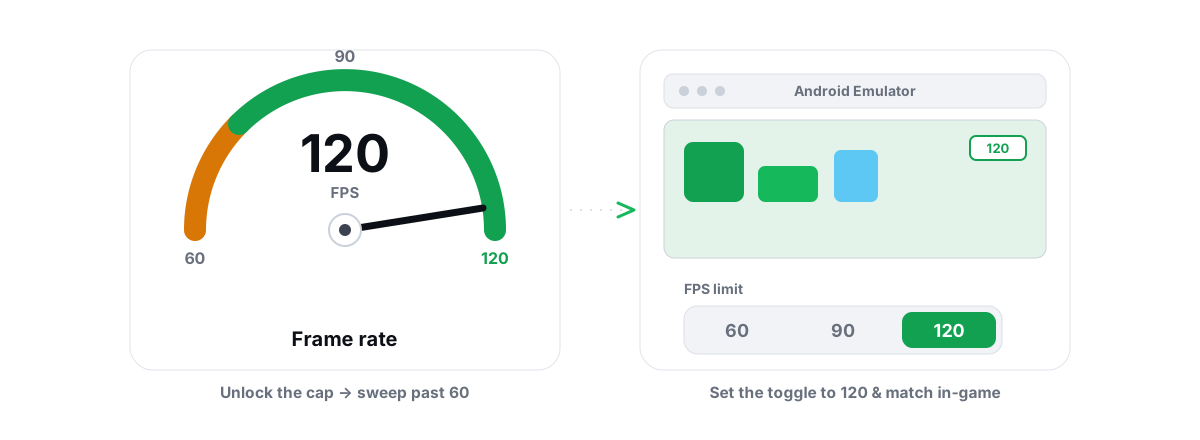
The honest chain for high-refresh emulator gaming: lift the cap, check the game, pick the renderer, enable virtualization, and judge by frametimes.
 Emulators
Fix Android Emulator Lag and Stuttering
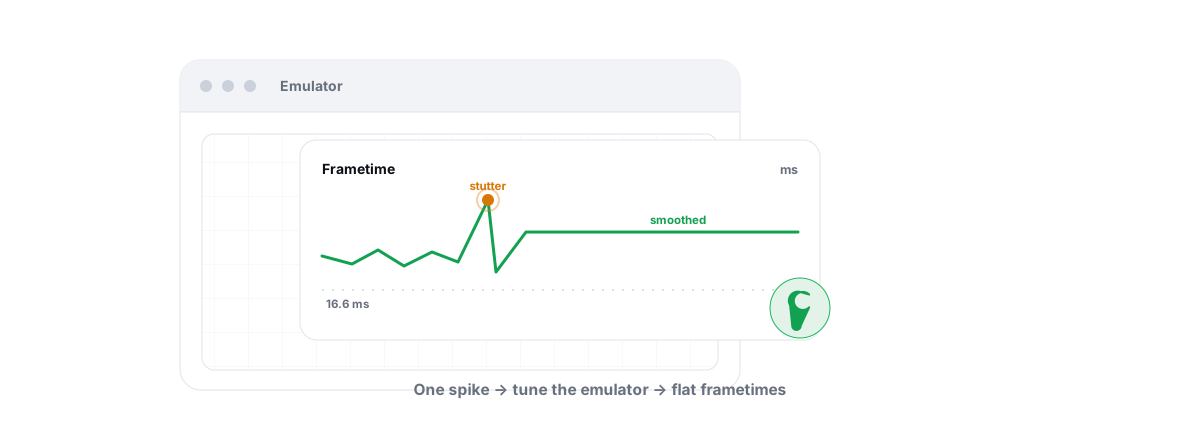
Diagnose the real cause of emulator lag and stutter with a five-check sequence instead of guessing at random tweaks.
 Emulators
How to Optimize GameLoop for BGMI / PUBG Mobile
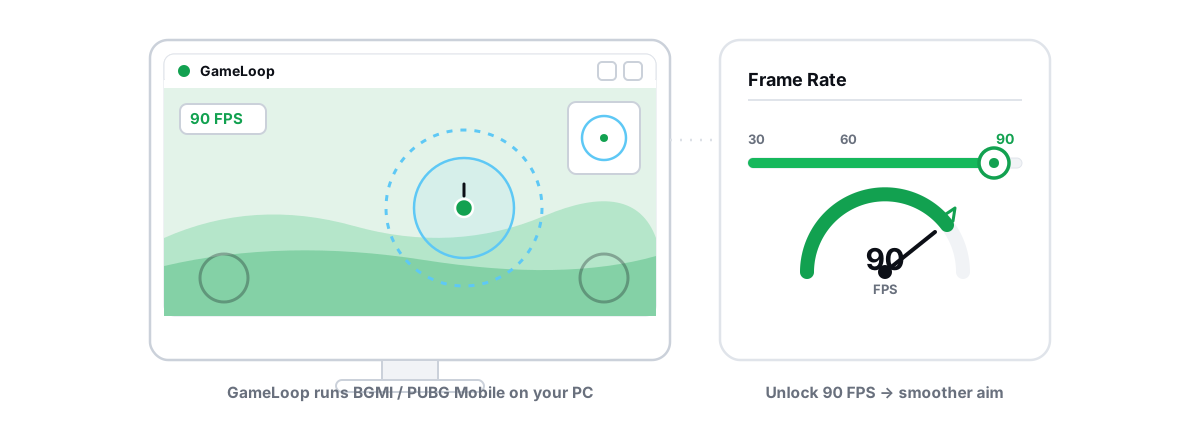
An anti-cheat-safe GameLoop tuning walkthrough for BGMI and PUBG Mobile, with honest words on emulator-only matchmaking.
Stop guessing. Measure it.
BRUTAL Optimizer is the honest way to speed up Windows — 17 free modules, a real FPS overlay, verified disk cleanup and drive health. No kernel driver of our own, no game hooks, every setting change reversible.